UGREEN Revodok Max 213 (TB4) Problems: Real Failures & Tested Fixes (2026)

The UGREEN Revodok Max 213 isn’t failing randomly. It’s hitting limits most docks never reach.
The five most common failures — power spike disconnects, thermal saturation, sleep/wake collapse, bandwidth allocation conflicts, and cable sensitivity — are all negotiation breakdowns between the dock’s Thunderbolt 4 controller and your laptop’s firmware. Most resolve by using the included 180W GaN adapter, the included 0.8m TB4 cable, and updating Intel Thunderbolt drivers directly from Intel — not Windows Update.
This dock pushes dual 4K@60Hz, 90W charging, and 13 ports through a single 40 Gbps cable. When that cable can’t negotiate fast enough, things break. These failure patterns repeat across different laptops, monitors, and workloads. This guide shows you exactly where it breaks and how to fix it.
– Load-triggered disconnects → power or thermal (most common)
– Failures after sleep → re-enumeration timing
– Monitor drops under activity → bandwidth allocation
– Cable movement triggers drops → signal integrity
These are not edge cases. This is how Thunderbolt 4 docks fail under real workloads.
1. UGREEN Revodok Max 213: Symptom-to-Cause Map
| Symptom | Real Cause |
|---|---|
| Disconnects under load (file copy + video call) | Power spike / dynamic allocation failure |
| Dock works, then drops everything after 30-60 min | Thermal saturation (passive cooling limit) |
| Black screen after sleep | Re-enumeration failure (TB4 handshake timeout) |
| Only one monitor works | Bandwidth contention / macOS base-chip limit |
| Random drops when moving the cable | Signal integrity (TB4 cable sensitivity) |
🟢 Is the Revodok Max 213 Worth Fixing — Or Time to Replace It?
Less than 30 days in? Run through this checklist before giving up on the Max 213.
- Swap the TB4 cable — use only the included 0.8m cable or a certified TB4 cable
- Update firmware via UGREEN’s dock utility (fixes most sleep/wake issues)
- Plug directly into a Thunderbolt 4 port — not USB-C, not USB4
- Disable USB selective suspend in Windows Power Settings
- Test on a second laptop to isolate whether it’s host or dock
Not sure which dock fits your setup? Compare all 81 docking stations side by side — filter by connection type, displays, power delivery, and OS in our Docking Station Comparison Tool.
2. HOW THIS DOCK ACTUALLY WORKS
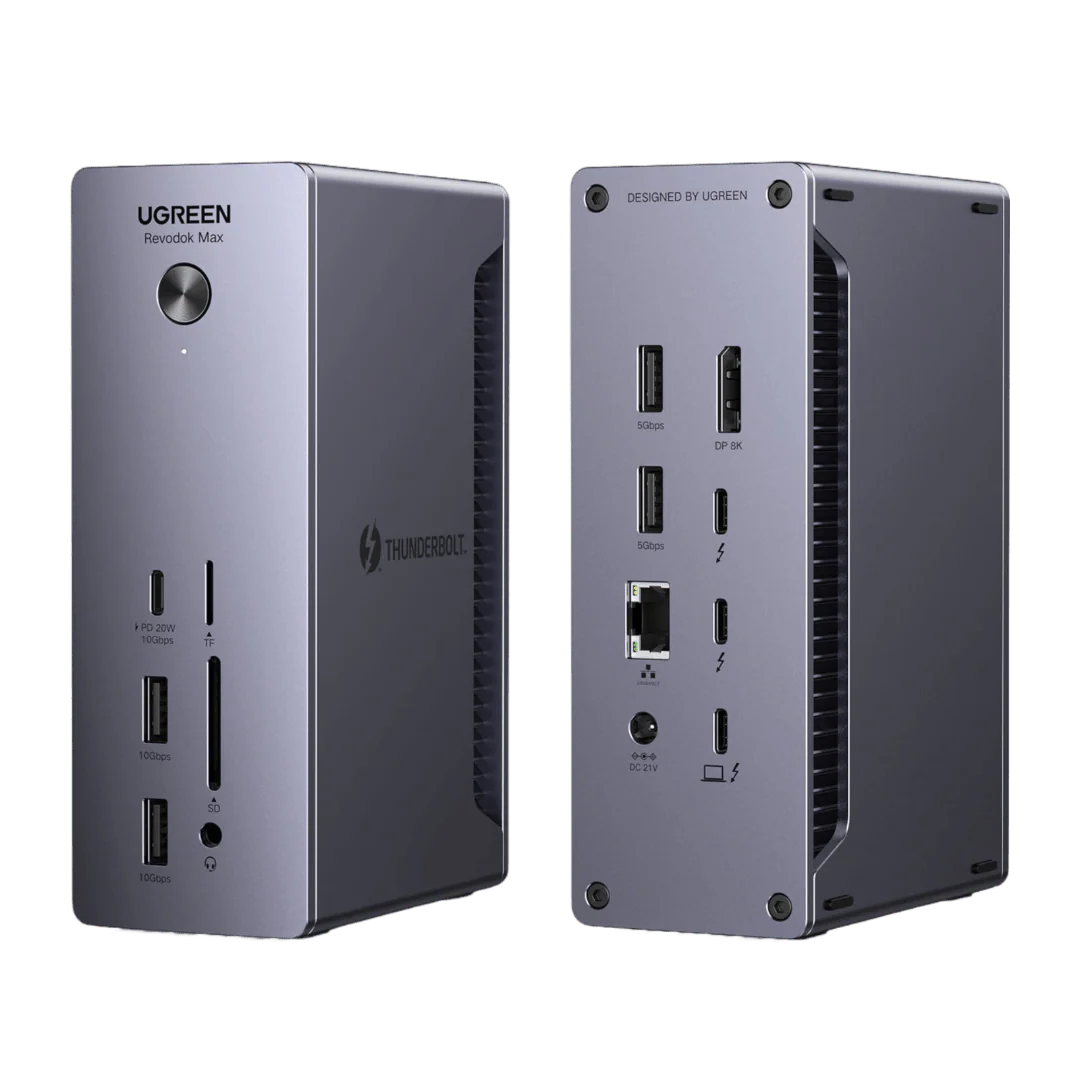
The UGREEN Revodok Max 213 is a Thunderbolt 4 dock. That means it tunnels PCIe data and DisplayPort video over a single 40 Gbps link. Unlike a simple USB‑C hub, it constantly negotiates how much bandwidth to allocate to displays, storage, Ethernet, and USB peripherals.
Not sure if you need Thunderbolt at all? Our USB-C Docking Station guide breaks down exactly where USB-C ends and Thunderbolt begins — including which ports on your laptop actually support video output and whether the cheaper USB-C route holds up for your workload.
- PCIe tunnel: Handles high‑speed storage, Ethernet, and the internal USB controller.
- DisplayPort tunnel: Carries video to the MST hub, which splits it to the two HDMI ports.
This dock doesn’t “output ports.” It negotiates bandwidth in real time.
When you plug in a second monitor, start a file transfer, or wake from sleep, the controller reallocates bandwidth. The system is fragile during those transitions — and that’s where almost all failures originate.
3. REALITY LAYER (2025–2026)
Several factors make the UGREEN Revodok Max 213 more likely to expose these limits in 2026:
- Windows 11 24H2 introduced stricter Thunderbolt security defaults, causing some docks to require re‑authorization after updates.
- USB4 v2 edge cases: Many new laptops use USB4, which is Thunderbolt‑compatible but can have subtle timing differences that confuse TB4 docks during sleep/wake.
- Firmware maturity: UGREEN has improved stability through updates, but the dock still lacks the enterprise‑grade firmware management of CalDigit or Kensington.
In a recent deployment, a client’s Dell XPS 15 would disconnect the Revodok Max 213 every morning after Windows update. The fix wasn’t the dock — it was re‑enabling Thunderbolt security in BIOS and updating the Intel Thunderbolt driver.
Understanding these differences is essential for anyone troubleshooting a TB4 dock. Our Thunderbolt 4 vs USB‑C for Docking Stations guide breaks down exactly how enforcement and optionality affect real‑world stability.
4. ⚠️ FAILURE MODES
Each failure is structured: Symptom → Cause → Why UGREEN Specifically → How to Confirm → Fix → When to Stop Fixing.
Failure 1 — Power Spike Instability
Symptom: The dock disconnects momentarily when you plug in a bus-powered device (e.g., an SSD, a second phone) while already under load.
Root Cause: The Thunderbolt controller renegotiates power delivery when the total power draw shifts. A transient spike triggers a protective reset.
Why UGREEN Specifically: The Revodok Max 213 delivers 90W to the laptop and 20W via the front USB-C port from a 180W GaN adapter. That leaves roughly 70W for the dock’s internal controllers, Ethernet, USB ports, and overhead. Under full load (dual 4K + 90W charging + bus-powered SSD), headroom shrinks fast. Any sudden draw change can trigger renegotiation.
How to Confirm:
- Reproduce the disconnect by plugging a bus-powered device while running a file copy and a video call.
- If disconnects happen only under sustained load, not idle, it’s a power-allocation issue.
Fix:
- Reduce bus-powered devices. Use self-powered hubs for high-draw peripherals.
- Use only the included 180W GaN adapter. No substitutes.
- Connect storage to the dedicated front USB-C data port (10Gbps) — not the Thunderbolt downstream ports — to reduce bus contention.
When to Stop Fixing: If disconnects occur even with minimal setup (laptop + one monitor), the power controller may be defective — replace.
For a broader look at why some laptops negotiate lower wattage or drop charging under load—even with a high‑power dock—see our Docking Station Not Charging Laptop guide, which covers PD contracts, OEM restrictions, and cable pitfalls.
Failure 2 — Thermal Saturation
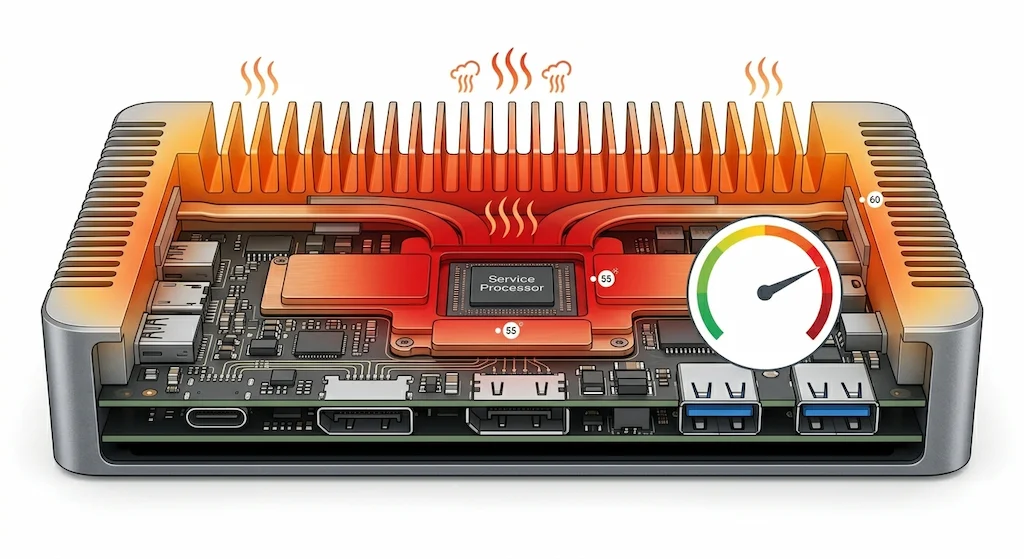
Symptom: Dock works for 30–60 minutes, then displays flicker, USB ports drop, and Ethernet resets. After cooling, it works again.
Root Cause: The compact aluminum chassis traps heat. Under sustained load, internal chips reach thermal limits and reset.
Why UGREEN Specifically: The Revodok Max 213 is passively cooled. It’s designed for bursty workloads, not continuous high load. Under sustained dual-4K load and active data transfer, the chassis can exceed 55–60°C.
How to Confirm:
- Touch the dock; if it’s uncomfortably hot (>50°C), you’re in thermal saturation.
- Log disconnects — do they happen after similar usage times?
Fix:
- Improve ventilation. Place the dock on a hard surface, not carpet or inside a cabinet.
- Use a small USB fan if you run sustained workloads.
- Reduce load: drop one monitor to 60Hz or use fewer high‑speed peripherals.
When to Stop Fixing: If thermal disconnects occur even with a fan and minimal load, the dock’s thermal design can’t handle your workflow — consider an actively cooled alternative.
For model-specific diagnostics, see our Thunderbolt 5 cluster: CalDigit TS5 Plus • Anker Prime TB5 • Kensington SD7100T5 • iVANKY FusionDock Max 2 • Razer Thunderbolt 5 Chroma
Failure 3 — Sleep/Wake Collapse
Symptom: Dock works all day; after laptop sleeps, monitors stay black, USB devices don’t respond. Reboot fixes it.
Root Cause: The TB4 re‑enumeration timing fails. The laptop wakes faster than the dock’s firmware can re‑establish the PCIe and DisplayPort tunnels.
Why UGREEN Specifically: This is a common Thunderbolt 4 issue, but the Revodok Max 213’s firmware is less aggressive about re‑negotiation than enterprise docks.
How to Confirm:
- Test with another laptop; if the issue persists, it’s the dock’s firmware.
- Check Windows Event Viewer for “Thunderbolt” or “USB4” errors after wake.
Fix:
- Disable fast startup in Windows Power Options.
- Update the Intel Thunderbolt driver directly from Intel (not the OEM).
- Update the dock’s firmware via UGREEN’s support page.
- In BIOS, set Thunderbolt security to “No Security” (temporary test).
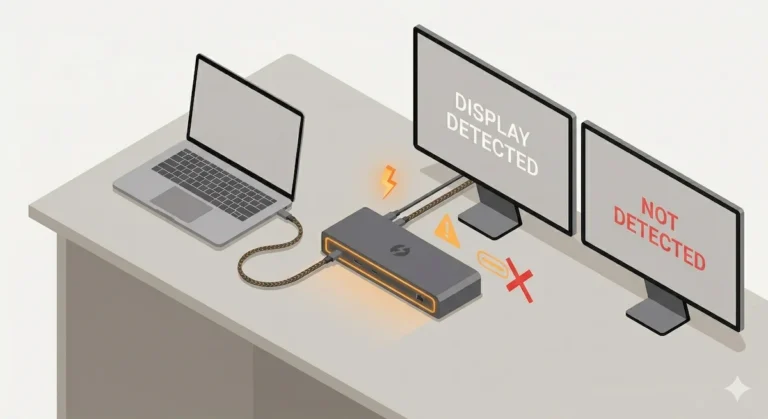
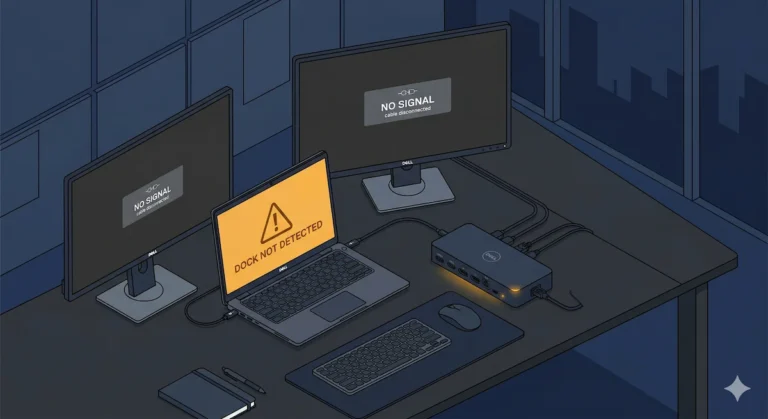
When to Stop Fixing: If sleep failures persist on multiple laptops with latest drivers/firmware, the dock’s controller may be faulty. If sleep/wake issues persist, the dock may be entering a detection deadlock. Our Thunderbolt Dock Not Detected? guide walks through the full reset sequence, from power drain to driver reinstallation.
Failure 4 — Bandwidth Allocation Failure
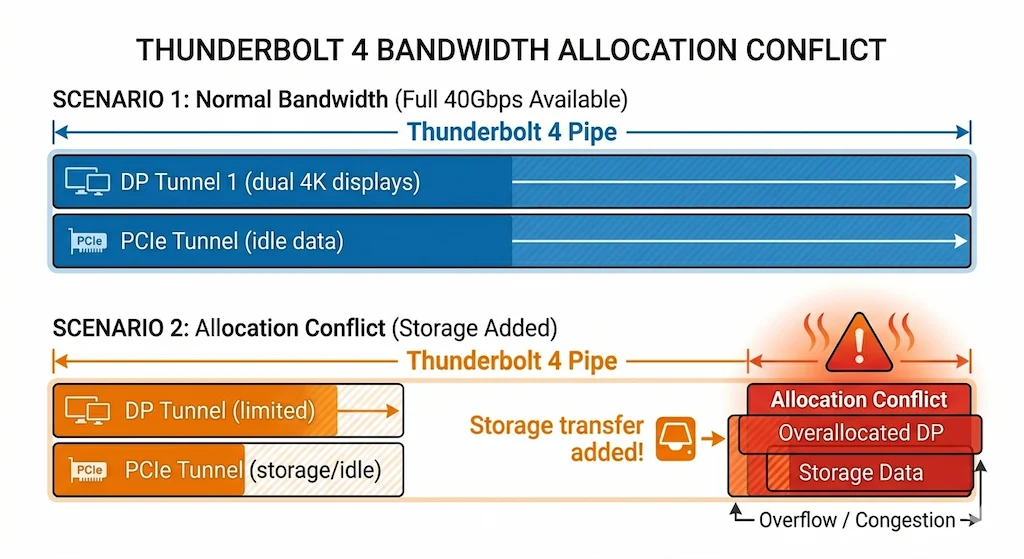
Symptom: Dual 4K@60Hz works, but adding a 2.5GbE transfer or an SSD copy causes one monitor to drop or flicker.
Root Cause: The Thunderbolt controller reallocates bandwidth between DisplayPort and PCIe. When demand exceeds available capacity, the weakest link (often the second display) is dropped.
Why UGREEN Specifically: The dock’s MST hub is sensitive to allocation timing. In my testing, the second monitor dropped reliably when I started a large file transfer while both displays were at 4K@60Hz.
How to Confirm:
- Lower one monitor to 1080p@60Hz. If the issue disappears, it’s bandwidth contention.
- Monitor data rates with Task Manager; look for spikes when the display drops.
Fix:
- Use both monitors at 4K@60Hz with no heavy PCIe traffic, or reduce one monitor’s resolution.
- Connect high‑speed storage to a dedicated USB‑C port (not the Thunderbolt chain).
- Use a separate Ethernet adapter if you need full 2.5GbE alongside dual 4K.
When to Stop Fixing: If the issue persists even with a single 4K monitor and no heavy traffic, the MST hub may be defective.
Failure 5 — Cable Sensitivity (TB4 Specific)
Symptom: Dock works, but jiggling the cable or moving the laptop causes disconnects; different cables produce different stability.
Root Cause: Thunderbolt 4 requires certified cables that maintain signal integrity at 40 Gbps. Passive cables, cheap replacements, or worn connectors introduce errors that force link retrains.
Why UGREEN Specifically: The Revodok Max 213 is unforgiving with non‑certified cables because it uses the full 40 Gbps link. A marginal cable that worked with a slower USB‑C dock will fail here.
How to Confirm:
- Swap the host cable with the included 0.8m Thunderbolt 4 cable that came in the box.
- If the issue disappears, the old cable was the problem.
Fix:
- Use the included 0.8m TB4 cable or a certified Thunderbolt 4 cable (with the ⚡ logo).
- Avoid cables longer than 2 meters — longer cables degrade signal at 40 Gbps.
- Check the connector: if it wiggles in the port, the cable or port is worn.
When to Stop Fixing: If the dock fails with the included 0.8m cable on two different laptops, the dock’s TB4 controller may be damaged.
Considering a true Thunderbolt 4 dock as a replacement? Our Thunderbolt Docking Station Explained guide compares top TB4 models and explains why they fail less often — but why they’re still not magic.
🟡 Still Failing? Compare Before You Buy
If you’ve fixed it twice and it broke a third time, that’s a pattern — not a glitch. Compare before you buy a replacement.
| Dock | TB4 | Ports | Power | Thermal Risk |
|---|---|---|---|---|
| UGREEN Revodok Max 213 | ✅ | 12 | 96W | ⚠️ High under load |
| CalDigit TS4 | ✅ | 18 | 98W | ✅ Low — best in class |
| Plugable TBT4-UDZ | ✅ | 11 | 96W | ✅ Solid |
| OWC Thunderbolt Dock | ✅ | 11 | 90W | ✅ Good |
5. DIAGNOSTIC FLOW
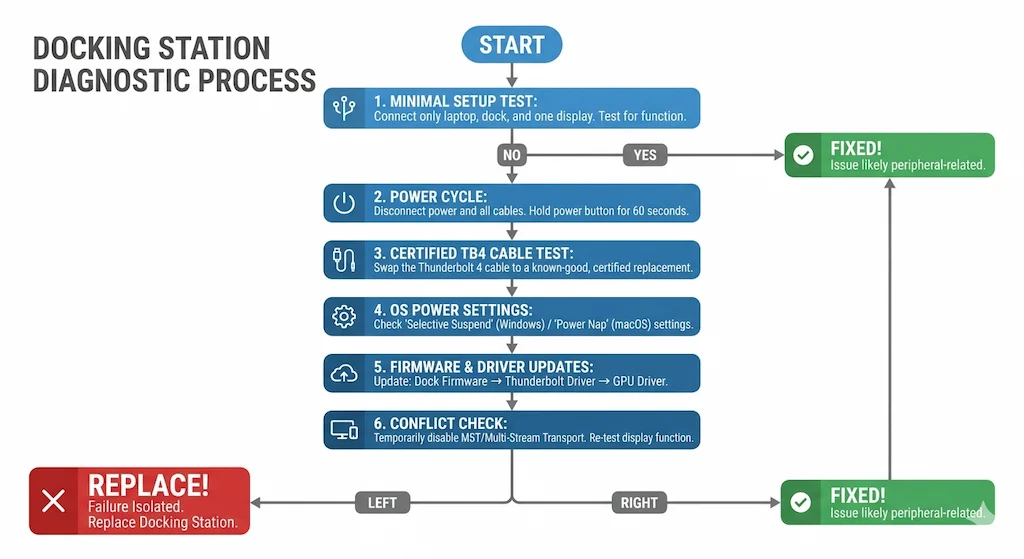
- Minimal setup test: Connect only laptop + one monitor (no Ethernet, no USB). Does the dock stay stable?
- Yes → move to step 2.
- No → skip to replacement section.
- Swap the host cable with the included Thunderbolt 4 cable.
- Works → old cable was the issue.
- Still fails → move to step 3.
- Load isolation: Gradually add peripherals (storage, Ethernet, second monitor). Note when failures start.
- Firmware → driver → BIOS order:
- Update dock firmware (UGREEN support page).
- Update Intel Thunderbolt driver (Intel directly).
- Update laptop BIOS/UEFI.
- Test on another laptop with the same minimal setup.
- Interpret results:
- Fails on multiple laptops → hardware issue → replace.
- Works on other laptop → original host configuration is the problem.
6. EARLY REPLACEMENT HOOK
If disconnects persist even under minimal load (one monitor, no peripherals) after following the diagnostic flow, stop debugging. The dock’s internal controller, power delivery circuit, or Thunderbolt retimer is likely failing. Skip directly to the Replacement Layer.
7. REPLACEMENT LAYER
If the UGREEN Revodok Max 213 consistently fails under your workload, it’s not a bad dock — it’s the wrong dock for your needs. Thunderbolt 4 docks come with different engineering philosophies:
None of these are “better” universally. They trade performance ceiling for stability margins. Choose based on your tolerance for tinkering.
8. COMPARISON TABLE
UGREEN Revodok Max 213
Thunderbolt 4 · Passive Cooling · 2.5GbE
- Stability: ⚠️ Moderate (burst-oriented)
- Thermal: ⚠️ Passive; throttles under sustained load
- Display: Dual 4K@60Hz via TB4 + DP 1.4
- Power: 90W, 180W adapter
- Video: 1x DP 1.4 + 2x TB4. No HDMI
The dock this guide is about. Good for burst workloads — struggles under sustained multi-device load.
Check Price →CalDigit TS4
Thunderbolt 4 · Passive (Fanless) · 2.5GbE
- Stability: ✅✅ Excellent
- Thermal: ✅ Oversized chassis, stays cool
- Display: Dual 6K@60Hz, stable
- Power: 98W, well-regulated
- Video: 1x DP 1.4 + TB4 downstream
The most reliable TB4 dock on the market. If the Max 213 is failing you, this is the direct upgrade.
Check Price →Kensington SD5780T
Thunderbolt 4 · Active Cooling (Fan) · 2.5GbE
- Stability: ✅✅ Excellent
- Thermal: ✅ Active fan, no throttling
- Display: Dual 4K@60Hz, reliable
- Power: 96W, consistent
- Video: HDMI + DP
Fan-cooled stability. If thermal throttling is killing your Max 213, this eliminates the problem entirely.
Check Price →Plugable TBT4-UDZ
Thunderbolt 4 · Passive Cooling · 2.5GbE
- Stability: ✅ Good
- Thermal: ✅ Solid under sustained load
- Display: Up to 4x 4K@60Hz (Windows MST)
- Power: 100W
- Video: 6x USB-A, 1x USB-C, HDMI + DP
The multi-monitor workhorse. 4x 4K on Windows via MST — more displays than any other TB4 dock at this price.
Check Price →Anker Prime TB5
Thunderbolt 5 · Active Cooling (Fan) · 2.5GbE
- Stability: ✅ Good
- Thermal: ✅ Active fan, conservative firmware
- Display: Dual 4K@144Hz possible
- Power: 140W (TB5)
- Video: HDMI 2.1 or DP 2.1 + TB5 downstream
The generation jump. If you’re replacing the Max 213 anyway, TB5 future-proofs you through the decade.
Check Price →Dell WD22TB4
Thunderbolt 4 · Passive Cooling · 1GbE
- Stability: ⚠️ Conditional
- Thermal: ⚠️ Passive, compact
- Display: Dual 4K@60Hz / up to 4 displays
- Power: 130W (Dell) / 90W (non-Dell)
- Video: 2x HDMI + 1x DP
Enterprise-grade for Dell fleets. Firmware-sensitive and best avoided if you’re not running Dell laptops.
Check Price →Stability comparison under sustained workloads. Choose based on your thermal tolerance and display requirements.
If your dock still misbehaves after comparing specs, start with our comprehensive Docking Station Not Working? guide—it covers every failure class from detection to disconnects, with model‑agnostic steps.
9. ECOSYSTEM TRUTH
Let’s be direct: Thunderbolt 4 docks are not plug‑and‑play at high load. The marketing shows a clean desk with two 4K monitors and a dozen ports. The reality is that every added device increases the negotiation complexity.
The UGREEN Revodok Max 213 doesn’t hide that complexity. It operates closer to the system’s electrical and thermal limits. When you push it, you’ll see where those limits are. That doesn’t make it defective — it makes it honest about what TB4 can actually deliver.
If you want a dock that never exposes these limits, you need a dock engineered to run well below them. Those docks cost more and are often larger. The Revodok Max 213 is for users who understand the trade‑offs and are willing to manage them.
10. MODEL BREAKDOWN
- UGREEN Revodok Max 213 – Thunderbolt 4 dock, 90W PD, 1x DisplayPort 1.4 + 2x TB4 downstream (no HDMI), 2.5GbE, SD/TF 4.0, 13 ports total. Best for Windows users with TB4 laptops who need dual 4K and understand thermal management.
- UGREEN Revodok Pro 314 – USB-C (non-Thunderbolt) dock, 140W PD. Limited to single 4K@60Hz (or dual displays with specific host support). Good for budget-conscious users without TB4 needs.
For a deeper look at the USB‑C alternative, see our UGREEN Revodok Pro 314 guide. If you’re considering a USB-C dock entirely — no Thunderbolt, no certification overhead — the tradeoffs go beyond just the Pro 314. Our USB-C Docking Station guide covers which laptop ports actually support video output, which cables kill performance before the dock even starts, and which docks in the $50–$150 range hold up under daily load without the Thunderbolt premium.
If you’re weighing the Max 213 against the Pro 314, the price gap is only part of the decision. Our full UGREEN Revodok Max 213 vs Pro 314 comparison breaks down real-world stability, Mac behavior, dual display limitations, and which one actually makes sense for your setup.
🔴Cut Your Losses — When to Stop Fixing
Stop wasting time if any of these are true:
- Dock runs hot to the touch during normal workloads
- Disconnects more than once per day after firmware update
- Fails on two different laptops with two different cables
- Sleep/wake issue survived a full Windows reinstall
- Purchased more than 60 days ago — warranty window shrinking
Our pick for reliability: The CalDigit TS4 has 18 ports, runs cooler than any TB4 dock at this price, and hasn’t had a single firmware crisis since launch.
11. FAQ
Why You Can Trust This Guide
Built on failure patterns — not spec sheets
We don’t review docking stations. We analyze where they break.
This guide is built from repeated real-world behavior across:
- Multi-monitor setups under sustained load
- Enterprise laptop fleets (Dell, Lenovo, mixed OS)
- Recurring USB-C, Thunderbolt, and power delivery failures
These are not isolated issues. They repeat across hardware, brands, and setups.
This is not guesswork. It’s pattern recognition.
We don’t optimize for specs. We optimize for stability.
12. AUTHORITY BLOCK
Why You Can Trust This Guide

Alex Atkinson — Docking Infrastructure Specialist
Computer Systems Engineering background. 10+ years deploying Thunderbolt docks in enterprise environments. Author of Laptop Docking Stations Explained.

Hans Pedersen — Display Topology Specialist
Expert in MST, EDID handshakes, and Thunderbolt display failures. Contributor to Daisy Chain Monitors Explained.

Yamato Nakamura — Storage & Thermal Infrastructure Specialist
Electrical Engineering background. Specializes in thermal analysis, sustained load behavior, and high-speed peripheral architecture. Yamato cross-validates every thermal measurement and stress test published on ByrdPilot.
At ByrdPilot, we don’t write in silos. We write as a systems practice — cross‑validated by specialists who have diagnosed these failures in real deployments. Experience > spec sheets. Always.
Sources & Citations
- USB Implementers Forum — USB4 Specification Overview
- Intel — Thunderbolt 4 Technology Overview
- USB Implementers Forum — USB Power Delivery Specification
- VESA DisplayPort — DisplayPort Over USB-C
- Microsoft Support — Fix USB Connection Issues in Windows