Thunderbolt Docking Station Explained (2026): More Reliable. Not Bulletproof.

⚡ Thunderbolt docking station — quick answer
- What it delivers: Enforced 40Gbps, dual 4K@60Hz, 100W charging, reliable wake‑from‑sleep.
- Why it’s better: Thunderbolt 4 enforces minimums. USB‑C makes them optional.
- Key truth: Thunderbolt reduces variables — it doesn’t eliminate failure.
- Best stability: CalDigit TS4
- Best for Dell: Dell WD22TB4
- Best value (USB4 trade‑off): UGREEN Revodok Max 213
One cable. Dual 4K. 100W charging. 40Gbps. $250–400. Thunderbolt 4 sounds like the answer to every cable chaos problem.
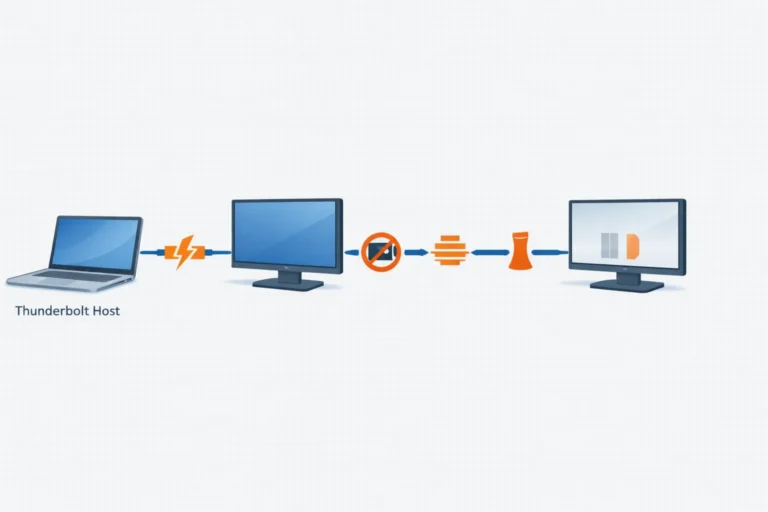
The reality is messier. Firmware deadlocks. Sleep/wake failures. macOS display limits. Bandwidth allocation bugs. These aren’t user errors — they’re built into the protocol layer. A thunderbolt docking station removes more variables than USB‑C, but it doesn’t remove failure entirely.
This guide cuts through spec sheet theater. You’ll learn exactly what Thunderbolt 4 guarantees, where it still breaks, and which docks survive real workloads — without babysitting.
A Thunderbolt docking station is a certified device that uses the Thunderbolt protocol to deliver video, data, and power over a single cable with guaranteed performance standards.
🟢 Early Bird — Stop Wrong Buyers Before They Spend $300
Before you spend $250–400 on a thunderbolt docking station, answer these three questions honestly.
Don’t buy a Thunderbolt dock if:
- ❌ You use a single monitor with a light workload — a USB-C dock saves you $150+.
- ❌ Your laptop has no Thunderbolt port — a TB4 dock gives you nothing extra.
- ❌ Your budget is under $150 — you’re shopping the wrong category.
You absolutely need a Thunderbolt dock if:
- ✅ You run dual 4K displays under sustained workload.
- ✅ You switch between Mac and Windows in the same setup.
- ✅ Sleep/wake stability is non-negotiable for your workflow.
- ✅ You’re deploying across an enterprise environment and can’t babysit docks.
Section 1 — What Actually Makes It Thunderbolt
Most USB-C ports look identical to Thunderbolt 4. The difference isn’t visible — it’s in what the port is actually required to do.
What Thunderbolt 4 Enforces That USB-C Doesn’t
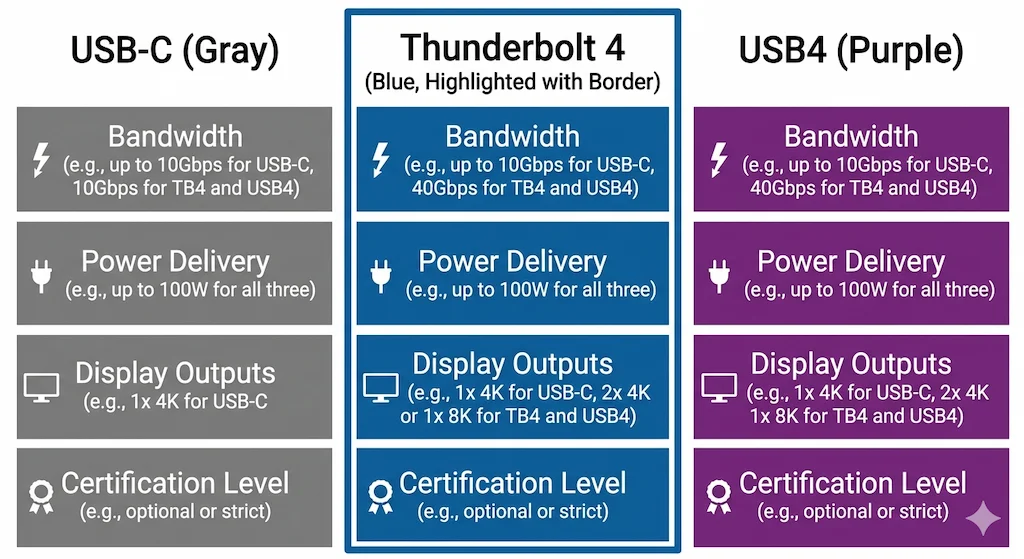
USB‑C is a connector shape, not a capability promise. Your laptop’s USB‑C port might support video, power, and 40Gbps — or it might be data‑only. Thunderbolt 4 removes the guesswork by enforcing a mandatory minimum behavior.
| Feature | USB‑C / USB4 | Thunderbolt 4 |
|---|---|---|
| Video output | Optional (depends on DisplayPort Alt Mode) | ✅ Mandatory (dual 4K@60Hz) |
| Power delivery | Optional (60W–100W, varies by host) | ✅ 100W minimum required |
| Bandwidth | 10–40Gbps, implementation‑dependent | ✅ 40Gbps guaranteed |
| PCIe tunneling | Optional | ✅ Mandatory |
| Wake from sleep | Inconsistent | ✅ Required behavior |
| Certification | None (self‑certified by manufacturer) | Intel certification, audited |
The one word that separates them is predictability, not speed. A thunderbolt docking station might not be faster in every task, but it behaves the same across certified hosts. That’s the entire value proposition.
Section 2 — Reality Check: Kill the Myths
Thunderbolt 4 is certified, not perfect. Six assumptions that send people back to square one.
What Thunderbolt 4 Doesn’t Guarantee
| Myth | Truth |
|---|---|
| TB4 docks work flawlessly on every laptop | Apple M1/M2/M3 base chips support one external display, regardless of dock. |
| All TB4 ports on your laptop are equal | Some ports share bandwidth with internal SSD or use different controllers. |
| TB4 eliminates sleep/wake failures | It reduces them — firmware and BIOS still matter. |
| Expensive dock = more reliable | Passive cooling kills reliability under sustained load, no matter the price. |
| TB4 and USB4 are the same | USB4 has no enforced minimums. A USB4 dock might hit 40Gbps — or it might not. TB4 certification means it must. |
| macOS 15.4 fixed all TB4 issues | Improved USB4 tunneling, yes. But docks with pre‑2024 firmware still exhibit problems. |
The spec sheet won’t tell you any of this.
Section 3 — Where Thunderbolt 4 Still Fails
Even a thunderbolt docking station fails — not often, not randomly, but in predictable ways.
| Failure Mode | Layer | Affected Docks | Fix |
|---|---|---|---|
| Bandwidth allocation bug (dual 4K) | TB4 controller firmware | Dell WD22TB4 | Specific monitor connection order |
| Cold‑boot detection failure | BIOS/UEFI | Wide — especially Dell laptops | Hot‑plug after boot, update BIOS |
| Enterprise firmware deadlock | Dock management processor | Dell SD25TB4 | Vendor recovery tool only |
| Thermal throttling under load | Passive cooling | UGREEN Revodok Max 213 | Active cooling dock or external fan |
| macOS single display limit | Apple SoC/GPU | M1/M2/M3 base MacBook | Not a dock issue — upgrade chip or use DisplayLink |
| Sleep/wake renegotiation | Firmware sync | Multiple TB4 docks | Update dock firmware + laptop BIOS |
| Cable quality failures | Physical layer | Any dock | Use an Intel‑certified TB4 cable |
Most of these failures happen in the first 48 hours. After that, it either works or it doesn’t. Related: For real‑world failure rates across brands, see our docking station failure rates by brand guide.
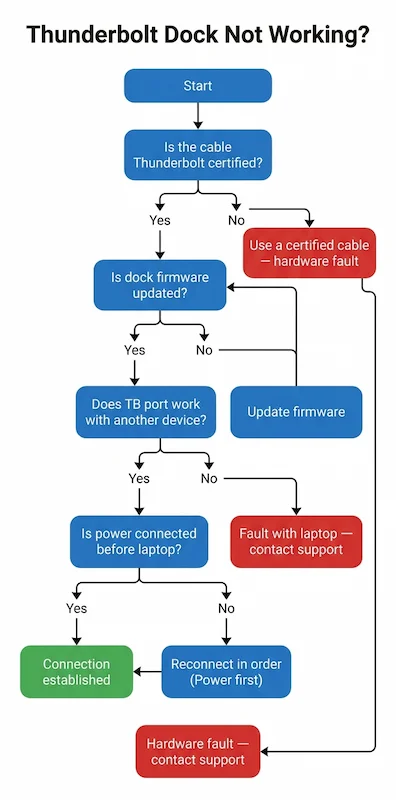
Section 4 — Diagnostic Flow: Is It Your Dock, Laptop or Protocol?
| Symptom | Cause | Fix |
|---|---|---|
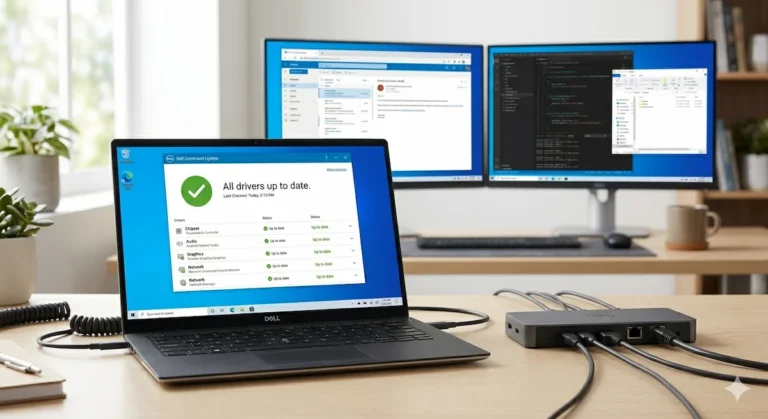
| Works at boot, fails after sleep | Firmware desync | Update dock firmware + BIOS. If persists, replace with CalDigit TS4 . |
| One monitor runs at 30Hz on dual 4K | Bandwidth allocation bug | Reconnect monitors in correct order → or switch to CalDigit TS4. |
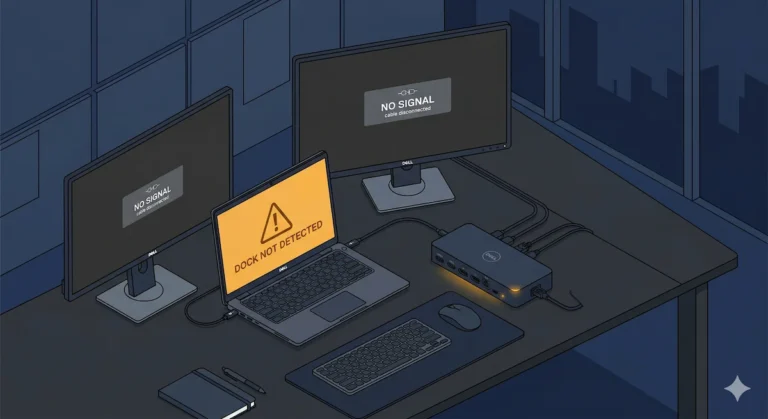
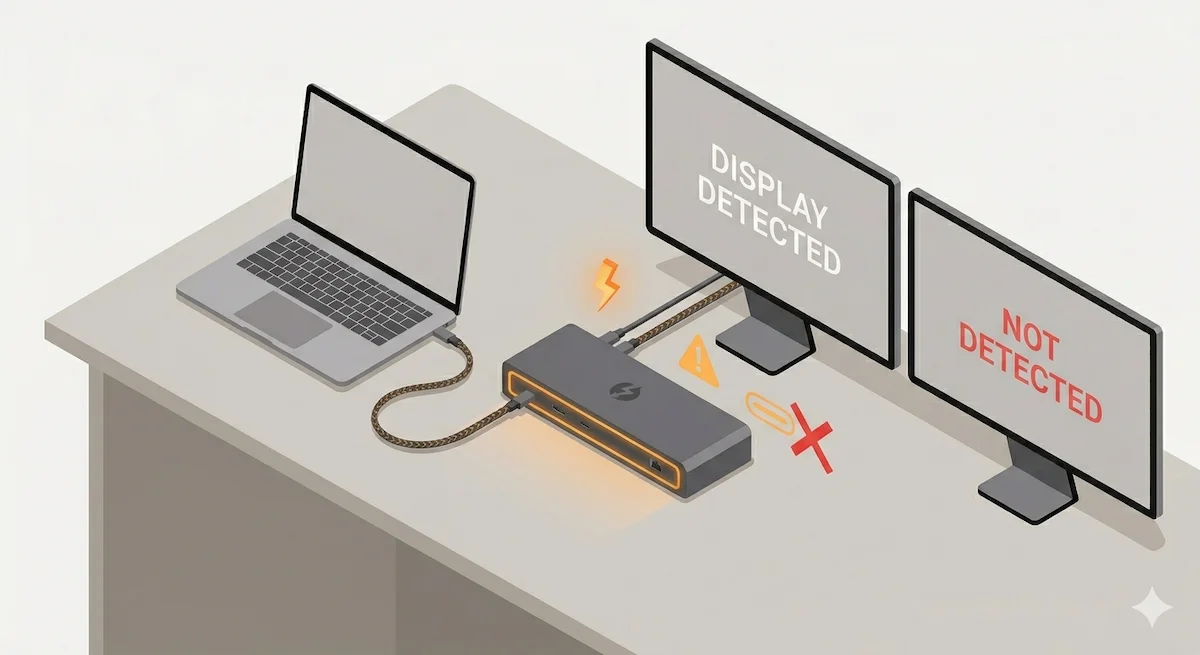
| Dock not detected at cold boot, works after replug | BIOS Thunderbolt security setting | BIOS → enable TB Boot Support + USB Power Delivery → disable USB Selective Suspend. |
| USB peripherals drop randomly | Power delivery conflict or passive cooling throttle | Check wattage requirements → move to an active‑cooling dock. |
Notes:
If your dock is “not detected”, start with our Docking Station Not Detecting Monitor checklist.
If it “keeps disconnecting”, see the thermal and power patterns in Docking Station Keeps Disconnecting .
🟡 Pattern Check — Are You Fixing Config or Babysitting a Broken Dock?
Before replacing your dock, identify which column your problem falls into.
| ✅ Fixable — Configuration Problem | ❌ Not Fixable — Wrong Architecture |
|---|---|
| Works sometimes, breaks after OS updates | Your laptop has no Thunderbolt port |
| Fails only on one specific laptop port | Trying to run dual 4K on a USB-C dock |
| A firmware update resolved it temporarily | Base M1/M2/M3 MacBook hitting one-display limit |
| Dock works fine on a second laptop | Passive dock throttling under sustained load |
If you’re in the right column, no amount of troubleshooting fixes a protocol mismatch. You need a different class of docking station.
Most people don’t upgrade to Thunderbolt because they want speed — they upgrade because they’re tired of fixing the same problem every week.
Section 5 — Best Thunderbolt 4 Dock by Scenario (2026)
If you’ve reached here, you’re not choosing features — you’re choosing stability under load.
| Scenario | Recommended Dock | Badge |
|---|---|---|
| Mixed OS / Mac + Windows | CalDigit TS4 | Windows + macOS |
| Dell Fleet / Windows‑First | Dell WD22TB4 | Windows‑First |
| Enterprise / Managed IT | Dell SD25TB4 | Windows‑First |
| Port Density / Power Users | Plugable TBT4-UDZ | Windows + macOS |
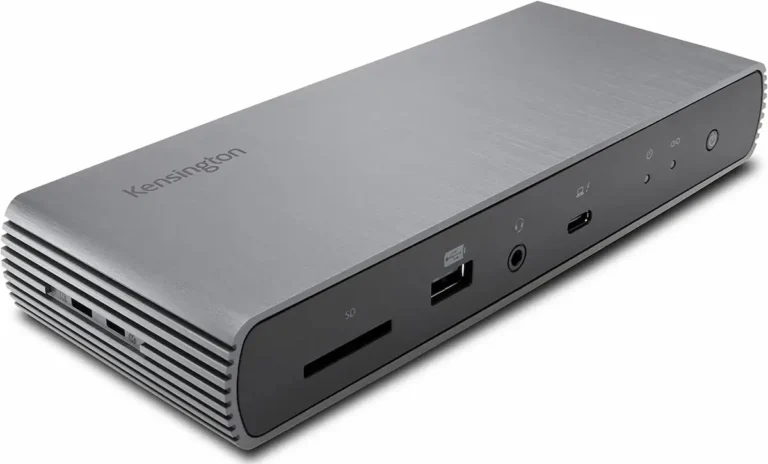
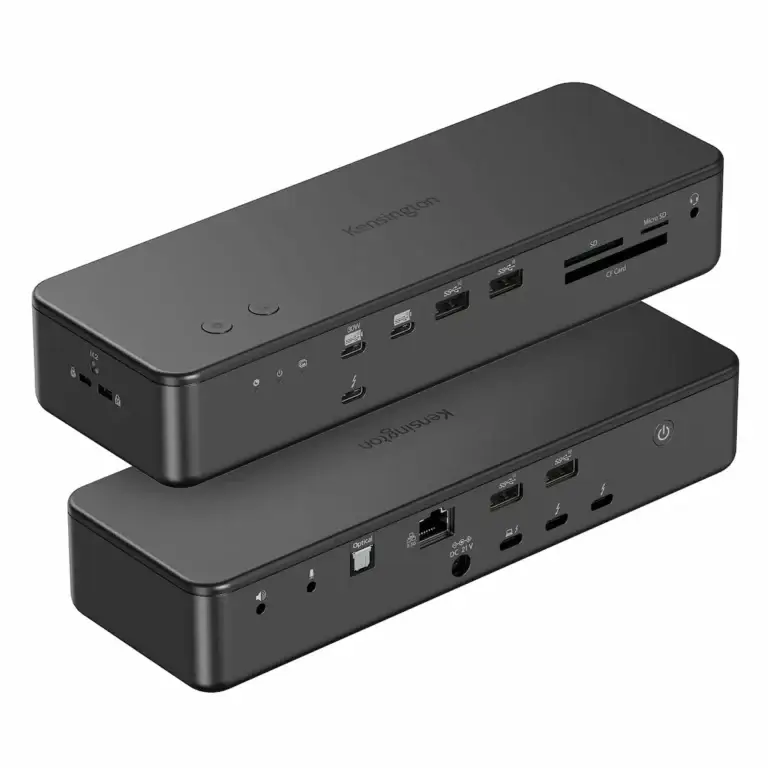
| Budget TB4 Entry | Kensington SD5780T | Windows + macOS |
| Value / USB4 Trade‑off* | UGREEN Revodok Max 213 | Windows + macOS |
Choose based on your setup — not specs. That said — if you’re on the fence, buy the next tier up. A good dock outlasts two or three laptops. You won’t regret the extra $50. You might regret the cheaper one.
CalDigit TS4
TB4 · Passive Cooling · 2.5GbE
- Dual 6K (M1 Pro/Max/Ultra only) / Dual 4K@60Hz (Windows)
- ⚠️ Base M1/M2/M3 MacBooks: single external display only
- 98W laptop charging — highest in class
- 18 total ports including 2x downstream TB4
The safest mixed-OS pick — if you swap between Mac and Windows at the same desk, nothing else comes close.
Check Price →Dell WD22TB4
TB4 · Passive Cooling · 1GbE
- 130W charging on Dell laptops; 90W on everything else
- Up to 4 displays depending on GPU support
- 2x downstream TB4 + remote management built in
- Mac support is certified but limited in practice
Built for Dell fleets running Windows — don’t buy it if Mac is your primary machine.
Check Price →Dell SD25TB4
TB4 · Passive Cooling · 2.5GbE
- 4x 4K@60Hz or 1x 8K@60Hz — top display ceiling in this list
- 130W Dell charging / 96W non-Dell
- Wi-Fi out-of-band remote management for IT teams
- Full enterprise controls — most capable managed dock available
Enterprise IT pick for managed Dell environments — serious overkill if you’re buying for a home office.
Check Price →Plugable TBT4-UDZ
TB4 · Passive Cooling · 2.5GbE
- 4x 4K displays via MST on Windows — most outputs in this class
- 100W laptop charging
- 6x USB-A + 1x USB-C — highest raw port count here
- Mac: dual 4K on M1 Pro/Max only; base chips = single display
The port-density pick — if you’re running a Windows workstation and need outputs plus peripherals, this wins on paper and in practice.
Check Price →Kensington SD5780T
TB4 · Passive Cooling · 2.5GbE
- Dual 4K@60Hz with TB4 reliability on Mac and Windows
- 96W laptop charging
- 2x downstream TB4 ports — daisy-chain ready
- Enterprise platform certified; consistent detection track record
The TB4 entry point that doesn’t cut corners — solid all-rounder at a price that doesn’t hurt.
Check Price →UGREEN Revodok Max 213
TB4 · Passive Cooling · 2.5GbE
- Dual 4K@60Hz; no HDMI — DisplayPort + TB4 downstream only
- 90W charging (180W GaN adapter included in box)
- ⚠️ Passive cooling throttles under sustained load (55–60°C)
- ⚠️ Mac: M1 Pro/Max only — base M1/M2 drops to single display
Lowest TB4 entry price — but the thermal ceiling and Mac restrictions make it a conditional buy, not a default one.
Check Price →Exploring Thunderbolt 5? Start with real-world failure patterns, Thunderbolt 5 cluster: CalDigit TS5 Plus • Anker Prime TB5 • Kensington SD7100T5 • iVANKY FusionDock Max 2 • Razer Thunderbolt 5 Chroma
Section 6 — Thunderbolt 4 vs USB-C: Predictability, Not Speed
Thunderbolt vs USB‑C is not about speed. Both can hit 10Gbps for data. Both can drive 4K displays.
The difference is guarantees:
- Thunderbolt 4 guarantees it.
- USB‑C might do it — or it might not, depending on your laptop, cable, and firmware.
Buying a thunderbolt docking station means buying out of the variable zone. One cable that always does what it says — that’s the entire value proposition.
For a side‑by‑side breakdown of every protocol difference, read our USB‑C Docking Station Explained guide.
Section 7 — Is a TB4 Dock Actually Worth It?
| Your Situation | Verdict |
|---|---|
| Dual 4K + Mac/Windows switching + must‑work reliability | Buy a thunderbolt docking station now — the cost is insurance against wasted hours. |
| Single monitor, light workload, tight budget | A quality USB‑C dock saves you $150+ and works fine. |
| Considering Thunderbolt 5 | Wait only if you need triple 4K or 8K. For everything else, TB4 is mature and stable. |
🔴 Last Resort — Stop Troubleshooting. The Protocol Is Wrong.
If you can check every box below, you’re not dealing with a configuration problem. You’re dealing with the wrong dock entirely.
- ✅ The dock fails on two different computers using a certified TB4 cable.
- ✅ It requires a power cycle more than once a week to function.
- ✅ It drops displays or USB peripherals after sleep — consistently, not occasionally.
- ✅ A firmware update from the manufacturer didn’t fix it.
- ✅ Your laptop doesn’t actually have a Thunderbolt port — only USB-C.
Stop buying USB-C docks for Thunderbolt workloads. Stop swapping brands. Upgrade the protocol — not the brand.
Section 8 — FAQ
Author Block
Alex
Senior Technical Writer & Display Systems Specialist, ByrdPilot.com
Education: BSc, Computer Systems Engineering.
Professional History: For over a decade, I’ve designed and stabilized display infrastructure for environments where failure isn’t an option — trading desks, newsrooms, architectural studios, and legal offices. I started in the rack‑and‑stack trenches, but quickly moved to system‑level architecture: diagnosing why MST chains fail after sleep, why Thunderbolt tunnels drop under load, and why monitor EDID handshakes break after firmware updates. I don’t just write about daisy chaining — I’ve rebuilt it from the ground up for clients who bill by the hour.
What sets me apart: Most guides explain how things should work. I explain how they actually fail — then give you the exact steps to prove it and fix it. Every protocol handshake, every timing window, every undocumented firmware quirk I’ve documented came from real deployments, not speculation.
Philosophy: “I don’t get excited by spec sheets. I get paid for uptime.”
This guide, like everything at ByrdPilot, is built from the frustration of real‑world failures and the methodology we developed to solve them permanently — not temporarily.
Sources & References
- Thunderbolt 4 vs USB4 vs USB-C — BenQ Knowledge Center
- USB4 Version 2.0 Specification — USB Implementers Forum
- DisplayPort over USB-C — DisplayPort Association
- USB Power Delivery Explained — Plugable Technologies