
Docking Station Finder: Match Your Laptop to the Right Dock

Use the Docking Station Finder to match your laptop to the right dock in under 60 seconds. Most dock buying mistakes come down to three mismatches: wrong protocol, wrong power delivery, wrong display support. This tool eliminates all three.

Answer 5 questions → get a matched dock recommendation instantly.

Question 1 of 5

What’s your setup?

This determines which docks are compatible with your ecosystem.

Your Dock Recommendations

Based on your setup, here are the best options.
We assumed your laptop supports Thunderbolt. This recommendation requires Thunderbolt to work fully.
Not sure? How to check your port →
If your laptop is USB-C only, see USB-C recommendations instead →
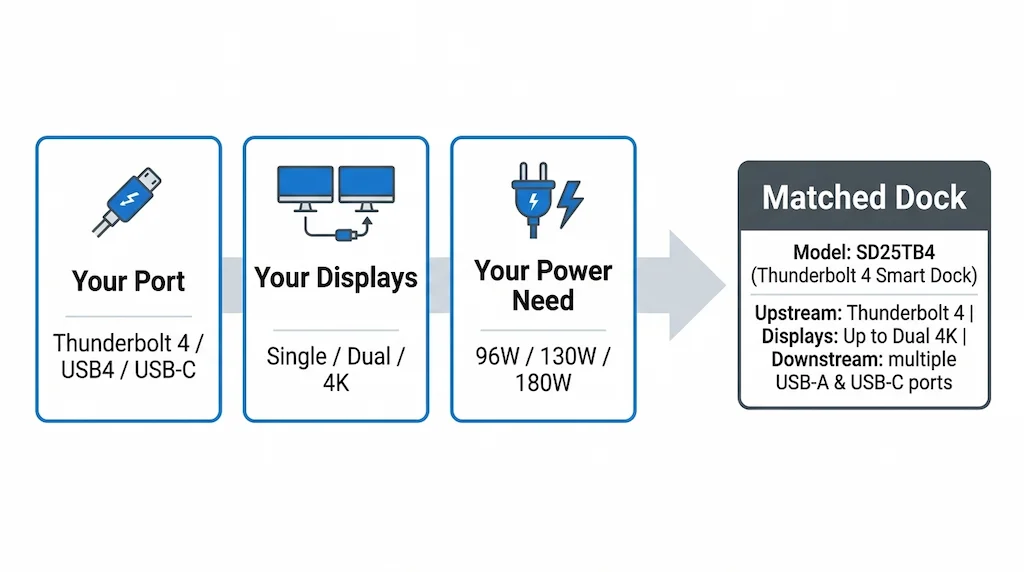
Docking station finder tool checks port type, display setup, and power delivery to match the right dock

What the Docking Station Finder Checks Before Recommending a Dock

Thunderbolt 4 vs USB4 vs USB-C — What Your Port Actually Supports

Not all USB-C ports are equal. A port must support DisplayPort Alt Mode to output video. It must support Thunderbolt 4 or USB4 to run a full-bandwidth docking station. Data-only USB-C ports — common on budget laptops and secondary ports — will cause detection failures and constant disconnects regardless of which dock you buy. Check your laptop’s spec sheet for a ⚡ symbol or “Thunderbolt 4” label on the port.

Display Requirements — Single, Dual, and 4K Setups

Display support is where most buyers get burned. Dual monitors require MST (Multi-Stream Transport) — a feature Windows supports natively but base Apple Silicon Macs (M1, M2, M3) do not. 4K@60Hz requires HBR3 bandwidth, which not all docks deliver reliably on both outputs simultaneously. Match your display count and resolution before selecting a dock — not after.

Power Delivery — Why Wattage Matters More Than You Think

An underpowered dock charges your laptop at reduced rates under load — or not at all. For standard 15-inch laptops: 96W minimum. For high-performance machines: 130W or higher. A dock delivering 65W to a laptop that needs 100W will brownout under combined display and peripheral load, causing random disconnects that look like a faulty dock but are actually an underpowered one.

Check your laptop’s spec sheet for “Thunderbolt 4” or a USB-C port marked with a ⚡ icon. Not all USB-C ports support video or full bandwidth — data-only ports will cause constant disconnects with a TB4 dock.

Yes — but only if your laptop supports MST (Multi-Stream Transport). Windows laptops with Thunderbolt 4 generally do. Base model Apple Silicon Macs (M1, M2, M3) do not support MST natively and are limited to one external display without DisplayLink.

For most 15-inch laptops: 96W minimum. For high-performance laptops (gaming, mobile workstation): 130W or higher. Underpowered docks cause brownout disconnects under load — the most common stability complaint.

Not exactly. Both run at 40Gbps, but Thunderbolt 4 has stricter mandatory requirements — including minimum 15W power to the host and guaranteed PCIe support. USB4 is the open standard; Thunderbolt 4 is Intel’s certified implementation. For reliability under load, TB4 docks have a more consistent track record.

No. Generic USB-C cables are a leading cause of disconnects and detection failures. You need a certified Thunderbolt 4 cable rated for 40Gbps and 100W. If your dock came with a cable, use it — otherwise buy a certified replacement.

Protocol mismatch. The dock may require Thunderbolt 4, but the second laptop only has a USB-C data port or an older USB 3.2 connection. Always verify your laptop’s port spec before assuming the dock is faulty.

Not necessarily — most TB4 docks are cross-platform. The difference is in display support: macOS handles MST differently and limits external display count on base chips. If you’re switching between OS, check the dock’s macOS compatibility specifically for your chip generation.

Yes, if it supports Power Delivery (PD) over the host connection. Check the dock’s PD wattage matches or exceeds your laptop’s charging requirement. A dock delivering 65W to a laptop that needs 100W will charge slowly or not at all under load.

Not sure which dock to buy?

Answer 5 quick questions. Get a real recommendation.

20+ docks tested & compared
Mac, Dell & Windows paths
No fluff — honest picks only
Find My Dock →
Takes about 60 seconds