This site contains affiliate links. Recommendations are based on hardware stability and firmware reliability — not commissions. Your purchases support our research. Full disclosure.
Quick Answer — Best Docking Station for MacBook Pro
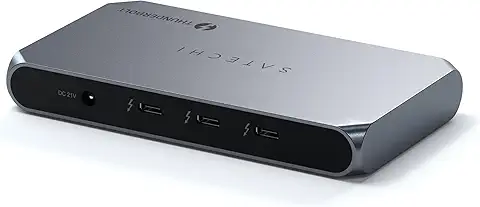
The best docking station for MacBook Pro is the CalDigit TS4 — a Thunderbolt 4 dock with 98W charging, fanless operation, and native dual 6K@60Hz support on M1 Pro/Max/Ultra chips and newer. For Thunderbolt 5 MacBook Pros (M4 Pro/Max and later) who need maximum bandwidth and 10GbE networking, the CalDigit TS5 Plus is the stronger pick. Budget-conscious users should look at the UGREEN Revodok Max 213 for dual 4K@60Hz under $300. The right dock depends on three things: your chip (base M-series is capped at one external display, Pro/Max chips support two or more), how many displays you need, and your budget.
You already know you own a MacBook Pro. You already know you want a best docking station for MacBook Pro — something that turns your laptop into a proper workstation. What you need now is a clear, no‑BS comparison of the docks that actually hold up under real‑world load.
The best dock for MacBook Pro isn’t the same for everyone. Your chip matters (M1 Pro, M4 Max, base M3). Your display count matters. Your budget matters. Skip the chip‑limit education — that’s covered in our MacBook Docking Station explainer. This guide cuts straight to the best docking station for MacBook Pro based on your chip, display count, and budget.
How to Choose
Answer these three questions before reading the picks — the best docking station for MacBook Pro is different for every setup. New to docks entirely? Start with Laptop Docking Stations Explained.
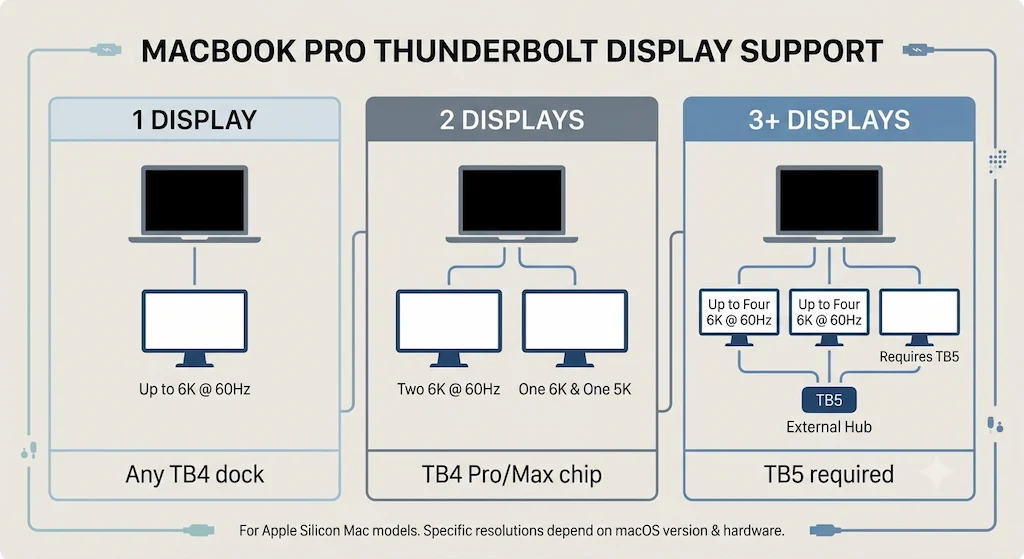
How many external displays do you need?
1 → any TB4 dock works
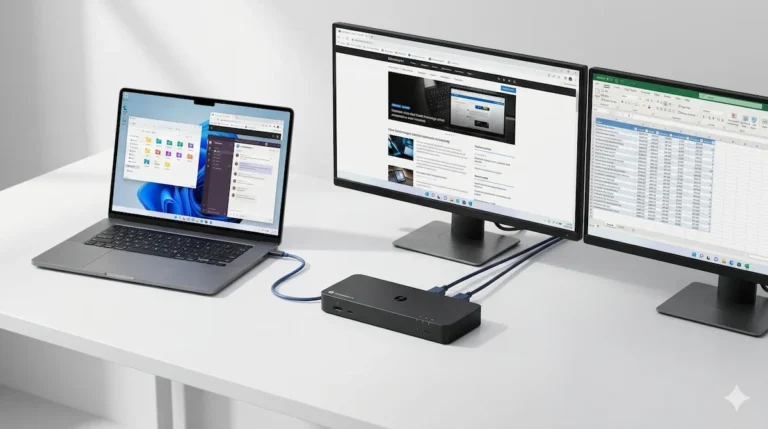
2 → TB4 dock with dual display support. Most TB4 docks top out at dual 4K@60Hz on Mac — the CalDigit TS4 is the exception, delivering dual 6K@60Hz on M1 Pro/Max/Ultra and newer.
3+ → you need a Thunderbolt 5 dock. Note: base and even some Pro/Max chips cap out at two displays regardless of dock — confirm your exact chip supports a third display before buying.
Does your Mac have a Thunderbolt 4 or Thunderbolt 5 port?
✦ Best for: Most MacBook Pro users who need reliable dual-display output.
The CalDigit TS4 is the most reliable Thunderbolt 4 dock on the market. Fanless passive cooling means silent operation with no reported thermal throttling — it runs all day without complaint. Two downstream Thunderbolt 4 ports let you daisy chain additional devices without a hub.
Dual 6K@60Hz on M1 Pro/Max/Ultra and newer Pro/Max chips
98W charging — full power for a 14″ MacBook Pro under load
2x downstream Thunderbolt 4 ports for daisy chaining
Fanless, passive cooling — silent, no reported throttling
Display support: Dual 6K@60Hz on M1 Pro/Max/Ultra and newer Pro/Max chips. Base M1/M2/M3 chips are capped at one external display regardless of dock.
The catch: No HDMI — video output is through Thunderbolt/USB-C only. Requires adapters for HDMI monitors.
Verdict: The safest pick if you’re not sure what else to buy — reliable, silent, and built to last through multiple laptop upgrades.
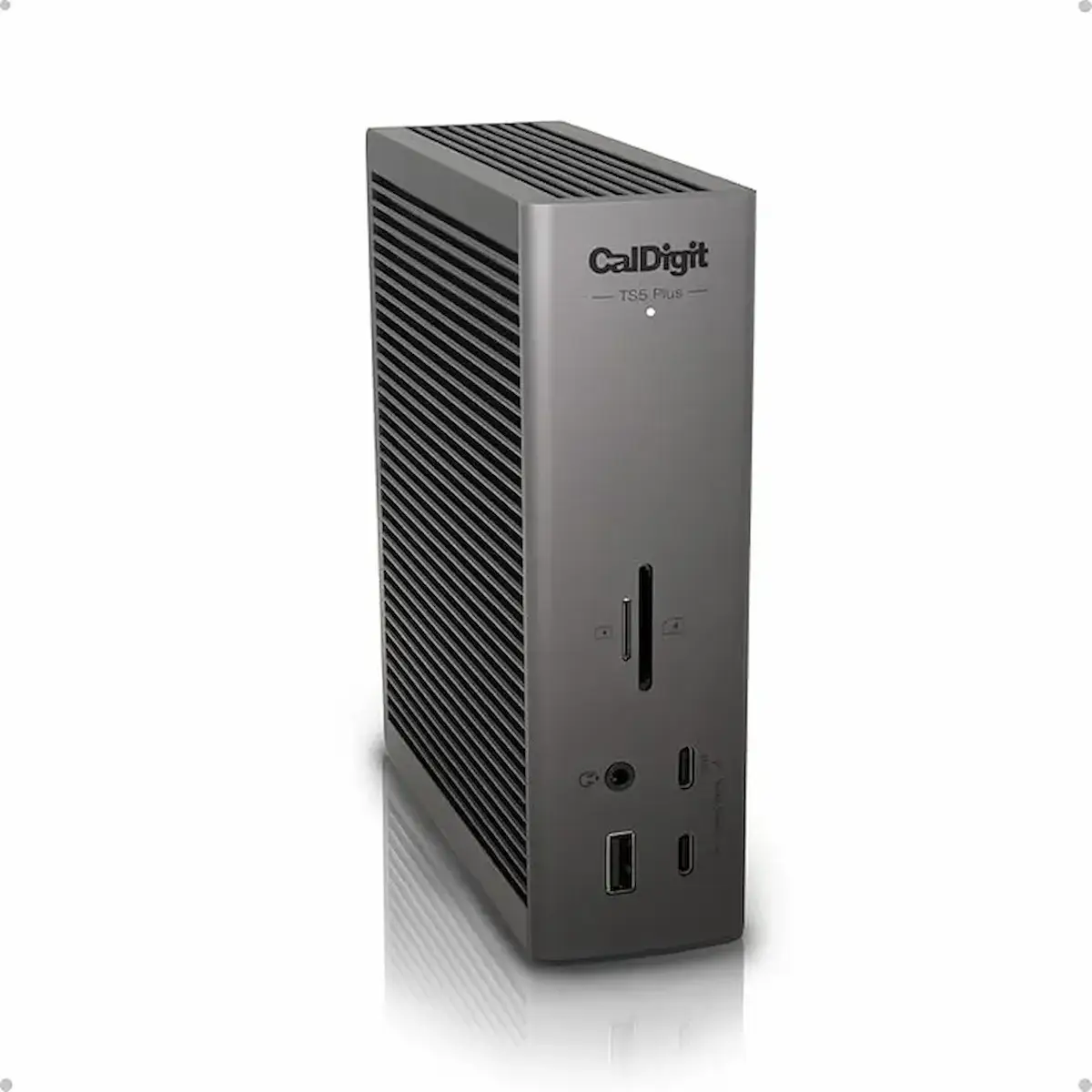
✦ Best for: MacBook Pro users with a Thunderbolt 5 port who want maximum bandwidth and the fastest networking.
The most capable Mac-compatible Thunderbolt 5 dock available. Dual USB controllers keep peripheral traffic from competing with display bandwidth — a real-world difference under heavy load that single-controller docks can’t match.
Triple 4K@144Hz or dual 8K@60Hz display support
140W charging
10GbE — the only dock in this list with networking beyond 2.5GbE
Dual USB controllers keep peripherals off the display bandwidth
Display support: Triple 4K@144Hz or dual 8K@60Hz on Thunderbolt 5 hosts. Full Thunderbolt 4 speeds on current MacBook Pro.
The catch: External power brick (no internal GaN). Highest price in this list.
Verdict: Built for people who don’t want to upgrade their dock again for years — buy it once and it grows with every laptop upgrade.
✦ Best for: Budget-conscious users who still want dual-display support on a Pro/Max chip.
This is Thunderbolt 4 — not USB4. UGREEN’s other model, the Revodok Pro 314, is USB4. The Max 213 delivers dual 4K@60Hz and 90W charging via the included 180W GaN adapter. The thermal ceiling is real: passive cooling means chassis temperatures of 55–60°C under sustained load.
Dual 4K@60Hz on M1 Pro/Max Macs
90W charging via included 180W GaN adapter
1x DP 1.4 + 2x TB4 downstream video outputs — no HDMI
Passive cooling — throttles under sustained load (55–60°C)
Display support: Dual 4K@60Hz on M1 Pro/Max Macs. Base M1/M2 chips are limited to a single external display.
The catch: No HDMI — DisplayPort and TB4 downstream video only. Thermal throttling under heavy sustained workloads. Not built for all-day video encoding or sustained GPU tasks.
Verdict: Solid value with a real thermal ceiling — fine for office work and light editing, not for sustained heavy loads.
✦ Best for: IT-managed environments and shared desks that need rock-solid detection reliability.
The SD5780T has one of the strongest detection reliability records in this lineup — it connects and stays connected without the intermittent drop issues that affect less stable docks. TAA-compliant for government and enterprise procurement. Two downstream Thunderbolt 4 ports for additional devices.
Dual 4K@60Hz display support
96W charging
2x downstream Thunderbolt 4 ports
Excellent detection reliability — strong track record in managed environments
Display support: Dual 4K@60Hz on M3/M4/M5 MacBook Pro and any Pro/Max chip. Single display on base M1/M2.
The catch: Fewer ports than the TS4 at a similar price point. No card reader on some configurations.
Verdict: A dependable, no-surprises dock for managed environments — the pick when stability matters more than port count.
Not sure which dock fits your setup? Compare all 81 docking stations side by side — filter by connection type, displays, power delivery, and OS in our Docking Station Comparison Tool.
✦ Best for: Users who need the highest display count from a single Thunderbolt 4 dock.
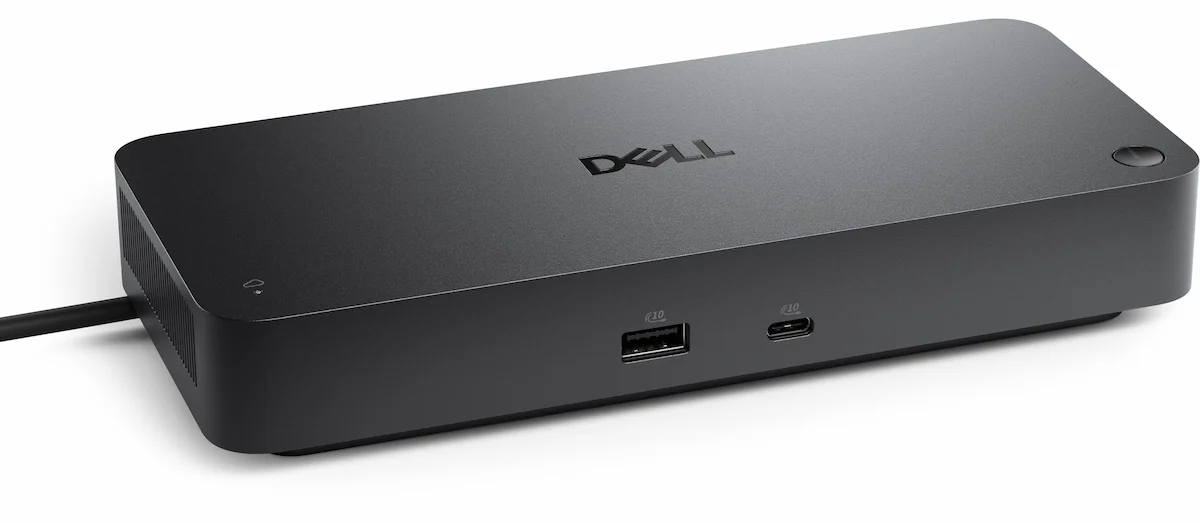
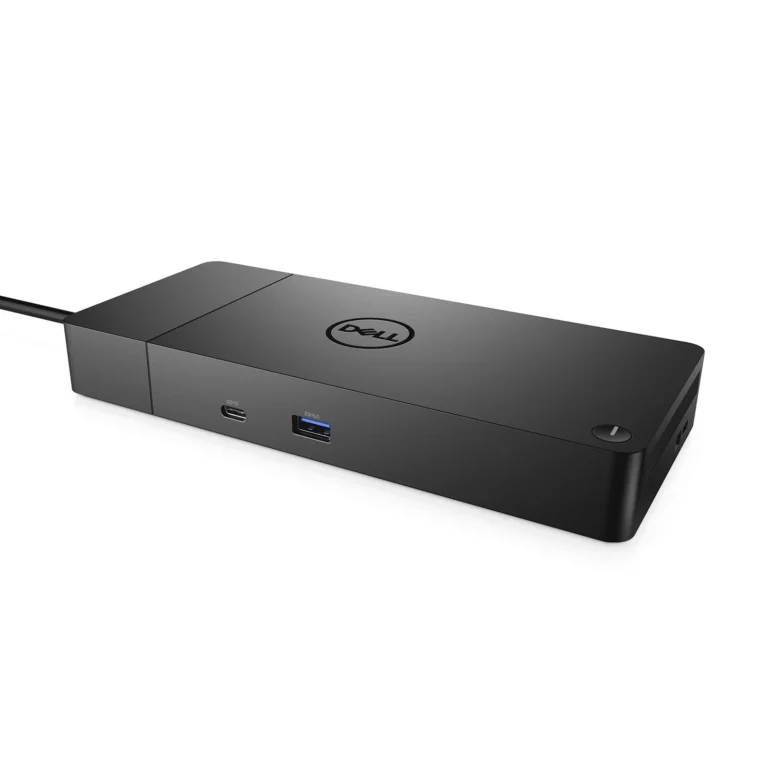
The SD25TB4 supports up to four 4K@60Hz displays — more than any other dock in this list. Full remote management with Wi-Fi out-of-band access makes it the enterprise choice. It’s the only Dell dock with official Thunderbolt certification for macOS, though Dell’s own documentation notes that some limitations may apply.
Up to 4x 4K@60Hz, or 2x 6K, or 1x 8K display
96W charging on non-Dell laptops (130W is Dell-only)
2.5GbE Ethernet
Full remote management with Wi-Fi out-of-band access
Display support: Up to 4x 4K@60Hz via DP 1.4 HBR3 and TB4 downstream ports. Officially Thunderbolt certified for macOS with noted limitations.
The catch: Dell-optimized first — 130W charging is Dell laptops only; non-Dell MacBook Pro gets 96W. No card reader.
Verdict: The most display-capable dock here — Dell-optimized first, Mac-compatible second. Right for four-monitor setups; overkill for anything less.
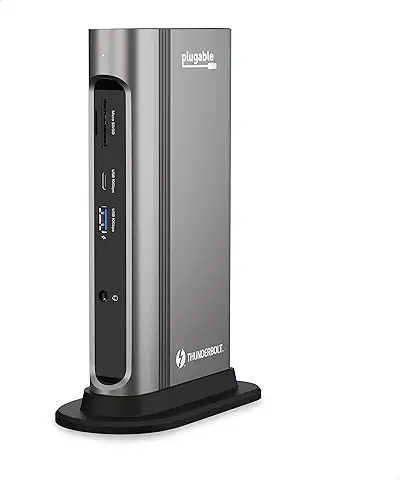
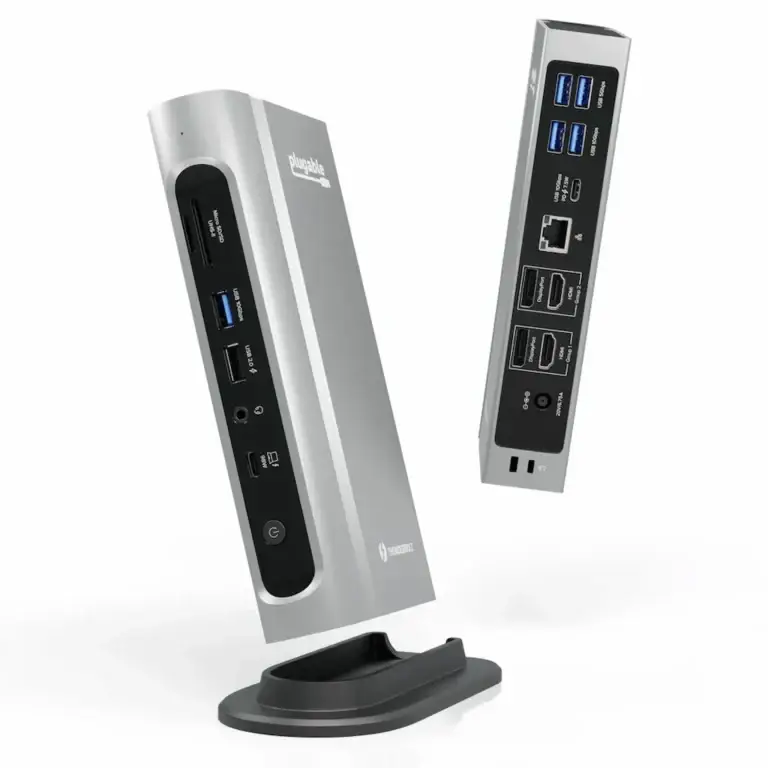
✦ Best for: Users who need a portable Thunderbolt 4 dock for hotel rooms and hot-desking.
Laptop Mag’s 2025 Dock of the Year. The TBT4-UDZ packs 16 ports into a compact footprint — 2x HDMI, 2x DisplayPort, 100W charging, 2.5GbE, 7 USB ports, SD/microSD, and audio. Smaller than the TS4 with more video outputs. The trade-off is zero downstream Thunderbolt ports.
Dual display on M1 Pro/Max Macs; single display on base M1/M2
100W charging
2x HDMI + 2x DisplayPort video outputs
6x USB-A + 1x USB-C data (7 ports total)
Display support: Dual 4K@60Hz on M1 Pro/Max and M3/M4/M5 MacBook Pro. Single display on base M1/M2.
The catch: No downstream Thunderbolt ports — no daisy chaining additional TB4 devices.
Verdict: The right pick when portability matters more than expandability — 16 ports in a bag-friendly footprint without sacrificing Ethernet or charging speed.
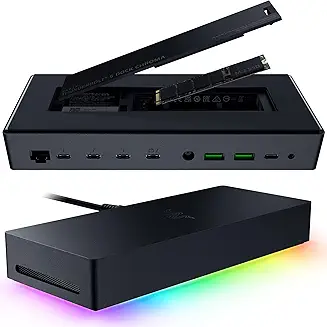
✦ Best for: Creators who want integrated fast storage and don’t mind a gaming-forward aesthetic.
The only dock in this list with a built-in M.2 SSD slot — attach fast storage directly to the dock without a separate enclosure. Triple 4K@144Hz or dual 8K@60Hz display support, 140W charging, and three downstream Thunderbolt 5 ports. Native Mac compatibility with excellent detection reliability. RGB lighting is Razer Synapse-controlled.
Built-in M.2 SSD slot for additional fast storage
Triple 4K@144Hz or dual 8K@60Hz display support
140W charging · 3x downstream Thunderbolt 5 ports
RGB lighting controlled via Razer Synapse
Display support: Triple 4K@144Hz or dual 8K@60Hz. Native Mac compatibility, excellent detection reliability.
The catch: 1GbE Ethernet only — where competitors at this price offer 2.5GbE or better. RGB and Razer branding aren’t for everyone.
Verdict: A niche but capable pick for creators — strong on storage and display power, weak on wired networking. If fast Ethernet matters, look at the TS5 Plus instead.
✦ Best for: MacBook Pro users who travel frequently and need a dock that fits flat in a laptop sleeve.
At 241g and 18.25mm thin, this is the smallest Thunderbolt 4 option in this list by a significant margin. Real TB4 performance — 32Gbps PCIe lane means it drives a Thunderbolt SSD or eGPU on the road. Three downstream TB4 ports for daisy chaining. The 150W GaN power supply is included.
4x Thunderbolt 4 ports (1 host + 3 downstream)
96W charging via included 150W GaN power supply
Dual 4K or single 8K display output
241g — fits flat in a laptop sleeve
Display support: Dual 4K or single 8K via Thunderbolt downstream ports. No HDMI output.
The catch: No Ethernet, no HDMI, no card reader — at $199.99 you’re paying for size, not features. If you need wired networking at your destination, look at the Plugable instead.
Verdict: The pick if pack weight matters more than port count — the only TB4 dock that disappears into a bag. Know the trade-offs before buying.
¹ 96W on non-Dell laptops. Dell laptops receive 130W.
Which Is the Best Docking Station for MacBook Pro? — FAQ
If you need external displays, Ethernet, or more than two USB ports, you need a dock — not a hub. A USB‑C hub gives you ports but no power delivery or multi‑display support. A best docking station for MacBook Pro is the correct tool for a permanent desk setup. For a complete overview of what your MacBook Pro can actually support, see our MacBook Docking Station guide.
Yes, but only on M4 Pro, M4 Max, M5 Pro, and M5 Max chips — and only with a Thunderbolt 5 dock like the CalDigit TS5 Plus or Razer TB5 Chroma. M1/M2/M3 Pro/Max chips are limited to two external displays. Base chips are limited to one. For a deep dive on display‑topology limits, read Docking Station for Dual Monitors.
Only if you have an M4 Pro/Max or M5 Pro/Max MacBook Pro and need 10GbE, triple 4K displays, or future‑proof bandwidth. For dual 4K@60Hz, Thunderbolt 4 is still the sweet spot — cheaper, mature, and stable.
A Thunderbolt dock delivers guaranteed 40Gbps, dual 4K displays, and 100W+ charging. A USB‑C hub shares bandwidth and may not support dual displays on Mac at all. If you have a Thunderbolt port, buy a Thunderbolt dock. For more on the protocol differences, read USB‑C vs Thunderbolt 4 for Docking Stations.
No. A 14″ MacBook Pro needs at least 96W to avoid battery drain under full load; a 16″ needs 140W. The CalDigit TS4 delivers 98W (enough for 14″), while the CalDigit TS5 Plus and Razer TB5 Chroma deliver 140W (enough for 16″). Check your dock’s PD rating before buying. For a complete diagnostic of power‑delivery failures, see Docking Station Not Charging Laptop.
This is a macOS Thunderbolt power‑state issue, not a dock defect. Update to macOS Sequoia 15.3 or later, disable Power Nap, and update your dock’s firmware. If the problem persists, try disconnecting and reconnecting the Thunderbolt cable. For a full diagnostic, see Thunderbolt Dock Not Detected.
Alex has spent years diagnosing connectivity failures across corporate laptop fleets and mixed-vendor workstation deployments, with hands-on experience testing Thunderbolt docks across Mac and Windows environments.
⚡ Quick Answer — MacBook Docking Station The best macbook docking station depends entirely on your chip. Base M1 and M2 MacBook Air are hardware-limited to one external display — no dock changes that. M3 MacBook Air supports one display with the lid open, and two displays in clamshell mode. M1 Pro through M4 Max…
The Brutal Truth: Why Your Docking Station Really Stopped Working ⚡ Quick Answer A docking station stops working when the negotiation between your laptop, dock firmware, cables, and monitors breaks down. Over 70% of failures trace back to cables, drivers, or power delivery mismatches — not defective hardware. This guide identifies the exact failure class…
The Black Screen Paradox Your docking station is powered. USB works. Ethernet works. The monitor shows “No Signal.” A docking station not detecting monitor output is one of the most misdiagnosed failures in modern workstation setups — because everything else keeps working. That combination — partial function, failed video — has one explanation: DisplayPort negotiation…
The Conversion Gap: Why This Connection Is Inherently Unstable You plug a Thunderbolt to HDMI cable or adapter into your laptop. The monitor remains black. You try another cable, another port—still nothing. The frustration is immediate because the expectation is simple: a digital video signal should just pass through. Yet, a Thunderbolt to HDMI connection is not a simple…
⚡ Quick Answer — Dell WD19S The Dell WD19S fails for four predictable reasons: firmware below version 01.00.36 causing display blanking via DSC, Realtek Ethernet driver conflicts after Windows updates, non-Dell laptops capped at 90W PD instead of 130W, and sleep/wake display dropout from improper S3 re-enumeration. Fix order: update dock firmware first, then GPU…
Why the Plugable TBT4-UDZ Docking Station Fails Most problems with the Plugable TBT4-UDZ docking station fall into three categories: power delivery negotiation failures, display topology limitations, and firmware/thermal instability. The TBT4-UDZ is a Thunderbolt 4 dock designed to drive up to four 4K displays, but like all Thunderbolt docks, it behaves like I/O infrastructure—not a simple accessory. What users typically…