Thunderbolt to HDMI Not Working? Windows & macOS Failure Modes Explained

The Conversion Gap: Why This Connection Is Inherently Unstable
You plug a Thunderbolt to HDMI cable or adapter into your laptop. The monitor remains black. You try another cable, another port—still nothing. The frustration is immediate because the expectation is simple: a digital video signal should just pass through. Yet, a Thunderbolt to HDMI connection is not a simple pass-through; it is a complex, multi-layered translation process prone to failure at every step. This isn’t about a broken adapter. It’s about a fundamental mismatch between two display protocols being managed by your operating system, your GPU drivers, and often a third-party chip in your Thunderbolt to HDMI adapter or dock.
In my work deploying and troubleshooting workstation setups, the Thunderbolt to HDMI path is the single most common point of display failure—more than DisplayPort, more than VGA, more than any direct connection. I’ve seen a batch of identical Thunderbolt to HDMI adapters work flawlessly on a fleet of MacBook Airs but fail on 30% of a company’s identical Dell Latitudes. The issue wasn’t the adapter; it was the Windows GPU driver’s handling of the DisplayPort-to-HDMI conversion that the adapter requires. This guide dissects those specific failure modes. We won’t just tell you to “try another cable.” We will explain the layer where your specific Thunderbolt to HDMI connection is breaking and how to force a successful handshake.
What “Thunderbolt to HDMI” Actually Means (And Why It Breaks So Often)
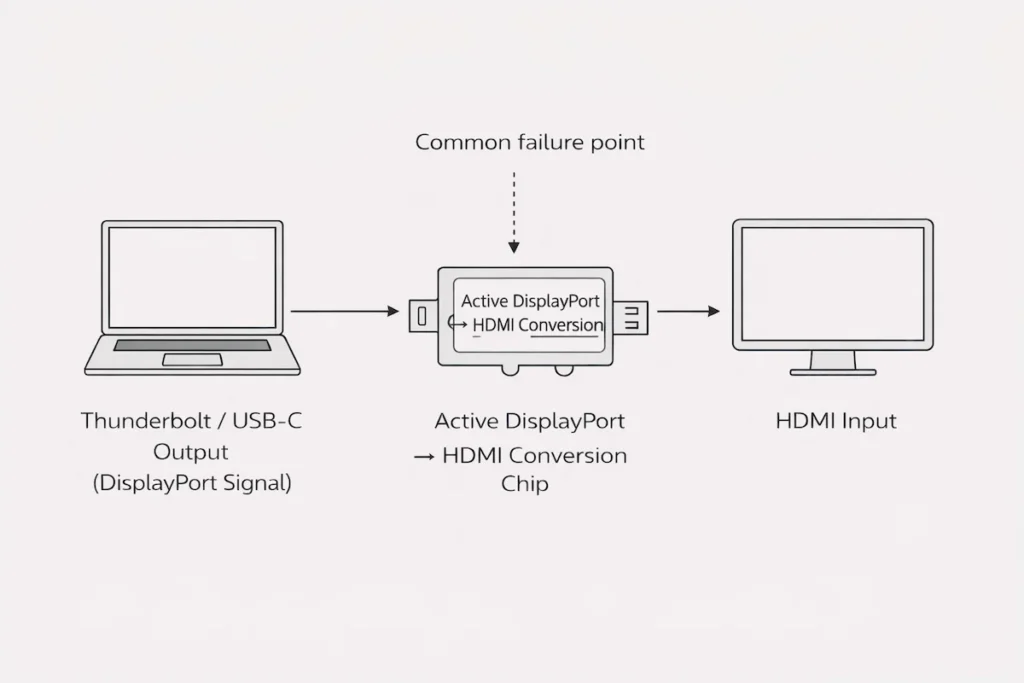
The first critical misconception is in the name. There is no such thing as a native Thunderbolt to HDMI signal. Thunderbolt (and the USB-C DisplayPort Alt Mode it carries) outputs a DisplayPort video signal. Your adapter’s sole job is to convert that DisplayPort signal to HDMI. This conversion happens in an active chip inside the adapter or your docking station.
Therefore, when your Thunderbolt to HDMI connection fails, you are diagnosing a chain with three potential failure points:
- The Source: Is your laptop’s Thunderbolt/USB-C port correctly outputting a DisplayPort signal? (BIOS settings, GPU drivers).
- The Conversion: Is the active chip in your adapter or dock functioning and receiving adequate power? (Adapter quality, dock firmware).
- The Output: Is the HDMI signal compatible with your monitor’s expectations? (HDMI version, EDID data, cable quality).
Understanding this chain is the key to moving from random troubleshooting to surgical diagnosis.
Thunderbolt to HDMI Failure Modes (Real-World Problems)
These are the concrete, recurring reasons your Thunderbolt to HDMI connection fails, drawn from support forums, IT ticket logs, and hands-on testing.
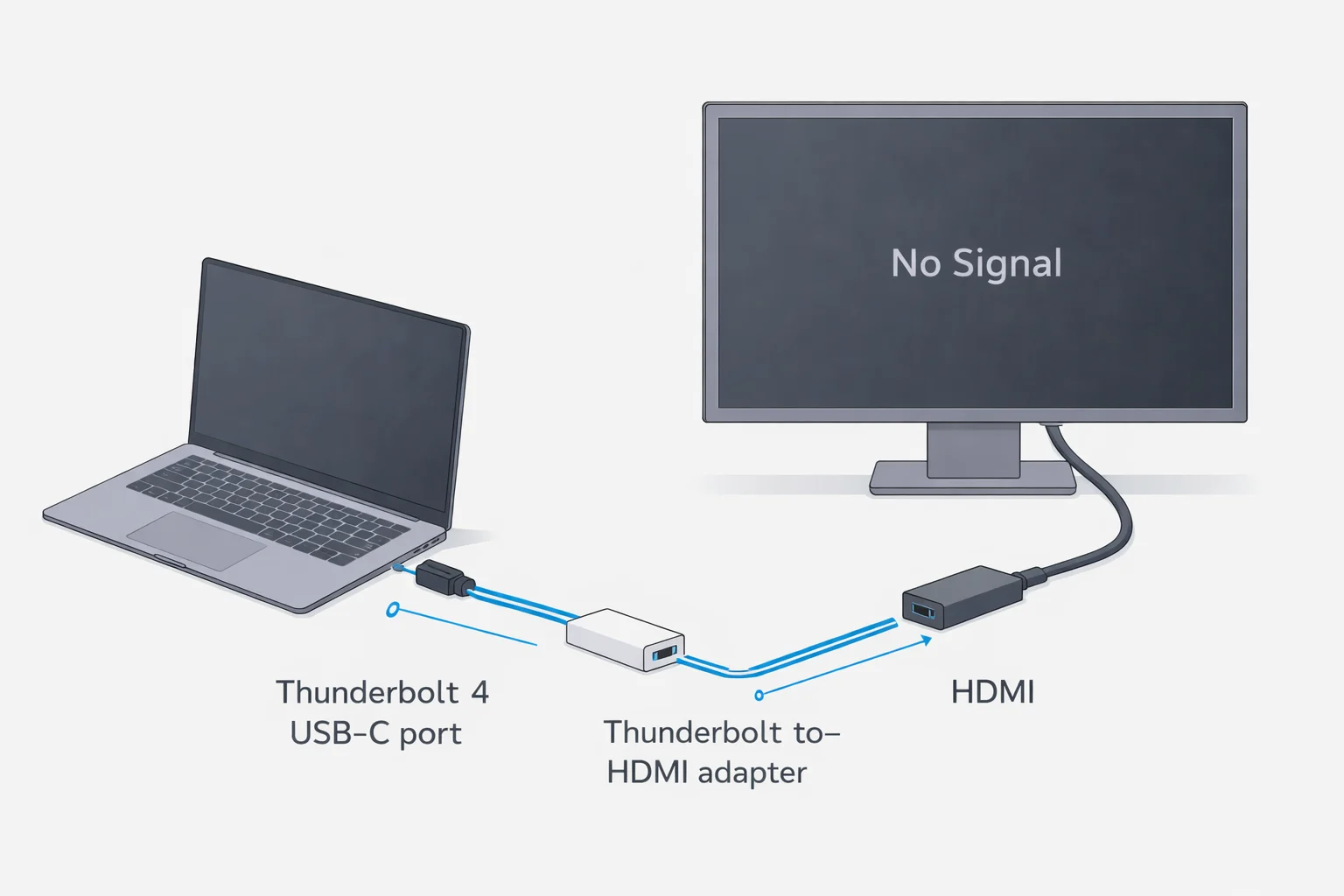
1. Thunderbolt to HDMI Shows “No Signal”
The Symptom: The monitor cycles through inputs and settles on “No Signal” or goes into power-saving mode.
The Layer-by-Layer Diagnosis:
- Source Layer (Most Common): The laptop is not outputting a DisplayPort signal. On many Windows laptops, you must manually enable DisplayPort output over USB-C/Thunderbolt in the BIOS/UEFI. It’s often buried under “USB Configuration” or “Thunderbolt Configuration” as “DisplayPort over USB-C.”
- Conversion Layer: You are using a passive adapter. A passive Thunderbolt to HDMI adapter does not exist for modern systems; it must be an active converter. If your cheap adapter lacks a chip, it will never work. Ensure your adapter is explicitly advertised as an “active” DisplayPort to HDMI converter.
- Power Layer: Bus-powered active adapters can fail if the USB-C port doesn’t provide enough power. Try a different port, preferably one marked with a Thunderbolt or DisplayPort symbol.
2. Works on macOS but Not on Windows
The Symptom: The same Thunderbolt to HDMI adapter works instantly on a Mac but yields no signal on a Windows laptop.
The OS Architecture Reason: macOS has a unified display driver model that aggressively attempts to initialize any connected display. Windows relies on the GPU driver (Intel, NVIDIA, AMD) to detect and initialize the Thunderbolt to HDMI converter chip. Outdated, corrupt, or OEM-bundled GPU drivers often fail at this task.
The Fix: Perform a clean install of the generic GPU driver from Intel, AMD, or NVIDIA’s website—do not use the driver provided by Dell, HP, or Lenovo. Then, enter the BIOS and ensure “DisplayPort over USB-C” or “Thunderbolt Display” is explicitly enabled, not set to “Auto.”
3. Only One HDMI Monitor Works
The Symptom: You connect a USB C to dual HDMI adapter, but only one monitor is detected.
The Reality of Multi-Stream Transport (MST): Driving two independent displays from one port requires DisplayPort MST. The USB C to dual HDMI adapter contains an MST hub chip.
- Windows: Requires GPU driver support for MST. Some older Intel iGPU drivers have broken MST support. Update your drivers.
- macOS: Does not support DisplayPort MST at the system level. A USB C to dual HDMI adapter will only work in mirroring mode on macOS, not as extended displays. This is a fundamental OS limitation, not an adapter flaw.
4. Thunderbolt to HDMI Stops Working After Sleep
The Symptom: The display works on boot but disappears after the laptop sleeps and wakes.
The Power State Handshake Failure: When the laptop sleeps, the Thunderbolt controller and GPU enter a low-power state. Upon wake, they must re-initialize the Thunderbolt to HDMI converter chip. This handshake often fails.
- Windows Fix: In Device Manager, find your Thunderbolt controller under “System devices.” In its Properties, under the “Power Management” tab, uncheck “Allow the computer to turn off this device to save power.”
- macOS Fix: This is less common but can occur. Reset the SMC (Intel Macs) or NVRAM.
5. HDMI Works at 1080p but Not at 4K
The Symptom: The display works at lower resolutions but goes black when set to 4K.
The Bandwidth Ceiling: This almost always indicates you are using an HDMI 1.4 adapter or cable. HDMI 1.4 maxes out at 4K@30Hz. Your OS tries to output 4K@60Hz, the converter or cable fails, and the signal drops.
- Ensure your Thunderbolt to HDMI adapter is explicitly rated for HDMI 2.0 or 4K@60Hz.
- Ensure your HDMI cable is also High Speed or Premium High Speed rated.
- Manually set the display to 4K@30Hz in your OS display settings as a test.
6. Flickering, Black Screens, or Random Dropouts
The Symptom: The display works but intermittently flickers, goes black for a second, or randomly disconnects.
Diagnosis of Interference: This is classic behavior of a marginal signal, often due to:
- Bandwidth Exhaustion: If using a dock, other high-bandwidth activities (file transfers on USB, 2.5GbE use) can momentarily starve the Thunderbolt to HDMI video stream. This is common on value-focused docks. Consider a higher-quality dock or connect the monitor directly.
- Cable Resonance: Long or poor-quality HDMI cables can cause signal integrity issues at high resolutions. Use a shorter, certified Premium High Speed HDMI cable.
- Adapter Overheating: Small, cheap active adapters can overheat under sustained 4K load, causing temporary dropouts.
7. Thunderbolt Dock HDMI Port Not Working (USB Still Works)
The Symptom: Everything else on your docking station works—USB, Ethernet, charging—but the HDMI port outputs no signal.
The Isolated Display Path: In a dock, the USB/data controllers are separate from the display controller. This failure points squarely at the dock’s display controller or its firmware.
- Perform a full power-cycle reset on the dock (unplug power and host cable for 60 seconds).
- Check the dock manufacturer’s website for a firmware update tool. This is a known issue with many first-run docks.
- Try a DisplayPort output instead. If DP works but HDMI doesn, the dock’s internal Thunderbolt to HDMI converter chip may be faulty.
8. Active vs Passive HDMI Adapters (The Most Common Mistake)
The Critical Rule: Any adapter converting DisplayPort (from Thunderbolt) to HDMI must be active. The protocols are too different for a simple pin-to-pin passive adapter.
How to tell? An active adapter will:
- Be slightly larger (houses the chip).
- Often be described as a “Converter” not just an “Adapter.”
- Sometimes require a USB-A cable for extra power for 4K conversion.
If your “adapter” is a simple, tiny dongle and it’s not working, this is almost certainly the problem.
9. HDMI Monitor Not Detected at All
The Symptom: The OS acts as if nothing is plugged in; the display doesn’t even appear in Settings.
The Deep-Seated Cause: The converter chip isn’t being enumerated. This is often a host-side security block.
- BIOS Thunderbolt Security: On many business laptops (Dell, Lenovo), the BIOS has a Thunderbolt security setting that can be set to “User Authorization” or “Secure.” This blocks new Thunderbolt devices until approved via a pop-up that often never appears. Set this to “No Security” temporarily to test.
- Outdated Thunderbolt Firmware: Update your laptop’s Thunderbolt NVM firmware via the manufacturer’s support site.
10. Works Directly, Fails Through a Dock
The Symptom: The Thunderbolt to HDMI adapter works when plugged directly into your laptop but fails when plugged into a dock’s USB-C or Thunderbolt port.
The Downstream Port Limitation: Many docks do not fully support “dual-hop” conversion. The path is: Laptop (DP) -> Dock (re-drives signal) -> Adapter (DP to HDMI). The dock may not correctly pass the necessary DisplayPort data packets for the external adapter to convert. The solution is to use the dock’s native HDMI or DisplayPort outputs, not an additional adapter.
11. Thunderbolt to HDMI on Apple Silicon (M1, M2, M3)
The Symptom: You cannot get a display signal on an Apple Silicon Mac, or you’re limited to one external display with a multi-port adapter.
The Apple Silicon Display Controller Limit: This is a hardware limit. Apple Silicon Macs have a fixed number of display controllers. Using a Thunderbolt to HDMI adapter does not magically create an extra one.
- M1/M2/M3 (Base): Supports one external display. A USB C to dual HDMI adapter will only mirror or light up one screen.
- M2 Pro/Max, M3 Pro/Max: Support multiple displays. However, complex adapters or docks must be compatible with Apple’s display protocol. Always check the adapter’s specifications for explicit Apple Silicon/M1/M2/M3 support.
12. USB-C to Dual HDMI Adapters: Why Results Vary
The Wild West of Compatibility: As noted, a USB C to dual HDMI adapter contains an MST hub. Its success is highly variable.
- On Windows: Success depends on the GPU driver’s MST support. Intel 11th Gen and newer integrated graphics generally work well. Older GPUs or certain NVIDIA Optimus configurations may fail. The USB C to dual HDMI adapter is a gamble on Windows without explicit driver notes.
- On macOS: Will only mirror. Do not buy a USB C to dual HDMI adapter for extended displays on a Mac.
- The Verdict: For reliable dual independent HDMI outputs on any OS, a high-quality docking station with dual native HDMI ports is a far more stable solution than a USB C to dual HDMI adapter.
When Thunderbolt to HDMI Problems Are Actually Dock Problems
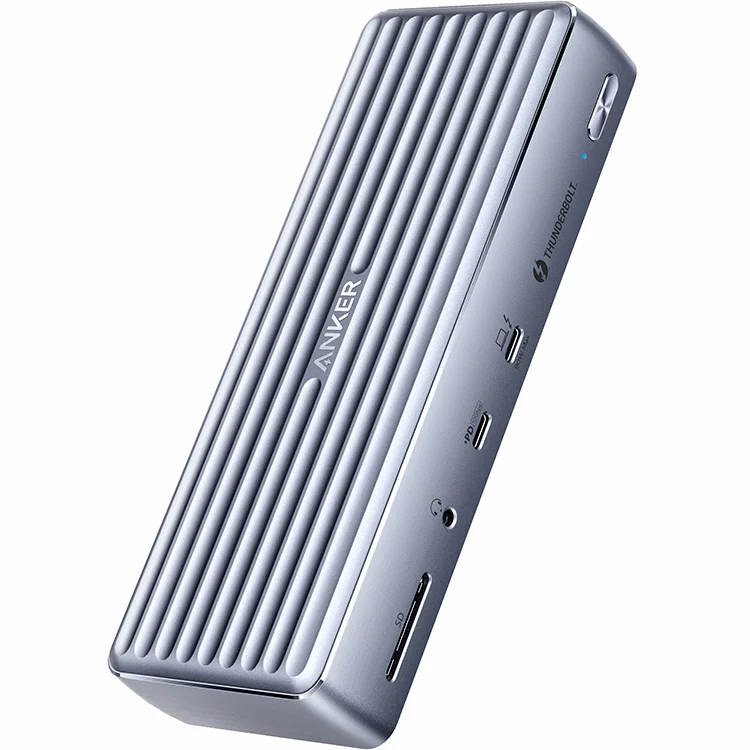
If your display fails when connected through a docking station, the root cause likely lies in the dock’s engineering, not your adapter. The internal Thunderbolt to HDMI conversion in a dock is subject to the same issues, compounded by the dock’s own firmware and power budget.
- Firmware is Key: A dock’s firmware manages the initial handshake. An outdated version can permanently break HDMI output. Our guide to docking station problems details this process.
- Bandwidth Arbitration: On value-focused docks, the single DisplayPort stream from your laptop is split to multiple outputs. Under load, the HDMI output may be the first to fail. This is a design limitation explored in our UGREEN vs CalDigit comparison.
When HDMI Is the Wrong Output Entirely
After a decade of troubleshooting, my professional recommendation in many scenarios is to avoid HDMI when possible. For computer-to-monitor connections, DisplayPort is superior:
- No Conversion Needed: Thunderbolt natively carries DisplayPort. Using a Thunderbolt to DisplayPort cable is a direct, passive, digital connection—far more reliable.
- Better Support for Features: DisplayPort natively supports daisy chaining (MST) and typically handles high refresh rates and adaptive sync more cleanly over longer cables.
- Fewer Handshakes: It removes the active conversion chip—the single most common point of failure in the Thunderbolt to HDMI chain.
If your monitor has both HDMI and DisplayPort, buy a simple USB-C to DisplayPort or Thunderbolt to DisplayPort cable. You will eliminate 80% of the potential problems outlined in this guide.
FAQ
Q: Why does my Thunderbolt to HDMI adapter get hot?
A: This is normal. The active conversion chip generates heat, especially when driving 4K resolution. Significant heat is only a concern if it coincides with signal dropouts.
Q: Can a BIOS update fix my Thunderbolt to HDMI issues?
A: Absolutely. OEMs frequently release BIOS updates that improve USB-C/Thunderbolt display functionality and power delivery. This should be one of your first checks on a Windows laptop with persistent “No Signal” issues.
Q: Does cable length matter for Thunderbolt to HDMI?
A: Critically. For the HDMI portion, longer cables (over 10 feet/3 meters) can degrade the signal at 4K. Use a high-quality, certified cable. For the Thunderbolt/USB-C side, passive cables over 0.8 meters may reduce bandwidth, affecting the source signal before it even reaches the converter.
Q: I have a USB-C laptop without Thunderbolt. Will a Thunderbolt to HDMI adapter work?
A: It might, but it’s not guaranteed. Your USB-C port must support “DisplayPort Alt Mode.” If it does, a DisplayPort Alt Mode to HDMI active adapter will work. Many adapters are cross-compatible, but check the specifications.
Q: My adapter worked yesterday but not today. What happened?
A: The most likely culprit is a silent driver or OS update that changed the display initialization routine. Try a full power cycle (shut down, unplug adapter and monitor, restart). On Windows, use Device Manager to “Scan for hardware changes” or roll back your GPU driver.
Why You Can Trust This Guide
My name is Hans. I hold a BSc in Computer Systems and have spent over twelve years as an IT infrastructure consultant and systems architect. My work involves specifying and supporting the precise hardware that forms reliable digital workspaces for clients in finance, law, and design.
The failure modes detailed here are not theoretical. They are compiled from resolving the same “black screen” issue for a graphic designer whose Thunderbolt to HDMI connection failed every time her Wacom tablet was plugged in (a power draw issue), and for a financial analyst whose dual-monitor USB C to dual HDMI adapter setup collapsed after a Windows update (a driver MST bug). This guide is the product of a methodology that looks past the “adapter” to the underlying protocol conversion—the only approach that yields consistent, permanent fixes.