
NAS Problems Explained: The 15 Failure Modes Every NAS Device Faces

The Infrastructure Reality Check
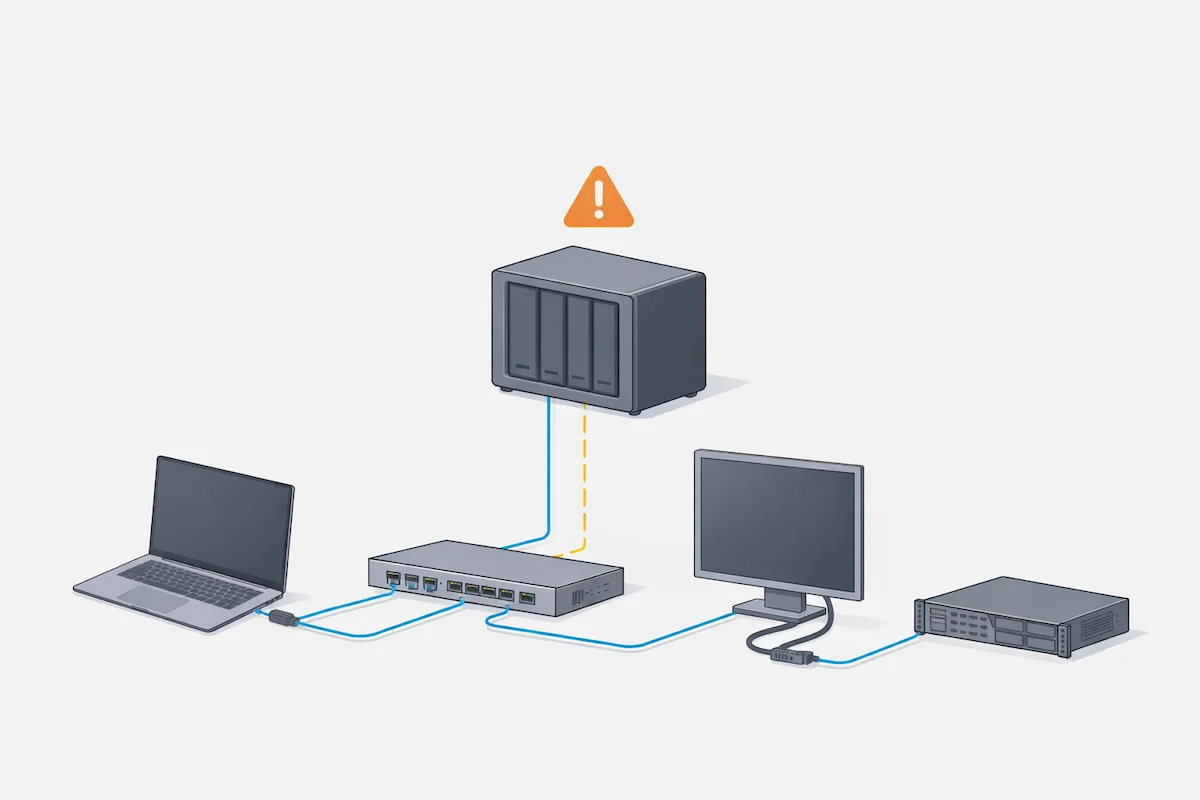
You bought a NAS device for a promise of order: a central, reliable hub for your files, backups, and media. Yet, the reality is often a creeping sense of doubt. Why is it slower than a single external drive? Why does it vanish from the network every Tuesday? The confusion turns to frustration when the tools designed to help—vague vendor error logs and generic forum advice—fail to pinpoint the why.
Here’s the professional truth that cuts through that noise: a NAS device is not a magical black box. It is a specialized, headless computer, a complex storage array, and a multi-protocol network server, all crammed into one chassis. The vast majority of NAS problems are not random defects but predictable failures at the intersections of these three systems. In my work as an infrastructure architect, I’ve seen these same failures cripple a small video studio’s workflow and bring a law firm’s document retrieval to its knees, despite using different brands and price points. This guide will not help you configure your specific model. Instead, it will arm you with the diagnostic framework I use on-site: a systematic breakdown of the 15 universal failure modes that plague every NAS device, so you can stop treating symptoms and start fixing root causes.
Why NAS Devices Fail in Real-World Use
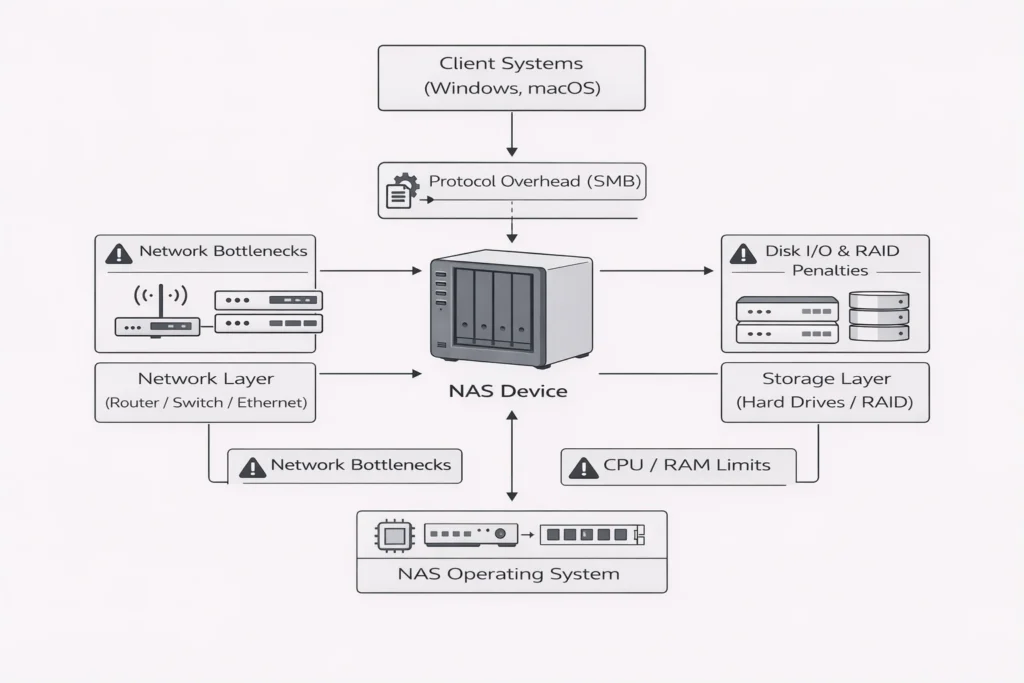
Benchmark numbers on a spec sheet measure a NAS device in a vacuum—sequential reads of a single massive file over a direct, uncongested connection. Your real world is the opposite: a burst of mixed-size files from multiple devices, over a shared Wi-Fi or powerline-affected network, while the NAS device is also running backups, generating media thumbnails, and verifying RAID integrity. The failure is in the expectation gap.
A NAS device fails along four predictable axes, regardless of its brand or how many bays it has:
- Speed: The perception of performance, often gated by the slowest link (network, drives, CPU).
- Visibility: The NAS device’s ability to be consistently seen and reliably accessed by clients on your network.
- Reliability: The integrity of your data and the uptime of the services, a function of both hardware and software stability.
- Manageability: The escalating complexity of permissions, updates, and expansion as your use grows.
Understanding which axis your specific NAS problems fall on is the first step toward a real solution.
The 15 Most Common NAS Device Failure Modes
These are the recurring, systemic issues I diagnose across brands like Synology, QNAP, Asustor, and TerraMaster. Each represents a point where the theoretical design of a NAS device collides with practical deployment.
1. The NAS Is Much Slower Than Expected
The Symptom: File transfers crawl, video buffers, and the system feels laggy despite having “gigabit” or “10GbE” on the box.
The Layer-by-Layer Diagnosis:
Drive Speed Mismatch: Aggregating multiple slow, consumer-grade SMR (Shingled Magnetic Recording) hard drives in a RAID will not produce a fast pool. The NAS device can only write as fast as the slowest drive allows.
Network Layer (Most Common): You are likely hitting a network ceiling. A 1 Gigabit Ethernet (1GbE) connection has a real-world maximum throughput of about 113 MB/s. If you’re copying large files and hitting ~110 MB/s, your NAS device is not slow—your network is saturated. The solution isn’t a new NAS device; it’s a 2.5GbE or 10GbE network upgrade. For many, the bottleneck is the client’s Wi-Fi connection, not the NAS device itself.
Protocol Overhead: Using the SMB protocol (standard for Windows) for thousands of tiny files creates massive overhead versus transferring a single large file. The NAS device’s CPU must process each request individually, slowing everything down.
2. The NAS Does Not Appear on the Network
The Symptom: Your computer or smart TV cannot find the NAS device in the network browser, though it was there yesterday.
The Diagnosis: Modern networks, especially with “mesh” or “client isolation” features, can segment devices. Your NAS device and your laptop might be on different VLANs or subnetworks by accident. This is often caused by:
- Router “Guest Network” Features: Accidentally connecting the NAS device or a client to a guest Wi-Fi network that is isolated from the main LAN.
- mDNS/Bonjour Failure: The protocols that allow easy discovery (especially on macOS) can fail. You can often still connect directly by typing the NAS device’s IP address (e.g.,
\\192.168.1.100in Windows File Explorer). - Network Card Power Save: On some NAS devices, a network interface can enter a low-power state and fail to wake properly, requiring a reboot.
3. The NAS Disconnects Randomly
The Symptom: Mapped network drives show a red “X,” ongoing transfers fail, and you lose access for minutes or hours at a time.
The Diagnosis: This points to instability in the network handshake or the NAS device’s own services.
- Ethernet Cable/Port Issues: A faulty Ethernet cable or a flaky port on your switch is the #1 hardware cause. Swap the cable and try a different switch port.
- Aggressive HDD Sleep: If you’ve set the hard drives to spin down after inactivity, the wake-up latency can cause timeouts, making the NAS device appear disconnected. For a device meant for always-on access, disable HDD hibernation.
- Failing Power Supply Unit (PSU): An underpowered or failing PSU in the NAS device can cause the system or drives to brown out momentarily, dropping connections.
4. File Transfers Start Fast Then Slow to a Crawl
The Symptom: A large copy job starts at full speed (e.g., 113 MB/s) but after a few gigabytes drops dramatically to a slow, steady pace (e.g., 30 MB/s).
The Diagnosis: You’ve exhausted the NAS device’s write cache. Most systems use a portion of RAM as a fast buffer (write cache). Once this fills, data must be written directly to the hard drives at their native, slower speed. This is normal behavior, not a fault. It highlights the difference between burst performance (cache) and sustained throughput (drive array capability).
5. Small Files Perform Terribly Compared to Large Files
The Symptom: Backing up a folder of documents and photos takes forever, while moving a 50GB video file is quick.
The Diagnosis: This is the metadata overhead problem. Every file—regardless of size—requires the NAS device to create and update metadata (filename, permissions, timestamps). Copying 10,000 1KB files generates 10,000 write operations for data plus 10,000 metadata operations, overwhelming the drive’s I/O capabilities. A NAS device with an SSD cache or all-SSD storage is designed specifically to solve this type of workload.
6. The NAS CPU Becomes the Bottleneck
The Symptom: The NAS device feels sluggish during data transfers, especially when encryption or media indexing is enabled. The web interface is slow to respond.
The Diagnosis: Entry-level and ARM-based NAS devices have CPUs suited for basic file serving. When you enable add-on services—real-time file encryption (e.g., using Synology’s encrypted shared folders), video transcoding via Plex, or intensive anti-virus scans—the CPU maxes out, starving the core file service of resources. For these tasks, you need a NAS device with a more powerful Intel or AMD x86 CPU.
7. RAID Did Not Improve Performance (or Made It Worse)
The Symptom: You added a second drive in a RAID 1 (mirror) configuration and noticed no speed gain, or performance in RAID 5 is slower than a single drive.
The Reality Check: RAID is primarily for redundancy, not speed. RAID 1 mirrors data; reads can be faster, but writes are the same speed as one drive. RAID 5/6 provide redundancy with more storage efficiency but have a write penalty because parity data must be calculated on the fly by the NAS device’s CPU. A write operation in RAID 5 can be 2-4 times slower than a write to a single drive. Performance gains in RAID come from striping data across multiple drives (RAID 0), which offers zero redundancy and is riskier than a single drive.
8. The NAS Is Loud, Hot, or Never Lets Disks Sleep
The Symptom: The unit is noisier than expected, runs warm, and drive activity lights flicker constantly even when no one is accessing it.
The Diagnosis: A NAS device is a server; it’s always working.
- Background Services: Indexing (for media libraries), data scrubbing (checking RAID integrity), cloud sync, and scheduled backups keep the drives active.
- Inadequate Cooling: Consumer units in enclosed spaces will ramp up fans. Ensure at least 4-6 inches of clearance on all vents.
- Thermal Throttling: If the CPU or drives get too hot, they will slow down (throttle) to prevent damage, directly causing NAS problems like slowness and timeouts.
9. NAS Backups Are Unreliable or Incomplete
The Symptom: Your backup software reports errors, or you discover files are missing when you need to restore.
The Diagnosis: This is often a client-side or software issue, not a NAS device failure.
- Open File Errors: You cannot reliably back up files that are in use (e.g., an open Outlook PST file, a database). You need backup software with Volume Shadow Copy (VSS) support or to schedule backups when files are closed.
- False Redundancy Assumption: A RAID in your NAS device protects against drive failure. It is NOT a backup. It does not protect against accidental deletion, ransomware, fire, or theft. You must have a separate, offline or offsite copy of your critical data. The 3-2-1 backup rule is non-negotiable.
10. NAS Feels Slower on macOS Than on Windows
The Symptom: Browsing folders and opening files from the NAS device is noticeably laggier on a Mac.
The Diagnosis: This is usually an SMB protocol version mismatch. macOS defaults to using newer versions of SMB, while some NAS devices or their configurations may default to older, less efficient versions. The negotiation and feature mismatch adds latency. The fix is often to manually configure the NAS device to use a minimum and maximum of SMB3 in its settings.
11. Permissions and Access Control Become Unmanageable
The Symptom: Users can’t access folders they need, or suddenly have access to things they shouldn’t. “Permission denied” errors become common.
The Diagnosis: As you create shares, user groups, and subfolders over years, the Access Control List (ACL) hierarchy becomes a tangled web. This is a classic NAS problem of organic growth. Inherited permissions from parent folders conflict with explicit permissions on subfolders. The solution is a clean, documented permission strategy from the start, using groups rather than individual user assignments, and auditing permissions periodically.
12. Software or Firmware Updates Break Stability
The Symptom: After an update, a key service (like Plex or Docker) stops working, or the NAS device becomes unstable.
The Diagnosis: NAS device OS updates (like DSM or QTS) are full operating system upgrades. They can change underlying libraries, kernel modules, and security policies that third-party applications rely on. The community rule is: Never update on day one. Wait a week or two, read the official forums for your specific model to see if others report issues, and ensure your critical apps are compatible with the new OS version before proceeding.
13. Available Storage Space Is Much Less Than Expected
The Symptom: You put four 4TB drives in a RAID 5, expecting ~12TB of space, but the system only shows ~10.5TB available.
The Diagnosis: This is a combination of factors:
- Drive Capacity Math: Drive manufacturers use decimal (1 TB = 1,000 GB) while computers use binary (1 TiB = 1,024 GiB). A “4TB” drive is about 3.63 TiB.
- RAID Overhead: RAID 5 uses one drive’s worth of space for parity. So 4 x 3.63 TiB = 14.52 TiB raw. Minus one drive (3.63 TiB) for parity = 10.89 TiB usable.
- Filesystem Overhead: The Btrfs or ext4 filesystem itself uses a small percentage for its structures.
- Snapshot Reservation: If using snapshots, the system will reserve space for them, further reducing “available” space.
14. The NAS Is Overkill for the Actual Use Case
The Symptom: You spent hundreds on a multi-bay NAS device but only use it for occasional backups of a single computer.
The Reality Check: For a single-user, simple backup target, a directly attached dual-bay DAS (Direct Attached Storage) or even a large external hard drive is simpler, faster, and cheaper. A NAS device justifies its cost and complexity when you need network accessibility, multi-user collaboration, or automated server applications (like running a media server or surveillance system).
15. The NAS Is the Wrong Tool for Performance-Critical Work
The Symptom: Editing 4K video directly from the NAS device is choppy, or working on a large database file is painfully slow.
The Diagnosis: Network latency and protocol overhead are killers for real-time work. Even on a 10GbE network, the round-trip delay of a network request is orders of magnitude higher than accessing a local SSD. For performance-critical tasks, the best practice is to work locally (on your computer’s fast internal SSD) and then save/archive to the NAS. Trying to use a NAS device as a live project drive for demanding applications is asking for a poor experience.
How to Diagnose NAS Problems Systematically
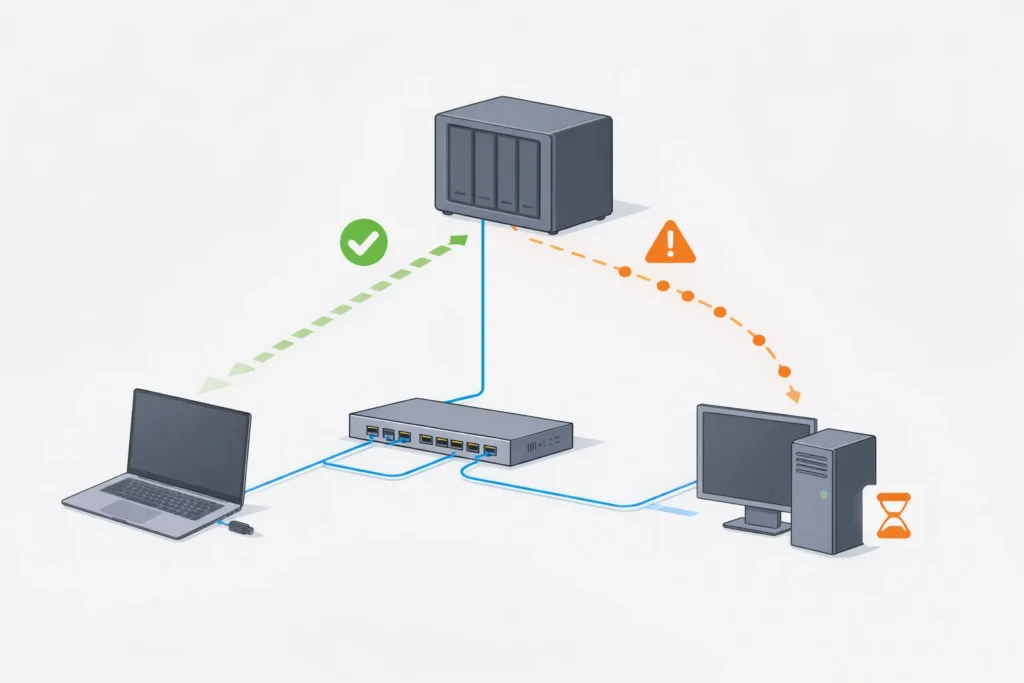
When faced with NAS problems, avoid random changes. Follow this triage order:
- Network First:
- Can you ping the NAS device’s IP address?
- Is the link light on the switch/NAS solid?
- Test with a different Ethernet cable and port.
- Connect a laptop directly to the same switch port to rule out wider network issues.
- NAS Services Second:
- Can you access the NAS device’s web administration interface?
- Check the system logs for errors (often under “Log Center”).
- Look at Resource Monitor to see if CPU, RAM, or disk is pegged at 100%.
- Storage Last:
- Check Storage Manager for disk health (SMART status).
- Verify the RAID array is “Healthy,” not “Degraded” or “Crashed.”
- Look for bad sectors or warning messages on individual drives.
When a NAS Device Makes Sense
A NAS device is the right architectural choice when your needs align with its core strengths:
- Centralized Storage: A single, organized repository for all users in a household or small office.
- Automated, Versioned Backups: Using built-in tools like Hyper Backup or Active Backup for Business to protect multiple computers.
- Multi-User Access & Collaboration: Providing shared spaces for teams with managed permissions.
- Running Always-On Services: Hosting a media server (Plex, Jellyfin), home automation, or a private cloud.
When a NAS Device Does Not
Be honest with your use case to avoid unnecessary cost and complexity. A NAS device is often the wrong choice if:
- Your primary need is raw speed for a single computer (use a DAS or internal storage).
- You have only one computer to back up (a simple external drive with backup software suffices).
- You cannot tolerate any network-related latency in your core workflow.
- You are unwilling to learn basic networking and system administration concepts. A NAS device delegates these tasks to you, not away from you.
FAQ
Q: My NAS is beeping. What does that mean?
A: A constant or repeating beep is almost always a critical hardware alert. Immediately check the NAS device’s web interface. The two most common causes are: 1) A drive has failed and the RAID array is degraded, or 2) The system is overheating. Do not ignore this.
Q: Can I mix and match different hard drive brands and sizes in my NAS?
A: You can, but you should not. For a RAID array, using identical drives (same model, size, and ideally batch) ensures uniform performance and prevents the array’s capacity from being limited to the smallest drive. Mismatched drives can lead to instability and are not recommended.
Q: How often should I replace the hard drives in my NAS?
A: There’s no fixed schedule, but proactivity beats data loss. Monitor drive health via SMART attributes. A good rule of thumb is to consider replacing drives after 5-6 years of continuous operation, or sooner if they are in a demanding 24/7 environment. Stagger replacements if possible.
Q: Is it safe to expose my NAS to the internet for remote access?
A: It carries significant risk if not done meticulously. The built-in “QuickConnect” or relay services from vendors like Synology are the safest easy option. Manually opening ports on your router for services like the web interface or FTP is dangerous and not recommended without using a VPN (which your NAS device can likely host) for secure access.
Q: Why does my NAS have so many “default” shared folders I didn’t create?
A: These are created by the system and installed applications (e.g., homes for user directories, web for hosting websites, music for media servers). You can often hide or disable them if unused, but do not delete them without understanding their purpose, as it may break applications.
Why You Can Trust This Guide
My name is Yamato. My specialty is designing and implementing reliable, scalable data storage and backup solutions for small businesses and professional creatives who cannot afford downtime.
The patterns described here are etched from real firefights: recovering a photographer’s RAID 5 array after a second drive failed during rebuild (teaching a harsh lesson about backup), and diagnosing why a design firm’s high-end NAS device felt slow (tracing it to a single 1GbE link aggregating four 10GbE clients). This guide distills that methodology. It treats a NAS device not as an appliance, but as a complex system where problems have logical, diagnosable causes. When your NAS device stumbles, this is the framework to get it—and your workflow—back on track.