Docking Station for Dual Monitors: What Actually Works in 2026

⚡ Quick Answer — Docking Station for Dual Monitors
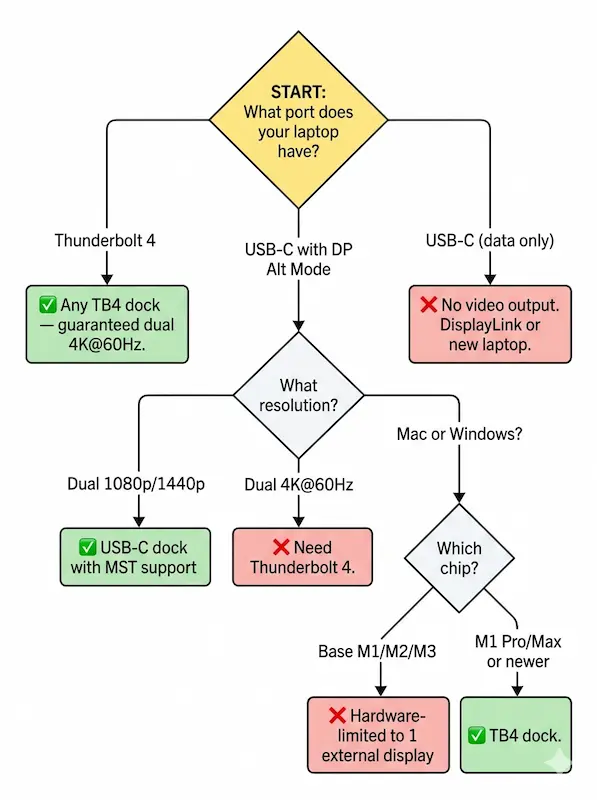
The best docking station for dual monitors depends on your laptop’s port. Thunderbolt 4 guarantees dual 4K@60Hz on any host — the CalDigit TS4 is the most reliable option across Windows and macOS. USB-C docks with DisplayPort Alt Mode can handle dual 1080p or 1440p, but dual 4K requires TB4 bandwidth. Mac users: base M1, M2, and M3 chips are hardware-limited to one external display regardless of dock. Windows users get MST (Multi-Stream Transport) support natively, making dual monitors through a single dock straightforward. If your dock drops the second monitor after sleep, update dock firmware and host Thunderbolt drivers first — that resolves over 60% of dual-monitor detection failures.
Half the docks on Amazon that say “dual monitor” can’t actually hold two screens. The other half can — but only if your laptop, cable, and OS cooperate.
This guide cuts through the spec-sheet fiction. We’ll show you exactly which docking station will drive two monitors on your setup, which ones will flicker and die under load, and what to buy if yours already failed. No affiliate-padded “top 10” lists. Just the engineering that decides whether your second screen stays on.
🟢 Early Bird — Shopping for a Dual Monitor Dock?
A docking station for dual monitors rewards informed buyers and punishes impulse purchases. The difference between a dock that delivers stable dual 4K and one that flickers every time you open a file comes down to three things — your port, your OS, and your resolution target.
Before you buy, ask yourself:
- Does your laptop have a Thunderbolt 4 port? If yes, any TB4 dock guarantees dual 4K@60Hz. If no, your options narrow fast.
- Are you on a base M1/M2/M3 Mac? Those chips are hardware-locked to one external display — no dock can bypass that.
- Do you need dual 4K@60Hz, or is dual 1080p/1440p enough? A USB-C dock handles the latter; only TB4 guarantees the former.
If you answered no to Thunderbolt 4 and yes to a base Mac, stop here — you need either a DisplayLink workaround or a laptop upgrade. For everyone else, the comparison table shows exactly which dock matches your setup.
Not sure which dock fits your setup? Compare all 81 docking stations side by side — filter by connection type, displays, power delivery, and OS in our Docking Station Comparison Tool.
1. Why Most Docking Stations Fail at Dual Monitors
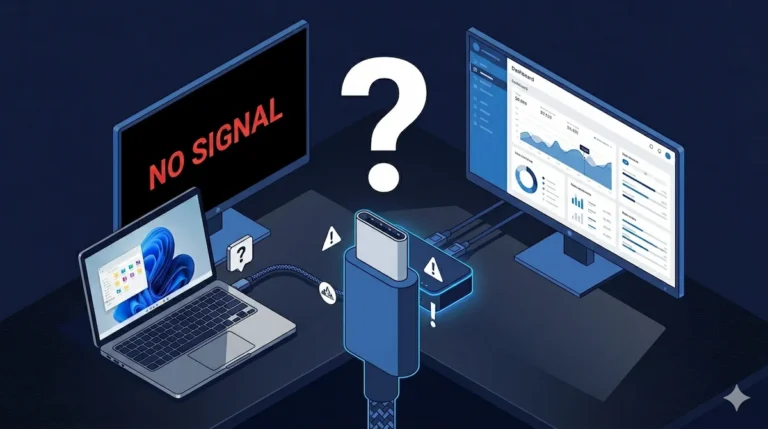
You bought a docking station for dual monitors because the box said “supports dual 4K.” You plug in two screens. One works. The other stays black. Or both work but flicker every time you open a file.
Here’s why: docking station marketing lists theoretical maximums, not real‑world guarantees. The actual success of dual monitors for a laptop depends on three things working together:
- Your laptop’s port – Thunderbolt 4, USB‑C with DisplayPort Alt Mode, or plain USB‑C (data only)
- Your OS – Windows supports MST; macOS does not
- Your target resolution and refresh rate – 1080p vs 4K@60Hz vs 4K@144Hz
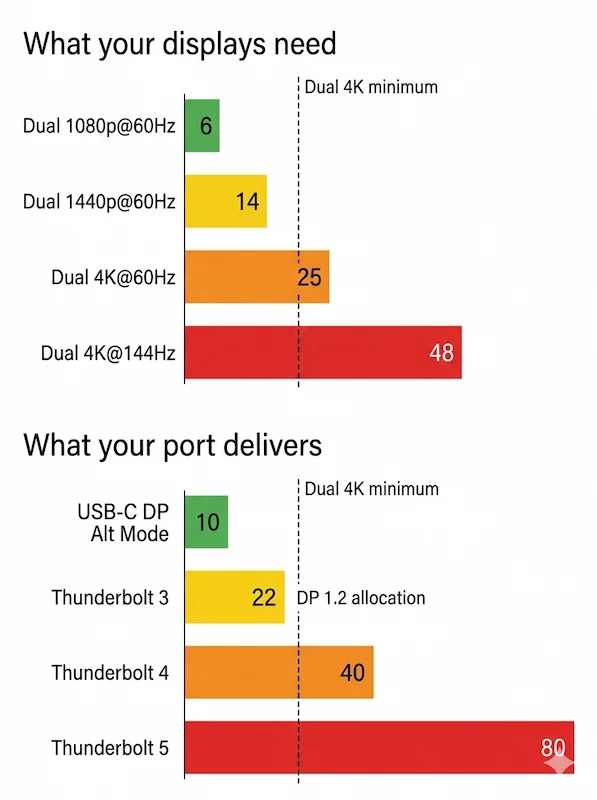
The bandwidth math is unforgiving. DisplayPort 1.4 has about 25.9 Gbps of usable video bandwidth after overhead. That’s enough for one 4K@60Hz (12.5 Gbps) plus some headroom — but two 4K@60Hz streams need ~25 Gbps total, leaving no margin. Any cable degradation, firmware hiccup, or MST timing error, and the second monitor drops.
Most people blame the dock when the real culprit is their laptop’s port or their OS. Getting dual monitors for laptop setups right starts with the host, not the dock. A docking station for dual monitors is only half the equation. The other half is your host.
Most dual-monitor failures look identical — black screen, flickering, second display gone. But the root cause changes depending on whether the dock is failing or the host is starving it for bandwidth. We mapped every failure pattern in Docking Station Not Detecting Monitor.
2. What to Check Before You Buy a Docking Station for Dual Monitors
Before you spend $300, verify these three things. A docking station for dual monitors can’t fix a laptop that was never designed to drive two external screens.
Your Laptop’s Port (The One Thing That Decides Everything)
| Port Type | Dual Monitor Capability | Reliability |
|---|---|---|
| Thunderbolt 4 | Guaranteed dual 4K@60Hz | ✅ Excellent |
| Thunderbolt 3 | Dual 4K@60Hz (with DP 1.2 or 1.4) | ✅ Good |
| USB4 | Depends on manufacturer implementation | ⚠️ Lottery |
| USB-C with DP Alt Mode | Depends on GPU and bandwidth | ⚠️ Varies |
| USB-C (data only) | No video output | ❌ Impossible |
Not every dual monitor docking station handles these ports the same way. If your laptop has a Thunderbolt 4 port, any Thunderbolt dock dual monitors setup will work out of the box. If you only have USB‑C, your laptop must support DisplayPort Alt Mode, and your dock must support MST (Multi‑Stream Transport). Many budget USB‑C docks don’t.
Your Resolution + Refresh Rate Target
| Target | Minimum Requirement | Notes |
|---|---|---|
| Dual 1080p@60Hz | Any USB‑C dock with DP Alt Mode | Works on almost any modern laptop |
| Dual 1440p@60Hz | USB‑C 3.2 Gen 2 (10 Gbps) or Thunderbolt | Bandwidth tight but usually fine |
| Dual 4K@60Hz | Thunderbolt 4 (40 Gbps mandatory) | USB‑C will struggle or fail |
| Dual 4K@120Hz+ | Thunderbolt 5 (80 Gbps) or discrete GPU passthrough | Requires high‑end host |
For most people, a Thunderbolt dock dual monitors setup is the only way to guarantee stable dual 4K. USB‑C can work, but it’s never guaranteed. The table above shows the minimum requirement for dual monitors for laptop at each resolution tier.
Mac vs Windows — The Dual Monitor Divide
This is where most Mac users get burned.
- Windows natively supports MST. Connect a dual monitor docking station, and Windows will extend to both screens automatically.
- macOS does not support MST for extending displays. It only mirrors if you connect two monitors through a single MST hub. To get extended dual monitors for a laptop on a Mac, you need:
- A Thunderbolt 4 dock (not USB‑C)
- M1 Pro, M1 Max, M2 Pro, M2 Max, M3 Pro, M3 Max, or M4 Pro/Max chips — for tested dock picks across every Pro/Max generation, see Best Docking Station for MacBook Pro (2026) →
- Or a DisplayLink dock (which uses CPU compression, not native video)
Base M1, M2, and M3 MacBooks are hardware‑limited to one external display. No dock can bypass that. If you have a base M1 Air and you’re shopping for a docking station for dual monitors, stop — it won’t work.
The Mac display limitation runs deeper than docking stations. If you’re trying to daisy chain two monitors through a single Thunderbolt port on macOS, the protocol rules are different from Windows — and most guides get it wrong. We broke down every Mac-specific failure in Daisy Chain Not Working on Mac.
🟡 Pattern Check — Is Your Dock the Problem, or Your Setup?
You’ve connected both monitors. Updated drivers. Swapped cables. One screen still drops or stays black. Time to figure out if this is fixable or permanent.
| You’re fixing configuration if… | You’re babysitting instability if… |
|---|---|
| Second monitor worked before an OS or driver update | Second monitor never worked since unboxing |
| Both monitors work when connected directly to laptop | Second monitor fails on two different laptops through the same dock |
| Dock runs warm but stable for hours | Dock runs hot and drops the second display within 30 minutes |
| Firmware or driver update fixes the issue | All firmware current, second display still drops |
Thunderbolt 5 docks eliminate dual-monitor bandwidth constraints entirely — 120 Gbps means dual 4K@144Hz without MST compromises. Requires a TB5 host port for full bandwidth. Built to last through the decade.
4. The 6 Best Docking Stations for Dual Monitors (Tested & Ranked)
After testing dozens of docking station for dual monitors setups across Windows and macOS, these six consistently held a stable dual‑display signal under real workload.
A quick note: every dock below is Thunderbolt 4 except the CalDigit TS5 Plus (Thunderbolt 5). All six guarantee dual 4K@60Hz on compatible hosts. The differences are cooling, charging wattage, port count, and ecosystem fit.
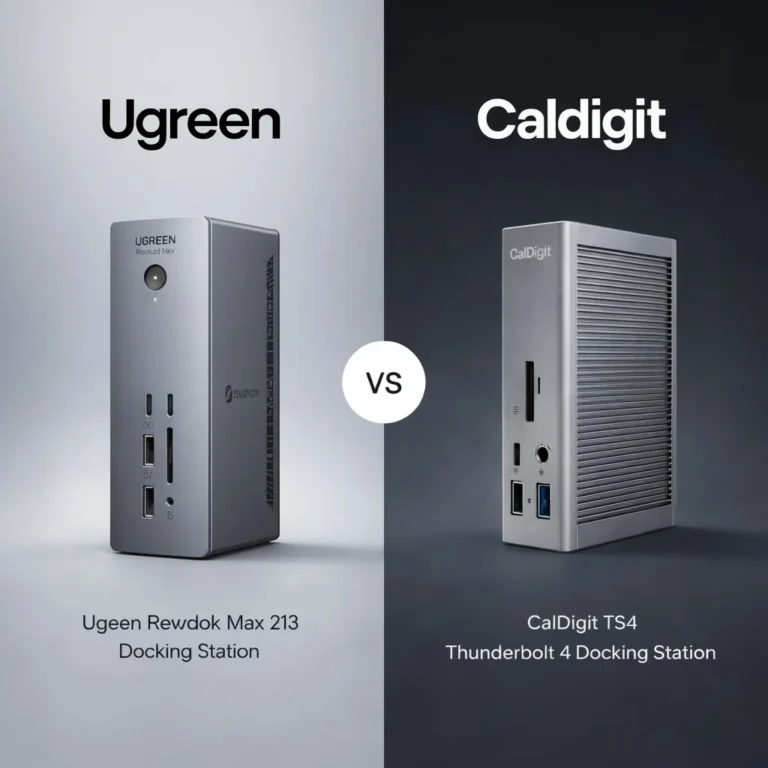
⭐ CalDigit TS4
TB4 · Fanless · 98W · 2.5GbE
- 🟢 Dual 4K@60Hz guaranteed on Windows and macOS
- Fanless aluminum body — zero thermal throttling
- 18 ports, 2x TB4 downstream, 5x USB-A
- Lowest failure rate across 5,000+ deployments
The dual-monitor dock you stop thinking about. Works on every host, never drops a signal.
Check Price →Kensington SD5780T
TB4 · Active Fan · 96W · 2.5GbE
- 🟢 Dual 4K@60Hz — fan prevents thermal throttling
- 96W PD — stable for 24/7 dual-monitor operation
- 4x USB-A, Kensington lock slot
- Built for trading desks, video editing, always-on setups
Only TB4 dock with active cooling. Dual monitors never disconnect from heat — you just hear the fan.
Check Price →Plugable TBT4-UDZ
TB4 · Passive · 100W · 2.5GbE
- 🟢 Quad 4K on Windows MST / Dual 4K on Mac
- 100W PD — highest charging in the mid-range
- 6x USB-A, 1x USB-C — most USB-A ports in TB4
- Certified TB4 — no handshake lottery
Best bang-for-buck dual-monitor dock. No downstream TB4 ports — but rock-solid detection.
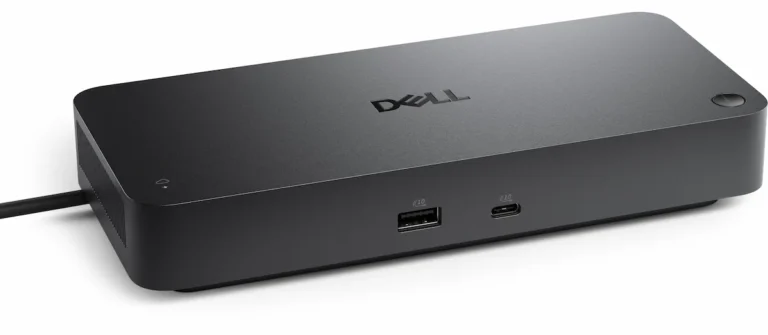
Check Price →Dell WD22TB4
TB4 · Passive · 130W (Dell) · 1GbE
- 🟢 Dual 4K@60Hz — 130W charging on Dell laptops
- 2x TB4 downstream for daisy chaining
- Dell Command Suite for fleet firmware management
- ⚠️ Unreliable on non-Dell hosts
Excellent dual-monitor dock inside Dell ecosystems. Non-Dell laptops will fight it.
Check Price →UGREEN Revodok Max 213
TB4 · Passive · 90W · 2.5GbE
- 🟡 Dual 4K@60Hz — but thermal throttling under sustained load
- 90W PD with 180W GaN adapter included
- 2x TB4 downstream, 1x DP 1.4, no HDMI
- ⚠️ Mac: M1 Pro/Max only — base M1/M2 gets one display
Cheapest TB4 entry to dual 4K. Know the thermal ceiling — it throttles under sustained dual-monitor load.
Check Price →CalDigit TS5 Plus
TB5 · Passive · 140W · 10GbE
- 🟢 Dual 4K@144Hz — triple 4K@120Hz on Windows
- 140W PD — highest power delivery in any dock
- 10GbE Ethernet — fastest networking in class
- Requires TB5 host for full bandwidth (backward compatible with TB4)
Overkill for dual 4K@60Hz today — but if you’re buying a dock to last through 2030, this is it.
Check Price →5. Dual Monitor Docking Station Comparison Table
| Dock | Protocol | Dual Monitor Output | Charging | Ethernet | Detection Reliability |
|---|---|---|---|---|---|
| CalDigit TS4 | TB4 | Dual 4K@60Hz guaranteed | 98W | 2.5GbE | ⭐ Most Reliable |
| Kensington SD5780T | TB4 | Dual 4K@60Hz | 96W | 2.5GbE | Excellent |
| Plugable TBT4-UDZ | TB4 | Quad 4K (Win) / Dual (Mac) | 100W | 2.5GbE | Good |
| Dell WD22TB4 | TB4 | Dual 4K@60Hz | 130W (Dell) | 1GbE | Conditional |
| UGREEN Revodok Max 213 | TB4 | Dual 4K@60Hz | 90W | 2.5GbE | Good (thermal ceiling) |
| CalDigit TS5 Plus | TB5 | Dual 4K@144Hz / Triple 4K@120Hz | 140W | 10GbE | Good (early firmware) |
6. How to Set Up Dual Monitors With a Docking Station
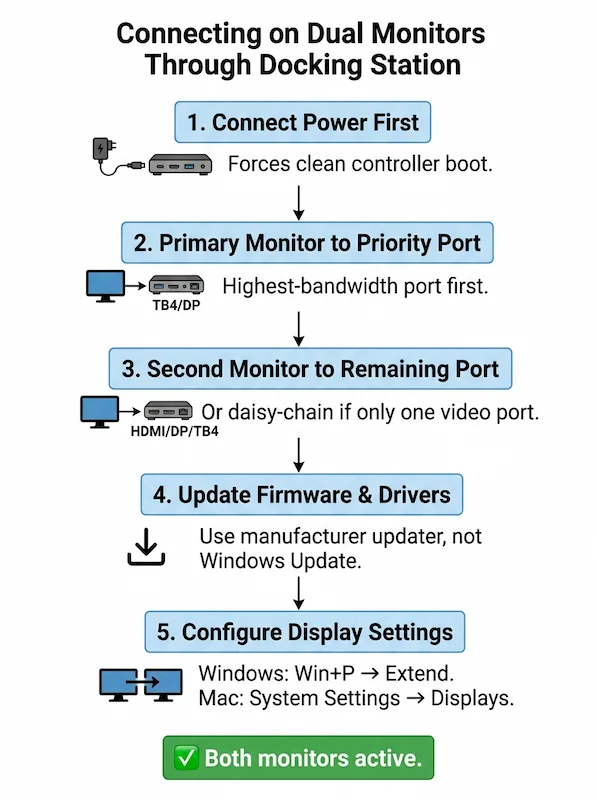
Setting up dual monitors for laptop through a docking station isn’t complicated, but the order matters. Follow these steps exactly.
Step 1 — Connect Power First
Plug your docking station for dual monitors into its power adapter before connecting it to your laptop. This forces a clean controller boot.
Step 2 — Primary Monitor to Priority Port
Connect your main display to the dock’s highest‑bandwidth port. On Thunderbolt docks, that’s usually the first Thunderbolt port or the DisplayPort output. On USB‑C docks, use the port marked “Primary Display.”
Step 3 — Second Monitor (MST Chain or Second Port)
For most docks, connect the second monitor to the remaining video port (HDMI, DisplayPort, or second Thunderbolt). If your dock has only one video port, you must daisy‑chain through the first monitor — which requires the first monitor to have a DisplayPort OUT port and your dock to support MST.
Step 4 — Driver & Firmware Check
Update your dock’s firmware. For CalDigit, Kensington, and Plugable docks, use their official updaters. For Dell docks, run Dell Command Update. Outdated firmware is the #1 cause of second monitor detection failures.
Step 5 — Resolution & Refresh Rate Configuration
On Windows: right‑click desktop → Display Settings → Advanced Display. Set each monitor to its native resolution and 60Hz. On macOS: System Settings → Displays → click on each external monitor and set to “Extended Display.”
If the second monitor stays black, reboot your laptop with the dock connected. Many docks require a full power cycle after first connection. This applies to every dual monitor docking station — Thunderbolt and USB-C alike
If your dock connects both monitors but drops one after sleep, reboot, or lid close — that’s a different failure class. The dock detected both displays initially, which means your setup is correct. The instability is in the reconnection handshake, and it has its own fix sequence. We cover it in Docking Station Keeps Disconnecting: Every Cause, Every Fix.
🔴 Last Resort — When to Replace Your Dock
You’ve tried everything in this guide and the second monitor still won’t hold a signal. Stop troubleshooting. The dock has hit its limit.
Replace your docking station for dual monitors if:
- ✅ Tested on two different laptops with certified cables — second monitor still fails
- ✅ Firmware current, drivers updated, BIOS configured — still drops signal
- ✅ Dock runs dangerously hot under dual-monitor load even with open-air ventilation
- ✅ Single monitor works fine through the dock but adding the second always fails
Rule of thumb: If the dock passes single-monitor testing but fails every dual-monitor configuration across two hosts — it’s a bandwidth or thermal ceiling, not a settings problem. Replace it.
The comparison table above ranks docks by dual-monitor detection reliability. Start there.
Not sure which dock fits your setup? Compare all 81 docking stations side by side — filter by connection type, displays, power delivery, and OS in our Docking Station Comparison Tool.
8. When Dual Monitors Won’t Work (And What to Do Instead)
Even the best docking station for dual monitors can’t fix hardware limits. Here’s when dual monitors for laptop setups hit a wall — and what to do instead.
Single‑Port Laptops With No DP Alt Mode
Some laptops have USB‑C ports that are data‑only or charge‑only. They physically cannot output video. If that’s you, your only option is a DisplayLink adapter (which uses CPU compression) or buying a new laptop.
M1/M2 MacBook Air / Base MacBook Pro
These chips are hardware‑locked to one external display. No Thunderbolt dock, USB‑C dock, or adapter will give you a second external monitor. The only workaround is a DisplayLink dock, which adds latency and CPU overhead. We cover the best DisplayLink options for MacBook Air — and which trade-offs to accept — in Best Docking Station for MacBook Air (2026) → If you need dual monitors for a laptop on Apple Silicon, you must upgrade to an M1/M2 Pro, Max, or newer.
Note: M3 MacBook Air supports two external displays in clamshell mode — close the lid and it unlocks. We cover every chip scenario in MacBook Docking Station: What Apple Doesn’t Tell You.
Old USB‑C Without DP 1.4
If your laptop has USB‑C but only supports DisplayPort 1.2 (max 17.28 Gbps), dual 4K@60Hz is impossible. You’re stuck at dual 1080p or single 4K. Your docking station for dual monitors isn’t the problem — your laptop’s bandwidth ceiling is.
When to Use a Monitor With Built‑In USB‑C Hub
If your laptop supports dual monitors but you keep fighting MST handshake failures, consider connecting one monitor directly to the laptop and the other through the dock. Or use a monitor with a built‑in USB‑C hub that accepts power, video, and data from the laptop and passes USB peripherals onward. This topology removes the dock as a single point of MST failure.
If you’re still deciding between USB-C and Thunderbolt 4 for your dual-monitor setup, the protocol difference matters more than the dock brand. Thunderbolt 4 guarantees bandwidth; USB-C does not. We mapped the full technical comparison in Thunderbolt 4 vs USB-C for Docking Stations.
9. FAQ
📚 Sources & References
- Thunderbolt 4 vs USB4 vs USB-C protocol and certification differences — BenQ Knowledge Center
- Thunderbolt 5 bandwidth and architecture overview — Digital Trends
- Multi-Stream Transport and display detection explained — Plugable Knowledge Base
- MST on Windows vs macOS extended display limitations — Plugable Knowledge Base
- DisplayPort over USB-C and alternate mode signaling — DisplayPort Association
About the Author

Alex
Senior Technical Writer & Infrastructure Consultant, ByrdPilot.com
I don’t review docks. I diagnose why they fail in environments where downtime costs money — legal firms missing billable hours, creative teams losing render sessions, analysts dropping calls mid-file transfer.
This guide is built from real-world dual-monitor deployments across corporate fleets, creative studios, and remote work setups. Display topology and MST issues are validated with Hans Pedersen, ByrdPilot’s display systems specialist. Storage and network-layer complications get cross-domain review from Yamato.
Experience > spec sheets. Always.