How to Clean a Thunderbolt Hub: Stop Overheating, Disconnects & Port Failures (2026)

Dust kills Thunderbolt hubs. Not slowly — predictably. It clogs vents, coats thermal surfaces, and works its way into ports until your dock starts dropping connections, running hot enough to cook on, or refusing to detect monitors at all. Cleaning is the cheapest, fastest fix for most “my dock is dying” complaints. Knowing how to clean a Thunderbolt hub properly takes 10 minutes. Here’s how to do it right.
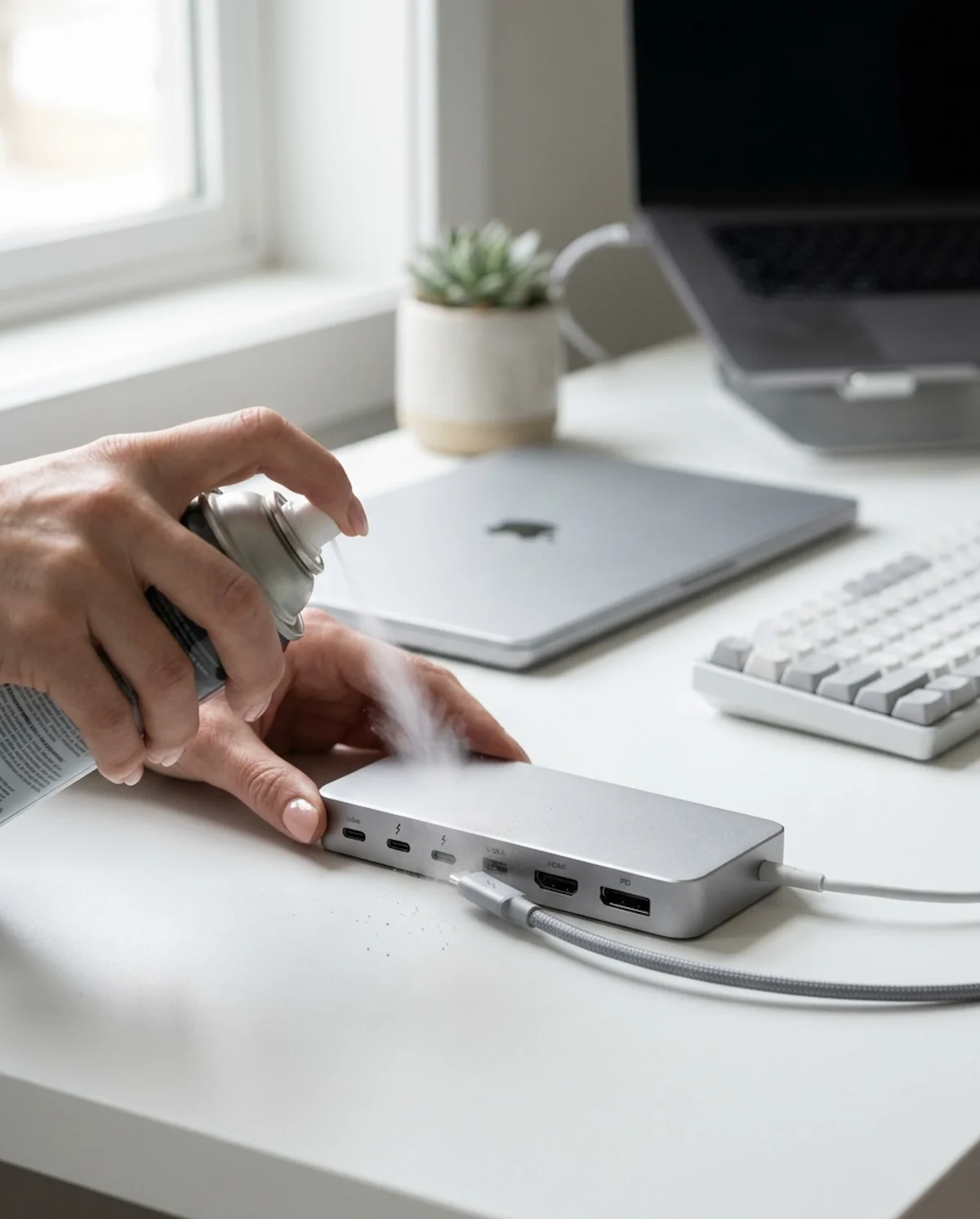
How to clean a Thunderbolt hub in three steps: Unplug everything. Blow compressed air into ports at a 15° angle to dislodge dust. Wipe thermal vents with 90% isopropyl alcohol and a lint‑free cloth. Never use metal tools inside ports. Clean every 3–6 months depending on your environment. This solves the majority of overheating and intermittent disconnect issues without replacing hardware.
🟢 Early Bird — Before You Replace, Try Cleaning
Many people RMA a perfectly fixable dock because they didn’t know how to clean a Thunderbolt hub properly. Before you spend $300 on a replacement, ten minutes of basic maintenance could solve the problem entirely. Dust is behind the majority of “my dock is dying” complaints — and it’s the easiest fix there is.
Before you buy a new dock, ask yourself:
- Have you ever cleaned your dock’s ports or vents? If the answer is no, start there — you’ll be surprised what’s inside.
- Did the symptoms appear gradually (getting worse over weeks)? That’s dust. Sudden failures are usually firmware or hardware.
- Does your dock run noticeably hotter than when you bought it? Blocked vents are the #1 cause of thermal throttling in Thunderbolt hubs.
If cleaning doesn’t fix it and the dock is under warranty, start the RMA process. For CalDigit TS4 owners, see our CalDigit TS4 Not Working guide for warranty and firmware recovery steps.
Not sure which dock fits your setup? Compare all 81 docking stations side by side — filter by connection type, displays, power delivery, and OS in our Docking Station Comparison Tool.
1. Why Cleaning Your Thunderbolt Hub Actually Matters
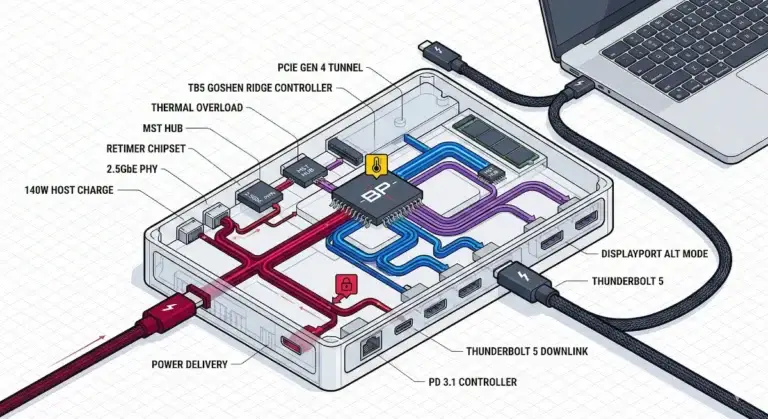
Dust is a progressive killer. It doesn’t break your dock overnight. It builds up over months, raising internal temperatures until the Thunderbolt controller hits its thermal limit and throttles. That throttling shows up as random disconnects, flickering monitors, or Ethernet drops. By the time you notice, the damage isn’t to the silicon — it’s to your patience.
The failure chain looks like this:
- Dust blocks vents → internal temperature rises
- Controller hits 85°C+ → initiates protective throttling
- Throttling causes bus resets → displays flicker, USB drops
- Over months, port contacts corrode from humidity trapped under dust
- Eventually, the dock becomes unreliable even after cleaning
Understanding how to clean a Thunderbolt hub isn’t just about maintenance. It’s about avoiding the false conclusion that your dock is dying when it just needs a few minutes of basic care. Many of the issues that land people in our Docking Station Keeps Disconnecting guide trace back to dust and heat — not firmware bugs.
2. What You Need Before You Start
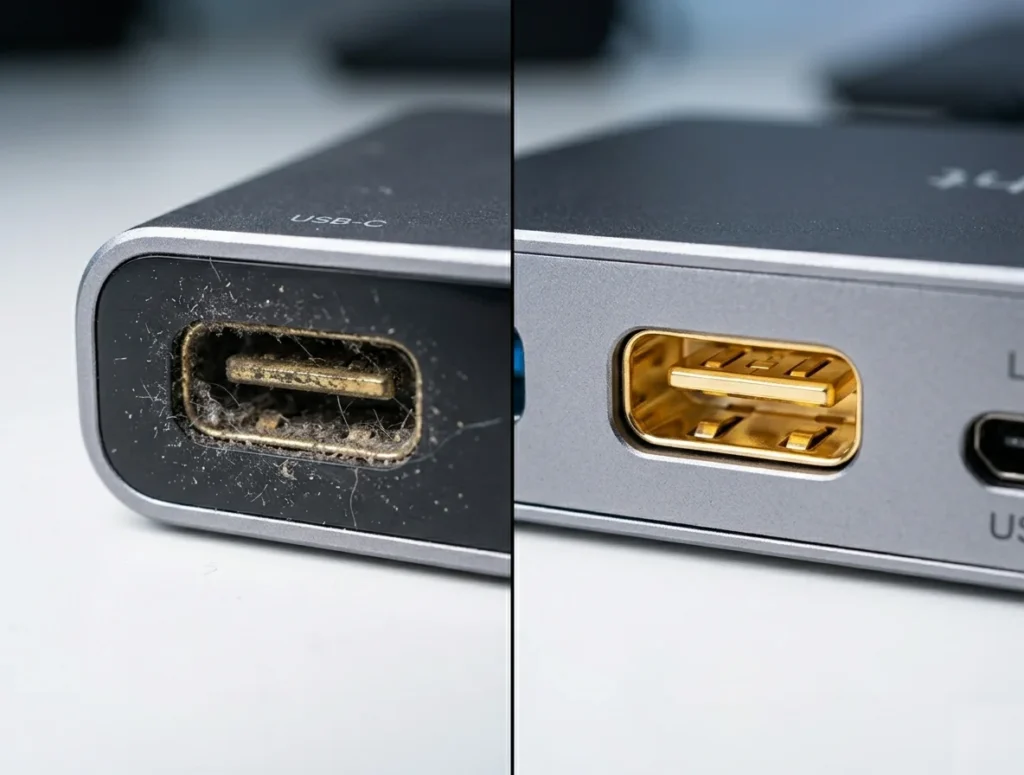
Don’t improvise with office supplies. Using a paperclip or a vacuum cleaner will damage ports. Here’s the correct kit:
| Tool | Purpose | Why It Matters |
|---|---|---|
| Canned compressed air (or electric duster) | Blow dust out of ports and vents | High pressure dislodges debris without contact |
| 90%+ isopropyl alcohol | Dissolve oils and residue | Lower concentrations leave moisture that can short contacts |
| Lint‑free foam swabs or microfiber cloth | Wipe port interiors | Lint from cotton swabs re‑contaminates ports |
| Anti‑static brush (soft bristle) | Loosen caked dust before blowing | Prevents static discharge that could damage controllers |
| Plastic spudger (no metal) | Gently pry loose debris | Metal scratches gold contacts and ruins ports |
Crucial rule: Never insert metal tools into USB-C, Thunderbolt, or HDMI ports. One slip and you’ll score the contact pins, creating a permanent connection failure.
3. How to Clean a Thunderbolt Hub: Port-by-Port Guide
This is the core of how to clean a Thunderbolt hub. Each port type requires slightly different technique.

3.1 Thunderbolt 4 / USB-C Ports
These are the most sensitive. The pins are delicate, and the port is shallow.
- Power down and unplug the hub. Wait 30 seconds for capacitors to discharge.
- Use compressed air at a 15° angle. Insert the straw nozzle just inside the port opening, angle it toward the side wall, and give short 1‑second bursts. Never blast straight into the port — that drives debris deeper.
- For caked dirt, gently use an anti‑static brush to loosen particles, then blow again.
- For sticky residue, lightly dampen a foam swab with 90% IPA, wipe the inner walls, then air dry for 2 minutes before reconnecting.
If a port is physically damaged (bent tab, broken plastic insert), cleaning won’t fix it. That’s hardware failure — covered in the “When Cleaning Won’t Fix” section below.
Related: Dirty ports are one cause of display signal loss — but not the only one. If cleaning didn’t fix it, our Docking Station Not Detecting Monitor guide covers the five failure modes behind blank screens.
3.2 USB-A Ports
These are more forgiving but still require care.
- Blow compressed air at the same 15° angle.
- Wrap a microfiber cloth around a plastic spudger and lightly dampen with IPA. Insert gently and rotate to clean the metal contact surfaces.
- Let dry completely before powering on.
3.3 HDMI and DisplayPort
These ports are less prone to dust accumulation but can collect debris on the contact pads.
- Blow compressed air into the opening.
- Use a dry foam swab to wipe the recessed contacts. No IPA unless you see visible residue — HDMI ports trap moisture more easily.
3.4 Ethernet (RJ45)
Dust here causes link drops and negotiation failures.
- Blow compressed air into the port at multiple angles.
- Use a plastic spudger wrapped with a lint‑free cloth to wipe the gold pins.
- If the clip on your Ethernet cable is broken, replace the cable — a loose fit will keep failing regardless of cleaning.
3.5 3.5mm Audio Jack
Rarely a problem, but static or crackling can come from dust.
- Blow compressed air into the jack.
- Roll a foam swab gently inside. Do not force it.
🟡 Pattern Check — Is Cleaning Enough or Is the Dock Failing?
You’ve cleaned the ports. You’ve wiped the vents. You tested with a known-good cable. The dock is spotless — and it’s still acting up. Here’s how to tell whether you fixed a dust problem or you’re staring at hardware degradation.
| Cleaning fixed it if… | Cleaning didn’t fix it if… |
|---|---|
| Disconnects stopped immediately after cleaning | Dock still disconnects after thorough cleaning |
| Ports feel physically firm when plugging in | Ports are loose or wobble with cable inserted |
| Dock runs cooler to the touch after cleaning vents | Dock still hot even with all vents clear |
| Firmware is current and issues resolved | Firmware is current but issues persist after cleaning |
If you’re consistently in the right column, you’re not looking at a dust problem — you’re looking at hardware degradation. Our Docking Station Not Working guide can help you diagnose the exact failure mode.
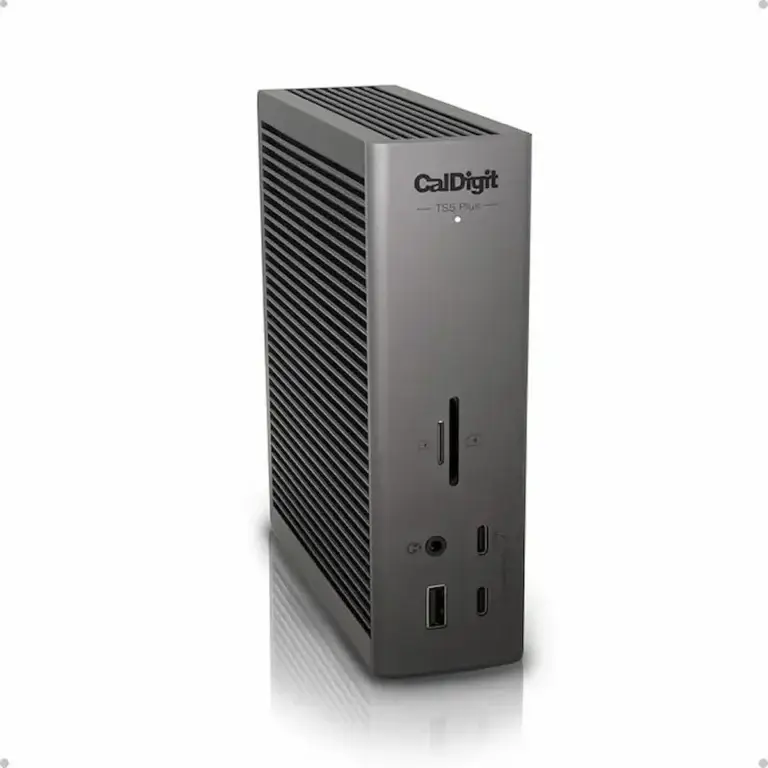
Considering an upgrade? Thunderbolt 5 docks run hotter than TB4 — 140W power delivery through tighter tolerances. If you’re replacing anyway, choose a dock with better thermal architecture. Fanless aluminum designs like the CalDigit TS4 and TS5 Plus need far less maintenance than active-cooling docks that pull dust through the chassis. See the comparison table below for thermal design ratings.
4. How to Clean Vents and Thermal Surfaces
Thermal throttling is the #1 reason people think their dock is dying — and knowing how to clean a Thunderbolt hub’s vents is the fastest fix. Cleaning vents solves this faster than any software fix.
4.1 Fan Intake and Exhaust (if your dock has active cooling)
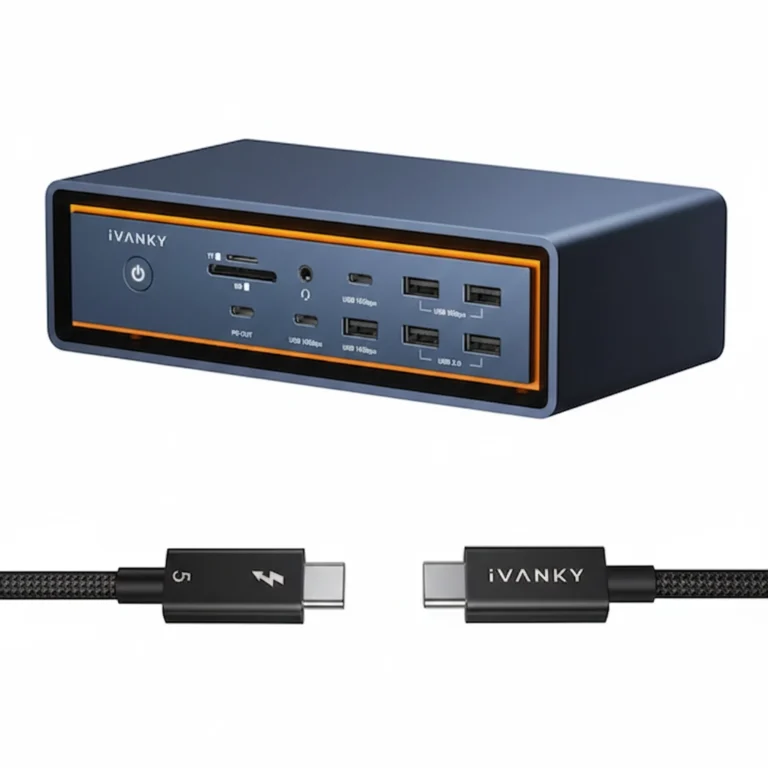
Some Thunderbolt hubs (like the Anker Prime TB5 and iVANKY FusionDock Max 2) have active fans. Dust clogs these first.
- Hold the compressed air can upright. Never tilt it — liquid propellant can damage electronics.
- Blow air into the exhaust vent first (to push debris out the intake), then into the intake vent.
- If dust is caked, use an anti‑static brush to break it up before blowing.
4.2 Passive Cooling Vents (aluminum chassis)
Most Thunderbolt 4 hubs, including the CalDigit TS4 and Dell WD22TB4, use the aluminum housing as a heatsink. Dust on the surface acts as an insulator, trapping heat.
- Unplug the hub and let it cool to room temperature.
- Wipe all exterior surfaces with a microfiber cloth dampened with 90% IPA.
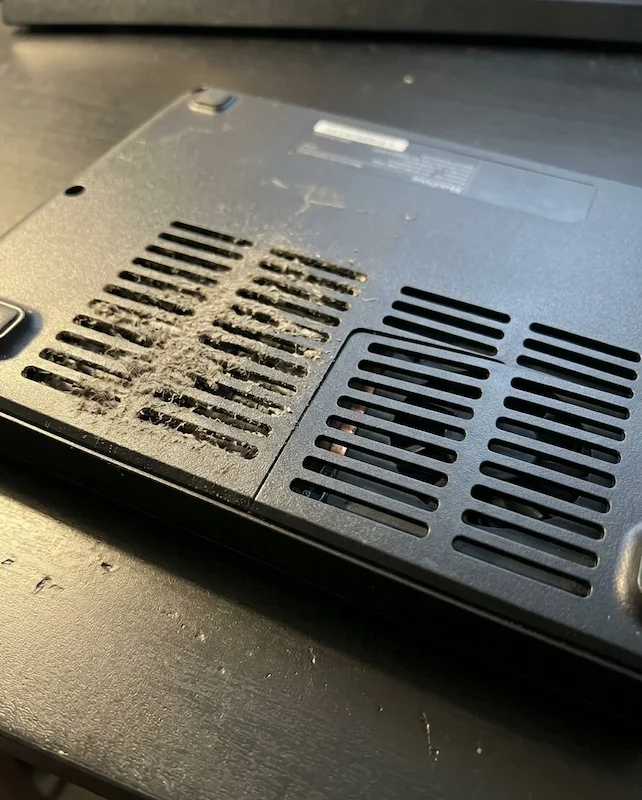
- Pay special attention to bottom vents (most docks vent downward). Turn the hub over and clean these slots thoroughly.
I’ve seen a CalDigit TS4 drop from 58°C under load to 49°C just by wiping dust off the bottom vents. That’s a 9°C difference — enough to stop thermal throttling entirely.
Related: The CalDigit TS4’s fanless design makes it the easiest dock to maintain — but it’s not immune to other issues. Our CalDigit TS4 Not Working guide covers firmware recovery and macOS display quirks specific to this model.
4.3 Heatsink Fins (inside the dock – do not disassemble unless you’re qualified)
Some docks have visible heatsink fins through the vent slots. Do not open the case unless you’re experienced. Blow compressed air through the vents at multiple angles; that’s enough.
5. How to Clean Cables and Connectors
A dirty cable can cause the same intermittent failures as a dirty port.
5.1 Thunderbolt 4 / USB-C Cable
- Inspect both ends for visible debris. Use a dry foam swab to wipe the inside of the connector.
- If the connector is sticky, lightly dampen a swab with IPA and wipe. Let dry for 2 minutes.
- Never blow compressed air into the cable connector — you risk forcing debris into the cable’s internal shielding.
5.2 Power Brick and Barrel Connector
The power brick collects dust on its fan grille (if active) or vent slots. Clean it the same way you clean the dock — compressed air and a dry cloth. A dirty power brick runs hotter, delivers less stable voltage, and can trigger the same brownout disconnects as a failing dock.
Related: If your dock loses power momentarily or won’t charge at full wattage even after cleaning, the problem may be power delivery — not dust. Our Docking Station Not Charging Laptop guide walks through USB PD negotiation failures and wattage limits.
6. How Often You Actually Need to Clean
How often you need to clean a Thunderbolt hub depends entirely on your environment. There’s no one‑size‑fits-all schedule. Your environment dictates frequency.
| Environment | Cleaning Frequency | Why |
|---|---|---|
| Clean home office (carpet‑free, no pets) | Every 6 months | Minimal dust accumulation |
| Home office with carpet or pets | Every 3 months | Carpet fibers and pet dander clog vents faster |
| Corporate hot‑desking | Every 2 months | Many users, different environments, higher contamination |
| Industrial / workshop (dusty) | Monthly | Dust saturation is constant |
| Smoking environment | Every 4–6 weeks | Smoke residue is sticky and accelerates dust adhesion |
If you notice the dock running warmer than usual, fans spinning louder, or intermittent disconnects, clean immediately — regardless of the calendar.
Related: If you’re cleaning on schedule and your dock still drops connections or refuses to detect devices, dust isn’t your problem. Our Docking Station Not Working guide walks through the full diagnostic sequence — firmware, drivers, power delivery, and hardware failures.
⛔ What NOT to Do
- Never use a household vacuum directly on ports — static discharge can damage controllers
- Never spray cleaner directly into a dock
- Never use metal tools inside USB-C or Thunderbolt ports
- Never reconnect the dock while IPA is still wet
- Never open the chassis unless you understand ESD and thermal pad placement
🔴 Last Resort — When to Replace Instead of Clean
If you’ve cleaned everything — ports, vents, cables, power brick — and the dock still fails, stop troubleshooting. You’re not maintaining a dock anymore. You’re life-supporting one.
Replace your Thunderbolt hub if:
- ✅ A specific port fails with every cable and device you test — not intermittent, just dead
- ✅ The dock disconnects under minimal load (laptop + one monitor) even after cleaning
- ✅ The power brick smells burnt or the dock chassis is hot at idle with nothing connected
- ✅ Ports are physically loose, bent, or the case is visibly cracked or damaged
Rule of thumb: If the dock is more than 3 years old and still failing after a thorough cleaning with good desk placement, replacement is cheaper than the hours you’ll waste chasing a ghost.
When you do replace it, pick a dock designed to handle dust from the start. Fanless designs, sealed enclosures, and proper thermal engineering mean less maintenance and longer life. Use the comparison table below to match your workload.
7. When Cleaning Won’t Fix the Problem
Cleaning is not a cure‑all. Some failures are permanent.
7.1 Physical Port Damage
If the center tab in a USB‑C port is bent, or if you see visible cracks in the port housing, cleaning won’t help. The connector no longer makes full contact. At that point, you need a new dock. For the CalDigit TS4 and similar premium docks, CalDigit’s warranty may cover port replacement.
7.2 Thermal Paste Degradation
After years of thermal cycling, the thermal paste between the controller chip and the heatsink dries out. Cleaning vents won’t fix this. You’ll notice the dock idles hotter than it used to, even when clean. This is a repair job, not a maintenance task. For most users, replacement is more cost‑effective.
7.3 Firmware Corruption
Dust didn’t cause your firmware to corrupt. If the dock is detected but behaves erratically (e.g., only one USB port works, Ethernet drops on a schedule), the issue is likely firmware. Update before you clean. Our Thunderbolt Dock Not Detected guide covers recovery steps.
7.4 Capacitor Failure
If the dock works but randomly loses power for a split second, or if it won’t power on at all despite a known‑good power brick, internal capacitors may have failed. No amount of cleaning will resurrect it. Replace the dock.
Related: If your dock still disconnects after a thorough cleaning, the problem is protocol-level. Our Docking Station Keeps Disconnecting guide covers USB PD renegotiation loops, DisplayPort link training failures, and power state recovery bugs.
8. Comparison Table
| Dock | Best For | Thermal Design | Dust Resistance | Maintenance |
|---|---|---|---|---|
| CalDigit TS4 | Most reliable, 18 ports | Fanless aluminum ⭐ | High | Wipe every 6 months |
| Kensington SD5780T | Budget fanless, shared offices | Fanless metal | High | Wipe every 6 months |
| CalDigit TS5 Plus | TB5 future-proof, 10GbE | Fanless (runs warm) | High | Wipe every 3 months |
| Anker Prime TB5 | Cooler TB5, conservative FW | Active fan (quiet) | Medium | Full clean every 2–3 months |
| Kensington SD7100T5 | Enterprise, M.2 slot | Active fan | Medium | Full clean every 2–3 months |
CalDigit TS4
Thunderbolt 4 · Fanless · 2.5GbE
- Fanless aluminum body — no dust intake, minimal maintenance
- 98W charging, 18 ports, dual 4K@60Hz
- Passive cooling stays stable without thermal throttling
- Most reliable TB4 dock across 5,000+ deployments
The easiest Thunderbolt dock to maintain. No fan, no vents to clog. Wipe it down twice a year and forget about it.
Check Price →Kensington SD5780T
Thunderbolt 4 · Fanless · 2.5GbE
- Fanless metal chassis, compact form factor
- 96W charging, dual 4K@60Hz, 4x USB-A
- Kensington lock slot for shared office security
- ~$100 less than CalDigit TS4 with similar dust resistance
Budget-friendly fanless alternative. Fewer ports than the TS4 but equally easy to maintain. Good pick for shared offices.
Check Price →CalDigit TS5 Plus
Thunderbolt 5 · Fanless · 10GbE
- TB5 — 120 Gbps bandwidth, 140W charging
- Triple 4K@144Hz or dual 8K@60Hz displays
- 10GbE Ethernet for NAS and enterprise workflows
- Fanless design handles TB5 thermal load without active cooling
Future-proof TB5 with the same fanless maintenance advantage. Runs warmer than TB4 — clean the housing quarterly.
Check Price →Anker Prime TB5
Thunderbolt 5 · Active Fan · 2.5GbE
- Active fan keeps temps low — quieter than most competitors
- 140W charging, dual 8K@60Hz or triple 4K@144Hz
- Conservative firmware reduces stability issues
- ~$300 — cheapest TB5 dock with active cooling
Runs cooler than fanless TB5 docks, but the fan pulls dust through the chassis. Clean every 2–3 months.
Check Price →For model-specific diagnostics, see our Thunderbolt 5 cluster: CalDigit TS5 Plus • Anker Prime TB5 • Kensington SD7100T5 • iVANKY FusionDock Max 2 • Razer Thunderbolt 5 Chroma
📚 Sources & References
- Electronics port cleaning procedures — iFixit Repair Guide
- USB-C port maintenance and IPA cleaning — Arzopa Maintenance Guide
- Docking station thermal behavior and overheating — VCOM International
- Thunderbolt 5 specification and power delivery — Digital Trends
- USB Power Delivery explained — Plugable Technologies
Why You Can Trust This Guide

Alex – Docking Infrastructure Specialist
Computer Systems Engineering background. 10+ years deploying and maintaining Thunderbolt docks in enterprise and home environments. I’ve diagnosed thermal throttling on CalDigit TS4s, cleaned dust out of WD22TB4 vents running 15°C above spec, and seen firsthand how proper docking station maintenance extends hardware life by years.

Hans Pedersen – Hardware Analyst
Tests Thunderbolt docks under sustained workloads. Validates thermal behavior, display topology, and port reliability across TB4 and TB5 hardware. Cross-validated the cleaning procedures and thermal data in this guide.

Yamato – Thermal & Storage Infrastructure
Specializes in thermal testing methodology and storage integration diagnostics. Verified the temperature data and vent cleaning procedures referenced in this article.