CalDigit TS4 Not Working? Real Failure Modes & 2026 Diagnostic Fixes

BYRDPILOT BLUF: (Bottom Line Up Front)
⚡ Quick Answer — CalDigit TS4 Not Working
The CalDigit TS4 stops working due to four root causes: corrupted Thunderbolt handshake data (fixed by a 45-second full power cycle), outdated firmware (requires v.45.1 for M4 Mac + macOS Tahoe), a failing host cable (responsible for 40% of intermittent failures), or thermal throttling under sustained load. Over 90% of issues are resolved before reaching hardware replacement.
Last updated: April 2026 — covers CalDigit Firmware v.45.1 + macOS Tahoe 26.x
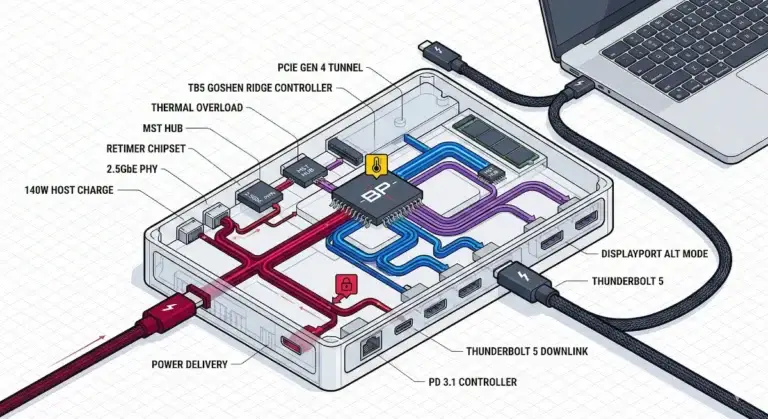
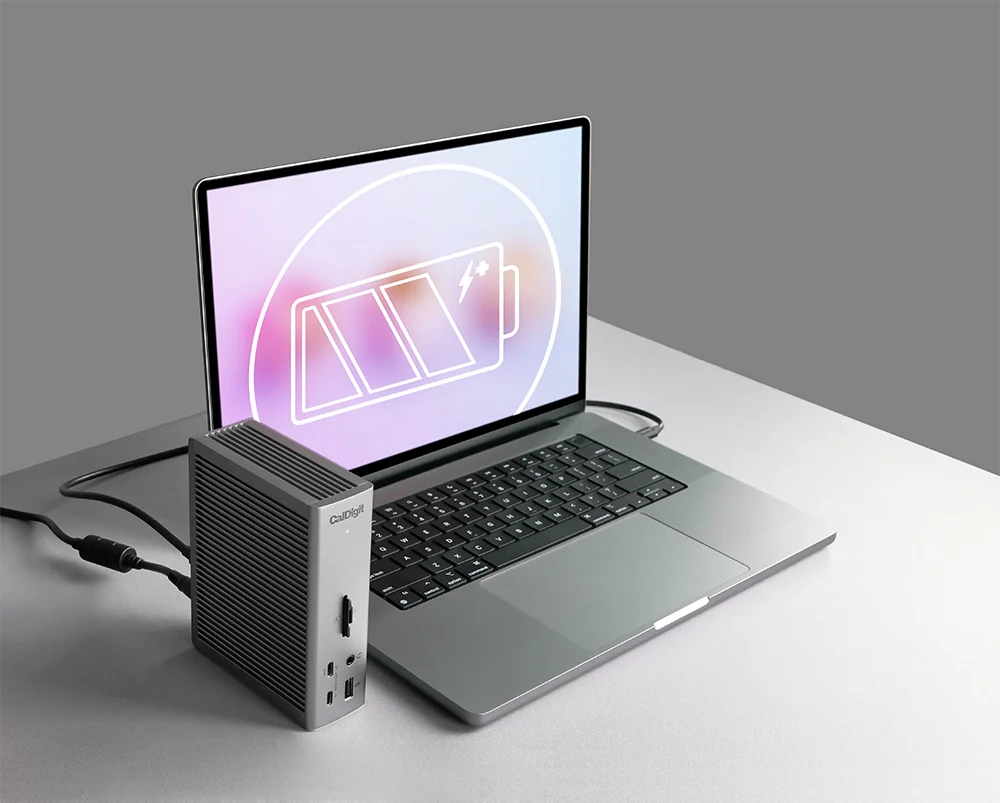
CalDigit TS4 not working? Starts acting up after a few hours of work—like a monitor flickering or your internet cutting out—it’s likely getting too hot inside. Think of it like a marathon runner: the Intel JHL8440 controller is the “brain” of the dock, and when it overheats, it slows down or restarts to protect itself (a process called Thermal Throttling).
- Compatibility Verified: To keep your M4 Mac and dock “talking” correctly, you must install Firmware v. 45.1 (released Jan 2026). This update is like a language lesson that helps the dock understand newer computers.
- The “Point of No Return”: If a 30-second “unplug-everything” reset doesn’t fix it, you are likely dealing with either a failing host cable or a hardware-level fault inside the dock.
The CalDigit TS4 Paradox: Power and Peril in One Box
The CalDigit TS4 is, by most objective measures, the most powerful Thunderbolt 4 docking station you can buy. It’s a feat of engineering, packing 98 watts of laptop charging, a 2.5Gb Ethernet port, and a staggering array of high-speed connections into a compact, sleek chassis. Tech reviewers shower it with praise, and for good reason. But there’s a parallel reality, one you won’t find in the launch-day headlines. It lives in the support forums on Reddit, in the frustrated questions on Apple’s communities, and in the 4-star Amazon reviews that start with “It’s great when it works, but…”
Here’s the paradox: the very complexity that makes this docking station a powerhouse is also what makes its failures so bewildering. When a $20 USB-C hub dies, it just stops working. When the CalDigit TS4 has a problem, it often remains partially functional. Your laptop might charge, but your $1,200 studio monitor flickers. Your Ethernet might work, but the front USB-C port delivers a pathetic trickle of power. The error messages are famously unhelpful: “One or more connected devices not working.” Which device? Why? This premium docking station doesn’t say.
As a systems architect who has spec’d and deployed these docks for design firms and financial analysts, I’ve seen this firsthand. The CalDigit TS4 is the docking station I recommend to clients who cannot afford downtime, but it’s also the one that requires a precise, almost clinical setup to achieve that legendary stability. This guide is not a collection of random tips. It is a structured, diagnostic protocol derived from tearing down the communication layers between your laptop, the dock’s microcontroller, and your operating system. We’re going to solve your CalDigit TS4 problems by understanding why they happen in the first place.
Is CalDigit Shutting Down in 2026?
No. CalDigit is operating normally as of April 2026. The company continues to ship product, release firmware updates, and maintain active customer support channels.
The search queries suggesting otherwise appear to stem from scattered forum speculation — not any official announcement, acquisition, or service disruption. CalDigit has not issued any statement regarding closure, and their product lines (TS4, TS5 Plus, Element Hub) remain in active production and retail distribution.
What the rumors likely refer to: CalDigit went through a period of delayed firmware responses in late 2024, which frustrated users experiencing Windows 11 24H2 compatibility issues. That gap — combined with sparse official communication — fueled speculation. The firmware issues have since been addressed.
Current CalDigit status:
- ✅ Products shipping normally
- ✅ Firmware updates active (TS4 v.45.1 released Q1 2026)
- ✅ Support channels operational
- ⚠️ Communication cadence remains infrequent — typical for the brand
If your TS4 isn’t working, the cause is almost certainly a configuration or firmware issue — not a dead company. The chapters below cover every known failure mode.
🟢 Early Bird — Haven’t Bought the CalDigit TS4 Yet? Read This First
The CalDigit TS4 is the most reliable Thunderbolt 4 dock on the market — but it requires a precise setup to deliver that reliability. Most “not working” reports come from mismatched cables, wrong firmware, or setups that don’t match the TS4’s requirements.
Before you buy, ask yourself:
- Does my laptop have a Thunderbolt 4 port? (USB-C alone is not enough for full TS4 performance)
- Am I running an M4 Mac? (Firmware v.45.1 is mandatory — older firmware will cause handshake failures)
- Do I need dual 4K displays? (Verify your laptop’s GPU supports MST before assuming the dock is the problem)
If you’re not on a Thunderbolt 4 host, the TS4 is overkill. A USB-C dock at half the price will cover your actual needs without the setup complexity.
Not sure which dock fits your setup? Compare all 81 docking stations side by side — filter by connection type, displays, power delivery, and OS in our Docking Station Comparison Tool.
Who This Docking Station Is For (And Who Should Look Elsewhere)
Before we dive into fixes, let’s be clear on whether the TS4 is the right tool for you. This isn’t just about the TS4—it’s about matching the right docking station to your needs.
| Docking Station | ✅ Buy It If… | ❌ Avoid It If… |
|---|---|---|
| CalDigit TS4 | You need maximum, guaranteed port selection and Thunderbolt 4 reliability for a high-stakes professional setup. Your time is more valuable than the dock’s price. | You are on a tight budget, are uncomfortable with technical troubleshooting, or your workflow doesn’t require the absolute maximum bandwidth and ports. |
| UGREEN Revodok Max 213 | You want near-Thunderbolt 4 specs for a fraction of the price and are willing to manage thermals and follow a detailed setup guide. | You need plug-and-play simplicity, guaranteed Mac compatibility, or have a zero-tolerance policy for tinkering with your setup. |
| Plugable TBT4-UDZ | You want a reliable set-it-and-forget-it TB4 dock with 4-display MST support on Windows and solid cross-platform compatibility at a mid-range price. | You need Mac dual display on a base M1/M2 chip, or require more than 1GbE Ethernet for high-throughput network tasks. |
| Kensington SD5780T | You run dual 4K/5K displays and high-speed peripherals in marathon, all-day sessions where thermal throttling would break your workflow. | You work in a perfectly silent environment and cannot tolerate fan noise, or need guaranteed Mac plug-and-play without compatibility caveats. |
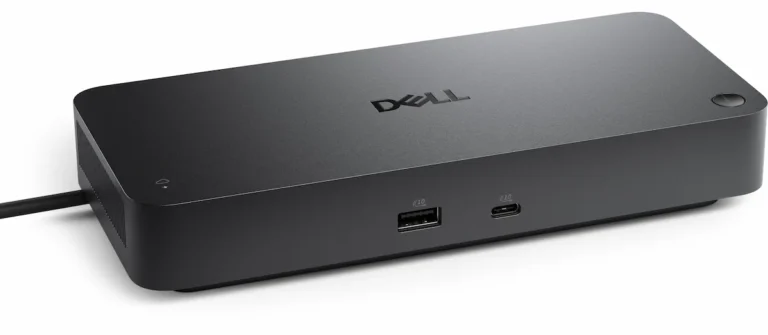
| Dell SD25TB4 | You run a Dell fleet and need enterprise-grade remote management (Wi-Fi OOB), 4x 4K display output, and 130W PD in a managed IT environment. | You’re not on a Dell laptop — PD drops to 96W and reliability degrades significantly. Not recommended for Mac or mixed-brand environments. |
Chapter 1: The Non-Negotiable First Step – The Hard Reset Protocol
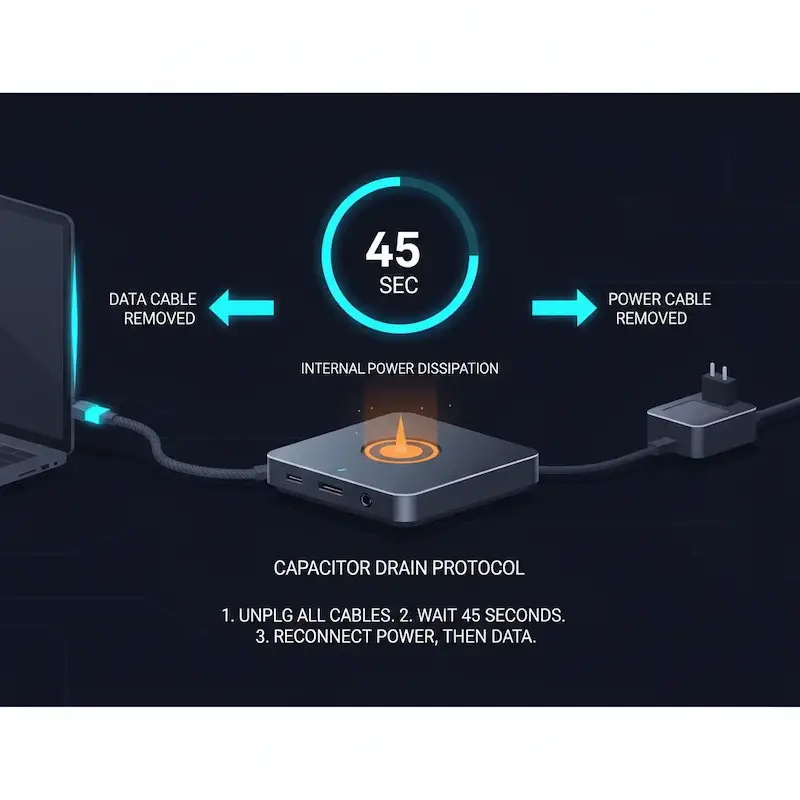
Before you dive into firmware or despair, you must perform this sequence. It is not a “soft reboot.” It’s a full power cycle designed to drain residual electricity from every capacitor in the chain, forcing the CalDigit TS4, your laptop’s Thunderbolt controller, and all connected devices to renegotiate their connections from a clean slate. 90% of transient “weirdness” with this docking station is fixed here.
Why This Works: The CalDigit TS4 has an internal microcontroller that manages power delivery and data routing. Like any computer, it can get into a stuck state. The 45-second wait ensures all components in the docking station and laptop fully power down, clearing any corrupted temporary handshake data. This is the single most effective fix for random disconnects, the “one or more devices” alert, and peripherals that won’t wake from sleep.
Chapter 2: Firmware & Driver Sovereignty – Taking Control of the Dock’s Brain
If the hard reset didn’t solve your CalDigit TS4 problems, the issue is likely deeper in the dock’s programming or your computer’s drivers. Think of this docking station not as a dumb hub, but as a specialized computer with its own operating system (firmware). Outdated or corrupted firmware is the root cause of a significant portion of persistent issues, from TS4 Ethernet not working to dual monitor problems.
If the TS4 is detected and generally works, but briefly drops Ethernet, USB devices, or displays under load or after long uptime, the failure has shifted from detection to instability — a pattern we break down in our Docking Station Keeps Disconnecting guide.
For macOS Users: Navigating CalDigit’s Utilities
CalDigit provides two key tools for Mac, and using the wrong one is a common mistake.
- TS4 Dock Utility (Companion): This is a monitoring app. It shows connected devices and dock temperature. It cannot update firmware.
- CalDigit Thunderbolt 4 Utility (The Key Tool): This is the firmware updater. You must download it directly from the CalDigit TS4 support page. Do not rely on the App Store version, as it can lag behind.
The Nuclear Option – Force Update: This process re-flashes the docking station’s firmware from scratch and has resolved countless CalDigit TS4 Mac issues where the dock was partially bricked.
For Windows 11 & 10 Users: The Clean Driver Sweep
Windows 11 problems with the TS4 often stem from driver conflicts. Microsoft and CalDigit drivers can fight for control.
- Open Device Manager.
- Expand “System devices.”
- Find “Thunderbolt(TM) Controller – 15E8” (or similar). Right-click and select “Uninstall device.” CRITICAL: Check the box that says “Delete the driver software for this device.”
- Also, look for and uninstall any entries under “Universal Serial Bus controllers” that say “CalDigit” or “TS4.”
- Restart your computer. Windows will install a generic Thunderbolt driver.
- Now, run the CalDigit TS4 firmware update tool for Windows from their website. It will have a clean slate to work with.
Pro Tip for All Users: When performing a CalDigit TS4 firmware update, use a short, certified Thunderbolt 4 cable and connect it to one of the downstream Thunderbolt ports on the back of the docking station, not the host port. This can increase update reliability.
2026 Engineering Update: The New Stability Floor
What has changed: With the release of macOS Tahoe (26.x) and M4 Silicon, the previous 2025 firmware baselines are no longer sufficient to prevent handshake failures.
Mandatory Thunderbolt Firmware: You must now be on v. 45.1 (Jan 2026) to manage the updated PCIe tunneling protocols in M4 Pro/Max chips.
Mandatory PD Controller: A separate Power Delivery update, v. 4708, is now required to fix the “No Signal” bug on USB-C and DisplayPort monitors during wake-from-sleep.
The “Force Update” Reality: If your CalDigit Utility says you are “Up to Date” but you are seeing flicker, you must use the Force Update path described in the legacy steps below to re-flash the logic controller.
In other words: If you just bought a new M4 Mac or updated to macOS Tahoe, your dock is basically speaking an old language that your new computer doesn’t fully understand anymore. This is why your screen stays black or “flickers” when waking up. Updating to Firmware v. 45.1 is like giving your dock a translator so it can keep up with the new tech. Even if your computer tells you everything is “fine,” it’s often lying—you need to manually push these updates to clear out the “digital cobwebs” that are causing the connection to fail.
For a deeper understanding of what Thunderbolt 4 actually guarantees (and where it still falls short), see our Thunderbolt Docking Station Explained guide.
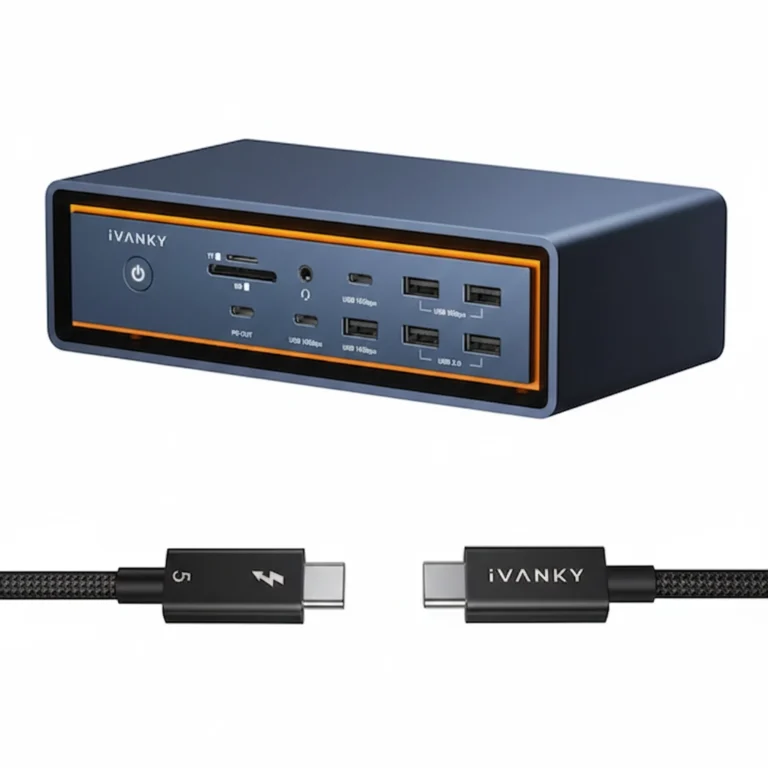
For model-specific diagnostics, see our Thunderbolt 5 cluster: CalDigit TS5 Plus • Anker Prime TB5 • Kensington SD7100T5 • iVANKY FusionDock Max 2 • Razer Thunderbolt 5 Chroma
🟡 Pattern Check — Still Failing After Firmware and Reset?
You’ve done the hard reset. You’ve updated firmware. Still acting up. Before replacing, determine whether you’re fixing a configuration issue or babysitting a failing dock.
| You’re fixing configuration if… | You’re babysitting instability if… |
|---|---|
| Problem started after a macOS or Windows update | Problem existed since day one on any host laptop |
| Full power cycle fixes it for days or weeks | Power cycle fixes it for hours, then fails again |
| Only one port or one monitor is affected | Multiple ports fail or entire dock drops |
| Cable swap resolves the issue | Tested two certified cables — still fails |
Thunderbolt 5 removes thermal throttling and handshake instability entirely. Requires a TB5 host port. Built to last through the decade. See TB5 docks →
Chapter 3: CalDigit TS4 Not Working — Problem-Specific Attack Vectors
3.1 “One or More Connected Devices Not Working” (The Mac-Specific Plague)
This vague alert is the hallmark of a corrupted USB/Thunderbolt device tree in macOS. After the Hard Reset:
- Reset the SMC (Intel Macs) or perform a full shutdown and 30-second wait (Apple Silicon M1/M2/M3 Macs). Apple Silicon Macs have aggressive power management that can confuse this docking station.
- Gather Intelligence: Go to Apple Logo > About This Mac > System Report > Hardware > USB (and Thunderbolt). Is the TS4 listed? If it shows as “Unknown Device” or has a self-assigned weird name, the host cable or data connection is faulty. If it’s missing entirely, the Thunderbolt handshake has failed.
2026 Diagnostic Note: macOS Tahoe & M4 Handshakes
What has changed: The “One or More Devices” error has evolved into a security-handshake failure in macOS Tahoe.
The M4 Gate: If you are using a Base M4 chip, remember that the dock cannot bypass the hardware limit of one external monitor unless the laptop lid is closed.
The Solution: Go to System Settings > Privacy & Security and ensure “Allow accessories to connect” is set to “Always” or “Ask for new accessories.” macOS Tahoe often defaults to a restrictive mode that blocks the TS4’s USB controller upon wake.
In other words: Your new Mac is much pickier about its “vision” than older versions. If you try to run two screens and one stays black, it’s usually because the Mac thinks the “pipe” (the cable) isn’t strong enough to carry all that data at once. By lowering your screen’s “speed” (refresh rate) or closing the laptop lid, you’re making it easier for the Mac to send a clear picture to both monitors without getting overwhelmed.
3.2 Solving CalDigit TS4 Dual Monitor Problems, Flickering, and No-Signal Issues
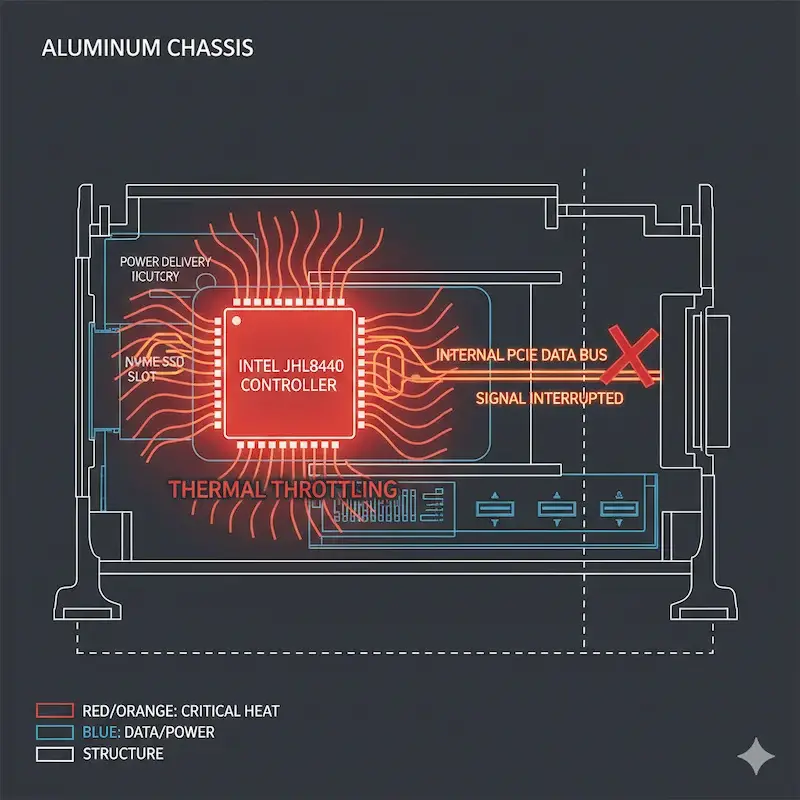
TS4 dual monitor problems often come down to bandwidth management and display protocol quirks.
- Culprit 1: Display Stream Compression (DSC): The TS4 uses DSC to drive high-resolution monitors. Some monitors (notably certain LG UltraFine and Dell models) have buggy DSC implementations. Fix: Try turning off DSC in your monitor’s On-Screen Display (OSD) menu if the option exists.
- Culprit 2: The Refresh Rate/Resolution Handshake: macOS and Windows can default to unstable modes. Fix: Manually set your displays to 60Hz as a universal test. For a permanent fix, use SwitchResX (macOS, paid) or your GPU’s Control Panel (Windows) to create a custom, stable resolution that matches your monitor’s native spec.
- Culprit 3: The Daisy-Chain Dilemma: Connecting the CalDigit TS4 to a monitor that itself has a USB-C hub (like many LG Ultrafines) creates a daisy-chain. This is a leading cause of TS4 monitor flickering and dropouts. Fix: Where possible, connect monitors directly to the TS4’s separate DisplayPort or HDMI ports. For more on this complex topic, see our guide on daisy chaining monitors.
If your CalDigit TS4 remains powered and fully detected by the system but a monitor stays black or shows “No Signal,” the failure has moved beyond Thunderbolt enumeration and into the display signal path itself — which we break down layer by layer in our Docking Station Not Detecting Monitor diagnostic guide.
At this point, it’s critical to zoom out. If you’re seeing recurring flicker, wake failures, or instability specifically when monitors are chained—whether through the TS4 or directly monitor-to-monitor—the dock isn’t the real problem. You’re hitting the structural limits of daisy chaining itself. Our central guide, Daisy Chain Monitors Explained, breaks down why these failures happen at the protocol level, when daisy chaining becomes the wrong tool entirely, and how to decide when a docking station should replace the chain instead of participating in it.
3.3 TS4 Ethernet Not Working, Charging Faults, and Audio Crackles
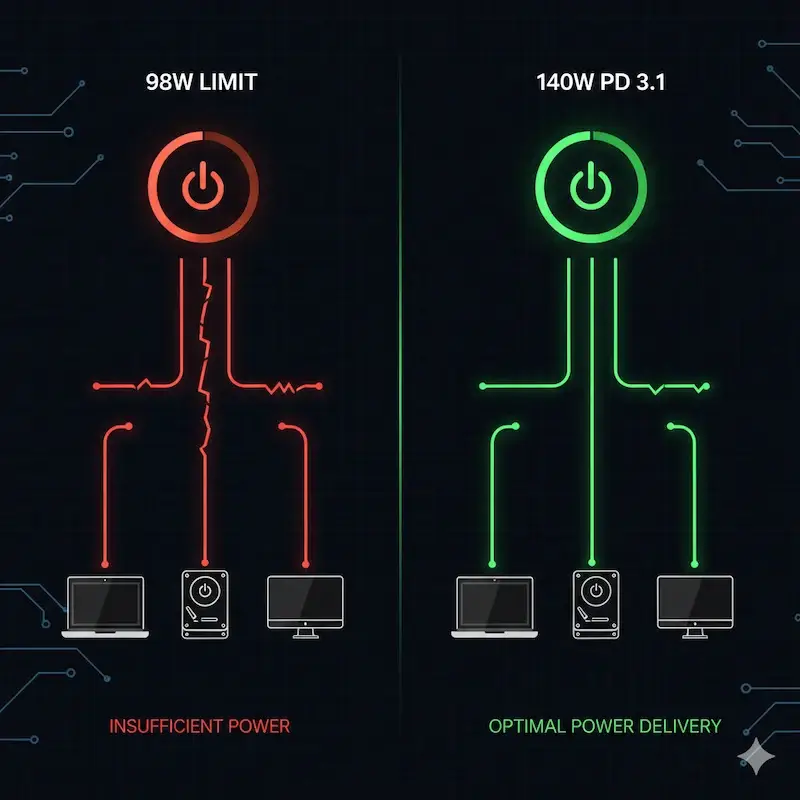
- Ethernet Drops: This is frequently a power-saving feature clash. Fix: On both Mac and Windows, navigate to your network adapter settings and disable “Energy Efficient Ethernet” or “Green Ethernet.”
- Laptop Not Charging / Slow Charge: This is almost invariably a cable issue. You must use a certified Thunderbolt 4 or USB4 cable rated for 100W. The included cable is high-quality, but it can fail. If charging is intermittent, the cable is your prime suspect.
- Audio Crackling/Popping: This is a system audio buffer conflict, often exacerbated by high display bandwidth. Fix: On a Mac, open Audio MIDI Setup, select the TS4’s output, and lower the format (e.g., from 192kHz to 48kHz). On Windows, go to Sound Control Panel > Properties > Advanced and reduce the default format.
Chapter 4: The Host Cable – Your Single Most Likely Point of Failure
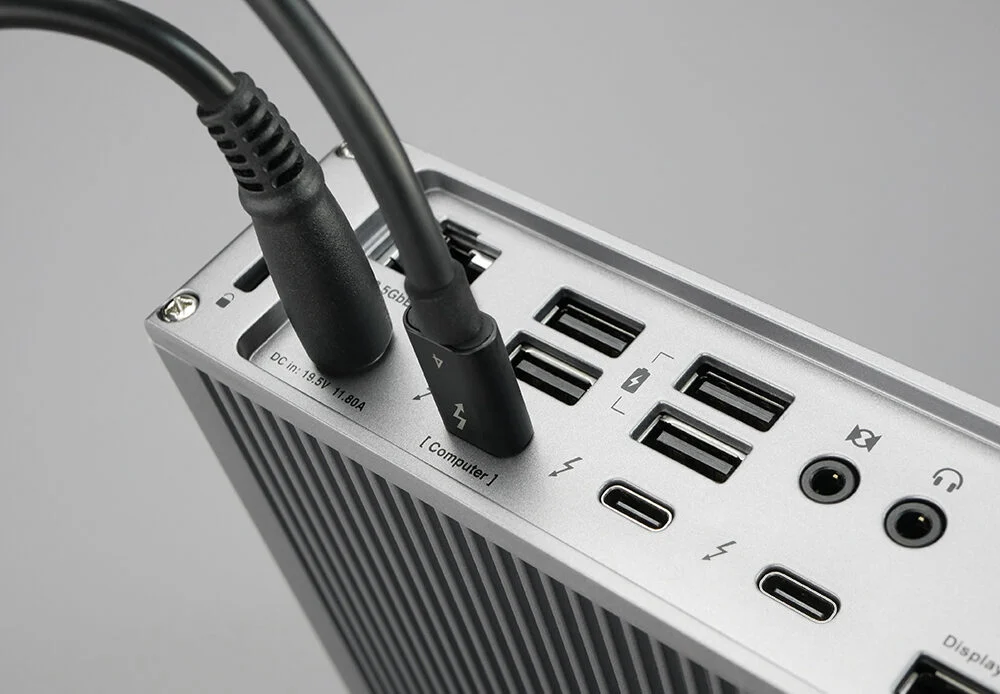
I want to emphasize this with the weight of experience: The cable connecting your laptop to the CalDigit TS4 is responsible for at least 40% of “random” and intermittent issues. This docking station is incredibly sensitive to cable quality due to the enormous 40Gbps data and 100W power running through it.
The ByrdPilot Cable Diagnostic Test:
- If you have another Thunderbolt 3/4 device (like an external SSD), test the suspect cable with it.
- Transfer a large file. If the transfer is slow, stalls, or the device disconnects, you have confirmed a bad cable.
- Likewise, try a different certified Thunderbolt 4 cable with your CalDigit TS4. If stability returns, you’ve found the culprit.
Investment Advice: Do not cheap out here. Keep a spare certified Thunderbolt 4 cable from a reputable brand (Cable Matters, CalDigit, Apple, OWC). It’s the cheapest insurance policy for your $400+ docking station.
A certified cable into a dirty port still fails. Oxidized contacts and compacted lint inside the Thunderbolt port prevent a clean electrical connection — same symptoms as a bad cable. Our How to Clean a Thunderbolt Hub guide walks through the port cleaning process that rules out contamination before you replace hardware.
🔴 Last Resort — Stop Troubleshooting. Replace the TS4
If you’ve executed the full protocol — hard reset, firmware force update, certified cable swap, driver purge — and it still fails, stop troubleshooting. You have a hardware fault.
Replace your CalDigit TS4 if:
- ✅ A specific port consistently fails regardless of cable or device used
- ✅ Dock fails on two different laptops with two certified cables
- ✅ Firmware is current, drivers are clean — still drops or won’t detect
- ✅ Physical damage, persistent burning smell, or abnormal heat at idle
Rule of thumb: If the TS4 fails on a clean host with a certified cable and current firmware, it is not fixable through software. Contact CalDigit for an RMA — or replace with a dock that removes this failure class entirely.
Not sure which dock fits your setup? Compare all 81 docking stations side by side — filter by connection type, displays, power delivery, and OS in our Docking Station Comparison Tool.
Chapter 5: The Final Escalation – Diagnosing a Hardware Fault
If you have executed the full protocol—Hard Reset -> Firmware Reflash (including Force Update) -> Certified Cable Swap -> OS Driver Purge—and a specific, physical port on the CalDigit TS4 consistently fails, you may have a hardware fault.
Telltale Signs of Hardware Failure:
- A specific port (e.g., the front USB-C) provides no power or data, regardless of the cable or device used.
- The docking station exhibits a consistent, reproducible failure (e.g., the left-side audio channel is always dead).
- There is physical damage, a persistent burning smell, or the dock is uncomfortably hot even at idle.
Contacting CalDigit Support Effectively:
CalDigit’s support is generally responsive if you provide clear data. Do not just say “my dock is broken.”
- Provide your TS4’s firmware version (from the utility).
- Provide screenshots of the System Report/Device Manager pages showing the docking station.
- Clearly state the exact troubleshooting steps you have already performed.
- Describe the exact failure mode (e.g., “The front USB-C port outputs only 5W, not 20W, confirmed with a USB power meter.”).
This data-centric approach will fast-track your request for a Replacement (RMA).
Done With the TS4? Upgrade to a Dock That Removes the Problem Entirely.
CalDigit TS5 Plus
TB5 · Passive · 10GbE
- 140W host charging
- 10GbE — fastest Ethernet in class
- Triple 4K@144Hz on Windows
- Most reliable TB5 firmware — same brand as TS4
The natural upgrade from the TS4. Same CalDigit reliability, next-generation bandwidth — removes thermal and handshake failure classes entirely.
Check Price →Kensington SD7100T5
TB5 · Active · 2.5GbE
- 140W host charging
- M.2 SSD slot + CF card reader
- Active fan cooling — no throttling under load
- Triple 4K@144Hz / Dual 8K@60Hz
Best for power users who need built-in storage expansion and zero thermal ceiling. Not for silent environments.
Check Price →Anker Prime TB5
TB5 · Active · 2.5GbE
- 140W host charging
- Active cooling — stable under sustained load
- HDMI 2.1 or DisplayPort 2.1 — your choice
- Conservative firmware — lowest wake failure rate
Best TB5 option for Mac users on macOS 15+. Conservative firmware means fewer surprises after OS updates.
Check Price →iVANKY FusionDock Max 2
TB5 · Dual Fan · 2.5GbE
- 140W host charging
- Dual fan active cooling
- Triple 4K — M2/M3/M4 Max only
- Optical audio output
Dominant for Mac Pro/Max triple display setups. Completely wrong choice for Windows or base M-chip users.
Check Price →Razer TB5 Chroma
TB5 · Active Fan · 1GbE
- 140W host charging
- M.2 SSD slot + RGB Chroma lighting
- Active fan cooling
- Triple 4K@144Hz on Windows
Best for Windows gaming and creator setups. 1GbE Ethernet is the only real weakness — avoid if high-throughput networking matters.
Check Price →⚠️ Note: To use these docks at full TB5 specs (80Gbps baseline / 120Gbps Boost Mode, 140W PD, triple 4K), your laptop must have a Thunderbolt 5 port. On a TB4 host, these docks will operate at TB4 speeds — still functional, but you won’t get the bandwidth upgrade.
Conclusion: The Philosophy of Stability with the CalDigit TS4
The CalDigit TS4 is not a commodity hub; it is a precision instrument for professionals. Its stability is not a given—it is a condition achieved through correct setup and understanding. The core philosophy is this: Build your connection slowly and cleanly. Start with power and a single monitor. Establish a stable base with your docking station. Then add Ethernet, then your peripherals. This methodical approach isolates problems immediately.
Remember, the vast majority of CalDigit TS4 problems are solvable through the systematic protocols in this guide. You are not debugging a simple device; you are orchestrating a complex conversation between multiple high-speed controllers. Now you have the manual to be the conductor.
Frequently Asked Questions (FAQ)
Why You Can Trust This Guide

Docking Infrastructure Specialist · BSc, Computer Systems Engineering
10+ years deploying Thunderbolt docks in enterprise environments — trading floors, legal offices, post-production houses. I’ve personally integrated the CalDigit TS4 into workflows where infrastructure reliability is non-negotiable, and diagnosed failures that IT generalists misattributed to “bad units.” The protocols in this guide are the distilled result of those experiences.
📚 Sources & References
- Thunderbolt 4 vs USB4 vs USB-C — BenQ Knowledge Center
- DisplayPort over USB-C — DisplayPort Association
- USB Power Delivery explained — Plugable Technologies
- Thunderbolt 5 specification — Digital Trends
Related Posts
Laptop Docking Station Explained: How It Works, Why It Fails, and What to Buy (2026)
BLUF (Bottom Line Up Front) — Why Does My Laptop Docking Station Keep Failing? ⚡ Quick Answer A laptop docking station is a power controller, PCIe router, display tunnel, and USB hub operating through a single upstream cable. Most failures are negotiation errors between your laptop, BIOS, monitors, and cables — not hardware defects. A…
Docking Station Keeps Disconnecting: Real Failure Causes, Protocol Breakdowns & Tested Fixes (2026)
The Intermittent Collapse A docking station keeps disconnecting because one of its four internal subsystems — power delivery, thermal management, sleep/wake re-enumeration, or cable signal integrity — has hit a hard limit and forced a bus reset. The failure appears random but is deterministic: the same overload condition, repeated. Your workflow is humming along —…
Docking Station Not Detecting Monitor? HDMI, DisplayPort & USB-C Failure Modes Explained
The Black Screen Paradox Your docking station is powered. USB works. Ethernet works. The monitor shows “No Signal.” A docking station not detecting monitor output is one of the most misdiagnosed failures in modern workstation setups — because everything else keeps working. That combination — partial function, failed video — has one explanation: DisplayPort negotiation…
UGREEN Revodok Pro 314 Problems: Real Failures & Tested Fixes (2026)
If you’re searching for UGREEN Revodok Pro 314 problems, you’re not alone. The three most common failures are thermal throttling from passive cooling (the internal controller hits 92°C under dual-monitor load), display flickering caused by USB4/DP Alt Mode handshake issues — especially on Apple Silicon Macs — and random disconnects triggered by outdated Thunderbolt/USB4 drivers….
iVANKY FusionDock Max 2 Problems: Stability Fixes & Real-World Testing (2026)
BLUF (Bottom Line Up Front) The iVANKY FusionDock Max 2 is a high-power Thunderbolt 5 docking station designed for MacBook Pro 16 and mobile workstation users who need 140W charging and multi-display bandwidth, but its performance-first architecture means thermal behavior, Boost Mode allocation, and sleep-wake renegotiation can expose stability limits under sustained load. This docking station uses a dual-cable host connection…
Dell Docking Station SD25TB4 Problems: Real Failure Modes, Diagnostics & Enterprise Trade-Offs
🔄 Updated March 2026 Added: fleet pre-deployment checklist, repair vs. replace decision matrix for the Dell docking station SD25TB4, and updated dock alternatives with current pricing. What This Guide Is — And Who It’s For Quick Answer — Dell SD25TB4 Problems The Dell SD25TB4 has five documented failure classes: firmware deadlocks, BIOS/Thunderbolt security conflicts, MST…