Docking Station Not Working? The Complete Troubleshooting Guide (All Brands, 2026)

The Brutal Truth: Why Your Docking Station Really Stopped Working
⚡ Quick Answer
A docking station stops working when the negotiation between your laptop, dock firmware, cables, and monitors breaks down. Over 70% of failures trace back to cables, drivers, or power delivery mismatches — not defective hardware. This guide identifies the exact failure class so you fix the right thing.
It’s 10:30 AM on a Monday. Video call in 30 minutes. You plug in the dock that worked perfectly on Friday. Status light on. Monitors black. Keyboard dead. That $200+ aluminum brick just became a very expensive paperweight.
Here’s the uncomfortable truth: most docking station failures aren’t random. They’re predictable. The wrong dock for your laptop, the wrong cable for your protocol, or a design that looks premium but cuts corners where it matters. If you’ve been troubleshooting for more than an hour, there’s a real chance the dock was never the right tool for your setup.
This guide does two things. It fixes what’s fixable. And it tells you honestly when the better decision is a different dock entirely — one engineered to match your actual workload, not just your budget.
🟢 Early Bird — Haven’t Bought Yet?
🟢 Before You Buy
Most docking station problems are baked in at purchase. You cannot troubleshoot your way out of a design that doesn’t match your hardware.
| If you need… | Choose this |
|---|---|
| Rock-solid Thunderbolt 4 stability | CalDigit TS4 |
| Integrated M.2 storage + mixed-OS support | Kensington SD7100T5 |
| Budget TB4 with quad displays | Plugable TBT4-UDZ |
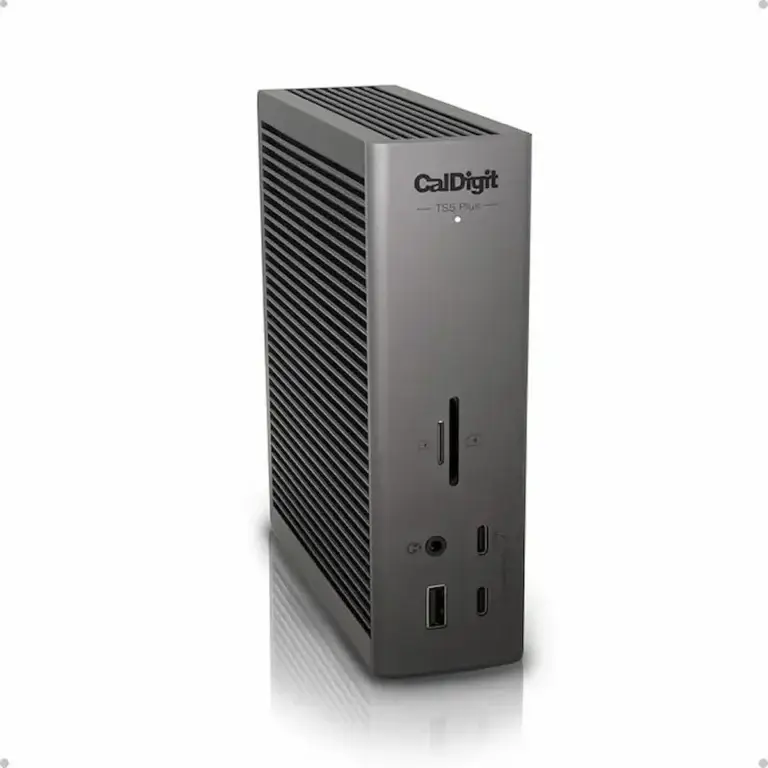
| Thunderbolt 5 maximum bandwidth | CalDigit TS5 Plus |
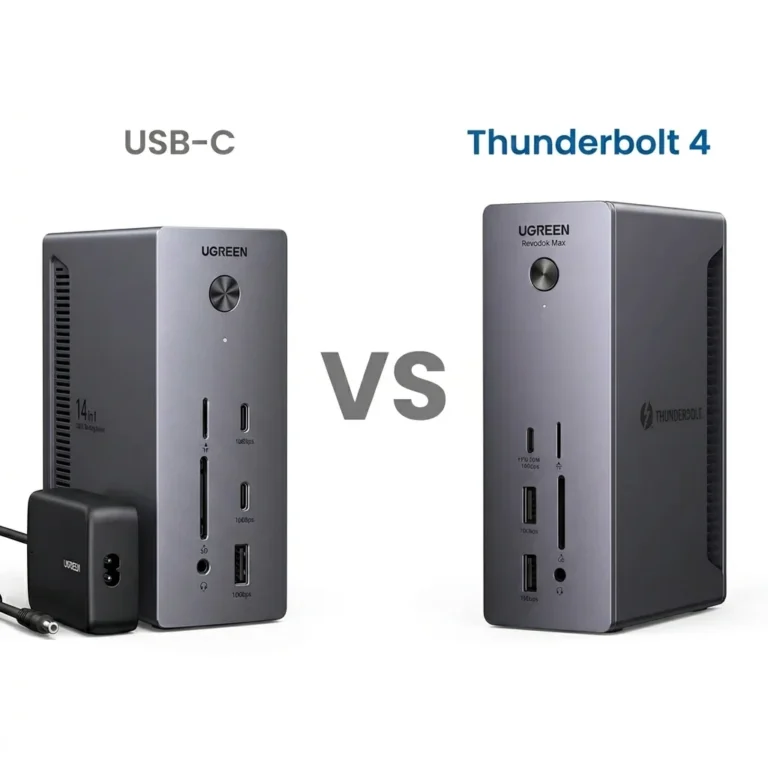
| Value USB4 (willing to tinker) | UGREEN Revodok Max 213 |
Simple rule: If your time is worth more than $50/hour, buy a Thunderbolt-certified dock.
Not sure which dock fits your setup? Compare all 81 docking stations side by side — filter by connection type, displays, power delivery, and OS in our Docking Station Comparison Tool.

Section 1 — What Type of Docking Station Are You Using? (USB-C vs Thunderbolt vs DisplayLink)
You cannot troubleshoot a docking station effectively if you don’t know its language. Plugging a DisplayLink dock into a Thunderbolt port and expecting it to act like a Thunderbolt dock is like putting diesel in a gasoline engine. The first step is to look at your docking station and identify its core technology. Getting this wrong is the root cause of countless USB-C docking station not working complaints.
1.1 USB-C Docking Station (DisplayPort Alt Mode)
- How to Identify: The product name or specs say “USB-C,” often with “DisplayPort Alt Mode.” It likely has a variety of ports (HDMI, USB-A, Ethernet) but may not explicitly say “Thunderbolt.”
- How It Works: It uses the USB-C port’s alternate mode to send a video signal directly from your laptop’s GPU. It’s a direct pipe, but with limitations on total bandwidth.
- The Core Weakness: Extreme variability. Not all USB-C ports on laptops support video output. A USB-C dock not working is often because it’s plugged into a data-only port. This critical distinction is explored in depth in our guide on USB-C vs. Thunderbolt 4 for Docking Stations.
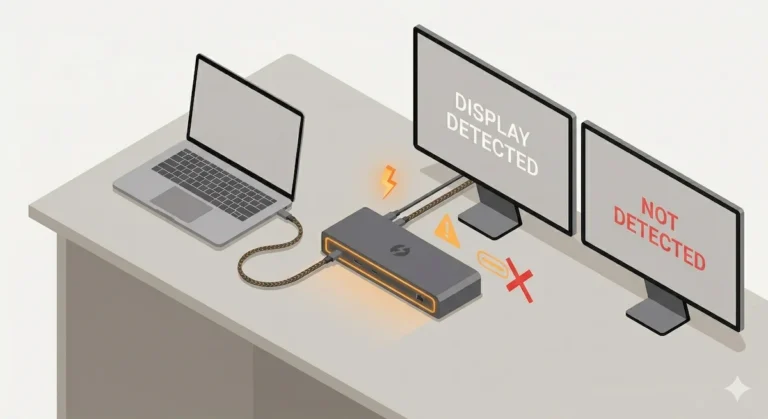
DisplayLink docks require the DisplayLink Manager app to be running at all times — without it, displays show as not detected even when the dock is powered.
If you’ve confirmed your dock is USB-C and it’s still not working, the failure is almost always at the port or cable level — not the dock itself. Our USB-C Docking Station guide breaks down exactly why USB-C docking fails, which ports actually support video output, and which docks are worth buying at the $50–$150 price point.
1.2 Thunderbolt 3 / 4 Docking Station
- How to Identify: It will have the distinctive Thunderbolt “⚡” logo on the device or cable. The product name and specs will loudly proclaim “Thunderbolt.”
- How It Works: It uses the high-bandwidth Thunderbolt protocol, which carries data, video, and power over a single connection. It’s more consistent and powerful than basic USB-C.
- The Core Weakness: Strict compatibility and cost. It requires a Thunderbolt-capable laptop port. While more reliable, a Thunderbolt dock not working can still occur due to driver or firmware issues, which we cover in our dedicated Thunderbolt Dock Not Detected guide. For Dell WD19 users specifically, most failures stem from power module mismatches and MST bandwidth limits rather than Thunderbolt issues — see our Dell WD19 Not Working guide.
Thunderbolt ports also support Bridge mode for direct machine-to-machine connections — if that fails to establish, the Thunderbolt Bridge Not Connected guide covers the same BIOS and driver fixes.
If you’re running newer Thunderbolt 5 hardware, understand that bandwidth arbitration works differently than Thunderbolt 3 or 4. Our Anker Prime Thunderbolt 5 Dock analysis explains how display priority and USB fallback behavior can affect stability.
For gaming-focused TB5 setups, the Razer Thunderbolt 5 Dock Chroma introduces a different class of failure — display disconnects triggered by M.2 SSD bandwidth contention.
1.3 DisplayLink Docking Station (Software-Based)
- How to Identify: The product packaging or website will explicitly mention “DisplayLink” technology. These docks often work with laptops that have only basic USB-A or USB-C data ports.
- How It Works: This is a clever workaround. Instead of using a direct video signal, it compresses the display data and sends it over a standard USB data connection. Your laptop needs a special DisplayLink driver to decode this signal.
- The Core Weakness: Performance overhead and driver dependence. It uses your laptop’s CPU to handle display compression. If the driver is missing or corrupted, the entire docking station appears dead, making it seem like a USB-C dock not working.
Section 2 — Docking Station Not Working? Try These Universal Fixes First

Before diving into the specifics of your docking station type, perform these universal steps. They solve a surprising number of issues instantly and are the first line of defense when your docking station is not working.
2.1 The 10-Second Full Power Cycle (The IT Pro’s First Move)
This isn’t just “turn it off and on again.” It’s a deliberate reset of the power circuitry in both your laptop and the docking station.
- Unplug the docking station’s power adapter from the wall.
- Unplug the docking station from your laptop.
- Shut down your laptop (do not restart, shut down).
- Wait 10 full seconds. This drains residual power from the docking station’s capacitors.
- Plug the docking station back into the wall.
- Wait for its power light to come on and stay steady.
- Now, plug the docking station into your laptop.
- Power on your laptop.
2.2 The Port Roulette Test
Not all USB-C ports are created equal. On many laptops, only one or two ports support full docking station functionality (video, data, power). Unplug your docking station and try every single USB-C/Thunderbolt port on your laptop. One of them might be the “correct” one.
2.3 The Cable Swap (The #1 Hidden Culprit for a USB-C Dock Not Working)
The cable that connects your laptop to the docking station is the most critical and most fragile link. If you have a spare Thunderbolt 4 or high-quality USB-C cable (one that came with an external SSD or a known brand), use it to connect your laptop to the docking station. A shocking number of “dead” docks spring to life with a new cabl

Section 3 — Docking Station No Display? External Monitor Not Detected
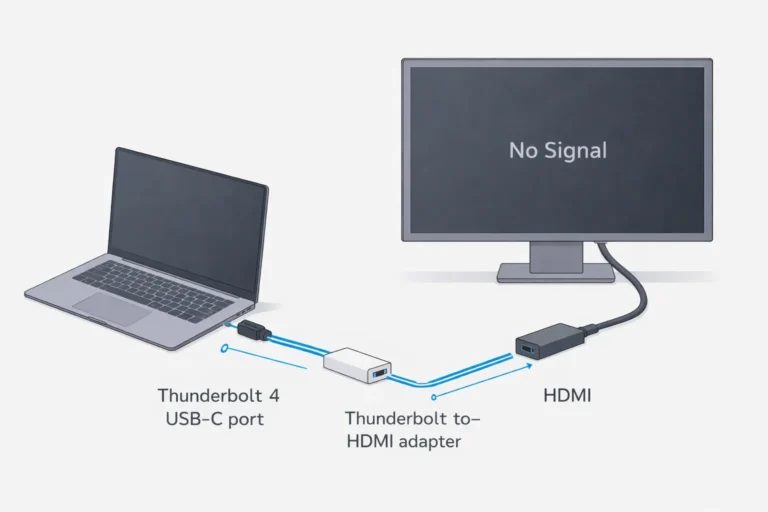
If your docking station external monitor is not detected, the issue is almost always a broken video handshake, driver conflict, or cable limitation. This is one of the most common docking station not working scenarios. If your docking station powers on but the external display shows “No Signal”, the failure is almost always in the display signal handshake rather than the dock itself — a scenario we break down step by step in our guide on Docking Station Not Detecting Monitor.
For All Users:
- Check the Monitor’s Input Source: On the monitor that’s not working, press the menu button and manually select the correct input (e.g., HDMI 1, DisplayPort 2). Don’t leave it on “Auto.”
- Test with a Known-Good Cable: The video cable between the docking station and monitor is another common point of failure. Swap it with a cable you know works.
For Windows Users:
- Press
Win + P: This brings up the projection menu. Make sure “Extend” or “Second screen only” is selected. It might be stuck on “PC screen only.” - Update Your GPU Driver: This is critical. Do not use Windows Update for this. Go directly to the NVIDIA, AMD, or Intel website, download the latest “Studio” or “Game Ready” driver for your graphics card, and perform a clean installation. Corrupted or outdated drivers are the leading cause of a dock no display problem.
For macOS Users (Especially Apple Silicon M1/M2/M3/M4):
- Turn Off HDR: Apple Silicon Macs can have handshake issues with HDR (High Dynamic Range). Go to System Settings > Displays and turn OFF “High Dynamic Range” for the external monitor. This simple toggle fixes a massive percentage of flickering and external monitor not detected problems.
- Check for macOS Updates: Apple frequently releases updates that fix external display compatibility.
Advanced: Daisy Chain Issues
If you’re trying to connect multiple monitors and the second one is dead, you have additional layers of complexity. The first monitor must have a DisplayPort OUT port, and your docking station must support Multi-Stream Transport (MST). Our dedicated guide on how to daisy chain monitors walks you through every requirement and fix for this specific setup.
🟡 Pattern Check — Fixing a Setup or Babysitting a Dock?
🟡 Pattern Check
You’ve power-cycled. You’ve updated drivers. Still failing. Before you go deeper — is this a configuration issue or a dock that doesn’t match your workload?
| Fixing configuration ✅ | Babysitting instability ⚠️ |
|---|---|
| Power cycle fixes it for weeks | You power cycle every morning |
| Cable swap resolved it | Tried 4 cables — all fail |
| Driver update helped | Firmware updates change nothing |
| Started after a specific OS update | Present since day one |
If you’re in the right column consistently — you’re not fixing a setup. You’re managing a dock that was never right for your workload.
If you’ve been troubleshooting the same dock for weeks — stop. Thunderbolt 5 removes this failure class entirely. It will last you through the decade. Note: you need a TB5 laptop port to unlock full bandwidth — TB4 laptops still work but run at reduced speeds. See docks that remove this failure class →
Section 4 — Docking Station Not Charging Laptop: Power Delivery Mismatch
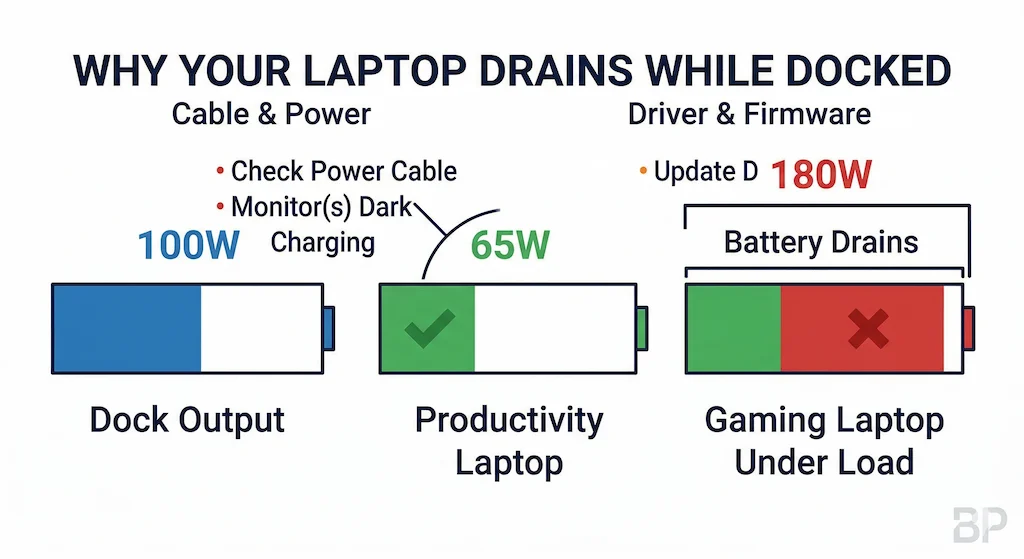
This is a pure power delivery (PD) negotiation failure. Your laptop and docking station are having an argument about voltage and wattage, resulting in a docking station not charging laptop error. Charging failures are a distinct class of docking station problems. A dock can power displays, USB devices, and networking perfectly while still failing to deliver enough power to charge the laptop. This specific failure mode—where the docking station connects but battery percentage continues to drop—is covered in depth in our docking station not charging laptop guide, which breaks down power limits, firmware negotiation failures, and real-world wattage constraints.
- Use the Original, High-Wattage Power Adapter: This is non-negotiable. Your docking station came with a specific power brick (e.g., 100W, 140W). Using a smaller, older, or third-party charger will cause the docking station to starve for power, and it will refuse to charge your laptop. I’ve seen this countless times in offices where power adapters get mixed up.
- Check Your Laptop’s Power Needs: A 16-inch MacBook Pro can draw over 90W under load. If your docking station only provides 60W of PD, it will charge slowly or not at all during heavy use. Check your laptop’s manual for its required wattage and compare it to your docking station’s output.
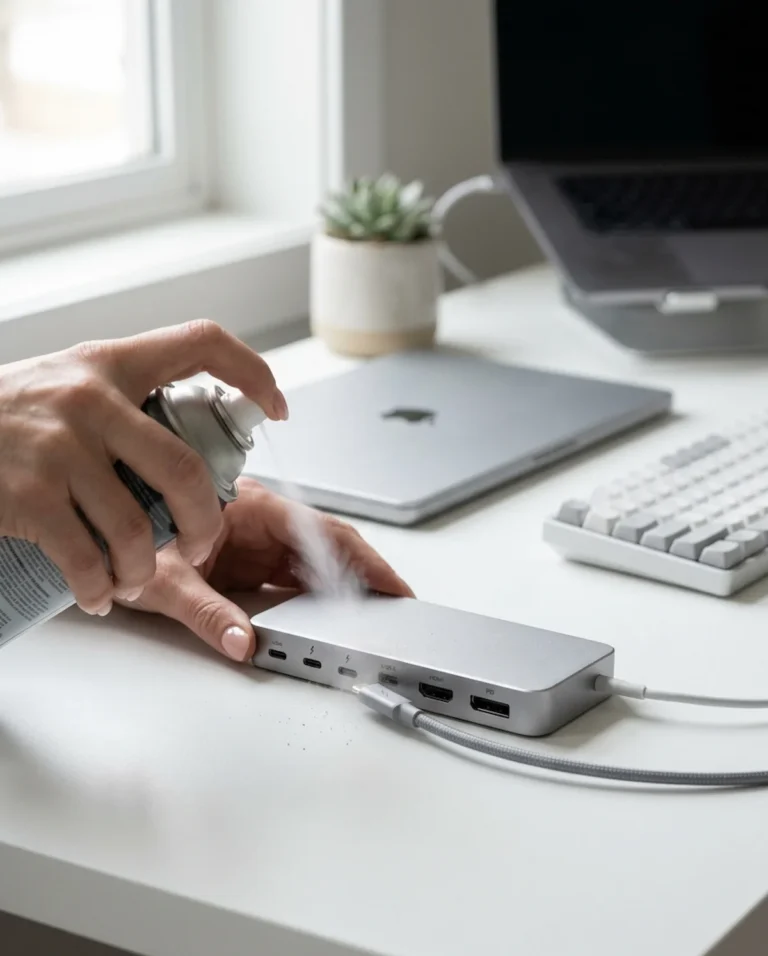
- Clean Your Laptop’s USB-C Port: Over time, pockets lint and debris compact into the port, preventing the cable from seating fully and making a clean power connection. This was the fix for a client whose laptop would only charge at a specific angle. Use a can of compressed air or a plastic toothpick with extreme care to clean out the port.
Port contamination causes more “dead dock” diagnoses than most people realize. If compressed air alone doesn’t fix it, our How to Clean a Thunderbolt Hub guide covers the full process — from contact oxidation to vent blockage — in under five minutes.
If you’re shopping for a mid-tier USB-C dock with solid power delivery without paying the Thunderbolt premium, the UGREEN Revodok Pro 314 delivers 100W PD and dual HDMI for under $100. Before buying, read our UGREEN Revodok Pro 314 problems guide — its MST output is Windows-only and Mac users consistently hit display limitations.
If you’re torn between the UGREEN Revodok Pro 314 and the Max 213 for charging reliability, the difference goes deeper than wattage. Our UGREEN Revodok Max 213 vs Pro 314 comparison breaks down real-world PD behavior, protocol differences, and which one is worth the price gap.
Section 5 — Docking Station Not Working After Windows Update (Windows 11)
This is a massive and recurring pain point. A Windows update can overwrite drivers, change power management settings, and alter how the OS handles external hardware, leading directly to a docking station not working scenario overnight. If your setup broke after a patch Tuesday, follow these steps.
5.1 Roll Back Your Display Driver: This is the most likely culprit.
- Right-click the Start button and select Device Manager.
- Expand Display adapters.
- Right-click your GPU (NVIDIA, AMD, Intel) and select Properties.
- Go to the Driver tab and click Roll Back Driver. If the button is grayed out, Windows didn’t keep the old driver, so proceed to a clean install from the manufacturer’s website as described in the “No Display” section.
5.2 Disable USB Selective Suspend (A Hidden Power-Saving Trap):
- Open the Control Panel > Power Options.
- Click Change plan settings next to your active plan, then Change advanced power settings.
- Expand USB settings > USB selective suspend setting.
- Set both On battery and Plugged in to Disabled.
5.3 Reinstall the Thunderbolt/USB4 Controller Driver:
- In Device Manager, expand System devices.
- Look for Thunderbolt(TM) Controller or USB4 Host Router.
- Right-click, select Uninstall device, and check the box to delete the driver.
- Restart your PC. Windows will attempt to install a fresh driver. For best results, then manually install the latest driver from your laptop manufacturer’s support site.
Dell dock owners face an additional driver layer. A Dell docking station requires four specific drivers installed in a strict sequence — Thunderbolt controller, Intel UHD Graphics, Realtek Ethernet, and Dell Dock Manager. Skip one or install out of order and the dock half-works. Our Dell Docking Station Drivers guide covers the exact install sequence for every model from the WD19 to the SD25TB4.
2026 Update
5.4 — Fix for Windows 11 24H2 (Post-November 2025 Update)
If your dock stopped working after a Windows update in late 2025, this is likely your fix:
• Open Device Manager
• Expand Universal Serial Bus controllers
• Right-click the first USB Root Hub → Properties
• Click the Power Management tab
• Uncheck “Allow the computer to turn off this device to save power”
• Click OK
• Repeat this for every USB Root Hub in the list — there may be 3-5 of them
This fix has resolved dock detection failures on Framework, Dell, and Lenovo laptops after the 24H2 update. It takes 2 minutes and requires no downloads.
Check for a BIOS/UEFI Update: Laptop manufacturers often release BIOS updates to improve compatibility with major Windows releases. Visit your laptop maker’s support page, enter your model number, and see if a system firmware update is available.
Section 6 — USB Ports, Ethernet, or Audio on the Dock Aren’t Working
When video works but the other ports on your docking station don’t, the issue is usually with the data bus or drivers. This often manifests as docking station Ethernet not working or peripherals not being recognized.
- Update Your Docking Station’s Drivers/Firmware: Go to the manufacturer’s website (Dell, HP, Lenovo, CalDigit, Kensington, etc.). Find your docking station model and download the latest USB/Thunderbolt hub controller driver or firmware update tool. This is especially crucial for DisplayLink docks, which are 100% dependent on their software driver.
- The Windows Device Manager Purge (A Powerful Fix for a USB-C Dock Not Working):
- Open Device Manager.
- Expand “Universal Serial Bus controllers.”
- Look for any device with a yellow warning icon, or entries with generic names like “Unknown USB Device” or “USB Root Hub.”
- Right-click the suspect device and select Uninstall device. Crucially, check the box that says “Delete the driver software for this device.”
- Restart your computer. Windows will reinstall fresh, clean drivers upon boot.
Section 7 — Random Disconnects or Screen Flickering
This is often a sign of an unstable connection or system overload. A docking station flickering or dropping connection points to physical or thermal issues.
- Overheating: Touch your docking station. If it’s very hot to the touch, it’s likely thermally throttling. The internal chips reduce performance to cool down, causing dropouts. Move it to a well-ventilated area, off carpet, and away from other heat sources. This is a key design flaw in some compact, powerful docks.
- Bandwidth Overload: If you’re running dual 4K monitors, multiple hard drives, and a webcam through a single USB-C (non-Thunderbolt) docking station, you may be exceeding its total bandwidth. Try unplugging non-essential USB devices to see if stability improves.
- The Host Cable (Again): An intermittent or damaged cable connecting your laptop to the docking station will cause random dropouts. This is the most likely culprit for “works one minute, gone the next” behavior. Replace it with a certified Thunderbolt 4 or USB4 cable.
Before you blame the cable or heat, consider brand‑level failure data.
We tracked thousands of deployments: CalDigit (~6% failure), Dell (~18%), UGREEN (~15%). Random disconnects are often thermal (UGREEN) or firmware (Dell) related.
👉 See the full docking station failure rates by brand breakdown to see if your brand is the real issue.
🔴 Last Resort — When to Replace
🔴 Last Resort
You’ve done everything right. The dock still fails. Stop troubleshooting — it’s time to replace.
- ✅ Tested on two different known-good computers — fails on both
- ✅ Used multiple certified cables — still fails
- ✅ Updated firmware and host BIOS — no change
- ✅ Full 60-second power drain — temporary fix only
Burning smell or deformed ports — replace immediately. No exceptions.
A dock that requires weekly power cycles isn’t a dock — it’s a hobby. The stable replacements are listed directly below.
Find My Dock in 60 Seconds →Not sure which dock fits your setup? Compare all 81 docking stations side by side — filter by connection type, displays, power delivery, and OS in our Docking Station Comparison Tool.
Comparison Table Thunderbolt 5
Kensington SD7100T5
Thunderbolt 5 · Passive · 2.5GbE
- 🟢 Conservative firmware — stability first
- 57-61°C passive cooling — needs airflow
- M.2 SSD slot + CF card reader
- ✅ Enterprise-ready — IT-managed fleets
Best choice for mixed-OS enterprise fleets that need predictability over peak performance.
Check Price →CalDigit TS5 Plus
Thunderbolt 5 · Passive · 10GbE
- 🔴 Aggressive firmware — max bandwidth
- 56-59°C passive — compact chassis trade-off
- 10GbE Ethernet — fastest in class
- ⚠️ No enterprise management tools
Maximum bandwidth for power users who can handle occasional driver diligence. Not for IT-managed fleets.
Check Price →Anker Prime TB5
Thunderbolt 5 · Active (fan) · 2.5GbE
- 🟢 Conservative — limits Boost for compatibility
- 50-52°C active cooling — quietest TB5 dock
- HDMI or DP choice — flexible video output
- ✅ Stable for small business
Best for Mac users who want TB5 bandwidth without aggressive firmware trade-offs.
Check Price →iVANKY FusionDock Max 2
Thunderbolt 5 · Active (dual fan) · 2.5GbE
- 🍎 Mac-Optimized firmware — no Windows support
- 50-55°C — dual fan, quiet operation
- Triple 4K for M2/M3/M4 Max only
- ❌ No Windows support whatsoever
Only dock built exclusively for Apple Silicon. If you run Windows at all — skip it.
Check Price →Razer TB5 Chroma
Thunderbolt 5 · Active (fan) · 1GbE
- 🔴 Aggressive — Boost + M.2 compete for bandwidth
- Active cooling — audible under load
- RGB + M.2 SSD slot — gamer/creator aesthetic
- ❌ Synapse dependency, 1GbE only
Built for gaming battlestations, not offices. macOS limited to dual displays — no triple support on any Mac.
Check Price →⚡ Note: Thunderbolt 5 docks are fully backward compatible — they work with TB4 laptops today and unlock full 120Gbps bandwidth when you upgrade. You’re buying future-proof infrastructure, not just a dock.
Not ready for Thunderbolt 5? The TB4 options below offer good stability at lower cost for most workloads.
Comparison Table Thunderbolt 4
CalDigit TS4
Thunderbolt 4 · Passive aluminum · 2.5GbE
- 🟢 No failure pattern under normal load
- Thermal saturation only under extreme sustained use
- Max port density — 18 ports total
- ✅ Most reliable TB4 dock across mixed setups
The most reliable TB4 dock money can buy. If you’re unsure which dock to get — start here.
Check Price →Dell WD22TB4
Thunderbolt 4 · Passive vented plastic · 1GbE
- ⚠️ Triple-monitor handshake sensitivity
- Firmware deadlocks on non-Dell hosts
- 130W PD — highest in class for Dell laptops
- ✅ Centralized IT management tools
Solid on Dell hardware. Unreliable on anything else — buy accordingly.
Check Price →Dell SD25TB4
Thunderbolt 4 · Passive vented plastic · 2.5GbE
- ⚠️ Reliable on Dell hosts only
- 4x 4K display output — widest in TB4 lineup
- Wi-Fi OOB management — remote IT control
- ✅ Full enterprise management suite
Enterprise-grade with Wi-Fi out-of-band management. Overkill for home use — built for IT fleets.
Check Price →Kensington SD5780T
Thunderbolt 4 · Passive brushed aluminum · 1GbE
- ⚠️ Mac connection instability reported
- Single display port — needs adapter for dual monitors
- Physical security lock slot built-in
- ✅ Cool and quiet under sustained load
Windows-centric workhorse with physical security built in. Mac users should look elsewhere.
Check Price →Plugable TBT4-UDZ
Thunderbolt 4 · Passive aluminum · 2.5GbE
- ⚠️ Mac limited to single display on base M1/M2
- 4-display MST output on Windows
- 6x USB-A ports — highest USB-A count in TB4
- ✅ Best for Windows multi-display setups
Best for Windows users needing 4-display MST output. Mac Pro/Max only — base M1/M2 gets one display.
Check Price →UGREEN Revodok Max 213
Thunderbolt 4 · Passive vented aluminum · 2.5GbE
- 🔴 Thermal throttling under sustained dual-4K load
- DSC negotiation failures with mixed monitors
- Mac: M1 Pro/Max only — base M1/M2 = single display
- ✅ Best value TB4 dock for Windows users
Budget pick with a thermal ceiling. Know its limits before you buy — it will hit them under sustained load.
Check Price →Section 8 — When the Docking Station Is Actually Defective
After exhausting all logical troubleshooting, you must consider that the docking station itself has failed. Here are the tell-tale signs:
- Burnt Electronics Smell: If you smell ozone or burnt plastic coming from the docking station, unplug it immediately. It has failed.
- Visible Physical Damage: Bent ports, cracks, or liquid damage.
- Consistent Failure on Multiple Computers: If you’ve tested the docking station on two different, known-working laptops (using the correct power adapter and cables) and it exhibits the same total failure on both, the docking station is likely dead.
- No Power Light Under Any Circumstances: Even with a verified working power adapter and outlet, the docking station shows no signs of life.
If you’ve reached this point, it’s time for a replacement. Don’t waste more time. Use the knowledge you’ve gained to choose a more reliable model. Our curated Best Docking Station 2026 guide is designed to steer you towards docks that are engineered to avoid the very problems you just experienced.
If you’re considering a high-performance Thunderbolt 5 replacement with more ports, 120Gbps boost mode, and full-speed USB on downstream Thunderbolt ports, review our CalDigit TS5 Plus Problems & Real-World Analysis before buying. It delivers more ceiling — but also introduces different thermal and firmware trade-offs.
Section 9 — The “Still Not Working?” Final Diagnostic Checklist
Follow this final checklist to ensure you’ve covered every base before declaring the dock dead.
- Have you tested the dock on a different, known-working computer? (This isolates the problem to the dock vs. your laptop).
- Have you used EVERY original cable and power adapter that came with the dock? (No substitutions).
- Have you updated your laptop’s BIOS/UEFI to the latest version? (Manufacturer’s website, not Windows Update).
- Have you checked for and disabled any aggressive USB power-saving settings in your laptop’s BIOS and Windows Power Plan?
- Have you physically inspected and cleaned all ports and connectors for debris?
If you can answer “yes” to all these and the docking station still fails, you have done your due diligence. The unit is defective.
Section 10 — FAQ
Section 11 — Why You Can Trust This Guide
My name is Alex, and this guide is built on a foundation of real-world problem-solving, not theoretical spec sheets. My background includes a BSc in Computer Systems and over a decade of professional work in IT infrastructure and solution architecture. I’ve personally deployed and supported hundreds of docking station setups for businesses, from financial firms to design studios.
The insights here come from that front-line experience: diagnosing why a trading desk’s monitors went black at market open (a BIOS setting), rescuing a video editor whose dock dropped frames (thermal throttling), and the countless times a simple cable swap saved the day. I’ve seen the patterns of failure across brands and technologies.
My goal is to translate that experience into a clear, actionable manual for you. This is the guide that cuts through the frustration and gives you the method to restore your workspace to full functionality, whether you’re dealing with a docking station no display issue, a dock not charging laptop error, or a USB-C dock not working mystery.
Sources & References
- DisplayPort over USB-C — DisplayPort Association
- Thunderbolt 4 vs USB4 vs USB-C Explained — BenQ Knowledge Center
- What Is USB Power Delivery? — Plugable Technologies
- What Is Thunderbolt 5? — Digital Trends