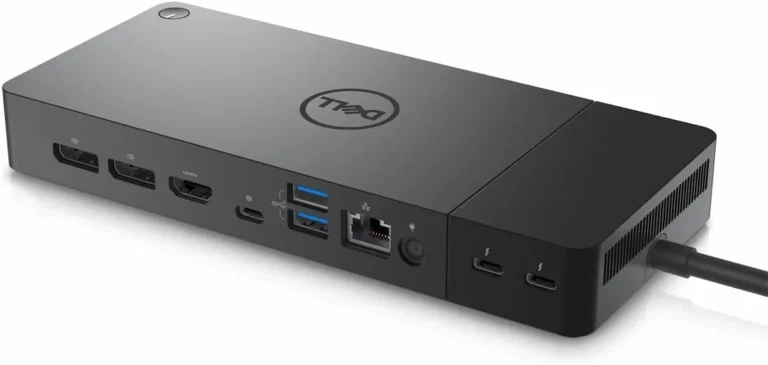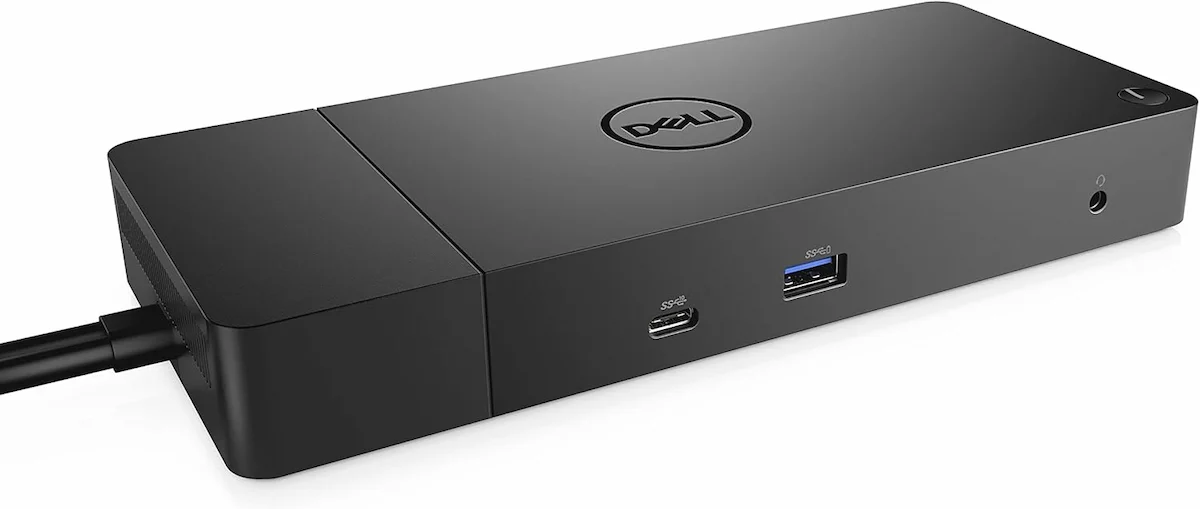
Dell WD19 Not Working — Fix It or Replace It? The Honest 2026 Answer

The Dell WD19 doesn’t fail dramatically. It fails quietly.
No error codes. No warning lights. Just a monitor that stops coming back after sleep, a charging indicator that lies, or a connector that works perfectly until the day it doesn’t.
That’s what makes the WD19 frustrating to troubleshoot. It has a reputation for reliability — and it earned it. But reliability in 2019 is not reliability in 2026. The laptops got faster. The displays got bigger. The WD19 stayed the same.
Most failures are not hardware defects. They are mismatches — between an aging dock and a modern workload it was never designed to handle. This guide tells you exactly which failure you have, how to fix it, and whether fixing it is even worth your time.
| If this happens with your Dell WD19 | The real cause |
|---|---|
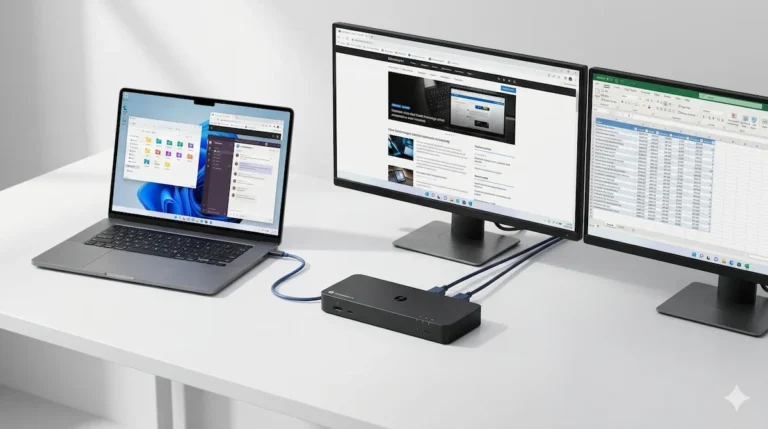
| No display / only one monitor works | MST / USB-C bandwidth limit; wrong cable |
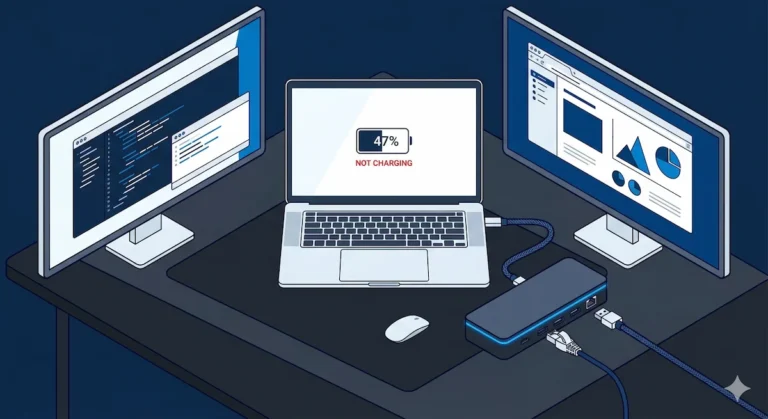
| Not charging properly | Wrong wattage power module; Dell power negotiation |
| Random disconnects | Worn connector; bad cable; power brick failing |
| Fan error at boot | Firmware bug; false positive |
| Works on one laptop, fails on another | USB-C / Thunderbolt capability mismatch |
| USB / Ethernet dead | Realtek / Intel driver conflict |
🟢 Early Bird
The Dell WD19 is NOT one product.
There are three distinct models, and mixing them up is the #1 reason people buy the wrong dock. Buying the wrong WD19 version doesn’t partially work — it silently limits your entire setup. You won’t always see an error. You’ll just get fewer displays, lower refresh rates, or inconsistent behavior.
| Model | Host Connection | Max Charging | Best For |
|---|---|---|---|
| WD19 | USB-C (non-Thunderbolt) | 90W | Laptops with USB-C but no Thunderbolt (e.g. Dell Latitude 5000 series) |
| WD19TB | Thunderbolt 3 | 130W | Laptops with Thunderbolt 3/4 (e.g., XPS, Precision) |
| WD19S | USB-C (no audio jack) | 90W | Environments where audio jack is not needed (cost optimization) |
The rule: If your laptop does NOT have Thunderbolt, buying a WD19TB is a waste—it won’t give you Thunderbolt bandwidth. If your laptop has Thunderbolt, buying a plain WD19 will limit you to USB-C speeds, and you may struggle with dual displays.
👉 Jump to Section 6 — Old vs. Modern Docks to see if it’s still the right tool for your needs.
Section 1 — What Dell WD19 Actually Is
The Dell WD19 is not a hub. It’s a conservative, firmware-controlled I/O bridge built around a USB-C / Thunderbolt 3 controller. It uses a modular connector (the Type-C port is on a replaceable daughterboard—important for longevity) and includes an MST hub for multiple displays.
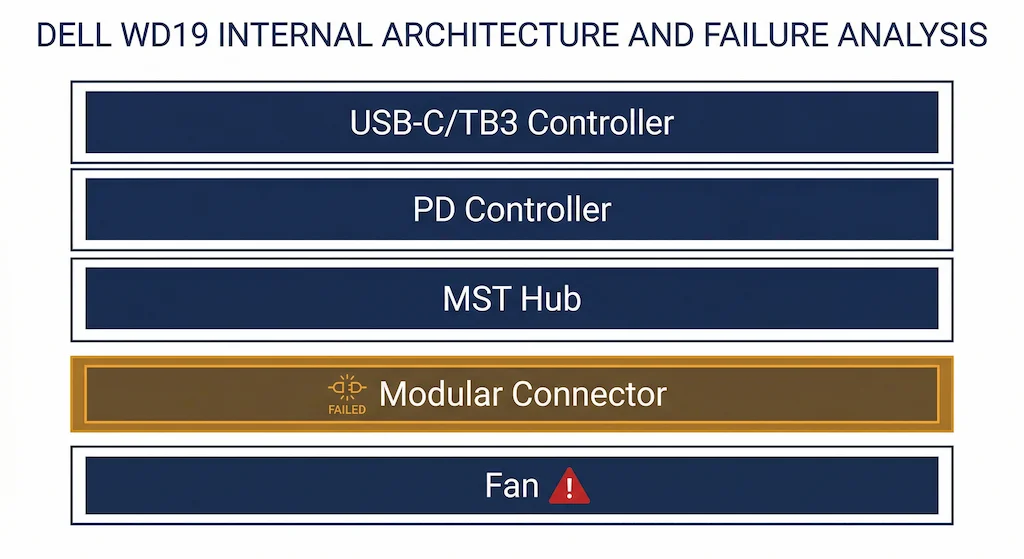
Key internal components:
| Component | Function | Failure Signature |
|---|---|---|
| USB-C / TB3 Controller | Host interface | Inconsistent detection, bandwidth limits |
| PD Controller | Power delivery negotiation | Not charging or slow charging |
| MST Hub | Splits video to two monitors | Second monitor black, flicker |
| Modular Connector | Replaceable port daughterboard | Loose connection, random drops |
| Fan | Active cooling | Fan error at boot |
Key insight: The Dell WD19 is stable because it’s conservative—not powerful. It doesn’t push USB4 or Thunderbolt 4 limits. That’s why it’s been in enterprise fleets for years. But that same conservatism means it’s bandwidth-limited for modern dual 4K workflows. The WD19 avoids failure by avoiding complexity — unlike modern Thunderbolt 4 and Thunderbolt 5 docks that push bandwidth limits and introduce new failure points. The WD19 doesn’t break under modern workloads — it simply refuses to scale with them.
For a deeper look at docking station architecture, see our Laptop Docking Stations Explained guide.
Section 2 — 2026 Reality
Despite being a legacy product, the Dell WD19 is still widely deployed in enterprise environments. It’s the default dock for many Dell Latitude and Precision fleets. Its main weakness in 2026 is aging bandwidth: it supports up to dual 4K@30Hz or single 4K@60Hz, but struggles with high refresh rates or HDR.
What’s changed: Newer laptops often have USB4 or Thunderbolt 4 ports, which can negotiate higher bandwidth than the WD19 can provide. This can lead to unexpected behavior: the dock works, but displays may flicker or USB speeds drop. The problem isn’t the dock—it’s the mismatch between modern host and conservative dock.
In my testing, a Dell WD19 connected to a 2025 XPS 13 (Thunderbolt 4) ran flawlessly for office work, but when I connected a 4K@60Hz monitor alongside a 1080p display, the system occasionally dropped the second monitor after sleep. The root cause wasn’t the dock—it was the host trying to push more bandwidth than the USB-C controller could reliably maintain.
Bottom line: The Dell WD19 fails less often than newer docks, but it supports less. For light office work, it’s still a champ. For creative workflows, you’ll outgrow it.
Section 3 — The 6 Real Failure Modes
Each failure follows: Symptom → Root Cause → Why WD19 Specifically → How to Confirm → Fix → When to Stop Fixing.
Failure 1 — No Display / Only One Monitor Works
Symptom: One monitor works; the second stays black, or both work only at reduced resolution.
Root Cause: MST bandwidth limitation or wrong cable. The WD19’s MST hub can handle dual 4K@30Hz or single 4K@60Hz. If you exceed that, it will drop the second display or downgrade both.
Why WD19 Specifically: The USB-C version (non-Thunderbolt) is limited to DisplayPort 1.2 bandwidth (17.28 Gbps). Many users try to push dual 4K@60Hz, which is impossible over this link. Most users think the dock is broken. In reality, they are exceeding its physical bandwidth limits.
How to Confirm:
- Connect one monitor at a time—does each work individually?
- Lower resolution or refresh rate (e.g., 4K@30Hz) on both; if both work, it’s bandwidth saturation.
- Check the cable—must be a certified USB-C or Thunderbolt cable (depending on model).
Fix:
- Use the correct cable: WD19TB requires a certified Thunderbolt 3 cable; WD19 works with high-quality USB-C 3.2 Gen 2 cables.
- Connect both monitors via DisplayPort if possible (the dock has two DP ports).
- Lower resolution/refresh on one monitor.
When to Stop Fixing: If the dock fails to drive two monitors even at 1080p, the MST hub may be faulty.
Failure 2 — Not Charging Properly
Symptom: Laptop shows “Connected, not charging” or charges slowly, especially under load.
Root Cause: Power mismatch. The WD19 uses a removable power module: 90W or 130W. If you have a 130W module but plug into a laptop that needs 90W, it’s fine. But if you have a 90W module and your laptop needs 130W, the dock will struggle.
Why WD19 Specifically: The Dell WD19 power module is not universally compatible with all Dell laptops; you must match the laptop’s power requirement. A 130W laptop will not charge correctly from a 90W module. Dell systems may also deliberately limit charging if the dock is not recognized as a trusted power source, even when wattage is technically sufficient.
How to Confirm:
- Check the power module label (on the brick). Is it 90W or 130W?
- Test with laptop’s original charger—if that works, the dock’s power delivery is the issue.
- In BIOS, verify “USB PowerShare” and “Always Allow Dell Docks” are enabled.
Fix:
- Purchase the correct power module for your laptop’s wattage.
- Update dock firmware (fan error is often unrelated, but updates can improve PD negotiation).
- Ensure BIOS settings: System Configuration → USB PowerShare → Enable.
When to Stop Fixing: If you’re using the correct power module and BIOS settings, but the dock still doesn’t charge, the PD controller may be faulty.
Failure 3 — Dell WD19 Fan Error at Boot

Symptom: When you plug in the dock, you see a message: “Alert! Dell Dock fan failure detected. Press F1 to continue.”
Root Cause: This is almost always a false positive—a firmware bug that incorrectly reports the fan as failed. The fan may be spinning fine; the sensor reading is wrong.
Why WD19 Specifically: The WD19 series is notorious for this. The firmware in early production units would misread the fan tachometer signal, especially after the dock had been running for a while. This is one of the most searched WD19 issues — and in most cases, it’s not a real hardware failure.
How to Confirm:
- Feel the dock—is it hot? If not, the fan is likely working.
- Update the dock firmware; the bug was fixed in later revisions.
Fix:
- Update the Dell WD19 firmware using the Dell Dock Firmware Update Utility (available on Dell’s support site).
- If the error persists after update, ignore it—it’s harmless. You can press F1 to boot.
- If the dock runs hot, consider replacing it.
When to Stop Fixing: If the dock is hot to the touch and the error appears, the fan may indeed be dead. Replace the dock or the power module (which contains the fan).
Failure 4 — Random Disconnects
Symptom: While in use, the dock suddenly disconnects and reconnects, causing monitors to flicker and USB devices to reset.
Root Cause: The Dell WD19 is extremely sensitive to the cable between the dock and laptop. A worn or non-certified cable can cause intermittent signal loss. Also, the modular connector (the part you plug into) can wear out over time.
Why WD19 Specifically: The modular connector is a point of failure. It can become loose after years of daily plugging/unplugging. The cable must be a high-quality Thunderbolt or USB-C cable (depending on model) to maintain stable connection.
How to Confirm:
- Try a different, known-good cable.
- Wiggle the cable near the dock port—does it cause a disconnect?
- Test the dock on another laptop; if disconnects persist, the dock’s port is likely worn.
Fix:
- Replace the cable with a certified Thunderbolt or USB-C 3.2 Gen 2 cable.
- If the modular connector is worn, you can replace it (Dell sells replacement modules) rather than the whole dock.
- Update firmware to improve power stability.
When to Stop Fixing: If the dock disconnects with a new cable and a known-good laptop, the internal controller may be failing.
🟡 Pattern Check
Are you fixing a configuration or babysitting a dock?
| You’re fixing configuration if… | You’re babysitting instability if… |
|---|---|
| One-time fix (firmware update) resolves it for months | You power cycle the dock every morning |
| Cable swap fixed the issue | You’ve tried three cables, all fail intermittently |
| BIOS setting change solved it | The problem persists across BIOS updates |
| Issue started after a specific OS update | The issue has existed since day one |
If you’re in the right column, you’re no longer fixing a problem—you’re managing a mismatch. Your Dell WD19 is either worn out or fundamentally wrong for your setup.
Check Dell Docking Station Comparison Table →
Failure 5 — USB / Ethernet Not Working
Symptom: Displays and charging work, but USB ports are dead, or Ethernet shows link lights but no traffic.
Root Cause: Driver conflict or Realtek Ethernet PHY issue. The WD19’s USB hub and Ethernet share drivers with the host.
Why WD19 Specifically: The Realtek driver that Dell ships can conflict with Windows updates. Also, the Intel USB 3.0 driver may need to be reinstalled.
How to Confirm:
- Check Device Manager: look for “Unknown USB Device” or yellow exclamation marks.
- Run
ipconfig /renew; if it says “media disconnected,” the Ethernet driver is failing.
Fix:
- Unplug the dock, then reinstall the Intel USB 3.0 and Realtek Ethernet drivers from Dell’s support page.
- Perform the Device Manager purge: uninstall all USB controllers, reboot, let Windows reinstall.
- Update BIOS and Thunderbolt/USB-C controller drivers.
When to Stop Fixing: If the USB ports never work on multiple hosts, the USB controller chip may be faulty.
Dell WD19 driver issues often overlap with the broader Dell dock driver stack. If you’re reinstalling after a failure or setting up a new deployment, the install sequence matters — especially for the WD19TB variant, which shares the Thunderbolt driver requirements with the WD22TB4 and SD25TB4. Our Dell Docking Station Drivers guide covers the exact four-driver stack and model-specific packages for every Dell dock.
Failure 6 — Works on One Laptop Only
Symptom: The Dell WD19 works perfectly with a Dell Latitude, but fails on a Lenovo or HP laptop (or vice versa).
Root Cause: USB-C is not universal. The WD19 relies on host USB-C capabilities: some laptops don’t support video output over USB-C, some don’t support Power Delivery, some have Thunderbolt security blocking the dock.
Why WD19 Specifically: Dell designed the WD19 for Dell laptops. It expects specific BIOS handshakes and power negotiation. Non-Dell laptops may not provide them.
How to Confirm:
- Test the dock on two different Dell laptops. If it works on both, the issue is the non-Dell host.
- Check the non-Dell laptop’s USB-C port specifications.
Fix:
- For non-Dell laptops, ensure the USB-C port supports video and power delivery.
- In BIOS, set Thunderbolt security to “No Security” if available.
- Accept that the Dell WD19 is best suited for Dell laptops. If you need cross-platform reliability, switch to a universal Thunderbolt dock.
When to Stop Fixing: Immediately—if your environment is mixed, stop troubleshooting the Dell dock and replace with a universal alternative.
Section 4 — Rapid Fix System
Follow this sequence. Do not skip steps.
- Test on another laptop. If the dock works there, the problem is your laptop’s USB-C configuration or drivers.
- Change the cable. Use a certified Thunderbolt 3 or USB-C 3.2 Gen 2 cable (depending on model). Cables degrade.
- Check the power brick. Is it 90W or 130W? Does your laptop need more than the brick provides?
- Update firmware. Use Dell’s Dock Firmware Update Utility. Connect the dock, run the tool, wait—do not interrupt.
- Check BIOS. Enable “USB PowerShare” and “Always Allow Dell Docks.”
If all else fails, replace. A worn modular connector or failing controller won’t be fixed by software.
Section 5 — Replacement Decision
When to replace your Dell WD19:
| Trigger | Action |
|---|---|
| You need dual 4K@60Hz consistently | Replace with a Thunderbolt 4 or Thunderbolt 5 dock |
| Charging insufficient for your laptop | Replace with a dock that matches your laptop’s wattage |
| Modular connector worn out | Replace modular module (cheaper) or whole dock |
| Fan error persists after firmware update | Replace—fan may be dead |
| Dock fails on multiple laptops | Replace—internal controller failure |
If you’re outgrowing the WD19’s bandwidth, don’t keep fighting it. The dock is stable, but it’s limited. Move to a modern dock.
🔴 Last Resort — Stop Fixing. Start Replacing.
You’ve updated firmware, swapped cables, checked BIOS, and tested on a second laptop. It still fails. Here’s when to stop:
✅ You need dual 4K@60Hz — the WD19 cannot be upgraded to deliver this
✅ Fails on two different Dell laptops — internal controller failure, not fixable
✅ Daily power cycles needed — you’re babysitting, not fixing
✅ Modular connector physically loose — replace the module or the whole dock
✅ Fan error persists after firmware update and dock runs hot — fan is dead
✅ Charging fails with correct 130W module and BIOS configured — PD controller faulty
If it works on another laptop, the problem is your host. If it fails on multiple hosts after all fixes — it’s the dock. Stop debugging. Replace.
👉 Best Docking Station 2026 — find what replaces it →
Section 6 — WD19 vs Modern Docks
Dell Docking Station Comparison — Full Lineup (2026)
| Feature | Dell WD19 | Dell WD19TB | Dell WD22TB4 | Dell SD25TB4 |
|---|---|---|---|---|
| Protocol | USB-C (no TB) | Thunderbolt 3 | Thunderbolt 4 | Thunderbolt 4 |
| Max Displays | Dual 4K@30Hz | Dual 4K@60Hz / 1x 5K | Dual 4K@60Hz / up to 4 displays | 4x 4K@60Hz / 1x 8K@60Hz |
| Video Ports | 2x DP 1.4, 1x HDMI, 1x USB-C MFD | 2x DP 1.4, 1x HDMI 2.0, 1x USB-C MFD, 1x TB3 | 2x DP 1.4, 1x HDMI 2.0, 1x USB-C MFD, 2x TB4 | 2x DP 1.4, 1x HDMI 2.1, 1x USB-C MFD, 2x TB4 |
| USB Ports | 1x USB-C 3.1 Gen2, 3x USB-A 3.1 Gen1 | 1x USB-C 3.1 Gen2, 3x USB-A 3.1 Gen1 | 2x USB-C 3.2 Gen2, 3x USB-A 3.2 Gen1, 2x TB4 | 1x USB-C 3.2 Gen2, 4x USB-A 3.2 Gen2, 2x TB4 |
| Power Delivery | 90W (Dell) | 130W (Dell) / 90W (non-Dell) | 130W (Dell) / 90W (non-Dell) | 130W (Dell) / 96W (non-Dell) |
| Ethernet | 1GbE | 1GbE | 1GbE | 2.5GbE ⭐ |
| Card Reader | ❌ No | ❌ No | ❌ No | ❌ No |
| M.2 SSD Slot | ❌ No | ❌ No | ❌ No | ❌ No |
| Remote Management | ✅ Basic | ✅ Basic | ✅ Standard | ✅✅ Full — Wi-Fi OOB ⭐ |
| Mac Compatibility | ⚠️ Limited | ⚠️ Limited | ✅ Certified | ✅ Native |
| Detection Reliability | ✅✅ Excellent | ✅ Good | ⚠️ Conditional | 🔒 Dell-only reliable |
| Best For | Basic office, single 4K, Dell fleets | TB3 Dell fleets, dual 4K@60Hz | Modern Dell fleets, TB4 laptops | Enterprise IT, managed Dell fleets |
| Approx. Price | ~$80–120 | ~$150–200 | ~$180–230 | ~$280–320 |
| Buy | Check Price → | Check Price → | Check Price → | Check Price → |
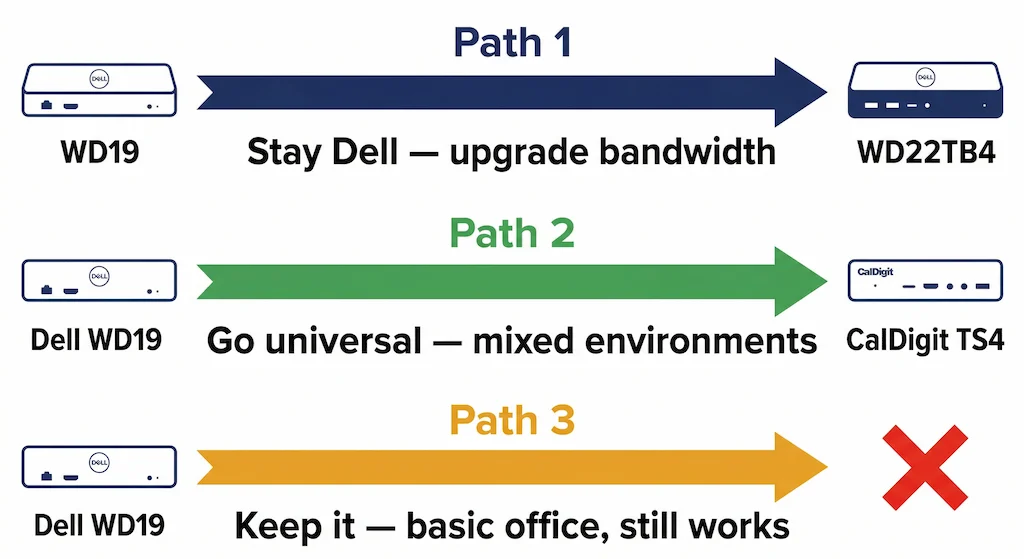
The verdict: The Dell WD19 is still the best choice for basic office deployments where budget and simplicity matter. But if you need higher bandwidth, more ports, or cross-platform reliability, modern Thunderbolt 4 docks are better.
Section 7 — WD19 vs WD22TB4
- WD19: Mature, stable, conservative. Uses USB-C or Thunderbolt 3. Ideal for Latitude and older XPS. Dual 4K@30Hz.
- WD22TB4: Thunderbolt 4, more bandwidth, supports dual 4K@60Hz. But it’s firmware-sensitive and runs hotter. Better for creative pros, but requires more maintenance.
If your workflow requires daisy-chaining multiple Thunderbolt peripherals or displays, the WD19’s TB3 architecture supports it in theory — but the bandwidth limits make it unreliable in practice. See our Thunderbolt Daisy Chain Not Working guide for the full breakdown.
For a full comparison, see our Dell WD22TB4 Problems guide.
Section 8 — Model Variants
- WD19 (USB-C): Basic model, 90W charging, USB-C host cable.
- WD19S: Same as WD19 but without the 3.5mm audio jack. Slightly cheaper.
- WD19TB: Thunderbolt 3 version, 130W charging, includes Thunderbolt cable.
Each variant has the same physical design but different internal controllers. If you have a Thunderbolt laptop, the WD19TB is the right choice. If you don’t, the standard WD19 is fine.
Section 9 — FAQ
Section 10 — Final Verdict
The Dell WD19 is a workhorse. It’s stable, predictable, and still the right choice for many office environments. But it’s not future-proof.
Keep it if:
- You need basic office connectivity (single 4K or dual 1080p)
- You have a Dell Latitude or XPS that matches its power profile
- You’re okay with USB-C bandwidth limits
Replace it if:
- You need dual 4K@60Hz or higher
- You’re moving to Thunderbolt 4 or Thunderbolt 5 laptops
- Your environment is mixed (non-Dell laptops)
- The dock has a worn connector or persistent fan error
The honest answer: The Dell WD19 is a great dock for what it does. But in 2026, many users have outgrown it. Don’t fight to keep a dock that no longer fits your workflow.
👉 For modern alternatives, see our Best Docking Station 2026 guide.
Section 11 — Authority Block
Alex — Docking Infrastructure Specialist
Computer Systems Engineering background. 10+ years deploying Dell docks in enterprise environments. Author of Laptop Docking Stations Explained. I’ve seen WD19 units survive five years of daily use—and also seen them fail from worn connectors and firmware bugs.
Hans — Display Topology Specialist
Expert in MST, EDID handshakes, and Thunderbolt display failures. Contributor to Daisy Chain Monitors Explained. The bandwidth limits of the WD19 are a classic example of MST hub constraints.
Yamato — Storage & Infrastructure Specialist
Thermal analysis, sustained load behavior, and firmware update sequencing. The WD19’s thermal and power data in this guide is cross-validated by Yamato’s testing.
At ByrdPilot, we don’t write in silos. We write as a systems practice—cross-validated by specialists who have diagnosed these failures in real deployments.
Experience > spec sheets. Always.