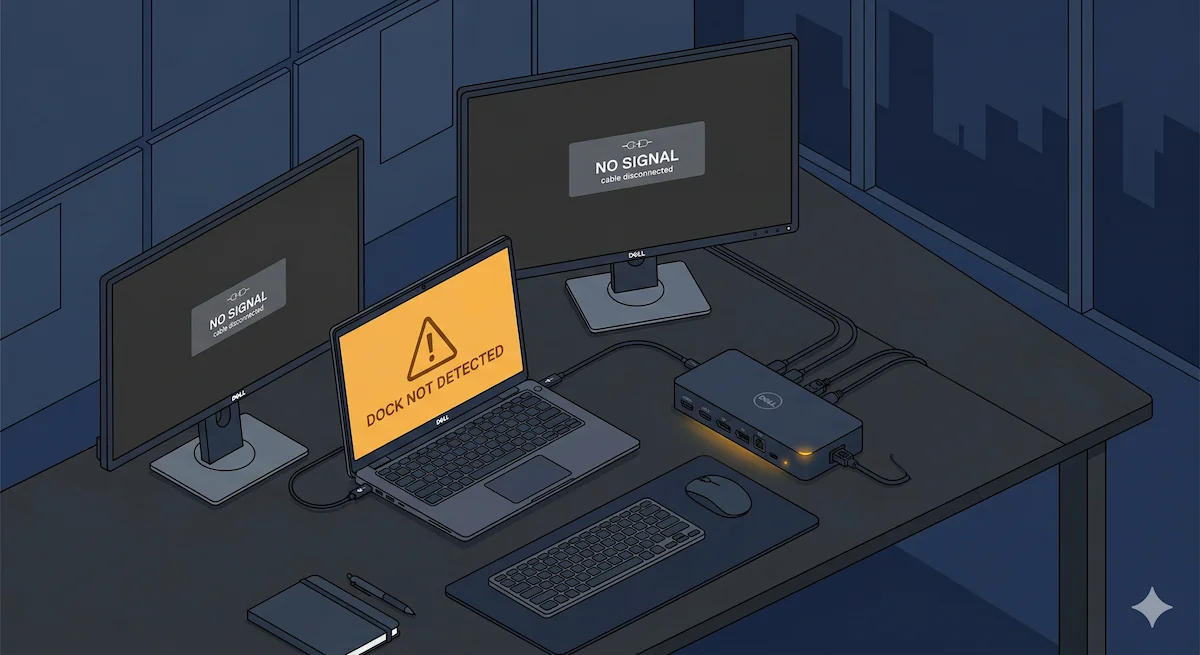
Dell Docking Station Not Working? Display, Charging & Connection Fixes (2026)

A Dell docking station fails when firmware, BIOS, and Thunderbolt drivers fall out of sync — not because the hardware is broken. The most common causes are Thunderbolt security level blocking the dock, outdated dock or laptop firmware, and Windows 11 24H2 resetting Thunderbolt authorization. A full power drain, BIOS check, and firmware update sequence resolves over 80% of Dell dock failures without replacement.
| If this happens with your dell docking station | The real cause |
|---|---|
| No display, but USB works | GPU driver mismatch / Thunderbolt handshake failure |
| Not charging under load | PD mismatch / BIOS power policy |
| Random disconnects after hours | Firmware desync / thermal accumulation |
| Dock not detected at all | Thunderbolt security level blocking enumeration |
| Ethernet dies, link lights stay on | Realtek driver bug / address translation failure |
| Works on Dell laptop, fails on others | Vendor lock-in / proprietary handshake |
Why Your Dell Docking Station Really Stopped Working?
Your Dell docking station isn’t broken. It’s desynchronized.
Most people treat a dock like a power strip—plug in, expect magic, blame hardware when magic doesn’t happen. But a Dell docking station is a firmware-controlled I/O controller with its own processor, power negotiation logic, and display routing brain. It doesn’t fail randomly. It falls out of sync with your laptop’s BIOS, Thunderbolt controller, and monitor EDID.
This guide doesn’t guess. It diagnoses. You’ll learn exactly why your Dell dock fails and exactly how to fix it—or when to stop trying.
🟢 Early Bird — Haven’t Bought a Dell Docking Station Yet?
A Dell docking station is built for one environment: Dell laptops, Dell BIOS, Dell drivers. In that environment it’s rock solid. Outside it, you’re fighting the firmware every day.
Before you buy, ask yourself:
- Is your entire fleet Dell laptops running Dell BIOS?
- Do you have IT managing firmware updates centrally?
- Are you buying for a homogeneous environment — not mixed Mac, Lenovo, or HP?
If you answered no to any of these, a universal Thunderbolt dock will save you months of troubleshooting. See the comparison table before you commit.
Not sure which dock fits your setup? Compare all 81 docking stations side by side — filter by connection type, displays, power delivery, and OS in our Docking Station Comparison Tool.
Section 1 — What a Dell Dock Actually Is (Reframe Layer)
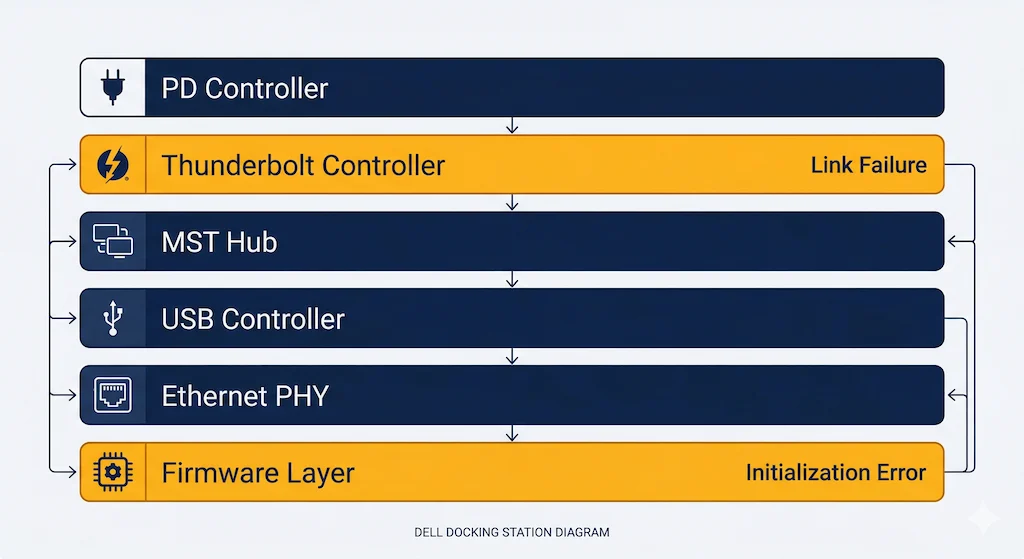
A dell docking station is not a hub. It’s a firmware-controlled I/O controller with six distinct layers that can each fail independently:
| Layer | Function | Failure Signature |
|---|---|---|
| PD Controller | Negotiates laptop charging voltage | “Connected, not charging” |
| Thunderbolt Controller | Manages PCIe tunneling, display routing | Dock not detected, amber LED |
| MST Hub | Splits video to multiple monitors | Second monitor black, flicker |
| USB Controller | Handles downstream peripherals | Random disconnects |
| Ethernet PHY | Physical network layer | Link lights on, no traffic |
| Firmware Layer | Orchestrates all of the above | Intermittent failures, sleep death |
Key insight: A dell docking station doesn’t fail randomly—it desyncs. When BIOS, Thunderbolt controller firmware, dock firmware, and Windows drivers get out of alignment, the conversation breaks. The hardware is fine. The handshake isn’t.
For a complete breakdown of docking station architecture, see our Laptop Docking Stations Explained guide.
Section 2 — 2026 Reality
What’s changed this year for Dell docks:
| Factor | Impact on Dell Docks |
|---|---|
| Windows 11 24H2 | Thunderbolt security policies reset; your dock may be blocked until re-authorized |
| Newer Dell BIOS | “Always Allow Dell Docks” setting toggles may revert after updates |
| Realtek Ethernet driver bugs | Known issue on WD19TB, WD22TB4—link lights on, no traffic |
| Thermal accumulation | Compact docks (WD22TB4) throttle after hours under 4K + SSD load |
| Firmware update failures | WD19TB 69.84 updater fails if Thunderbolt controller not flashed first |
The bottom line: Your Dell dock isn’t getting worse. The environment around it is changing, and the dock isn’t keeping up.
The same Thunderbolt security setting controls dock authorization and Thunderbolt Bridge — if your Bridge connection also drops, the fix is identical.
Section 3 — The 7 Real Failure Modes
Each failure follows the same pattern: what you see → what’s actually happening → how to confirm it → how to fix it → when to quit.
Failure 1 — Dock Not Detected at All
Symptom: Nothing. No charging, no USB, no displays. The dock LED is off or stuck amber. Your laptop acts like you plugged in a paperweight.
Root Cause: Thunderbolt handshake never completed. The laptop’s Thunderbolt controller and the dock never established a link — either because the dock firmware is in a dead state, or the controller isn’t talking at all.
Why Dell specifically: Dell docks need three things in sync: BIOS Thunderbolt settings, Thunderbolt controller firmware, and dock firmware. One layer out of date and the link never comes up. It’s not a bug — it’s how the system is designed.
How to confirm:
- Open Device Manager — look for “Unknown USB Device” or a missing Thunderbolt controller
- Plug in a USB-C HDMI dongle instead — if that works, the Thunderbolt path is the problem, not the port
- Check the LED — amber means no link established
Fix:
- Full power drain. Unplug the dock from both the laptop and AC power. Hold the dock power button for 30 seconds. Reconnect AC, wait for the LED to blink three times, then reconnect the laptop.
- BIOS check. Boot into BIOS (F2), go to System Configuration → Thunderbolt Adapter Configuration. Make sure Thunderbolt is enabled. Set Security Level to “No Security” for testing.
- Reinstall the Thunderbolt stack. Uninstall Thunderbolt Control Center, reboot, install the latest Dell Thunderbolt driver from scratch.
- Update the laptop’s Thunderbolt controller firmware — dock disconnected.
- Update dock firmware — dock connected, no other peripherals attached.
When to stop: You’ve done the full power drain, reset the BIOS, updated everything, and it’s still not detected on two different Dell laptops. Stop. That’s an RMA, not a configuration problem.
Download firmware updates directly from Dell Support. Always update your laptop Thunderbolt controller firmware first — with dock disconnected — before flashing the dock itself.
⚠️ April 2026 Update — Windows 11 24H2 Thunderbolt Authorization Reset
Windows 11 24H2 silently resets Thunderbolt device authorization after updates and some reboots. A dock that worked yesterday gets blocked today — no error, no warning. Fix: open Thunderbolt Control Center, find your dock under connected devices, and approve it again. If Thunderbolt Control Center shows nothing, set BIOS Thunderbolt Security Level to No Security temporarily to force re-enumeration, then re-authorize.
Failure 2 — No Display, But USB Works
Symptom: Keyboard works, charging works, USB drives show up. But every monitor stays black. Plug a USB-C HDMI dongle directly into your laptop and it works fine. The dock just won’t push a signal.
Root Cause: The display tunnel never established. Usually a GPU driver mismatch or MST hub handshake failure — the dock can’t initialize the display path even though everything else is running.
Why Dell specifically: Dell docks depend on the Intel UHD Graphics driver to bring up the MST hub. Doesn’t matter if you have NVIDIA or AMD — that Intel driver still needs to be there. Missing or outdated, and you get exactly this: USB fine, displays dead.
How to confirm:
- Test a single monitor on each display port separately
- Open Device Manager — look for display adapter errors or yellow triangles
- Confirm Intel UHD Graphics is actually installed (it often gets dropped after a Windows update)
Fix:
- Clean install the Intel UHD Graphics driver from Dell’s support site — not Windows Update, not Intel’s generic package. Dell’s version.
- Update your NVIDIA or AMD driver from the manufacturer directly.
- Power cycle the dock — full 30-second drain, reconnect AC, wait for the LED, then reconnect laptop.
- Check BIOS: “Enable Thunderbolt Boot Support” and “Preboot Modules” should both be on.
When to stop: Single monitor, different cables, different ports, multiple hosts — still black. The MST hub inside the dock is likely dead. That’s not a driver problem.
If you’re setting up a Dell dock for the first time or reinstalling drivers after a failure, the install sequence matters more than the drivers themselves. Our Dell Docking Station Drivers guide covers the exact four-driver stack, the correct 11-step install order, and model-specific driver packages for every Dell dock from the WD19 to the SD25TB4.
Failure 3 — Not Charging Laptop Under Load
Symptom: Battery drains while plugged into the dock. Or you see “Connected, not charging.” Sometimes it charges fine at idle and falls behind the moment you open anything demanding.
Root Cause: The Power Delivery contract failed, or your laptop is pulling more than the dock can deliver. These are different problems with different fixes.
Why Dell specifically: Dell laptops have a BIOS policy called “Always Allow Dell Docks” — if it’s off, charging gets throttled regardless of what the dock can output. The D6000 series adds another layer: it’s DisplayLink-based, not Thunderbolt, and needs completely different settings.
How to confirm:
- Plug in your OEM charger directly — if the laptop charges normally, the dock’s PD output is the issue
- Check BIOS for “USB PowerShare” and “Always Allow Dell Docks” — both need to be enabled
Fix:
- In BIOS: System Configuration → USB PowerShare → Enable. Then Dell Type-C Dock Configuration → Always Allow Dell Docks → Enable.
- If you’re on a D6000 series: disable Thunderbolt options in BIOS, install the DisplayLink driver.
- Update dock firmware.
- Check wattage. The WD19 series needs 130W minimum for full charging under load. If you have the 90W version, that’s your ceiling.
When to stop: Firmware updated, BIOS settings correct, right wattage dock — and it’s still delivering under 60W to a laptop that needs 100W. The PD controller is faulty. Replace the dock.
Failure 4 — Works Until Sleep, Then Dies
Symptom: Dock works perfectly all day. Laptop sleeps. You wake it up — monitors are black, USB is dead. Everything looks connected. A full reboot fixes it. Every time.
Root Cause: Power-state desync. The Thunderbolt controller drops the connection during sleep and can’t renegotiate on wake. The link just never comes back up.
Why Dell specifically: The SD25TB4 expects a Dell EC handshake on wake. Dell Precision laptops handle it fine. Non-Dell laptops — Framework, Lenovo, HP — frequently don’t. This isn’t a bug that’ll get patched. It’s by design.
How to confirm:
- Test with a Dell laptop — if it wakes clean, the dock is discriminating against your host
- Check Event Viewer after a failed wake — filter for Thunderbolt errors in the timeframe of the sleep cycle
Fix:
- Disable Fast Startup. Control Panel → Power Options → Choose what the power buttons do → Turn on fast startup → uncheck it.
- Update both Thunderbolt controller firmware and dock firmware.
- In BIOS: disable “Deep Sleep Control” if the option exists.
- Workaround if nothing else works: open the lid fully before waking. Let the login screen appear before closing it again.
When to stop: Latest firmware, Fast Startup off, Deep Sleep disabled — still dead on wake across multiple hosts. The dock’s power-state logic doesn’t play well outside the Dell ecosystem. Replace it with a universal TB4 dock.
🟡 Pattern Check — Fixing a Setup or Babysitting Your Dock?
You’ve tried the updates. You’ve power-cycled. You’ve checked the BIOS. Still acting up. Time to call it.
| You’re fixing configuration if… | You’re babysitting instability if… |
|---|---|
| A full power cycle fixes it for weeks | You power cycle the dock every morning |
| Driver update resolved the issue | Firmware updates change nothing |
| Problem started after OS update | Problem present since day one |
| Dell laptop works, non-Dell doesn’t | The dock fails on everything |
If you’re in the right column, stop debugging. You’re not fixing a configuration issue — you’re managing a dock that was never right for your environment.
Failure 5 — Random Disconnects After Hours
Symptom: Works fine for 30–60 minutes. Then USB devices drop, monitors flicker, Ethernet dies. Unplug and replug and it comes back — until it doesn’t again.
Root Cause: Thermal throttling. The controller overheats under sustained load and resets itself. Some cases point to a firmware memory leak, but heat is the more common culprit.
Why Dell specifically: The WD22TB4 is a compact dock running dual 4K, SSD, and Ethernet through a small chassis. Under that kind of sustained load, it hits its thermal ceiling. It’s not defective — it’s just physically small for what it’s being asked to do.
How to confirm:
- Pick up the dock after 45 minutes of heavy use. If you can’t comfortably hold it, it’s throttling
- Log when disconnects happen — if they track with sustained file transfers or GPU load, it’s thermal
Fix:
- Give it air. Raise the dock on feet, get it off carpet, keep it away from other heat sources.
- Cut the load. Unplug USB devices you don’t actively need.
- Update firmware — later versions often adjust thermal thresholds.
When to stop: Minimal load, latest firmware, good ventilation — still disconnecting. The hardware is degraded. Replace it.
Heat isn’t always a hardware defect — dust-clogged vents and dirty contacts trap heat that the chassis was designed to dissipate. Before requesting a Dell warranty replacement, our How to Clean a Thunderbolt Hub guide walks through the vent and port cleaning process that resolves most thermal disconnects in minutes.
Failure 6 — Ethernet Drops, Link Lights Stay On
Symptom: Link lights are solid. Windows says connected. Nothing loads. Run ipconfig /renew and you get “media disconnected.” The dock thinks it’s online. It isn’t.
Root Cause: Realtek driver bug. Address translation fails silently — the link looks healthy but traffic stops passing.
Why Dell specifically: Documented on WD25TB4, SD25TB4, and XPS 13 9350. Dell hasn’t fixed this in hardware — the workaround is driver version-specific.
How to confirm:
- Ping anything — it times out
- Run
ipconfig /renew— “media disconnected” with link lights on is the giveaway - Open Device Manager and look for duplicate Intel Ethernet Controller entries
Fix:
- Unplug the network cable, wait five seconds, replug. Sometimes that’s enough.
- Update to Intel PCIe Dock Ethernet Controller Driver version 2.1.5.5 or later.
- On DA14250, PA13250, MA14250, or XPS 13 9350: use version 2.1.5.6 specifically.
When to stop: Correct driver installed, issue comes back after reboot. The Ethernet hardware in the dock is faulty. Replace it.
Failure 7 — Works Only on Dell Laptops
Symptom: Flawless on a Dell Precision. Plug into a Lenovo, HP, or Framework — unstable, partially detected, or dead.
Root Cause: Vendor lock-in. Dell docks are tuned to expect Dell’s EC handshake. Non-Dell laptops don’t have it, and the dock either partially initializes or refuses the connection entirely.
Why Dell specifically: Dell’s BIOS includes an “Always Allow Dell Docks” setting that bypasses Thunderbolt security for Dell hardware. On any other laptop, that bypass doesn’t exist. The dock isn’t broken — it just wasn’t designed for you.
How to confirm:
- Same dock, Dell laptop — works
- Same dock, non-Dell laptop — fails
That’s vendor lock-in, not a configuration problem.
Fix:
- On the non-Dell laptop: set BIOS Thunderbolt security to “No Security” if the option exists.
- Update Thunderbolt drivers from your laptop OEM.
- Accept the limitation. Dell docks are built for Dell ecosystems.
When to stop: Immediately. If you’re running a Dell dock on non-Dell hardware and it’s not stable, stop troubleshooting. Switch to a universal TB4 dock — CalDigit TS4, Kensington SD5780T, Plugable TBT4-UDZ. Any of them will work without the handshake dependency.
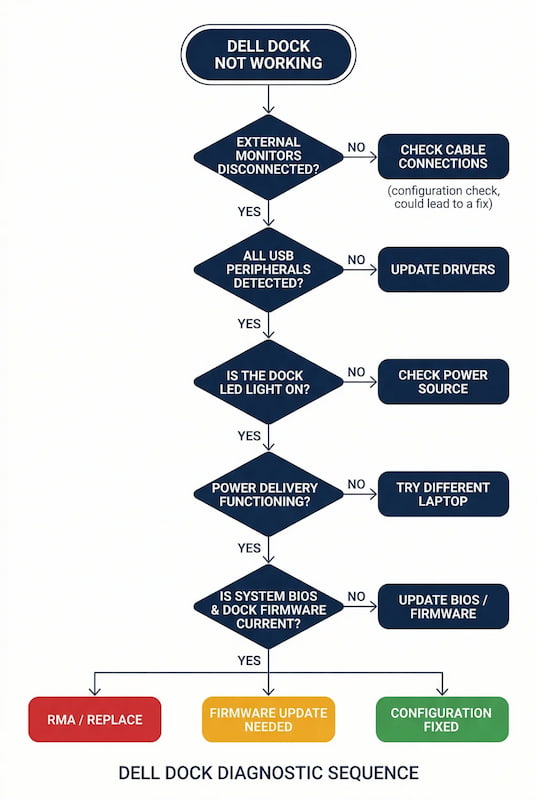
🔧 Section 4 — Rapid Diagnostic Flow
Follow this sequence. Do not skip steps.
Step 1 — Test on a different laptop
Connect the dock to a different Dell laptop before anything else.
Step 2 — Full power drain
- Unplug dock from laptop and AC power
- Hold dock power button for 30 seconds
- Reconnect AC — wait for LED to blink 3 times
- Reconnect laptop
Step 3 — Check BIOS (F2)
- Thunderbolt enabled?
- Security Level = No Security?
- Always Allow Dell Docks = On?
- USB PowerShare = Enabled?
Step 4 — Check cables
- Use original Dell Thunderbolt cable only
- Test a different USB-C port on the laptop
- Inspect for bent pins or debris
Step 5 — Update firmware (CRITICAL — sequence matters)
- Update laptop Thunderbolt controller firmware — dock disconnected
- Update dock firmware — dock connected, no peripherals attached
- Reboot both devices after each update
Step 6 — Interpret results
Section 5 — Replacement Decision Layer (MID FUNNEL ENTRY)
When to Replace Your Dell Dock (Not Fix It)
| Trigger | Action |
|---|---|
| Daily power cycles needed | Replace the dock—you’re babysitting |
| Sleep failures on every host | Replace—firmware deadlock unfixable |
| Ethernet drops persist after driver update | Replace—PHY hardware fault |
| Charging inconsistent across multiple laptops | Replace—PD controller failure |
| Dock physically hot, smells, or deforms | Replace immediately—safety hazard |
Rule of thumb: If you’ve done full power drain, BIOS check, cable swap, firmware update, and tested on two laptops with same failure—stop. The dock is the problem.
👉 For reliable alternatives, see Section 6.
🔴 Last resort — Final Protocol
If you’ve done everything and it still fails — stop troubleshooting. The dock is the problem.
Replace your Dell dock if:
- ✅ Fails on two different known-good Dell laptops after all steps
- ✅ Firmware updated — still unstable
- ✅ Ethernet drops persist after driver update
- ✅ Sleep failures on every host
- ✅ Dock physically hot, smells, or deforms
Rule of thumb: Full power drain, BIOS check, cable swap, firmware update, tested on two laptops — same failure. Stop. The dock is defective.
Not sure which dock fits your setup? Compare all 81 docking stations side by side — filter by connection type, displays, power delivery, and OS in our Docking Station Comparison Tool.
Section 6 — Stability Comparison (HARD MID FUNNEL)
Not “best”—most stable for your environment.
Key insight: A Dell dock is stable within Dell ecosystems. Outside that, you’re fighting firmware. The WD19 is the most forgiving of the lineup — if yours is failing, see our Dell WD19 Not Working guide before replacing it.
Section 7 — Dell vs Non-Dell Reality
The truth that saves you months of frustration:
A Dell dock works best with Dell laptops. Not because Dell is “better,” but because they’re designed together. Dell’s official Thunderbolt dock troubleshooting guide confirms this — most fixes assume a Dell host.
- Dell Precision + Dell dock → BIOS handshake, EC sync, firmware alignment = stable
- Framework + Dell dock → closed-lid wake fails, random disconnects
- Lenovo/HP + Dell dock → hit-or-miss, often miss
If you’re running a mixed fleet, stop fighting it. Buy universal docks for universal environments. A Dell dock is for Dell shops.
For a complete breakdown of what Thunderbolt 4 actually guarantees (and where it still falls short) across different brands, see our Thunderbolt Docking Station Explained guide.
Section 8 — Model Breakdown (CLUSTER ENTRY)
WD19 Series
The workhorse. Mature, stable, but aging. If this dock works, don’t replace it. If it fails, check the “dock fan failed” preboot warning—known issue, can be skipped. For the full WD19 diagnostic, see our Dell WD19 Not Working — Fix It or Replace It? guide
WD22TB4
The powerhouse. Thunderbolt 4, dual 4K@60Hz, 130W charging. But this dock is firmware-sensitive. The 30-second power drain is your best friend. Update sequence matters: laptop Thunderbolt controller first, then dock firmware.
SD25TB4
The enterprise “Smart Dock.” IT-managed, firmware-controlled. Powerful, but complex. If this dock fails on non-Dell hardware, it’s not fixable. Framework community reports closed-lid wake issues—Dell-only feature.
Section 9 — FAQ
Section 10 — Authority Block
Alex — Docking Infrastructure Specialist
Computer Systems Engineering background. 10+ years deploying Dell docks in enterprise environments. Author of Laptop Docking Stations Explained. Diagnosed the Framework + SD25TB4 closed-lid wake failure firsthand—it’s not fixable.
Hans — Display Topology Specialist
Expert in MST, EDID handshakes, and Thunderbolt display failures. Contributor to Daisy Chain Monitors Explained.
Yamato — Storage & Infrastructure Specialist
Thermal analysis, sustained load behavior, and firmware update sequencing. The WD22TB4 thermal throttle data in this guide is cross-validated by Yamato’s testing.
At ByrdPilot, we don’t write in silos. We write as a systems practice—cross-validated by specialists who have diagnosed these failures in real deployments.
Experience > spec sheets. Always.
- Realtek Ethernet bug on WD19S, WD19DCS, WD22TB4 — Dell Support KB000219827
- WD19TB firmware update failure — Thunderbolt monitor connected — Dell Support KB000211189
- Thunderbolt dock stops working after Windows 11 update — Microsoft Learn
- Dell Thunderbolt dock troubleshooting — Dell Support