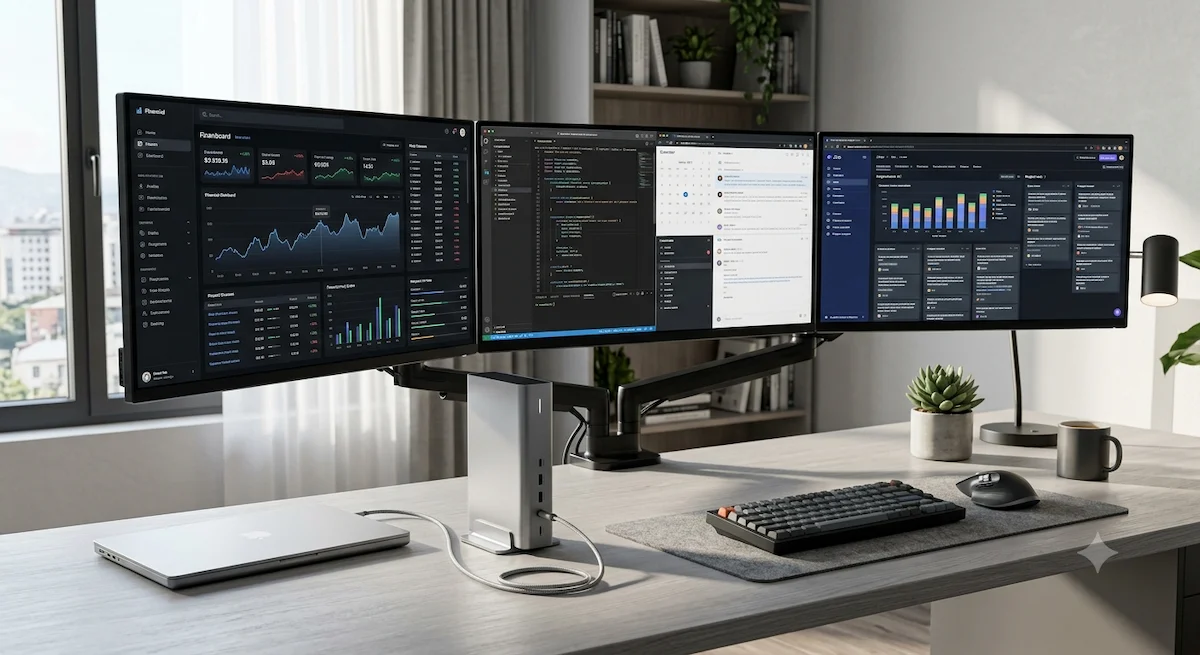
Best docking station for multiple monitors — triple monitor desk setup with Thunderbolt dock and laptop

Best Docking Station for Multiple Monitors in 2026

⚡ Quick Answer — Best Docking Station for Multiple Monitors

The best docking station for multiple monitors depends on your display count, laptop platform, and budget. For dual 4K@60Hz, the CalDigit TS4 (Thunderbolt 4) is the most reliable choice across Windows and Mac. For triple 4K@60Hz on Windows, the Plugable TBT4‑UDZ delivers quad‑display capability. For triple 4K@144Hz and future‑proof setups, the CalDigit TS5 Plus (Thunderbolt 5) is the stronger pick.

Mac users must check their chip first: base M1/M2/M3 are limited to one external display natively; M3/M4 base support two in clamshell mode; M‑Pro/Max chips support dual 6K@60Hz via a TB4 dock. No dock bypasses these chip‑level limits.

  • Best Overall: CalDigit TS4 — dual 4K, all chips, 98W PD
  • Best for Windows Multi-Monitor: Plugable TBT4‑UDZ — quad 4K@60Hz
  • Best Future-Proof: CalDigit TS5 Plus — triple 4K@144Hz, 10GbE
  • Best Budget TB4: UGREEN Revodok Max 213 — dual 4K, Pro/Max Mac
  • Best Budget Windows: Baseus Spacemate — triple 4K under $150

Most docking stations claim multi‑monitor support. Most fail at 4K@60Hz — or break on Mac. You plug in two screens, one works, the other stays black, and you’re left swapping cables and blaming the dock.

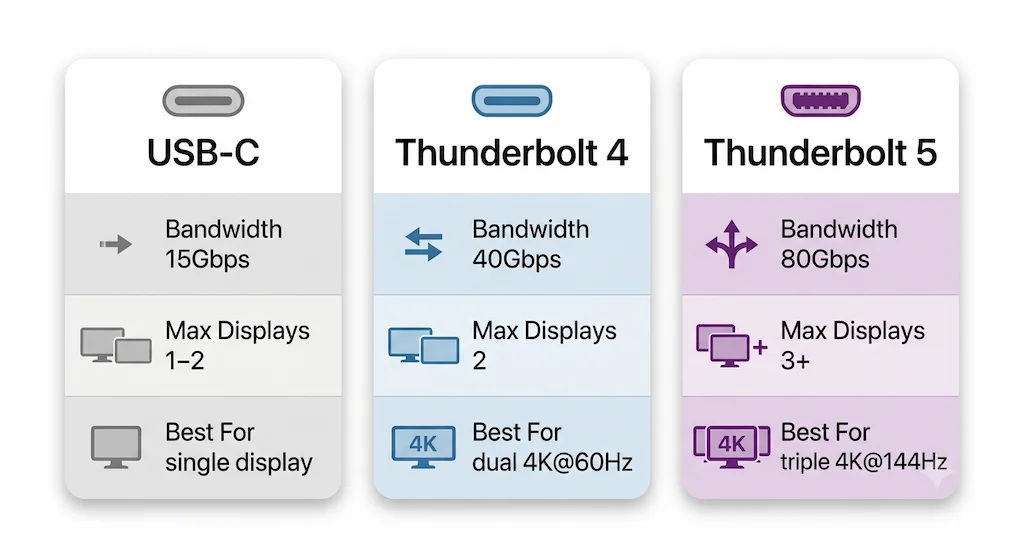
Success depends on three things: protocol, chip, and refresh rate. Thunderbolt 4 guarantees dual 4K@60Hz. USB‑C depends on your laptop’s DisplayPort Alt Mode and MST support. Thunderbolt 5 handles triple 4K@144Hz. And Macs have chip‑level display limits that no dock can bypass.

If you don’t know your Mac’s display limit, start with our MacBook Docking Station explainer.

1. Why You Need the Right Dock for Multiple Monitors

A single cable connecting your laptop to power, displays, and peripherals is the dream. A USB‑C hub that drops your second monitor to 30Hz or fails entirely is the reality.

Most USB‑C docks share a single DisplayPort stream. Push two 4K@60Hz monitors through that, and the bandwidth splits — you lose resolution, refresh rate, or both. Thunderbolt 4 guarantees 40Gbps and native MST support, making dual 4K@60Hz a baseline requirement, not a marketing promise. That’s why the best docking station for multiple monitors almost always runs on Thunderbolt 4.

Protocol is everything. TB4 certifies dual‑display support. USB‑C does not. If your laptop has a Thunderbolt 4 port, use a TB4 dock for multi‑monitor setups. If you’re on a Mac, your chip sets the ceiling — the dock just fills it.


The 6 Best Docking Stations for Multiple Monitors

#1 CalDigit TS4 — Best Overall
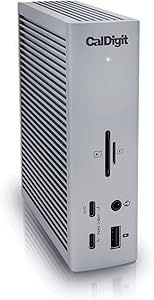
CalDigit TS4 Thunderbolt 4 docking station for multiple monitors

CalDigit TS4 Thunderbolt 4 Docking Station

CalDigit

Connection

Thunderbolt 4

Displays

Up to 2

Power

98W PD

Driver

Native

Ports

18 Total

✦ Best for: Most users needing reliable dual 4K or 6K displays across Windows and Mac.

The CalDigit TS4 remains the gold standard for multi‑monitor docking. It packs 18 ports, including 3x Thunderbolt 4 (40Gbps), 3x USB‑C 3.2 Gen 2, 5x USB‑A 3.2 Gen 2, and a 2.5GbE Ethernet port. It delivers 98W of power delivery — enough for a 14″ MacBook Pro under full load.

Display support: Single 8K@60Hz, or dual 4K@60Hz on Windows and Intel Macs. On M1/M2/M3 Pro and Max chips, it drives dual 6K@60Hz. Original M1 Macs are limited to one external display.

Verdict: The best docking station for multiple monitors if you want one dock that works for every dual‑monitor scenario. If you’re unsure which dock to get, start here.

available at amazon

#2 CalDigit TS5 Plus — Best for Triple Display / Future‑Proof
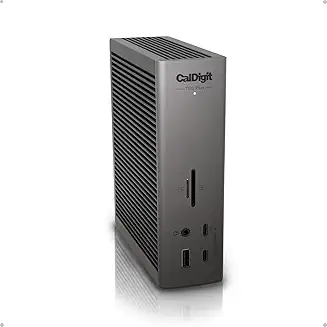
CalDigit TS5 Plus Thunderbolt 5 docking station for multiple monitors

CalDigit TS5 Plus Thunderbolt 5 Docking Station

CalDigit

Connection

Thunderbolt 5

Displays

Up to 3 (Win)

Power

140W PD

Driver

Native

Ports

20 Total

✦ Best for: Thunderbolt 5 laptop users needing triple 4K@144Hz or dual 8K@60Hz.

The CalDigit TS5 Plus is a significant upgrade over the TS4. It features 20 ports, dual USB controllers, 10GbE Ethernet, and 140W charging. It supports Thunderbolt 5, 4, 3, and USB4.

Display support: Single 8K@60Hz, dual 8K@60Hz, or triple 4K@144Hz on Windows. On M5 Max, it can drive up to four 4K@144Hz displays.

Verdict: The best future‑proof multi‑monitor dock for TB5 Macs and PCs. Overkill for TB4 hosts.

available at amazon

#3 UGREEN Revodok Max 213 — Best Budget Thunderbolt
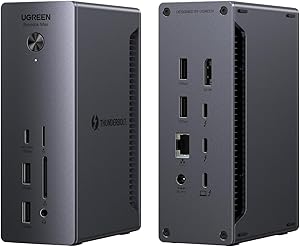
UGREEN Revodok Max 213 Thunderbolt 4 docking station for multiple monitors

UGREEN Revodok Max 213 Thunderbolt 4 Dock

UGREEN

Connection

Thunderbolt 4

Displays

Up to 2

Power

90W PD

Driver

Native

Ports

13 Total

✦ Best for: Budget‑conscious users who need dual 4K@60Hz on a Pro/Max Mac or Windows TB4 laptop.

The UGREEN Revodok Max 213 is the cheapest Thunderbolt 4 dock worth buying. It offers 13 ports, including 2x Thunderbolt 4, DisplayPort 1.4, 2.5GbE Ethernet, and SD/microSD 4.0 card readers. It delivers 90W charging.

Display support: Dual 4K@60Hz or single 8K@30Hz. Works with MacBook Pro/Max chips and Windows TB4 laptops. Base M1/M2 Macs are limited to one display.

Verdict: The best budget Thunderbolt dock for dual 4K. Know its thermal limits under sustained load.

available at amazon

Not sure which dock fits your setup? Compare all 81 docking stations side by side — filter by connection type, displays, power delivery, and OS in our Docking Station Comparison Tool.


#4 Kensington SD5780T — Best for Mixed Mac/PC Offices
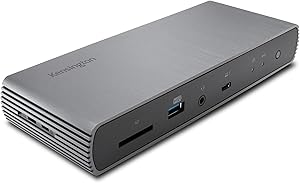
Kensington SD5780T Thunderbolt 4 docking station for multiple monitors

Kensington SD5780T Thunderbolt 4 Dual 4K Dock

Kensington

Connection

Thunderbolt 4

Displays

Up to 2

Power

96W PD

Driver

Native

Ports

11 Total

✦ Best for: IT‑managed environments, hot‑desking, and 24/7 operation.

The Kensington SD5780T is built for reliability. It offers 11 ports, including 3x Thunderbolt 4 ports, 4x USB‑A 3.2 Gen 2 (10Gbps), 2.5GbE Ethernet, and a UHS‑II SD 4.0 card reader. It delivers 96W PD.

Display support: Dual 4K/6K@60Hz. Supports dual 6K@60Hz on M4 base chipsets, M‑Pro, and M‑Max chipsets. Base M1/M2 Macs or USB‑C Alt Mode laptops support only a single external display.

Verdict: The most reliable dock for mixed Mac/PC environments and enterprise deployments.

available at amazon

#5 Plugable TBT4-UDZ — Best for Windows Multi-Monitor
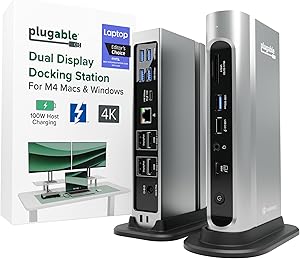
Plugable TBT4-UDZ 16-in-1 Thunderbolt 4 docking station for multiple monitors

Plugable TBT4-UDZ 16-in-1 Thunderbolt 4 Dock

Plugable

Connection

Thunderbolt 4

Displays

Up to 4 (Win)

Power

100W PD

Driver

Native

Ports

16 Total

✦ Best for: Windows power users needing quad 4K@60Hz displays.

The Plugable TBT4-UDZ is Laptop Mag’s 2025 Dock of the Year. It offers 16 ports, including 2x HDMI and 2x DisplayPort outputs, 2.5GbE Ethernet, 7x USB ports, and SD/microSD card readers. It delivers 100W PD (98W certified).

Display support: Windows computers can connect up to 4x 4K@60Hz displays. On Mac (Intel, M1/M2/M3/M4 Pro/Max), it supports dual 4K@60Hz. Macs with base M1/M2/M3 chips only support one external display.

Verdict: The best Windows multi‑monitor dock for quad 4K setups. Mac users get dual 4K on Pro/Max chips.

available at amazon

#6 Baseus Spacemate — Best Budget (Windows Only)
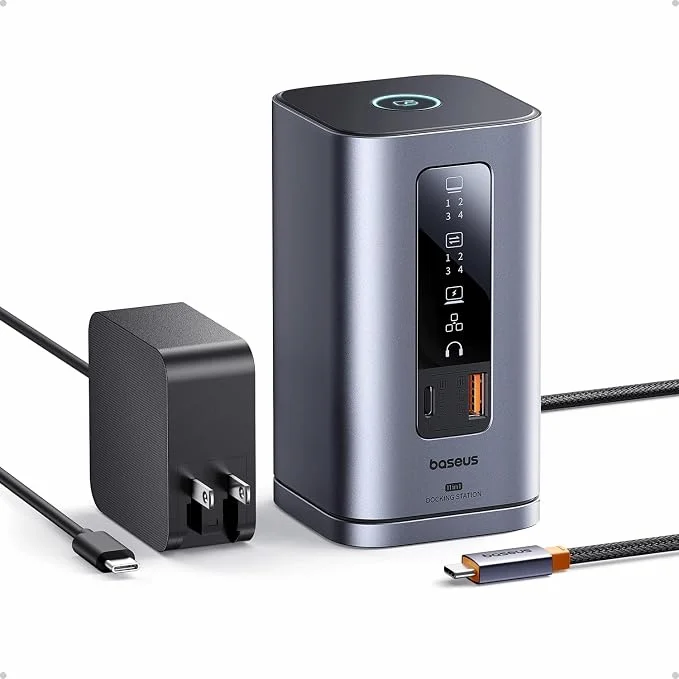
Baseus Spacemate 11-in-1 USB-C docking station for multiple monitors Windows

Baseus Spacemate 11-in-1 USB-C Docking Station

Baseus

Connection

USB-C

Displays

Up to 3 (Win)

Power

85W PD

Driver

Native (Win)

Ports

11 Total

✦ Best for: Windows users who need triple 4K on a budget and don’t need Thunderbolt.

The Baseus Spacemate is a Windows‑only USB‑C dock that delivers triple display support for under $150. It offers 11 ports, including 2x HDMI and 2x DisplayPort outputs, 10Gbps USB‑C and USB‑A ports, and 100W PD charging.

Display support: Triple 4K displays on Windows. On macOS, the Windows version does not support triple displays natively; a macOS‑specific DisplayLink version is required.

Verdict: The best budget option for Windows triple‑display setups. Mac users should avoid the Windows version.

Considering an upgrade? Thunderbolt 5 docks offer 120 Gbps bandwidth and improved sleep/wake stability.

See TB5 Comparison →

2. How to Choose the Best Docking Station for Multiple Monitors

How Many Displays Do You Need?

  • 1 display → any TB4 dock works; USB‑C hubs are fine.
  • 2 displays → TB4 dock required for dual 4K@60Hz. Most TB4 docks support this.
  • 3+ displays → TB5 required for native triple 4K@144Hz. Alternatively, DisplayLink docks can drive triple 4K@60Hz over USB‑C, with CPU overhead and DRM limitations on Mac.

Windows or Mac?

PlatformMax Displays via DockNotes
WindowsUp to 4x 4K@60Hz (TB4)GPU‑dependent; some laptops require internal display disabled for quad output
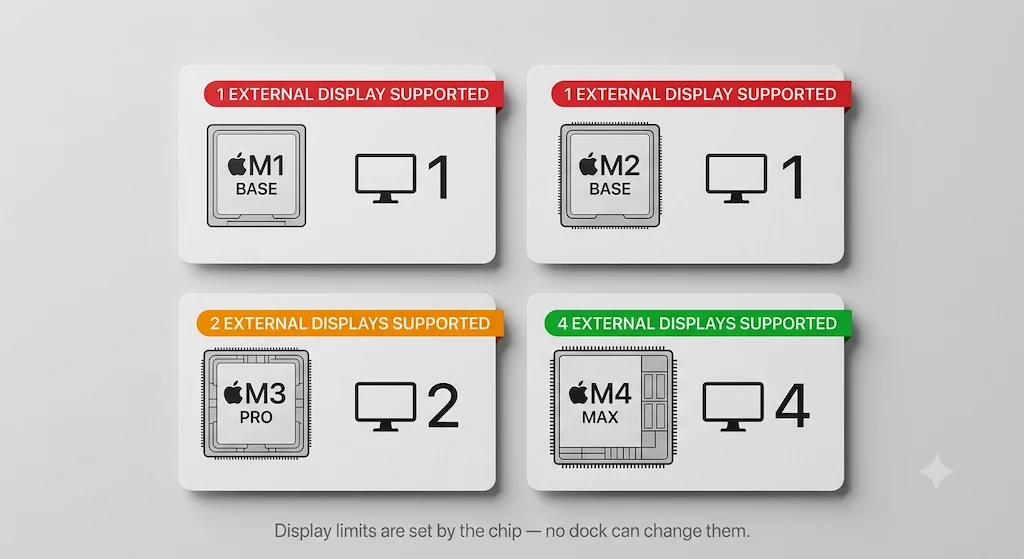
Mac M1/M2 base1 external onlyHardware limit — no dock bypasses this
Mac M3 base2 (clamshell only)Dual displays only when lid is closed
Mac M4/M5 base2 (lid open)Native dual support
Mac M‑series Pro/Max2–5Dock‑dependent; TB4 supports dual 6K, TB5 supports triple 4K+
Mac chip display limits chart — M1 M2 M3 M4 external monitor support via docking station
Your chip sets the ceiling. Base M1/M2 Macs support one external display regardless of which dock you buy. M-Pro and M-Max chips unlock two or more.

Thunderbolt 4 vs USB-C vs Thunderbolt 5

  • Thunderbolt 4: Guaranteed 40Gbps, dual 4K@60Hz, PCIe tunneling. The baseline for reliable multi‑monitor workstations.
  • USB‑C: MST‑dependent; often 30Hz at 4K for dual displays. Works for single monitors or low‑resolution dual setups.
  • Thunderbolt 5: 80Gbps bidirectional (120Gbps Boost Mode), triple 4K@144Hz or dual 8K@60Hz. Future‑proof but requires TB5 host.
USB-C vs Thunderbolt 4 vs Thunderbolt 5 comparison chart for multiple monitor docking stations
Protocol decides your display ceiling. USB-C may work for one screen. Thunderbolt 4 guarantees dual 4K@60Hz. Thunderbolt 5 unlocks triple 4K@144Hz.

Refresh Rate — 4K@60Hz vs 4K@30Hz

30Hz is unusable for daily work — cursor lag, scrolling stutter, and general frustration. If a dock advertises “4K support” without specifying refresh rate, assume it’s 30Hz. Always check the max refresh rate at your target resolution.

Power Delivery

  • 85W minimum for most laptops under load (13–14″ ultrabooks, MacBook Air).
  • 100W+ for 16″ MacBook Pro (140W recommended) or high‑draw Windows workstations.
  • A dock that under‑delivers power will let your battery drain during heavy work.

Ethernet and Port Count

  • 2.5GbE vs 1GbE: Real difference if you transfer large files to NAS or servers.
  • Port count formula: monitors + peripherals + storage + 2 spare ports for future expansion.

3. Side-by-Side Comparison

DockProtocolMax Displays (Win)Mac DisplayPDEthernetPortsPrice
CalDigit TS4TB4Dual 4K@60HzDual 6K@60Hz (Pro/Max)98W2.5GbE18check price →
CalDigit TS5 PlusTB5Triple 4K@144HzDual 8K@60Hz / Triple 4K@144Hz140W10GbE20check price →
UGREEN Revodok Max 213TB4Dual 4K@60HzDual 4K@60Hz (Pro/Max)90W2.5GbE13check price →
Kensington SD5780TTB4Dual 4K@60HzDual 6K@60Hz (Pro/Max)96W2.5GbE11check price →
Plugable TBT4‑UDZTB4Quad 4K@60HzDual 4K@60Hz (Pro/Max)100W2.5GbE16check price →
Baseus SpacemateUSB‑CTriple 4K@30HzSingle display only100W1GbE11check price →

4. Final Verdict

  • Best for most users → CalDigit TS4 — 18 ports, 98W PD, reliable dual 4K on both Windows and Mac. It’s the best docking station for multiple monitors for 90% of setups.
  • Best Windows power user → Plugable TBT4‑UDZ — quad 4K@60Hz on Windows, 16 ports, 100W PD.
  • Best budget → Baseus Spacemate (Windows) / UGREEN Revodok Max 213 (Mac Pro/Max). The Baseus offers triple 4K under $150; the UGREEN delivers TB4 at a lower price.
  • Best future‑proof → CalDigit TS5 Plus — triple 4K@144Hz, 10GbE, 140W PD. Requires a TB5 host for full bandwidth.
  • Best enterprise → Kensington SD5780T — 24/7 reliability, dual 6K support, active cooling.

5. FAQ

No. Many USB‑C hubs only support a single display. For reliable dual 4K@60Hz, you need a Thunderbolt 4 dock. For dual 1080p or 1440p, a USB‑C dock with MST support may work, but it depends on your laptop’s DP Alt Mode implementation. Our Docking Station for Dual Monitors guide covers the bandwidth math. The best docking station for multiple monitors almost always runs on Thunderbolt 4.

For dual 4K@60Hz, yes. Thunderbolt 4 is the only guaranteed way. USB‑C can work for dual 1080p or 1440p with the right host and dock, but it’s never guaranteed. The protocol comparison in USB‑C vs Thunderbolt 4 for Docking Stations explains why. If you’re serious about multi‑monitor reliability, the best docking station for multiple monitors will always be a Thunderbolt dock.

Your chip is the limit. Base M1/M2/M3 Macs are limited to one native external display. M3 Airs support two in clamshell mode. Only M‑Pro/Max chips support dual displays natively. No dock can bypass these limits — they’re baked into the silicon. For a full breakdown, see MacBook Docking Station.

The CalDigit TS5 Plus (TB5) for native triple 4K@144Hz on TB5 hosts. For Windows USB‑C users, the Plugable TBT4‑UDZ supports quad 4K@60Hz. For budget Windows users, the Baseus Spacemate offers triple 4K under $150. Mac users need a DisplayLink dock like the Plugable UD‑ULTC4K for triple displays on non‑Pro/Max chips. The best docking station for multiple monitors at triple‑display level is the TS5 Plus.

A Thunderbolt 4 dock sends native DisplayPort signal — no quality loss. A USB‑C dock without sufficient bandwidth may compress or reduce refresh rates. DisplayLink docks compress video in software, which adds latency and can degrade color accuracy.

Yes, for productivity and office work. It adds CPU overhead and blocks DRM content on Mac (Netflix, Apple TV+), but it works on laptops that lack native multi‑display support. For color‑critical work or gaming, a Thunderbolt dock is superior. Our Docking Station Keeps Disconnecting guide covers common DisplayLink instability patterns.

Alex Atkinson — Senior Technical Writer

Alex Atkinson

Senior Technical Writer & Infrastructure Consultant

Alex has spent years diagnosing connectivity failures across corporate laptop fleets and mixed-vendor workstation deployments, with hands-on experience testing Thunderbolt docks across Mac and Windows environments. Author of Laptop Docking Stations Explained.
Related Posts

Leave a Reply

Your email address will not be published. Required fields are marked *