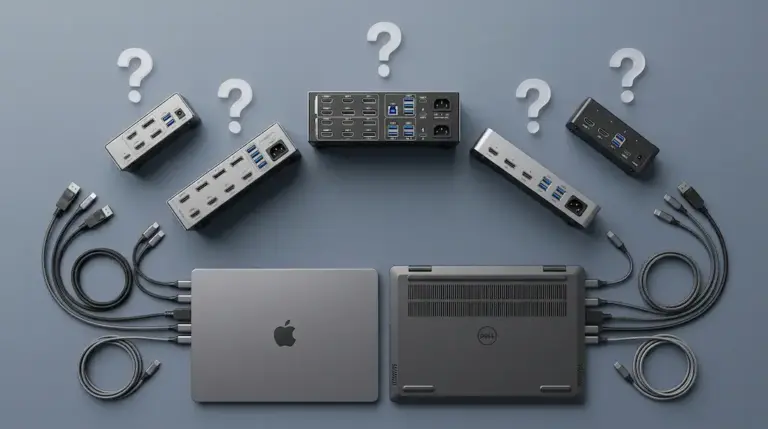
KVM Switch Dual Monitor: The Technical Reality Nobody Else Covers

Quick Answer
The best dual monitor KVM switch for most setups is the TESmart Dual Monitor KVM — active EDID emulation on both output ports, simultaneous or independent switching, 4K@60Hz on each display. If signal integrity is the priority over convenience, the Level1Techs DP 1.4 KVM delivers the cleanest passthrough in the category. Neither works as a shared Thunderbolt dock — that topology breaks PCIe tunneling. Read the decision checklist before ordering.
You press the hotkey. Both monitors flash black. They come back at 1080p instead of 4K, every window stacked on Monitor 1. You spend ninety seconds putting things back. Then you switch again. Same thing.
A standard KVM switch doesn’t care that you’re running two monitors. But a KVM Switch Dual Monitor — the real category — has to coordinate display handshakes on two ports simultaneously, manage bandwidth across both outputs, and handle the specific ways dual-display setups fail differently than single-monitor ones. Most products on the market get at least one of those things wrong. This covers what actually matters: the bandwidth math your monitors are already pushing against, why EDID emulation is twice as complicated with two screens, and four picks that each solve a different version of the same problem.
🟢Is This the Right Setup for You?
🟢 You’re Ready to Buy If…
You have two separate computers sharing one desk with two monitors. Each computer connects to its own dock — or directly to the monitors — and you want one keyboard and mouse switching between them cleanly.
- Do both computers output video independently (not through a shared Thunderbolt dock)?
- Are your monitors HDMI, DisplayPort, or a mix — not USB-C only?
- Are you switching between two computers, not three or more?
What a Dual Monitor KVM Switch Actually Does Differently
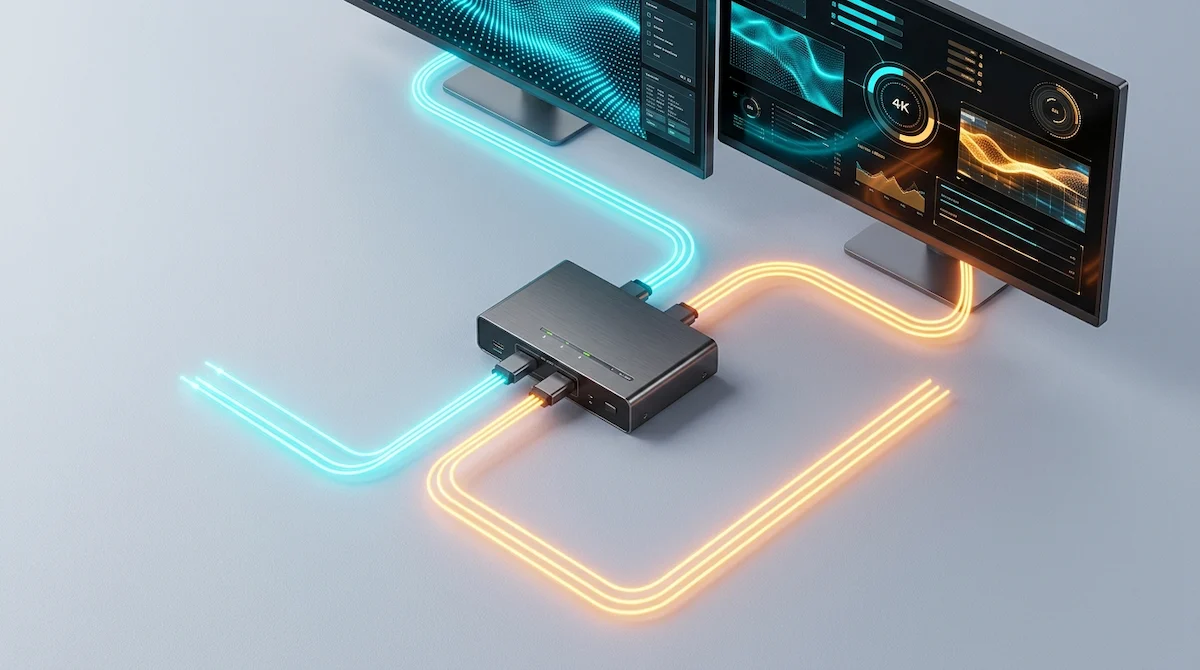
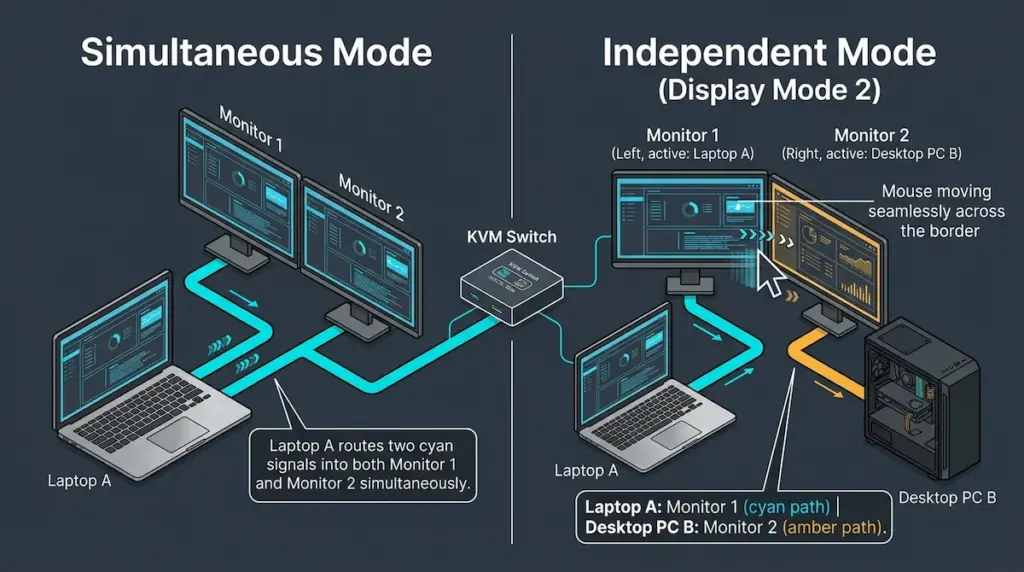
Simultaneous vs. independent switching
Most KVM switches do one thing when you press the hotkey: both monitors switch to the other computer at once. That’s simultaneous switching — it’s the default across virtually everything in this category and it’s fine for most setups.
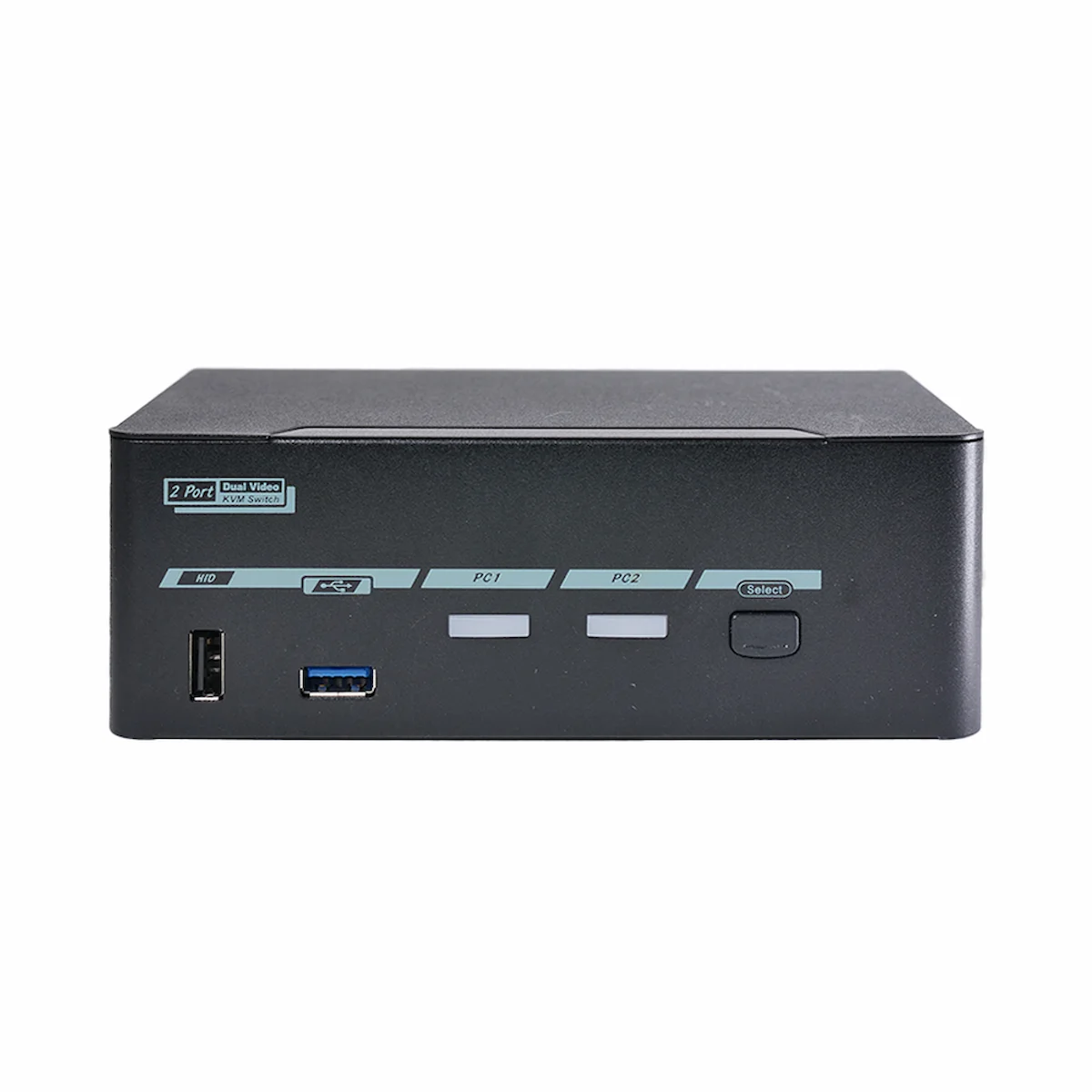
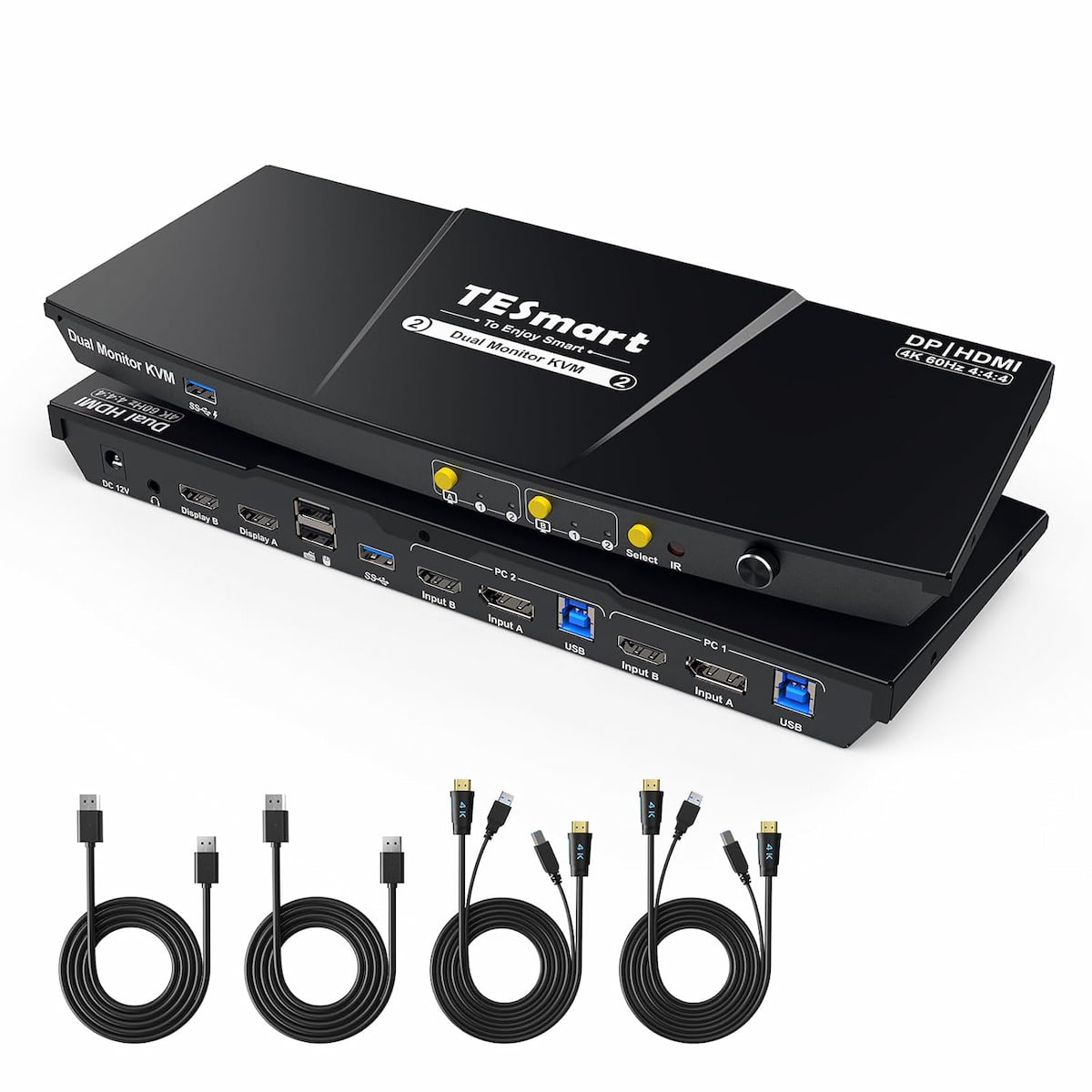
Independent switching is different, and most buyers don’t know it exists. In independent mode, each monitor can show a different computer at the same time. Monitor 1 runs Computer A. Monitor 2 runs Computer B. You move your keyboard and mouse between them without either display changing. A video editor keeping a reference timeline from a render machine on one screen while cutting in Premiere on the other. A developer with staging on one monitor and production monitoring on the other. Of the four picks in this article, only the TESmart Dual Monitor KVM supports it — via Display Mode 2.
Why dual monitor isn’t just double the cables
The wiring is easy. What happens electrically on a switch is harder. Every display connection carries EDID data — a packet the monitor sends to the GPU describing its supported resolutions and refresh rates. On a single-monitor KVM, managing that handshake on switch is a solved problem. On a dual-monitor KVM, you’re managing two independent EDID handshakes simultaneously, on two separate output ports, to two separate displays, with two separate GPU outputs on the destination machine.
That’s why some dual-monitor KVMs fail asymmetrically — one monitor recovers cleanly while the other resets to 1080p. More on that in the EDID section.
Some dual-monitor KVMs also use MST (Multi-Stream Transport) to push both displays through a single physical port, splitting them internally. That changes both the bandwidth ceiling and compatibility requirements — especially on laptops.
The 4 Picks
Quick Comparison
| Switch | Output | Max Res | EDID | Independent Mode | Mac Clamshell | USB Speed |
|---|---|---|---|---|---|---|
| Level1Techs | Dual DP 1.4 | 4K@120Hz | Smart HPD | ❌ No | ✅ With Stay | 5Gbps / 10Gbps |
| TESmart Dual | Dual HDMI | 4K@60Hz | ✅ Full | ✅ Display Mode 2 | ⚠️ With dummy plug | USB 3.0 |
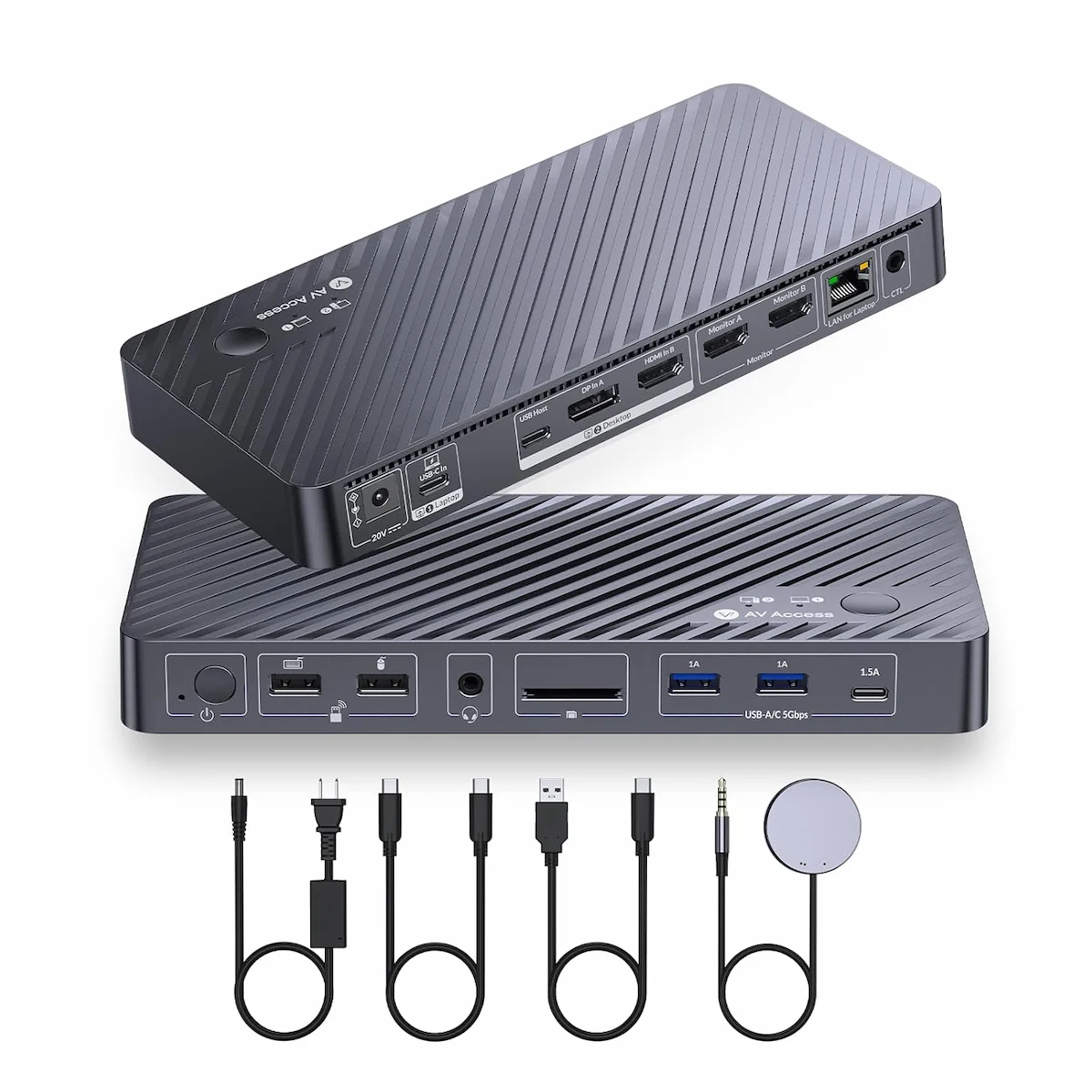
| AV Access iDock P10 | DP + HDMI | 4K@60Hz | ✅ Full | ❌ No | ✅ Native | 5Gbps |
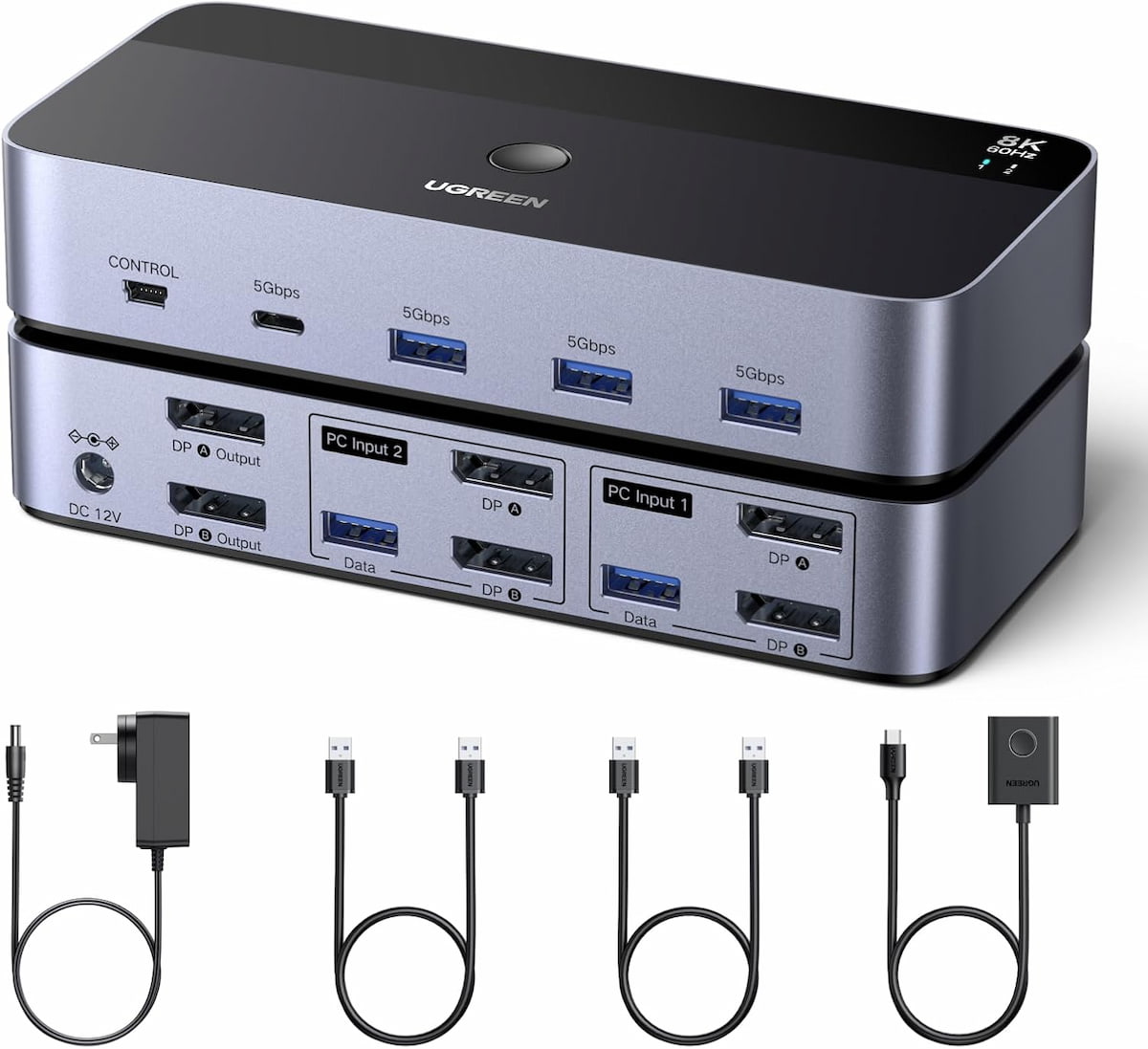
| UGREEN Dual DP | Dual DP 1.4 | 4K@60Hz | ❌ None | ❌ No | ❌ Not recommended | 5Gbps |
DisplayPort Bandwidth Math — Why This Matters for 4K
Nobody in this category explains this clearly: running two 4K@60Hz monitors through a KVM switch has a bandwidth problem the marketing materials don’t mention.
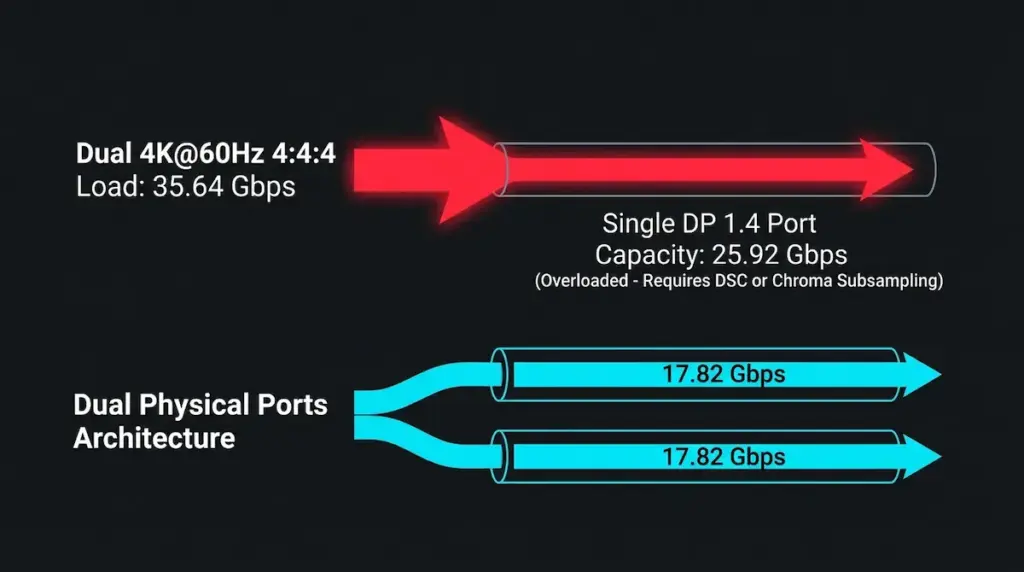
A single DisplayPort 1.4 connection carries 25.92Gbps of effective bandwidth. That sounds like a lot. It isn’t once you do the math for two displays.
A single 4K@60Hz signal at 4:4:4 10-bit requires roughly 17.82Gbps. Two of them: 35.64Gbps total — 38% more than a single DP 1.4 port can carry uncompressed. Even at 4:4:4 8-bit, the combined 28.52Gbps still exceeds what one DP 1.4 output can deliver without compression.
The consequence: a KVM routing both monitors through a single DP 1.4 output per computer needs Display Stream Compression to hit true 4K@60Hz on both screens. Most don’t say this.
The clean solution is a KVM with two separate physical outputs per computer — one cable per monitor — so each display gets its own bandwidth allocation. That’s how the TESmart Dual Monitor KVM and Level1Techs DP 1.4 KVM are wired. Each computer sends two separate cables; each monitor gets its own port. No compression required. If your KVM routes both displays through a single MST port, check the spec sheet for DSC. If it isn’t listed, your 4K@60Hz is being achieved with chroma subsampling you didn’t agree to.
EDID Emulation — Why Dual Monitor Makes It Harder
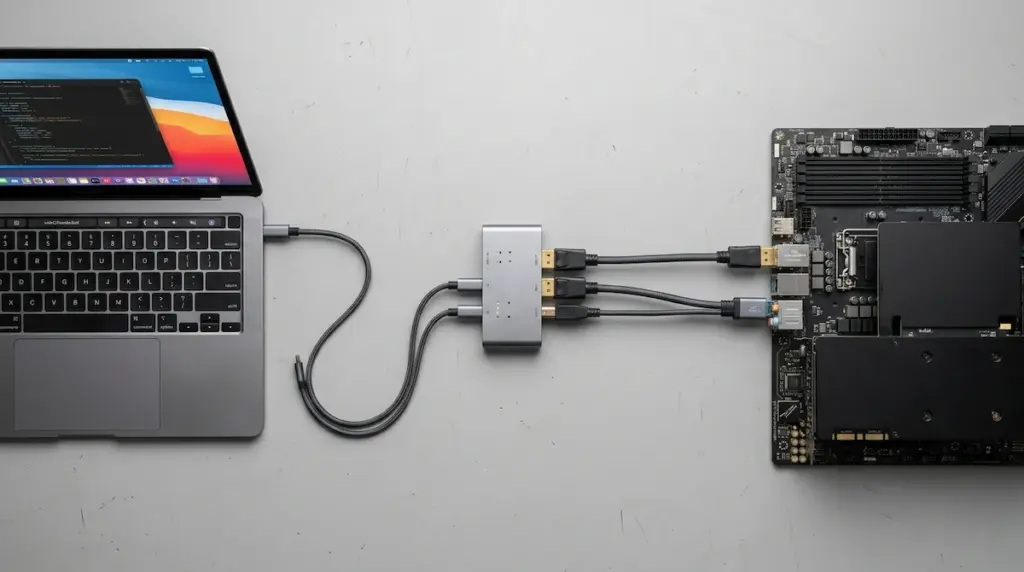
EDID is the handshake packet a monitor sends to a GPU describing its capabilities. Without EDID emulation, switching computers forces the GPU to re-negotiate with both displays from scratch — monitors go black, resolution may drop, windows scatter.
On a single-monitor KVM this is well understood. On a dual-monitor KVM there’s a failure mode almost nobody documents: asymmetric EDID desync. Monitor 1 completes its handshake and holds resolution. Monitor 2 loses its EDID signal, resets to 1080p, and Windows treats it as a newly connected display. Your secondary screen drops while the primary stays fine — which makes you suspect the monitor, the cable, or the port, when it’s actually the KVM handling each output port through slightly different firmware paths.
The four picks fall into three categories:
Full dual EDID emulation: TESmart Dual Monitor KVM and AV Access iDock P10 maintain EDID on every output port. Both monitors hold configuration on switch.
Smart HPD Suppression — software layout workaround: Level1Techs DP 1.4 KVM uses HPD suppression and transparent EDID pass-through instead of active EDID spoofing. This preserves G-Sync, FreeSync, and VRR compatibility — they break on products that spoof EDID. Window scatter can still occur during the brief HPD transition. Microsoft PowerToys FancyZones on Windows or Stay on macOS handles layout restoration automatically once configured. It works, but it’s a setup step.
No EDID emulation: UGREEN Dual DisplayPort KVM. The Amazon listing says this directly. Window scatter is real on every switch. Acceptable if you switch once or twice a day and don’t care about layout precision.
Choosing the Right Dual Monitor KVM — Decision Checklist
Step 1 — What outputs does your computer have?
Desktop with discrete GPU: you likely have two DP outputs, possibly HDMI as well. Full flexibility — any of the four picks works depending on your monitor inputs.
Laptop with USB-C/Thunderbolt only: you need a KVM accepting USB-C with DP Alt Mode. Verify your laptop model supports dual display output over Alt Mode — many do, but not every USB-C port carries video, and not all that do can drive two independent displays simultaneously. The AV Access iDock P10 is built for this.
Desktop with one DP + one HDMI: one of the most common configurations and almost no comparison article covers it. The TESmart Dual Monitor KVM accepts one HDMI and one DP from each computer on the input side — maps cleanly to a mixed-output GPU with no adapters.
Step 2 — What inputs do your monitors have?
Two HDMI monitors: TESmart outputs to both via HDMI — clean fit, no adapters needed.
Two DisplayPort monitors: Level1Techs or UGREEN Dual DisplayPort KVM. Both output DP directly.
One HDMI + one DP monitor: this mixed configuration requires a compromise. Either an active DP-to-HDMI adapter (passive adapters cap at DP 1.2 bandwidth — 17.28Gbps — losing DP 1.4 HDR and high refresh), or a KVM with native HDMI outputs on both monitor ports.
Step 3 — Mac, Windows, or both?
M4 chips, M-series Pro/Max + PC: the AV Access iDock P10 handles this. USB-C PD charging, EDID emulation, Gigabit Ethernet. Supports dual external displays for M1 Pro/Max, M2 Pro/Max, M3 Pro/Max, all M4 chips — including base M4 MacBook Air — and M4 Pro/Max.
Base M3 Mac + PC: base M3 MacBook Air and MacBook Pro support two external displays in clamshell mode on macOS Sonoma 14.3 or later. Both monitors will work — clamshell only, lid must be closed.
Base M1 or M2 Mac + PC: these chips support only one external display regardless of what KVM you attach. DisplayLink adapters add a second display via USB, but none of the four picks here use DisplayLink. You’d need a different dock configuration.
Windows-only: any of the four picks works. Choose on EDID requirements and monitor input types.
How often do you switch?
Five or more times a day: EDID emulation is non-negotiable. Window scatter at that frequency disrupts workflow in a way you can’t normalize away. TESmart or AV Access iDock P10.
Once or twice a day: UGREEN or Level1Techs are viable with FancyZones or Stay configured. The interruption is real but manageable.
🟡Stuck? Run a Pattern Check First
🟡 Check Your Setup First
| If you’re seeing this | Likely cause |
|---|---|
| Both monitors reset to 1080p on every switch | No EDID emulation — GPU re-handshakes both displays |
| Monitor 1 fine, Monitor 2 resets every time | Asymmetric EDID desync — second port firmware failure |
| No signal on Monitor 2 after switching to Mac | Base M1/M2 chip limit — one external display only |
| 4K looks soft or colors look wrong | Single MST port routing both displays — 4:2:0 subsampling |
| Thunderbolt dock stops working after adding KVM | Wrong topology — KVM cannot share a TB dock between computers |
Setup Mistakes That Kill Dual Monitor KVM Performance
1. Using passive DP-to-HDMI adapters
Passive adapters cap at DP 1.2 bandwidth — 17.28Gbps — cutting off DP 1.4 HDR, high refresh rates, and anything above 4K@60Hz. You’ll get an image. You won’t get what you paid for. Use active adapters.
2. Not enabling MST in the monitor’s OSD
If your setup uses MST to daisy-chain or split displays, the downstream monitor needs MST enabled in its own menu — it’s off by default. On most Dell monitors: Display → DP Multi-Stream in the OSD. Without it, the second screen in an MST chain simply won’t appear.
3. Running cables longer than 2 meters at high refresh
DP 1.4 at HBR3 speeds is sensitive to cable length. Standard passive cables above 2 meters frequently drop to HBR2 under load — you’ll see the monitor refusing to lock at 4K@120Hz or flickering. At 3 meters and beyond, use an active DP cable or fiber optic DP. This catches setups where the KVM sits away from the monitors.
4. Assuming all USB-C ports carry video
Not every USB-C port on a laptop supports DisplayPort Alt Mode. Some only carry USB 3.2 data. Check your laptop’s spec sheet for the specific port — no DP symbol means no video, regardless of which KVM you attach. This catches iDock P10 buyers off guard more than anything else.
Troubleshooting — Symptoms and Fixes
Both monitors flash black and reset to 1080p on every switch
Classic no-EDID behavior. Your KVM has no EDID emulation — either by design or because it’s failed. Fix: step up to TESmart or AV Access iDock P10. Alternatively, add standalone EDID emulator dongles to each monitor output port — small inline adapters that hold the EDID signal constant regardless of switching state.
Monitor 1 holds. Monitor 2 resets every time.
Dual-EDID desync failure. EDID emulation is working on the first output port but the second port’s implementation has failed, uses different firmware, or was never properly implemented. Check the manufacturer’s site for a firmware update. If none exists, add a standalone EDID emulator on the second port only.
No signal on Monitor 2 after switching to Mac
Check the chip generation first. Base M1 and M2 support one external display — full stop, regardless of KVM or cable. Base M3 supports two external displays in clamshell mode on macOS Sonoma 14.3 or later. Base M4 and all M-series Pro/Max chips support two displays in clamshell. If you’re on base M1 or M2 and need two displays, DisplayLink is the only software path, but that requires a different dock configuration than what’s covered here.
🔴Still Not Working? Last Resort
🔴 Replace Your KVM If…
- Both monitors reset to 1080p on every switch and a standalone EDID dongle didn’t fix it
- Asymmetric desync persists after a firmware update
- Mac enters deep sleep on every switch — no EDID emulation on either port
- You’ve upgraded to 4K monitors and the KVM was bought for 1080p
Rule of thumb: If your KVM is more than three years old and you’ve upgraded either your monitors or your computers since buying it, the switch is the bottleneck — not the cables, not the ports.
See Comparison Table →Which Pick Is Right for You?
Choosing the right dual monitor KVM switch starts with your monitor inputs — they decide more than most buyers realize. Two HDMI monitors with frequent switching: TESmart handles that with EDID and independent mode built in. USB-C laptop sharing a desktop: AV Access iDock P10 is the only pick designed for that — 65W charging, Gigabit Ethernet, EDID-stable switching, one cable to your laptop. Two DP monitors on a desktop, switching twice a day, already running FancyZones: UGREEN gets you there without paying for EDID you won’t use. And if maximum signal transparency is the priority and a one-time FancyZones setup doesn’t bother you: Level1Techs is the cleanest DP passthrough in the category.
For a broader look at the category including single-monitor switches and Thunderbolt options, see our full KVM switch roundup.
FAQ

Yamato
KVM & Multi-Computer Switching Specialist
Yamato has spent the better part of a decade building and tearing down multi-computer setups — KVM switches, signal switching infrastructure, and the Thunderbolt topology mistakes that quietly break both. He tests every switch against Apple Silicon clamshell behavior, EDID chain integrity, and real switching latency before recommending it. If the spec sheet says dual 4K@60Hz and the display says otherwise, Yamato finds out why.
Sources & References
- VESA — DisplayPort Standard Version 1.4 (March 2016): DP 1.4 raises maximum bandwidth to 25.92Gbps and introduces Display Stream Compression, enabling dual 4K@60Hz at full 4:4:4 chroma.
https://www.displayport.org/pr/vesa-publishes-displayport-standard-version-1-4/ - Plugable Knowledge Base — Base M3 MacBook Air and MacBook Pro support two external displays in clamshell mode when running macOS Sonoma 14.3 or later.
https://kb.plugable.com/general-support-articles/how-to-use-two-external-displays-with-the-lid-closed-on-macbook-air-and-macbook-pro-m3 - Apple Support — MacBook Air M4 supports up to two external displays simultaneously in addition to the built-in display; closing the lid does not increase the display count.
https://support.apple.com/en-us/122212 - Level1Techs Forums — Official FAQ confirming hotkey switching supported via dedicated USB HID passthrough ports on all DP 1.4 KVM models.
https://forum.level1techs.com/t/official-l1techs-kvm-faq-ultimate-guide-help/186196 - Digital Content Protection LLC — HDCP 2.2 required end-to-end across source, switch, and display for protected 4K content; a non-compliant device in the chain causes silent downgrade.
https://www.digital-cp.com/hdcp-specifications