USB-C Docking Station: Why It Fails and What Actually Works (2026)

USB-C Doesn’t Mean What You Think It Means
A USB-C docking station is a protocol translator — not a magic box. It depends entirely on what your laptop’s USB-C port actually supports.
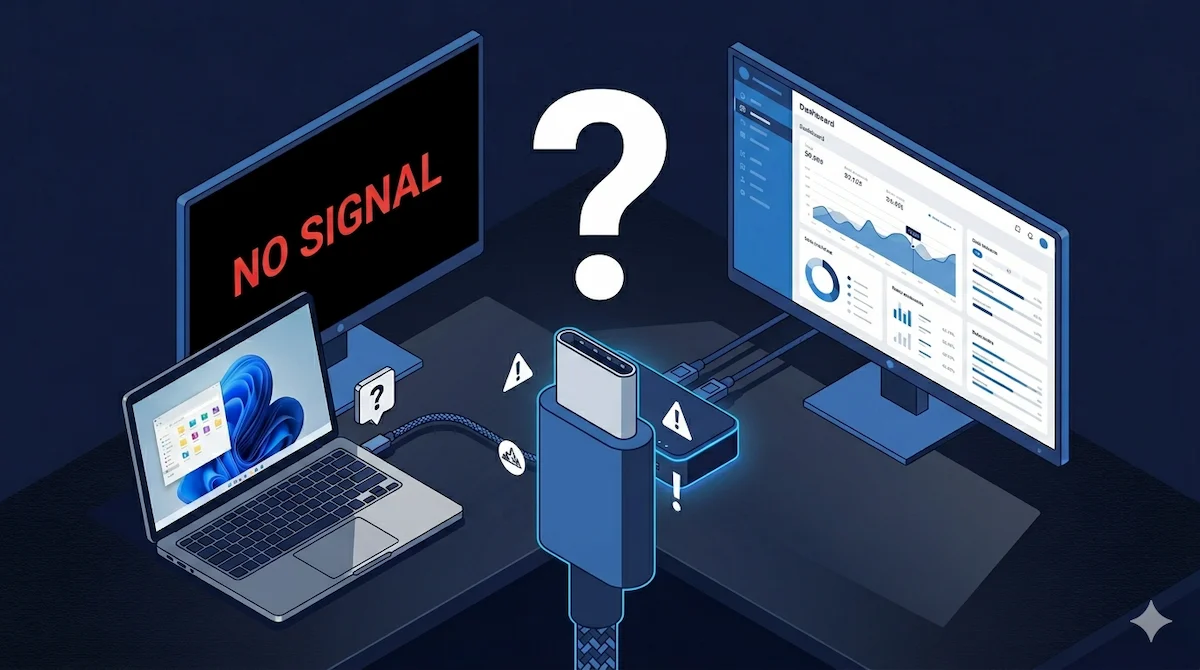
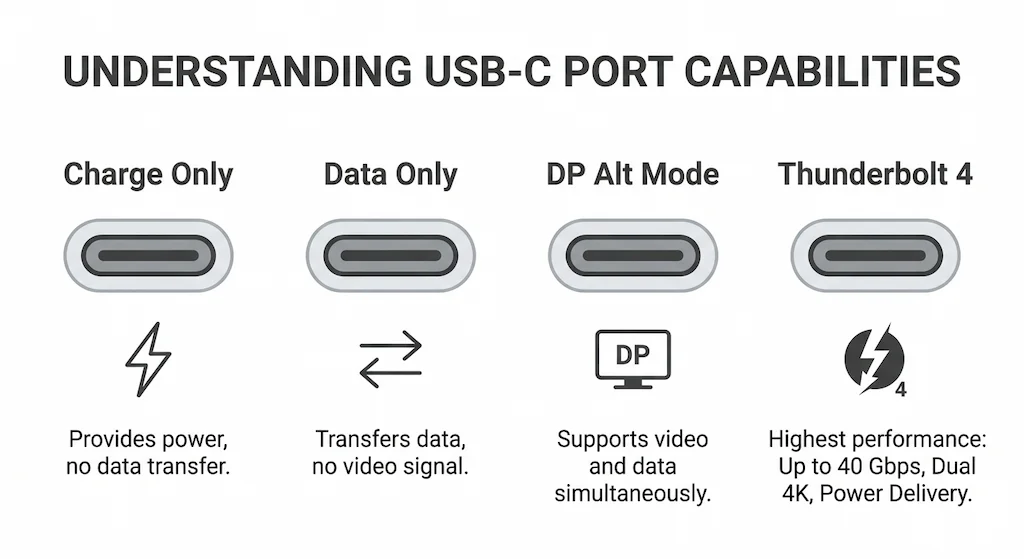
USB-C is a connector shape. It tells you nothing about capability. Your laptop’s USB-C port could support video, power, and 40Gbps data — or it could be data-only and deliver 15W charging. A USB-C docking station doesn’t fail randomly. It fails because the port on your laptop, the cable you’re using, and the dock’s internal circuitry couldn’t agree on what they were supposed to do.
This guide cuts through the confusion. You’ll learn exactly why USB-C docks behave differently on different laptops, how to decode your port’s real capabilities, and which setups actually work — without replacing hardware three times.
🟢 Early Bird — Is a USB-C Dock Right for Your Setup?
Check these before you spend a dollar:
- Your laptop’s USB-C port lacks DisplayPort Alt Mode — no dock will output video
- You need dual 4K@60Hz reliably — USB-C doesn’t have enough bandwidth
- You’re on a base Apple Silicon Mac (M1/M2/M3) — hardware limit, not dock limit
- You plan to use the cable that came with your phone — it won’t work
- You don’t know your port’s capability — guessing leads to returns
If any of these apply, you’ll save time and money by choosing a different solution. For high‑reliability dual‑monitor setups, jump to our Thunderbolt 4 vs USB‑C guide.
1. Reality Check — Why USB-C Docking Breaks
Before you blame the USB‑C docking station, understand the foundation:
- USB‑C is just the plug. It doesn’t guarantee video output, fast charging, or even high‑speed data.
- Capabilities are negotiated. Every time you connect, the laptop, dock, and cable negotiate which features they’ll use. If any link in the chain is missing a feature, that feature won’t work.
- Two laptops, same dock, different results. Your colleague’s laptop may drive dual 4K displays while yours only mirrors one. The USB‑C docking station didn’t change; the host implementation did.
In short: a USB‑C docking station is a protocol translator that can only work with what the laptop gives it.
2. Stop Guessing: Match Your Symptom to the Real Cause
| Symptom | Real Cause |
|---|---|
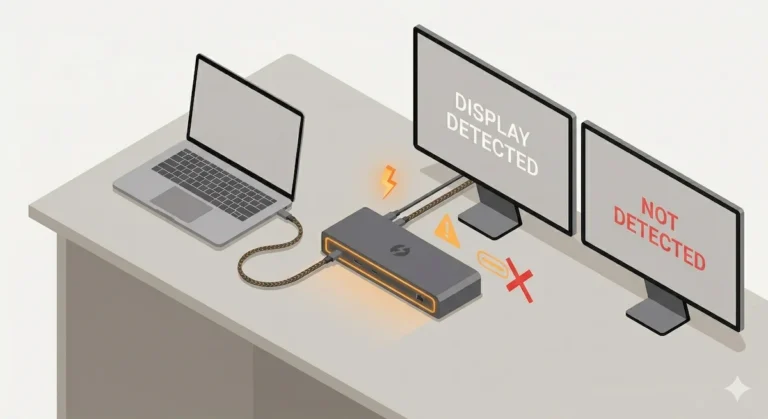
| No display | Laptop port lacks DisplayPort Alt Mode (video not supported) |
| Only one monitor works | Bandwidth limit, MST not supported, or macOS base‑chip limit |
| Flickering / random blackouts | Cable signal integrity issue (not rated for full bandwidth) |
| Works on one laptop, not another | Different USB‑C implementation (power, video, or data differences) |
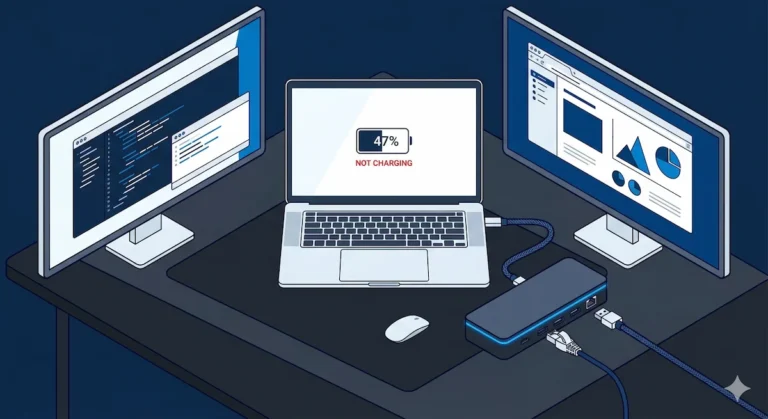
| Charging slow or stops | Power budget exceeded or cable not rated for PD |
3. Compatibility Traps — Where Most USB-C Setups Fail
3.1 No DisplayPort Alt Mode
The most common reason a USB‑C docking station fails to output video. Many laptops, especially business models, include USB‑C ports that are data‑only or charge‑only. They lack the internal wiring to send video signals.
How to confirm:
- Look for the DisplayPort or Thunderbolt logo next to the port.
- If there’s no logo, check your laptop’s manual or specs for “DisplayPort over USB‑C” or “DP Alt Mode.”
The fix: You cannot fix this with software. If your laptop lacks DP Alt Mode, no USB‑C docking station will output video. You’ll need to use HDMI directly or upgrade to a laptop with full‑featured USB‑C.
3.2 Partial USB‑C Implementations
Some laptops offer limited USB‑C capabilities — for example, only two lanes of DisplayPort instead of four. This cuts available bandwidth in half, limiting monitor resolution or refresh rate.
Real example: A Dell Latitude 5420 with a “USB‑C 3.2 Gen 2” port can drive a single 4K@60Hz monitor but struggles with dual 4K because the internal routing shares bandwidth with USB 3.0. This can make a USB‑C docking station appear defective when it’s actually a host limitation.
3.3 Misleading Port Labels
Manufacturers use icons inconsistently. A battery icon usually means charge‑only. “SS” stands for SuperSpeed (data). But many ports lack any icon at all, leaving you to guess.
The rule: When in doubt, assume nothing. Test the port with a known‑good USB‑C to HDMI adapter before buying a USB‑C docking station.
If you’ve already confirmed your port supports video and the dock still won’t cooperate, the failure is somewhere else in the chain. Our Docking Station Not Working guide covers every failure class across all brands and protocols — it’s the fastest way to isolate what’s actually broken.
4. Display Limits — Why Your Monitor Setup Doesn’t Work
Even if your laptop supports video over USB‑C, displays can still fail. Here’s why:
- Bandwidth sharing: The same USB‑C connection carries data, power, and video. When you add a second monitor, the total bandwidth consumed increases — often at the expense of USB speed.
- MST (Multi‑Stream Transport): To run two monitors from one USB‑C port, the USB‑C docking station must support MST, and the laptop must support it. Many USB‑C docks do, but some laptops (especially older Intel and base‑model AMD) do not.
- macOS restrictions: Apple Silicon base chips (M1, M2, M3) support only one external display, regardless of the dock. M‑Pro and M‑Max chips support two displays natively, but only through Thunderbolt — a standard USB‑C docking station alone won’t deliver dual extended displays on Mac.
The display gap between USB-C and Thunderbolt 4 runs deeper than bandwidth numbers suggest. If you’re deciding which protocol your next setup needs, our USB-C vs. Thunderbolt 4 for Docking Stations guide breaks down every real-world difference without the spec sheet noise.
Embedded recommendation:
- Single 4K@60Hz → A USB‑C docking station with DP Alt Mode is sufficient.
- Dual monitors (1080p or lower) → A USB‑C dock with MST support may work; test with your laptop.
- Dual 4K@60Hz or higher → USB‑C may not have enough bandwidth. Consider a Thunderbolt 4 dock instead.
5. Power Delivery Reality — Charging Isn’t Guaranteed
A USB‑C docking station can advertise 100W power delivery, but whether your laptop actually receives that wattage depends on several factors:
- Host request: The laptop’s battery controller decides how much power to ask for. Many laptops cap USB‑C charging at 65W or 85W even if the dock can provide more.
- Power budget sharing: The dock’s internal ports draw power too. If you have a bus‑powered SSD and a phone charging, the remaining power for the laptop drops.
- Cable limits: A cable not rated for 100W will cap charging at 60W or lower, even if the dock and laptop support higher.
Real anecdote: A client’s Dell XPS 15 would only charge at 45W through a 100W USB‑C docking station. After swapping to a certified 100W USB‑C cable, charging jumped to 85W — enough to keep the battery from draining during heavy work.
For a full diagnostic on power delivery failures, see our Docking Station Not Charging Laptop guide.
6. Cable Layer — Your Cable Is Probably the Problem
The cable connecting your laptop to the dock is the most overlooked component, yet it’s the root cause of many USB‑C dock not working scenarios.
Cable types matter:
| Cable Type | Data Speed | Power | Video | Best Use |
|---|---|---|---|---|
| Charge‑only | – | Up to 60W | ❌ No | Charging phones |
| USB 2.0 data | 480 Mbps | Up to 60W | ❌ No | Keyboards, mice |
| USB 3.2 Gen 1 | 5 Gbps | Up to 60W | ⚠️ Basic video possible | Single 1080p |
| USB 3.2 Gen 2 | 10 Gbps | Up to 100W | ✅ Full video | Single 4K@60Hz |
| Thunderbolt 4 (active) | 40 Gbps | 100W | ✅✅ | Dual 4K, high‑speed storage |
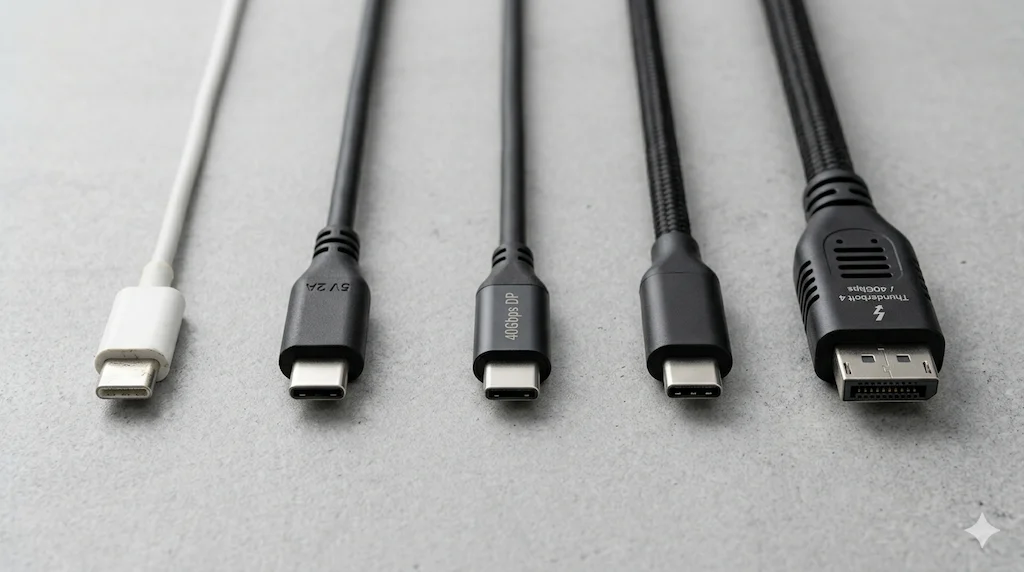
Why this matters: A cable that works for charging may fail for video. A cable that passes data may drop video under high refresh rates. For a USB‑C docking station, you need a cable rated for at least 10Gbps and 100W PD. The shorter, the better — longer cables introduce signal degradation.
🟡 Pattern Check — Your Dock Works. Your Port Doesn’t.
You’ve bought the dock. Plugged it in. One monitor works, the other doesn’t. Or it charges at 30W instead of 90W. This isn’t a broken dock — it’s a port mismatch.
| You’re fine if… | You have a problem if… |
|---|---|
| Your laptop has a Thunderbolt 4 port | Your laptop only has USB 3.2 Gen 2 |
| Your dock supports MST for dual monitors | Your dock mirrors only (no MST support) |
| Charging passthrough matches laptop wattage | Dock charges at half your laptop’s requirement |
| Dock firmware is up to date | Dock disconnects randomly under load |
If the right column sounds familiar, the dock isn’t the issue — the spec match is. Use the Dock Finder to get a setup that fits your actual port.
7. Diagnostic Flow — How to Diagnose a USB-C Dock That’s Not Working
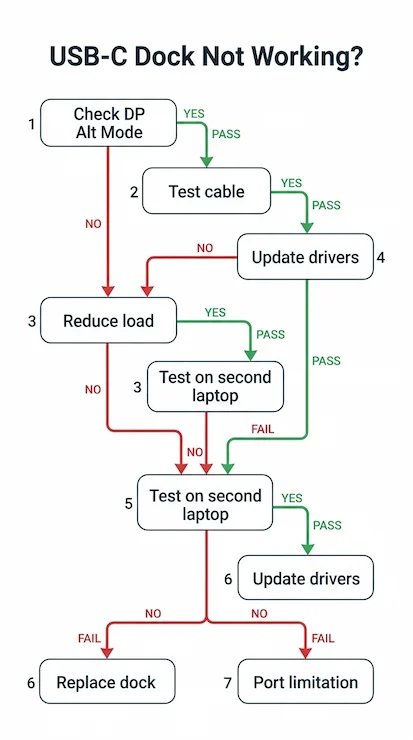
- Check your laptop’s specifications.
Find the exact model and search for “DisplayPort Alt Mode” or “Thunderbolt.” Without video support, no USB‑C docking station will output a display. - Test the monitor directly with the same cable.
Connect the monitor to your laptop with the cable you plan to use for the dock. If it works, the dock is the suspect. If not, the cable or monitor is at fault. - Swap cables.
Use a known‑good USB‑C cable rated for 10Gbps and 100W PD. If the dock works, the original cable was the problem. - Reduce load.
Disconnect all peripherals. Connect only the monitor. If it works, add devices one by one to find the overload point. - Isolate the port.
Test each USB‑C port on your laptop. Some may be data‑only; others may support video. - Update firmware and drivers.
- Dock firmware (check manufacturer’s site)
- Laptop BIOS/UEFI
- Graphics drivers (Intel/AMD/NVIDIA)
- USB‑C/Thunderbolt controller drivers
- Test on another laptop with the same dock and cable.
Interpret results:
- If the dock fails on multiple laptops with good cables → hardware defect → replace.
- If it works on another laptop → your original laptop’s USB‑C implementation is the limitation.
If the dock fails the laptop swap test and you’re on Thunderbolt, the issue is often deeper than a cable or driver. Our Thunderbolt Dock Not Detected? guide covers the full reset sequence — from power drain to Thunderbolt controller reinstallation.
8. Embedded Recommendations — What Actually Works (Based on Your Setup)
Basic Setup — Single Monitor, Light Use
- Use: A budget USB‑C hub like the Anker 555 USB‑C Hub (8‑in‑1)
- Why: Simple, cost‑effective, and works reliably with a single 4K@60Hz monitor when paired with a proper cable. A quality USB‑C docking station like this handles basic needs without overcomplicating.
Mid Setup — Dual Monitors (1080p or lower)
- Use: A USB‑C docking station with MST support, e.g., UGREEN Revodok Pro 314
- Note: Verify your laptop supports MST. Some laptops will mirror displays; others will extend. This setup is often sufficient for office work.
High Demand — Dual 4K@60Hz or Reliability Needed
- Use: Switch to a Thunderbolt 4 dock, such as the CalDigit TS4 or Kensington SD5780T
- Why: Thunderbolt 4 guarantees dual 4K@60Hz, stable power delivery, and predictable behavior across hosts. A standard USB‑C docking station simply isn’t designed for this level of consistency.
🔴 Last Resort — Your USB-C Port Is the Problem, Not the Dock
If you’ve tried three docks and none of them work right, stop buying docks. The issue is almost always the laptop’s USB-C controller or a physically damaged port.
Replace your setup approach if:
- ✅ Two or more docks failed the same way on the same laptop
- ✅ The port works for charging but not video output
- ✅ Device Manager shows USB controller errors, not dock errors
- ✅ A different laptop works fine with the same dock
Rule of thumb: If the dock works on another machine, your port is the problem. If no dock works on any machine, you bought the wrong dock tier.
The CalDigit TS4 is the most forgiving Thunderbolt 4 dock for edge cases — but it won’t fix a dead port. See stable alternatives below.
9. USB-C Docking Stations — Comparison Table
| Dock | Protocol | Max Monitors | Power | Mac | Price | Check Price |
|---|---|---|---|---|---|---|
| Anker 555 (8-in-1) | USB-C DP Alt | 1x 4K@60Hz | 85W | ✅ macOS 12+ | ~$50 | Check Price |
| UGREEN Revodok Pro 314 | USB-C | Triple (2x HDMI 4K@60Hz + 1x DP 4K@120Hz) | 100W | ⚠️ Mirror only | ~$90 | Check Price |
| Plugable UD-3900PDZ | USB-C + DisplayLink | Triple (1x 4K@30Hz + 2x 1080p@60Hz) | 100W | ✅ macOS 11+ (driver required) | ~$110 | Check Price |
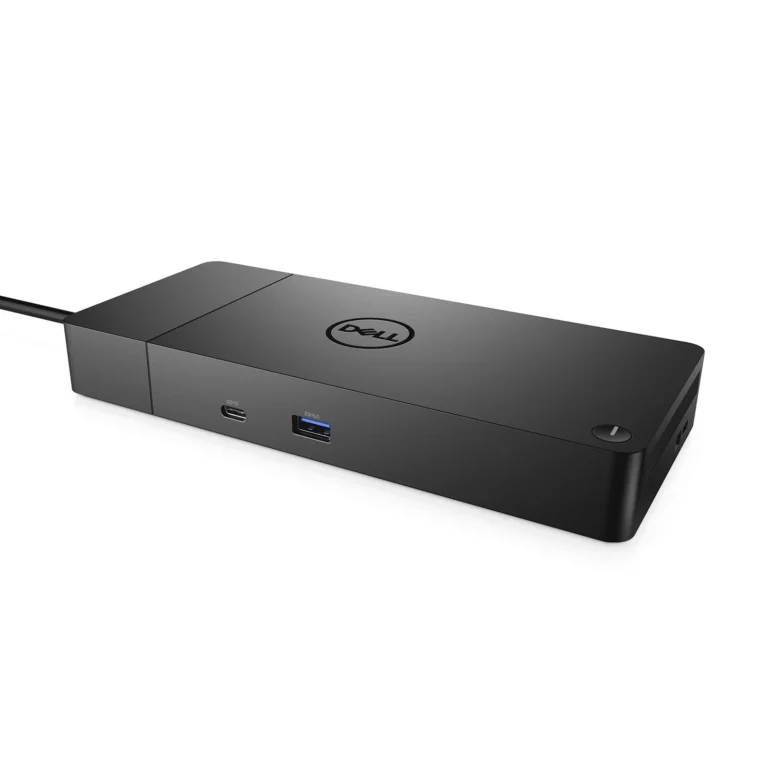
| Dell WD19 | USB-C (no TB) | Dual 4K@30Hz | 90W | ⚠️ Limited | ~$100 | Check Price |
10. Need More Reliability? Upgrade to Thunderbolt 4
If your laptop has a Thunderbolt 4 port, skip the USB-C tier entirely. Thunderbolt 4 docks guarantee dual 4K@60Hz, stable power delivery, and consistent behavior across Windows and Mac — none of which USB-C can promise. The two docks below are the most reliable options in 2026.
| Dock | Protocol | Max Monitors | Power | Mac | Price | Check Price |
|---|---|---|---|---|---|---|
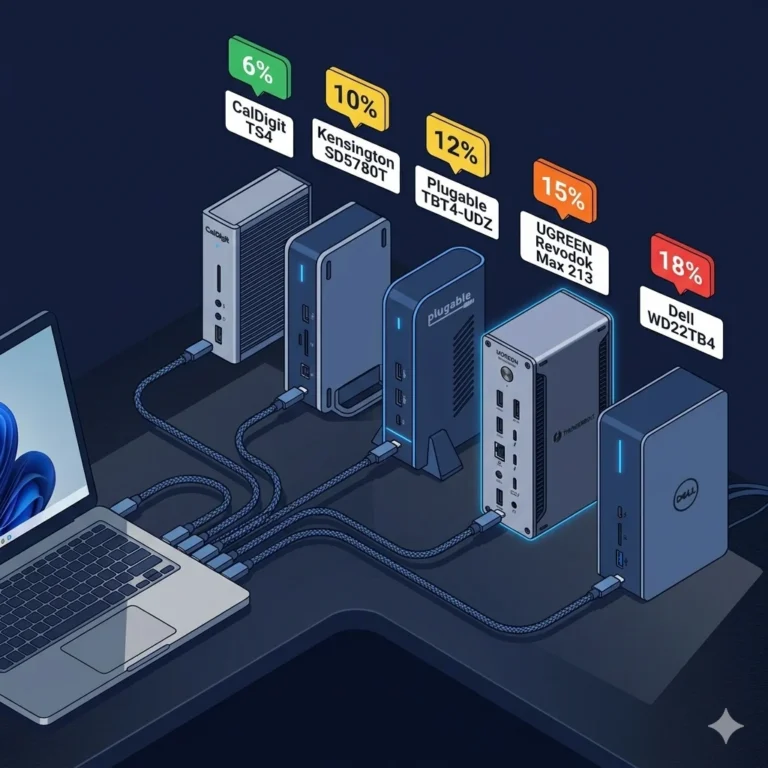
| CalDigit TS4 ⭐ | Thunderbolt 4 | Dual 6K (Mac) / Dual 4K@60Hz (Win) | 98W | ✅ Native | ~$380 | Check Price |
| Kensington SD5780T | Thunderbolt 4 | Dual 4K@60Hz | 96W | ✅ Native | ~$285 | Check Price |
| Plugable TBT4-UDZ | Thunderbolt 4 | 4x 4K (Win MST) | 100W | ⚠️ Single display base M1/M2 | ~$270 | Check Price |
| UGREEN Revodok Max 213 | Thunderbolt 4 | Dual 4K@60Hz | 90W | ⚠️ M1 Pro/Max only | ~$300 | Check Price |
| Dell WD22TB4 | Thunderbolt 4 | Dual 4K@60Hz / up to 4 displays | 130W (Dell) / 90W | ✅ Certified | ~$200 | Check Price |
| Dell SD25TB4 | Thunderbolt 4 | 4x 4K@60Hz / 1x 8K@60Hz | 130W (Dell) / 96W | ⚠️ Dell-only reliable | ~$280 | Check Price |
11. Ecosystem Truth — The Reality of USB-C Docking
USB‑C is a connector, not a standard for docking. The inconsistency you experience isn’t a brand issue — it’s a system limitation built into the USB‑C specification.
- USB‑C does not guarantee video.
- USB‑C does not guarantee a specific charging rate.
- USB‑C does not guarantee MST support.
When you buy a USB‑C docking station, you’re buying a promise that depends entirely on your laptop’s implementation. That’s why some users have flawless experiences while others fight black screens and disconnects. For those seeking a USB‑C docking station for MacBook, the variability is especially pronounced; base‑model MacBooks have strict display limits, and only certain docks handle them correctly.
If you need predictable, repeatable performance, Thunderbolt 4 is the answer. If you’re willing to work within USB‑C’s variability, you can save money — but you’ll need to know your laptop’s capabilities and choose cables carefully.
If you’re new to docking stations entirely, start with the foundation. Our Laptop Docking Stations Explained guide covers every protocol, port type, and compatibility rule in one place — before you spend anything.
12. Model Breakdown — USB-C Docks That Fit Each Scenario
- Anker 555 USB‑C Hub (8‑in‑1) – A reliable, compact hub for single‑monitor setups. Good cable included. Works with most laptops that support DP Alt Mode. A solid entry‑level USB‑C docking station.
- UGREEN Revodok Pro 314 – A USB‑C docking station with 100W PD and dual HDMI. Supports MST on Windows; dual monitors may mirror on Mac. Ideal for budget‑conscious users with mid‑range laptops.
For Thunderbolt alternatives, scroll to the comparison table above or see our Best Docking Station 2026 guide.
If you’re deciding between the UGREEN Revodok Pro 314 and the TB4-tier Max 213, the $200 price gap deserves a real breakdown. Our UGREEN Revodok Max 213 vs Pro 314 comparison covers dual display behavior, Mac limits, and the exact scenario where spending more is worth it.
13. FAQ
14. Authority Block
Alex — Docking Infrastructure Specialist
Computer Systems Engineering background. 10+ years deploying docks in enterprise environments. Author of Laptop Docking Stations Explained.
Hans — Display Topology Specialist
Expert in MST, EDID handshakes, and Thunderbolt display failures. Contributor to Daisy Chain Monitors Explained.
Yamato — Storage & Infrastructure Specialist
Thermal analysis, sustained load behavior, and high‑speed peripheral architecture.
At ByrdPilot, we don’t write in silos. We write as a systems practice — cross‑validated by specialists who have diagnosed these failures in real deployments.
Experience > spec sheets. Always.
Sources & References
- USB Power Delivery Specification — USB Implementers Forum
- Thunderbolt 4 vs USB4 vs USB-C Explained — BenQ Knowledge Center
- DisplayPort over USB-C — DisplayPort Association