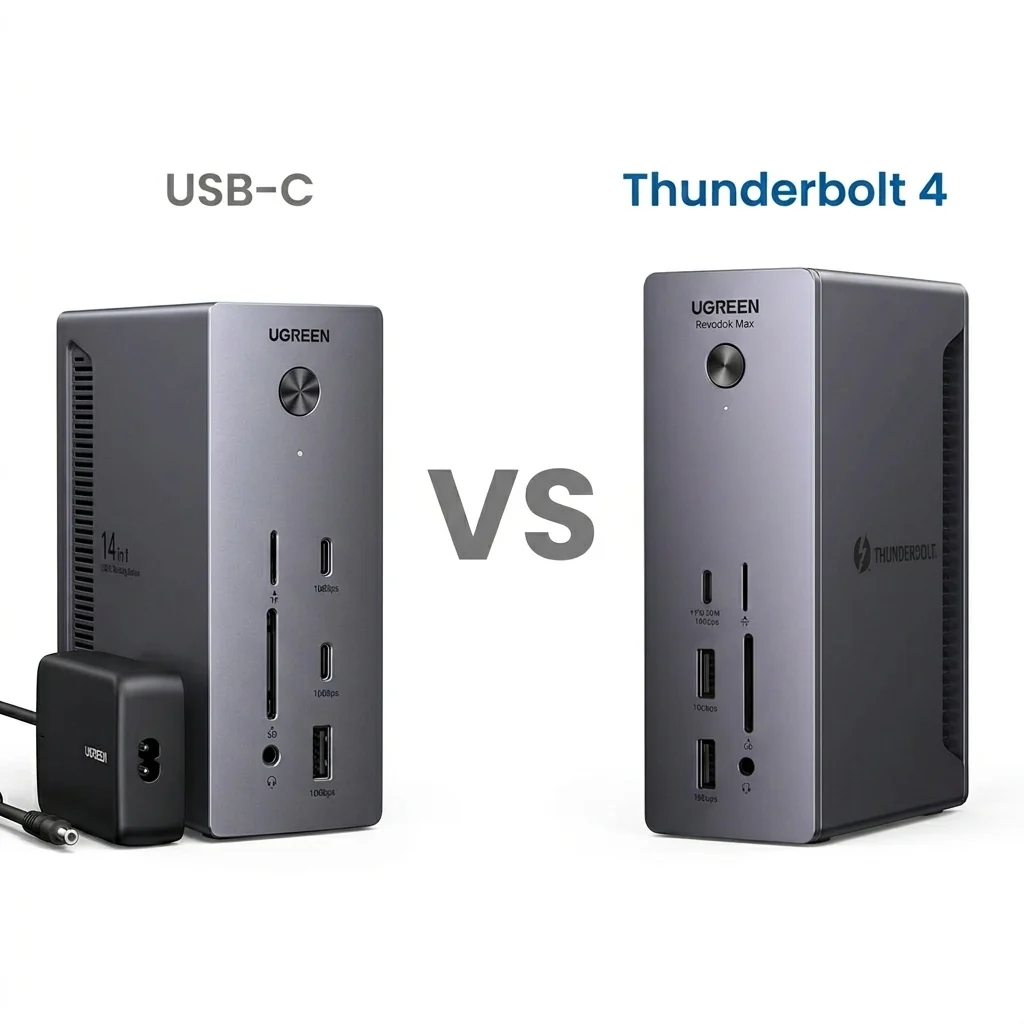
UGREEN Revodok Max 213 vs Pro 314 — Which Docking Station Actually Works? (2026)

⚡ Quick Answer — Max 213 vs Pro 314
- Choose UGREEN Revodok Max 213 → dual 4K, Mac compatibility, or stable multi‑display performance. Thunderbolt 4 guarantees behavior across all certified hosts.
- Choose UGREEN Revodok Pro 314 → single monitor or basic dual displays on Windows with a tight budget. Works only if your laptop fully supports USB‑C video and MST.
This is not a speed decision. It’s a protocol decision — USB‑C allows variation, Thunderbolt 4 enforces behavior.
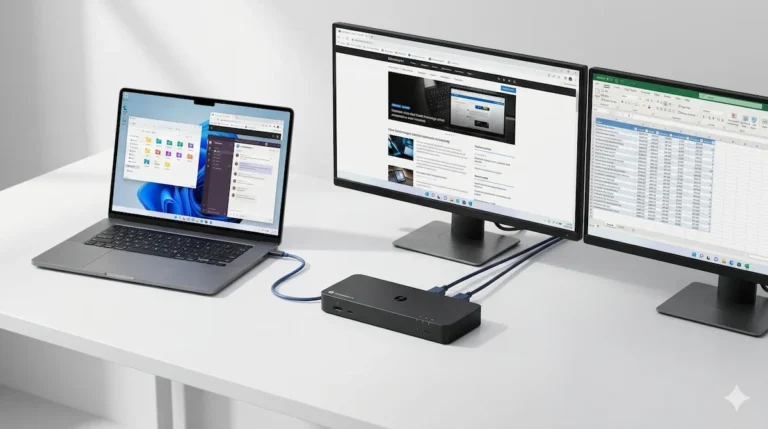
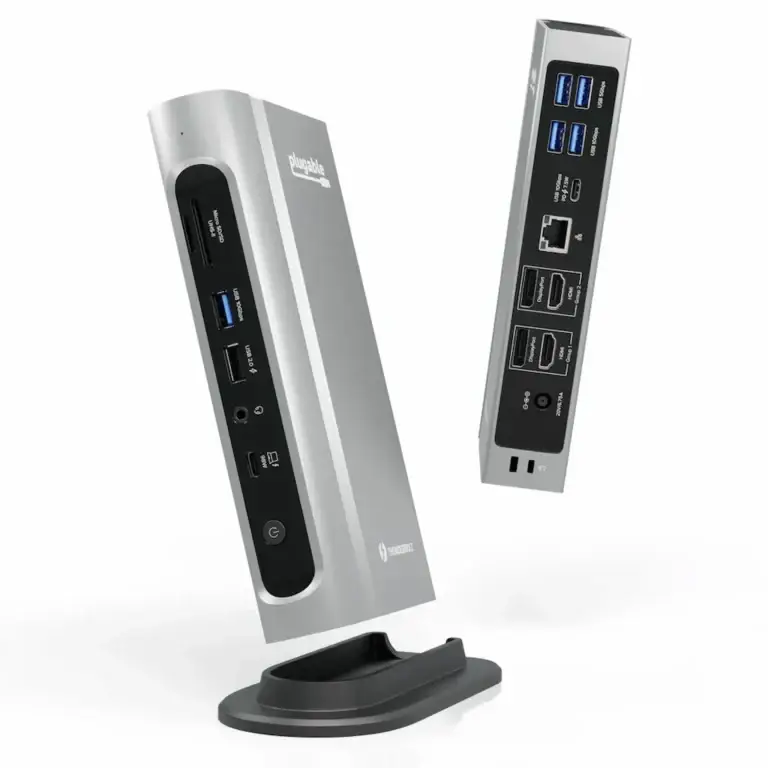
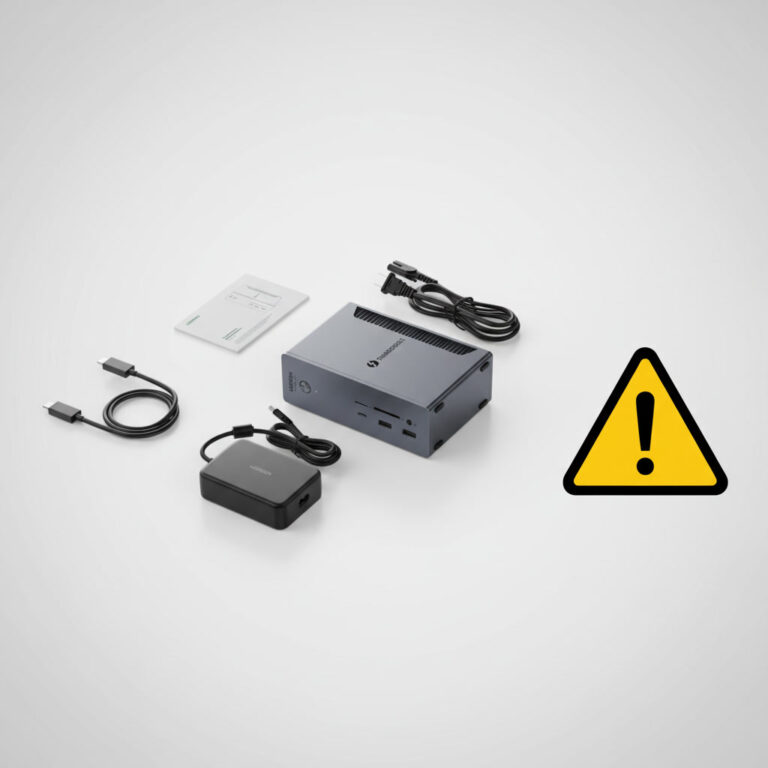
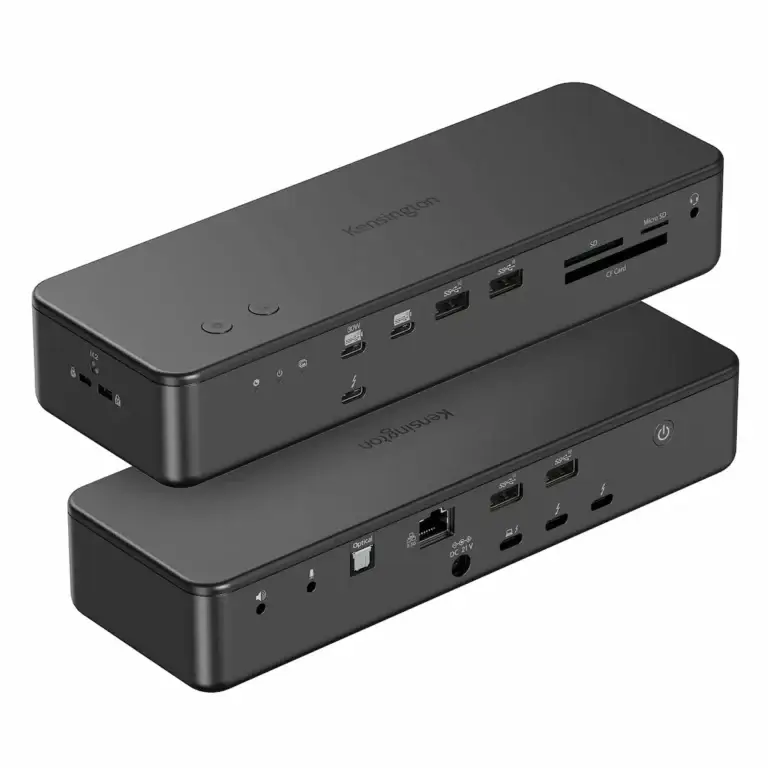
The UGREEN Revodok Max 213 vs Pro 314 look similar. Both are black aluminum boxes with a bundle of ports. But they belong to different classes of docking station — and that difference is what determines whether your setup works or fails. One uses Thunderbolt 4; the other uses USB‑C. Their performance, reliability, and failure modes have almost nothing in common.
Choose the Revodok Max 213 if you need dual 4K, stable macOS behavior, or predictable multi‑display performance.
Choose the Revodok Pro 314 if you use a single monitor, basic peripherals, and are on a budget — but understand its limits.
Results depend entirely on your laptop’s USB‑C implementation. A dock that works flawlessly on one machine may fail on another. This isn’t just a spec comparison. It’s a real‑world breakdown of how each docking station behaves under actual workload.
🟢 Early Bird — Don’t Buy Either Until You Check This
No dock will fix a port that doesn’t support video output.
Before you spend a dollar on either dock, check your laptop first:
- ❌ Your laptop lacks DisplayPort Alt Mode — no video over USB‑C, full stop
- ❌ You don’t know your laptop’s port capability — guessing leads to returns
- ❌ You expect plug‑and‑play dual displays from USB‑C without checking MST support
If any of these apply — stop here. No dock solves a protocol mismatch. Check your port spec first, then come back.
If any of these apply, no dock will solve your problem. First, read our Thunderbolt 4 vs USB‑C for Docking Stations guide.
Who Should Buy Each
| Use Case | Best Choice | Why |
|---|---|---|
| Single monitor, light use | Pro 314 | USB‑C bandwidth is enough for basic productivity. |
| Dual monitors (1080p) | Pro 314 ⚠️ depends | MST required; varies by laptop. Works on many Windows machines, fails on others. |
| Dual 4K / high refresh | Max 213 | USB‑C lacks bandwidth for dual 4K. Thunderbolt 4 guarantees it. |
| MacBook (M1/M2/M3) | Max 213 | USB‑C docking station for MacBook often mirrors displays; Max 213 drives dual extended on Pro/Max chips. |
| Mixed devices / long‑term setup | Max 213 | Thunderbolt 4 provides consistent behavior across hosts. |
Reality Check — These Are Not the Same Type of Docking Station
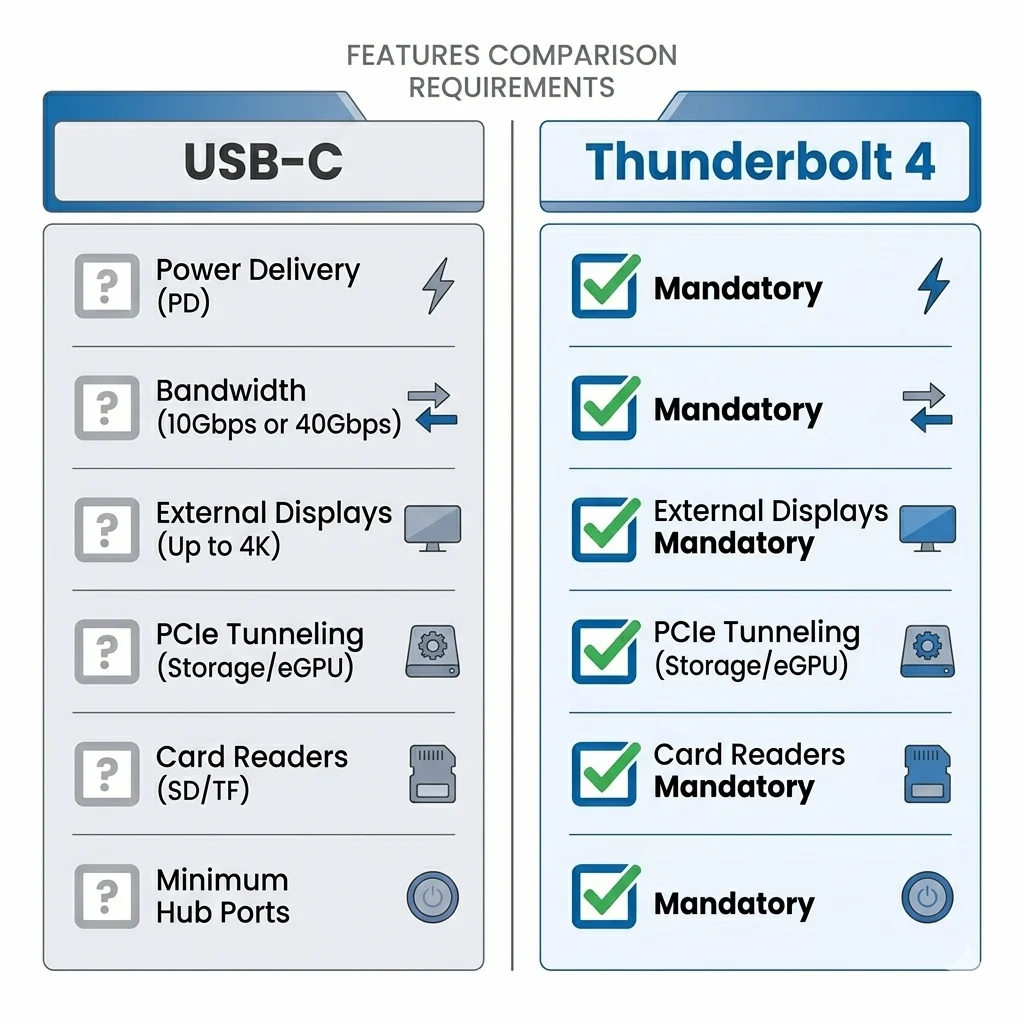
The core difference isn’t ports — it’s protocol enforcement.
- USB‑C (Pro 314): Optional features. The dock can advertise dual displays, but whether your laptop supports it is a gamble.
- Thunderbolt 4 (Max 213): Mandatory features. Dual displays, 40 Gbps, and 90W PD are required by the spec.
This is why a USB‑C docking station might work perfectly on one laptop and fail on another, while a Thunderbolt 4 dock behaves the same across all certified hosts.
Where Max 213 Wins — Problems Pro 314 Can’t Solve
The Revodok Max 213 solves failures that the Pro 314 simply cannot:
- Dual 4K reliability: Pro 314 lacks bandwidth; Max 213 guarantees it.
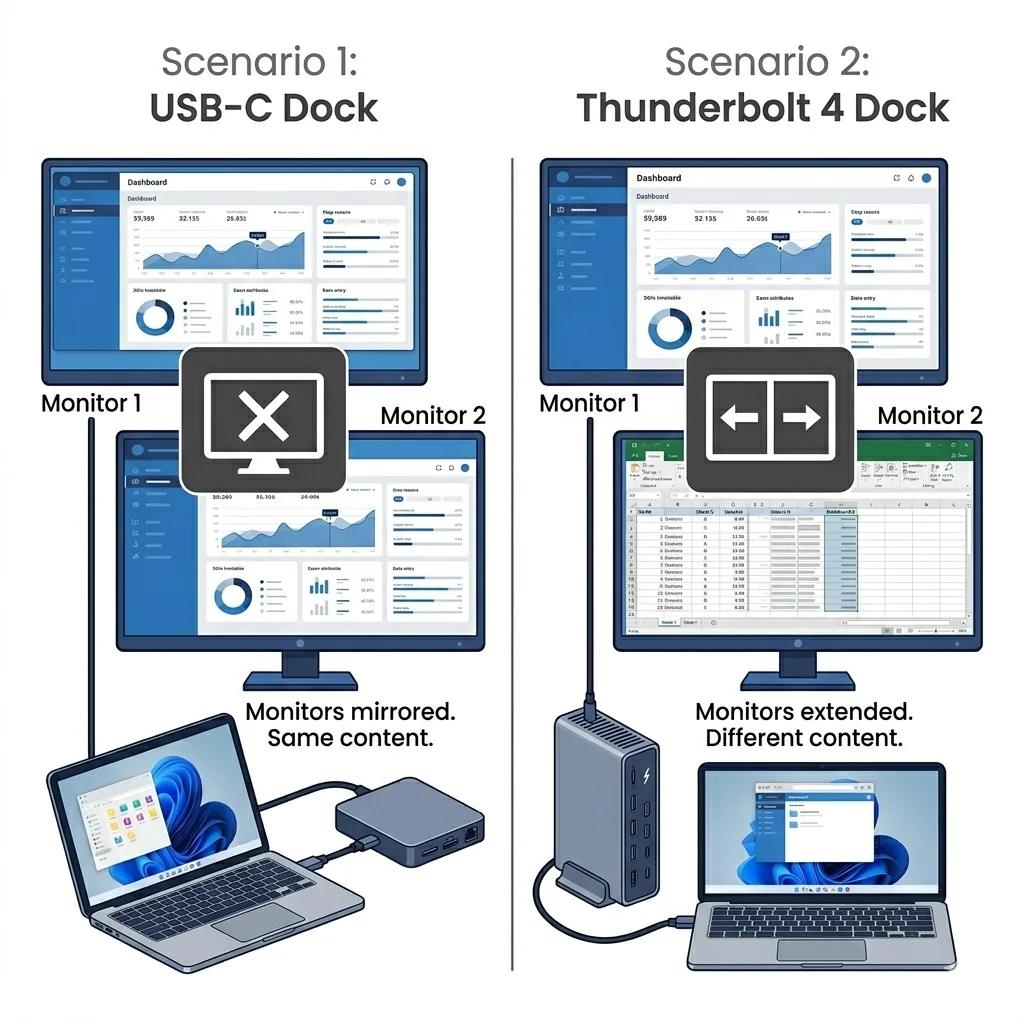
- macOS behavior: Pro 314 often mirrors displays on Mac; Max 213 drives dual extended on Pro/Max chips.
- Stable bandwidth: Pro 314 shares bandwidth between video and data; Max 213 allocates dedicated DisplayPort tunnels.
- Predictable output: Pro 314’s behavior changes with laptop BIOS and drivers; Max 213 works the same across hosts.
If you’ve ever experienced a USB‑C dock dual monitor setup that worked one day and failed the next, the Max 213 is the solution.
Where Pro 314 Still Makes Sense
The Revodok Pro 314 isn’t useless. It still fits specific scenarios:
- Price: About half the cost of the Max 213.
- Simple setups: Single 4K@60Hz works fine with a proper cable.
- Low bandwidth use: Office work, web browsing, light productivity.
But its limits are real:
- Breaks under sustained load (thermal saturation)
- Dual display depends entirely on laptop MST support
- May mirror on Mac instead of extending
Reality: Many users buy the Pro 314 for dual monitors and return it when their laptop can’t support MST or full bandwidth.
If you’re considering the Pro 314 for dual monitors, test it immediately. Return it if it fails.
🟡 Pattern Check — You’re Comparing Models, But You Should Be Comparing Protocols
Most buyers go wrong here — they upgrade models instead of upgrading protocol.
| You’re comparing models if… | You should compare protocols if… |
|---|---|
| You’re looking at port counts | Your laptop’s USB‑C port is data‑only |
| You’re comparing price alone | You need dual 4K reliability |
| You’re reading Amazon reviews | You’ve had random disconnects before |
| You want the cheaper option | You need consistent macOS behavior |
The Pro 314 and Max 213 are not better or worse — they are different tools for different system architectures. Choose the protocol that matches your needs, then pick the model.
The Real Price Question — Is the Max 213 Worth the Extra $200?
~$100 vs ~$300 — a $200 gap.
But the real cost isn’t the price tag. It’s what happens when you buy wrong.
A USB‑C dock that fails your use case gets returned. Then you buy the Thunderbolt dock anyway. Now you’ve spent $400 and wasted two weeks. The $200 premium was always cheaper than buying wrong twice.
There’s also a longevity argument: the Max 213 behaves the same across every certified Thunderbolt laptop you’ll own. The Pro 314’s compatibility resets with every new machine — your next laptop may or may not support MST, dual display, or full PD over USB‑C.
You’re not paying for ports. You’re paying for consistency — now and on your next laptop.
Diagnostic Flow — If Your Dock Isn’t Working, Start Here
- Test the cable – Use the included cable. Swap with a certified 10Gbps USB‑C or Thunderbolt cable.
- Test the port – Try each USB‑C port on your laptop. Some are data‑only.
- Test direct monitor – Connect the monitor directly to your laptop. If it works, the dock is the issue.
- Isolate load – Disconnect all peripherals. Add them one by one.
If the dock still fails, the problem is likely your laptop’s USB‑C implementation. For a full diagnostic, see our Docking Station Not Working guide.
UGREEN Revodok Max 213 vs Pro 314 — Which One Should You Actually Buy?
- Budget → Revodok Pro 314
Works for single 4K@60Hz and basic dual 1080p on Windows (if your laptop supports MST). Accept its limits. - Reliability → Revodok Max 213
Guarantees dual 4K, works consistently across hosts, and avoids the frustration of “it worked yesterday.”
If you want it to just work, buy the Max 213. If you’re optimizing for price and can tolerate limitations, choose the Pro 314.
There is no middle ground. USB‑C is variable; Thunderbolt 4 is enforced.
Comparison Table — Docking Station Stability, Power, and Real Behavior
If your setup falls in the wrong row, the dock will not “partially work” — it will fail.
⭐ UGREEN Revodok Max 213
Thunderbolt 4 · 90W PD · 2.5GbE · Passive
- 40 Gbps — dedicated DisplayPort tunnels
- Dual 4K@60Hz — guaranteed across all TB4 hosts
- 90W PD — stable, consistent negotiation
- Works the same on every certified Thunderbolt laptop
- Mac: dual extended on M1 Pro/Max and above
Best if you need dual 4K, Mac compatibility, or consistent behavior across hosts. The extra cost buys you reliability — not just ports.
Check Price →UGREEN Revodok Pro 314
USB‑C · 100W PD · 1GbE · Passive
- 10 Gbps — shared between video and data
- Dual display: depends on laptop MST support
- 100W PD — variable, host negotiation dependent
- 14 ports — best port count in USB‑C class
- Mac: mirrors on base M1/M2/M3 — no dual extended
Best for single monitor setups and light Windows use on a budget. Test immediately for dual display — return it if MST fails on your laptop.
Check Price →🔴 Final Protocol — Stop Upgrading the Wrong Tier
If your USB‑C dock keeps failing — another USB‑C dock won’t fix it.
You’re hitting the bandwidth or power limits of the USB‑C protocol itself. Stop here if:
- ✅ You’ve tried two different USB‑C docks — both fail the same way
- ✅ Dual monitors work on one laptop but not another with the same dock
- ✅ Certified cables tried — flickering or drops persist
- ✅ Firmware updates changed nothing
- ✅ Works idle, fails under real workload every time
Pro 314 → Max 213 is a real upgrade. Pro 314 → another USB‑C dock is sideways. Match the protocol to your needs.
Ecosystem Truth — Why This Comparison Confuses Most Buyers
USB‑C allows inconsistency. A laptop manufacturer can implement video, power, and data in dozens of ways — and still call it “USB‑C.” That’s why a USB‑C docking station works on one machine and fails on another.
Thunderbolt 4 reduces that inconsistency. Intel certifies hosts and docks to behave the same way. When you buy a Thunderbolt 4 dock, you know what you’re getting.
The Pro 314 isn’t “bad.” It’s a victim of the USB‑C specification’s flexibility. The Max 213 isn’t “overpriced.” It’s priced for predictability.
Model / Cluster Links
- UGREEN Revodok Max 213 Problems – Deep dive on thermal, bandwidth, and power failures.
- UGREEN Revodok Pro 314 Problems – Real-world USB‑C limits, display failures, and fixes.
- USB‑C Docking Stations Explained – Compatibility, limits, and what actually works.
- Thunderbolt 4 vs USB‑C for Docking Stations – Why enforcement matters.
- Docking Station Not Working – Universal diagnostic guide.
FAQ
Authority Block
Alex — Docking Infrastructure Specialist
Computer Systems Engineering background. 10+ years deploying docks in enterprise environments. Author of Laptop Docking Stations Explained.
Hans — Display Topology Specialist
Expert in MST, EDID handshakes, and Thunderbolt display failures. Contributor to Daisy Chain Monitors Explained.
Yamato — Storage & Infrastructure Specialist
Thermal analysis, sustained load behavior, and high‑speed peripheral architecture.
At ByrdPilot, we don’t write in silos. We write as a systems practice — cross‑validated by specialists who have diagnosed these failures in real deployments.
Experience > spec sheets. Always.