UGREEN Maxidok Review: Thunderbolt 5 Dock with Built-In SSD Storage (2026)

⚡ Quick Answer
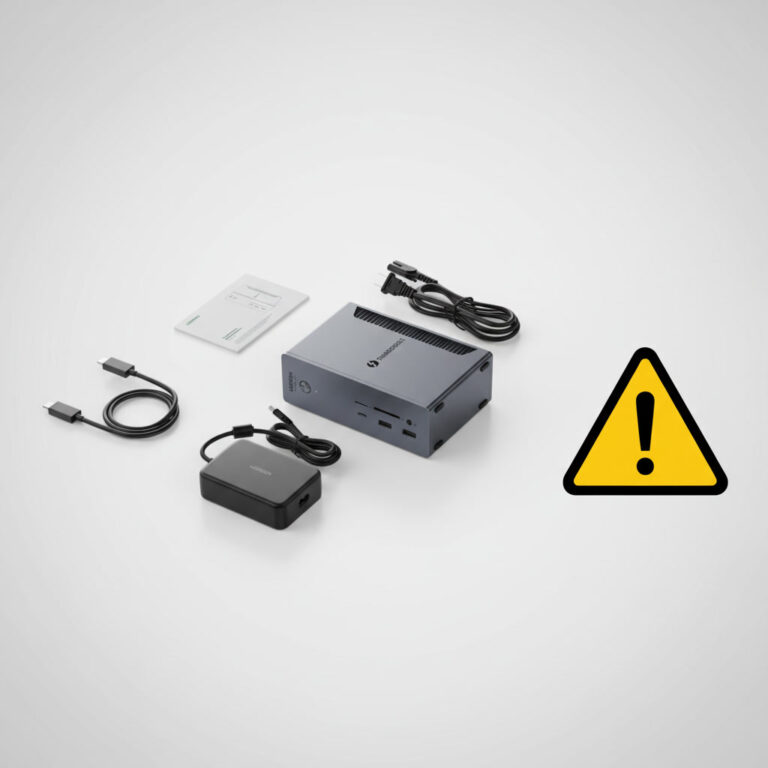
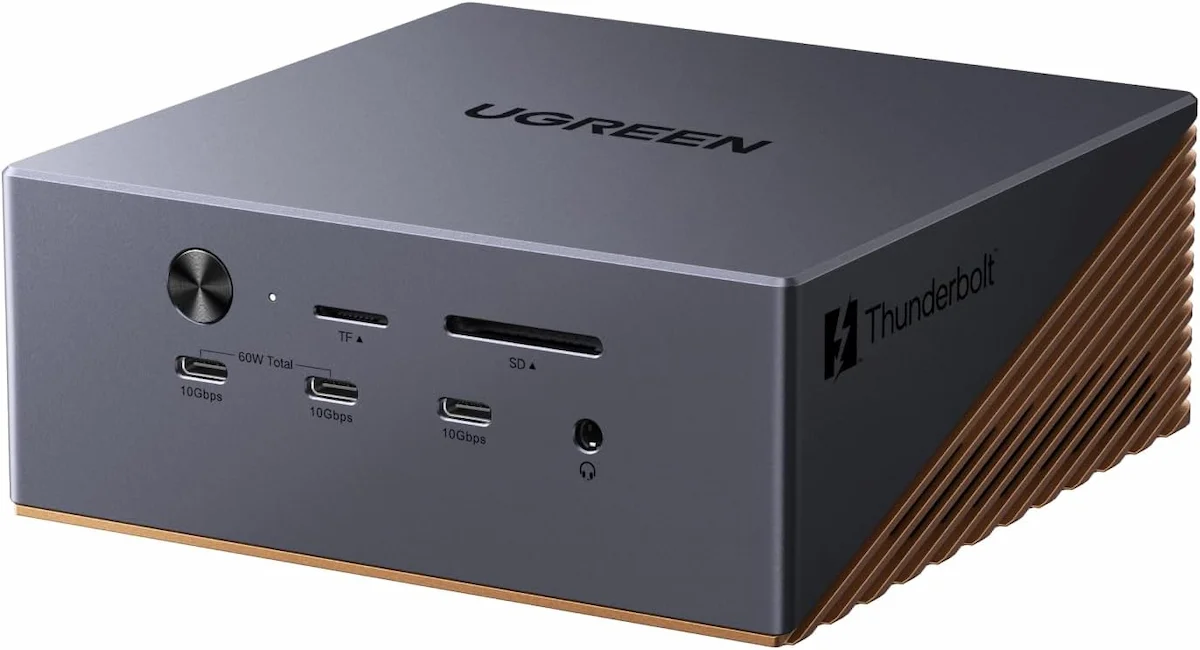
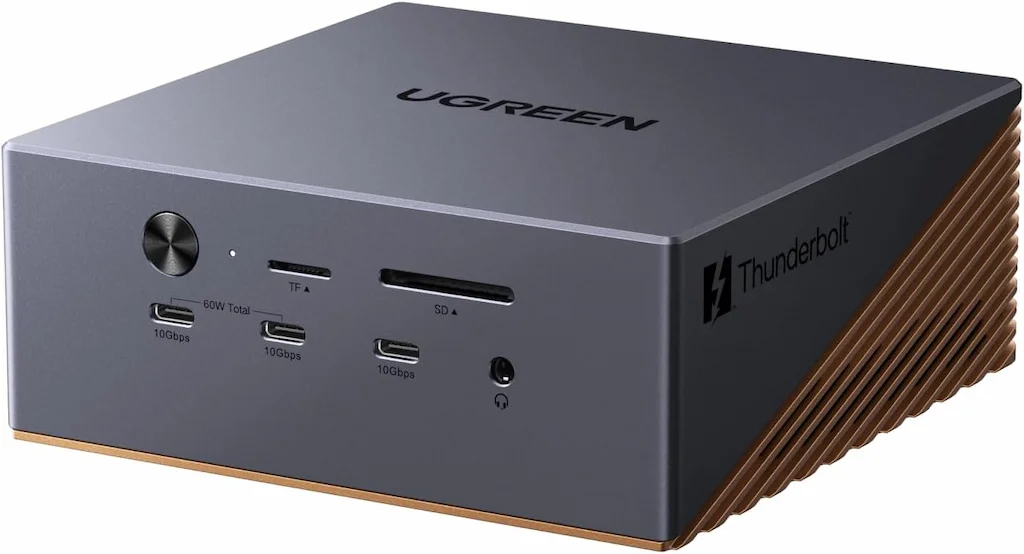
The UGREEN Maxidok is a Thunderbolt 5 docking station with a built-in M.2 NVMe SSD slot, 140W laptop charging, and 17 ports in a compact cube chassis.
- Protocol: Thunderbolt 5 — 80Gbps standard, 120Gbps Boost Mode
- Storage: Built-in PCIe 4.0 x4 M.2 slot, up to 8TB (NVMe only)
- Charging: 140W to the host laptop (240W total system power)
- Mac displays: 2 external displays maximum — no workaround exists
- Windows displays: Triple 4K@60Hz via DP 2.1 + 2x TB5 downstream
- SSD speed note: ~3,900 MB/s read under dual-display load (44% below isolated speed)
Verdict: Best for Windows power users and Mac dual-display setups that need built-in scratch disk storage. Skip it if you need three displays on a Mac or 10GbE networking.
What Is the UGREEN Maxidok?
UGREEN launched the Maxidok 17-in-1 in March 2026 — a Thunderbolt 5 dock aimed at editors and power users who’ve been waiting for storage to come built into their hub. The pitch is simple: one cable from the back of your laptop, and you’ve got fast external storage, a full port spread, and multi-display output without touching a cable on your desk.
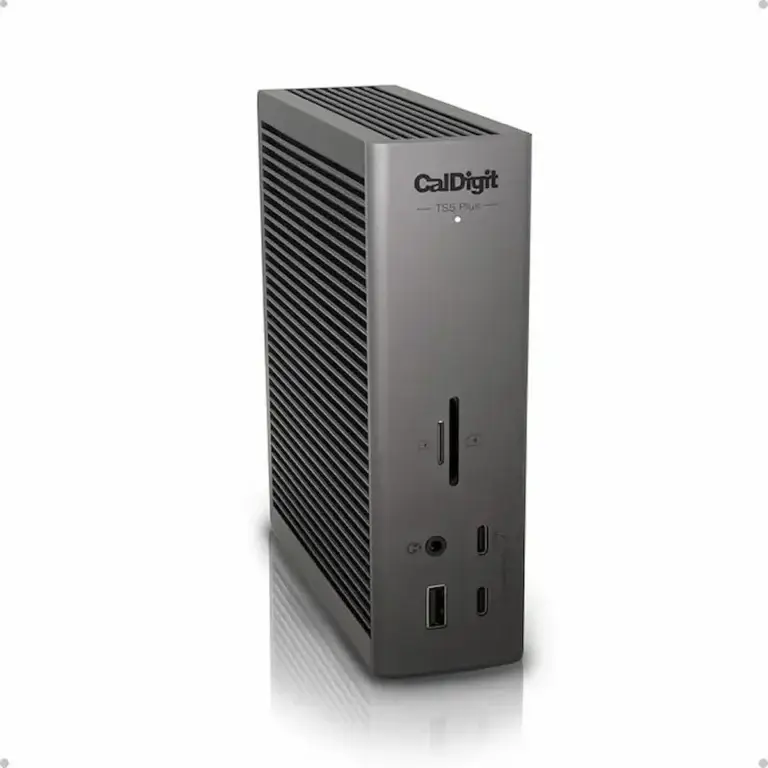
It’s built around Intel’s Barlow Ridge TB5 controller, the same chip inside the CalDigit TS5 Plus and the Razer Thunderbolt 5 Chroma Dock. What UGREEN adds that most don’t: a PCIe 4.0 x4 M.2 slot rated up to 8TB, built into the cube chassis itself. That’s the pitch. Whether it delivers depends a lot on how you use it — more on that in the SSD section.
Key specs
| Spec | UGREEN Maxidok 17-in-1 |
|---|---|
| Protocol | Thunderbolt 5 (80Gbps / 120Gbps Boost) |
| Ports | 17 total |
| M.2 SSD Slot | PCIe 4.0 x4, up to 8TB (NVMe only) |
| Laptop Charging | 140W PD (240W total system power) |
| Ethernet | 2.5GbE |
| Display Output | 1x DisplayPort 2.1 + 2x Thunderbolt 5 downstream |
| Price | Check Price on Amazon → |
Who Should Buy It (And Who Shouldn’t)
| Profile | Verdict |
|---|---|
| Creative pro (video/photo) with a TB5 laptop | ✅ Buy — SSD slot, fast ports, triple displays on Windows |
| Windows power user with TB5 or USB4 Gen 2 | ✅ Buy — triple 4K, 2.5GbE, storage built in |
| MacBook Pro user comfortable with dual displays | ✅ Buy — dual 6K@60Hz, 140W charging, M.2 scratch disk |
| MacBook Pro user who needs 3 displays | ❌ Skip — capped at 2 external displays on Mac; no workaround exists |
| Budget buyer | ❌ Skip — this is a premium dock; a TB4 alternative costs noticeably less |
| Thunderbolt 3 laptop owner | ⚠️ Buy if you’re planning to upgrade — works at TB3 speeds today, unlocks full TB5 when you get a new laptop. One dock that grows with your hardware. |
Is the Maxidok worth it? For Windows users and Mac dual-display setups, yes. For anyone expecting triple screens on a Mac, no — and that’s a Mac architecture limit, not a dock defect.
Port Layout — Front and Rear Breakdown
Front
- 3x USB-A 3.2 Gen 2 (10Gbps)
- 1x SD 4.0 card reader (up to 312 MB/s)
- 1x microSD 4.0 card reader
- 1x 3.5mm audio combo jack
One thing to know upfront: the front USB-C ports are data and charging only — no video output. Plug a monitor into a front port and nothing will happen. Displays go to the rear DP 2.1 or the downstream TB5 ports.
Rear
- 1x Thunderbolt 5 upstream — 140W PD, built-in non-detachable cable
- 2x Thunderbolt 5 downstream — 15W each, for displays, storage, and TB peripherals
- 1x DisplayPort 2.1 — up to 8K@60Hz or 4K@144Hz
- 1x 2.5GbE Ethernet
- 3x USB-A 3.2 Gen 2 (10Gbps)
- 1x USB-C 3.2 Gen 2 (10Gbps, 30W PD)
- 2x 3.5mm audio jacks
The built-in upstream cable is a deliberate design choice for TB5 signal integrity, but it can’t be swapped if it’s damaged or if you need a longer run — worth knowing before you wall-mount the dock.
No HDMI port. If any monitor in your setup is HDMI-only, a DisplayPort-to-HDMI adapter is required.
Display Output — The Mac Limitation You Need to Know
Mac Display Support by Chip
| Mac Chip | Max External Displays | Resolution |
|---|---|---|
| M1 / M2 / M3 / M4 (base) | 1 | 6K@60Hz |
| M1 Pro / M2 Pro / M3 Pro / M4 Pro | 2 | Dual 6K@60Hz |
| M1 Max / M2 Max / M3 Max / M4 Max | 2* | Dual 6K@60Hz |
*M3 Max and M4 Max chips support up to 3 external displays on certain other docks. Through the Maxidok specifically, macOS caps output at 2 in all confirmed configurations — the dock’s display ports enumerate as 2 available paths on Apple Silicon regardless of chip generation. If 3 displays on Mac is the requirement, verify current macOS behavior with your specific chip before buying.
Short version: no Mac user gets 3 displays through this dock in any confirmed real-world setup.
Windows Display Support
| Setup | Max Displays | Resolution |
|---|---|---|
| DP 2.1 + 2x TB5 downstream | 3 | Triple 4K@60Hz |
| 2x TB5 downstream | 2 | Dual 8K@60Hz |
| DP 2.1 only | 1 | 8K@60Hz or 4K@144Hz |
Triple display on Windows works cleanly — use the two TB5 downstream ports plus the rear DP 2.1. No DisplayLink, no software adapter needed.
Does the UGREEN Maxidok support dual monitors on Mac? Yes — dual 6K@60Hz. Triple monitors? No — Mac architecture limit, not a dock defect.
Not sure which dock fits your setup? Compare all 80+ docking stations side by side — filter by connection type, displays, power delivery, and OS in our Docking Station Comparison Tool.
The M.2 NVMe SSD Slot — What It Actually Does
One of only a handful of TB5 docks with a built-in M.2 slot — alongside the Kensington SD7100T5 and the Razer TB5 Chroma Dock. What differentiates the Maxidok here is capacity: rated up to 8TB with a PCIe 4.0 x4 interface, all inside the dock chassis rather than hanging off a separate cable.
| Feature | Specification |
|---|---|
| Slot type | M.2 2280, PCIe 4.0 x4 (NVMe only) |
| Max capacity | 8TB |
| Interface | PCIe tunnel over Thunderbolt 5 |
| Form factor | M.2 2280 |
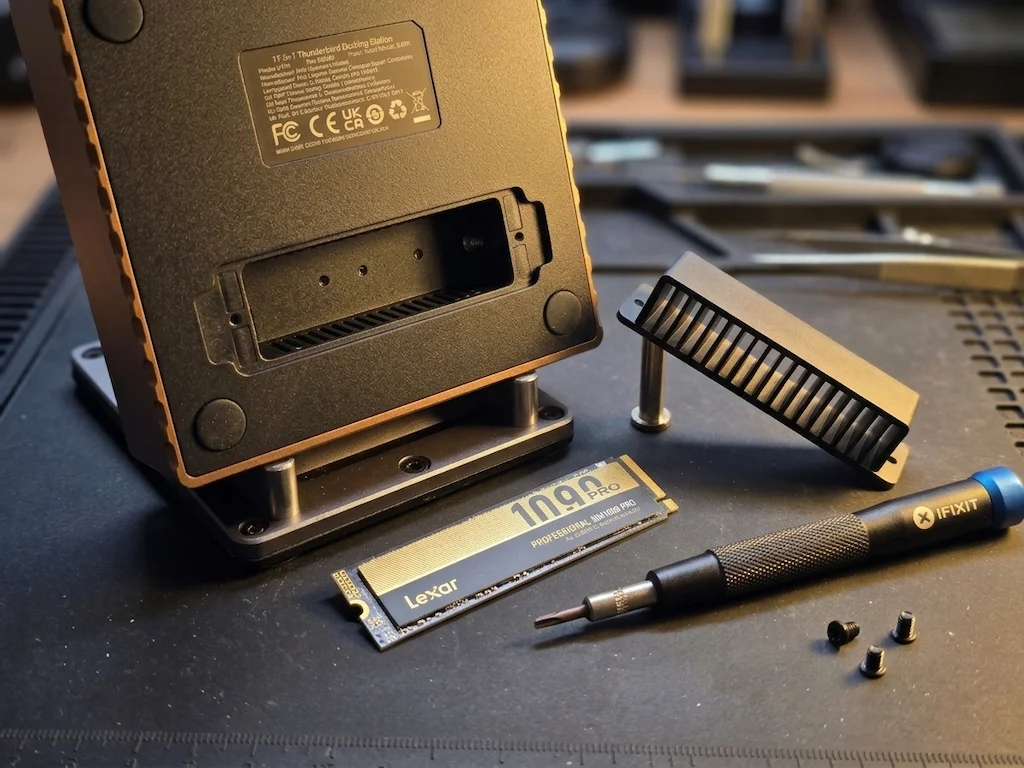
In clean testing with displays disconnected, a high-performance PCIe Gen4 NVMe drive runs close to its rated sequential speeds.
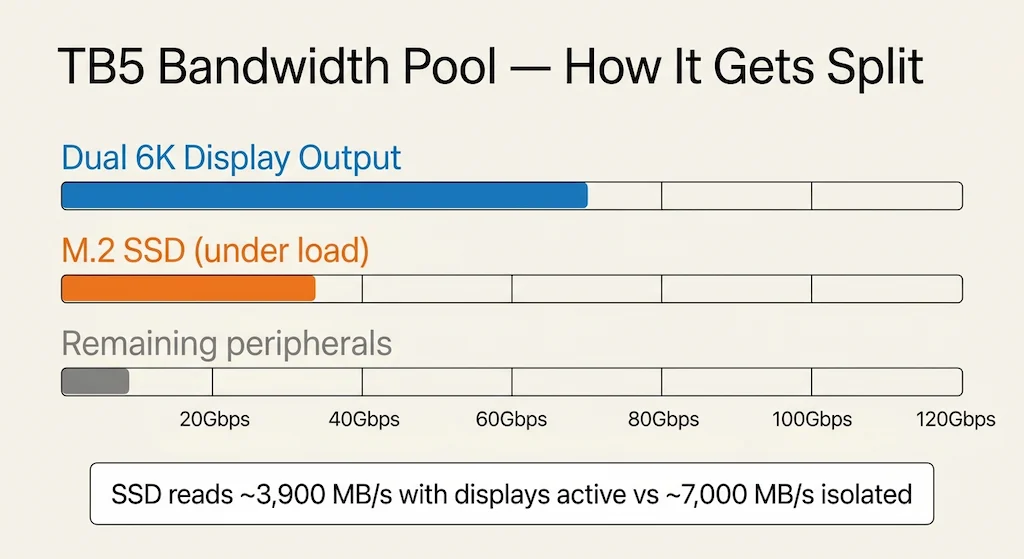
⚠️ The bandwidth conflict you need to understand before buying
TB5’s 120Gbps ceiling is shared across everything — display output, SSD throughput, peripheral bandwidth. When dual 6K displays are active, the PCIe tunnel for the M.2 slot competes for what’s left. Byrdpilot measured the SSD slot at approximately 3,900 MB/s sequential read in this configuration — about 44% below what the same PCIe Gen4 drive delivers in a standalone enclosure. For photo editing or proxy workflows, you won’t notice. For 4K or 8K ingest running simultaneously with multi-display output, the SSD and the displays are sharing the same pipe. Test your actual workload before committing this dock as your primary edit drive.
Practical use cases:
- DaVinci Resolve scratch disk — solid, but verify under your display config
- Always-connected media library — good fit, especially for stills and proxies
- Time Machine backup drive — works natively on Mac
- macOS boot drive — no; Apple Silicon doesn’t boot from external Thunderbolt storage
- Windows boot drive — firmware-dependent; generally supported but not guaranteed
Mac sleep/wake note: Apple Silicon buses drop into low power during sleep, which can cause the dock-attached SSD to eject on wake. Jettison handles this — it unmounts drives before sleep and remounts on wake. Few dollars, saves the headache.
Power Delivery — 140W Charging
At 240W total system power, the dock has enough headroom to charge a 16-inch MacBook Pro M4 Max at full 140W while running peripherals. The upstream TB5 port handles host charging; the rest distributes across the remaining ports.
Watch the front USB-C shared ceiling. It’s 60W across both ports combined — not 60W each. Charge an iPad Pro alongside another device and neither gets full speed. That’s the kind of thing that surprises people two weeks in.
One more thing: the 140W charge rate is dynamic. Under a fully-loaded configuration — both TB5 downstream ports active, M.2 SSD under heavy write, all USB-A ports drawing power — the PD controller negotiates down to keep total output under 240W. A MacBook Pro M4 Max under full CPU and GPU load may see less than 140W in that scenario. Not a dealbreaker, but worth knowing if sustained max charge matters during intensive work sessions.
UGREEN Maxidok vs CalDigit TS5 Plus
| Factor | UGREEN Maxidok | CalDigit TS5 Plus |
|---|---|---|
| Protocol | TB5 | TB5 |
| Ports | 17 | 20 |
| M.2 SSD Slot | ✅ Up to 8TB | ❌ |
| Max Charging | 140W | 140W |
| Total Power | 240W | 330W |
| Ethernet | 2.5GbE | 10GbE ⭐ |
| Mac Displays | 2 max | 2–3 (chip dependent) |
| Price | Check Price → | Check Price → |
The Maxidok wins if you want built-in storage and you’re on Windows or comfortable with Mac dual-display. The TS5 Plus wins if you need 10GbE for NAS or server access, want more ports, or need higher total power headroom. The TS5 Plus runs noticeably more expensive — check both current prices before deciding. Neither is objectively better; they’re optimized for different workflows.
Just Tell Me What to Buy
Get the UGREEN Maxidok if you can check three:
✅ TB5 or USB4 Gen 2 laptop
✅ Built-in storage fits your workflow
✅ Windows power user, or Mac user running two displays
✅ 2.5GbE is sufficient for your network
Can’t check three? Go back to the comparison table.
Find My Dock in 60 Seconds →Final Verdict
The Maxidok earns its price on two things: the M.2 slot and triple 4K on Windows. Take either of those away and the value case gets thinner. Add an active fan, no HDMI port, and 2.5GbE instead of 10GbE, and you’ve got a dock with real trade-offs — not a premium option for everyone.
- Windows power user: Buy it. Triple 4K plus built-in storage plus 140W charging is a hard combination to beat at this tier.
- MacBook Pro user (dual display): Buy it — but run your actual workload before committing the SSD slot to video editing. The bandwidth conflict under dual-display use is real.
- MacBook Pro user (triple display): Skip it. The CalDigit TS5 Plus handles 3 displays on M3 Max and M4 Max. That’s the right dock.
- Budget buyer: Skip it. A TB4 dock covers most of this for considerably less.
Common UGREEN Maxidok Problems and Fixes
Display Not Detected
Symptom: Monitor stays black or shows “No Signal” after connecting.
Cause: TB5 handshake failure, passive cable over 1 meter, or wrong port used.
Fix:
- Use the included cable, or a certified TB5 active cable for runs longer than about 40 inches — passive cables lose 120Gbps integrity beyond that
- Connect to the rear TB5 downstream ports or DP 2.1, not the front USB-C
- Update Thunderbolt firmware on the host laptop
- On macOS Sequoia: a system permissions dialog appears on first connection — approve it and wait 30–90 seconds before assuming the dock is faulty
SSD Not Recognized
Symptom: M.2 drive doesn’t show up in Finder or File Explorer after installation.
Cause: Unformatted drive, SATA M.2 inserted instead of NVMe, or drive not fully seated.
Fix:
- Verify the drive is NVMe — SATA M.2 is not supported
- Re-seat the drive firmly; the slot requires full insertion before the retention screw engages
- Use Disk Utility (Mac) or Disk Management (Windows) to initialize and format
Display Brightness or OSD Control Stops Working
Symptom: Monitor brightness can’t be controlled through software like BetterDisplay or MonitorControl after connecting through the dock.
Cause: DDC/CI signal corruption through the dock’s display tunnel — confirmed on LG UltraFine and several Dell UltraSharp monitors.
Fix:
- Open legacy Monitor Control before launching BetterDisplay (temporary workaround that restores the DDC handshake)
- Or use the monitor’s physical OSD buttons until UGREEN addresses this in a firmware update
Fan Noise Under Load
Symptom: Audible fan during heavy transfers, multi-display use, or sustained SSD writes.
Cause: Normal — the Maxidok uses active cooling. Silence isn’t part of its design.
Fix:
- Don’t obstruct the vents; the cube chassis needs airflow
- Check for UGREEN firmware updates — fan curve behavior has been adjusted in past releases
Third Display Not Working on Mac
Symptom: Only two displays recognized even on M3 Max or M4 Max.
Cause: Mac display output through this dock caps at 2 in current macOS versions.
Fix: None — this is an architecture-level limit, not a dock defect.
Ethernet Drops on 2.5GbE
Symptom: Network connection drops intermittently or shows reduced throughput.
Cause: Driver conflict or cable issue.
Fix:
- Update the 2.5GbE Ethernet driver on Windows
- Swap to a Cat6 or Cat6A cable
- On Mac: confirm the adapter shows in System Settings → Network before assuming a dock fault
Not Sure Which Dock to Buy Yet?
Before you commit, answer three questions:
- Does your laptop have Thunderbolt 5 or USB4 Gen 2? Below TB5 speeds, the Maxidok’s headline features don’t fully engage.
- How many displays do you need on a Mac? If the answer is three, this dock won’t get you there.
- Do you actually need the M.2 slot? If not, you’re paying for a feature you’ll never use.
For model-specific diagnostics, see our Thunderbolt 5 cluster: CalDigit TS5 Plus • Anker Prime TB5 • Kensington SD7100T5 • iVANKY FusionDock Max 2 • Razer Thunderbolt 5 Chroma
You’ve Narrowed It Down — Now Pattern Check
| Buy the Maxidok if… | Stick with CalDigit TS5 Plus if… |
|---|---|
| You want built-in NVMe storage | You need 10GbE for NAS or a server |
| You’re on Windows with triple-display needs | You need 3 external displays on a Mac |
| 2.5GbE is enough for your network setup | You want more port headroom (20 vs 17) |
TB5 upgrade note: if your laptop is still on TB4 or USB4 Gen 1, the full bandwidth advantage of this dock won’t engage — check your port spec first.
FAQ

Alex
Docking Infrastructure Specialist
10+ years deploying docking stations across enterprise and creative environments. Computer Systems Engineering background. Alex tests for the failure modes that show up three months after purchase — not just on unboxing day. Author of Laptop Docking Stations Explained on ByrdPilot.
Sources & References
- Plugable: Thunderbolt 4 vs Thunderbolt 5 — bandwidth specs, Boost Mode, PCIe tunnel allocation
- Plugable KB: What Is Thunderbolt 5 Bandwidth Boost? — 80Gbps baseline vs 120Gbps Boost Mode behavior
- Apple Support: Mac display limits by chip — external display counts per Apple Silicon generation
- DisplayPort Association: DP 2.1 over USB-C — 8K@60Hz and 4K@144Hz output specifications
- BetterDisplay GitHub Discussion #4916 — DDC/CI signal corruption via TB5 dock display tunnel, confirmed on LG UltraFine