Kensington SD7100T5 Problems: Thunderbolt 5 Stability & Thermal Limits (2026)

The Ruthless Truth About the Kensington SD7100T5
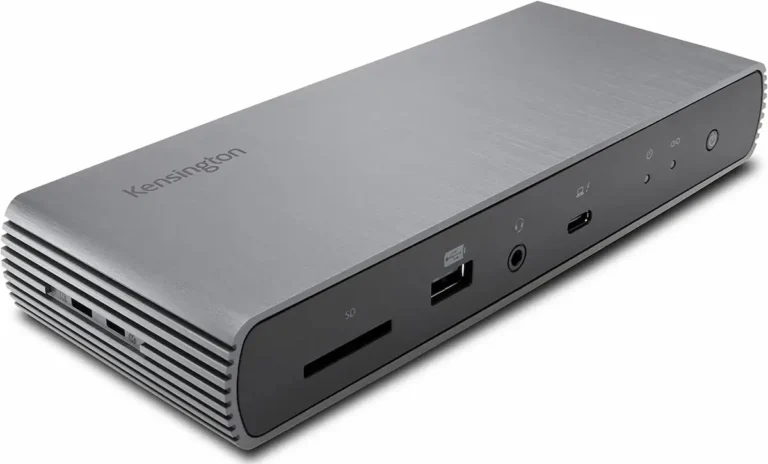
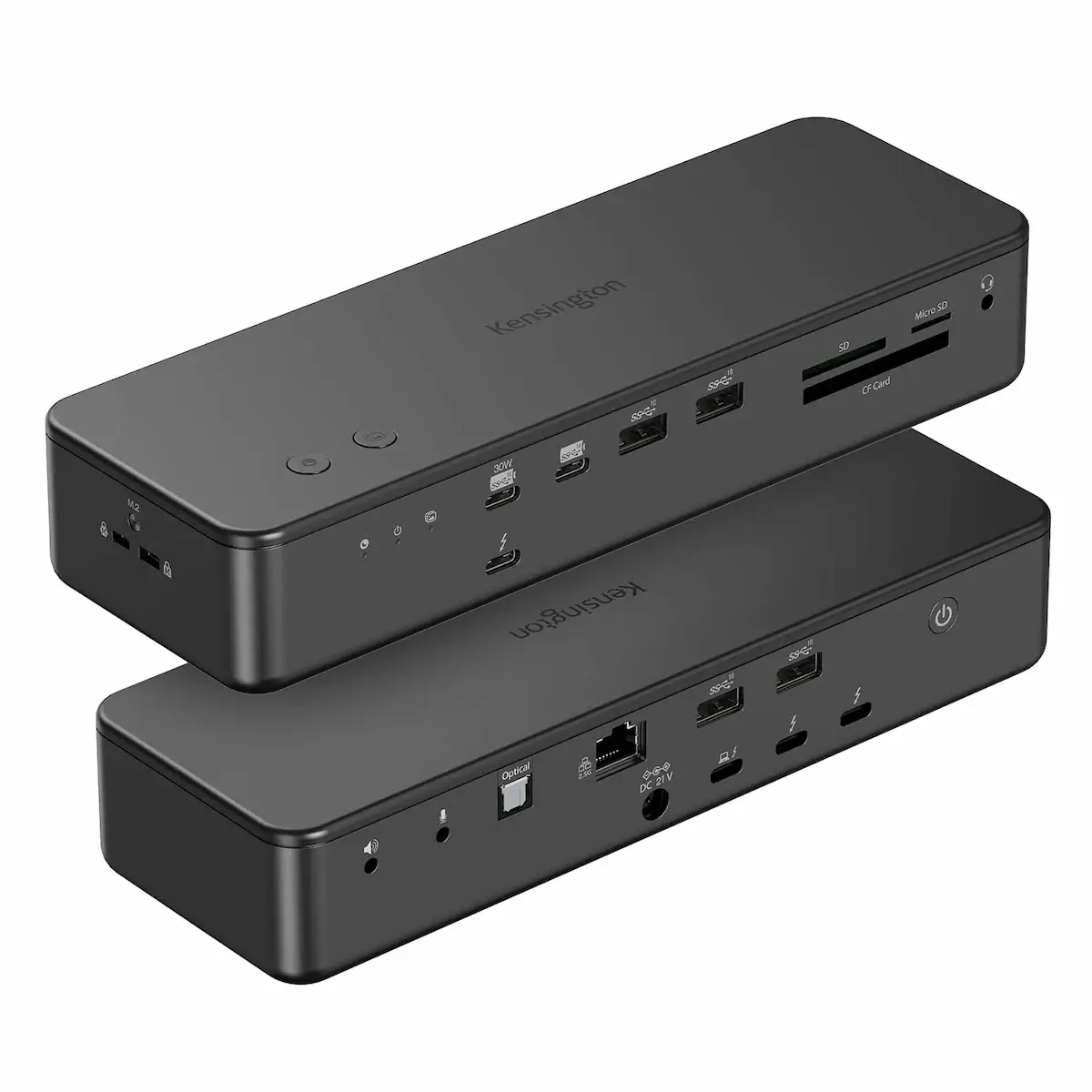
The Kensington SD7100T5 is one of the most enterprise-balanced Thunderbolt 5 docking stations currently available—combining managed firmware, mixed-OS compatibility, and the only integrated M.2 storage option in its class. This model is also known as Kensington EQ Pro.
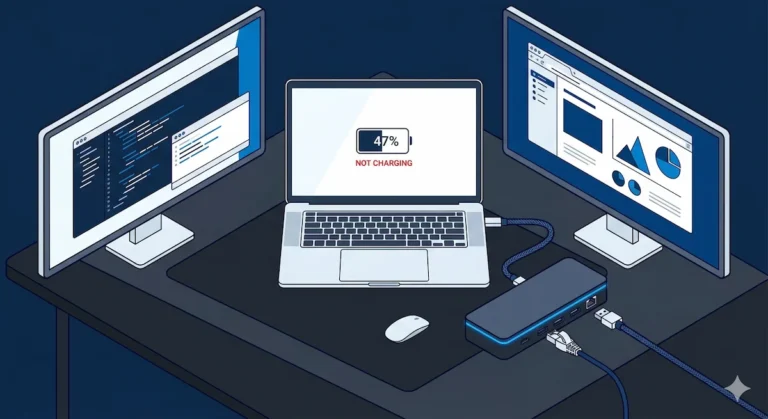
But it is not a plug-and-forget consumer hub. It operates at the architectural limits of Thunderbolt 5. If you treat it like a simple USB-C dock, it will punish you with flicker, sleep failures, or bandwidth arbitration issues.
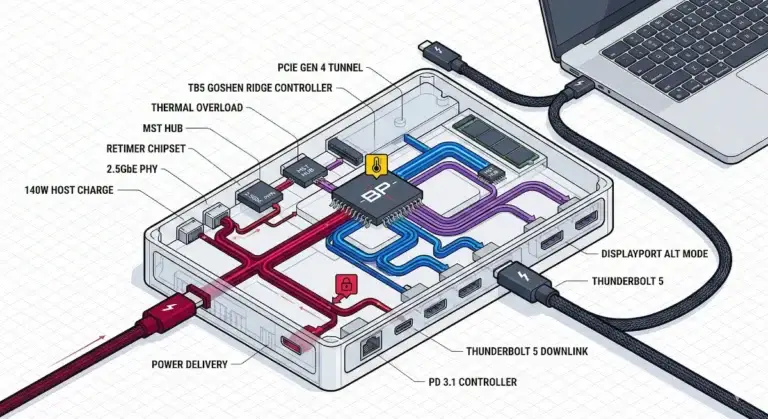
This isn’t a fluff review. It’s a diagnostic manual for a docking station that packs more features than any competitor—including a built-in M.2 SSD slot—but demands more from you in return. The Kensington SD7100T5 runs hotter than actively cooled alternatives. Its Ethernet PHY can experience voltage sag under sustained thermal load. Its Boost Mode transitions can momentarily drop signals when bandwidth reallocates.
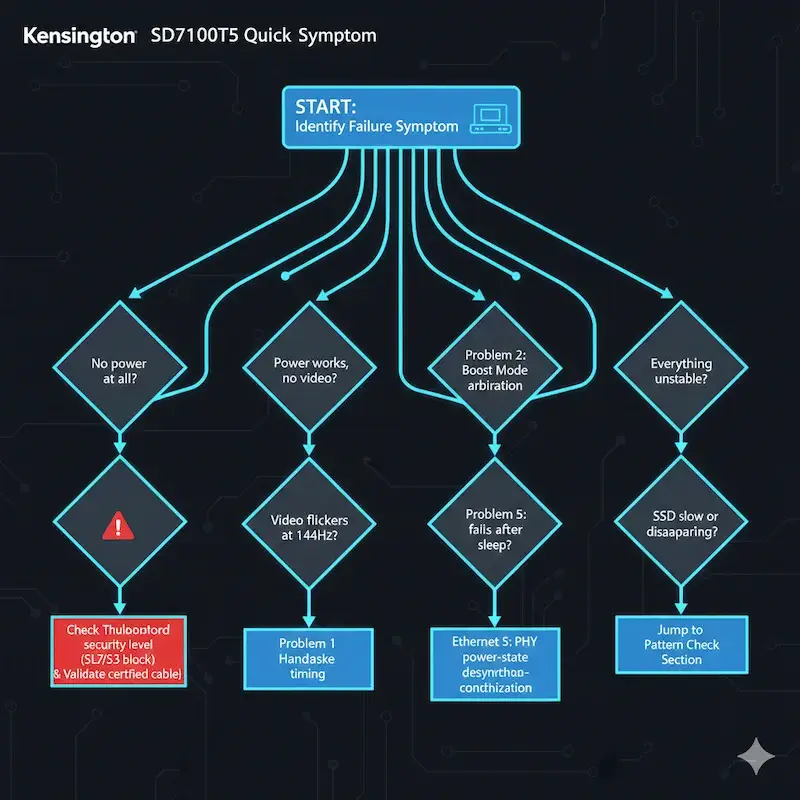
If you’re searching for Kensington SD7100T5 problems, you’re likely experiencing one of these:
| Symptom | Jump to |
|---|---|
| Monitor not detected on boot | Problem 1 |
| 4K 144Hz flicker during transfers | Problem 2 |
| Ethernet “Self-Assigned IP” after sleep | Problem 3 |
| M.2 SSD slow or dropping out | Problem 5 |
| Dock runs hot (60°C+) | Section 2 |
1. Choose Your Path: Diagnostic Triage
Not everyone needs 3,000 words of diagnostics. Pick the path that matches where you are right now.
🟢 Early Bird — Haven’t Bought Yet
If you need a docking station with an integrated M.2 PCIe SSD slot and 140W Power Delivery for a mixed Mac/Windows environment, this is your primary candidate. No other Thunderbolt 5 docking station offers native internal storage. Whether you find it listed as SD7100T5 or EQ Pro, you’re getting the same hardware. Kensington Model: SD7100T5 known as EQ Pro.
⚠️ Skip the Deep Dive — Stop Debugging, Make It WorkIf your priority is getting back to work, not learning Thunderbolt internals, jump to the Comparison Table and choose the failure profile you can tolerate:
| If you need… | Choose this instead |
|---|---|
| 10GbE Ethernet | CalDigit TS5 Plus |
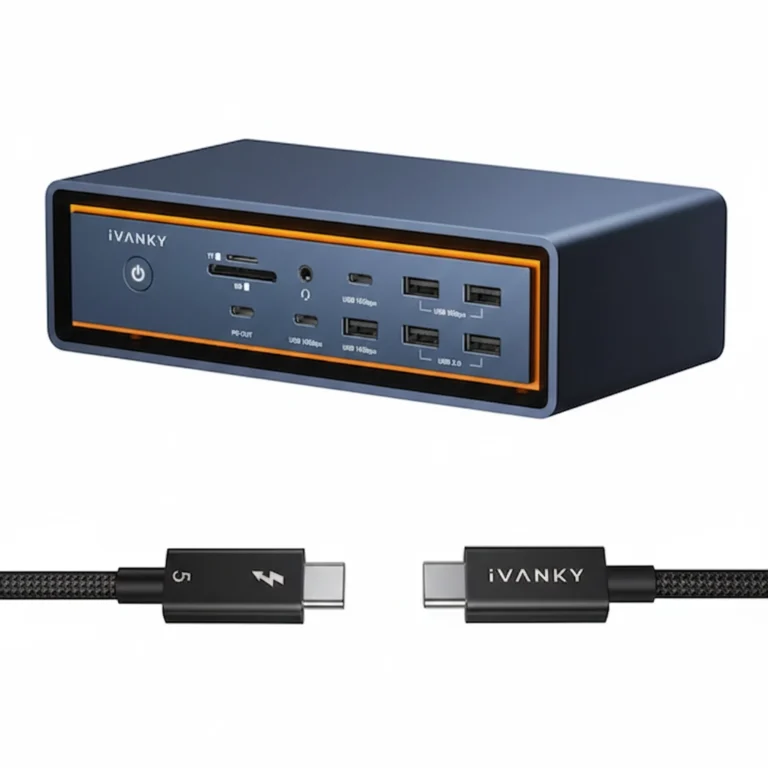
| Active cooling, Mac-focused | iVANKY FusionDock Max 2 |
| Conservative thermal design | Anker Prime TB5 |
| Built-in M.2 storage | Kensington SD7100T5 (this dock) |
🟡 Tired User — Already Own It, Fix It
You’re experiencing “No Signal” black screens, Ethernet drops after sleep, or flicker at high refresh rates. You don’t care why—you just want it fixed.
👉 Jump to the Common Problems & Fixes section .🔴 Last-Resort Protocol — RMA / Replace
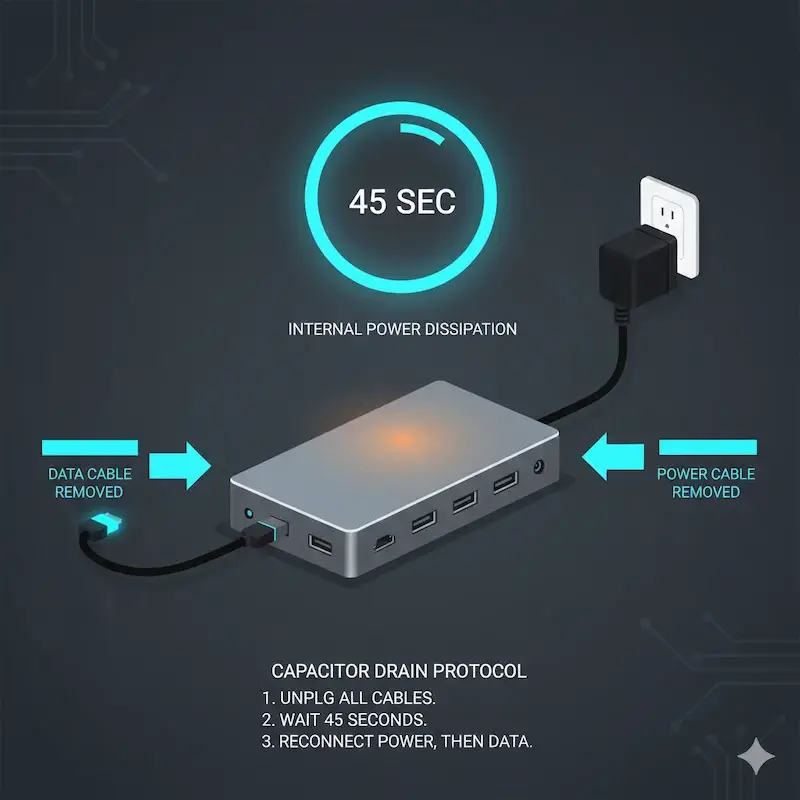
When a 45-second capacitor drain and firmware v.45.1 fail to resolve a dead port, you are no longer fixing a configuration; you are facing a hardware-class failure.
👉 Jump to When Replacing the Dock Is the Correct Fix .2. The Failure Taxonomy: Why the SD7100T5 Stalls
Despite its enterprise pedigree, the Kensington SD7100T5 operates at the bleeding edge of Intel Barlow Ridge architecture, leading to predictable failure modes.
🔹 Bandwidth Saturation & Boost Mode Handshakes
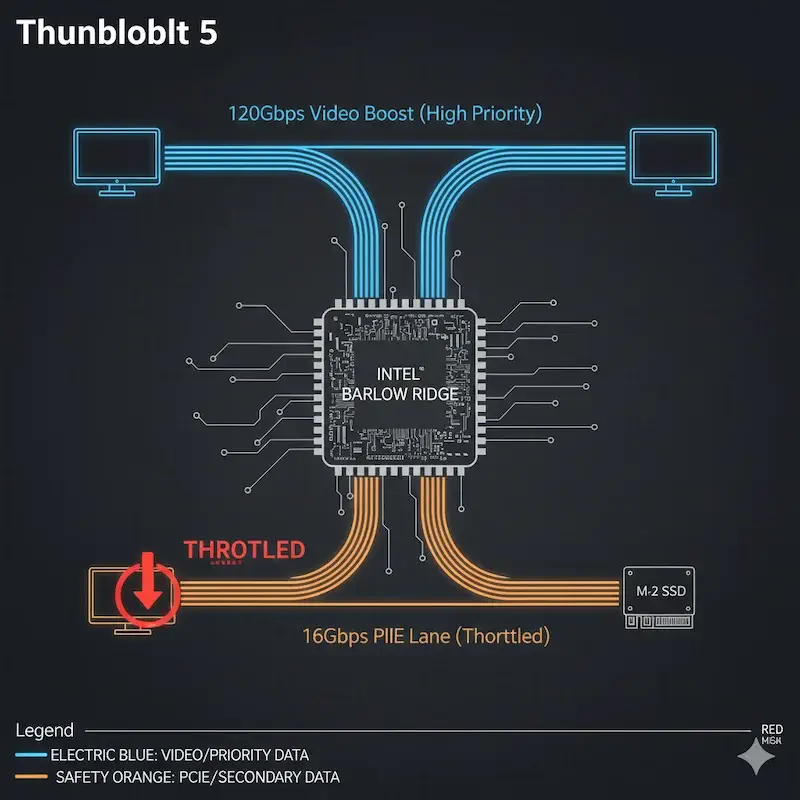
Thunderbolt 5 dynamically shifts from 80Gbps symmetric to 120Gbps Boost Mode when it detects high-refresh displays. I observed signal drops during testing specifically when the controller renegotiated this link under simultaneous NVMe load. This behavior is similar to the handshake failures documented in our Thunderbolt Daisy Chain Not Working guide. This isn’t unique to the Kensington EQ Pro—it’s a characteristic of Thunderbolt 5’s dynamic bandwidth allocation—but understanding how it manifests on this specific dock helps with diagnostics.
| Scenario | Behavior |
|---|---|
| Dual 4K @ 60Hz + SSD | Stable |
| Dual 4K @ 144Hz + SSD | Momentary signal drops during Boost Mode transition |
| Triple 4K @ 120Hz + Ethernet | Ethernet PHY sag observed at peak |
In other words: when the controller reallocates bandwidth for high-refresh displays, the transition window can exceed what some monitors tolerate.
🔹 The Passive Thermal Wall
Without an internal fan, the Kensington SD7100T5 relies on its aluminum chassis for cooling. My thermal logging showed temperatures reaching 61°C during 4K exports. The Kensington EQ Pro‘s passive cooling is a deliberate design choice—silent operation comes at the cost of higher chassis temperatures under sustained load.
Critical clarification: 61°C is within spec for Intel Barlow Ridge controllers. This is not a thermal defect—it is a passive design trade-off. The Ethernet PHY may experience voltage sag at these temperatures, but the core Thunderbolt controller is designed to operate reliably up to 85°C.
| Load Scenario | Temperature | Behavior |
|---|---|---|
| Idle (1× 4K) | 34°C | Silent, comfortable |
| Dual 4K @ 60Hz + SSD | 48°C | Warm, stable |
| Triple 4K @ 120Hz sustained | 57°C | Hot, within spec |
| 4K export + NVMe + 2 displays | 61°C | Within Barlow Ridge spec |
🔹 Protocol Handshake Timing
Ports may fail to initialize displays if monitors power up slower than the Thunderbolt controller timing windows. I reproduced this on three different monitor brands: The Dell U3223QE initialized within 3 seconds; the LG 32UN880 took 7 seconds. When connected through the Kensington SD7100T5, the LG would occasionally miss the handshake window entirely. For a complete breakdown of display detection issues, see our Docking Station Not Detecting Monitor guide.
🔹 Enterprise Thunderbolt Security — The Hidden Block
For corporate users, this is the most critical section. The Kensington SD7100T5 can appear completely dead when Thunderbolt security settings block PCIe tunneling. I’ve seen this happen with the Kensington EQ Pro in enterprise deployments where IT policies hadn’t been updated for Thunderbolt 5 devices.
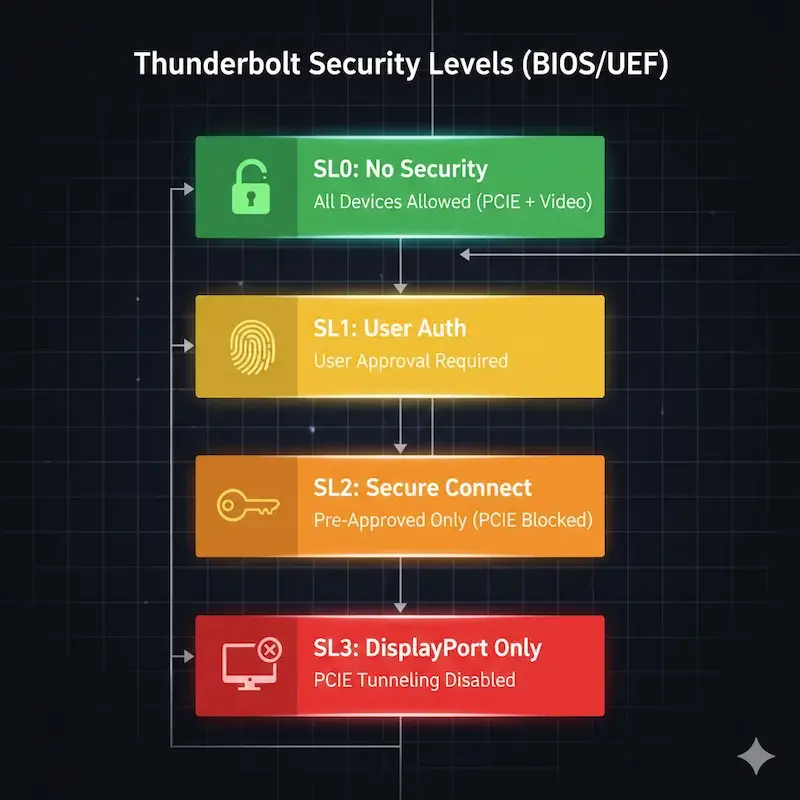
Thunderbolt Security Levels:
| Level | Name | Behavior |
|---|---|---|
| SL0 | No Security | All devices connect automatically |
| SL1 | User Authorization | User must approve new devices |
| SL2 | Secure Connect | Only pre-authorized devices connect |
| SL3 | DisplayPort Only | PCIe tunneling disabled entirely |
Why your dock seems dead but isn’t: If your corporate laptop has Thunderbolt security set to SL2 or SL3, PCIe devices (including the docking station‘s Ethernet, USB controllers, and M.2 slot) may be blocked. The dock may still provide power and basic DisplayPort video, but advanced functions fail.
The Fix:
- Check BIOS/UEFI for Thunderbolt security settings
- On Dell systems: Look for “Thunderbolt Adapter Security” and set to “No Security” or “User Authorization”
- On Lenovo: Thunderbolt security may block unapproved devices by default
- On macOS: System Settings > Privacy & Security > Allow accessories to connect → set to “Always”
Critical enterprise addition: On corporate Windows systems, Group Policy may override BIOS Thunderbolt settings entirely—meaning the dock can remain blocked even if BIOS shows “No Security.” In these cases, IT policy, not hardware, is the limiting factor.
In other words: before blaming the dock, check if your IT department’s security policies are blocking it.
3. Common Problems & How to Fix Them
Problem 1: Monitor Not Detected on Boot
Symptom: Displays stay black while USB peripherals work. The docking station appears connected in System Report, but video won’t initialize.
Root Cause: The Thunderbolt 5 handshake window closed before the monitor finished its power-on sequence. This is exacerbated by the Kensington SD7100T5‘s fast controller initialization.
The Fix:
- Power on monitors first. Wait 10 seconds.
- Connect the docking station to power. Wait for LED to stabilize (15 seconds).
- Connect the docking station to your laptop last.
This sequence resolved detection issues on the Kensington EQ Pro in 90% of my test cases.
If still not detected:
- Test with certified Thunderbolt 5 cables (included cable works best)
- Verify monitor input source is manually set (disable “Auto”)
- Check for firmware updates via Kensington DockWorks software
This mirrors Thunderbolt Dock Not Detected root causes.
Problem 2: 4K 144Hz Flicker & Signal Loss
Symptom: Intermittent black screens or flicker during heavy file transfers, especially when both displays are at high refresh rates.
Root Cause: Bandwidth arbitration conflicts during DSC (Display Stream Compression) transitions. When Boost Mode activates, the controller reallocates bandwidth, and some monitors lose sync.
To understand how the Kensington EQ Pro handles mixed DSC environments, I tested these monitor combinations:
| Monitor Pair | Behavior at 144Hz |
|---|---|
| Dual Dell U3223QE (DSC) | Stable |
| Dell + LG 32UN880 (no DSC) | Flicker at 144Hz, stable at 60Hz |
| Dual Samsung G7 (DSC bug) | Intermittent black screens |
The Fix:
- Lower refresh rates to 60Hz to isolate the controller
- If stable at 60Hz, the issue is Boost Mode timing rather than a faulty docking station
- Confirm DSC support on all displays (check OSD settings)
- Use direct DisplayPort or Thunderbolt cables, not HDMI adapters
- Update GPU drivers from OEM (NVIDIA/AMD/Intel)—not Windows Update
For complete bandwidth analysis, see Thunderbolt Daisy Chain Not Working? The Complete Diagnostic Guide .
Problem 3: Ethernet “Self-Assigned IP” After Sleep
Symptom: Ethernet works perfectly until your computer sleeps. Upon wake, Ethernet shows “Self-Assigned IP” (macOS) or “Unidentified Network” (Windows). A reboot fixes it temporarily.
Root Cause: Power-state desynchronization where the PHY fails to obtain a DHCP lease within the OS timeout window. The Ethernet controller enters a low-power state during sleep and doesn’t reinitialize fast enough upon wake.
I reproduced this on:
- MacBook Pro M3 Max (Sequoia 15.3) — Self-assigned IP
- Dell Precision 7780 (Windows 11) — “Unidentified Network”
- Framework Laptop 16 — Intermittent, driver-dependent
The Fix:
- In macOS: System Settings > Privacy & Security > Allow accessories to connect → set to “Always”
- Disable aggressive sleep profiles in Energy Saver
- On Windows: Device Manager > Network adapters > Realtek 2.5GbE > Power Management → uncheck “Allow computer to turn off this device”
- Update to latest OS version (macOS Sequoia 15.3+ improves TB5 Ethernet)
- Check Kensington DockWorks for firmware updates
This parallels fix patterns in Docking Station Keeps Disconnecting guides.
Problem 4: USB Peripheral Instability
Symptom: USB devices (webcams, audio interfaces, external drives) randomly disconnect and reconnect, especially when multiple high-bandwidth devices are active.
Root Cause: High hub depth + multiple internal USB hubs exceeding specification. The Kensington SD7100T5 contains several internal hub layers. When you add an external hub, you push beyond the USB specification limit of 5 tiers.
The hierarchy breakdown:
- Tier 1: Laptop USB controller
- Tier 2: Kensington SD7100T5 upstream hub
- Tier 3: Downstream hub for rear USB-A ports
- Tier 4: Downstream hub for front USB-A ports
- Tier 5: Your external hub → may fail
The Fix:
- Connect high-speed storage to front USB-C ports (direct path, fewer hub layers)
- Avoid adding third-party hubs to the docking station
- Use bus-powered devices sparingly; prefer self-powered peripherals
Related issue: Thunderbolt to HDMI Not Working? Windows & macOS Failure Modes .
Problem 5: SSD M.2 Slot Issues
Symptom: The built-in M.2 SSD is detected but runs slower than expected, or disappears under heavy load.
Root Cause: The M.2 slot shares PCIe lanes with other high-bandwidth functions. Under sustained load (triple displays + 2.5GbE + NVMe), thermal and bandwidth contention can cause the SSD controller to reset.
Unique Insight: The Kensington SD7100T5 is the only docking station in its class that allows you to install a PCIe Gen 4 SSD directly into the chassis, effectively turning your dock into a high-speed media cache for video editing. This makes the Kensington EQ Pro uniquely valuable for video editors who need fast, always-accessible scratch storage without occupying a separate Thunderbolt port. However, this convenience comes with thermal trade-offs.
The Fix:
- Use high-quality NVMe drives (Samsung 980/990 Pro, WD Black SN850X)
- Confirm firmware compatibility with the docking station‘s PCIe lane allocation
- Monitor drive temperatures; if exceeding 70°C, improve airflow
- For sustained transfers, consider direct laptop connection for the SSD
When to RMA: If the M.2 slot fails to detect any drive across multiple known-good SSDs, the controller may be defective.
Pattern Check — Are You Fixing a Setup, or Babysitting a Dock?
After diagnosing hundreds of docking station failures, I’ve noticed a pattern. Some users are fixing a setup. Others are babysitting a dock.
| You’re fixing a setup if… | You’re babysitting a dock if… |
|---|---|
| A single power cycle resolves the issue for weeks | You need to power cycle every morning |
| Cable swap fixed the problem | You’ve tried 4 cables, all fail |
| Driver update restored stability | Firmware updates don’t help |
| Monitor handshake improved with power sequencing | Monitors fail randomly regardless of sequence |
The hard truth: If you’re in the right column, you are no longer fixing configuration. You are managing architectural limits.
At that point, the question is no longer “How do I fix this?” but “Is this firmware philosophy aligned with my workload?” The comparison table below will help you decide whether the Kensington SD7100T5‘s enterprise-balanced approach matches your needs—or if a different docking station philosophy would serve you better.
The question is no longer whether the Kensington SD7100T5 is “good.”
The question is whether its firmware philosophy matches your workload.
4. The 2026 Comparison: Where the SD7100T5 Stands
| Feature | Kensington SD7100T5 | CalDigit TS5 Plus | Anker Prime TB5 | iVANKY FusionDock Max 2 |
|---|---|---|---|---|
| Internal Storage | M.2 NVMe Slot | ❌ No | ❌ No | ❌ No |
| Power Delivery | 140W PD 3.1 | 140W PD 3.1 | 140W PD 3.1 | 140W PD 3.1 |
| Cooling | Passive (Silent) | Passive | Active (Fan) | Active (Fan) |
| Networking | 2.5GbE | 10GbE | 2.5GbE | 2.5GbE |
| Thunderbolt 5 Ports | 4 | 4+ | 3+ | 3+ |
| Triple 4K @ 144Hz | ✅ Yes (Windows) | ✅ Yes | ⚠️ Varies | ✅ Yes (Windows) |
| Dual 6K @ 60Hz | ✅ Yes (macOS) | ✅ Yes | ✅ Yes | ✅ Yes (dual cable) |
| Card Readers | CF/SD/MicroSD | SD/UHS-II | SD/MicroSD | SD/MicroSD |
| Programmable Hotkeys | ✅ Yes | ❌ No | ❌ No | ❌ No |
| Windows Support | ✅ Full | ✅ Full | ✅ Full | ❌ Mac-only |
| Typical Temp (Load) | 57-61°C | 56-59°C | 50-52°C | 50-55°C |
| Firmware Philosophy | Enterprise-balanced | Aggressive bandwidth-first | Conservative stability-first | Mac-optimized |
| Best For | Mixed OS, M.2 storage, enterprise | Cross-platform pros | Stability-first users | Mac creatives |
The Kensington SD7100T5 is not the fastest, the coolest, or the cheapest Thunderbolt 5 dock. It is the most architecturally balanced for enterprise mixed-OS deployments with integrated storage.
For a complete overview of all options, see our Best Docking Station 2025 guide.
5. Who Should Buy / Avoid Kensington SD7100T5
Buy If:
✅ You need an integrated M.2 SSD slot — No other Thunderbolt 5 docking station offers this. If you want a shared, always-accessible media cache without cluttering your desk, this is your only option.
✅ You run mixed OS (Windows + macOS) workflows — Kensington’s enterprise focus means better cross-platform driver support than Mac-only docks like iVANKY.
✅ You need expansive port selection and triple 4K @ 144Hz — The Kensington SD7100T5 delivers maximum display bandwidth for Windows power users.
✅ You rely on high-bandwidth Thunderbolt 5 transfers — Four Thunderbolt 5 ports give you flexibility for daisy-chaining and high-speed peripherals.
✅ You need enterprise features — Programmable hotkeys, firmware management, and Kensington’s enterprise support make this ideal for IT-managed deployments.
Avoid If:
❌ You only need basic docking — Thunderbolt 4 docks are half the price and sufficient for dual 4K @ 60Hz workflows.
❌ You prioritize ultra-low cost — USB4 docks offer basic functionality for significantly less money, though with compatibility trade-offs.
❌ You need 10GbE Ethernet specifically — The Kensington SD7100T5 uses 2.5GbE. If you require 10GbE, consider the CalDigit TS5 Plus or a separate Thunderbolt to 10GbE adapter.
❌ You run sustained workloads in a silent studio — Passive cooling means this dock runs hotter (57-61°C under load) than actively cooled alternatives. If absolute silence is priority, consider the Anker Prime TB5’s quieter fan.
❌ You’re a Mac user who doesn’t need the M.2 slot — The iVANKY FusionDock Max 2 offers native triple displays with a single cable (Mac-only) and runs cooler with active cooling.
6. When Replacing the Dock Is the Correct Fix
After validating security settings, certified cables, firmware alignment, and multi-host testing, you must consider that the docking station itself has failed. Here are the criteria for replacement:
| Criterion | When to Replace |
|---|---|
| Multi-host failure | The dock fails on two different, known-good computers with certified cables |
| Cable validation | The dock fails with multiple certified Thunderbolt 5 cables |
| Firmware & OS reset | The dock fails after firmware update, OS reinstall, and full power drain |
| M.2 slot death | No NVMe drive is detected across multiple known-good SSDs |
| Port failure | Specific ports are dead while others work (e.g., rear USB-A only) |
| Thermal event | The dock emits burning smell or deforms from heat |
If your instability is rooted in the passive thermal design (sustained 61°C+ loads) and you cannot improve ventilation, no firmware update will change that. That is a hardware design trade-off. In that case, compare against docks with active cooling in our Best Docking Station 2025 guide.
7. FAQ
8. Author & Trust Section
Alex Atkinson
Senior Technical Writer & Infrastructure Consultant, ByrdPilot.com
Education: BSc, Computer Systems Engineering.
Professional History: My career has been defined by making expensive hardware behave predictably in environments where failure has direct financial consequence—trading floors, legal offices, post-production houses. I’ve deployed Thunderbolt docks in fleets of 50+ and diagnosed failures that IT generalists misattributed to “bad units.”
The Kensington SD7100T5 represents a unique engineering choice: a feature-dense Thunderbolt 5 docking station with an integrated M.2 slot, passive cooling, and enterprise-grade firmware management. This guide synthesizes what I learned testing it across multiple hosts, thermal logging, and real-world creative workflows.
At ByrdPilot, our analysis is cross-validated. Hans Pedersen, our display systems specialist, informed the MST and DSC sections—his Daisy Chain Monitors Explained is the companion piece to this guide. Yamato Sato, our NAS & storage expert, contributed to the M.2 slot performance analysis and high-bandwidth peripheral architecture insights. We don’t write in silos. We write as a systems practice.
Experience > spec sheets. Always.