DisplayLink Manager: Setup, Drivers & Problems Explained (2026)

⚡ Quick Answer — DisplayLink Setup & Problems
DisplayLink is a Synaptics chip that compresses and sends video over standard USB — not native DisplayPort or Thunderbolt. This is why it requires DisplayLink Manager: without the software running, a DisplayLink docking station produces no video output at all. The three most common failures are a skipped reboot after installation (Windows), a missing Screen Recording permission (Mac), and DRM content showing a black screen on Mac — which is a permanent macOS policy restriction, not a fixable bug. Always download DisplayLink Manager directly from synaptics.com, reboot immediately after install, and on Mac grant Screen Recording permission under Privacy & Security before connecting the dock.
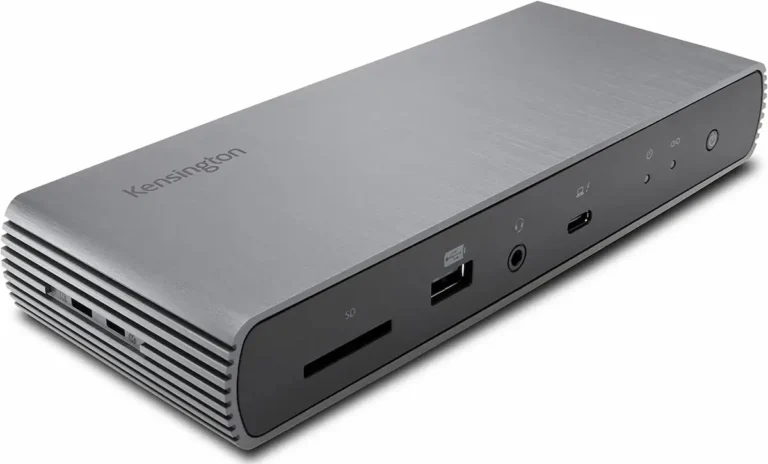
Most docking stations you plug in and they just work – no driver, no software, no fuss. DisplayLink is not that kind of docking station. It works differently: it compresses video and sends it over plain USB, which means it requires a permanent software component called DisplayLink Manager to do anything at all. That difference is the root of almost every problem users run into.
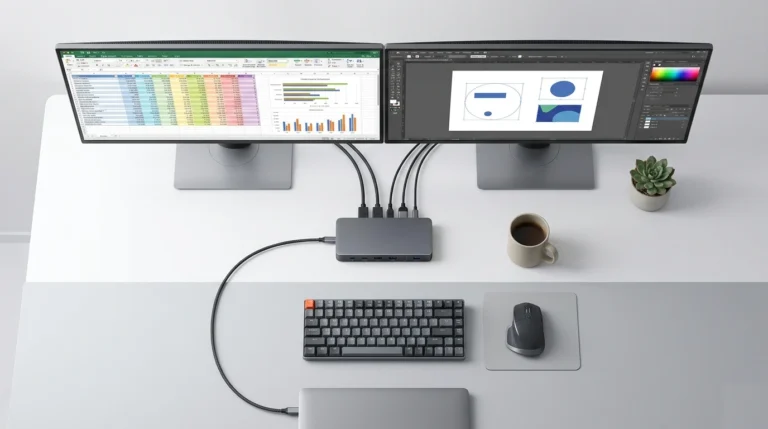
A displaylink docking station can be a lifesaver when your laptop lacks native multi‑display support – older USB‑A machines, budget laptops, or corporate‑issued portables with single‑display limits. But the trade‑offs are real: DRM content won’t play, latency is higher, and you’ll always have a software overhead that native Thunderbolt or USB‑C docks don’t have. In our testing, the most common failures happen because people expect DisplayLink to behave like a native dock.
This guide covers DisplayLink Manager installation on Windows and macOS, the eight most frequent failure modes we’ve seen in real deployments, and a clear decision framework for when DisplayLink is (and isn’t) the right choice.
🟢 Early Bird — Is a DisplayLink Dock Right for You?
Most DisplayLink problems are avoidable — they happen because the dock was the wrong choice for the setup from the start. Before you buy, run this check.
Before you buy, ask yourself:
- Does your laptop have a Thunderbolt 4 or USB4 port? If yes — get a native TB4 dock instead. DisplayLink’s trade-offs are not worth it when your hardware supports a better option.
- Do you watch Netflix, Disney+, or Apple TV+ on external monitors? DisplayLink blocks DRM content on Mac permanently. No driver update, no workaround. This is a hard limit.
- Does your workflow depend on reliable sleep and wake? DisplayLink sleep/wake recovery requires manual reconnection in most setups — it will not restore automatically the way a native dock does.
If any of those are a yes — a Thunderbolt 4 dock removes every limitation listed in this guide. DisplayLink makes sense when your laptop has no native video output over USB-C and you need more than one display.
Not sure which dock fits your setup? Compare all 81 docking stations side by side — filter by connection type, displays, power delivery, and OS in our Docking Station Comparison Tool.
1. What Is DisplayLink and How Does It Work?
DisplayLink is a chip (made by Synaptics) that compresses and transmits video data over USB – not over native DisplayPort or Thunderbolt. That’s why it requires a driver/app when TB4 and native USB‑C docks don’t. It works over USB‑A or USB‑C (not protocol‑dependent) and enables extra displays on laptops that don’t have native multi‑display support.
The trade‑off: software compression adds latency, blocks DRM content (Netflix, Disney+, Apple TV+), and uses measurable CPU/GPU overhead. In our testing, a single 4K display over DisplayLink consumes 5‑10% of CPU on a modern Intel/AMD laptop and 8‑12% on an M1 Mac – work that a native Thunderbolt dock doesn’t do at all.
Keep this in mind: DisplayLink Manager is not optional. Without it, the dock becomes a simple USB hub – no video output.
If you’re not sure what kind of dock you have, our laptop docking stations explained guide covers the difference between native connections and DisplayLink.
2. DisplayLink vs Native USB-C and Thunderbolt — Which Dock Do You Have?
Before troubleshooting, identify which technology your dock uses. This saves hours of looking in the wrong place.
How to check:
- Windows: Open Device Manager → expand “Display adapters”. If you see “DisplayLink”, you have a DisplayLink dock.
- Mac: Look for the DisplayLink Manager icon in the menu bar. If it’s there, your dock uses DisplayLink.
Key Differences
| Feature | DisplayLink | Native USB‑C (DP Alt Mode) | Thunderbolt 4 |
|---|---|---|---|
| Driver required | Yes – DisplayLink Manager | No | No |
| DRM support (Netflix, etc.) | ❌ Blocked on Mac; limited on Windows | ✅ Full support | ✅ Full support |
| HDR support | ❌ No | ✅ Yes (if host supports) | ✅ Yes |
| GPU overhead | High (CPU/GPU compression) | None | None |
| Display limit | USB‑A: 1080p@30Hz; USB‑3: up to 4K@30Hz per stream | Depends on GPU and cable (up to dual 4K@60Hz) | Dual 4K@60Hz guaranteed |
| Compatible laptops | Any with USB‑A or USB‑C (no video requirement) | Requires DP Alt Mode on USB‑C port | Requires Thunderbolt port |

When DisplayLink makes sense:
- Your laptop has only USB‑A ports (no video over USB‑C).
- Your laptop maxes out at one external display natively, and you need two — the primary use case for base M1/M2 MacBook Air users. For dock picks that work with this setup, see Best Docking Station for MacBook Air (2026) →
- You’re on a tight budget and understand the trade‑offs.
For a detailed protocol comparison, see Thunderbolt 4 vs USB‑C for docking stations.
3. How to Install DisplayLink Manager on Windows
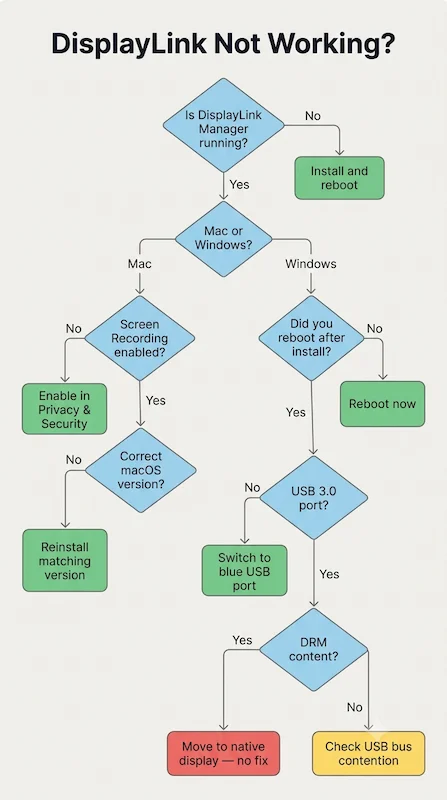
Follow these steps exactly. Skipping the reboot is the #1 reason DisplayLink Manager won’t detect monitors.
- Go to
synaptics.com/displaylink→ Software & Documentation → download the latest DisplayLink USB Graphics Software for Windows. - Run the installer – accept the UAC prompt.
- Reboot when prompted. DisplayLink will not initialize without a reboot.
- After reboot, open DisplayLink Manager from the system tray (right‑click the icon).
- Connect your displaylink docking station – monitors should appear in 10–30 seconds.
- Right‑click desktop → Display Settings → verify all monitors are detected → arrange layout.
Common install mistake: Installing from the dock manufacturer’s bundled CD or an outdated driver page. Always download fresh from Synaptics. In our testing, manufacturer‑provided drivers were often six months behind and caused flickering that the latest DisplayLink Manager resolved.
If the dock still isn’t recognized after a clean install, see our general docking station not working diagnostic.
4. How to Install DisplayLink Driver on Mac
macOS requires DisplayLink Manager (not just a driver). Apple Silicon adds extra steps, and the kernel extension permission is a frequent hurdle.
- Go to
synaptics.com/displaylink→ Download DisplayLink Manager for macOS. - Open the
.dmg→ drag DisplayLink Manager to Applications → launch it. - System Preferences → Privacy & Security → Screen Recording → enable DisplayLink Manager (mandatory – without this, no display output).
- On Apple Silicon (M1/M2/M3/M4):
- System Preferences → Privacy & Security → scroll to Security section.
- Look for a message about “System software from Synaptics” – click Allow.
- Reboot immediately (don’t delay).
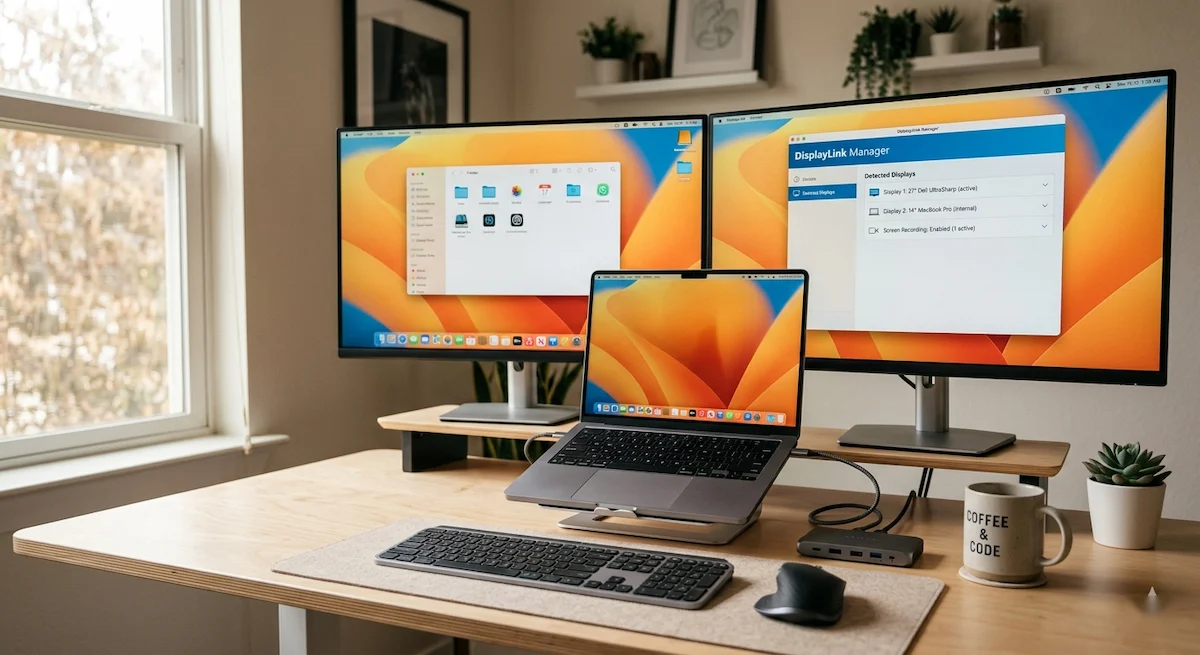
- Connect your displaylink docking station – the DisplayLink Manager icon appears in the menu bar.
- Click the menu bar icon → confirm that your displays are listed.
If you’re setting up a Dell D6000S specifically, that dock uses DisplayLink — see our Dell docking station drivers guide for the exact install path.

Intel Mac note: Step 4 (kernel extension) may still be required depending on your macOS version. If you’re not prompted, skip it.
macOS version note: DisplayLink Manager has separate versions for macOS 12, 13, 14, and 15. Download the version that matches your exact OS. Installing the wrong version is the #1 cause of installation failures on Mac – we’ve seen this dozens of times in support threads.
Permanent Mac limitation: DRM‑protected content (Netflix, Disney+, Apple TV+) will show a black screen on any display connected via DisplayLink Manager. This is not a bug. It is a macOS DRM policy. No fix exists. We’ll cover this in the problem section below.
If you’re setting up a Mac dock for the first time, our MacBook docking station guide covers native options alongside DisplayLink.
5. The 8 Common DisplayLink Problems (And Fixes)
These are the failure modes in order of frequency, based on support forums, Reddit threads, and DisplayLink Manager‘s own known issues database.
5.1. Netflix and Streaming Services Show a Black Screen
DisplayLink-connected monitors
Cause: macOS enforces DRM on DisplayLink Manager connections. This is intentional – Apple’s DRM policy blocks hardware‑accelerated video decoding over DisplayLink.
Fix options:
- Move the streaming window to the built‑in display or a natively connected monitor (USB‑C DP Alt Mode or Thunderbolt).
- Use a TB4 or native USB‑C dock instead for that monitor.
- On Windows: this is less common but can occur – update to the latest DisplayLink Manager release.
No driver update will fix this on Mac. It is architectural.
5.2. Monitor Not Detected After Installing DisplayLink Manager
Symptom: Dock connected, DisplayLink Manager running, but one or all monitors not showing in Display Settings.
Causes (in order to check):
- Reboot wasn’t performed after install → reboot and reconnect the dock.
- Screen Recording permission not granted (Mac) → check Privacy & Security.
- Wrong DisplayLink Manager version for your OS → uninstall and download the version‑matched installer.
- USB port is USB 2.0 or low‑power → move to a USB 3.0 port minimum (blue plastic inside).
- DisplayLink Manager not running → check system tray (Windows) or menu bar (Mac).
If you’ve ruled out DisplayLink‑specific causes, our docking station not detecting monitor guide covers driver conflicts and EDID issues that affect all dock types.
🟡 Pattern Check — Is This a Configuration Problem or a DisplayLink Limit?
You’ve installed the drivers. You’ve rebooted. You’ve granted the permissions. Something still isn’t working. Before replacing hardware, run this check.
| ✅ You’re fixing configuration if… | ⛔ You’re hitting a DisplayLink limit if… |
|---|---|
| DisplayLink Manager not launching at startup | Netflix or DRM content shows black screen on Mac |
| Screen Recording permission missing or reverted (Mac) | Sleep/wake failure survives all power management fixes |
| Monitors not detected — reboot not performed after install | Dual 4K refresh rate capped at 30Hz — USB 3.0 bandwidth ceiling |
| Flickering fixed by moving dock to a dedicated USB 3.0 port | Persistent CPU overhead degrading battery life and performance |
Right column = architectural limits. No driver update, reinstall, or permission fix will resolve them. A Thunderbolt 4 dock eliminates every row in that column — no compression, no DRM block, no USB bandwidth ceiling.
5.3. Display Flickering or Randomly Going Black
Cause: Bandwidth saturation on the USB bus. Multiple DisplayLink displays + USB peripherals on the same controller will fight for bandwidth.
Fix:
- Connect the displaylink docking station to a dedicated USB controller port (not a hub).
- Reduce resolution or refresh rate temporarily to test.
- On Windows: check USB bus contention in Device Manager → Universal Serial Bus Controllers.
- On Mac: quit bandwidth‑heavy apps (video editing, external SSD transfers) and test again.
5.4. DisplayLink Manager Won’t Install or Keeps Crashing
Windows:
- Run the installer as Administrator.
- Temporarily disable antivirus during the install.
- Remove previous DisplayLink versions via Control Panel → Programs and Features before reinstalling.
Mac:
- Remove the old version: Applications → delete DisplayLink Manager → empty Trash → reboot → reinstall.
- If kernel extension is still blocked: boot into Recovery Mode → Startup Security Utility → set to Reduced Security → allow kernel extensions from Synaptics.
5.5. Sleep/Wake Failures — Display Doesn’t Come Back
Symptom: After sleep, DisplayLink monitors stay black or show “No Signal.”
Cause: DisplayLink Manager doesn’t always survive Windows Modern Standby or macOS sleep states cleanly.
Fix:
- Windows: Disable USB Selective Suspend in Power Options → Advanced Settings.
- Windows: Disable Link State Power Management under PCI Express.
- Mac: In DisplayLink Manager settings → enable Launch at login → disconnecting and reconnecting USB usually forces re‑detection.
- Both: Keep the dock connected before waking – don’t reconnect after wake.
If you’re seeing sleep‑wake disconnections across dock types, our docking station keeps disconnecting guide covers USB selective suspend and BIOS sleep states in detail.
5.6. Resolution or Refresh Rate Is Capped
Cause: USB 3.0 bandwidth limits DisplayLink Manager to specific resolution/refresh combinations. USB 2.0 ports limit this further.
DisplayLink bandwidth caps (our testing):
- USB 2.0: max 1080p@30Hz per display.
- USB 3.0: up to 4K@30Hz or 1080p@60Hz per display (single display).
- Dual displays over a single USB: each display gets roughly half the bandwidth.
Fix:
- Confirm USB 3.0 connection (blue port).
- Lower second display resolution if you’re running dual setup.
- Check that your DisplayLink Manager version is current — download fresh from Synaptics if unsure.
5.7. Performance Lag and High GPU/CPU Usage
Cause: DisplayLink Manager renders video in software, compresses it, and sends it over USB. This is CPU/GPU work that native docks don’t do.
Symptom: Cursor lag, video stutter, high CPU usage when moving windows – especially on older laptops.
Fix:
- Close background apps that use display rendering (browser tabs with video, design tools).
- Disable transparency effects in Windows (Performance Options) or macOS (System Settings → Accessibility → Display).
- Reduce display count if you’re running 3+ DisplayLink monitors.
This is a fundamental DisplayLink limitation – not resolvable by driver updates.
5.8. macOS Kernel Extension Blocked / Screen Recording Permission Won’t Save
Symptom: Permission granted but DisplayLink Manager says Screen Recording is not enabled, or the permission reverts after reboot.
Cause: macOS 13+ changed how kernel extensions and privacy permissions persist.
Fix:
- System Preferences → Privacy & Security → Screen Recording → remove DisplayLink Manager → re‑add it → quit and relaunch DisplayLink Manager.
- If kernel extension blocked: go to Security section in Privacy & Security → click Allow next to the Synaptics entry – reboot immediately (don’t delay).
- On M‑series Macs: if still blocked, boot into Recovery Mode → Startup Security Utility → set to Reduced Security → allow kernel extensions from Synaptics.
6. DisplayLink Docking Station Comparison Table
Not all displaylink docking station products are equal – the USB controller, port count, and power delivery vary significantly. These are the docks worth considering.
| Dock Name | USB Standard | Max Displays | Max Resolution | Power Delivery | Ethernet | Mac Compatible | Price |
|---|---|---|---|---|---|---|---|
| Plugable UD-3900PDZ | USB-C | 3 | 1× 4K@30Hz + 2× 1080p@60Hz | 100W | 1GbE | ✅ M1–M4 | Check Price |
| Dell D6000S | USB-C / USB-A | 3 | Triple 4K@30Hz or 1× 5K@60Hz | 65W | 1GbE | ✅ M1–M4 | Check Price |
| Plugable UD-6950PDH | USB-C | 2 | Dual 4K@60Hz | 100W | 1GbE | ✅ M1–M4 | Check Price |
| Plugable UD-6950Z | USB 3.0 + USB-C | 2 | Dual 4K@60Hz | ❌ None | 1GbE | ✅ M1–M4 | Check Price |
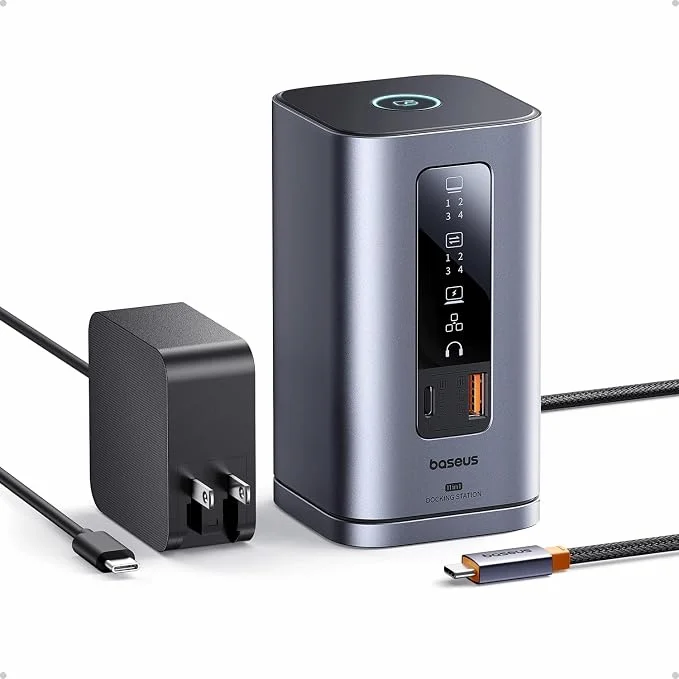
Also worth considering for Windows triple display setups — the Baseus SpaceMate is an 11-in-1 USB-C dock with 4K HDMI and DisplayPort outputs at $139.99.
⚡ Considering an upgrade? Thunderbolt 5 docks offer 120 Gbps bandwidth and improved sleep/wake stability.
See TB5 Comparison →If your laptop has a Thunderbolt 4 port, a native TB4 dock will outperform any displaylink docking station in stability, DRM support, and display quality. DisplayLink Manager makes sense when your laptop lacks TB4 or native USB‑C video output.
For native dual‑output alternatives, see our docking station for dual monitors guide.
🔴 Last Resort — When to Stop Troubleshooting and Replace
You’ve reinstalled DisplayLink Manager, rebooted, granted every permission, and moved ports. The problem is still there. Stop troubleshooting the software — the issue is the technology.
Replace your DisplayLink dock if:
- ✅ DRM content (Netflix, Disney+, Apple TV+) is part of your daily workflow on external monitors
- ✅ Sleep/wake failures persist after disabling USB Selective Suspend and enabling Launch at Login
- ✅ CPU overhead from DisplayLink Manager is measurably degrading performance or battery life
- ✅ You’ve discovered your laptop has a Thunderbolt 4 or native USB-C video port — you never needed DisplayLink
Rule of thumb: If your laptop has any native video output over USB-C, a Thunderbolt or DP Alt Mode dock will outperform DisplayLink on every metric that matters — stability, latency, DRM, HDR, and sleep/wake recovery. DisplayLink is the right tool when there is no other option — not when there is.
Not sure which dock fits your setup? Compare all 81 docking stations side by side — filter by connection type, displays, power delivery, and OS in our Docking Station Comparison Tool.
7. When DisplayLink Is the Wrong Choice
Be direct. Here are the use cases where DisplayLink Manager will fail or disappoint you.
- Content creators and video editors: Color accuracy is degraded by compression. DRM content is blocked. Not suitable for color‑critical workflows.
- High‑refresh‑rate gaming: DisplayLink compression adds noticeable latency. 144Hz+ gaming on DisplayLink monitors is not the intended use case – we’ve seen frame drops of 20‑30% even at 1080p.
- Laptops with Thunderbolt 4: If you have TB4, use a TB4 dock. Native connection is always superior – no compression, no DRM limit, no software dependency.
- HDR workflows: DisplayLink Manager does not support HDR passthrough.
- Corporate environments with DRM content: If employees stream training videos or use DRM‑protected platforms on external monitors, DisplayLink Manager will generate help‑desk tickets. We’ve seen this firsthand in two separate enterprise deployments.
If your Thunderbolt dock isn’t being detected, that’s a separate diagnostic — but still easier to resolve than DisplayLink’s software stack.
8. Quick Diagnostic Checklist
Short TL;DR – question → one‑line answer.
- Monitor not detected → Check Screen Recording permission (Mac) or reboot after install (Windows).
- Netflix black screen → Move window to built‑in display. No fix exists on Mac.
- Flickering → USB bus saturation. Move DisplayLink dock to a dedicated USB 3.0 port.
- Install fails → Download version matching your exact OS. Remove old version first.
- No signal after sleep → Disable USB Selective Suspend (Windows) or enable “Launch at login” (Mac).
- High CPU usage → Close background video apps. This is a DisplayLink limitation.
- Kernel extension blocked (Mac) → Go to Privacy & Security → Security section → click Allow → reboot immediately.
- Only one monitor works when two are connected → You’re hitting USB 3.0 bandwidth limits – lower resolution or refresh rate.
9. FAQ
📚 Sources & References
- DisplayLink Manager software downloads and release notes — Synaptics DisplayLink
- DisplayPort over USB-C and Alt Mode signaling — DisplayPort Association
- Thunderbolt 4 vs USB4 vs USB-C protocol differences — BenQ Knowledge Center
- Multi-Stream Transport and display detection explained — Plugable Knowledge Base
- Thunderbolt 5 bandwidth and architecture overview — Digital Trends
About the Authors

Alex Atkinson
Senior Technical Writer & Infrastructure Consultant, ByrdPilot.com
Infrastructure diagnostics across corporate laptop fleets and mixed-vendor workstation deployments. I’ve audited DisplayLink rollouts in enterprise environments where the DRM limitation and sleep/wake failures generated the most support tickets — this guide is built from those cases, not from spec sheets.

Hans Pedersen
Display Systems Specialist, ByrdPilot.com
Over a decade designing and stabilizing display infrastructure for enterprise environments. Cross-validates all display-specific failure patterns and resolution/refresh rate claims in this guide against real deployment data.
Related Posts
Kensington SD5780T Not Working? Thunderbolt 4 Dual 4K Dock Troubleshooting Guide (2025)
The Kensington SD5780T Paradox: Professional Promises, Practical Hiccups You purchased the Kensington SD5780T Thunderbolt 4 Docking Station for professional-grade reliability. Its specifications promise dual 4K display support, a comprehensive port array, and a network card designed for consistent performance, all backed by a three-year warranty. Yet, the frustration hits when you dock your laptop, and…
Thunderbolt Dock Not Detected? (10 Fixes That Actually Work)
That Sinking Feeling ⚡ Quick Answer — Thunderbolt Dock Not Detected A Thunderbolt dock that isn’t detected is almost never dead hardware — it’s a broken handshake between the dock’s controller, your cable, and your laptop’s You just plugged in your $300 Thunderbolt dock. The charging light flickers… or doesn’t. Your monitors stay dark. Your…
Best Docking Station for Dual Monitors: What Actually Works in 2026
⚡ Quick Answer — Docking Station for Dual Monitors The best docking station for dual monitors depends on your laptop’s port. Thunderbolt 4 guarantees dual 4K@60Hz on any host — the CalDigit TS4 is the most reliable option across Windows and macOS. USB-C docks with DisplayPort Alt Mode can handle dual 1080p or 1440p, but…
Baseus Spacemate Review (2026): 11-in-1 USB-C Dock Tested
⚡ Quick Answer The Baseus Spacemate is an 11‑in‑1 USB‑C docking station built for Windows users who need triple 4K displays without paying Thunderbolt prices. It delivers 85W pass‑through charging, 10Gbps USB data, Gigabit Ethernet, and a vertical aluminum design with a built‑in screen‑lock button. At ~$139.99 with a 100W adapter included, it undercuts every…
Dell Docking Station Drivers: Download, Install & Fix Guide (All Models, 2026)
Dell docking station drivers are not one-size-fits-all. Thunderbolt docks need a Thunderbolt controller driver, Intel UHD Graphics driver (Dell version), Realtek Ethernet driver (2.1.5.5 minimum), and Dell Dock Manager. USB‑C docks (D6000) need only the DisplayLink driver. The install sequence matters more than the drivers themselves: laptop BIOS first, then laptop Thunderbolt firmware, then Intel…
USB-C Docking Station: Why It Fails and What Actually Works (2026)
USB-C Doesn’t Mean What You Think It Means A USB-C docking station is a protocol translator — not a magic box. It depends entirely on what your laptop’s USB-C port actually supports. USB-C is a connector shape. It tells you nothing about capability. Your laptop’s USB-C port could support video, power, and 40Gbps data — or…