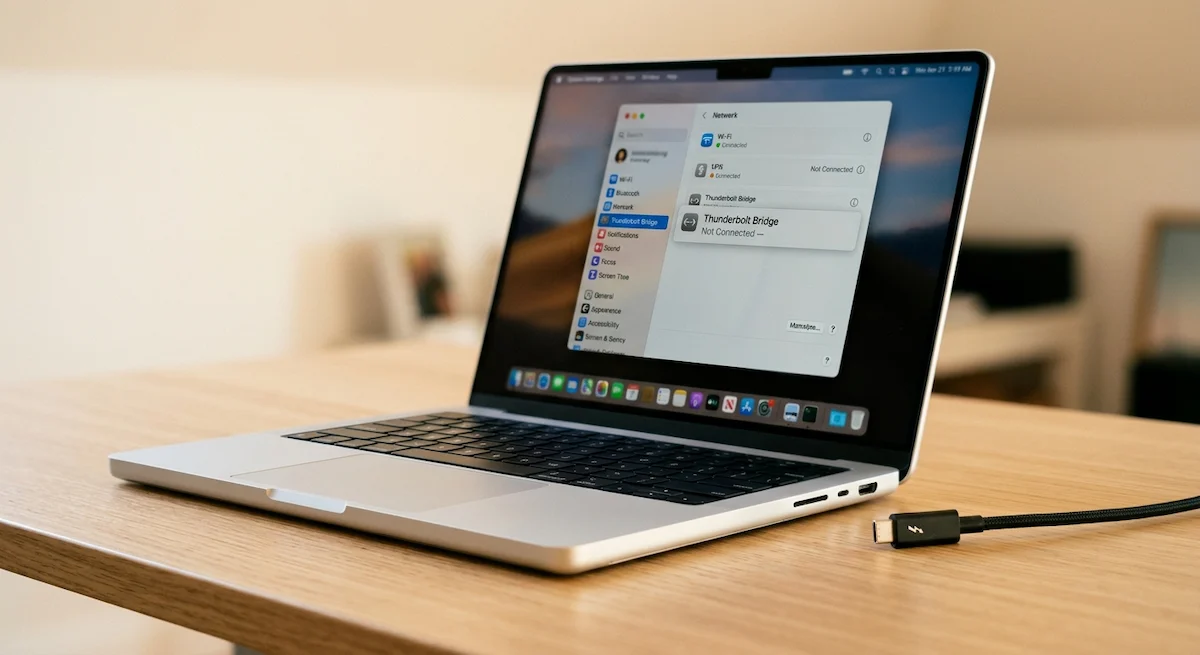
Thunderbolt Bridge Not Connected: How to Fix It (Mac & Windows)

⚡ Quick Answer — Thunderbolt Bridge Not Connected
Thunderbolt Bridge is a direct Mac‑to‑Mac (or Mac‑to‑Windows) network connection over a Thunderbolt cable. “Not Connected” means the cable isn’t detected, the network interface is disabled, or the driver is missing.
The fix: connect a certified Thunderbolt 3/4 cable (⚡ logo), wait 10 seconds, then go to System Settings → Network and enable the Thunderbolt Bridge interface. On Windows, open Device Manager → Network Adapters → enable “Thunderbolt(TM) Networking”. If the interface is missing entirely, add it manually via System Settings → Network → “…” → Add Service → Thunderbolt Bridge.
You opened Network settings looking for something else and found it:
Thunderbolt Bridge — Not Connected. Or you set it up last week, it
worked once, and now it doesn’t.
Either way, this isn’t a docking station problem. Thunderbolt Bridge
is a peer‑to‑peer network feature — it turns a Thunderbolt cable into
a direct high‑speed link between two computers. No monitors, no USB
hub, no dock. Just two machines and a cable. When it shows “Not
Connected,” the cable isn’t active, the interface got disabled, or the
driver dropped out.
Three causes. Most fixes take under two minutes.
1. What “Not Connected” Actually Means
When you see “Thunderbolt Bridge Not Connected” in your network settings, it means one of three things: no active Thunderbolt cable is plugged into both computers, the network interface has been disabled, or the driver is missing. This status has nothing to do with your Thunderbolt dock. If your dock isn’t working, see our Docking Station Not Working guide instead.
If your dock isn’t working, see our Docking Station Not Working guide instead.
2. Fix It in 5 Steps (HowTo Schema Trigger)
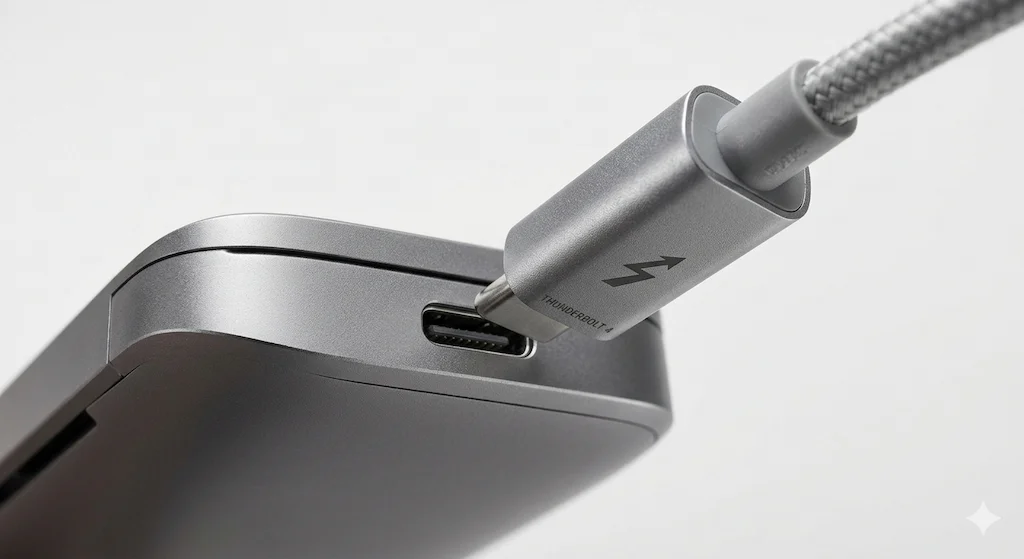
Step 1 – Use a certified Thunderbolt cable
Follow these steps in order. Most fixes happen at step 2 or 4.
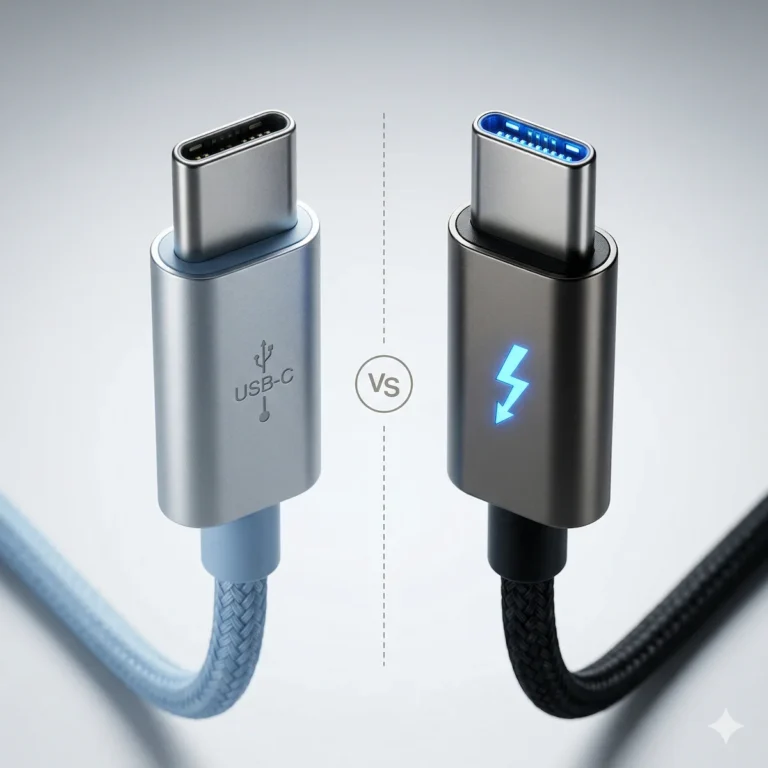
Not all USB‑C cables are Thunderbolt cables. You need a certified Thunderbolt 3 or 4 cable (look for the ⚡ logo). A standard USB‑C charging cable will not work – the interface won’t appear at all.
Step 2 – Fix Thunderbolt Bridge Not Connected on Mac
Open System Settings → Network. Look for Thunderbolt Bridge. If it shows Thunderbolt Bridge Not Connected, click it and wait 10 seconds – it may activate automatically. If it’s grayed out, click the “…” menu and select Make Service Active.
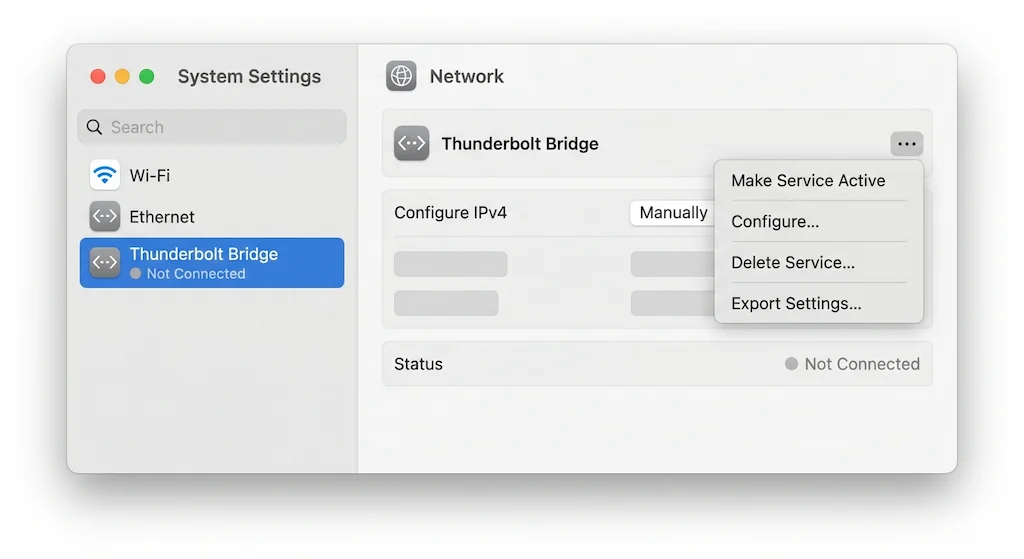
Step 3 – Connect the cable and wait
Plug the Thunderbolt cable into both computers. Wait 10 full seconds. The Thunderbolt Bridge interface should flip to “Connected” automatically. If not, proceed to step 4.
Step 4 – Add the interface if missing
On Mac: go to System Settings → Network → click the “…” menu → Add Service → Thunderbolt Bridge → Create. The interface will appear and should connect immediately.
Step 5 – Check Windows side
On Windows, open Control Panel → Network and Sharing Center → Change adapter settings. Look for Thunderbolt(TM) Networking. If it’s disabled, right‑click and enable it. If it’s missing entirely, you need to install the Thunderbolt driver from your laptop manufacturer’s support site.
3. Why Thunderbolt Bridge Not Connected Keeps Coming Back
- Cable fault – A marginal Thunderbolt cable will handshake but drop under load. Replace with a certified 40Gbps cable.
- macOS IP conflict – Both Macs may be trying to use the same self‑assigned IP. Renew DHCP lease: System Settings → Network → Thunderbolt Bridge → Details → TCP/IP → Renew DHCP Lease.
- Windows driver issue – Outdated Thunderbolt drivers or Windows Update overwriting them. Reinstall the latest Thunderbolt driver from your laptop OEM.
For Dell laptops specifically, our Dell Docking Station Drivers guide covers the exact install sequence.
4. When Thunderbolt Bridge Won’t Appear at All
If Thunderbolt Bridge is completely missing from Network settings:
- Interface was deleted – Add it back manually: System Settings → Network → “…” menu → Add Service → Thunderbolt Bridge.
- macOS permissions reset after update – A recent macOS update may have disabled Thunderbolt networking. Reboot both Macs. If still missing, check System Settings → Privacy & Security → Local Network → ensure apps have permission.
- Windows driver missing – Open Device Manager → expand Network Adapters. If “Thunderbolt(TM) Networking” is absent, download and install the Thunderbolt driver from your laptop manufacturer’s support site.
5. Thunderbolt Bridge vs Thunderbolt Dock — Are You Using the Right Thing?
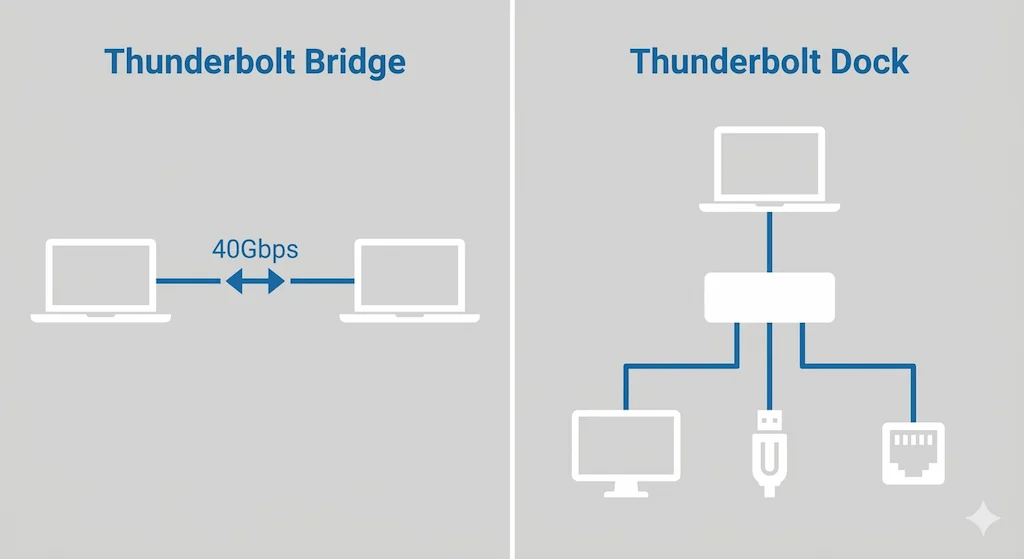
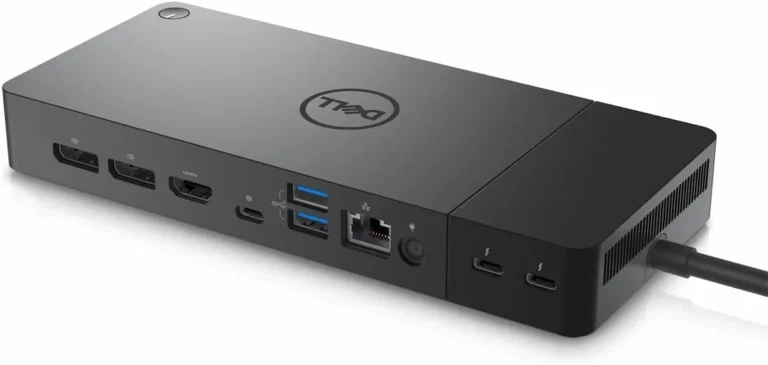
Thunderbolt Bridge is a direct computer‑to‑computer network connection. A Thunderbolt dock is for connecting monitors, USB devices, and charging your laptop. They are completely different features that happen to use the same cable.
If Thunderbolt Bridge Not Connected is not your issue and it’s your dock failing, if your Thunderbolt dock isn’t detecting monitors or keeps disconnecting, you’re in the wrong article. For dock issues, see our guides on Thunderbolt Dock Not Detected and MacBook Docking Station.
Looking for a Thunderbolt Dock?
Sources & References
- Apple Support — Use IP over Thunderbolt to connect Mac computers
- Plugable Technologies — USB4 vs Thunderbolt 4: Cable Certification Rules
- Plugable Technologies — What Is USB Power Delivery?
- DisplayPort Association — DisplayPort over USB-C
- Plugable Knowledge Base — MST Explained: Multi-Monitor Setups with Docking Stations

Alex Atkinson
Senior Technical Writer & Infrastructure Consultant
Alex has spent years diagnosing connectivity failures across corporate laptop fleets and mixed-vendor workstation deployments. His work focuses on the gap between how Thunderbolt is documented and how it actually behaves in production environments.