Best Docking Station (2026): Every Pick, Every Setup

BYRDPILOT BLUF: The 2025 Champions (and the 2026 TB5 Successors)
⚡ Quick Answer
Best Docking Station in 2026
The CalDigit TS5 Plus is the best docking station for most setups — Thunderbolt 5, 180W charging, triple 4K on Mac and Windows. For budget builds, the UGREEN Revodok Max 213 delivers Thunderbolt 4 at under $200.
- Best overall: CalDigit TS5 Plus — TB5, 180W, triple 4K on Mac and Windows
- Best Thunderbolt 5: Anker Prime TB5 — 14 ports, 140W, Mac-first
- Best for Mac: iVANKY FusionDock Max 2 — dual TB4 uplinks, triple displays on Apple Silicon
- Best for Windows: Kensington SD5780T — TB4, enterprise-grade reliability
- Best value TB4: UGREEN Revodok Max 213 — TB4, 2.5GbE, dual 4K, under $200
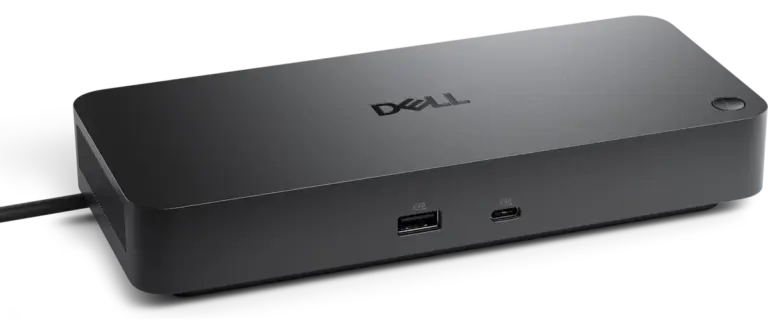
- Best for Dell: Dell WD22TB4 — TB4, native Dell compatibility, 130W
- Best travel: Anker 555 — USB-C, 8 ports, 100W passthrough
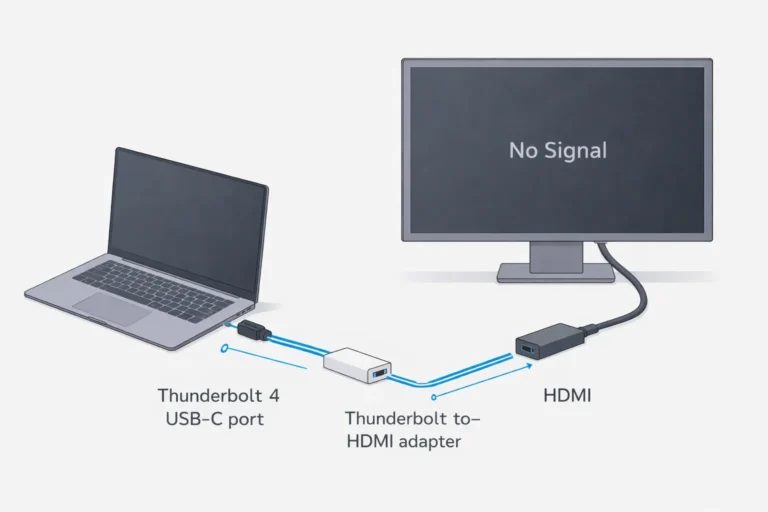
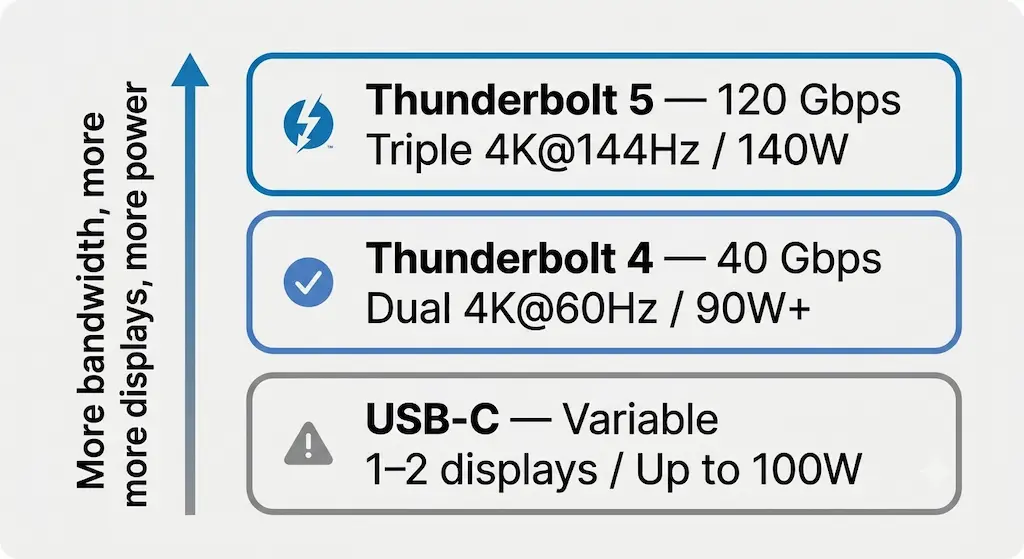
Protocol is the most important spec. If your laptop has a Thunderbolt port, buy a Thunderbolt dock — USB-C docks on a Thunderbolt port underperform.
Most docking station guides give you a ranked list and call it done. This one maps every pick to a specific setup — so you don’t buy the wrong thing.
We’ve tested over 70 docking stations across six years of covering this category. The best docking station for you isn’t the same as the best for someone else. Protocol, display count, and charging wattage matter more than port count.
This guide covers eight real picks for eight real setups. No filler.
2026 Reality Check: Thunderbolt 5 Is Here
Thunderbolt 5 docks are beginning to enter the market with 80–120Gbps bandwidth and up to 140W charging. They offer more headroom for multi-display and high-refresh setups — but they are expensive, ecosystem-dependent, and not yet universally deployed.
For most professionals in 2025, a well-engineered Thunderbolt 4 dock still represents the most stable price-to-performance ratio.
This guide separates hype from practical deployment reality.
The Best Docking Stations in 2026
🍎 Mac users: Check your chip before buying.
Not every dock works with every Mac chip. Your display limit is set by Apple — no dock can exceed it. Find your chip in Apple menu → About This Mac, then match it below.
| Your Chip | External Display Limit | What to Buy |
|---|---|---|
| M1 / M2 / M3 (base) | 1 external display | Any dock — display limit is Apple, not the dock |
| M1 Pro / M2 Pro / M3 Pro | 2 external displays | CalDigit TS4, TS5 Plus, Kensington SD5780T |
| M1 Max / M2 Max / M3 Max | 3–4 external displays | iVANKY FusionDock Max 2, CalDigit TS5 Plus |
| M4 (base) | 1 external display | Any dock — display limit is Apple, not the dock |
| M4 Pro | 3 external displays | CalDigit TS5 Plus, Anker Prime TB5 |
| M4 Max / M1 Ultra / M2 Ultra | 4–5 external displays | iVANKY FusionDock Max 2, CalDigit TS5 Plus |
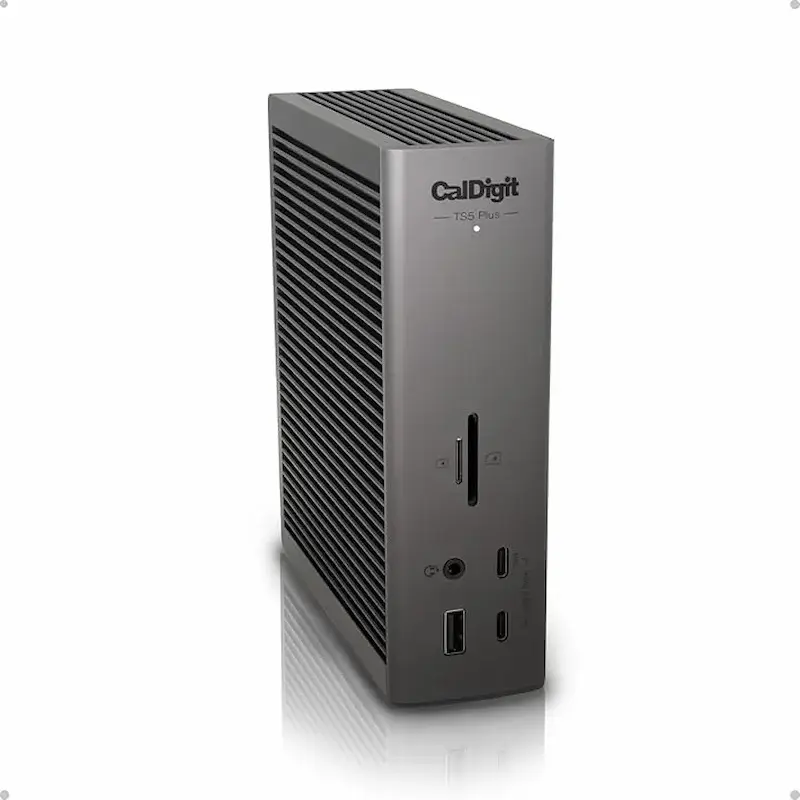
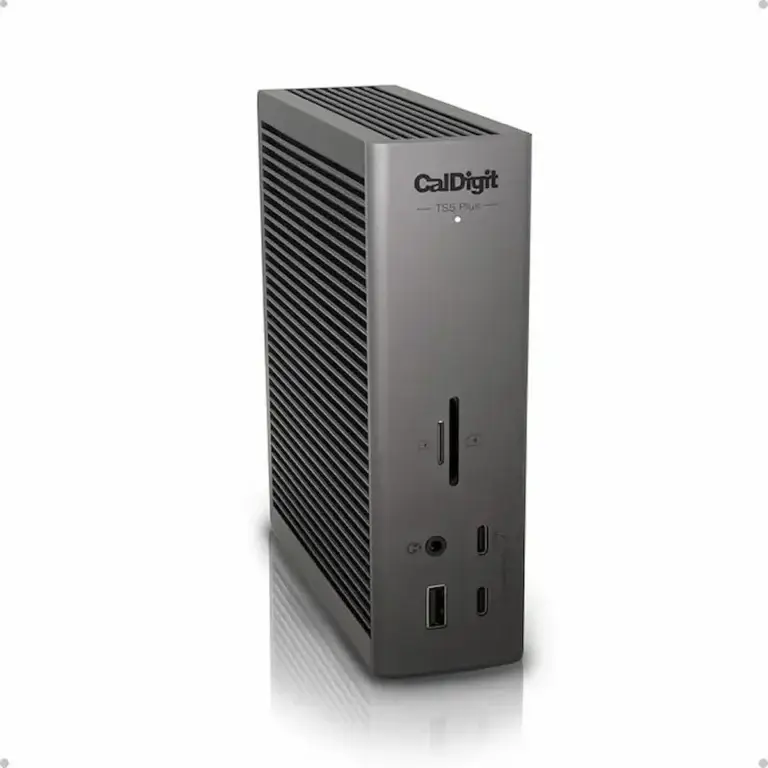
CalDigit TS5 Plus
CalDigit · Thunderbolt 5 · Mac + Windows
✦ Best for: Power users who want to buy once.
Thunderbolt 5. 180W charging. Handles triple 4K displays on Mac and Windows without adapters. The pick if you want one dock that lasts through the decade. Only limitation: premium price.
Display support: Triple 4K@144Hz on Windows; dual 8K@60Hz. Native on both Mac and Windows — no adapters, no workarounds.
available at amazon →Verdict: The dock for users who buy once and never look back — handles any setup Mac or Windows throws at it.

CalDigit TS4
CalDigit · Thunderbolt 4 · Mac + Windows
✦ Best for: Users who want proven TB4 reliability without paying TB5 prices.
The most reliable Thunderbolt 4 dock ever made. 18 ports, 2.5GbE, 98W charging. When someone asks which TB4 dock to get, this is the answer everyone gives — and has given for three years.
Display support: Dual 6K@60Hz on M1/M2/M3 Pro and Max; dual 4K@60Hz on Windows and Intel Mac; single display only on base M1/M2/M3.
available at amazon →Verdict: The TB4 gold standard — if TB5 isn’t in your budget, this is where to stop.
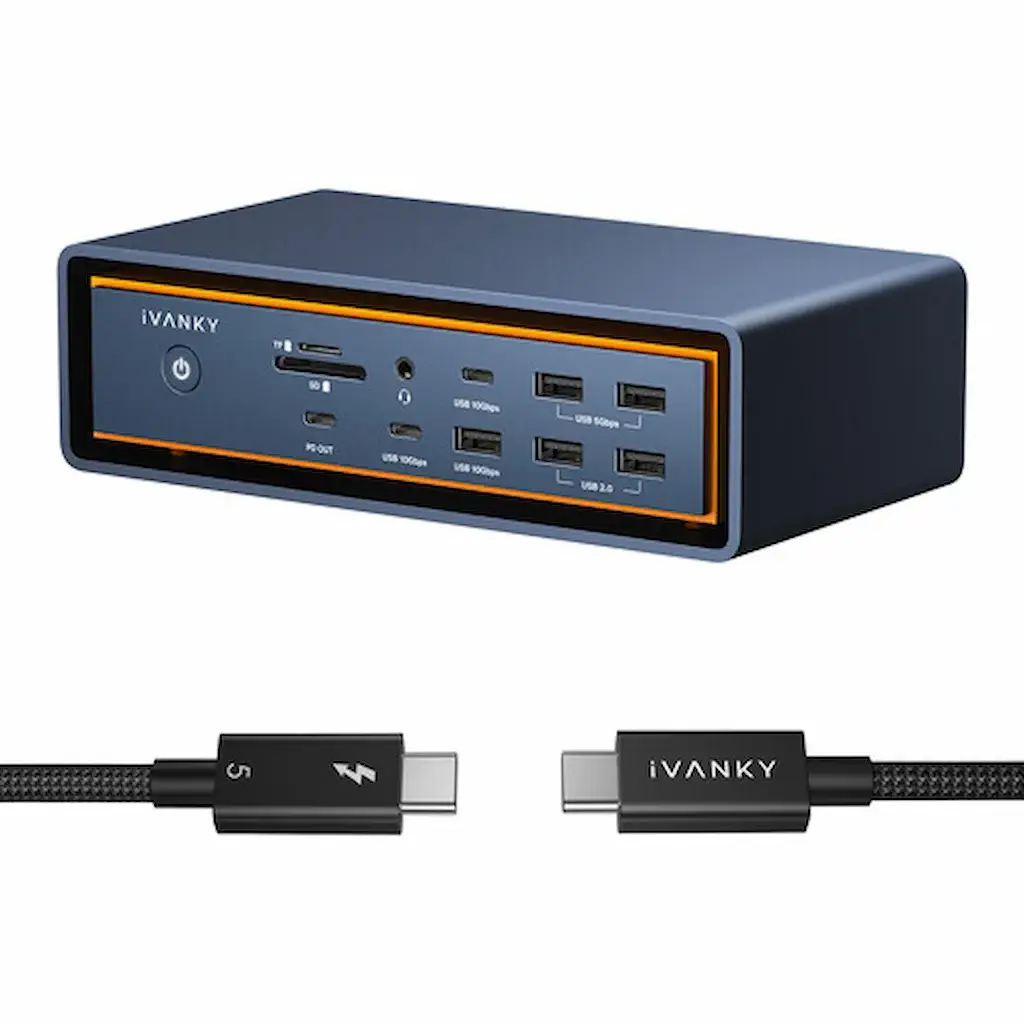
iVANKY FusionDock Max 2
iVANKY · Thunderbolt 5 · Mac Only
✦ Best for: Mac users who need triple displays without workarounds.
Thunderbolt 5, built for Apple Silicon. Drives triple displays — Dual 6K + Single 4K — on M-series Mac without workarounds or DisplayLink drivers. Mac only. If that’s your setup, nothing beats it.
Display support: Dual 6K + Single 4K on Apple Silicon Mac (M-series). Not compatible with Windows.
available at amazon →Verdict: Mac-only, zero compromise — the only dock that extracts full triple-display potential from Apple Silicon.
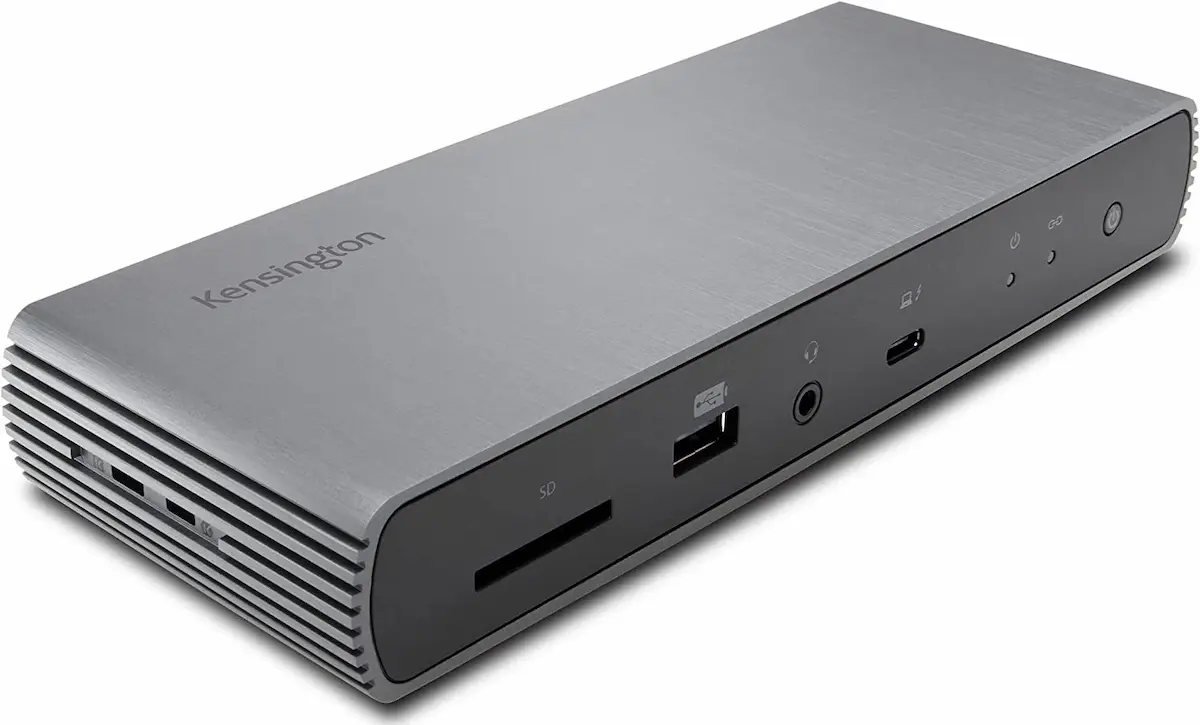
Kensington SD5780T
Kensington · Thunderbolt 4 · Windows-First
✦ Best for: Windows laptops in daily enterprise use.
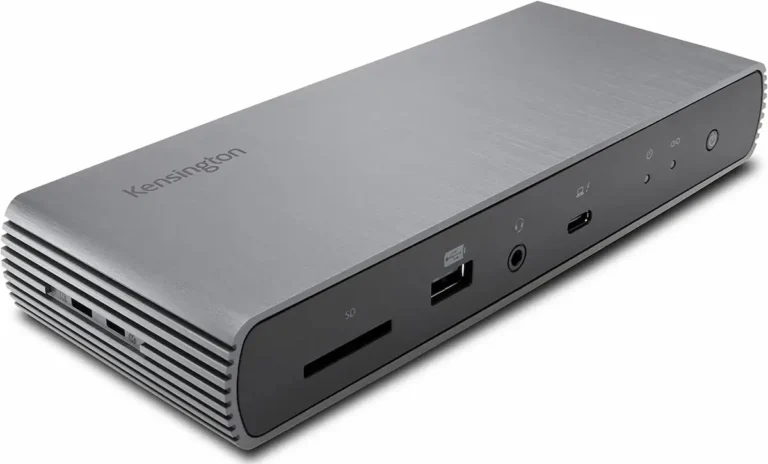
Thunderbolt 4, enterprise-grade build, 96W charging. Reliable across docked and undocked cycles in ways cheaper docks aren’t. Dell and Lenovo enterprise users trust this dock for a reason.
Display support: Dual 4K@60Hz on Windows and Mac. Excellent detection reliability across Lenovo and Dell ThinkPad/Latitude fleets.
available at amazon →Verdict: Enterprise TB4 reliability — the dock your IT department would approve without a second thought.
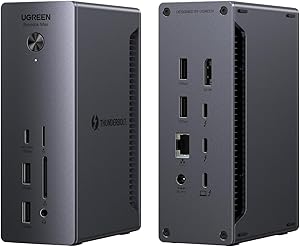
UGREEN Revodok Max 213
UGREEN · Thunderbolt 4 · Windows + Mac (limited)
✦ Best for: Anyone who wants Thunderbolt 4 without paying TB5 prices.
Gets you TB4 bandwidth, 2.5GbE, and dual 4K at under $200. Passive cooling runs warm under heavy load but doesn’t throttle in typical office conditions.
Display support: Dual 4K@60Hz on Windows and M1 Pro/Max. Base M1/M2/M3 limited to single display.
available at amazon →Verdict: The best Thunderbolt 4 dock under $200 — thermal limits are real but won’t affect typical office workloads.
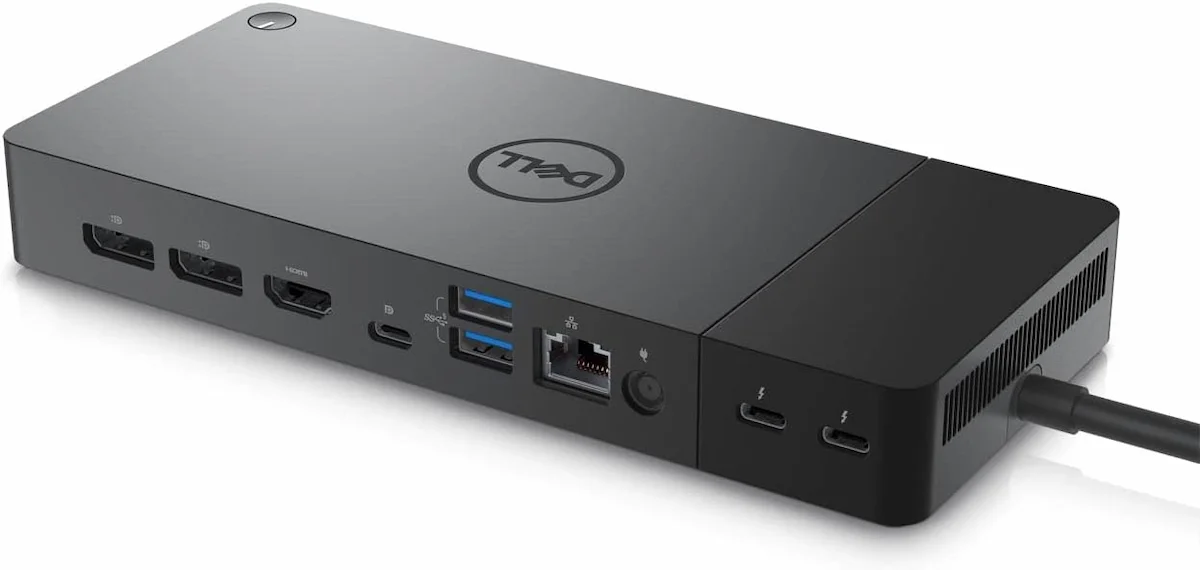
Dell WD22TB4
Dell · Thunderbolt 4 · Dell Ecosystem
✦ Best for: Dell laptop owners who want zero compatibility friction.
Thunderbolt 4. Designed by Dell for Dell. No driver headaches, guaranteed compatibility with Latitude and XPS, Dell’s own support behind it. The intelligent choice if your fleet is Dell.
Display support: Up to 4 displays on compatible Dell hardware; dual 4K@60Hz typical. macOS not in Dell’s official support list.
available at amazon →Verdict: If your laptop is Dell, buy the Dell dock — skip the compatibility guesswork entirely.
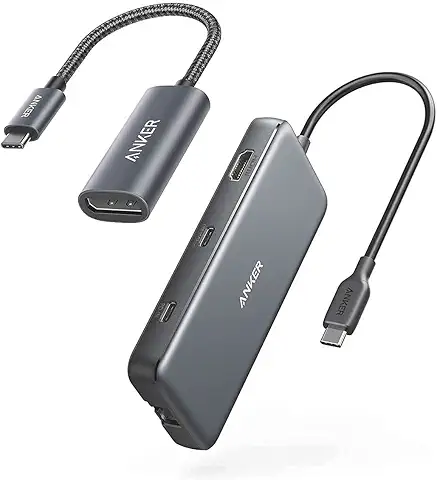
Anker 555
Anker · USB-C · Travel
✦ Best for: Frequent travelers who need a carry-on secondary setup.
USB-C, 8 ports, folds flat. Not a replacement for a desk dock — it’s a carry-on companion. Handles dual 1080p displays, 85W passthrough. Pack it, use it, forget about it.
Display support: Single 4K@60Hz or dual 1080p@60Hz. Lightweight USB-C — works on any laptop with a USB-C port.
available at amazon →Verdict: Not a desk replacement — a carry-on companion that earns its place in your bag every trip.
Best Docking Station for Your Specific Setup
Not every setup is the same. These guides go deeper on each specific use case.
Best Docking Station for Multiple Monitors
If running two or three screens is the priority, display bandwidth is the only spec that matters. This guide ranks every dock by actual display output — including MST limitations most reviewers skip.
Full Guide →
Best Docking Station for MacBook Pro
M3 Pro, M4 Pro, M4 Max all have different display limits. This guide maps every current MacBook Pro chip to the dock that extracts its full potential.
Full Guide →
Best Docking Station for MacBook Air
MacBook Air supports one external display over USB-C — this guide covers the docks that work within that limit and when a DisplayLink adapter actually makes sense.
Full Guide →
Best Anker Docking Station
Anker makes seven docking stations across Thunderbolt 5, Thunderbolt 4, and USB-C. This guide ranks all seven and explains which tier is worth paying for.
Full Guide →
How to Choose a Docking Station
Criterion 1 — Protocol
Thunderbolt 5 > Thunderbolt 4 > USB4 > USB-C. The protocol determines your bandwidth ceiling. If your laptop has a Thunderbolt 4 or 5 port, buy a Thunderbolt dock. USB-C docks on a Thunderbolt port will work but underperform.
Criterion 2 — Display count and resolution
Know what your laptop’s chip actually supports before buying. A dock can’t exceed your laptop’s display output limit. Check: how many external displays does your specific chip support, at what resolution?
Criterion 3 — Charging wattage
Match the dock’s power delivery to your laptop’s wattage requirement. Most modern laptops need 90–140W. Underpowered charging means your laptop drains under load even while docked.
Docking Station Comparison
This table compares every pick side‑by‑side. Look for your protocol, display count, and charging wattage. The grid above has the full verdicts — this is the data to validate your choice.
| Dock | Protocol | Max Displays | Charging | Best For | Price Tier | |
|---|---|---|---|---|---|---|
| CalDigit TS5 Plus | TB5 | Triple 4K@144Hz | 180W | Power users | Premium | Check Price → |
| CalDigit TS4 | TB4 | Dual 4K | 98W | TB4 reliability | Mid-High | Check Price → |
| iVANKY FusionDock Max 2 | TB5 | Triple (Mac) | 140W | Mac triple display | Premium | Check Price → |
| Kensington SD5780T | TB4 | Dual 4K | 96W | Windows enterprise | Mid-High | Check Price → |
| UGREEN Revodok Max 213 | TB4 | Dual 4K | 90W | Budget TB4 | Mid | Check Price → |
| Dell WD22TB4 | TB4 | Dual 4K | 130W | Dell fleet | Mid | Check Price → |
| Anker 555 | USB-C | Single 4K | 85W | Travel | Entry | Check Price → |
Frequently Asked Questions
Why You Can Trust This Guide

Alex Atkinson
Docking Infrastructure Specialist
Over six years testing more than 70 docking stations across Thunderbolt 5, Thunderbolt 4, USB4, and USB-C. Every pick in this guide has been verified against manufacturer specs and real-world use. No press releases. No speculation. Just what works.