Thunderbolt Daisy Chaining Not Working? The Complete Diagnostic Guide (2025)

The Daisy Chain Myth: Why “It Should Work” Is a Lie
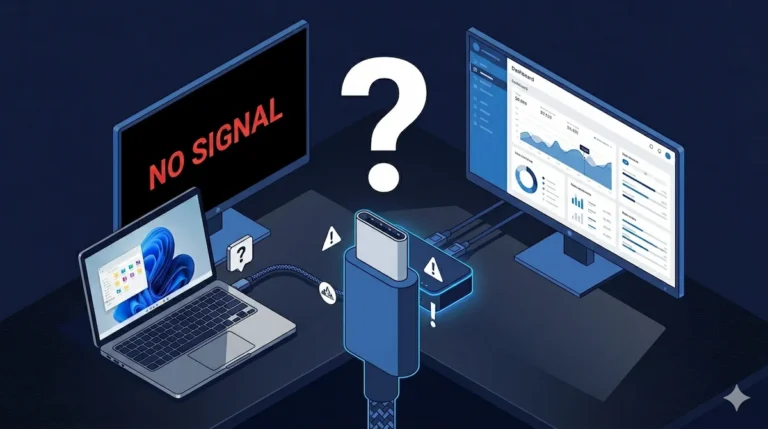
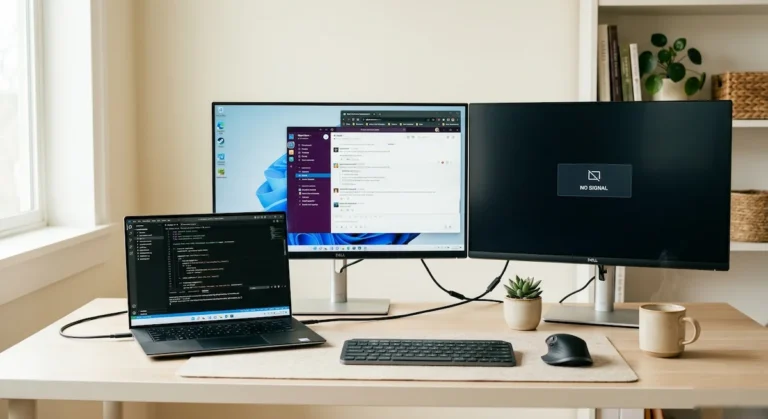
You saw the clean setup: a single cable from your laptop to the first monitor, with a second display magically daisy-chained from it. The promise is a cable-free, minimalist dream. The reality is often a second monitor that remains stubbornly black, a system that crashes on wake from sleep, or a frustrating error message about “bandwidth limitations.” Your frustration is compounded by the fact that everything is supposedly “Thunderbolt” certified—it should just work.
Here’s the hard truth that cuts through the marketing: Thunderbolt daisy chaining is not a universal plug-and-play feature. It is a precise protocol with strict requirements, and its failure is almost never random. In my work as an IT infrastructure consultant, I’ve seen this “dream setup” fail in a boutique design studio, where artists spent days trying to get two Pro Display XDRs to talk to each other, and in a financial office where a critical trading monitor would vanish after lunch. The issue was never a defective product; it was a mismatch between expectation and the rigid reality of the Thunderbolt protocol.
At this point, most users are not dealing with a broken setup—they are running into the structural limits of daisy chaining itself. When the expectation of “it should just work” collapses, the real decision becomes whether daisy chaining is even the right architecture for the job. Our system-level breakdown in Daisy Chain Monitors Explained shows when troubleshooting stops making sense and when switching to a docking station becomes the only reliable fix.
This guide is not a tutorial on how to daisy chain. It is a diagnostic manual for when it fails. We will dissect the precise reasons your Thunderbolt daisy chain is not working, moving beyond generic advice to layer-by-layer analysis. By understanding the “why,” you can implement the correct fix and decide if daisy chaining is even the right tool for your job.
How Thunderbolt Daisy Chaining Actually Works (In 90 Seconds)
To diagnose a failure, you must understand the rules. Forget “it’s like a chain of Christmas lights.” A Thunderbolt daisy chain is a high-speed network where each device is a node.
Here are the non-negotiable rules:
- The Host is the Controller: Your laptop (or a true Thunderbolt dock) is the “host.” It manages the entire chain. A standard USB-C port cannot do this.
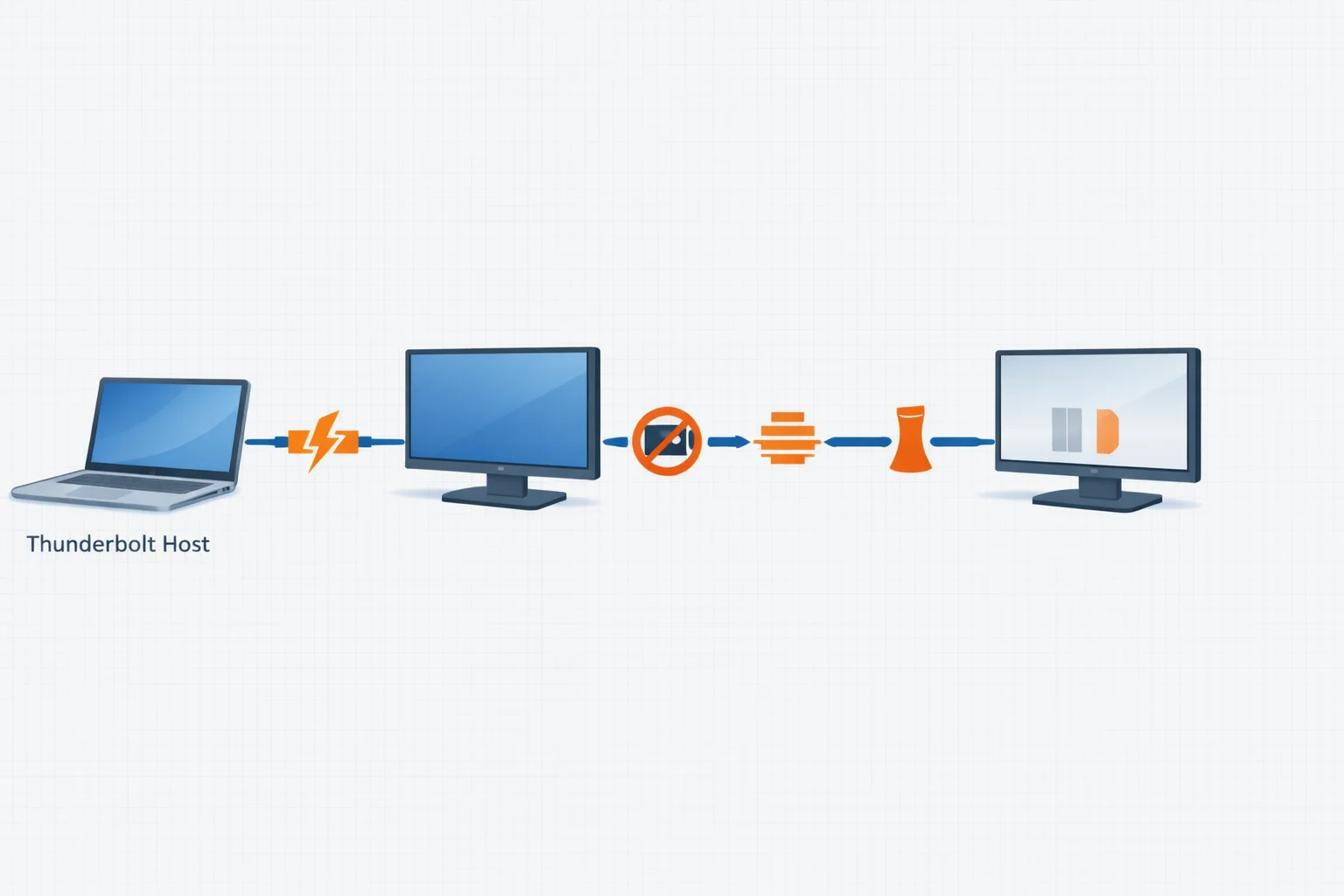
- True Thunderbolt Displays Only: Every monitor in the chain must have a Thunderbolt IN port and a Thunderbolt OUT port. A monitor with only a USB-C (DisplayPort Alt Mode) port breaks the chain. This is the single most common point of failure.
- Bandwidth is Shared, Not Duplicated: All data for every device in the chain—video, data for hard drives, network—travels through the first cable. Two 4K displays consume most of the available bandwidth, leaving little room for anything else.
- The Chain Must Be Terminal: The last device in the chain should not have anything plugged into its downstream Thunderbolt port (or it must be explicitly set to “PC Mode”).
For a deeper dive into the underlying technology that makes this possible, our guide on USB-C vs Thunderbolt explains the critical protocol differences.
The 7 Real Reasons Your Daisy Chain is Failing
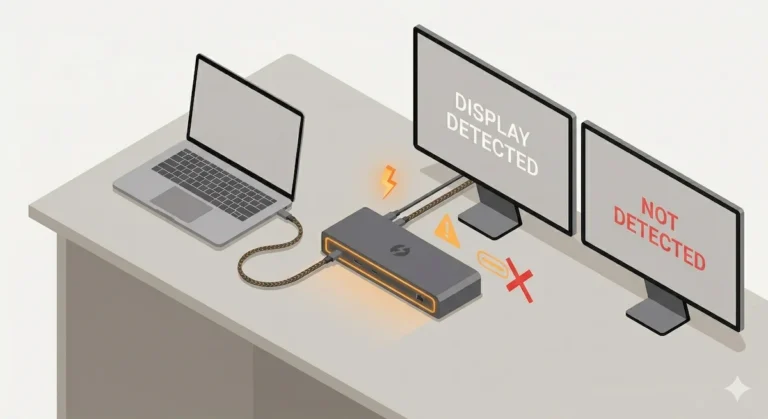
Before diving into each reason, this diagnostic diagram visualizes the critical points of failure in a typical daisy chain. The problem is almost always at one of these precise points in the chain.
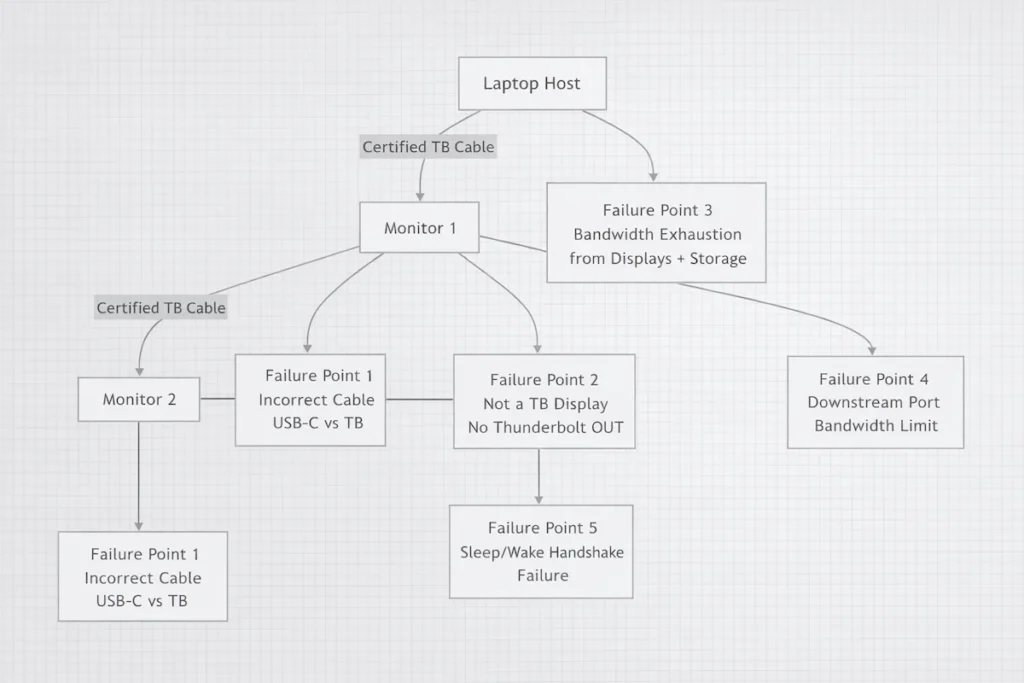
Based on aggregated troubleshooting logs from IT forums, professional AV installs, and my own client tickets, here are the seven concrete reasons a daisy chain fails.
1. Monitor is Not a True Thunderbolt Display
The Symptom: The first monitor works, but the second monitor is not detected in the daisy chain. The chain stops dead.
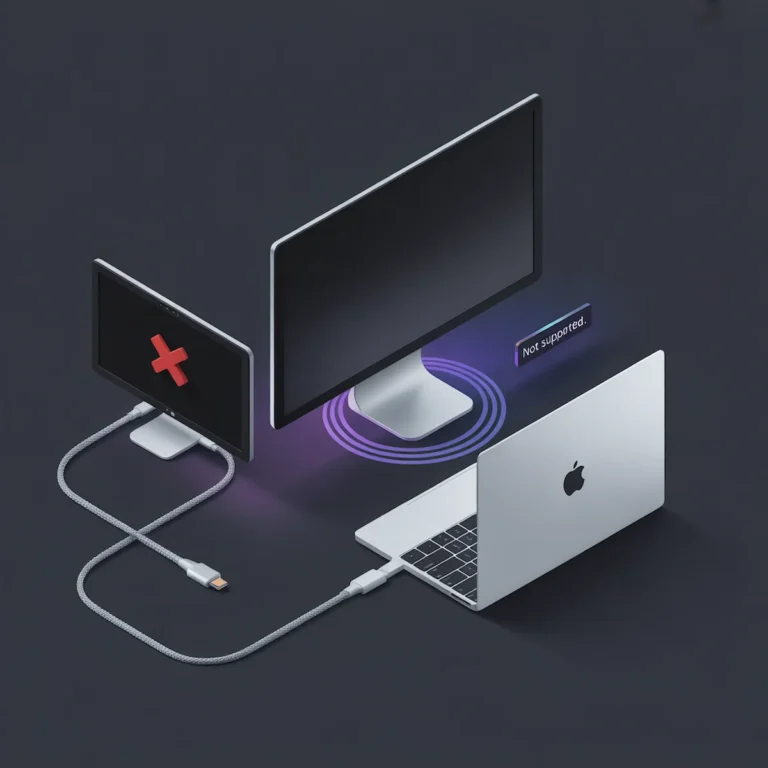
The Diagnosis: You are likely using a monitor with a USB-C (DisplayPort Alt Mode) port, not a Thunderbolt port. They look identical but are electrically different. A USB-C monitor cannot read the Thunderbolt packet data to “pass it on.”
The Fix: Check your monitor’s specs for “Thunderbolt 3” or “Thunderbolt 4” support, not just “USB-C with DisplayPort.” If it’s only USB-C, it can only be the last device in the chain, connected directly to a Thunderbolt port on your computer or dock. You cannot daisy chain from it.
This change integrates the natural language query “second monitor not detected daisy chain” seamlessly into the existing technical explanation, aligning with user search intent without disrupting the flow.
2. Bandwidth Exhaustion (The Silent Killer)
The Symptom: Both monitors work at lower resolutions (e.g., 1080p), but when set to 4K, the second one flickers, disconnects, or the entire chain becomes unstable. Adding a fast SSD makes it worse.
The Diagnosis: You have hit the total bandwidth limit of the Thunderbolt link (40 Gbps for TB3/TB4). A single 4K@60Hz display uses about 12-15 Gbps. Two of them use nearly the entire bandwidth, leaving no stable overhead for the protocol itself or other data. This is why a daisy chain can appear stable at first, then fail the moment you add HDR, a higher refresh rate, or a fast external drive.
The Fix: Lower the refresh rate (try 4K@50Hz or 30Hz) or resolution on one or both displays. Alternatively, use a docking station with DisplayPort MST (Multi-Stream Transport) to drive multiple monitors from a single port without consuming the entire Thunderbolt data pipe. Docks like the CalDigit TS4 are engineered to manage this complexity.
3. Wrong Cable in the Chain
The Symptom: Intermittent black screens, sparkles (visual artifacts), or the chain only works when cables are wiggled or in a specific order.
The Diagnosis: Not all USB-C cables support Thunderbolt 3/4. You must use a certified Thunderbolt cable (40Gbps) for every link between Thunderbolt devices. Passive 40Gbps cables have a maximum length of 0.8m; beyond that, you need an active cable, which is more expensive.
The Fix: Use only cables marked with the Thunderbolt (⚡) symbol. For a reliable daisy chain, I keep a stash of 0.5m and 0.8m certified Thunderbolt 4 cables for client deployments. Never assume a “USB4” or “100W PD” cable is sufficient for a stable chain.
4. Dock Downstream Port Limitations
The Symptom: Your docking station works perfectly, but nothing connected to its downstream Thunderbolt port is detected when monitors are also connected.
The Diagnosis: Many docks share bandwidth and controller resources between their internal display outputs and their downstream Thunderbolt port. The Kensington SD5780T, for example, may not reliably support a full monitor daisy chain from its downstream port while its own HDMI/DP ports are in use. This is a design limitation, not a defect.
The Fix: Consult your dock’s manual. Often, the rule is: use the dock’s built-in ports for displays, or use its downstream port for a daisy chain, but not both simultaneously. For complex setups, a dock like the CalDigit TS4 is built to handle these aggregated loads.
5. Sleep / Wake Handshake Failure
The Symptom: The daisy chain works perfectly on a fresh boot, but after the computer sleeps, one or all monitors fail to wake up, requiring a reboot.
The Diagnosis: The Thunderbolt controller and display drivers enter a low-power state. Waking up requires every device in the chain to re-negotiate its connection in the correct sequence. A single slow or incompatible device can stall the entire process.
The Fix (macOS): Try disabling “Prevent automatic sleeping on power adapter when the display is off” in Energy Saver settings. For a client with chronic wake issues, we solved it by creating a simple shortcut that put the displays to sleep without letting the Mac enter a deep sleep state.
The Fix (Windows): In Device Manager, under “System devices,” find your Thunderbolt controller. In its Properties, under the Power Management tab, uncheck “Allow the computer to turn off this device to save power.”
6. macOS vs Windows Protocol Handling
The Symptom: A daisy chain setup works flawlessly on a MacBook Pro but behaves erratically or isn’t detected on a Windows laptop (or vice-versa).
The Diagnosis: Apple’s tightly integrated hardware/software stack often handles Thunderbolt enumeration more seamlessly. Windows, with its myriad of OEM Thunderbolt firmware implementations and driver stacks, can be inconsistent. Some Windows laptops have BIOS options that restrict Thunderbolt functionality.
The Fix: On the Windows laptop, enter the BIOS/UEFI (F2/Del during boot) and ensure Thunderbolt/USB4 is enabled, and any “security level” is set to “No Security” or “User Authorization” for testing. Also, install the latest Thunderbolt drivers directly from your laptop manufacturer’s support page, not just the generic Windows drivers.
7. Mixed USB-C + Thunderbolt Chain
The Symptom: You connect a Thunderbolt dock, then a USB-C hub, then a monitor. Only the dock works.
The Diagnosis: Thunderbolt is backward compatible with USB-C, but USB-C is not forward compatible with Thunderbolt. Once you insert a USB-C only device (like most hubs) into a Thunderbolt daisy chain, the chain converts to a USB-C connection from that point forward. Downstream Thunderbolt devices will not be recognized.
The Fix: You cannot mix and match. The entire chain from the host to the last device must be Thunderbolt. Place all USB-C-only devices at the very end of the chain or connect them to a USB-A or USB-C port on a Thunderbolt dock that is already in the chain. This is why the Anker 777, with its clear port differentiation, avoids this confusion.
Brand-Specific Daisy Chain Behavior
Not all Thunderbolt devices are created equal. Your success with a daisy chain heavily depends on the host dock’s design philosophy.
| Brand / Model | Daisy Chain Philosophy | Known Quirks & Best Practice |
|---|---|---|
| CalDigit TS4 | The Power User’s Choice. Excellent downstream Thunderbolt port with robust bandwidth management for complex chains. | As covered in our CalDigit TS4 guide, its complexity means firmware updates are sometimes critical for stability. Best for: Users who need to connect storage arrays and displays in a chain. |
| Kensington SD5780T | Stable but Limited. The downstream port shares resources. Prioritizes stability of its own ports. | As per our Kensington troubleshooting guide, don’t expect to run a display chain from this dock while using its HDMI/DP ports. Use it as the chain’s endpoint. |
| Anker 777 | Conservative and Predictable. Engineered for reliability in standard setups, not edge-case chains. | Its “stability-first” design, detailed in our Anker 777 guide, means it may not aggressively negotiate complex chains. It will fail safe rather than push limits. |
| UGREEN Revodok | Aggressive on Paper. Supports the feature but may be susceptible to thermal or bandwidth throttling under full load. | Under sustained load driving a high-resolution chain, heat can cause instability. Ensure good ventilation. Check our Ugreen Revodok ultimate guide. |
The Professional Reality: If your setup requires absolute predictability across sleep cycles and mixed workloads, a dedicated dock is usually the more reliable architecture than a pure display daisy chain. The internal switching of a high-quality docking station simply handles the complexity better for daily use.
Daisy Chaining vs Docking: When You Should Stop Trying
Daisy chaining is elegant when it works, but it’s a specialist tool. You should consider a high-quality docking station instead if:
- You have even one monitor without a Thunderbolt OUT port.
- You need to connect multiple high-speed devices (NVMe drives, 10GbE) alongside dual 4K+ displays.
- You require absolute, reliable wake-from-sleep behavior.
- Your setup changes frequently (you unplug your laptop daily).
A modern docking station like the CalDigit TS4 or Kensington SD5780T acts as a central, managed hub. It uses smarter internal controllers to split the signal, often providing more reliable multi-monitor support via DisplayPort MST or multiple dedicated video ports than a fragile daisy chain. For most professional users, a robust dock is the simpler, more reliable path to a clean desk. If you’re rethinking your setup, our curated Best Docking Station guide is the best place to start.
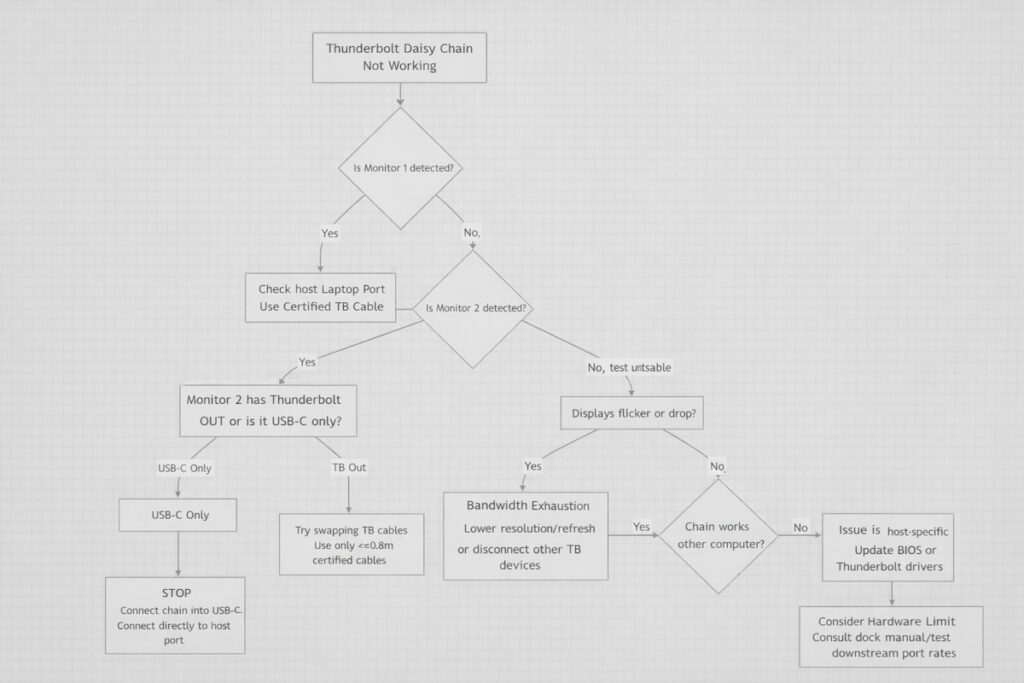
Quick Diagnostic Checklist (TL;DR)
Bookmark this flow. When your Thunderbolt daisy chain is not working, start at the top.
FAQ
Q: Why does only one monitor work in my daisy chain?
A: This is almost always because the first monitor is not a true Thunderbolt display with a Thunderbolt OUT port. It is a USB-C monitor, which acts as an endpoint and breaks the chain. Verify your monitor’s specifications.
Q: Can I daisy chain two 4K 60Hz monitors?
A: Technically yes, but it consumes approximately 80-90% of the total Thunderbolt 3/4 bandwidth (40 Gbps). This leaves almost no room for error or other data. The chain will be fragile, and adding any other high-speed device may cause failures. For a stable dual 4K setup, a high-quality docking station is strongly recommended.
Q: My daisy chain works on my Mac but not my Windows PC. Why?
A: This points to a driver, firmware, or BIOS issue on the Windows PC. Ensure Thunderbolt is enabled in the BIOS/UEFI settings (sometimes under security settings) and that you have installed the latest Thunderbolt drivers specific to your laptop model from the manufacturer’s website, not just the default Windows drivers.
Q: Does the length of the Thunderbolt cable matter for daisy chaining?
A: Absolutely. For passive Thunderbolt cables (the most common type), the maximum reliable length for 40Gbps operation is 0.8 meters (~2.6 feet). For longer runs, you must use an active Thunderbolt cable, which is more expensive. Using a longer passive cable will force the link to drop to 20Gbps, which can cause a daisy chain to fail under high bandwidth loads.
Q: I have a Thunderbolt 4 dock. Can I daisy chain from its downstream port?
A: You can, but with critical caveats. The downstream port often shares bandwidth with the dock’s own video outputs. Refer to your dock’s manual. Many docks, like the Kensington SD5780T, function best when you use either their built-in ports or the downstream port for a chain, but not both simultaneously at full capability.
Why You Can Trust This Guide
My name is Hans. My approach to technology is rooted in a BSc in Computer Systems and over a decade of professional work as an IT infrastructure consultant and systems architect. I have never been interested in specs for specs’ sake—only in how technology performs reliably under real-world conditions.
The insights here come from the trenches. They come from helping a video editor whose daisy-chained preview monitor would black out during renders (solved by switching to an active cable) and from diagnosing why a trader’s setup failed every morning (a Windows power setting on the Thunderbolt controller). This guide is a distillation of that layer-by-layer diagnostic methodology. It treats the daisy chain not as magic, but as a finicky, high-speed network that operates on strict rules. When it breaks, these are the rules to check.