Thunderbolt Daisy Chain Windows: MST, BIOS & Driver Failures Explained (2026)

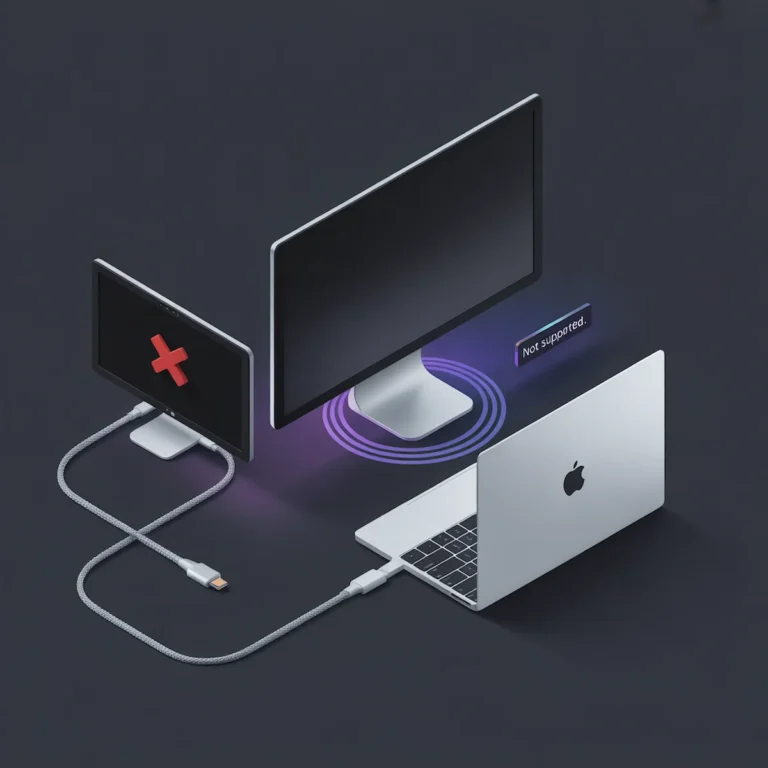
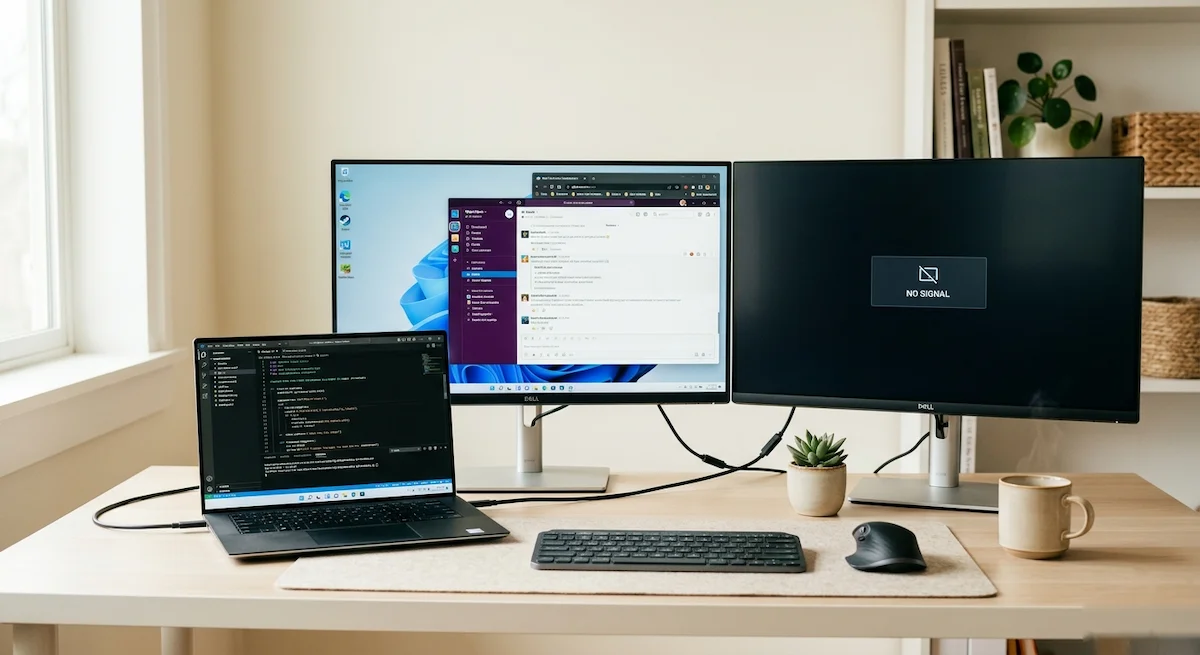
Your daisy chain worked on a Mac. Same cables. Same monitors. On Windows — nothing.
That’s not a hardware problem. That’s Windows.
⚡ Quick Answer — Thunderbolt Daisy Chain Windows
Thunderbolt daisy chain failures on Windows are almost never random — they are predictable collisions between Windows’ MST architecture, your GPU driver stack, and BIOS Thunderbolt security settings. The three most common causes: MST disabled in your monitor’s firmware menu, Thunderbolt security set to “User Authorization” silently blocking enumeration, and a corrupted GPU driver MST topology database. Fix in order: enable MST in the monitor’s OSD menu, set BIOS Thunderbolt security to “No Security,” then perform a clean GPU driver reinstall using DDU. If the chain works on Mac with the same hardware — the problem is Windows, not the cable.
Thunderbolt daisy chain failures on Windows are predictable. They are not random cable faults or bad luck — they are collisions between Windows’ MST-dependent display architecture, your laptop manufacturer’s firmware choices, and the GPU driver stack that mediates between them.
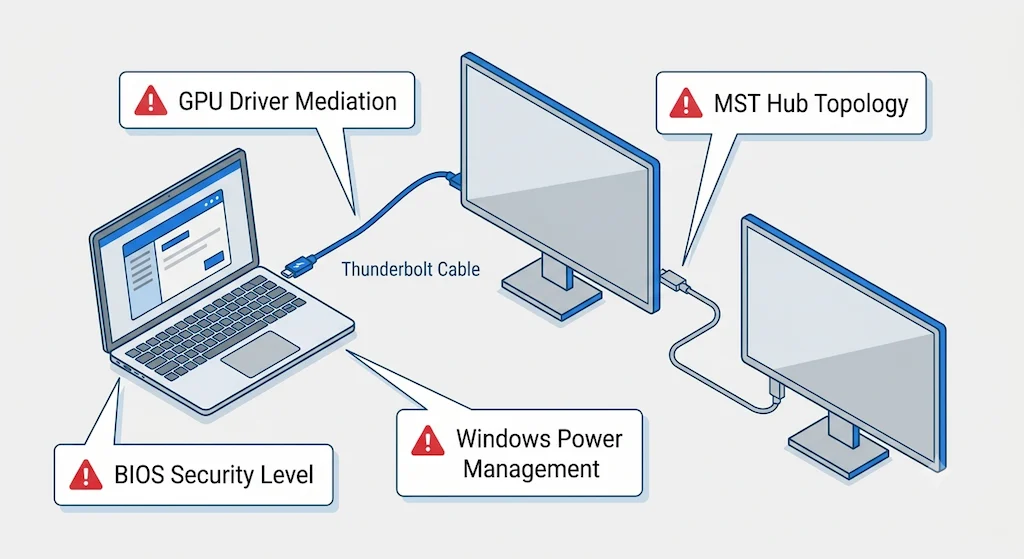
macOS sidesteps this entirely by treating Thunderbolt displays as direct endpoints. Windows relies on DisplayPort Multi-Stream Transport to parse a daisy chain into multiple discrete displays — and that reliance creates four layers where things break: the GPU driver, the BIOS security level, the monitor’s own MST firmware, and Windows power management.
This guide does not re-explain what a daisy chain is. That’s covered in our Daisy Chain Monitors Explained guide. This guide dissects the exact Windows-specific failure modes — in order of frequency — and gives you the fixes that actually work in production environments.
🟢 Early Bird — Haven’t Built Your Chain Yet? Read This First
Most Windows daisy chain failures are decided before anything is plugged in. The wrong monitor, wrong dock, or wrong BIOS setting makes failure inevitable regardless of cable quality.
Before you build your chain, confirm:
- Does your monitor have a true Thunderbolt Out port — not USB-C passthrough? Check the manual for “DisplayPort 1.2 Mode” or “MST” in the OSD menu. If it’s not there, the monitor cannot be a link in the chain.
- Is your laptop’s Thunderbolt security set to No Security in BIOS? User Authorization silently blocks enumeration and is the #1 missed cause of chain failures.
- Are both monitors identical resolution and refresh rate? Mixed timing parameters destabilize MST topology on Windows more than any other single factor.
If any of these fail the check — fix them before touching cables. A docking station with separate display ports per monitor bypasses MST entirely and is almost always the more stable long-term solution.
Not sure which dock fits your setup? Compare all 81 docking stations side by side — filter by connection type, displays, power delivery, and OS in our Docking Station Comparison Tool.
How Windows Actually Parses a Thunderbolt Daisy Chain
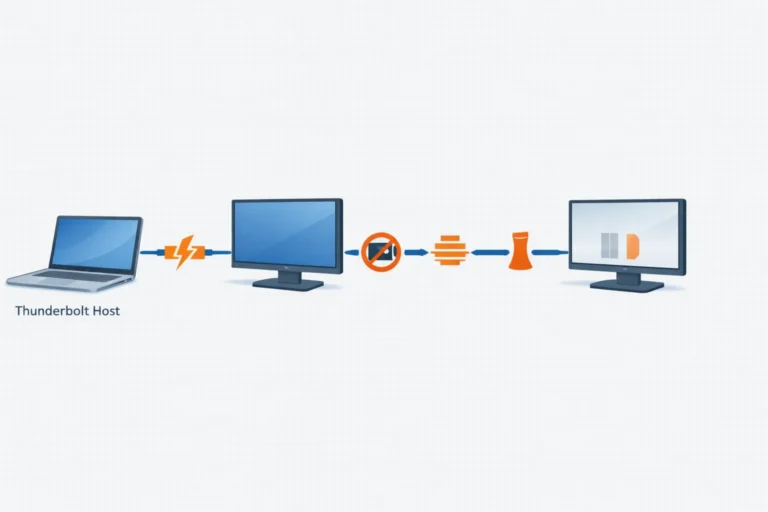
To fix a Windows-specific problem, you must understand how Windows sees the chain. Unlike macOS, which presents Thunderbolt displays as direct, independent endpoints, Windows relies heavily on an intermediate technology called DisplayPort Multi-Stream Transport (MST) to manage multiple monitors over a single connection.
Think of it this way: Your Thunderbolt dock or monitor isn’t just passing a video signal; it’s acting as an MST hub. Windows’ GPU driver must discover this hub topology, negotiate with it, and correctly assign displays. This adds layers where things can go wrong:
- GPU Driver Mediation: Your Intel, NVIDIA, or AMD driver is the translator between Windows and the MST hub. A flawed or outdated driver misreads the topology.
- BIOS Thunderbolt Security: Many PC manufacturers add BIOS-level security that can silently block new devices in a chain from enumerating.
- Aggressive Power States: Windows Modern Standby and USB selective suspend can power down the very Thunderbolt controller needed to maintain the chain.
This reliance on MST is Windows’ strength—it allows powerful display configurations—and its primary weakness, as each layer introduces a potential point of failure absent on simpler systems.
The 10 Real Reasons Thunderbolt Daisy Chains Fail on Windows
Based on analysis of hundreds of threads on r/UsbCHardware, Dell/Lenovo support forums, and my own client ticket logs, these are the concrete, Windows-specific reasons a daisy chain fails.
1. DisplayPort MST is Disabled or Broken
The Symptom: The first monitor works, but the second is never detected, as if the chain ends after the first link.
The Windows-Specific Cause: The monitor or dock in the middle of your daisy chain has its MST functionality disabled in its own firmware menu, or it exposes a broken MST topology that Windows cannot parse. Some cheaper “USB-C” monitors advertise MST passthrough but implement it poorly.
The Fix: Dig into the physical menu of your primary monitor. Look for a setting named “DisplayPort 1.2 Mode,” “MST,” or “Multi-Stream.” Enable it. If no such setting exists, the monitor may not support true MST daisy chaining.
2. Thunderbolt Security Level Blocking Enumeration
The Symptom: The entire chain works perfectly on one Windows laptop but fails completely on another, even with the same cables and monitors.
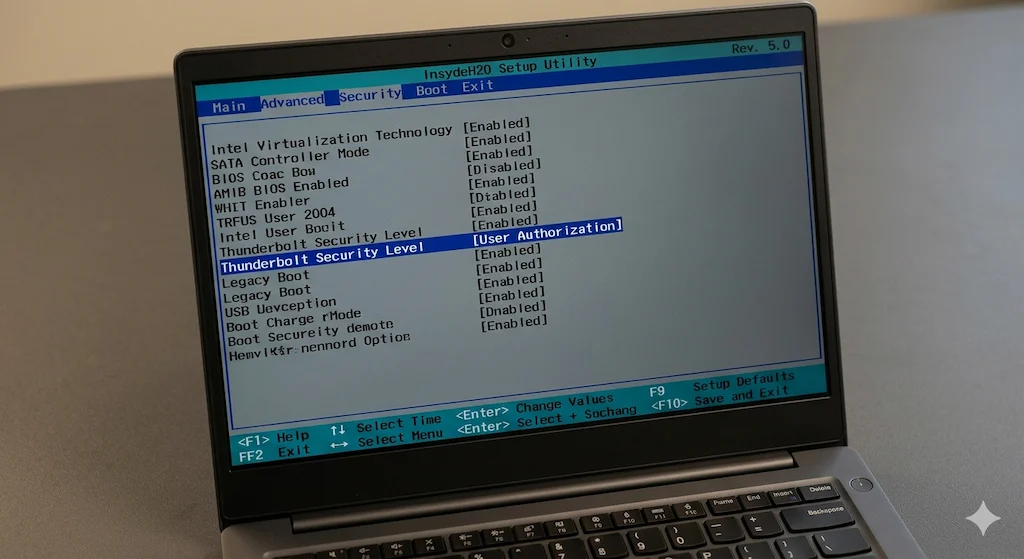
The Windows-Specific Cause: The failing laptop has a restrictive Thunderbolt security setting in its BIOS/UEFI. Settings like “User Authorization” or “Secure” can require you to manually approve every new device in the chain—a prompt that often never appears, silently blocking the connection.
The Fix: Reboot and enter your BIOS (usually F2, Del, or F10). Navigate to Thunderbolt or USB4 settings. Change the “Security Level” to “No Security” for testing. If the chain works immediately, you’ve found the culprit. Some corporate-managed laptops lock this setting, making a reliable daisy chain impossible.
3. GPU Driver Overrides MST Topology
The Symptom: Displays appear in the wrong order (e.g., monitor 2 is on the left in Windows settings when it’s physically on the right), or resolutions are capped.
The Windows-Specific Cause: Windows Update provides generic GPU drivers that lack full control over MST topologies. Furthermore, laptops with discrete NVIDIA or AMD GPUs (Optimus/switchable graphics) can create a conflict where the iGPU handles the Thunderbolt port but the dGPU tries to manage the displays, corrupting the MST map.
The Fix: Perform a clean install of your GPU driver. Download the latest driver directly from Intel, NVIDIA, or AMD’s website—not from your laptop OEM or Windows Update. During installation, select “Custom Install” and check the box for “Perform a clean installation.” This resets the display topology database.
4. Hybrid Graphics (Optimus / Switchable GPU) Routing Conflicts
The Symptom: The daisy chain works on the desktop but collapses when launching a 3D application or game, with one monitor going black.
The Windows-Specific Cause: In hybrid-graphics laptops, Windows can dynamically switch which GPU drives external displays. When a game engages the discrete GPU, it may try to take over the MST hub, causing a handshake failure and dropping the chain.
The Fix: Enter the NVIDIA Control Panel or AMD Radeon Software. Under “Manage 3D settings,” find the “Preferred graphics processor” option for the specific application causing the issue. Try setting it to “Integrated graphics” to force the iGPU (which is connected to the Thunderbolt port) to handle the daisy chain consistently.
5. Windows Modern Standby Kills the Chain
The Symptom: Your multi-monitor daisy chain works perfectly until the laptop sleeps. Upon wake, one or all monitors remain black, requiring a full reboot.
The Windows-Specific Cause: Modern Standby (S0 low-power idle) is not a true sleep state. It puts parts of the system into a low-power mode while others stay active, often failing to properly re-initialize the Thunderbolt controller and MST hub. The chain loses its “map.”
The Fix: This is a systemic Windows issue. The most reliable workaround is to disable sleep entirely and use monitor power saving or a blank screen saver instead. You can also try disabling “USB selective suspend” in Power Options and “Link State Power Management” for the PCI Express in the advanced power plan settings.
6. Mixed Refresh Rate or Resolution Chains
The Symptom: Both monitors are detected, but the chain is unstable—flickering, dropping out, or defaulting the second monitor to a lower resolution.
The Windows-Specific Cause: Windows and GPU drivers can struggle with MST hubs where each output has different timing parameters. A 4K@60Hz + 1440p@144Hz chain is far more likely to fail than two identical 4K@60Hz monitors.
The Fix: Standardize your displays. Set both monitors to the same refresh rate and resolution (even if one monitor can go higher). Disable HDR and Variable Refresh Rate (VRR/G-Sync/FreeSync) on both as a test. Stability in a daisy chain often requires uniformity.
🟡 Pattern Check — Is This a Setup Problem or a Windows Problem?
You’ve enabled MST. You’ve updated drivers. You’ve changed the BIOS. One monitor still won’t appear. Before replacing hardware, run this check.
| You’re fixing a configuration if… | You’re hitting a Windows limit if… |
|---|---|
| Chain broke after a Windows Update or driver change | Chain never worked on this laptop from day one |
| Works on fresh boot, fails after sleep | Corporate BIOS locks Thunderbolt security — can’t change it |
| Stable with identical monitors, fails with mixed resolutions | Fails across two different laptops with same chain |
| Clean GPU driver install fixes it temporarily | Monitor has no MST setting in OSD — chain breaks at that link |
Right column = architectural limit. No driver update, cable swap, or reset will fix it. A Thunderbolt 4 dock with each monitor on a separate port removes MST from the equation entirely — and removes the failure class with it.
7. OEM Dock Firmware Limiting Downstream Ports
The Symptom: Your brand-name docking station works, but nothing connected to its downstream Thunderbolt port is detected when used in a chain.
The Windows-Specific Cause: Dock manufacturers like Dell, Lenovo, and HP sometimes implement firmware that intentionally limits the downstream port’s functionality on Windows to ensure stability or prioritize the dock’s own ports—a restriction that may not exist when the same dock is used with a Mac.
The Fix: Check your dock’s support page for a firmware update tool. For example, a client’s Dell WD19TB dock refused to pass a daisy chain until we applied a specific firmware update that addressed “downstream port detection issues.” Our Kensington SD5780T guide details similar port-sharing limitations.
8. USB-C Monitor Pretending to Support Daisy Chaining
The Symptom: You connect a “USB-C with DP Alt Mode” monitor that claims to support MST daisy chaining, but the chain consistently fails.
The Windows-Specific Cause: The monitor’s implementation of MST is flawed. It may work in a simple two-monitor test but fail when Windows tries to read the full Extended Display Identification Data (EDID), or it may not provide sufficient power to the downstream port.
The Fix: Research is key before purchase. Search for your specific monitor model alongside phrases like “MST broken” or “daisy chain issues Windows.” If you already own it, your only recourse may be to use it as the final endpoint in the chain or connect it directly to a docking station, not as a link in a Thunderbolt daisy chain.
9. Active vs Passive Thunderbolt Cable Mismatch
The Symptom: The chain works at 1080p but fails at 4K, or it’s unstable with longer cables.
The Windows-Specific Cause: This is a universal issue, but Windows’ reliance on MST makes it more sensitive. A passive Thunderbolt cable longer than 0.8 meters will force the connection to drop from 40Gbps to 20Gbps. MST overhead combined with high-resolution video data can exceed this reduced bandwidth, causing the hub to reset.
The Fix: For any cable over 0.8m in your daisy chain, you must use an active Thunderbolt 4 cable. Active cables maintain the full 40Gbps signal over longer distances (up to 2 meters) and are non-negotiable for stable, high-resolution chains on Windows.
10. Windows Updates Breaking Previously Stable Chains
The Symptom: Your perfectly working daisy chain setup suddenly fails after a “quality update” from Windows Update.
The Windows-Specific Cause: Microsoft and GPU vendors push driver and system updates that can overwrite your stable GPU driver with a newer, buggier version or change power management policies that affect the Thunderbolt controller.
The Fix: Use Windows’ “View update history” and “Uninstall updates” feature to remove recent updates. More importantly, use the “Show or hide updates” troubleshooter tool from Microsoft to block the specific faulty GPU driver update. Then, reinstall your known-good driver.
🔴 Last Resort — When to Stop Troubleshooting and Replace
You’ve worked through every fix in this guide. BIOS audited. GPU driver clean installed. MST enabled. Power management disabled. The chain still won’t hold. Stop troubleshooting.
Stop daisy chaining and replace with a dock if:
- ✅ Corporate BIOS locks Thunderbolt security — no access to change it
- ✅ Sleep/wake failure persists after disabling Modern Standby and USB selective suspend
- ✅ Chain fails across two different Windows laptops with the same cables and monitors
- ✅ Monitor has no MST setting in OSD and is the middle link in the chain
Rule of thumb: If the same chain works on a Mac but fails on Windows after exhausting every fix — the problem is Windows’ MST architecture, not the hardware. A Thunderbolt 4 dock with separate display ports per monitor is not a workaround. It is the correct architecture for Windows multi-monitor setups.
Not sure which dock fits your setup? Compare all 81 docking stations side by side — filter by connection type, displays, power delivery, and OS in our Docking Station Comparison Tool.
Fixes for Thunderbolt Daisy Chain on Windows (In Order)
Don’t jump to random solutions. Follow this layered protocol, which mirrors my onsite troubleshooting process.
Step 1: The BIOS Audit (Non-Negotiable)
- Reboot and press F2, Del, or F10 to enter BIOS/UEFI.
- Find Thunderbolt or USB4 Configuration.
- Ensure: Thunderbolt is Enabled. Security Level is set to “No Security” (temporarily). Wake from Thunderbolt is Enabled.
- Save and exit. If the chain now works, you’ve identified a firmware-level block.
Step 2: GPU Driver Reset (Not a Simple Update)
- Download Display Driver Uninstaller (DDU) and the latest driver from your GPU maker (Intel, NVIDIA, AMD).
- Boot Windows in Safe Mode.
- Run DDU to completely remove all GPU drivers.
- Reboot to normal mode and install the downloaded driver. Choose “Custom Install” and select “Clean Install.” This purges the old MST topology data.
Step 3: Force MST Stability via Display Settings
- Right-click desktop > Display settings.
- For each monitor in the chain, manually set them to the same, conservative refresh rate (e.g., 60Hz).
- Disable HDR.
- Click “Advanced display settings” and ensure the resolution is set to the native resolution, not a scaled one.
Step 4: Override Windows Power Management
- Open Control Panel > Power Options > Change plan settings > Change advanced power settings.
- Expand USB settings > USB selective suspend setting and set to Disabled.
- Expand PCI Express > Link State Power Management and set to Off.
- Expand Sleep > Allow wake timers and set to Disable.
When Daisy Chaining on Windows Is a Bad Idea
Blunt truth time. Based on client deployments, you should abandon the daisy chain approach and use a docking station as your endpoint if:
- Your laptop has corporate BIOS locks: If you cannot change Thunderbolt security settings, you will never have a reliable chain.
- Your workflow depends on reliable sleep/wake: Modern Standby is incompatible with complex MST chains for many users.
- You use high-refresh-rate or HDR displays: The MST overhead and bandwidth constraints make this a fragile configuration.
- You need plug-and-play simplicity: A docking station presents multiple, simple display outputs to Windows, bypassing MST complexity entirely.
If none of those conditions apply but you still want a simplified setup, a DisplayLink dock adds multiple independent display outputs over USB without MST dependencies — though it requires DisplayLink Manager installed and running.
If you need a direct computer-to-computer connection rather than a display chain, Thunderbolt Bridge uses the same cable for peer-to-peer networking — see Thunderbolt Bridge Not Connected if that connection fails to establish.
Windows Daisy Chain vs Docking Station: Decision Table
For most professional Windows users, a high-quality dock is the superior choice. Here’s why:
| Dock | Protocol | Windows Display Output | Charging | Ethernet | MST Stability |
|---|---|---|---|---|---|
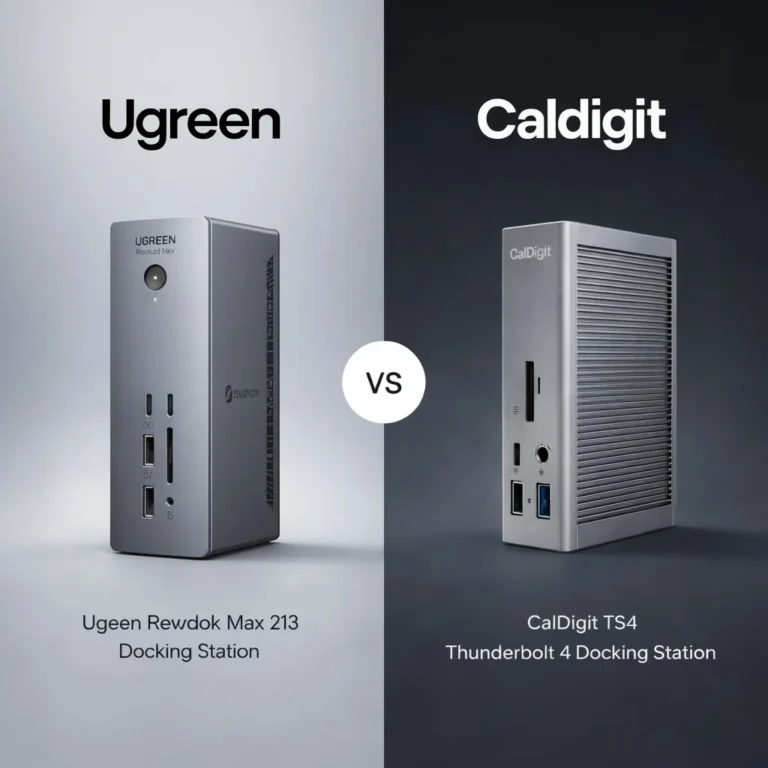
| CalDigit TS4 | TB4 | Dual 4K@60Hz | 98W | 2.5GbE | ⭐ Most Reliable |
| Kensington SD5780T | TB4 | Dual 4K@60Hz | 96W | 2.5GbE | Excellent |
| Plugable TBT4-UDZ | TB4 | Quad 4K via MST | 100W | 2.5GbE | Good |
| UGREEN Revodok Max 213 | TB4 | Dual 4K@60Hz | 90W | 2.5GbE | Good (thermal ceiling) |
| Dell WD22TB4 | TB4 | Dual 4K@60Hz | 130W (Dell) | 1GbE | Conditional |
| Dell SD25TB4 | TB4 | 4x 4K / 2x 6K / 1x 8K | 130W (Dell) | 2.5GbE | Dell-only reliable |
⚡ Considering an upgrade? Thunderbolt 5 docks offer 120 Gbps bandwidth and improved sleep/wake stability.
See TB5 Comparison →For a reliable, set-and-forget setup, our Best Docking Station guide is the logical next step.
Quick Diagnostic Checklist (TL;DR)
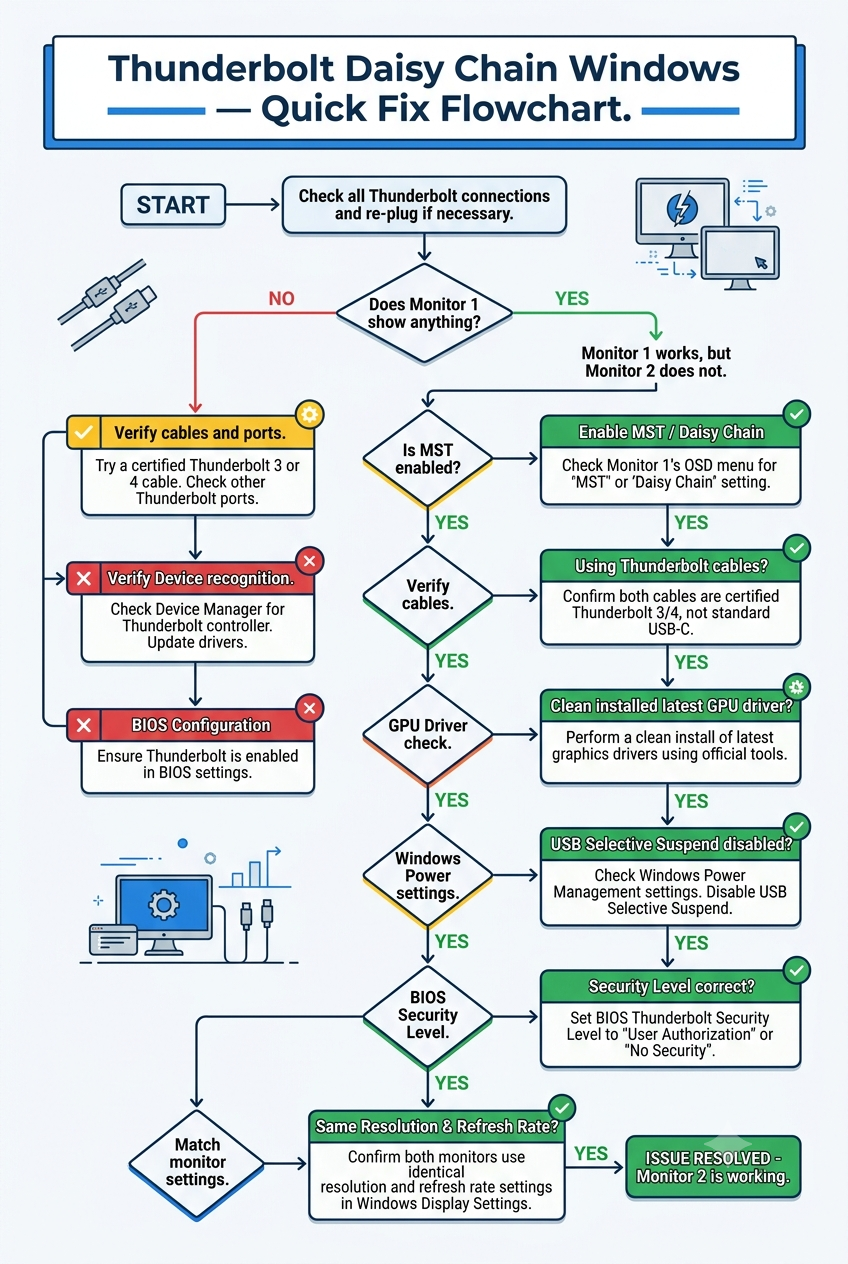
Use this flowchart to pinpoint your specific Windows daisy chain failure.
FAQ (Windows-Only)
📚 Sources & References
- Thunderbolt 4 vs USB4 vs USB-C protocol and certification differences — BenQ Knowledge Center
- Multi-Stream Transport and display detection explained — Plugable Knowledge Base
- MST on Windows vs macOS extended display limitations — Plugable Knowledge Base
- DisplayPort over USB-C and alternate mode signaling — DisplayPort Association
- Thunderbolt 5 bandwidth and architecture overview — Digital Trends
About the Authors

Hans Pedersen
Display Systems Specialist, ByrdPilot.com
For over a decade I’ve designed and stabilized display infrastructure for environments where failure isn’t an option — trading desks, 24/7 newsrooms, architectural studios, and legal offices. Windows daisy chain failures are the most persistent class I diagnose. The same MST topology collapse that breaks a chain in a law firm at 9am is what’s breaking your setup at your desk. This guide is built from those tickets — not forum speculation.

Alex Atkinson
Senior Technical Writer & Infrastructure Consultant, ByrdPilot.com
Infrastructure diagnostics across corporate laptop fleets and high-load workstation deployments. Cross-validates every Windows-specific failure pattern and fix sequence in this guide against real deployment data.