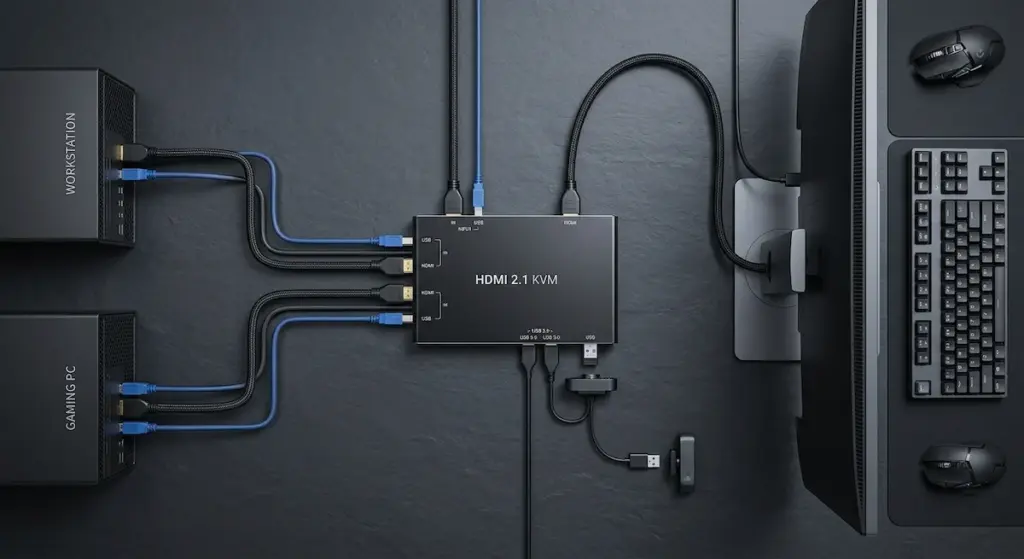
Quick Answer
TESmart HKS202+ is the best HDMI KVM switch for most home office setups — HDMI 2.1, 4K@144Hz, active EDID emulation so your windows never rearrange on switch. Budget build: UGREEN Aluminum KVM with EDID included. Four machines: TESmart HKS401-M23. Full 8K@60Hz headroom: AV Access 8KSW21-KVM. The rule across all of them: verify active EDID emulation is on before the machine goes headless — it’s the difference between a clean switch and reshuffled windows every time.
Most people treat a kvm switch hdmi like a dumb junction box. Plug both computers in, share the peripherals, done. Then the monitor goes black every time they switch, HDR vanishes from the settings menu, and every open window ends up somewhere wrong.
That’s not the GPU. It’s the EDID handshake — the display identification protocol that tells your graphics card how to configure the signal. The switch is sitting in the middle of that handshake, and when it screws it up, the symptoms get misattributed to drivers, cables, the monitor itself. Weeks of troubleshooting a $40 problem.
This guide explains what separates an HDMI KVM that actually works from one that technically passes video. Then it matches the right hardware to your setup — two computers sharing a standard office display, a 144Hz gaming monitor, a homelab with four machines.
Find Your Switch
Best 8K HDMI 2.1 KVM Switch
Five picks for five setups. No prices in the cards — use the button; Amazon listings move around constantly.

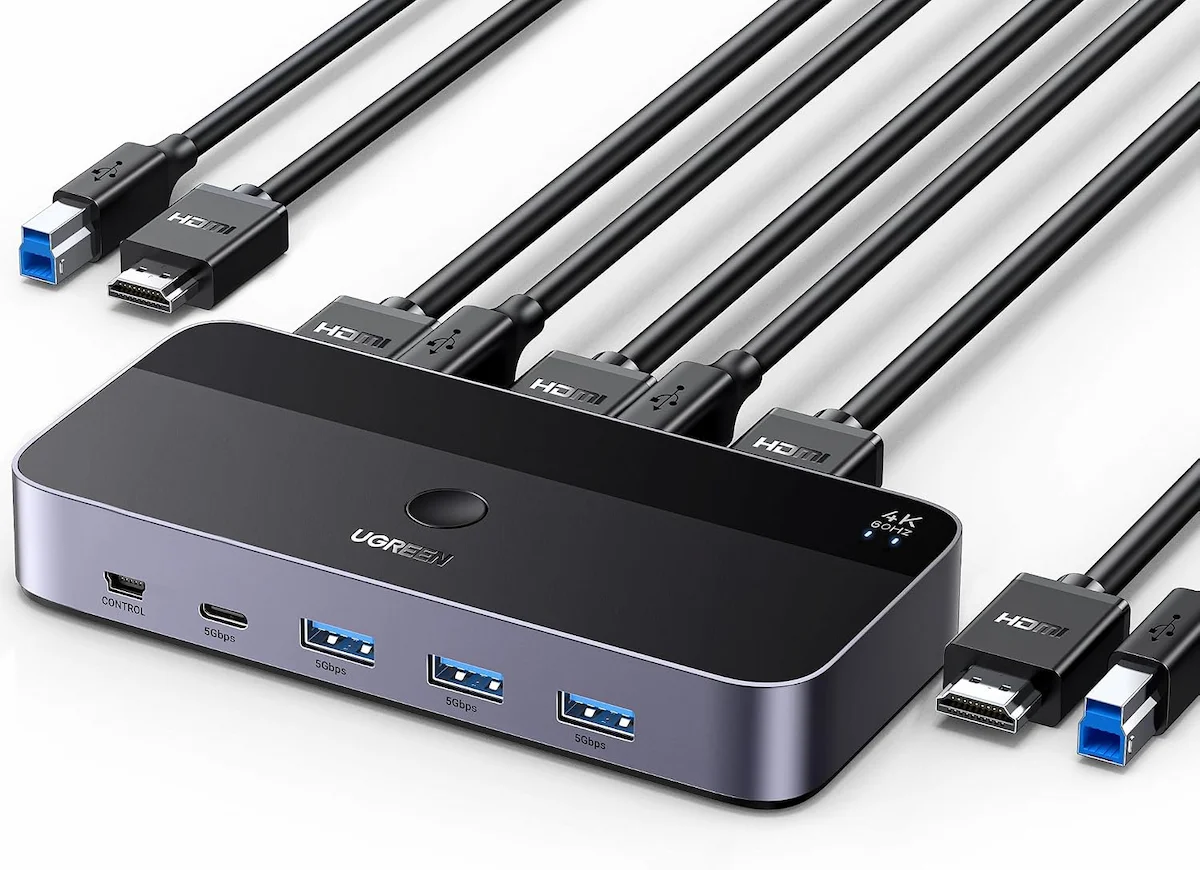
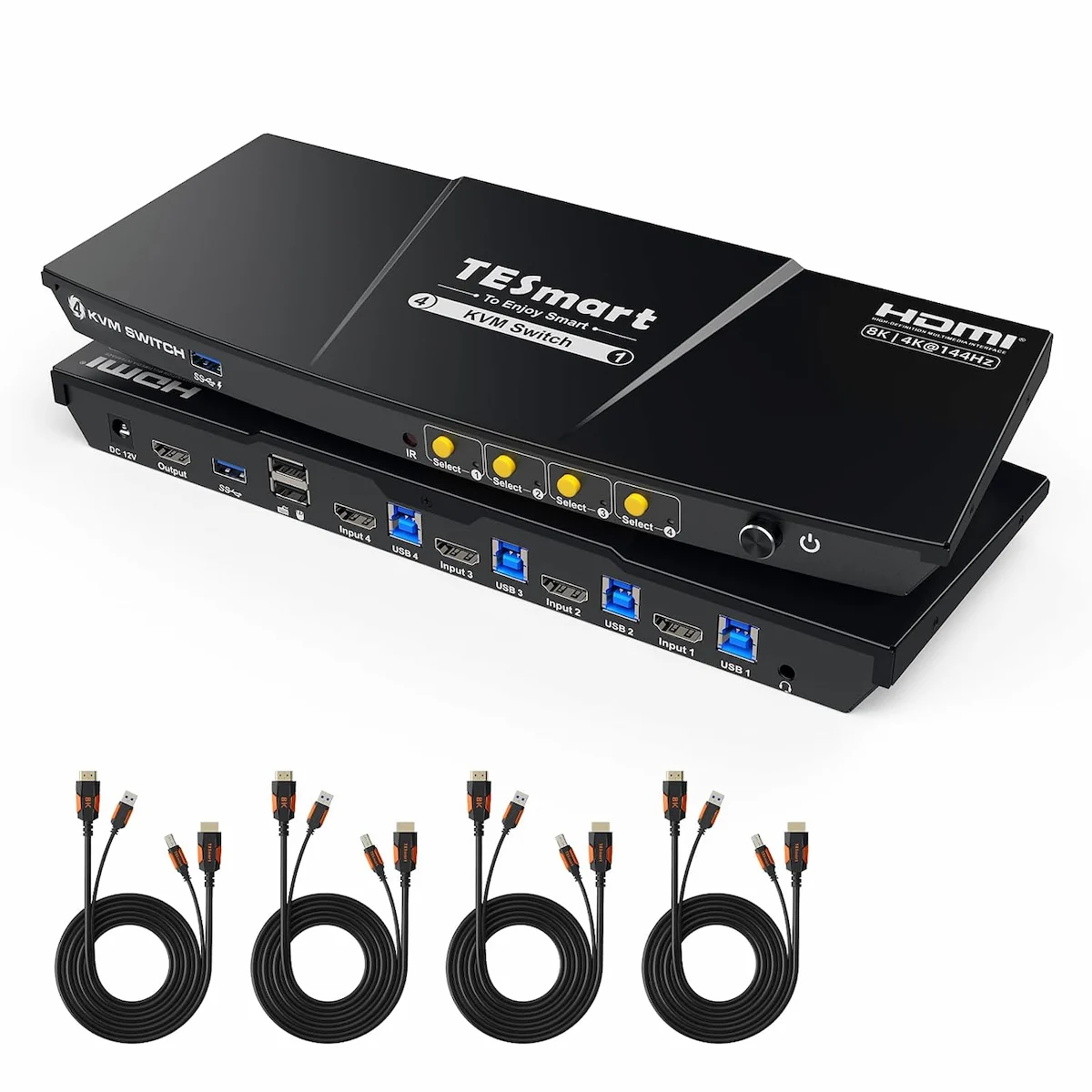
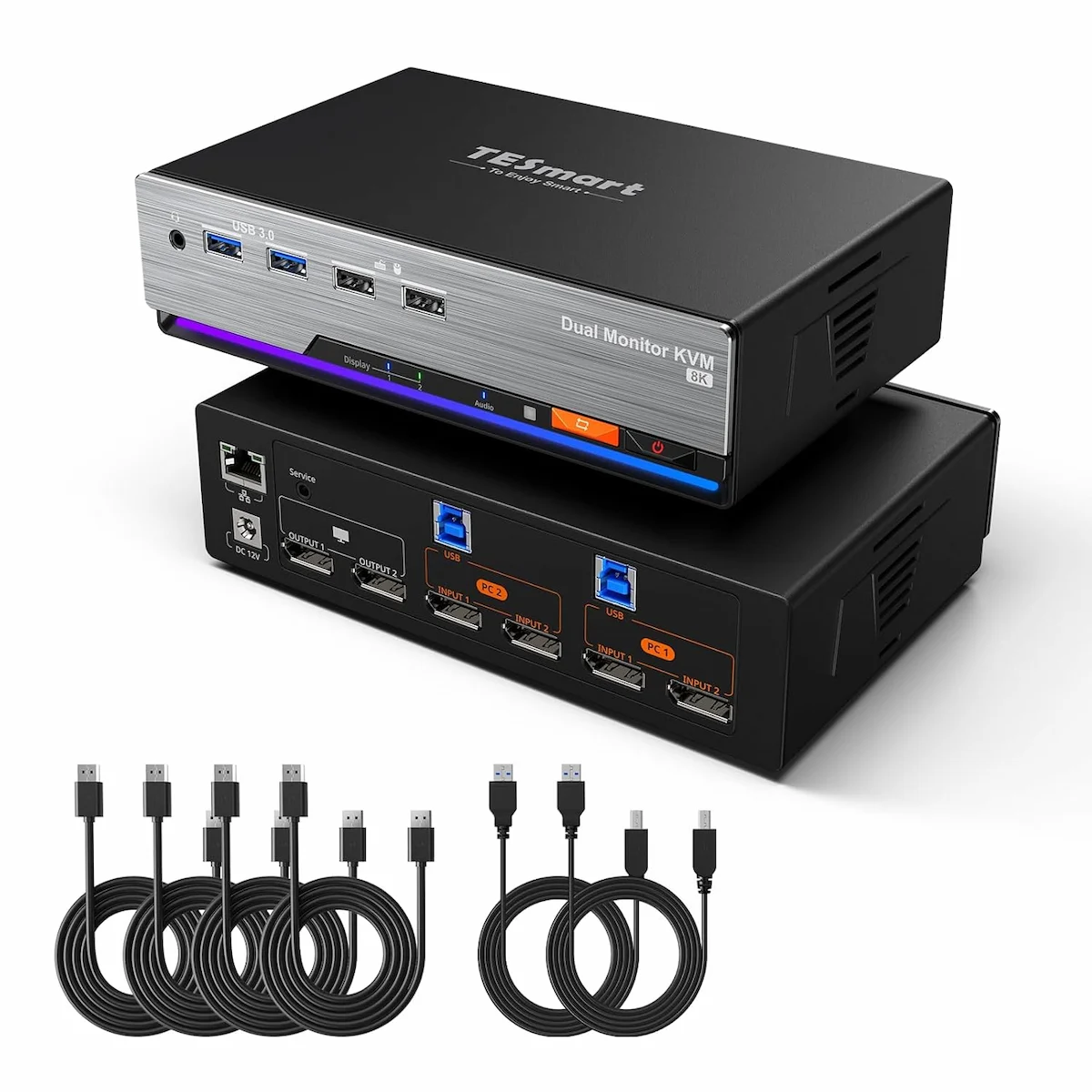
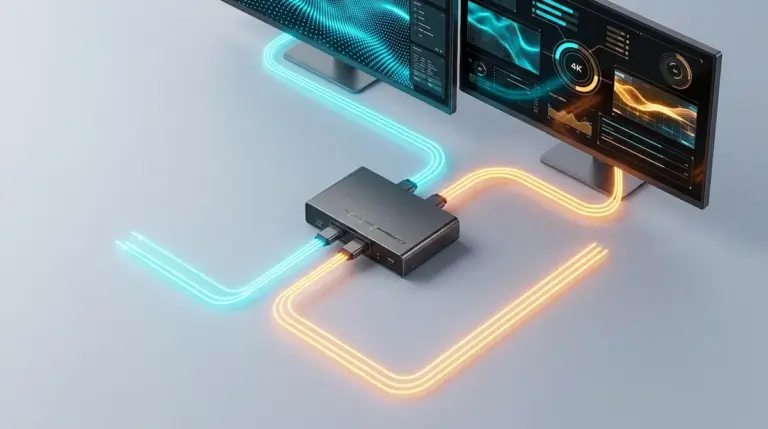
If dual monitors are your setup, the DKS202-M24 handles the hardware, but EDID behavior across two simultaneous displays is genuinely different from single-monitor use. Our guide to KVM switches for dual monitors covers the specific configurations, cable requirements, and the macOS UUID problem when it hits both screens at once.
HDMI or DisplayPort — Which KVM Connection Should You Be Using?
For most office setups, HDMI is just easier. Consumer monitors lead with it. Laptops without a dedicated GPU often don’t output DisplayPort at all. TVs, AV equipment, projectors — all HDMI. If your display has both connectors and you’re running 4K at 60Hz, you probably won’t notice the difference either way.
DisplayPort earns its place when refresh rate is the actual constraint. At 4K@144Hz, DP 1.4 with DSC compression has more practical headroom than HDMI 2.0’s 18Gbps ceiling. If you game at high refresh on one display and want to share it between a work machine and a gaming rig, a DisplayPort KVM gives you more breathing room there.
The case for dual monitors is different. DisplayPort KVMs with dual-output support are far more common — and honestly cheaper — than dual-HDMI equivalents. Most dual-HDMI KVMs are niche products at a premium. If your monitors have DisplayPort inputs, that’s worth knowing before you commit to HDMI for a two-screen setup.
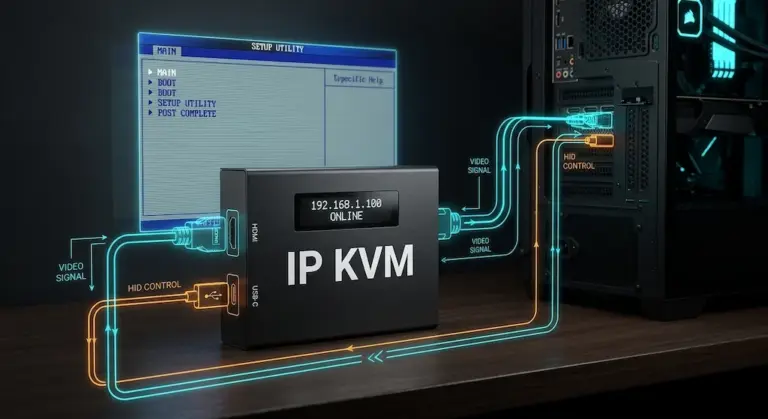
➡️ Not at your desk when something locks up? An IP KVM gives you BIOS-level access from any browser — no VPN, no port forwarding, no static IP. Best IP KVM Switches covers the top picks including units with native Tailscale built into the management interface.
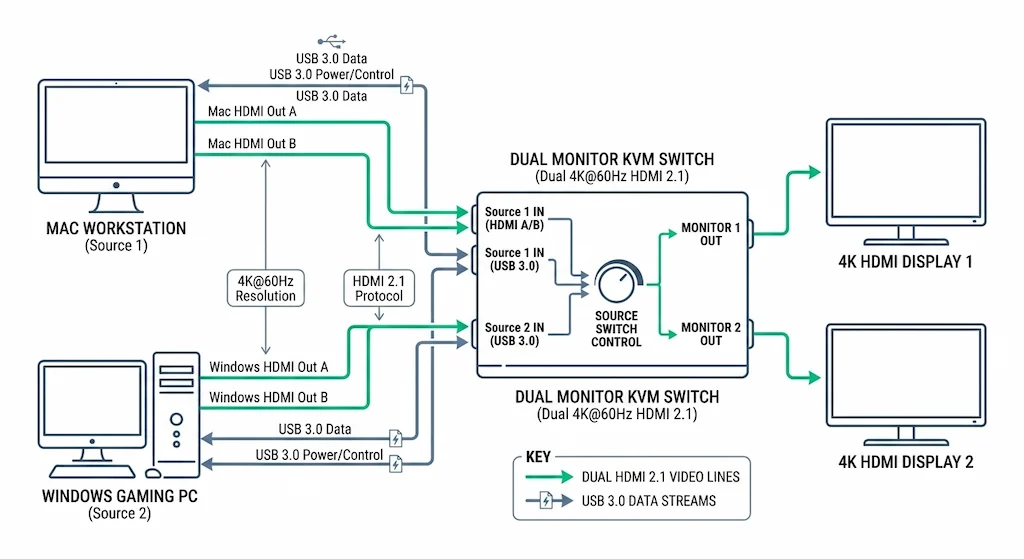
What to Look for in an HDMI KVM Switch
HDMI Version — 2.0 vs 2.1 and What the Bandwidth Gap Costs You
HDMI 2.0 tops out at 18Gbps. That’s enough for 4K@60Hz, which covers most office monitors without issue. HDMI 2.1 runs at 48Gbps — that’s the difference between 4K@60 and 4K@144Hz, between VRR working on a gaming display and getting quietly blocked.
The pitch for HDMI 2.1 isn’t 8K content. There’s basically no native 8K streaming, and home office monitors capable of displaying it are rare enough to ignore in a buying decision. The real case is the 120Hz or 144Hz gaming display you already own. If your monitor runs above 60Hz at 4K, HDMI 2.0 is a hard wall — end of discussion.
One thing worth knowing: “HDMI 2.1” on the port doesn’t always mean 48Gbps through the internal switching silicon. Some manufacturers put HDMI 2.1 connectors on HDMI 2.0 chipsets. If you’re buying for high-refresh gaming, ask the manufacturer about internal bandwidth directly — don’t rely on the port label.
EDID Emulation — Why Your Windows Move Every Time You Switch
Every KVM switch event drops the Hot Plug Detect signal. The GPU sees a disconnect, stops transmitting, re-reads the display’s EDID, and rebuilds the entire pipeline from scratch — refresh rate, color depth, HDR state, all of it. That’s where the window rearrangement comes from. That’s why HDR disappears from settings. That’s the screen flash.
Active EDID emulation fixes this. The switch holds a stored copy of the monitor’s configuration on each port and keeps the GPU convinced the display is always connected. The switch event becomes invisible.
Budget KVMs take a shortcut here that isn’t obvious. They store only the 128-byte base EDID block and drop the CEA-861 extension — the part that carries 120Hz+ capability flags and HDR metadata. Your GPU caps at 4K@60Hz. The HDR toggle disappears from settings with zero error message. The quick test: compare what’s available in Windows display properties connected direct versus through the KVM. If the resolution options or HDR toggle differ, the EDID is being stripped.
HDCP Version — Why Netflix Might Stop Working
HDCP negotiates per link hop, independently. A KVM with HDCP 1.4 silicon silently breaks 4K streaming on Netflix and Disney+. YouTube works. Games work. Protected 4K content black-screens. Users reinstall GPU drivers for weeks without figuring out it’s the switch.
The distinction that trips people up: HDMI version and HDCP version are separate specs. An HDMI 2.1 switch can have HDCP 1.4 inside — they’re not linked. If you stream 4K DRM content through this setup, check HDCP 2.2 or 2.3 on the manufacturer’s spec sheet, not the HDMI version on the box. A kvm switch hdmi with HDCP 2.2 handles Netflix and Disney+ without the silent black-screen failure that catches cheaper units out.
Port Count — 2-Port vs 4-Port
Two machines: 2-port. Three or four: 4-port. That part’s easy. The part most buyers miss is what extra ports actually cost you on the signal side.
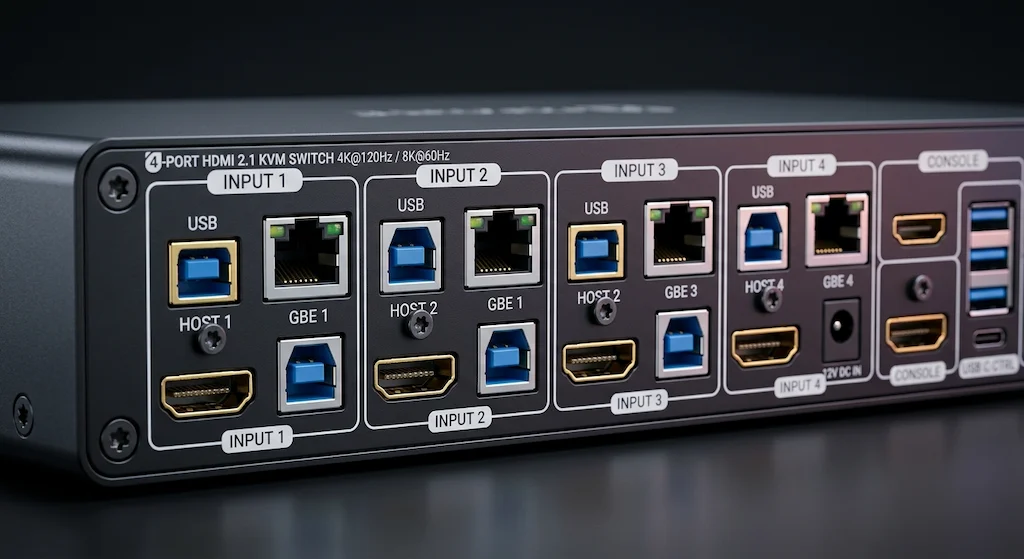
4-port switches have longer internal signal paths — higher insertion loss, reduced TMDS and FRL timing margin. HDMI 2.1 above 18Gbps drops TMDS and switches to Fixed Rate Link (FRL), where the tighter signal integrity budget amplifies any insertion loss from extra switching stages. A number of “HDMI 2.1” 4-port units are internally capped around 40Gbps, which cuts off 8K@60Hz and causes intermittent drops at 4K@120Hz HDR. Check all-port resolution parity before buying, not just the headline spec on port 1. Any kvm switch hdmi that markets on HDMI 2.1 but skips per-port bandwidth disclosure is hiding something.
MacOS — Display UUID and Window Rearrangement
macOS builds a display UUID from the EDID vendor ID, product ID, and serial number. When a KVM fills in its own serial or leaves it blank, macOS sees a different monitor on every switch-back. Display arrangement resets. Full-screen apps drop out. Windows move.
Workaround: DisplayPlacer CLI with an Apple Shortcut to restore layout on reconnect. The actual fix is a KVM that passes the original monitor serial faithfully in its EDID emulation — a spec almost never listed in product descriptions. Ask the manufacturer before buying if you’re on a Mac.
🟡 Pattern Check — Something Not Working Right?
Symptom vs cause — find your pattern:
| Symptom | Likely Cause | Fix |
|---|---|---|
| HDR toggle missing after KVM | Stripped EDID — no CEA-861 extension | Upgrade to active EDID unit |
| Windows rearrange on every switch | Passive EDID or EDID disabled | Enable EDID in firmware menu |
| Netflix black screen, YouTube fine | HDCP 1.4 silicon — blocks DRM 4K | Verify HDCP 2.2+ on spec sheet |
| Refresh rate lower than monitor spec | HDMI 2.0 switch / stripped EDID | HDMI 2.1 switch with full EDID |
Note on Thunderbolt 5 / USB4: If your laptop outputs Thunderbolt 5 and you want to run a 4K@240Hz display, an HDMI KVM is the wrong layer — look at a TB5 dock with built-in KVM functionality instead.
8K HDMI 2.1 KVM Switch — What 48Gbps Actually Buys You
The 8k hdmi 2.1 kvm switch category is newer than most buyers realize. Until fairly recently, most products with “HDMI 2.1” in the listing title were routing video through switching silicon capped well below 48Gbps. A unit with genuine full bandwidth changes what’s actually possible.
Do You Actually Need 8K Right Now?
Almost certainly not for 8K itself. Native 8K content barely exists at consumer scale. The actual reason to buy an HDMI 2.1 KVM is 4K@120Hz and 4K@144Hz — refresh rate ranges that HDMI 2.0’s 18Gbps can’t support, regardless of what the monitor is capable of.
Standard 4K@60Hz display with no gaming plans: HDMI 2.0 with solid active EDID emulation is fine. Meaningful price difference too. If you have a 144Hz gaming monitor or plan to buy one, an 8k hdmi 2.1 kvm switch is the correct call right now — not futureproofing, a present-day requirement for the display you already own.
Best 8K HDMI 2.1 KVM Switch
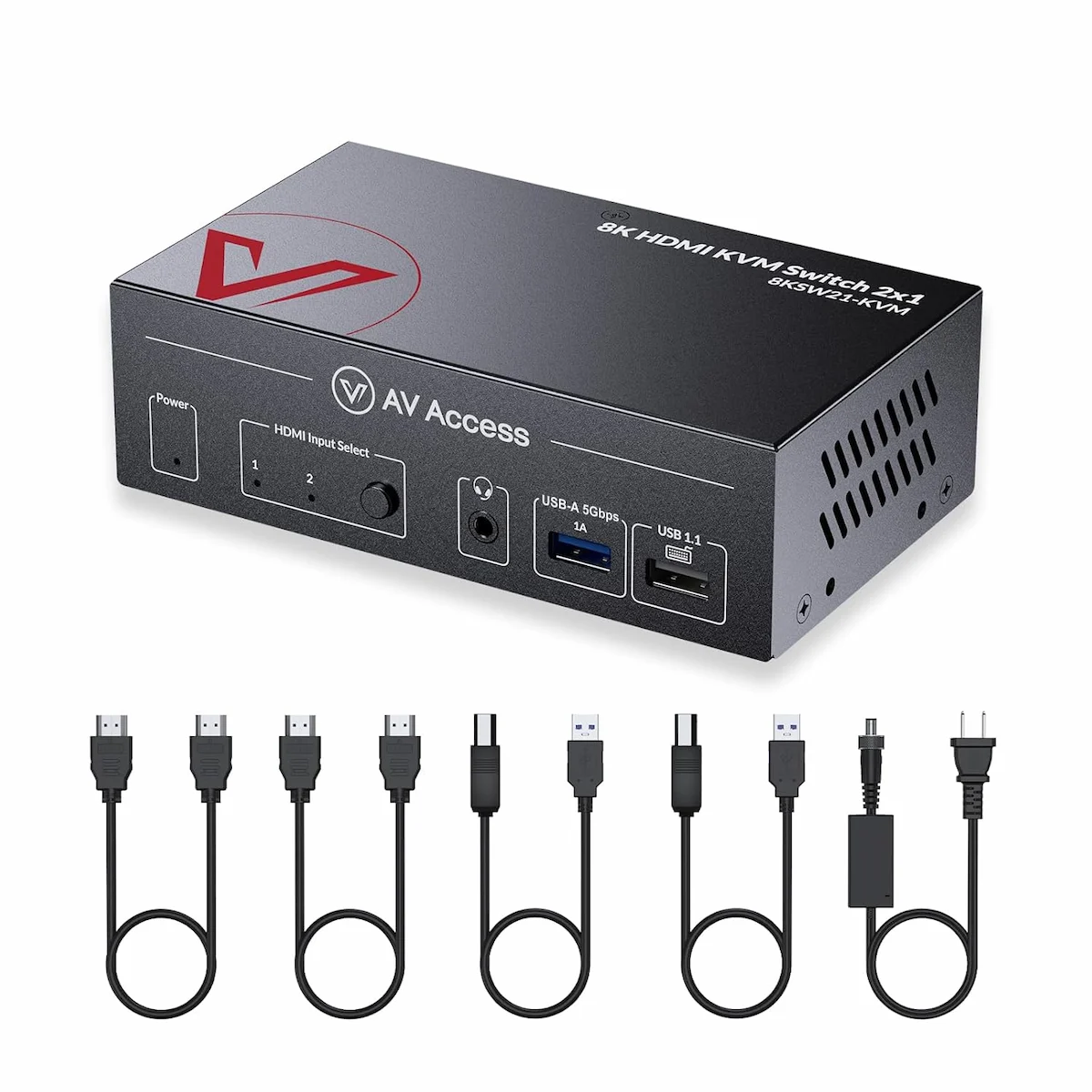
AV Access 8KSW21-KVM
2-Port · 8K@60Hz (4:2:0) · HDCP 2.3 · HDMI 2.1
- 2 computers, 1 monitor — native 8K@60Hz at 4:2:0
- HDCP 2.3 verified — 4K DRM streaming works
- 10K@120Hz and 8K@60Hz 4:4:4/HDR via DSC
- Full HDMI 2.1 — 48Gbps internal bandwidth confirmed
The 8K pick for setups that need verified 48Gbps passthrough and confirmed HDCP 2.3 — no guessing on DRM or refresh rate ceiling.
Check Price →Two disclosures worth making explicit. First: the 10K@120Hz spec uses DSC (Display Stream Compression). Second: true 8K@60Hz at 4:4:4/RGB or 10-bit HDR also requires DSC — uncompressed 8K at those color depths pushes past HDMI 2.1’s 48Gbps ceiling. The native uncompressed path is 8K@60Hz at 4:2:0 chroma subsampling, which fits within 48Gbps. For virtually every home office display topping out at 4K, none of this matters in practice. For an actual 8K panel, it does.
4-Port HDMI KVM Switch — Running Three or Four Computers Off One Monitor
The 4 port hdmi kvm switch is homelab hardware. Windows workstation, Linux box, Raspberry Pi or NAS, fourth machine — all sharing one display from one desk. Once you’re past two computers, 2-port stops working fast.
The common mistake: buying on port count alone. Per-port resolution parity isn’t guaranteed on budget units. Some 4-port HDMI KVMs deliver full spec on port 1 and quietly cap lower on ports 3 and 4. The product listing rarely breaks this out by port. Confirm with the manufacturer.
USB is the other constraint. Every machine shares one USB upstream connection through the internal hub. A webcam at 1080p@30 can saturate USB 2.0 bandwidth by itself, leaving almost nothing for other peripherals mid-call. If you’re running cameras or audio interfaces, look for USB 3.0 upstream specifically. For how various 4 port hdmi kvm options compare to 2-port alternatives on resolution, USB headroom, and total cost, the full KVM switch guide has that breakdown.
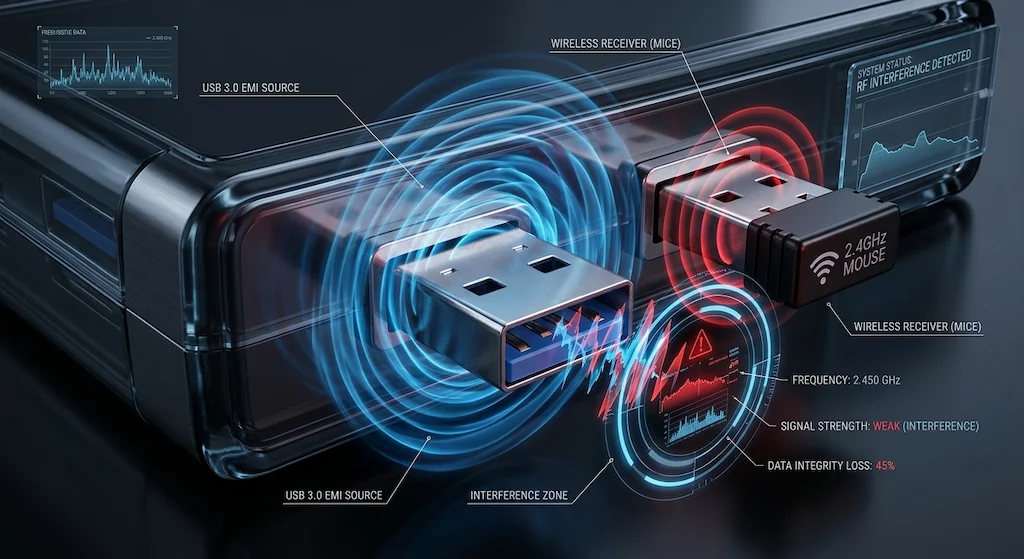
One thing that surprises people: wireless dongles can drop packets right after a KVM switch event. USB 3.0 ports radiate in the 2.4GHz band, and the re-enumeration burst during switching creates a short interference window. Dongles within about 12 inches of the chassis are most affected. A $3 USB extension cable to move the receiver farther away usually fixes it. Intel published this as a formal advisory — it’s physics, not a product defect.
How to Set Up a KVM Switch HDMI — 5 Steps
- Use Ultra High Speed HDMI cables on every input run that needs HDMI 2.1 bandwidth. Standard “HDMI” cables are rated to 18Gbps — fine for 4K@60Hz, not for anything above it. You need cables explicitly labeled “Ultra High Speed HDMI” (48Gbps certified). The cable spec matters as much as the switch spec does.
- Use the same grade cable from the KVM to the monitor. A grade mismatch anywhere in the chain produces signal errors that look exactly like hardware failure — and they’re annoying to diagnose because the switch and monitor both check out fine individually.
- Check the USB upstream tier before buying. USB 3.0 peripherals connected through a USB 2.0 upstream port will technically work, just slowly. If you’re running webcams or audio interfaces, USB 3.0 upstream is worth specifically looking for.
- Power the KVM before connecting any computers. Enable EDID emulation on all ports in the firmware menu before anything boots. Some units only read and store the EDID at initial connection — if a host is already running when EDID is enabled, it might not pick it up correctly until a full restart.
- After setup, cycle through every port and verify: resolution and refresh rate match what the monitor is actually rated for, HDR is accessible in settings if the display supports it, and windows don’t rearrange when you switch back. If they do, EDID emulation is either off or only partially active — go back into the firmware settings before assuming the hardware is faulty.
🔴 Last Resort — Time to Replace Your KVM?
Replace your current unit if:
- EDID is enabled in firmware but windows still rearrange after switching
- 4K streaming services black-screen despite good cables and clean GPU drivers
- Refresh rate in Windows display properties caps lower than your monitor’s rated spec
- You’ve verified cables, ports, and GPU — the KVM is the only remaining variable
Rule of thumb: if the issue disappears when the monitor connects directly to the GPU but returns through the KVM, the KVM is the problem. That’s when it’s time for a new unit — not another round of driver reinstalls.
Bottom Line
Standard 4K@60Hz office display, no gaming, no DRM streaming issues — any 2-port kvm switch hdmi with genuine active EDID emulation handles this without compromise. HDMI 2.0 bandwidth is enough, and the price gap versus an HDMI 2.1 unit is real.
4K@120Hz or 144Hz gaming monitor: get an 8k hdmi 2.1 kvm switch with verified internal bandwidth. Don’t take the label at face value.
Three or four machines: check all-port resolution parity before buying any 4-port unit. The headline spec always describes port 1.
For a broader look that includes DisplayPort KVMs, USB-C KVMs, and mixed-connection setups — plus the full side-by-side comparison — the best KVM switches guide covers every category.

Yamato
KVM & Peripheral Specialist · ByrdPilot
Yamato covers KVM switches, USB hubs, and signal chain hardware for multi-computer setups. Background in AV infrastructure and embedded display systems.
Sources & References
- HDMI 2.1 — 48Gbps bandwidth & Fixed Rate Link (FRL) technology
HDMI Forum: What Is the Best HDMI Cable for System Installations — section: “48Gbps and FRL signalling” — “The 48Gbps bandwidth support of the HDMI 2.1 specification required the introduction of a new signalling technology, Fixed Rate Link (FRL)”
https://www.hdmi.org/blog/detail/128 - HDMI 2.1 — 8K@60Hz and 4K@120Hz resolution support
HDMI Forum press release — section: “HDMI Forum Releases Version 2.1” — “supports a range of higher video resolutions and refresh rates including 8K60 and 4K120”
https://www.hdmi.org/announce/detail/172 - USB 3.0 radio frequency interference with 2.4GHz wireless devices
Intel white paper (Document 327216-001) — “to create an awareness of radio frequency interference to wireless devices operating in the 2.4 GHz ISM band as a result of certain USB 3.0 devices and cables”
https://www.intel.com/content/www/us/en/content-details/841692/usb-3-0-radio-frequency-interference-impact-on-2-4-ghz-wireless-devices-white-paper.html - HDMI 2.1 Ultra High Speed Cable — 48Gbps certification
HDMI Forum: HDMI 2.2 Specification Technology Overview — “The Ultra High Speed HDMI Cable was introduced in the HDMI 2.1 Specification… applicable for system configurations supporting up to 48Gbps maximum bandwidth”
https://www.hdmi.org/spec/hdmi2 - HDCP version specification — independent of HDMI version
Digital Content Protection LLC — HDCP specification documents. HDCP revision (1.4, 2.2, 2.3) is negotiated per link independently of the transport protocol (HDMI, DisplayPort, USB-C).
https://www.digital-cp.com/hdcp-specifications