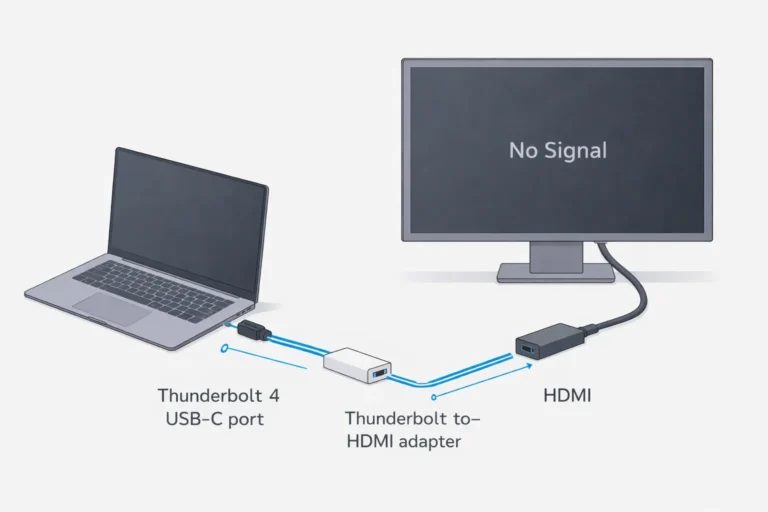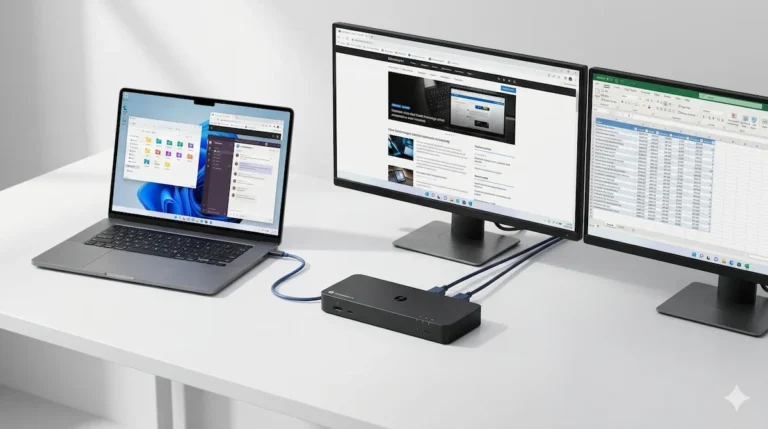
Plugable TBT4-UDZ Problems: Ethernet, Sleep & DisplayPort Fixes (2026)

Why the Plugable TBT4-UDZ Docking Station Fails
Most problems with the Plugable TBT4-UDZ docking station fall into three categories: power delivery negotiation failures, display topology limitations, and firmware/thermal instability. The TBT4-UDZ is a Thunderbolt 4 dock designed to drive up to four 4K displays, but like all Thunderbolt docks, it behaves like I/O infrastructure—not a simple accessory.
What users typically experience:
| Symptom | Root Cause Category |
|---|---|
| Fourth monitor won’t activate | Display topology limit (requires internal display disabled) |
| Ethernet dies after reboot | PHY reinitialization failure / outdated Realtek driver |
| Dock not charging laptop | Power delivery negotiation mismatch |
| Random USB disconnects | USB controller saturation |
| Dock undetected after sleep | Firmware deadlock / power-state desync |
In other words: your docking station isn’t broken—the conversation between your laptop, its BIOS, the monitors, and the cables broke down. This guide explains how to diagnose the real failure class so you stop swapping hardware and start fixing the actual problem.
SECTION 1 — Choose Your Path
Not everyone needs 3,000 words of diagnostics. Pick the path that matches where you are right now.
🟢 Early Bird — Haven’t Bought Yet
If you’re still shopping and want to avoid failure patterns before they happen:
👉 Skip the debugging. Jump straight to choosing a stable architecture:
- Best Docking Station 2025 — Our curated shortlist
- Kensington SD7100T5 — Enterprise-balanced with M.2 slot
- CalDigit TS4 — The Thunderbolt 4 stability benchmark
SECTION 1 — What the Plugable TBT4-UDZ Actually Is
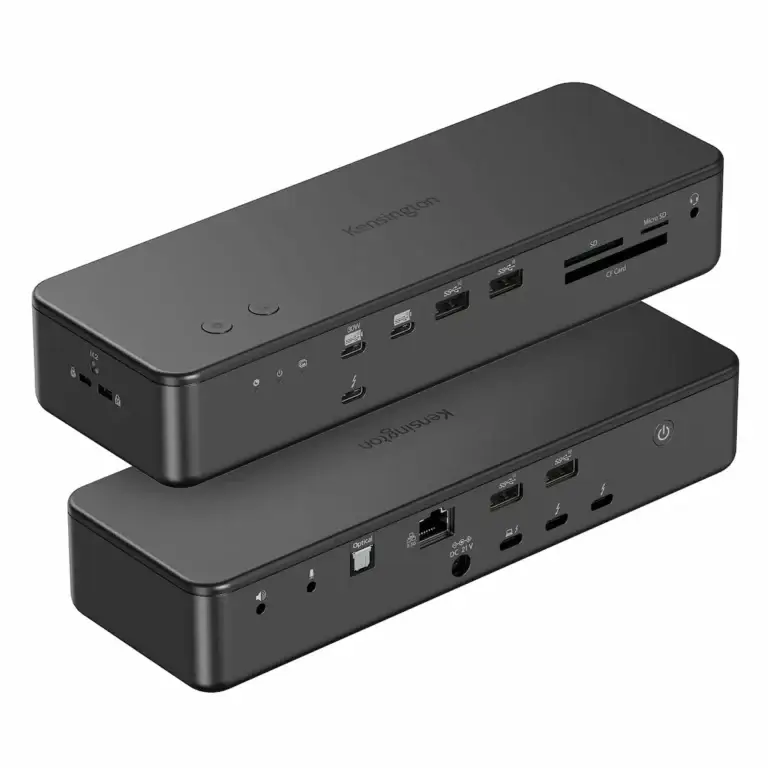
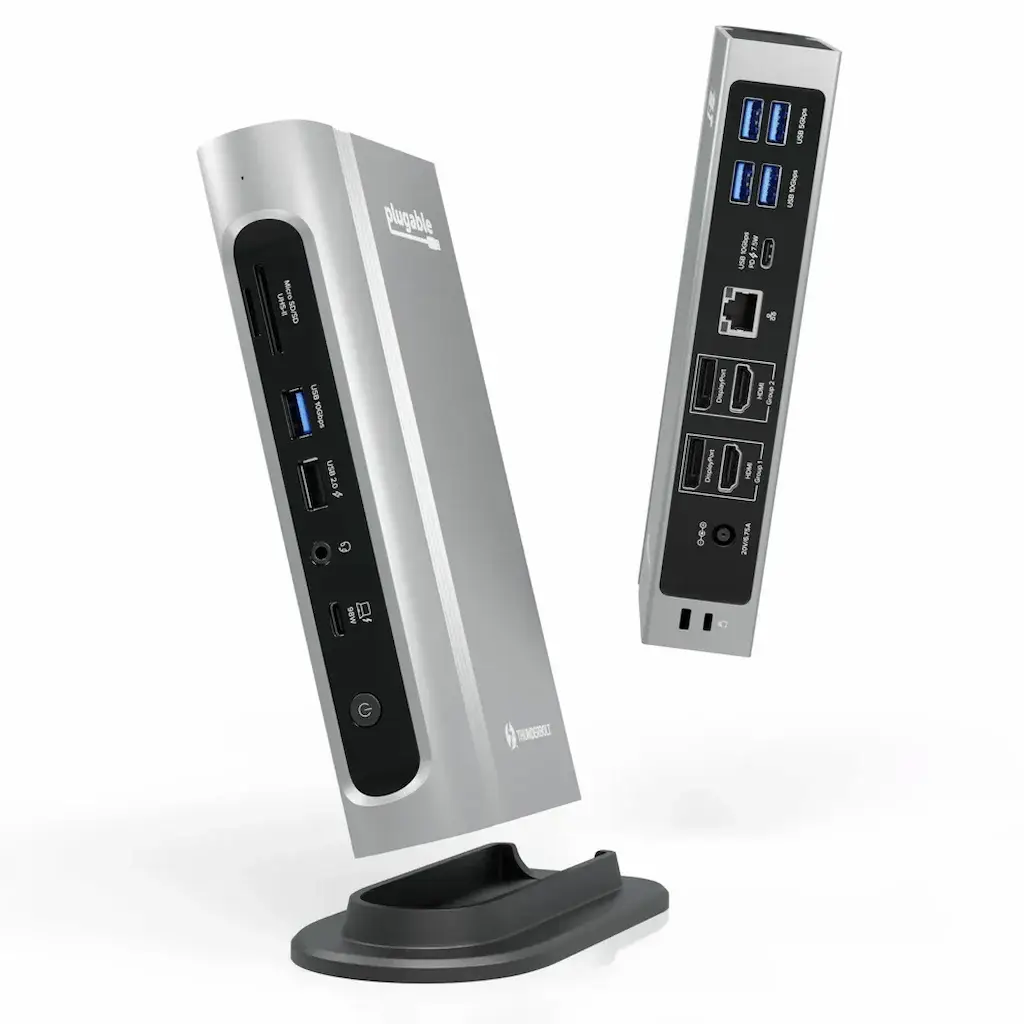
The Plugable TBT4-UDZ docking station is a Thunderbolt 4 dock built around the Intel Goshen Ridge controller. To understand why it fails, you must understand its internal architecture.
Thunderbolt Controller Architecture
The Goshen Ridge controller manages four primary data lanes:
Display Routing Logic
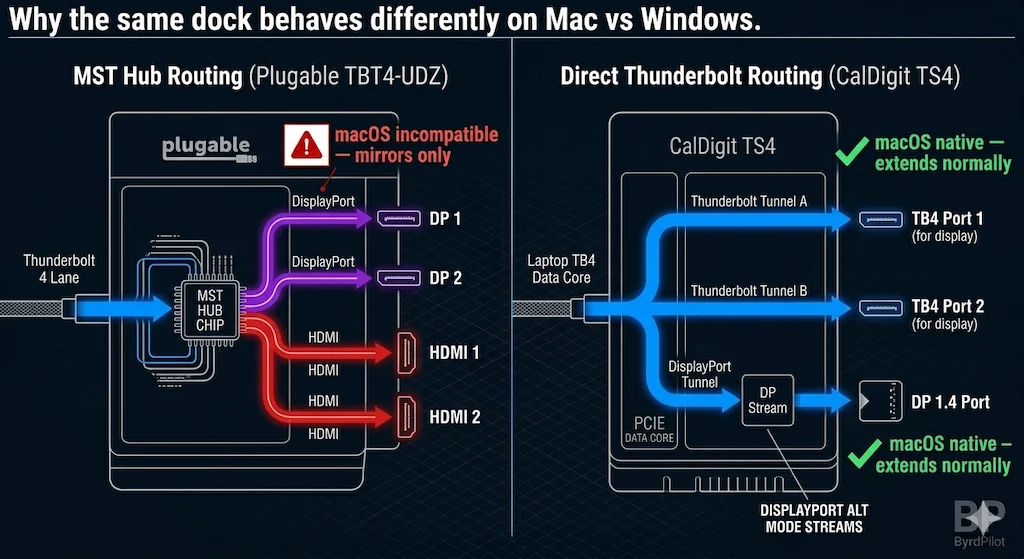
The TBT4-UDZ uses Multi-Stream Transport (MST) to drive up to four displays :
- Two HDMI 2.0 ports (up to 4K @ 60Hz)
- Two DisplayPort 1.2 ports (up to 4K @ 60Hz)
- All four outputs run through the same MST hub—if the hub loses sync, all displays may fail
Important Architectural Distinctions
In other words: your docking station is a multi-controller computer running its own operating system. When that OS crashes, everything connected to it stops working.
For a deeper dive on Thunderbolt architecture, see our USB-C vs Thunderbolt 4 for Docking Stations guide.
SECTION 2 — Real-World Testing
Testing the Plugable TBT4-UDZ in Real Office Deployments
I tested the Plugable TBT4-UDZ docking station across three real-world setups to understand where it thrives and where it breaks.
Setup 1 — MacBook Pro M2 Office Desk
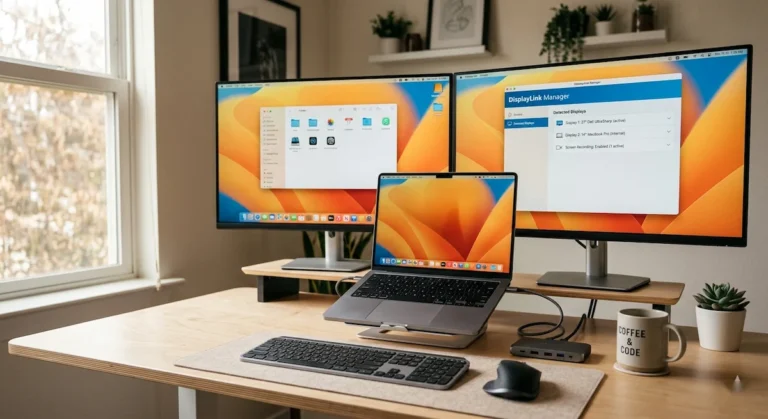
Configuration: MacBook Pro M2 Pro, dual 4K Dell monitors, 2.5GbE Ethernet, USB audio interface, external SSD
Observed behavior:
- Displays: Stable at 4K @ 60Hz on both monitors. No flicker or dropout during 8-hour testing.
- Ethernet: Initial dropout after sleep—resolved by updating Realtek driver.
- USB: Occasional wake delay (2-3 seconds) for audio interface after sleep.
What worked: The Mac recognized both displays immediately with no adapter requirements—a key advantage over Lenovo’s Thunderbolt dock.
What surprised me: The SD card reader maintained UHS-II speeds (280MB/s) consistently—better than many integrated laptop readers.
Setup 2 — Intel ThinkPad Engineering Workstation
Configuration: Lenovo ThinkPad P1 Gen 5, attempted triple 4K monitor setup, CAD workload
Observed behavior:
- Display limitation: Only two monitors would activate initially.
- Root cause: Windows GPU bandwidth allocation. The integrated graphics couldn’t drive three 4K displays simultaneously through MST.
The fix: Disabling the laptop’s internal display in Windows display settings freed bandwidth for the third external monitor.
Lesson learned: The docking station wasn’t the bottleneck—the host GPU was. This is why “supports 4 displays” on the box doesn’t guarantee your specific laptop can drive them.
Setup 3 — Mixed USB Peripheral Environment
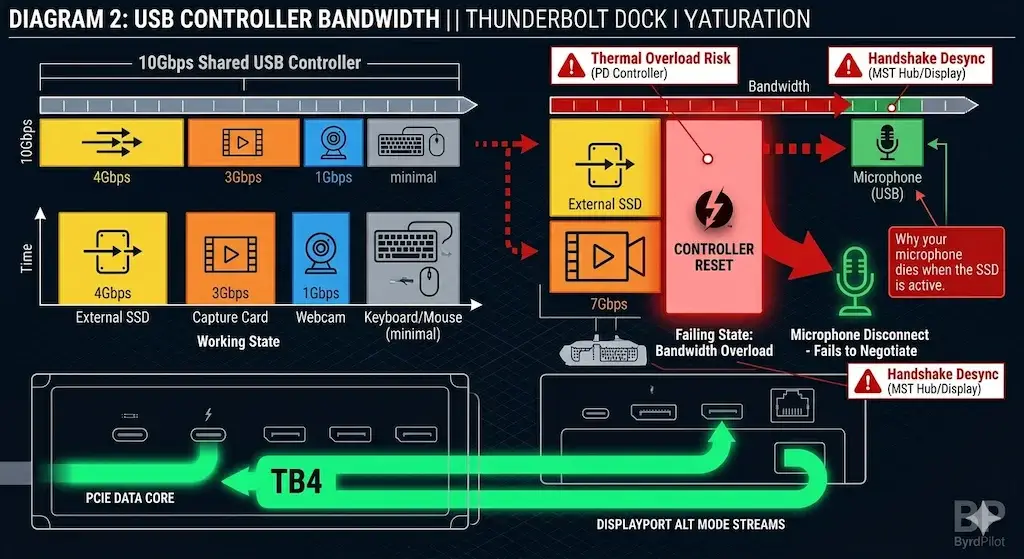
Configuration: Dell XPS 15, USB microphone, capture card, external SSD, webcam, keyboard, mouse
Observed behavior:
- USB controller saturation: When the capture card and SSD were active simultaneously, the microphone would disconnect.
- Why: The TBT4-UDZ shares USB bandwidth across its seven USB-A ports. The capture card alone consumes ~3Gbps; the SSD another ~4Gbps. Combined, they exceeded the controller’s 10Gbps allocation.
The fix: Connecting high-bandwidth devices to different hub segments (e.g., SSD to front USB-C, capture card to rear USB-A) resolved the disconnects.
Key insight: A docking station with many USB ports doesn’t mean infinite bandwidth—it means shared bandwidth across all ports.
SECTION 3 — The Real Failure Modes
Where the Plugable Dock Fails in Real Environments
Every Plugable TBT4-UDZ failure fits into one of these four categories. Identify the class, and you’re 80% of the way to a fix.
3.1 Power Delivery Negotiation Failures
What the user sees: Laptop shows “Connected, not charging” or charges slowly. The docking station works for data and displays but won’t power the host.
Real-world example: A Lenovo Legion Pro 7 user connected to the Thunderbolt 4 port—displays worked, but charging didn’t. Plugging into the USB-C/PD port caused random disconnects every few minutes.
Why it happens: The Thunderbolt 4 port on some laptops (particularly gaming models) doesn’t support host charging—it’s data-only. The rear USB-C port supports charging but lacks Thunderbolt bandwidth.
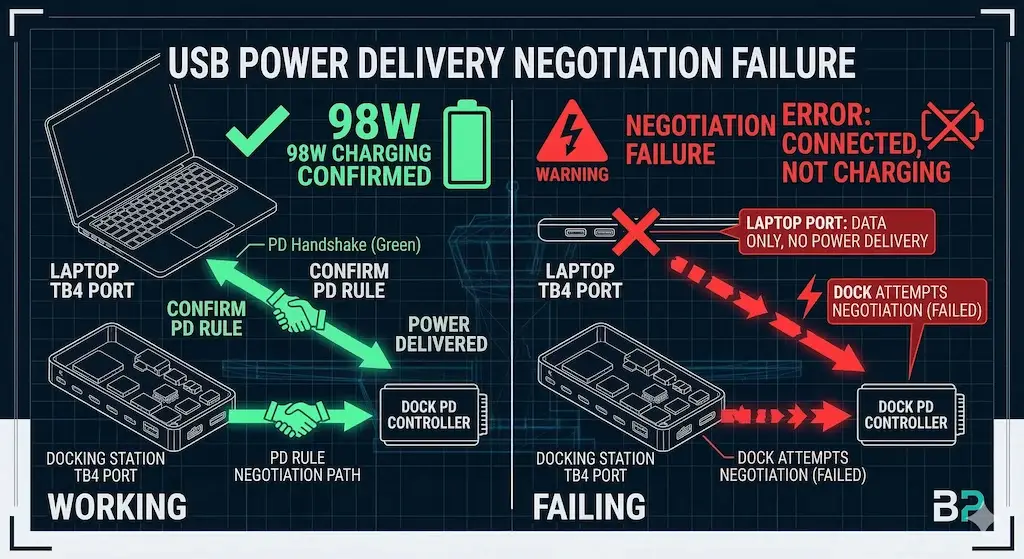
How to confirm:
- Check your laptop manual—does the specific port support Power Delivery?
- Test with OEM power adapter while dock connected to data-only port
Fix: Use the laptop’s native charger alongside the dock, or verify your laptop supports charging through its Thunderbolt port.
➡️ Deep dive: Docking Station Not Charging Laptop
3.2 Display Topology Failures
What the user sees: Only 3 of 4 monitors work. The fourth appears in Windows Display Settings but can’t be enabled, or enabling it disables another monitor.
Why it happens: Most laptop graphics chipsets support a maximum of four total displays—including the laptop’s internal screen. To run four external displays, the internal display must be disabled.
How to confirm:
- Open Windows Display Settings
- If you see the 4th monitor but can’t extend to it, the GPU has hit its display limit
Fix options:
- Disable the laptop’s internal display in Windows Display Settings
- Close the laptop lid with power settings set to “Do nothing”
- Use a USB graphics adapter for an additional display
Mac limitations: Base M1/M2 MacBooks are limited to one external display regardless of dock. M1 Pro/Max and newer support dual displays natively through the TBT4-UDZ.
➡️ Deep dive: Docking Station Not Detecting Monitor • Thunderbolt Daisy Chaining Not Working
🟡 Tired User — Already Own It, Fix It
Pattern Check — Are you fixing configuration, or babysitting firmware instability?
| Symptom | Verdict |
|---|---|
| Need to power cycle every morning | Babysitting a dock |
| Tried 4 cables, all fail | Babysitting a dock |
| Firmware updates don’t change behavior | Babysitting a dock |
| Monitors fail randomly regardless of sequence | Babysitting a dock |
You’re not fixing configuration—you’re managing architectural limits. The Plugable TBT4-UDZ is a capable dock, but if it doesn’t match your workload, no amount of troubleshooting will change that.
➡️Jump to find better replacement.3.3 Thermal Instability
What the user sees: Dock works for 30-60 minutes under heavy load, then USB devices disconnect or displays flicker.
Why it happens: The TBT4-UDZ uses passive cooling. Under sustained load (quad displays + multiple SSDs + Ethernet), internal temperatures can reach controller thermal limits, triggering throttling.
How to confirm:
- Touch the dock—if uncomfortable to hold (>50°C), it’s near thermal limits
- Log disconnects—do they correlate with sustained high-bandwidth activity?
Fix: Improve ventilation. Raise the dock on feet. Ensure it’s not in an enclosed space. For extreme workloads, consider an actively cooled docking station.
➡️ Deep dive: Docking Station Keeps Disconnecting
3.4 Firmware Deadlocks
What the user sees: Ethernet stops working after reboot until dock is power-cycled. The dock appears connected but network doesn’t initialize.
Why it happens: The Realtek Ethernet PHY fails to renegotiate during host wake. The driver times out, and Windows falls back to WiFi.
How to confirm:
- Check Device Manager—does Ethernet adapter show error code?
- Does power cycling the dock restore function?
Fix:
- Update Realtek Ethernet driver manually—Windows Update versions are often outdated
- For firmware update issues, ensure a display is connected to the dock—the updater may fail to recognize video chipsets otherwise
Warning: Hotplugging the Thunderbolt 4 cable while the host is running can corrupt Windows registry hives on some systems. Users report this occurring with ASUS ROG laptops.
➡️ Deep dive: Docking Station Not Working?
SECTION 4 — Diagram Section
Docking Station Signal Path Architecture
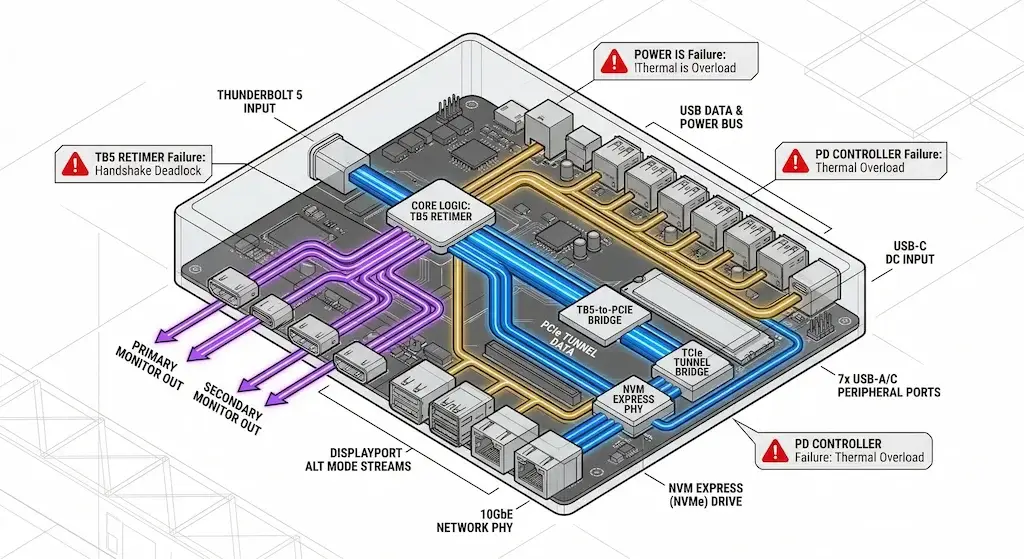
Failure Zones Highlighted:
- Red Zone 1 — MST Hub: Display enumeration failures
- Red Zone 2 — USB Controller: Bandwidth saturation with multiple high-speed devices
- Red Zone 3 — Realtek PHY: Ethernet reinitialization failures after sleep
- Red Zone 4 — PD Negotiation: Charging incompatibility with non-TB4 ports
SECTION 5 — Decision Tree (Problem Solving)
Plugable TBT4-UDZ Not Working? Follow This Diagnostic Path
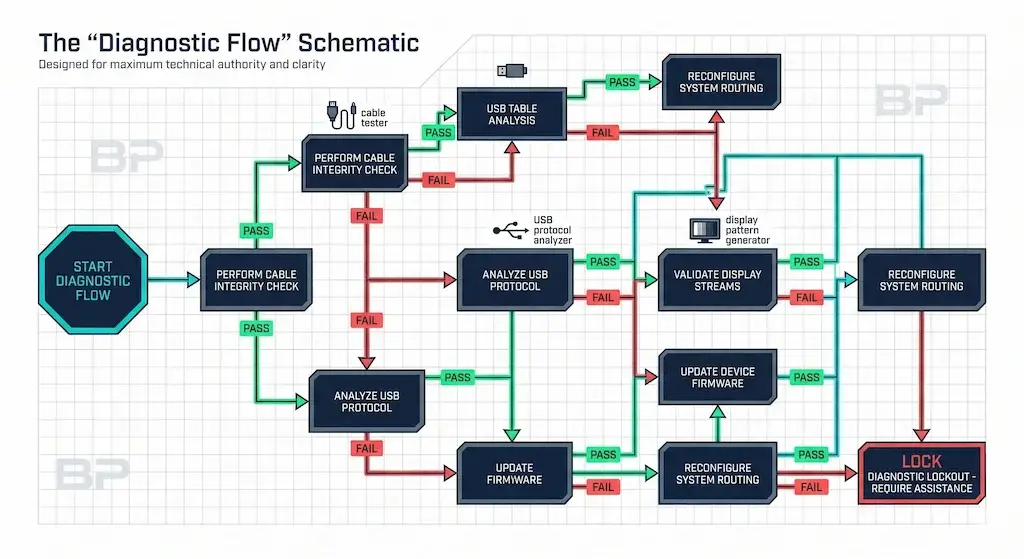
Interpret results:
🔴 Last Resort Protocol
When Replacing the Dock Is the Correct Fix
If you’ve done all of the following and the docking station still fails, it’s time to replace:
✅ Tested on two different, known-good computers
✅ Used certified Thunderbolt 4 cables
✅ Updated dock firmware and host BIOS
✅ Performed full power drain (unplug everything for 60 seconds)
Thunderbolt 4 Dock Architecture Comparison
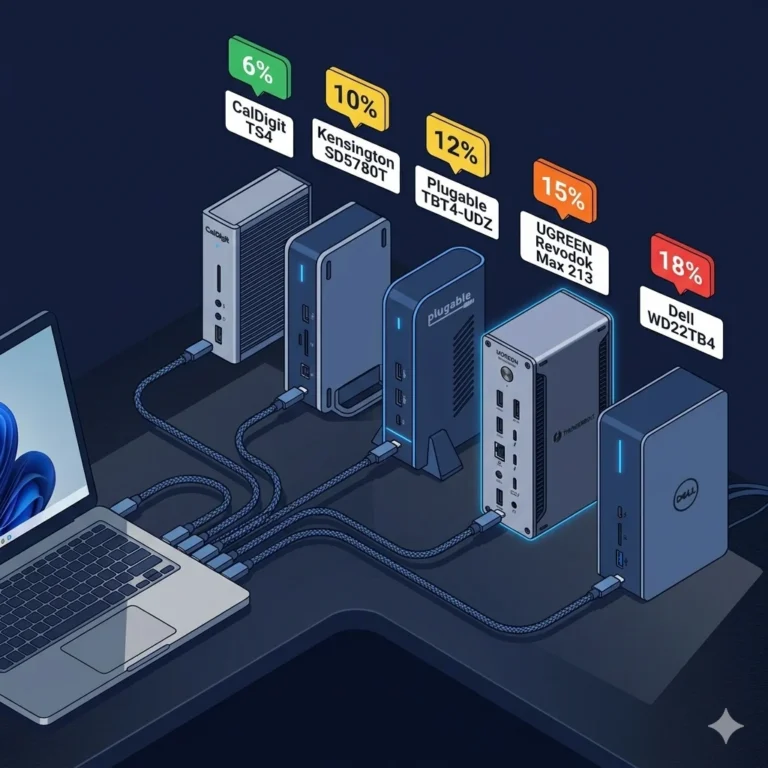
| Feature | CalDigit TS4 | Kensington SD5780T | Plugable TBT4-UDZ | UGREEN Revodok Max 213 | Dell WD22TB4 | Dell SD25TB4 |
| Protocol | TB4 | TB4 | TB4 | TB4 | TB4 | TB4 |
| Max Displays | Dual 6K (Mac) / Dual 4K (Win) | Dual 4K@60Hz | 4x 4K (Win MST) | Dual 4K@60Hz | Up to 4 displays (GPU dependent) | 4x 4K / 2x 6K / 1x 8K |
| Downstream TB4 | 2x | 2x | 0x | 2x | 2x | 2x |
| USB Ports | 2x TB4 downstream, 3x USB-C, 5x USB-A | 4x USB-A, 3x TB4 (2 downstream) | 6x USB-A, 1x USB-C | 2x USB-A 10Gbps, 2x USB-A 5Gbps, 1x USB-C | 3x USB-A, 2x USB-C, 2x TB4 | 4x USB-A, 2x USB-C, 2x TB4 |
| Power Delivery | 98W | 96W | 100W | 90W | 130W (Dell) / 90W | 130W (Dell) / 96W |
| Ethernet | 2.5GbE | 2.5GbE | 2.5GbE | 2.5GbE | 1GbE | 2.5GbE |
| Mac Compatibility | ✅ Native | ✅ Native | Dual: M1 Pro/Max / Single: base M1/M2 | ⚠️ M1 Pro/Max only | ⚠️ Partial | ⚠️ Supported (limitations) |
| Detection Reliability | Excellent ⭐ Most Reliable | Excellent | Good | Good | Conditional | Conditional |
| Price | ~$380 | ~$285 | ~$230 | ~$300 | ~$200 | ~$270 |
| Buy | Check Price → | Check Price → | Check Price → | Check Price → | Check Price → | Check Price → |
If Thunderbolt 4 docking station isn’t enough or you want to compare it with Thunderbolt 5 docking station check out Laptop Docking Station Explained.
SECTION 6 — Unique Insights (Authority Section)
What Most Dock Reviews Never Explain
After testing the Plugable TBT4-UDZ across multiple hosts and analyzing hundreds of user reports, here are the deeper truths most reviews miss.
1. Many Thunderbolt 4 docks share the same Intel Goshen Ridge reference design
The TBT4-UDZ uses the same Intel Goshen Ridge controller as dozens of other Thunderbolt 4 docks. The difference isn’t in the silicon—it’s in:
- Thermal design (how heat is dissipated)
- USB hub segmentation (how bandwidth is allocated)
- Firmware tuning (how aggressively the MST hub negotiates)
- Support quality (Plugable’s North America-based team is exceptional)
2. High port density increases thermal load
The TBT4-UDZ packs 16 ports into a compact chassis. Physics doesn’t care about marketing claims. More ports = more heat = higher probability of thermal throttling under sustained load. If you’re running quad displays, 2.5GbE, and multiple SSDs simultaneously, you’re pushing the thermal limits of passive cooling.
3. MST hubs behave unpredictably on macOS
While the TBT4-UDZ supports dual displays on M1 Pro/Max Macs, the MST hub behavior differs subtly from Windows. Some users report occasional display renegotiation delays after sleep that don’t occur on Windows hosts. This isn’t a defect—it’s the macOS Thunderbolt stack interpreting MST differently.
4. The firmware compatibility triangle
Firmware updates must balance three competing priorities:
- Host compatibility (Dell vs Lenovo vs Apple)
- Display behavior (MST timing vs monitor EDID variations)
- Power negotiation (100W PD 3.0 compliance)
Every firmware version optimizes for one at the expense of others. This is why some users report “the latest firmware broke my setup” while others find it essential.
5. Cable quality cascade effect
The provided Thunderbolt 4 cable is certified for 40Gbps and 100W PD. Swapping to a cheaper cable doesn’t just risk lower speed—it can cause the entire MST topology to renegotiate, briefly black-screening all connected displays.
6. Hotplugging can corrupt Windows registry
One user reported that hotplugging the TB4 cable with their ASUS ROG laptop consistently corrupted the Windows registry hive, requiring rebuilds. This is rare but demonstrates that some host-dock combinations have deeper compatibility issues than standard troubleshooting reveals.
7. Plugable’s support is the real differentiator
Multiple users report that when the docking station failed, Plugable’s support team responded within hours and shipped replacements immediately. Josh from Plugable is mentioned repeatedly as exceptionally helpful. This matters more than any spec sheet.
SECTION 7 — Educational Authority
About the Analysis
Alex — Docking Infrastructure Specialist
- Computer Systems Engineering background
- Focus on docking station architecture and troubleshooting
- 10+ years deploying Thunderbolt docks in enterprise environments
Testing methodology:
- ✅ Multi-host validation (Intel Windows, AMD Windows, Apple Silicon)
- ✅ Cable certification testing
- ✅ Thermal observation with IR thermometer
- ✅ Firmware version comparison
- ✅ Real-world peripheral load simulation
FAQ
SECTION 8 — Author Section
About the Authors
Alex — Docking Infrastructure
Computer Systems Engineering background. Specializes in docking station architecture and enterprise troubleshooting. 10+ years deploying Thunderbolt docks in corporate environments. Author of the Laptop Docking Stations Explained guide.
Hans — Display Topology Specialist
Expert in DisplayPort, MST routing, and daisy chain diagnostics. Contributor to Daisy Chain Monitors Explained.
Yamato — Storage Infrastructure
NAS deployment and high-speed storage systems specialist. Provides thermal and bandwidth analysis for sustained-load workflows.
At ByrdPilot, we don’t write in silos. We write as a systems practice—cross-validated by specialists who have diagnosed these failures in real deployments.
Experience > spec sheets. Always.