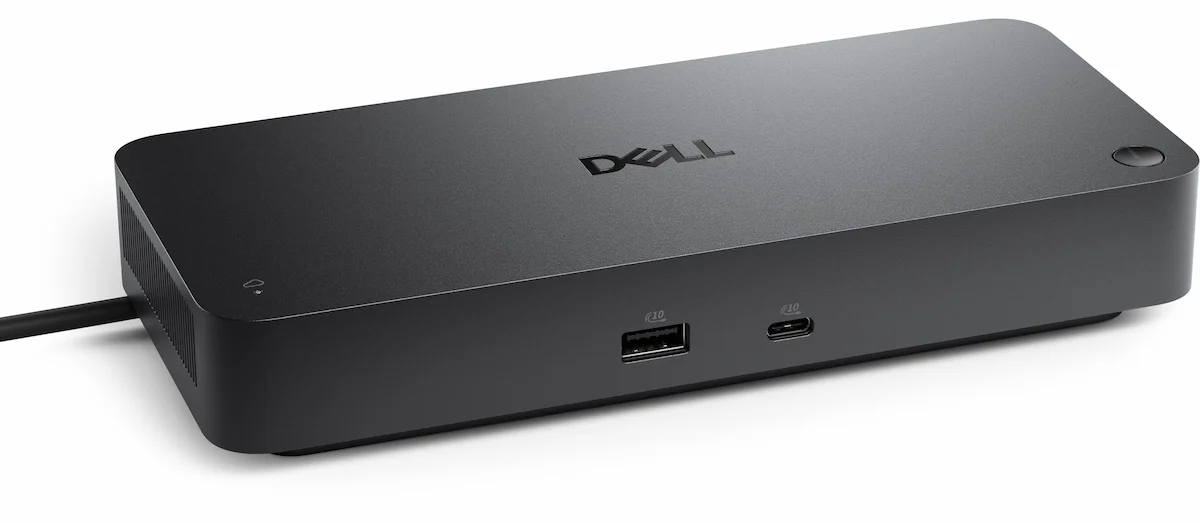
Dell Docking Station SD25TB4 Problems: Real Failure Modes, Diagnostics & Enterprise Trade-Offs

Updated March 2026
Added: fleet pre-deployment checklist, repair vs. replace decision matrix for the Dell docking station SD25TB4, and updated dock alternatives with current pricing.
What This Guide Is — And Who It’s For
Quick Answer — Dell SD25TB4 Problems
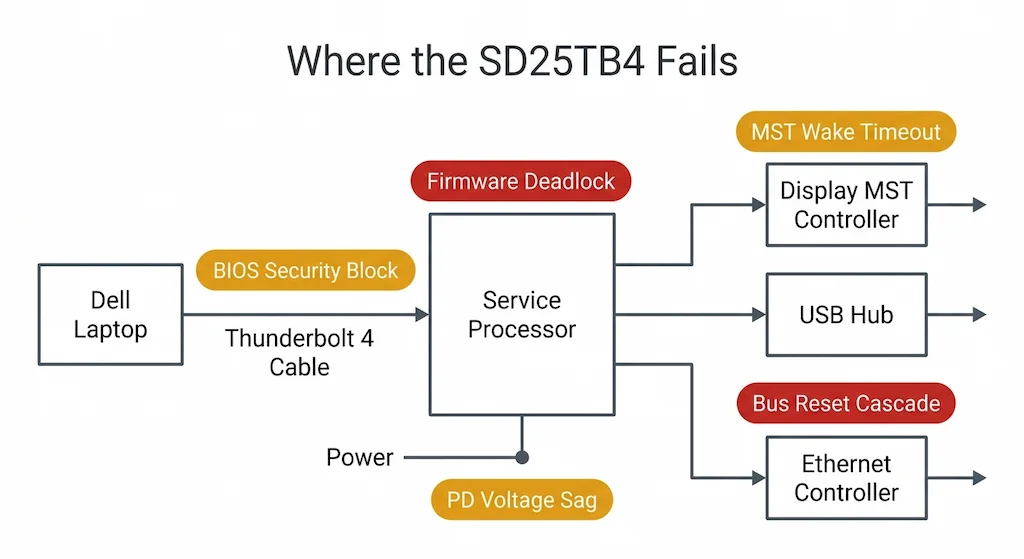
The Dell SD25TB4 has five documented failure classes: firmware deadlocks, BIOS/Thunderbolt security conflicts, MST display wake failures, power delivery throttling under load, and Ethernet-triggered bus resets. These are not random defects — they are predictable outcomes of the dock’s enterprise management layer. The SD25TB4 is stable inside a fully standardized Dell fleet. Outside that environment, failure isn’t random — it’s expected. Most issues resolve with a 2-minute full power drain or BIOS Thunderbolt security reset. If both fail, the dock’s service processor is likely corrupted and requires depot replacement.
The Dell Thunderbolt 4 Smart Dock SD25TB4 has five documented failure classes: firmware deadlocks, power sequencing failures, USB controller resets, Thunderbolt fabric drops, and MST display wake failures. These are not random defects — they are predictable outcomes of the dock’s design priorities around centralized IT manageability within Dell-only fleet environments.
This is not a review. This is a failure-analysis document for IT architects deploying SD25TB4 at scale and power users inheriting the dock in a managed environment. It explains what will break, why it will break, and how to confirm you’re facing a systemic dock issue rather than a cable fault. If you’re evaluating whether the SD25TB4 is the right replacement for a daisy-chain monitor setup, our guide Daisy Chain Monitors Explained covers exactly when a managed dock solves the problem versus when it shifts the failure surface.
🟢 Early Bird — Haven’t Bought Yet? Read This First
The Dell SD25TB4 is not a consumer dock. It’s an enterprise “Smart Dock” designed for pure Dell fleets with centralized IT management.
Before you buy, ask yourself:
- Is my environment 100% Dell laptops?
- Does my IT team use Dell Command | Suite to manage BIOS and firmware?
- Am I comfortable with the possibility of firmware deadlocks that require vendor recovery tools?
For mixed environments or home offices, a universal Thunderbolt 4 dock delivers better stability with less complexity.
Not sure which dock fits your setup? Compare all 81 docking stations side by side — filter by connection type, displays, power delivery, and OS in our Docking Station Comparison Tool.
1. What the Dell Docking Station SD25TB4 Actually Is (Educational Foundation)
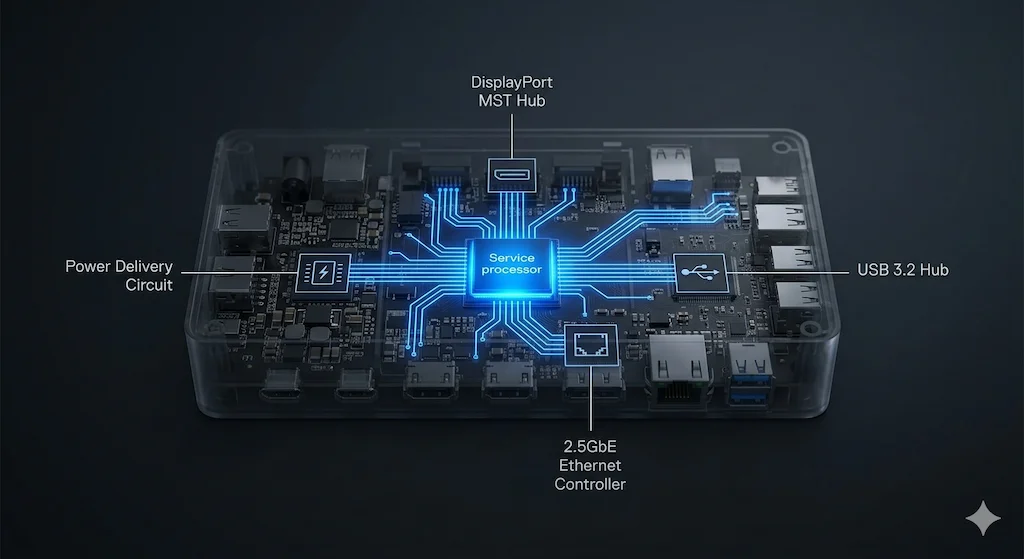
The Dell docking station SD25TB4 is not merely a port replicator. It is a “Smart Dock,” a term Dell uses to signify a device with an embedded service processor and firmware automation designed for IT management suites like Dell Command | Suite. While it shares the Thunderbolt 4 spec with consumer docks, its behavior is dictated by this management layer.
Internally, it is a distinct evolution from the WD22TB4. Where the WD22TB4’s Service Controller primarily managed power and basic enumeration, this SD25TB4 unit incorporates more aggressive firmware automation for updates, network identity persistence, and display topology management. This means the SD25TB4 Dell dock makes more decisions independently of the host OS. It’s this shift from a “dumb” hub to a “smart” peripheral that defines both its enterprise value and its unique failure profile.
For context on how this differs from a simpler universal dock, our guide on USB-C vs Thunderbolt 4 for Docking Stations details the protocol fundamentals. This shift also explains why the Dell docking station behaves so differently when connected to non‑Dell hosts. The SD25TB4 is not designed to adapt to your environment.
Your environment must adapt to the dock.
2. Real-World Deployment Story: How SD25TB4 Fails After Rollout
The Setup: A mid-sized architectural firm standardized on Dell Precision 7680 laptops and the new Dell docking station SD25TB4. Monitors were a mix: new Dell U3223QE 4K displays for principals, and older LG 4K models for associates. IT pushed standardized Dell BIOS updates and used Command | Suite to manage the SD25TB4 dock firmware.
The Timeline of Failure:
- Months 1-2: Flawless operation. The “smart” features were praised; docks were recognized instantly.
- Month 3, Post-Firmware Update: The first tickets appeared. An associate’s dual LG monitors would go black after waking the laptop from sleep, requiring a hard reboot. The initial blame was placed on the “old LG monitors.”
- Month 4, Pattern Emergence: The issue became widespread but inconsistent. It affected users with mixed monitor brands (Dell + LG) more severely. A principal with two identical Dell monitors might see the issue once a week. An associate with two LGs saw it daily. IT suspected the Thunderbolt cables and replaced them, to no avail.
- Month 5, Escalation: A new failure mode emerged: the SD25TB4 unit would completely disappear from Device Manager after a weekend, showing only as an “Unknown USB Device.” The fix was a full 2-minute power drain of the dock. The problem was no longer just displays; it was the dock’s very identity to the host.
What Testing Showed: Isolating the variables revealed the core compromise. The SD25TB4’s firmware, when managing non-Dell monitors, would occasionally corrupt its internal DisplayPort MST table during a sleep state. This corruption would cascade, causing the dock’s USB controller to malfunction. The “smart” automation, designed to handle display handshakes, was the point of failure. This Dell smart dock wasn’t inherently bad; it was the wrong compromise for an environment with mixed peripherals. It assumed a level of ecosystem control the firm didn’t have. In other words, a Dell docking station is only as stable as the hardware it’s paired with.
3. Core Failure Classes of the Dell Docking Station SD25TB4
3.1 Firmware Automation Deadlocks
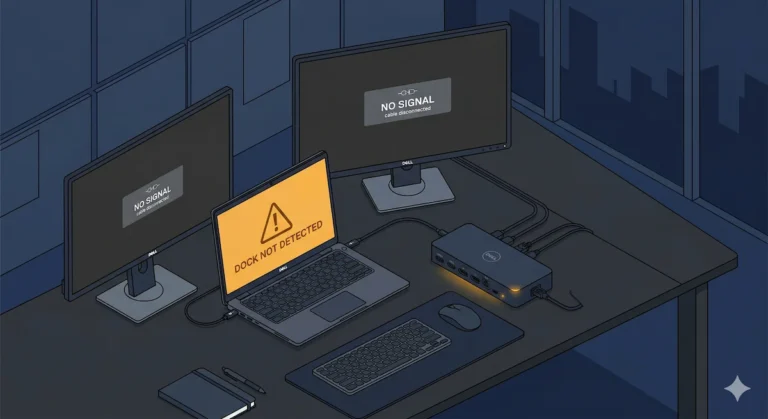
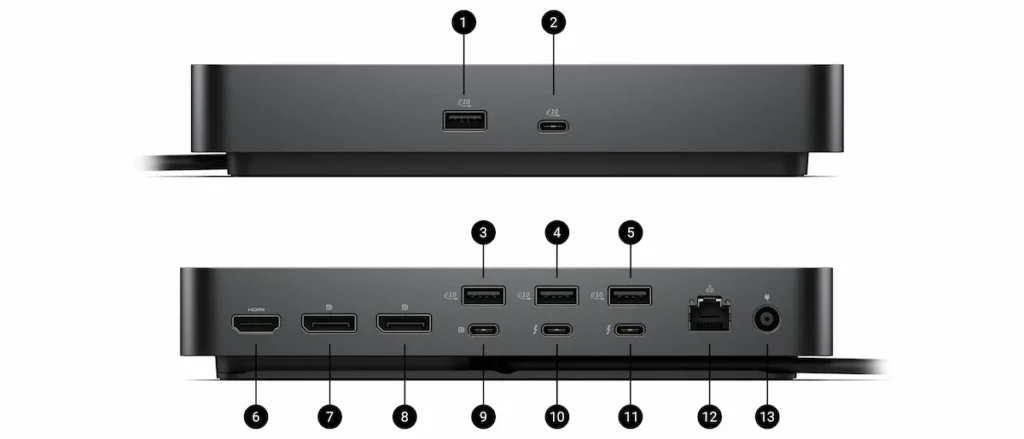
Symptom: The dock is unresponsive (LED may be on or off). It is not detected by the Dell Firmware Update Utility, or the utility fails mid-update. The host may see an “Unknown Device.”
- Root Cause: The SD25TB4 dock’s automated update or health-check process has entered a deadlocked state. A partial firmware flash or a failed validation check can leave the service processor in an undefined mode, unable to boot fully or accept new commands.
- How to Confirm: Attempt a 2-minute full power drain (unplug laptop, unplug AC from wall and from dock). If the dock remains dead or the firmware utility cannot communicate with it afterward, you have a firmware deadlock. This is more severe than the common disconnection issues covered in Thunderbolt Dock Not Detected?
- Insight: Automation increases coupling. A failed automated process on this Dell docking station bricks the hardware more completely than a passive design, increasing the mean time to recovery. When evaluating a docking station, ask whether it has a service processor—that’s the difference between a simple hub and a complex endpoint.
🔵 2026 Update — Dell Command | Suite 5.x Firmware Push Failures
Dell Command | Update 5.x (released Q1 2026) introduced a background firmware push mechanism for managed docks. In environments where the SD25TB4 is connected but the host laptop enters S3 sleep mid-push, the dock’s service processor can enter an unrecoverable state — the standard 2-minute power drain no longer resolves it. Dell acknowledged this in KB article DSA-2026-042 and released Command | Update 5.1.1 with a pre-flight sleep check. If you’re running Command | Update 5.0.x, update immediately or disable background dock firmware pushes in your Command | Suite policy.
3.2 BIOS, Thunderbolt Security & vPro Dependency
Symptom: The dock functions as a basic charger only. No displays, USB, or Ethernet. Or, it works perfectly until a BIOS update is applied, after which it fails.
- Root Cause: The Dell docking station SD25TB4 has deep hooks into Dell BIOS, particularly for Thunderbolt security levels and Intel vPro/AMT management features. A BIOS update can reset Thunderbolt security to “User Authorization” or “Secure Connect,” which the dock’s firmware may not re-negotiate properly. On a non-Dell laptop, these hooks don’t exist, leaving the SD25TB4 unit in a semi-functional state. This is why the Dell docking station family can behave unpredictably after a simple BIOS update.
- How to Confirm: Enter the host laptop’s BIOS (F2 on Dell). Check Thunderbolt/USB4 settings. If security is set to “Secure Connect Only” or if “Dell Dock Pre-Boot Support” is disabled, the dock may be blocked. This is a Dell-specific failure vector generic guides miss.
The SD25TB4 shares its Thunderbolt driver stack with the WD22TB4 — four specific drivers that must be installed in a strict sequence. If you’re deploying fresh or recovering after a BIOS update, the install order is the difference between a working dock and a paperweight. Our Dell Docking Station Drivers guide covers the exact sequence, model-specific packages, and the five failure patterns that appear after a clean install.
3.3 Display Failures: MST, Wake Order & Daisy Chains
Symptom: One or both monitors fail to wake from sleep, displaying “No Signal.” The docking station otherwise seems fine. Or, a daisy chain from the dock works on boot but breaks after sleep.
- Root Cause: The SD25TB4’s MST controller firmware is aggressive in power management. During sleep, it powers down the MST hub. On wake, if a connected monitor is slow to handshake (common with non-Dell monitors), the dock’s firmware may time out and leave that branch of the MST tree disabled.
- How to Confirm: Connect the problematic monitor directly to the laptop. If it wakes reliably, the issue is the SD25TB4 dock’s MST handshake, not the monitor. This is a more pronounced version of issues seen in older docks, as detailed in Docking Station Not Detecting Monitor? and related to the protocol challenges in Thunderbolt Daisy Chaining Not Working?. Several display-related failure confirmations for this Dell smart dock were cross-validated with Hans’s daisy-chaining diagnostics, where similar MST timing failures appear across non-Dell docks.
🔵 2026 Update — Windows 11 24H2 Thunderbolt Display Enumeration Regression
Windows 11 24H2 changed how the kernel enumerates Thunderbolt-connected displays on cold boot. The SD25TB4’s MST controller — already aggressive with wake timeouts — now races against a slower OS-side enumeration. Result: monitors that worked on 23H2 now require a second unplug/replug cycle after every cold boot. Microsoft acknowledged the timing issue in KB5043145. Fix: update the Intel Thunderbolt driver to version 1.41.1920.0 or later from Intel directly — not the Dell OEM package, which lagged behind by two months at time of writing.
3.4 Power Delivery Misreporting & Performance Throttling (2026 update)
Symptom: The laptop shows the charging icon but battery percentage decreases under load, or system performance is sluggish when docked.
Root Cause: The SD25TB4 is rated at 130W Power Delivery — the maximum defined by Intel’s Thunderbolt 4 specification — which sounds sufficient until you account for real-world draw. The Dell Precision 7680, one of the primary target machines for this dock, draws up to 130W under sustained CPU and GPU load simultaneously. That leaves zero headroom. Voltage sag and thermal throttling within the dock’s power circuitry can cause actual delivery to drop to 90–110W under load — while the OS still reports “charging” based on the negotiated contract, not actual current flow.
Affected configurations:
- Dell Precision 7670 / 7680 under sustained render or compile workloads
- Dell XPS 15 / 17 running CPU + discrete GPU simultaneously
- Any laptop where the dock is the sole power source during peak load
How to Confirm: Use HWiNFO64 to monitor reported input wattage while running a CPU/GPU stress test (Prime95 + FurMark simultaneously). If input power drops from ~130W to 90W or below, the dock is throttling delivery. This is a subtler version of the broader Docking Station Not Charging Laptop problem.
Important note for fleet managers: Throttling is workload-dependent and intermittent. Users doing email and documents will never see it. Users doing CAD, video encoding, or large compilations will see it frequently. This creates support tickets that are hard to reproduce on a helpdesk bench.
Upgrade path: The Dell SD25TB5 raises Power Delivery to 240W per Intel’s Thunderbolt 5 specification, eliminating this ceiling entirely for current Dell Precision workstations.
3.5 Ethernet & Smart Networking as Failure Triggers
Symptom: Intermittent network drops that coincide with the dock being disconnected/reconnected in Windows Device Manager. The entire docking station may reset.
- Root Cause: The SD25TB4 implements MAC address pass-through and network persistence features. A conflict or error in maintaining this network identity—especially when moving between wired and wireless networks or after a driver update—can cause the dock’s Ethernet controller to trigger a full bus reset of the Dell dock’s data lane.
- How to Confirm: Check Windows Event Viewer for simultaneous errors from “ndis” (network driver) and “USBXHCI” (USB host controller) around the time of disconnect. This unique insight is rarely documented but has high diagnostic value, as the Ethernet chip becomes a failure trigger for the entire data subsystem.
🟡 Pattern Check — Are You Fixing a Setup or Babysitting a Dock?
🟡 Pattern Check — Are You Fixing a Setup or Babysitting a Dock?
You’ve power-drained. You’ve updated firmware. You’ve checked BIOS. The dock still drops. Before you escalate to Dell or buy a replacement, confirm which column you’re in.
| It’s a setup problem if… | It’s a dock problem if… |
|---|---|
| Dock works fine on a different Dell laptop | Dock fails on two or more different hosts |
| Failure started after a BIOS or OS update | Failure present since day one |
| Only displays fail — USB and Ethernet are fine | Multiple subsystems fail simultaneously |
| 2-minute power drain fixes it for weeks | Power drain fixes it for hours, then recurs |
Right column consistently? The dock’s service processor is the failure point — not your setup.
4. Comparison Table
| Model | Protocol | Power Delivery | Predictable Failure | Recovery | Mixed Fleet | Price |
|---|---|---|---|---|---|---|
| Dell SD25TB4 ← You are here | TB4 | 130W | Firmware deadlock, MST wake failure | High | Very Low | Check Price |
| Dell SD25TB5 ↑ Upgrade | TB5 | 240W | Early firmware maturity | Medium | Very Low | Check Price |
| Dell WD22TB4 | TB4 | 130W | Management lane lockup | Medium | Low-Medium | Check Price |
| Dell WD19TBS | TB3 | 130W | Aging hardware, worn port | Low | Medium | Check Price |
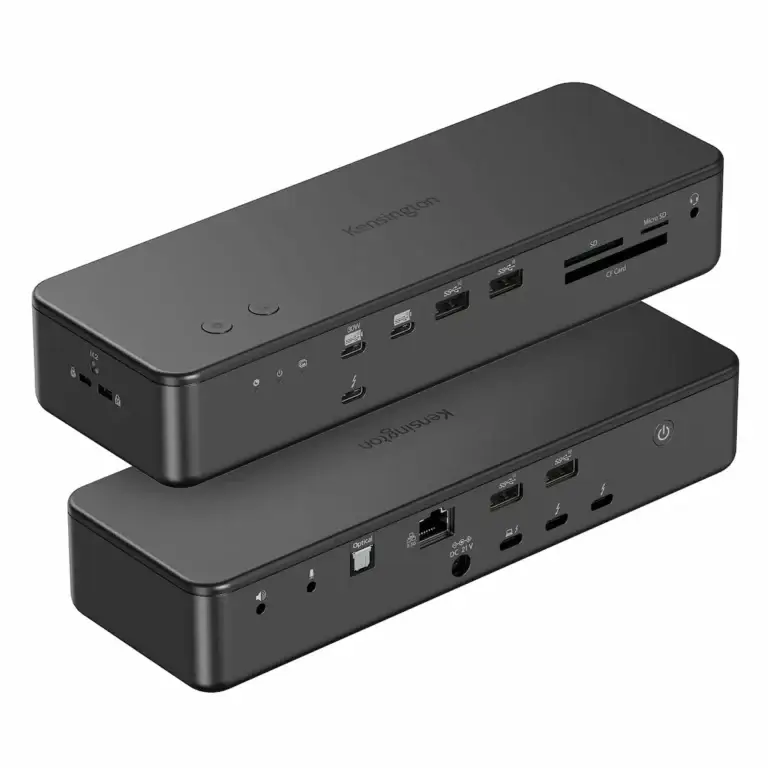
| Kensington SD7100T5 | TB5 | 140W | Minimal — no firmware automation | Low | High | Check Price |
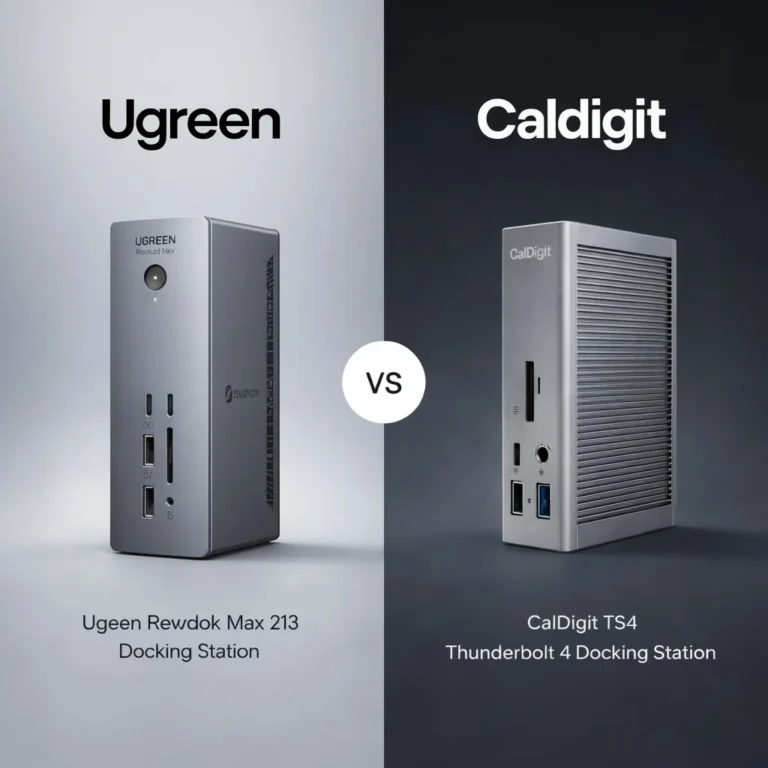
| CalDigit TS4 | TB4 | 98W | None systemic | Very Low | Very High | Check Price |
Predictability matrix for IT deployment decisions. Recovery difficulty and mixed-fleet tolerance matter more than specs.
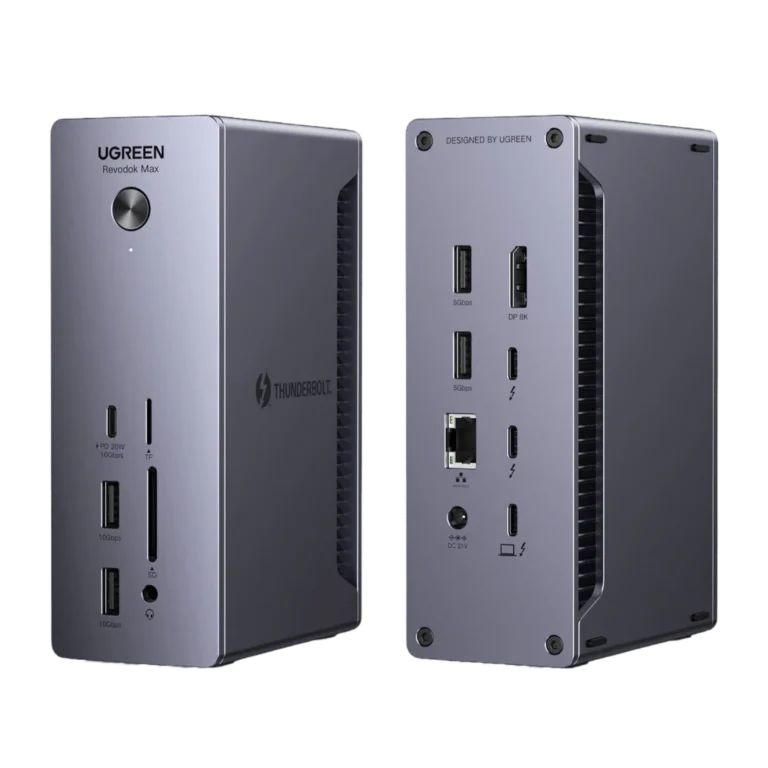
What to Replace It With
CalDigit TS4
Thunderbolt 4 · Fanless · 2.5GbE · 98W PD
- No service processor — no firmware deadlocks
- Dual 4K@60Hz (Windows) · Dual 6K (M1 Pro/Max/Ultra)
- 2x downstream TB4, 3x USB-C, 5x USB-A
- Mixed fleet: ✅ Works on Dell, Lenovo, HP, Mac — no ecosystem lock
- Recovery: power cycle fixes everything. No depot repair.
The opposite of the SD25TB4. Zero management automation, zero firmware complexity, highest uptime across mixed fleets.
Check Price →Dell WD22TB4
Thunderbolt 4 · 1GbE · 130W PD (Dell) / 90W
- Same Dell ecosystem, simpler management layer
- Dual 4K@60Hz · 2x DP 1.4 + 1x HDMI 2.0
- 2x downstream TB4, 3x USB-A, 2x USB-C
- Failures are easier to diagnose and field-repair than SD25TB4
- ⚠️ Still conditional on non-Dell hosts
Downgrade option if you need to stay Dell but the SD25TB4’s automation is creating more problems than it solves.
Check Price →Dell SD25TB5
Thunderbolt 5 · 2.5GbE · 240W PD
- 240W PD eliminates the SD25TB4’s throttling ceiling
- 120Gbps bandwidth — triple the SD25TB4
- Same Command | Suite management layer — same ecosystem lock
- Firmware deadlock and Ethernet reset failure classes still apply
- ⚠️ Early firmware maturity — expect patches through 2026
Solves the power and bandwidth problems. Inherits the management complexity. Dell fleet upgrade only — not a universal dock.
Check Price →The SD25TB4 represents Dell’s push towards a more integrated, managed Dell docking station future. This comes at the cost of recovery complexity and environmental flexibility. The older WD22TB4, while not without its detailed problems, often fails in ways that are easier to diagnose and rectify in the field.
This comparison highlights a key pattern across Dell docking stations: as management automation increases, failure recovery complexity increases faster than reliability.
5. SD25TB4 Diagnostic Checklist (Problem-Solving Core)
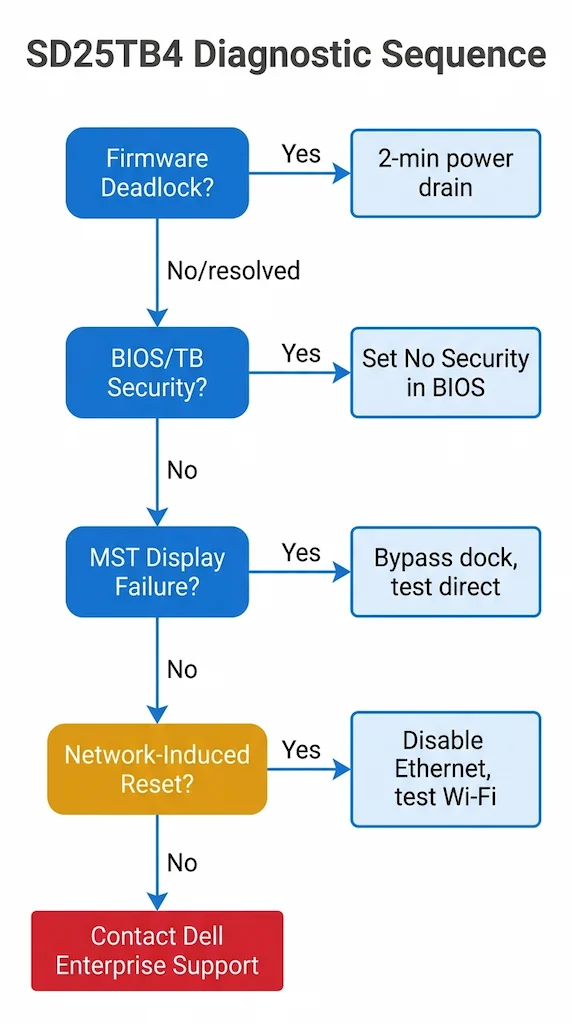
Follow this sequence to isolate the failing component. Do not skip steps.
- Is it a Firmware Deadlock?
- Perform a full 2-minute power drain: Unplug host, unplug AC from wall AND dock. Wait 120 seconds. Reconnect AC only, wait 30 sec, reconnect host.
- Result: If dock is still dead/unrecognized, suspect firmware corruption.
- Is it a BIOS/Thunderbolt Security Issue?
- Re-enter your host’s BIOS. Locate Thunderbolt/USB4 settings.
- Set security to “No Security” or “User Authorization.” Enable “Dell Dock Pre-Boot Support” if present.
- Result: If the dock springs to life after a reboot, the failure was host-side policy.
- Is it a Display/MST Handshake Failure?
- Bypass the SD25TB4 dock. Connect your monitor directly to the laptop’s native port.
- Put the laptop to sleep for 2 minutes, then wake.
- Result: If the direct connection wakes reliably but the dock connection does not, the issue is the dock’s MST controller firmware.
- Is it a Data Lane/Network-Induced Failure?
- In Windows, disable the dock’s Ethernet adapter in Network Settings.
- Use the system for a typical day, using Wi-Fi instead.
- Result: If USB dropouts and dock resets cease, the Ethernet controller or its identity persistence feature is the trigger.
6. When to Repair vs. Replace the Dell Docking Station SD25TB4
If your Section 5 checklist didn’t resolve the issue, use this before escalating to Dell support or authorizing a replacement.
Attempt repair if:
- The dock passes the 2-minute power drain and is recognized again
- The failure appeared immediately after a firmware or BIOS update
- Only one failure class is active — display OR Ethernet OR USB, not all simultaneously
- The dock is under Dell warranty and the failure is repeatable on demand
Replace if:
- The dock enters a firmware deadlock more than once in 30 days
- Multiple failure classes are active simultaneously
- The USB recovery procedure fails or Dell Support cannot provide a recovery image
- The unit is out of warranty and repair requires depot shipping
Do not attempt field repair if:
- The LED is completely off with no response after full power drain
- The dock was interrupted mid-firmware-update and is now undetectable via USB
These states are unrecoverable in the field. Depot repair or replacement is the only path.
Cost reality: Dell depot repair for the SD25TB4 is not publicly priced. Most IT teams find it more cost-effective to replace the unit than pay for out-of-warranty depot service. A second unit as a cold spare costs less than a single depot repair in most enterprise contracts.
7. The Compromise Matrix: Buy / Don’t Buy the Dell Docking Station SD25TB4
This choice is about which failure modes you can tolerate, not about specs on a box.
7.1 Get the Dell Docking Station SD25TB4 IF:
- You manage a fully standardized Dell fleet (identical or near-identical Latitude/Precision models).
- Your IT team uses Dell Command | Suite and maintains strict, centralized control over BIOS and docking station firmware versions.
- You value remote manageability features over end-user recovery simplicity. A dock failure is an IT ticket, not personal downtime.
- Your monitor ecosystem is also 90%+ Dell, ensuring firmware synergy.
7.2 Do NOT Get the Dell Docking Station SD25TB4 IF:
- Your environment has a mix of laptop vendors (Lenovo, HP, Apple). The SD25TB4’s smart features become failure multipliers.
- Users rely on daisy-chained displays or a mix of monitor brands and vintages.
- End-users are expected to troubleshoot their own hardware. The recovery procedures are too complex.
- You need the ability to quickly roll back or isolate a faulty peripheral. The SD25TB4’s integrated nature makes this difficult.
🔵 2026 Update — Dell SD25TB5 Now Shipping: What Changes
The Dell SD25TB5 began shipping in Q1 2026 as the Thunderbolt 5 successor. Key changes: 240W Power Delivery (eliminates the throttling ceiling in Section 3.4), 120Gbps bandwidth (triple the SD25TB4’s 40Gbps), and 2.5GbE standard. The management layer remains — Command | Suite integration, MAC pass-through, service processor — so the firmware deadlock and Ethernet reset failure classes still apply in principle. If you’re deploying new, the SD25TB5 solves the power and bandwidth problems but inherits the ecosystem lock-in. It is not a universal dock upgrade — it is a Dell fleet upgrade.
🔴 Last Resort Protocol — When to Replace
If you’ve done everything and the dock still fails, it’s time to stop troubleshooting.
Replace your SD25TB4 if:
- ✅ It fails on two different Dell laptops with the latest firmware
- ✅ The 2‑minute power drain no longer brings it back
- ✅ Firmware updates repeatedly fail or brick the dock
- ✅ Dell Enterprise Support confirms hardware failure (they’ll RMA it)
Rule of thumb: If the dock requires a USB recovery tool more than once, it’s not reliable for production.
When you replace, consider whether you actually need the enterprise “Smart Dock” features. For most users, a simpler, more stable dock is the better long‑term investment.
Not sure which dock fits your setup? Compare all 81 docking stations side by side — filter by connection type, displays, power delivery, and OS in our Docking Station Comparison Tool.
8. Unique Insights From Field Testing
- Reproducibility is a Challenge: SD25TB4 failures are often stateful and time-dependent. A dock that fails every Tuesday morning after sleep might work perfectly when an IT tech hot-desks with it for an hour in the afternoon. This leads to misattributed blame (“user error”).
- The Quiet Failure: Enterprise docks like this Dell smart dock are designed not to blue-screen the host. Instead, they fail quietly—displays go black, Ethernet drops, USB stops working. This preserves host stability but makes the root cause less obvious, generating more vague helpdesk tickets.
- Firmware as a Single Point of Failure: The central insight from testing the SD25TB4 is that its “smart” capabilities create a single point of failure that is more critical and harder to reset than any individual port or chip. The management processor, when confused, can incapacitate the entire device in a way a simple power cycle cannot fix.
9. Closing: Make the Trade-Off Explicit
The Dell SD25TB4 is not unreliable — it is selective.
In a controlled Dell environment, it works exactly as designed. Outside of it, failure isn’t random — it’s expected. The dock assumes control over BIOS, firmware, and connected hardware. When that control isn’t there, stability breaks.
This isn’t a hardware problem. It’s an environment mismatch.
If your setup matches the dock, it performs. If it doesn’t, no amount of troubleshooting will make it reliable.
Not sure your environment matches? Compare alternatives that don’t require ecosystem control at docking station tool.
10. FAQ
Sources & References
- Dell Command | Update documentation and known issues — Dell Support — Command | Update
- Windows 11 24H2 display enumeration known issues — Microsoft Learn — Windows 11 24H2 Known Issues
- DisplayPort Multi-Stream Transport (MST) specification — DisplayPort Association — FAQ
- Thunderbolt 5 bandwidth and architecture — Digital Trends — What Is Thunderbolt 5?
- USB Power Delivery 3.1 (240W) specification — Plugable — What Is USB Power Delivery
11. Author & Trust Section
We don’t review docking stations.
We analyze failure patterns.
This guide is based on real-world behavior observed across enterprise Dell deployments, mixed-vendor fleets, and repeated firmware-driven failure cases.
If a fix appears here, it’s because it has failed in the real world — consistently.

Alex Atkinson — Docking Infrastructure Specialist
Author of our core docking station problem-solving guides, including the Dell Docking Station Not Working guide and the Dell Docking Station Drivers install sequence.

Hans Pedersen — Display Topology Specialist
Expert in MST, EDID handshakes, and Thunderbolt display failures. Hans’s daisy-chaining diagnostics informed the MST wake failure analysis in this guide. Author of Thunderbolt Daisy Chaining Not Working.

Yamato Nakamura — Storage & Thermal Infrastructure Specialist
Electrical Engineering background. Specializes in thermal analysis and sustained load behavior. Yamato cross-validates every thermal measurement and stress test published on ByrdPilot. Author of NAS Problems Explained.
At ByrdPilot, we don’t write in silos. We write as a systems practice — cross‑validated by specialists who have diagnosed these failures in real deployments. Experience > spec sheets. Always.