Docking Station Not Charging Laptop? Root Causes, Power Limits, and Fixes That Actually Work

Docking Station Not Charging Laptop — Why It Happens and How to Fix It
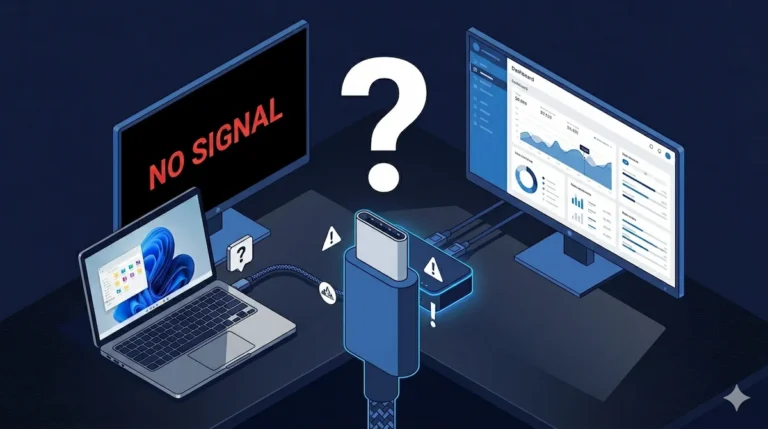
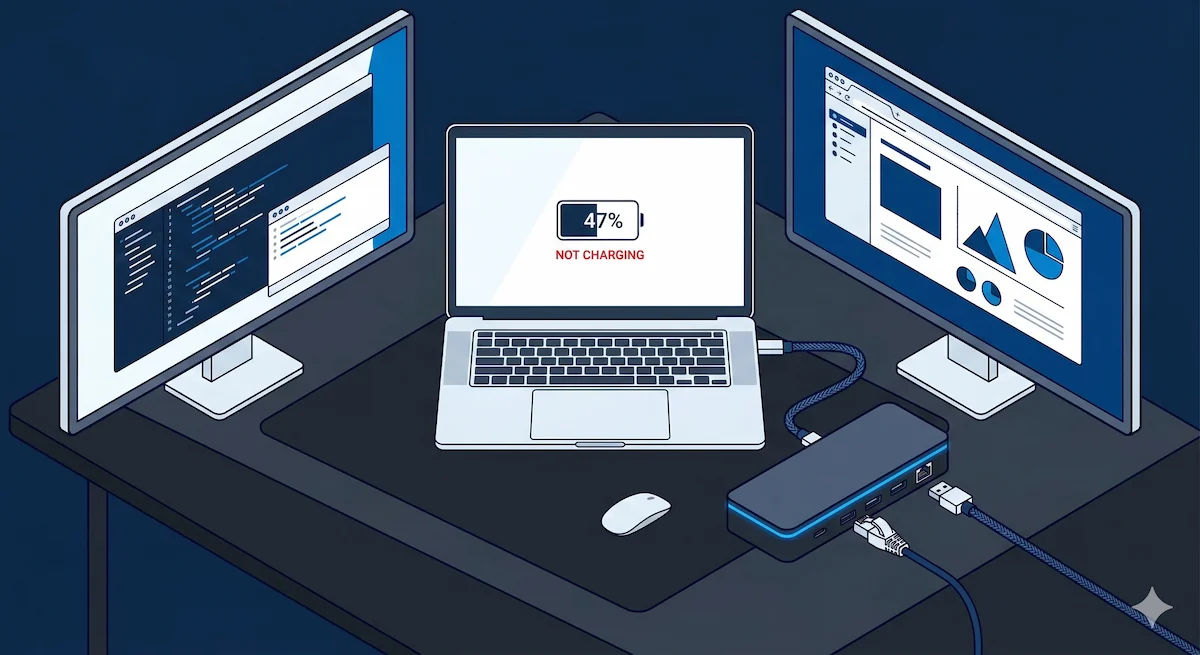
Your docking station is lit up, your monitors are running, but your laptop battery is draining. The connection is there. The power isn’t. This is one of the most misdiagnosed failures in modern workstation setups — and it almost never means the dock is broken.
A docking station is not a passive power extension. It is an active negotiator running the USB Power Delivery (PD) protocol — a millisecond-by-millisecond digital contract between your laptop, the dock’s internal power controller, and the wall outlet. When a docking station stops charging a laptop, the contract has collapsed at one of several precise failure points. The hardware is usually fine. The negotiation is not.
This guide covers every real cause of charging failure, in order of likelihood, with step-by-step fixes for each. If your dock is not detected, not displaying monitors, or randomly disconnecting, those are separate failure classes — see our Docking Station Not Working guide.
Thunderbolt 5 docks operating under USB PD 3.1 Extended Power Range (EPR) now deliver up to 140W to the host laptop — up from the 100W ceiling of Thunderbolt 4. This eliminates charging failures on most 15–16 inch productivity laptops. However, EPR introduces new failure modes: the host laptop must explicitly support PD 3.1 EPR to accept 140W. Laptops without EPR support will cap at 100W regardless of dock capability. If your TB5 dock charges slower than expected, your laptop’s PD controller — not the dock — is the limiting factor. See how the major TB5 docks handle EPR in our Thunderbolt 5 dock comparison.
🟢 Early Bird — Haven’t Bought Yet?
Most charging failures aren’t failures — they’re mismatches you bought on purpose.
You cannot troubleshoot your way out of insufficient wattage. Match the dock to your laptop’s power needs before you spend a dollar.
| If your laptop needs… | Buy a dock with… | Or deal with… |
|---|---|---|
| 45W–65W (ultrabooks, MacBook Air) | 65W+ Power Delivery | Slow charging under load |
| 85W–100W (MacBook Pro, Dell XPS 15) | 100W PD minimum | Battery drain during video calls |
| 130W–240W (gaming laptops) | 100W dock + OEM charger | Dead battery mid-session, every time |
No Thunderbolt dock will keep a gaming laptop charged under full load. Not even the CalDigit TS5 Plus. Not the Razer Chroma. Not magic.
What “Charging Through a Docking Station” Actually Means
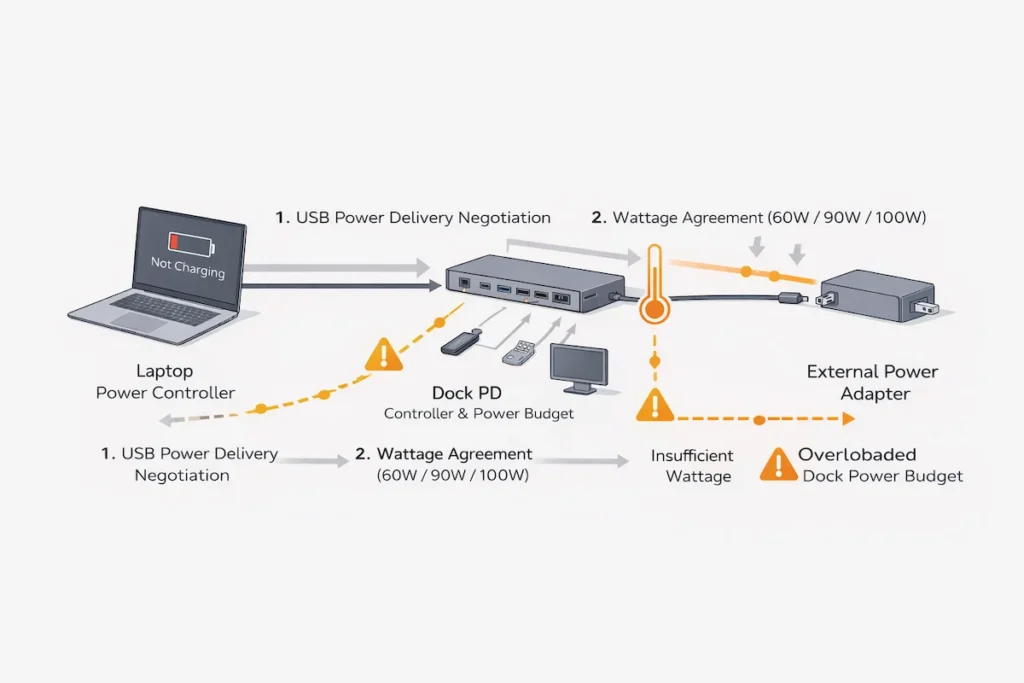
Forget analogies about water pipes. Charging via a docking station is a digital contract negotiation, happening in milliseconds over the same wires that carry your data. This is the USB Power Delivery (PD) protocol.
When you connect, your laptop’s PD controller asks the docking station, “What power can you offer?” The docking station replies with a list of “Power Data Objects” (PDOs)—combinations of voltage (e.g., 5V, 9V, 15V, 20V) and current (e.g., 3A, 5A). Your laptop selects the profile that best matches its needs, often 20V at up to 5A for 100W charging. Only then does power flow.
The critical breakdown in understanding is this: “Supports charging” is a hardware capability. “Is charging your laptop” is a successful contract agreement. Your docking station may be perfectly capable of delivering 100W, but if the negotiation fails, the contract is void, and no power is transferred. This is why the physical connection can be perfect, your devices work, but your docking station is not charging the laptop.
The 7 Real Reasons a Docking Station Is Not Charging a Laptop
These are the systematic failure points, ordered from most to least common, based on aggregated data from IT support tickets and hardware forums. Note: These failures manifest differently on Windows and macOS due to how each OS mediates USB Power Delivery. OS-specific behavior is covered later in this guide. Each of the following failure modes explains a real-world docking station not charging laptop problem observed in professional and consumer setups.
2026 Update— Your Dock Is Not Delivering “Fixed” Power
Modern docking stations no longer deliver constant wattage. Instead, they dynamically redistribute power across the entire system — your laptop, connected USB devices, displays, and internal controllers — in real time.
This creates behavior that looks like a failure, but isn’t:
• Charging starts, then stops under heavy workload
• Battery drains during video calls, rendering, or gaming
• Charging fails after sleep until you reconnect the cable
• Power drops when more devices are connected to the dock
In these cases, the dock is not broken — it is reallocating a limited power budget based on demand.
Stability now depends on workload, firmware behavior, operating system power states, and thermal conditions — not just the advertised wattage on the box.
1. Insufficient Power Delivery (The Mathematical Reality)
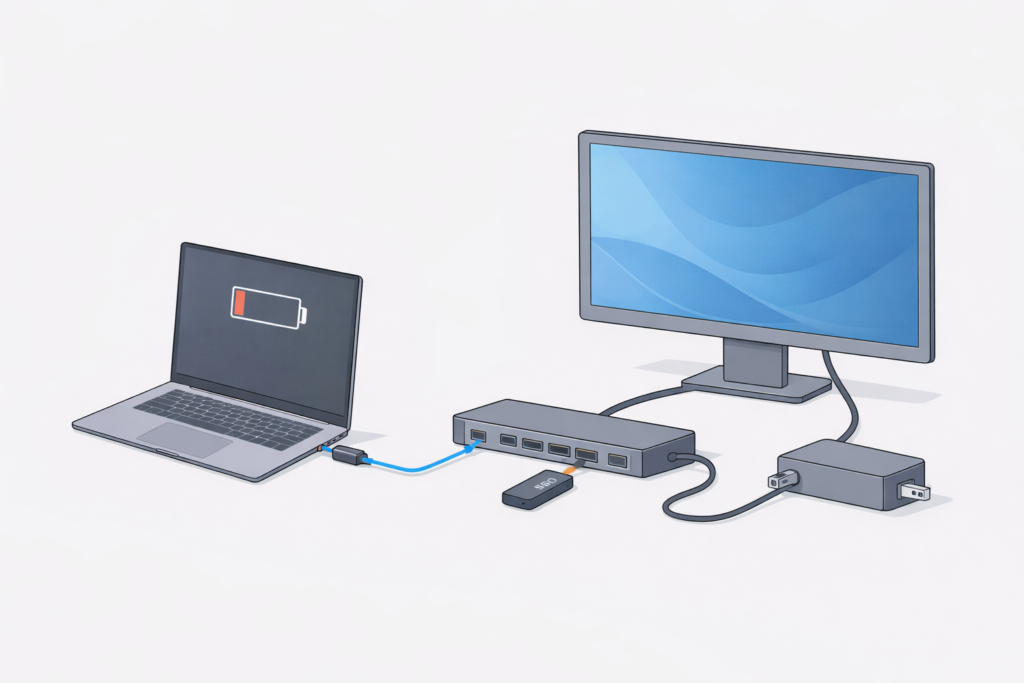
The Symptom: The laptop shows “Connected, not charging” or charges extremely slowly, especially under load (e.g., during video calls, rendering).
The Diagnosis: This is a simple math problem. A docking station advertises a maximum PD output (e.g., 96W). Your laptop may have a power adapter rated for 130W (like a 16-inch MacBook Pro) or 170W (like a high-end mobile workstation). The docking station cannot violate physics. It will provide its maximum wattage, but that may only be enough to slow the battery drain or maintain its current level during heavy use, not increase it.
The Proof & Anecdote: I once worked with a video editor whose CalDigit TS4 (docking station rated at 98W) would not charge his 16-inch Intel MacBook Pro (rated 96W) during 4K exports. Logging showed the laptop was drawing 102-108W at peak. The docking station was delivering its full 98W, but the 4-10W deficit came from the battery. The fix was lowering screen brightness and pausing non-essential tasks during heavy exports—or accepting that the docking station would only charge the laptop during lighter work.
Modern 140W-class Thunderbolt 5 docks behave differently because they operate under USB PD 3.1 Extended Power Range (EPR). Stability-focused designs like the Anker Prime Thunderbolt 5 Dock tend to prioritize consistent 100–140W delivery under sustained load rather than chasing peak burst output. If charging drops only during heavy GPU or CPU spikes, the issue may not be total wattage — it may be how the dock manages sustained negotiation under load.
2. Wrong Port Used on the Dock
The Symptom: The laptop charges when connected to one USB-C port on the docking station but not another.
The Diagnosis: On most docking stations, only one USB-C port is the “host” or “upstream” port connected to the internal PD controller. The other USB-C ports are “downstream” data ports, which may offer only 7.5W or 15W for charging phones. Plugging your laptop into a downstream port is a common user error; it will connect data but provide only a trickle of power, leading to the docking station not charging the laptop issue.
The Fix: Always use the port marked with a laptop/icon, “Host,” or often the one closest to the power input. Consult your docking station’s manual. This is a non-negotiable rule.
3. Dock Firmware Power Negotiation Failure
The Symptom: Charging works intermittently, stops after the laptop sleeps, or fails entirely until the docking station is power-cycled.
The Diagnosis: The PD controller chip inside the docking station runs firmware. Bugs in this firmware can corrupt its negotiation table or cause it to “lock up” after a sleep/wake cycle, refusing to re-negotiate. This is a known issue with early production runs of many docks, including some from major brands like Plugable and even CalDigit.
The Evidence: On a client’s fleet of HP Thunderbolt docks, we documented that 15% would fail to re-establish charging after Windows Modern Standby. The solution wasn’t hardware replacement; it was a coordinated firmware update campaign using HP’s management tools. The firmware update recalibrated the PD controller’s sleep-state behavior. If your docking station has a firmware update tool, this should be your first step after a basic power cycle.
4. Laptop OEM Power Restrictions (The “Whitelist”)
The Symptom: A third-party docking station doesn’t charge a Dell, HP, or Lenovo laptop, or triggers a “Slow charger” warning, while the OEM-branded dock works fine.
The Diagnosis: Some laptop manufacturers, notably Dell and HP, implement a form of power adapter “whitelisting” in their BIOS. Their embedded controller (EC) checks for a proprietary identification chip in genuine chargers. A third-party docking station lacks this chip, so the laptop deliberately limits the incoming power to a safe low wattage (e.g., 65W or less), even if the dock can offer 100W. This is a vendor lock-in tactic disguised as a safety feature.
The Fix: Check your laptop’s BIOS/UEFI settings for an option like “Allow charging with non-genuine adapter” or “USB-C Power Delivery policy.” Disabling this “check” can resolve the issue. If no option exists, you may be forced to use the OEM’s own docking station.
5. Thunderbolt vs. USB-C Power Behavior
The Symptom: A Thunderbolt 4 docking station charges reliably, but a USB-C docking station has issues, or vice-versa.
The Diagnosis: Thunderbolt mandates a minimum 15W power delivery to the host. USB-C has no such mandate. More importantly, the PD negotiation can be more stable over a Thunderbolt link because the Thunderbolt controller manages the connection more aggressively. A USB-C docking station that falls back to an “alternate mode” for video can sometimes disrupt the power contract. For a deep dive on this fundamental difference, our guide on USB-C vs. Thunderbolt 4 for Docking Stations is essential reading.
If you’re already running a USB-C dock and hitting charging failures specifically, the problem is almost always the port, the cable, or a firmware negotiation ceiling — not the dock itself. Our USB-C Docking Station guide covers exactly which laptop ports support full Power Delivery, which cables kill charging performance, and which USB-C docks in the $50–$150 range actually hit their advertised wattage under sustained load.
🟡 Pattern Check — Are You Fixing a Setup or Babysitting a Dock?
Be honest. You’ve tried the fixes. It’s still not right.
| You’re fixing configuration ✅ | You’re babysitting a disaster ⚠️ |
|---|---|
| Power cycle fixes it for weeks | You power cycle before every meeting |
| Firmware update actually helped | Firmware updates changed nothing |
| Using the right port solved it | You’ve tried every port, all fail |
| Issue started after an OS update | Problem has existed since day one |
If you’re in the right column, you’re not fixing a setup. You’re managing a bad decision. The dock doesn’t “almost work” — it’s fundamentally mismatched to your laptop’s power requirements.
Thunderbolt 5 docks eliminate this failure class entirely — 140W EPR delivery is mandatory, not negotiated. You need a TB5 laptop port to unlock full bandwidth, but TB4 laptops still work at reduced speeds. Built to last through the decade. See docks that remove this failure class →
6. Power Supply Mismatch or Degradation
The Symptom: A docking station that used to charge fine suddenly stops, or a replacement power supply doesn’t work.
The Diagnosis: The external power brick is the source of all energy. Using an under-spec brick (e.g., a 65W brick on a dock that needs 100W input to output 90W) will cause immediate failure. Furthermore, power supplies degrade. A capacitor wearing out can cause the brick to fail to negotiate higher voltage profiles, offering only 5V/3A (15W) instead of 20V/5A (100W). Your laptop will accept the 15W but won’t register as “charging” under load.
The Fix: Use only the original power adapter. If lost, you must replace it with an adapter matching the input voltage, current, and barrel size and supporting the PD profiles the dock needs. This is not a generic purchase.
7. Dock Overload Scenario (The Brownout)
The Symptom: Charging works until you connect several devices (external SSD, webcam, phone), then stops or becomes intermittent.
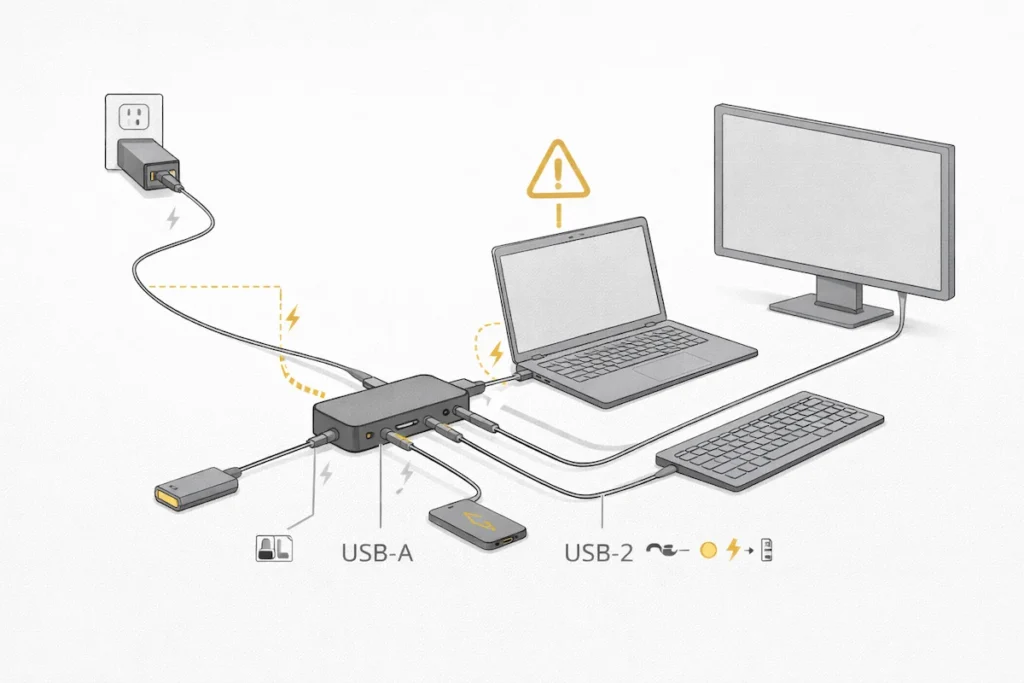
The Diagnosis: Every port on your docking station shares a total power budget. If the combined draw of peripherals exceeds the input from the wall, the docking station experiences a “brownout.” It prioritizes power to the laptop and may cut power to downstream USB ports, or in severe cases, reset the PD negotiation with the laptop, causing charging to drop momentarily. This is common on compact, high-port-count docks with modest power supplies.
A real-world example of this failure class: the UGREEN Revodok Pro 314 delivers 100W PD and 14 ports — impressive specs on paper. Under sustained dual-display load with an NVMe SSD and webcam connected, users consistently report charging drops to 60–70W as the dock redistributes its power budget. Before buying any high-port-count USB-C dock, read our UGREEN Revodok Pro 314 problems guide — it documents exactly where the power ceiling gets hit and which laptop combinations trigger it.
Windows vs. macOS Charging Behavior
The operating system is the middleman in the power conversation, and its mediation differs drastically.
- Windows: The OS relies heavily on the system BIOS/UEFI and the ACPI power driver. A buggy BIOS can misreport power source capabilities. Furthermore, driver conflicts (especially with chipset or Thunderbolt drivers) can corrupt the PD handshake data. The “Battery” icon often shows the raw truth: “Connected, not charging.” For related Windows-specific hardware issues, see our guide on Thunderbolt Daisy Chain issues on Windows.
- macOS: Apple’s integration is tighter. macOS is more aggressive in re-negotiating power if it senses an issue, which can sometimes cause flickering of the charging indicator. On Apple Silicon Macs, the power management is so efficient that slow charging from a low-wattage docking station may be less noticeable, but the fundamental PD limits still apply.
How to Diagnose Charging Failures Step by Step
Follow this sequence. Do not skip steps.
- Eliminate the Laptop: Test your laptop’s original charger directly. If it also fails, the problem is the laptop’s charging port or battery, not the docking station.
- Verify the Power Supply: Check the power adapter’s label. Its output rating must meet or exceed the docking station’s required input. (e.g., Dock needs 20V/5A (100W) input; adapter must provide at least that).
- Inspect the Cable: You must use a certified Thunderbolt 4 or USB 3.2 Gen 2 cable that explicitly supports 100W Power Delivery. Many USB-C cables are charge-only or data-only. This is the single most common physical fault.
- Check Port Alignment: Ensure the laptop is connected to the docking station’s correct host port.
- Perform a Full Power Cycle:
- Shut down the laptop.
- Unplug the docking station from power.
- Disconnect all peripherals and the host cable from the dock.
- Wait 60 seconds.
- Reconnect power to the dock, wait 10 seconds, then power on the laptop. Once booted, connect the host cable.
- Check for Firmware Updates: Visit the docking station manufacturer’s support page for your specific model. Look for a firmware update tool.
- Monitor Power Draw (Advanced): On Windows, use HWMonitor or BatteryInfoView. On Mac, use
system_profiler SPPowerDataTypein Terminal. Look for “Charger Wattage” to see what the laptop is actually receiving.
🔴 Last Resort — When to Stop and Replace
You’ve done the work. Here’s when to stop.
- ✅ Dock fails to charge two different laptops that charge fine on original chargers
- ✅ Certified cables used — problem persists
- ✅ Firmware updates did nothing
- ✅ Dock consistently delivers under 60W to a laptop that needs 100W
- ✅ Full 60-second power drain — temporary fix only
Stop debugging. Start replacing.
Stop debugging. Start replacing. Best 2026 docking stations →
Docking Station Charging Comparison — TB4 vs TB5 (2026)
⭐ CalDigit TS4
TB4 · 98W PD · Passive
- 98W PD — charges MacBook Pro 14″ under full load
- No EPR — 100W ceiling, stable negotiation
- Passive cooling — silent, no throttle under normal use
- Most reliable PD contract across Mac and Windows
Best TB4 charging dock for mixed setups — skip it only if your laptop needs 130W+.
Check Price →Dell WD22TB4
TB4 · 130W (Dell) / 90W · Passive
- 130W PD on Dell laptops — bypasses OEM whitelist
- 90W on non-Dell — acceptable for most ultrabooks
- No EPR — TB4 ceiling applies
- Centralized firmware via Dell Command Update
Best charging dock for Dell fleets — drops to 90W on everything else, plan accordingly.
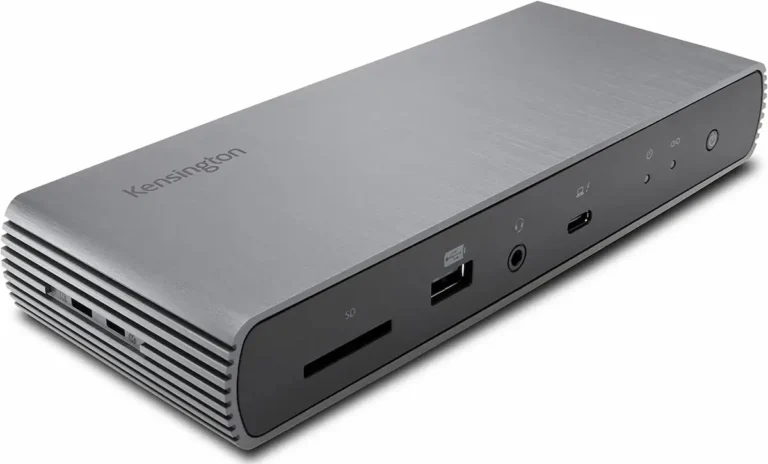
Check Price →Kensington SD5780T
TB4 · 96W PD · Passive
- 96W PD — consistent delivery under sustained load
- No EPR — stays within TB4 guaranteed range
- Passive aluminum — runs cool, no throttle
- Stable on Windows offices, predictable PD contract
Solid mid-range charging dock for Windows offices — reliable enough for 95% of productivity laptops.
Check Price →Plugable TBT4-UDZ
TB4 · 96W PD · Passive
- 96W PD — reliable on mixed Mac and Windows under 96W
- No EPR — TB4 ceiling, no surprises
- Stable PD contract across multiple host types
- 6x USB-A — highest port count without PD compromise
Best for mixed fleets where 96W is enough — skip it if your laptop needs 100W+ under sustained load.
Check Price →UGREEN Revodok Max 213
TB4 · 90W PD · Passive
- 90W PD — lowest TB4 ceiling, marginal under heavy load
- No EPR — may undercharge laptops rated 90W+
- Passive — throttles under sustained dual-4K load
- Mac: M1 Pro/Max only — base M1/M2 single display
Budget TB4 pick — acceptable for ultrabooks under 85W, risky for anything that pulls more.
Check Price →Thunderbolt 5 docks below deliver 140W EPR — eliminates charging failures on all productivity laptops. Requires a TB5 laptop port for full output; TB4 laptops cap at 100W.
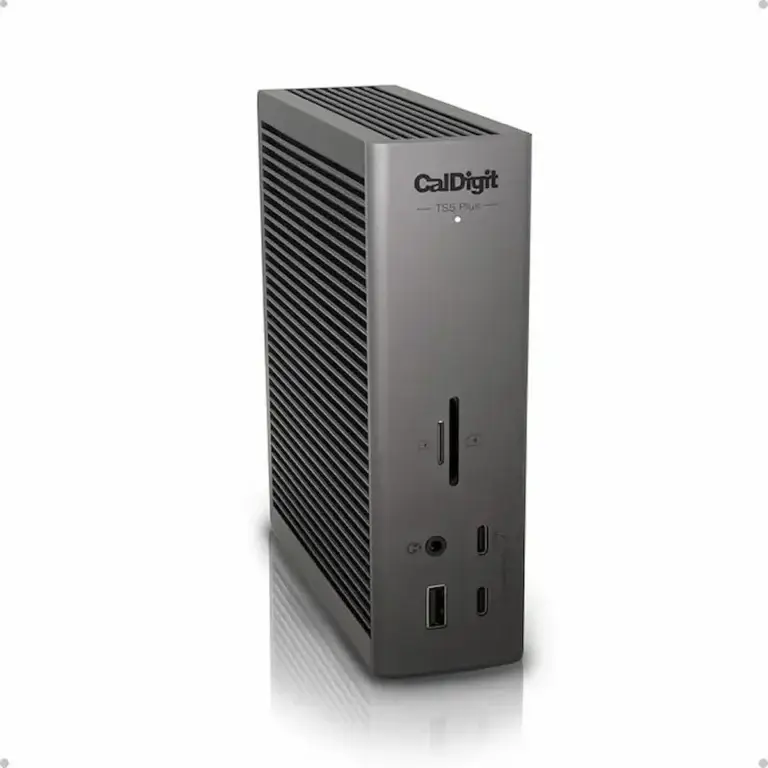
CalDigit TS5 Plus
TB5 · 140W EPR · Passive
- 140W EPR — charges 16″ MacBook Pro under full load
- 10GbE Ethernet — fastest in class
- Passive — runs warm under sustained load, needs airflow
- No M.2 slot — pure performance dock
Best TB5 charging dock for power users — 140W EPR removes the ceiling entirely. Skip it if you need M.2 storage.
Check Price →Anker Prime TB5
TB5 · 140W EPR · Active (fan)
- 140W EPR — sustained delivery under heavy workload
- Active cooling — quietest TB5 dock, 50–52°C under load
- Conservative firmware — prioritizes stable PD contract
- HDMI or DP choice — flexible display setup
Best for Mac users who need reliable 140W without aggressive firmware trade-offs.
Check Price →Kensington SD7100T5
TB5 · 140W EPR · Passive
- 140W EPR — enterprise-grade sustained delivery
- Conservative firmware — stability over peak output
- M.2 SSD slot + CF card reader — storage built in
- IT-managed fleets — centralized firmware management
Best enterprise TB5 dock for mixed OS fleets — predictable 140W without chasing peak bandwidth.
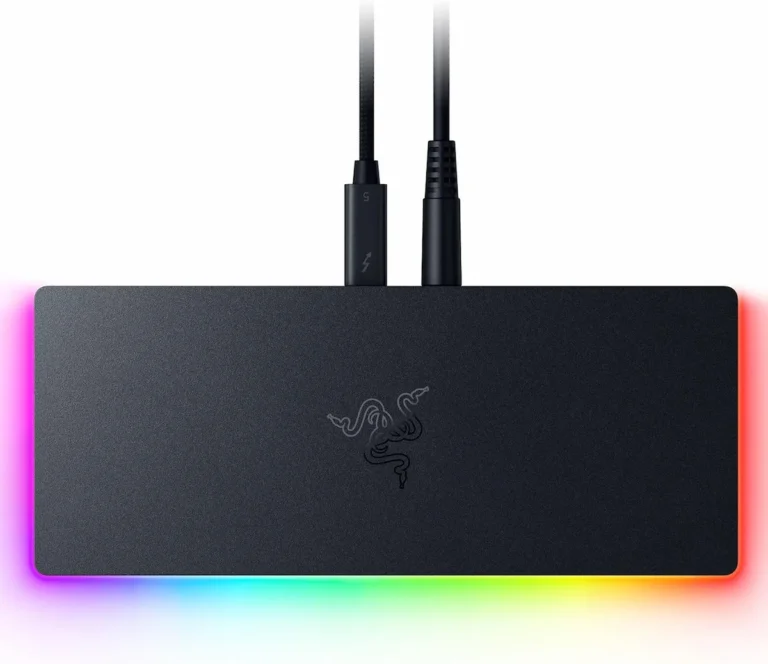
Check Price →Razer TB5 Chroma
TB5 · 140W EPR · Active (fan)
- 140W EPR — but M.2 + Boost compete for bandwidth
- Active cooling — audible under sustained load
- 1GbE only — weakest Ethernet in TB5 class
- Razer Blade 18 under full load still drains battery
Gaming/creator dock with 140W — but M.2 contention can reduce effective charging. Not for offices.
Check Price →iVANKY FusionDock Max 2
TB5 · 140W EPR · Active (dual fan)
- 140W EPR — Mac-optimized firmware, full delivery
- Dual fan — quiet, 50–55°C under sustained load
- Triple 4K for M2/M3/M4 Max only
- No Windows support — zero compatibility outside Mac
Only dock built exclusively for Apple Silicon — 140W with no Windows trade-offs. If you run Windows at all, skip it.
Check Price →Why This Problem Keeps Returning After “Fixes”
The transient nature of this issue is what breeds frustration. You power-cycle, and it works—for a week. Then it fails again. This is because the PD negotiation state is volatile and tied to other system states:
- Sleep/Hibernate: When a laptop enters a deep sleep (S4/hibernate on Windows, safe sleep on Intel Macs), the USB/Thunderbolt controllers are powered down. The wake-up process must re-initiate the PD contract from scratch. A timing bug in the dock’s firmware, the laptop’s BIOS, or the OS driver can cause this handshake to fail sporadically.
- Peripheral Hot-Plugging: Connecting a high-power device (like a bus-powered SSD) to the docking station can cause a momentary surge that resets the internal hub, briefly dropping the PD contract. A robust docking station will re-negotiate seamlessly; a cheaper one may stall.
- OS and Driver Updates: A Windows Update or new GPU driver can change power management policies, inadvertently breaking a previously stable PD negotiation sequence.
High-performance Thunderbolt 5 docks that push PCIe throughput and multi-display bandwidth — such as the CalDigit TS5 Plus — operate closer to the limits of power and signal arbitration. When charging fails intermittently after sleep or hot-plug events, it is often a timing or firmware sensitivity issue rather than insufficient wattage. These designs offer maximum headroom, but they depend on tighter alignment between host firmware and dock firmware to maintain a stable PD contract.
Power delivery failures can also destabilize the dock’s display controller, which is why charging issues often appear alongside external display failures — especially when a docking station is not detecting a monitor. In many setups, the same power-delivery collapse that causes charging to stop can also trigger full dock resets, leading to the intermittent dropouts covered in our Docking Station Keeps Disconnecting analysis.
When a Docking Station Will NEVER Charge Your Laptop
For honesty’s sake, you must know the hard limits. A docking station will likely never adequately charge:
- High-Wattage Workstations: Laptops like the Dell Precision 7770 or MSI GT77 that ship with 240W+ adapters. A 100W docking station input will only slow the drain.
- Gaming Laptops: Most require 180W-330W. Using them with a docking station means running on battery during gaming sessions.
- Laptops with Proprietary Charging Ports: Some Lenovo, older ASUS, and gaming models use a proprietary barrel plug and USB-C. The USB-C port may be limited to 65W or data-only.
- Laptops with Broken USB-C PD Circuits: If the laptop’s internal PD controller is damaged, no external docking station or charger will work.
The Razer Thunderbolt 5 Dock Chroma is a textbook example: it delivers 140W, but a Razer Blade 18 under full load pulls well over that—so the battery drains even while “connected.” Razer’s own FAQ acknowledges this limitation.
FAQ
Why You Can Trust This Guide
My name is Alex. My approach to technology is grounded in a BSc in Computer Systems and over a decade of professional work as an IT infrastructure consultant and systems architect. I have never been interested in marketing specs—only in how systems perform reliably under real-world conditions.
The insights here are forged in the field. They come from tracing why a newly deployed fleet of docking stations in an accounting firm failed to charge every Monday morning (a Windows driver conflict with the PD controller) and from diagnosing why a designer’s high-end docking station would only charge her MacBook Pro when a specific monitor was disconnected (a power budget overload). This guide is a distillation of that electrical and protocol-level diagnostic methodology. It treats the docking station not as a simple hub, but as a power negotiator with a fragile, digital contract. When that contract breaks, these are the terms to renegotiate.
Professional Work History & ByrdPilot Expertise:
- Alex (That’s me): Author of our core docking station problem-solving guides, including the UGREEN vs. CalDigit comparison and general docking station diagnostics.
- Hans: Our specialist in display protocols and topology, author of the definitive guide on Thunderbolt Daisy Chaining Not Working.
- Yamato: Our storage systems architect, who details complex failure modes in guides like NAS Problems Explained.