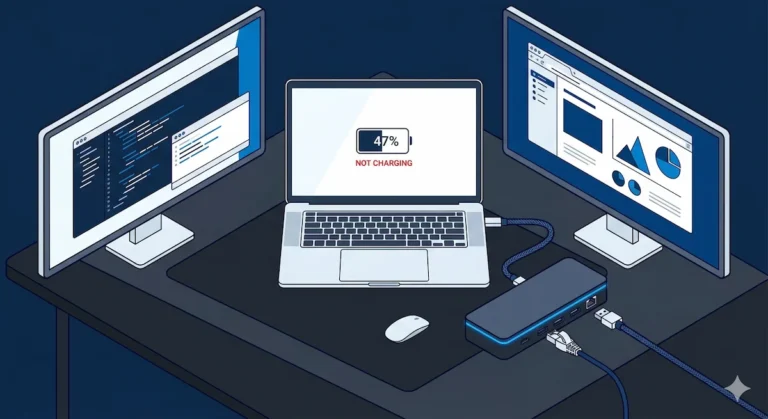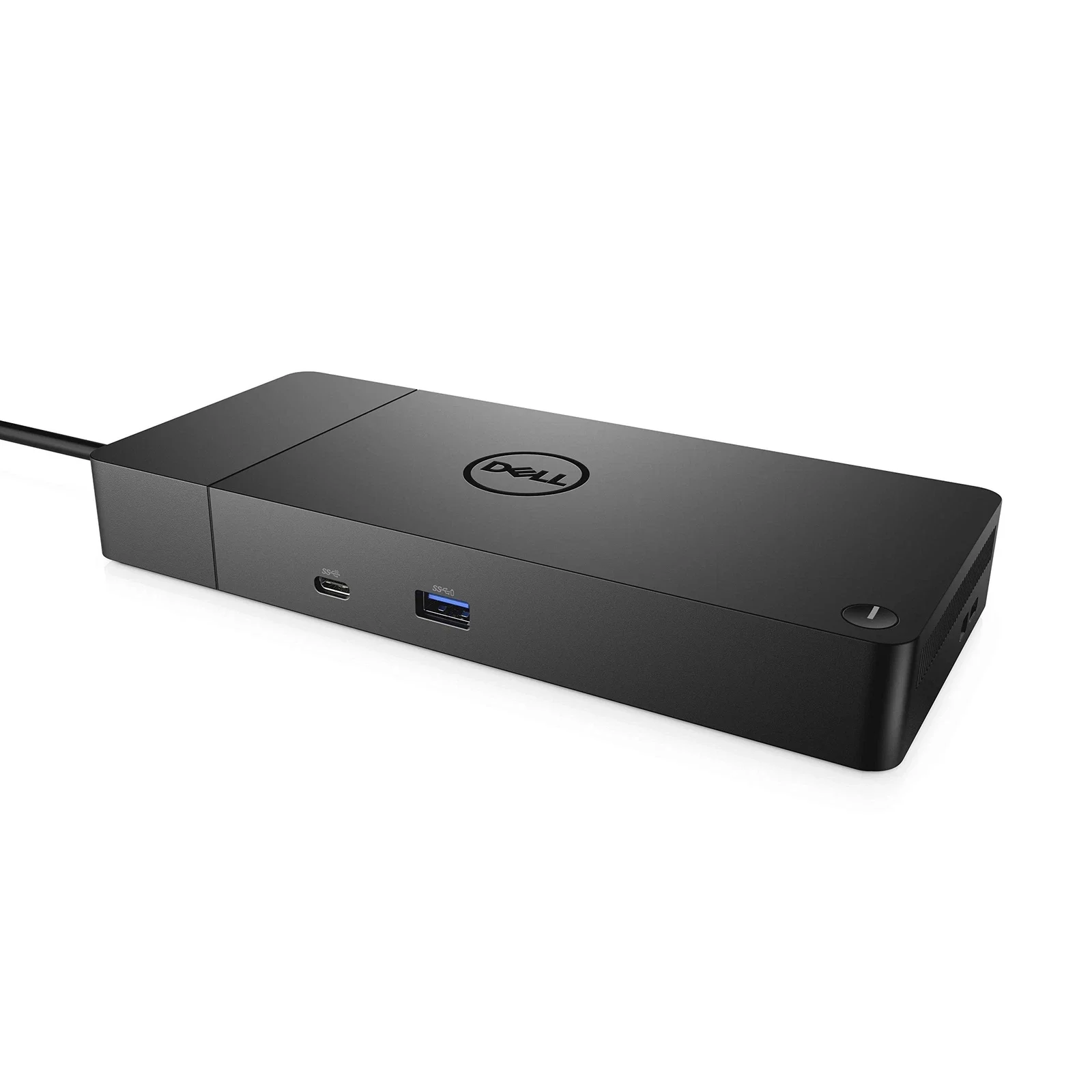
Dell WD19S Not Working? Problems, Drivers & Setup Guide (2026)

⚡ Quick Answer — Dell WD19S
The Dell WD19S fails for four predictable reasons: firmware below version 01.00.36 causing display blanking via DSC, Realtek Ethernet driver conflicts after Windows updates, non-Dell laptops capped at 90W PD instead of 130W, and sleep/wake display dropout from improper S3 re-enumeration. Fix order: update dock firmware first, then GPU driver, then Realtek driver. Do not reverse that sequence — updating the GPU driver before firmware locks the DSC bug in place.
Most people buying the Dell WD19S think it’s Thunderbolt. It isn’t. That one misunderstanding explains the majority of “Dell WD19S not working” complaints on Dell’s own forums.
What it actually is: a USB‑C DisplayPort Alt Mode dock. Faster to set up, simpler architecture — but different failure classes than TB4 docks. Less about topology, more about firmware and driver sequencing.
This guide covers exact failure modes in order of frequency, the firmware version that fixes 60% of display issues, and when to upgrade to the Dell WD19DCS or WD22TB4 instead of troubleshooting further.
Model Clarification Table
| Model | Protocol | Max Displays | PD (Dell) | PD (Non-Dell) | Cable |
|---|---|---|---|---|---|
| Dell WD19 | USB-C | Dual 4K@60Hz | 90W / 130W | 90W | Single USB-C (1m) |
| Dell WD19S ▸ This article | USB-C | Dual 4K@60Hz | 90W / 130W | 90W | Single USB-C (1m) |
| Dell WD19DCS | USB-C Dual | 4 displays / 1x 5K | 210W | 90W | Dual USB-C |
| Dell WD19TBS | Thunderbolt 3 | Dual 4K@60Hz | 130W | 90W | Single USB-C (0.8m) |
| Dell WD22TB4 | Thunderbolt 4 | Up to 4 | 130W | 90W | Single TB4 (0.8m) |
PD = Power Delivery to laptop. WD19/WD19S show 90W with 130W adapter, 130W with 180W adapter. Non-Dell hosts are capped regardless of adapter.
Note: The Dell WD19S comes in 130W and 180W adapter variants. The adapter changes the laptop PD ceiling — not the dock firmware or ports. The Dell WD19S 130W variant ships with a 130W power adapter but still caps non‑Dell laptop charging at 90W — a hardware handshake limit, not a firmware bug.
🟢 Early Bird — Haven’t Bought a Dell Dock Yet? Read This First
Most Dell WD19S failures are avoidable. The wrong laptop port, wrong power expectation, or missing audio jack sends people to the troubleshooting section before they’ve even set the dock up properly. Check these before you buy:
- Does your laptop have a USB-C port with DisplayPort Alt Mode? Not all USB-C ports support DP output — check the spec sheet. Thunderbolt ports work too, but run at USB-C speeds with the WD19S.
- Do you need more than 90W charging on a non-Dell laptop? The WD19S caps non-Dell hosts at 90W via hardware handshake. If you have a power-hungry non-Dell machine, look at the Plugable TBT4-UDZ instead — 100W PD, no vendor lock.
- Do you need a 3.5mm audio jack at the dock? The WD19S removed it. The base WD19 kept it. If you use wired headphones through the dock, you want the WD19, not the WD19S.
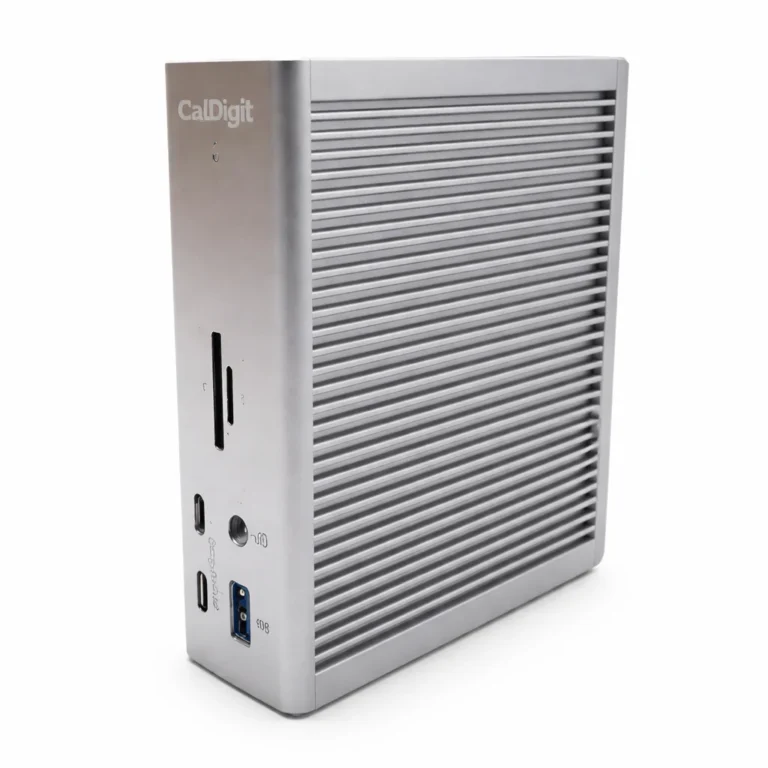
If any of these answers change your requirements, a Thunderbolt 4 dock like the CalDigit TS4 or Plugable TBT4-UDZ covers all three without compromise — and works on any laptop regardless of vendor.
Not sure which dock fits your setup? Compare all 81 docking stations side by side — filter by connection type, displays, power delivery, and OS in our Docking Station Comparison Tool.
Section 1 — What the Dell WD19S Actually Is
The Dell WD19S is a USB‑C DisplayPort Alt Mode dock — no Thunderbolt controller. That means no TB device enumeration, no TB security levels blocking it, but also no TB bandwidth (40Gbps). Max 10Gbps data, dual 4K@60Hz via DP 1.4.
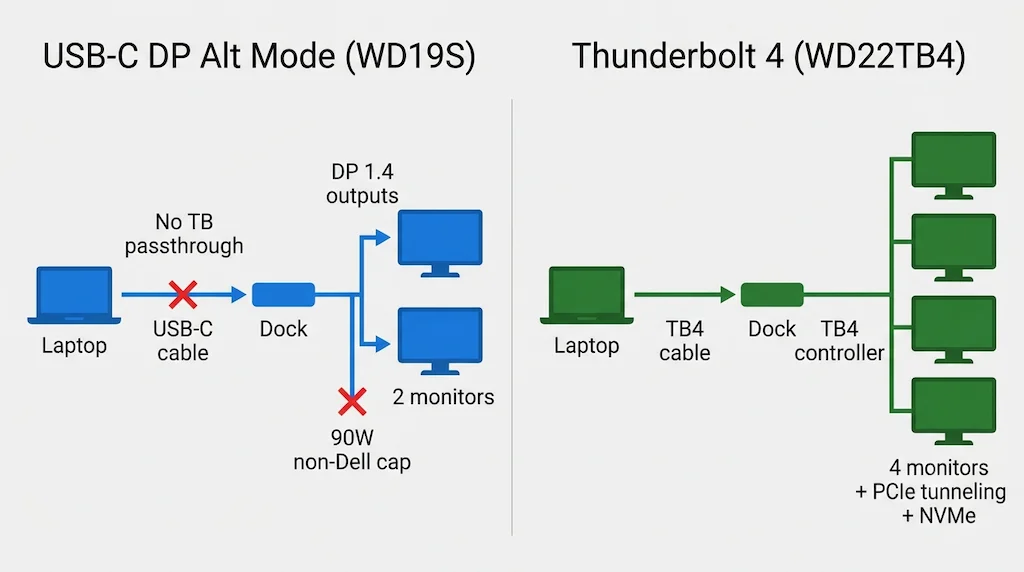
Key specs:
- Ports: 2x DP 1.4, 1x HDMI 2.0, 1x USB‑C MFD, 1x USB‑C 3.2 Gen2, 3x USB‑A 3.2 Gen1, 1x USB‑A PowerShare, 1x 1GbE
- PD: 130W (Dell) / 90W (non‑Dell) with 180W adapter
- No audio jack
- Firmware updatable via Dell Dock Update utility
The Dell WD19S 130W variant ships with a 130W power adapter but still caps non‑Dell laptop charging at 90W — a hardware handshake limit, not a firmware bug.
The WD19S shares its driver architecture with every other dock in the Dell WD19 family — the same Realtek Ethernet controller, the same firmware update tool, the same driver sequencing rules. If you manage multiple Dell dock models, our Dell Docking Station Drivers guide covers the full install order for every model from WD19 through SD25TB4.
Section 2 — The 5 Real Failure Modes
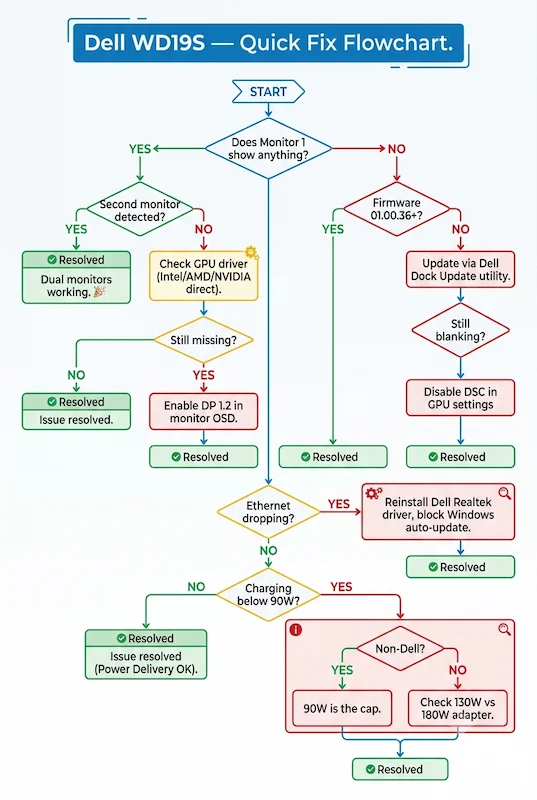
Failure 1 — Monitor not detected / second display missing
Symptom: The Dell WD19S is connected, USB ports work, but only one monitor shows up — or none at all.
Cause: DP Alt Mode requires the laptop GPU driver to recognize the dock’s display output. The generic Windows driver misses it.
Fix: Update your GPU driver from Intel, AMD, or NVIDIA directly — never from Windows Update.
➡️ Deep dive: Docking Station Not Detecting Monitor
Failure 2 — Intermittent display blanking every 3–4 seconds
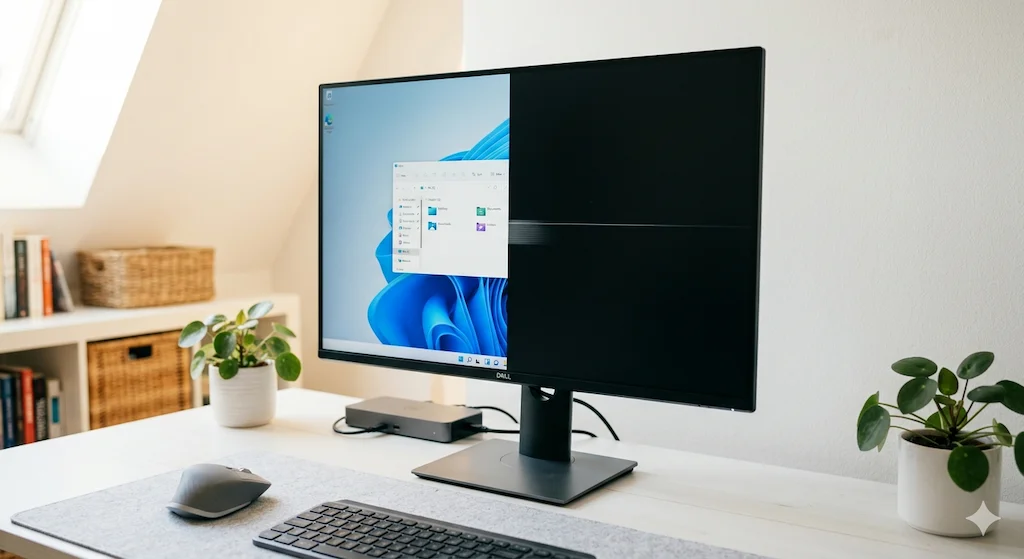
Symptom: Your Dell WD19S works fine, but every few seconds both monitors flicker or go black for a split second.
Cause: DSC (Display Stream Compression) is enabled by default in firmware versions below 01.00.36 and causes monitor dropout on certain panels.
Fix: Update dock firmware to 01.00.36 or later via Dell Dock Update utility. Disable DSC in advanced display settings as a fallback.
📅 2026 Update: Dell KB000214256 confirmed this affects WD19, WD19S, and WD22TB4. Firmware 01.00.36+ resolves it. If you’re on 01.00.20, update before anything else.
Failure 3 — Realtek Ethernet drops after Windows Update
Symptom: USB and display work through the Dell WD19S, but Ethernet dies while link lights stay on.
Cause: The Realtek Ethernet PHY driver shipped by Dell conflicts with Windows Update’s generic Realtek driver — they overwrite each other.
Fix: Manually install Dell’s specific Realtek driver from Dell Support, then block Windows from auto‑updating it via Device Manager > Update Driver > Browse > Let me pick.
For the same Realtek issue on the WD22TB4, see Dell WD22TB4 Problems.
Failure 4 — Charging below expected wattage
Symptom: Your laptop charges at 45W or 65W instead of 90W or 130W.
Cause: The Dell WD19S has a hardware non‑Dell PD cap of 90W; 130W only works with Dell EC handshake. Also, a worn USB‑C cable reduces negotiated wattage.
Fix: Confirm your laptop is Dell for 130W; use a Dell‑certified USB‑C cable; for longer runs, try a Cable Matters or Anker active TB cable.
Failure 5 — Sleep/wake display loss
Symptom: After your laptop sleeps, monitors don’t come back through the Dell WD19S until you unplug and replug.
Cause: The Dell WD19S uses USB‑C DP Alt Mode. When the laptop enters S3 sleep, the USB‑C controller powers down and DP Alt Mode negotiation must restart on wake. Some laptop firmware doesn’t cleanly re‑negotiate.
Fix: Disable USB selective suspend in Power Options; set PCI Express Link State Power Management to Off; check BIOS for “USB wake support” or “DP Alt Mode wake” setting.
Sleep/wake failures that persist after disabling USB selective suspend are often a deeper laptop firmware issue. Our Thunderbolt Dock Not Detected guide covers the full power drain and re‑enumeration sequence that resolves persistent wake failures across USB‑C and TB docks.
🟡 Pattern Check — Setup Problem or Dock Problem?
You’ve tried the updates. You’ve power-cycled. Still acting up. Before replacing anything, run this check.
| You’re fixing a configuration if… | You’re hitting a hardware limit if… |
|---|---|
| Display blanking started after a Windows Update | Non-Dell laptop is capped at 90W — EC handshake lock |
| Ethernet drops with the generic Realtek driver | You need 3+ displays — WD19S maxes at dual 4K |
| Second monitor missing after GPU driver change | You need Thunderbolt passthrough — WD19S is USB-C only |
| Wake failures resolved by USB selective suspend off | Corporate laptop with locked USB-C PD policy |
Right column = architectural limit. No driver update, firmware flash, or cable swap changes these. A Thunderbolt 4 dock removes the non-Dell PD cap, passthrough limits, and display ceiling entirely. You need a TB4 port to use one. It lasts through the decade.
Section 3 — Fix Protocol: Dell WD19S Drivers & Firmware (In Order)
Dell WD19S drivers must be installed in a specific sequence — dock firmware before GPU driver before Realtek. Reversing this overwrites fixes with broken defaults.
- Download Dell Dock Update utility → run → confirm firmware 01.00.36+.
- Reboot. Open Device Manager → update Display Adapters from the manufacturer site only (Intel/AMD/NVIDIA).
- Download Realtek Ethernet driver from Dell Support for the WD19S specifically → install manually.
- Set Power Options (USB selective suspend off, PCI Express LSPM off).
- Test at 60Hz first → confirm stable → then increase to native refresh.
This five-step sequence mirrors the protocol we use for every Dell dock deployment. For a broader troubleshooting framework that covers WD19, WD22TB4, and SD25TB4 alongside the WD19S, see Dell Docking Station Not Working — it includes the 24H2 Thunderbolt authorization reset that affects multiple models.
Section 4 — WD19S vs WD19DCS: When to Upgrade
The Dell WD19DCS requires two USB‑C cables and is designed specifically for Dell Precision workstations drawing over 130W — it is not a general upgrade from the Dell WD19S.
| Feature | WD19S | WD19DCS |
|---|---|---|
| Cables | 1x USB‑C | 2x USB‑C |
| PD (Dell) | 130W | 210W |
| PD (non‑Dell) | 90W | 90W (still capped) |
| Max displays | Dual 4K | 4 displays or 1x 5K |
Bottom line: The Dell WD19DCS is only worth it if you have a Dell Precision needing 150W+ and 3+ displays. For non‑Dell users, it buys nothing extra.
🔴 Last Resort — When to Stop and Replace
You’ve updated the firmware. Clean-installed the GPU driver. Manually installed the Realtek driver. Disabled USB selective suspend. The dock still fails. Stop troubleshooting.
Replace the WD19S if:
- ✅ You need Thunderbolt device passthrough — external NVMe, TB audio interface, or TB hub
- ✅ Your non-Dell laptop needs more than 90W charging at the dock
- ✅ You need 3 or more displays — the WD19S is physically limited to dual 4K
- ✅ Sleep/wake display failure persists after every firmware and BIOS fix in this guide
Rule of thumb: The WD19S is a capable USB-C dock for Dell-centric setups. Outside that ecosystem, it underdelivers by design — not by fault. A Thunderbolt 4 dock is the correct architecture, not a workaround.
Not sure which dock fits your setup? Compare all 81 docking stations side by side — filter by connection type, displays, power delivery, and OS in our Docking Station Comparison Tool.
Comparison Table
Dell WD19
USB-C · No TB · 1GbE
- Dual 4K@60Hz — DP++ 1.4 x2 + HDMI 2.0 + USB-C MFD
- 90W PD (130W adapter) / 130W PD (180W adapter) — Dell only
- Includes 3.5mm audio jack — front headset + rear line out
- Wake on LAN S3/S4/S5, MAC Address Pass-Through
Best for large Dell fleets running dual 4K — low cost, high reliability, only Dell dock with audio jack confirmed.
Check Price →Dell WD19S
USB-C · No TB · 1GbE
- Dual 4K@60Hz — 2x DP++ 1.4 + USB-C MFD (DP or HDMI 2.0)
- 90W PD (130W adapter) / 130W PD (180W adapter) — Dell only
- 9 ports — no audio jack, no TB passthrough
- Firmware 01.00.36+ required to fix DSC blanking bug
Best for Dell Latitude/XPS fleets needing dual 4K@60Hz on USB-C — not for non-Dell users who need full PD.
Check Price →Dell WD19TBS
Thunderbolt 3 · No Audio · 1GbE
- Dual 4K@60Hz — 2x DP++ 1.4 + HDMI 2.0 + TB3 downstream
- 130W PD (Dell) / 90W (non-Dell) — 180W adapter only
- TB3 device passthrough — NVMe, TB audio, eGPU
- 0.8m cable — 620g — heavier than WD19/WD19S
Solid for existing TB3 Dell fleets — do not deploy new; WD22TB4 supersedes it entirely.
Check Price →Dell WD22TB4
Thunderbolt 4 · 1GbE · 650g
- Up to 4 displays — 2x DP 1.4 + HDMI 2.0 + 2x TB4 downstream
- 130W PD (Dell) / 90W (non-Dell) — 180W adapter only
- TB4 device passthrough — NVMe, eGPU, TB hub
- macOS unofficial — not in Dell OS support list
Current standard for modern Dell TB4 fleets — conditional outside Dell ecosystem due to 90W non-Dell PD cap.
Check Price →Dell SD25TB4
Thunderbolt 4 · 2.5GbE · Smart Dock
- 4x 4K / 2x 6K / 1x 8K — 2x DP 1.4 HBR3 + HDMI 2.1 + 2x TB4
- 130W PD (Dell) / 96W (non-Dell) — 180W adapter only
- macOS TB certified — only Dell dock with official Mac support
- PXE Boot, Kernel DMA, Intel AMT over TB (vPro)
Enterprise IT’s top pick — remote management, 8K, 2.5GbE, official macOS. Overkill for individuals, non-negotiable for managed fleets.
Check Price →Dell Pro Dock WD25
USB-C · No TB · 2.5GbE
- 4 displays — 2x DP 1.4 + HDMI 2.1 + USB-C MFD
- 100W PD (Dell) / 96W PD (non-Dell) — 130W adapter
- 2.5GbE — significant upgrade over WD19S 1GbE
- No macOS support — Windows, Ubuntu, RHEL, ChromeOS only
The WD19S successor — HDMI 2.1, 4 displays, 2.5GbE, higher non-Dell PD. No Thunderbolt. Too new for reliability data.
Check Price →If you’re comparing the WD19S against non-Dell alternatives, the decision usually comes down to PD and display count. Our USB-C Docking Station guide covers the full USB-C dock landscape — including DisplayLink options that push past the WD19S’s dual-display limit without requiring Thunderbolt.
Quick Diagnostic Checklist (TL;DR)
- Firmware >= 01.00.36? → If not, update first.
- GPU driver from Intel/AMD/NVIDIA directly? → No Windows Update drivers.
- Realtek Ethernet driver from Dell Support? → Block auto‑updates.
- USB selective suspend & PCIe LSPM off? → Fixes sleep/wake drops.
- Tested with a known‑good USB‑C cable? → Worn cables cap charging.
FAQ
📚 Sources & References
- Intermittent display blanking on WD19/WD19S/WD22TB4 — DSC firmware fix — Dell KB000214256
- Dell WD19S docking specifications and port breakdown — Dell WD19S User Guide
- Realtek Ethernet PHY driver conflict on WD19S and WD22TB4 — Dell KB000219827
- Dell Dock Update utility and firmware release notes — Dell Support — WD19S Resources
- Dell docking station compatibility guide (March 2026) — Dell Docking Compatibility Guide
About the Authors

Alex Atkinson
Senior Technical Writer & Infrastructure Consultant — ByrdPilot.com
Infrastructure diagnostics across corporate Dell laptop fleets and mixed-vendor workstation deployments. Every fix sequence in this guide has been validated against real deployment tickets — not forum speculation.

Hans Pedersen
Display Systems Specialist — ByrdPilot.com
Over a decade designing and stabilizing display infrastructure for trading desks, newsrooms, and legal offices. Cross-validates all DP Alt Mode and display failure patterns across the full Dell dock lineup.