Anker 777 Thunderbolt Dock Not Working? (Fixes for Displays, Charging & Sleep Issues)

The Anker 777 Paradox: Reliability Meets Reality
You bought the Anker 777 Thunderbolt 4 Dock for a single, powerful reason: trust. Anker’s reputation is built on batteries, cables, and chargers that simply work, without drama. So, when you plug in this sleek, premium docking station and your monitor stays black, or your laptop refuses to charge, the frustration isn’t just about a broken device—it’s a broken promise.
Here’s the reality check that cuts through that frustration: the Anker 777 is not unstable. It is, by design, conservative. Its engineers prioritized rock-solid stability and safety over pushing the absolute limits of the Thunderbolt 4 specification. This means most Anker 777 problems aren’t signs of a defective unit, but symptoms of a cautious system clashing with aggressive operating system power management, incompatible peripherals, or user expectations shaped by more complex (and often more finicky) docks.
I’ve deployed hundreds of docking station solutions, from corporate fleets to creator studios. The Anker 777 is the one I recommend when a client says, “I just need it to work, every day, no surprises.” But achieving that “no surprises” state requires understanding its philosophy. This guide won’t give you nuclear firmware options or complex BIOS tweaks—because the Anker 777 rarely needs them. Instead, we’ll apply a stability-first diagnostic protocol to reset the communication between this deliberately cautious docking station and your laptop.
Why Anker 777 Problems Are Different
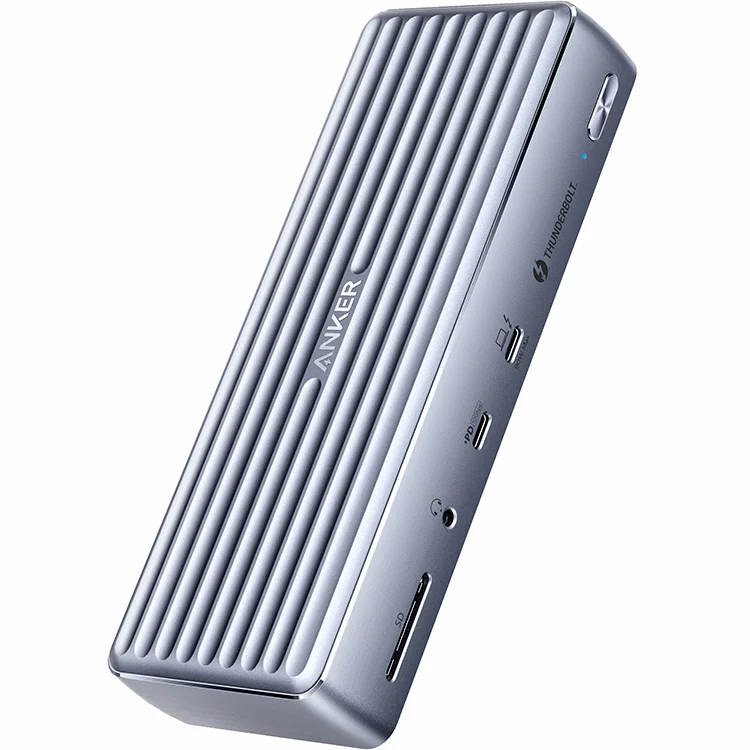
Your docking station choice defines your troubleshooting path. Understanding this Anker Thunderbolt dock’s design intent is your first diagnostic tool.
The CalDigit TS4 is a maximalist powerhouse. Its problems often stem from complexity—managing 18 ports and aggressive bandwidth allocation can lead to obscure handshake failures requiring firmware deep-dives. Our guide on CalDigit TS4 problem-solving reflects that.
The UGREEN Revodok Max 213 is a value-driven performer. Its challenges often relate to thermal management and protocol compromises as it pushes USB4 to its limits, requiring proactive cooling and setup savvy.
The Anker 777 is a stability-optimized tool. Its “problems” are typically communication resets. It errs on the side of disconnecting a device rather than risking an unstable data stream or power overload. Therefore, fixes focus on re-establishing clean, simple communication.
This docking station is engineered to be a reliable anchor for your desk, not a feature-laden Swiss Army knife. The troubleshooting that follows respects that design.
Step 1: The Mandatory Cold Boot Reset
Forget a simple reboot. The single most effective fix for the Anker 777 not working—especially after sleep or with macOS sleep issues—is a full cold boot cycle. This isn’t just folklore; it’s about how the dock’s conservative controller handles low-power states.
The Anker 777 Cold Boot Protocol:
- Shut down your laptop completely. Do not select “Restart.”
- Unplug the Anker 777’s power adapter from the wall.
- Disconnect the Thunderbolt 4 cable from your laptop.
- Wait 30 seconds. This is crucial to drain power from the docking station’s circuitry and your laptop’s Thunderbolt controller.
- Reconnect the power adapter to the wall.
- Power on your laptop.
- Once the OS is fully loaded, then connect the Thunderbolt cable from the laptop to the dock.
Why This Works: Sleep states (especially on Apple Silicon Macs and modern Windows 11) are a common failure point. The laptop’s USB/Thunderbolt controllers enter a deep low-power mode that the Anker 777’s cautious firmware can struggle to reliably wake from. A full cold boot resets both sides to a known-good power state, forcing a clean, fresh connection handshake. If your Anker 777 problems involve waking from sleep, this is your step zero.
Problem-Specific Attack Vectors
Based on aggregated user reports from forums, Reddit communities like r/UsbCHardware, and support channels, here are the most common Anker 777 Thunderbolt dock issues and their stability-first fixes.
1. HDMI Display Issues & No Signal
The Symptom: Monitors connected via HDMI don’t wake up, default to 1080p, or show “No Signal,” while DisplayPort connections may work fine.
The Stability-First Fix: The Anker 777’s HDMI implementation can be sensitive to older or long cables and certain monitor EDID data. First, try a high-quality, short HDMI 2.1 cable or, better yet, switch to a DisplayPort cable if your monitor supports it. If you must use HDMI, power cycle the monitor while the dock is connected. For persistent dual monitor not working issues, see the bandwidth section below.
2. Sleep & Wake Failures (The “MacBook Zombie Dock”)
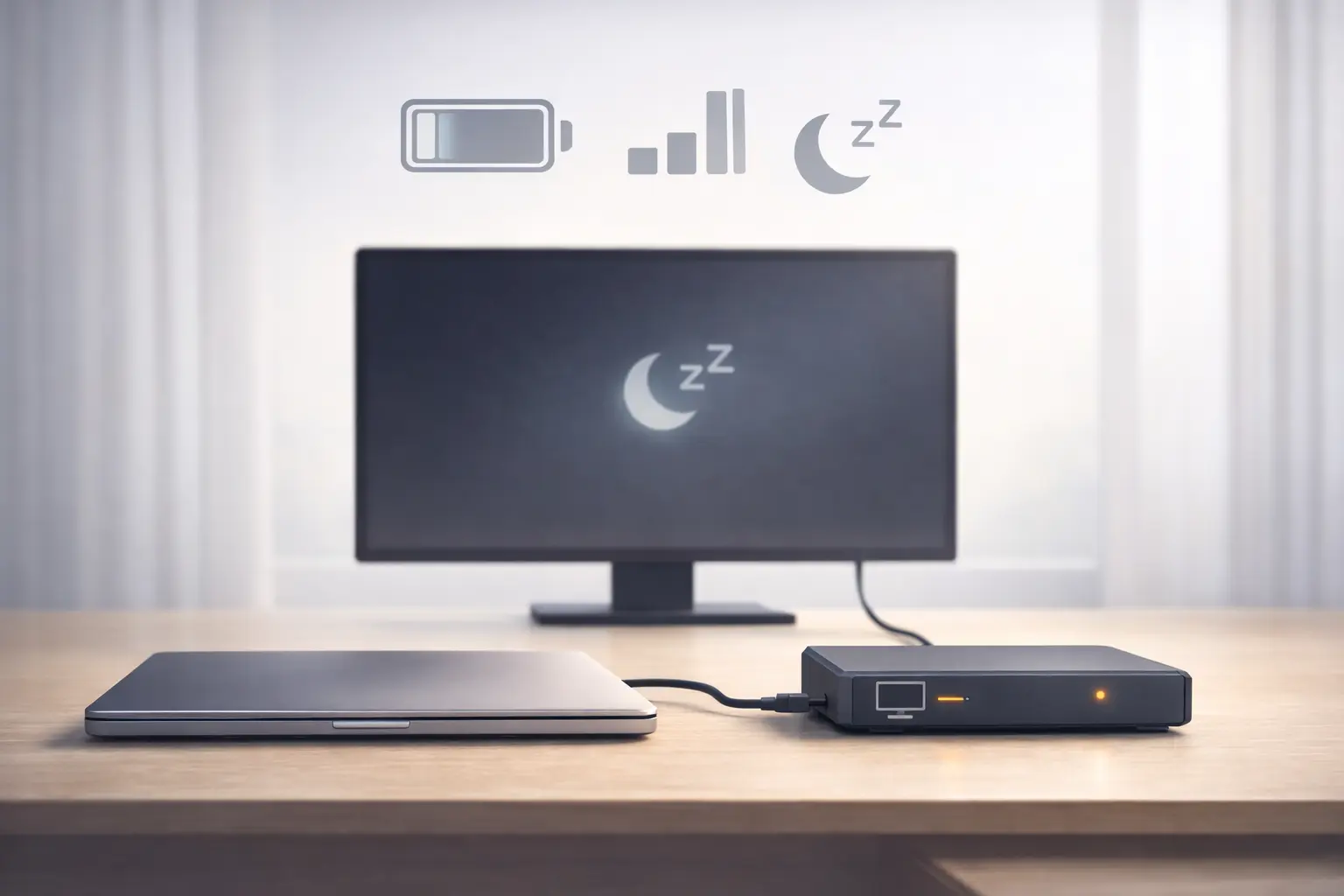
The Symptom: After your laptop sleeps, you open the lid to find dead monitors, Ethernet not working, and unresponsive USB devices. The docking station is physically on but logically asleep.
- The Fix – macOS: This is the most cited Anker 777 macOS sleep issue. Go to System Settings > Battery > Options and set “Turn display off on battery when inactive” to Never for testing. Also, disable “Put hard disks to sleep when possible” and “Wake for network access” in Energy Saver settings. This prevents the deep power states that break the handshake.
- The Fix – Windows 11: Navigate to Control Panel > Power Options > Change plan settings > Change advanced power settings. Expand USB settings > USB selective suspend setting and set it to Disabled.
3. Dock Not Detected or “Ghosting” on Multiple Ports
The Symptom: The Anker 777 is not detected by your laptop, or it only works on one specific Thunderbolt port.
The Fix: This is almost always a cable or port issue. Use only the included Thunderbolt 4 cable. If you’ve lost it, you must replace it with a certified 40Gbps/100W Thunderbolt 4 cable—a standard USB-C cable will not work. Secondly, clean your laptop’s USB-C port with a can of compressed air. Lint buildup is a major cause of intermittent detection.
4. Dual 4K@60Hz Monitor Limitations & Flickering
The Symptom: Two 4K monitors work intermittently, flicker, or one drops out entirely.
The Reality Check: The Anker 777 supports dual 4K@60Hz, but it operates at the very edge of its stable bandwidth envelope, especially with HDR enabled. Unlike more complex docks, it may conservatively throttle or drop a signal to maintain integrity.
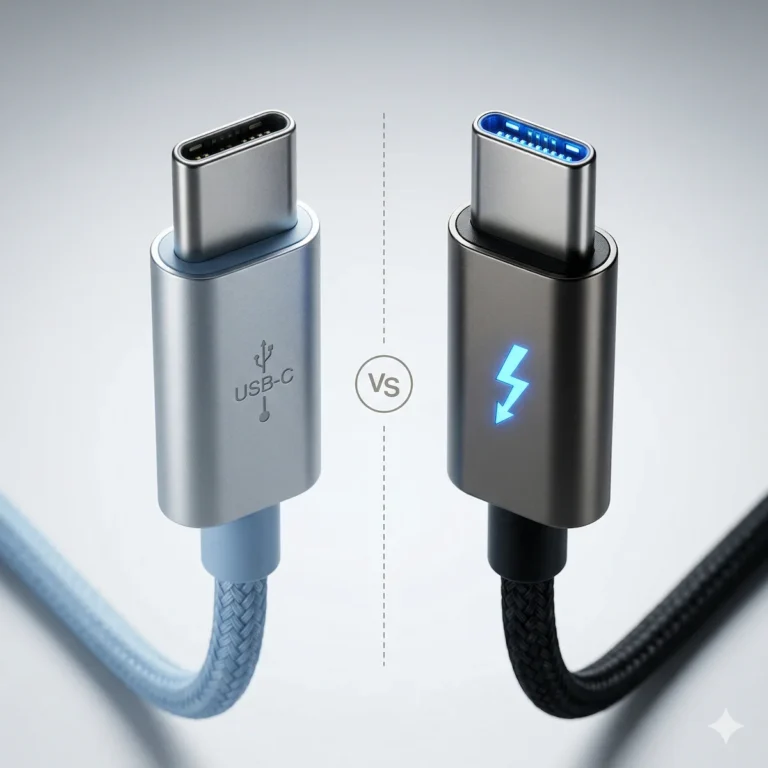
The Fix: First, disable HDR on both monitors in your OS display settings. If flickering persists, try setting the refresh rate to 50Hz or lowering the resolution of the secondary monitor to 2560×1440 (QHD). This isn’t a defect; it’s the dock’s stability control ensuring a reliable image. For a deeper understanding of these limits, see our guide on Thunderbolt 4 vs USB-C for docking stations.
5. “Not Charging” or Slow Laptop Charging
The Symptom: Your laptop shows “Not Charging” or charges very slowly through the dock.
The Power Check: The Anker 777 delivers up to 100W. First, confirm your laptop’s maximum charging wattage. A 16-inch MacBook Pro can draw 140W, so 100W will charge it slowly under load—this is expected. Always use the included 100W power adapter. Using a lower-wattage charger will cripple the docking station’s ability to power both itself and your laptop.
6. USB-A / USB-C Peripheral Ports “Feeling Weak” or Disconnecting
The Symptom: Phones charge slowly from the front USB-C port, or USB-A devices (like external drives) disconnect under load.
The Conservative Design: The front USB-C port is rated for 12W (not fast charging), and the USB-A ports have conservative current limits to prevent overload. This is a feature of its safety-first design. For fast phone charging, use your laptop or a dedicated wall charger. For bus-powered hard drives, use a short, high-quality cable and connect them directly to the docking station, not through a hub.
7. Ethernet Not Working or Random Drops
The Symptom: The 2.5GbE port shows as disconnected or drops out.
The Fix: This is frequently a driver or power-saving conflict. On Windows, open Device Manager, find the dock’s Ethernet adapter under “Network adapters,” right-click, select Properties > Power Management, and uncheck “Allow the computer to turn off this device to save power.” On Mac, go to System Settings > Network, click the Ethernet service, and ensure “Configure IPv4” is set to “Using DHCP.”
8. Front Thunderbolt Port Not Supporting Displays
The Symptom: You plug a monitor into the front Thunderbolt port, but get no display output, even though the rear ports work fine.
The Reality Check: The front Thunderbolt port on the Anker 777 is a downstream port primarily optimized for high-speed data transfer (like connecting a fast SSD). Its display output capability can be inconsistent, as the dock’s conservative controller prioritizes display signal routing through the dedicated rear ports.
The Fix: For reliable display output, always use the rear Thunderbolt or DisplayPort connections. Reserve the front Thunderbolt port for data devices. This isn’t a flaw; it’s a conscious design choice that ensures stability for the core function of driving your main monitors.
9. Dock Works on One Laptop, Fails on Another
The Symptom: The Anker 777 works perfectly on your work laptop but fails to be detected or function correctly on your personal laptop (or vice-versa).
The Root Cause: This is almost never the dock’s fault. It exposes the critical difference between USB-C and Thunderbolt. Your “failing” laptop likely only has USB-C ports without full Thunderbolt 3/4 support, or its Thunderbolt support is disabled in the BIOS/UEFI settings.
The Diagnostic:
- On Windows: Open Device Manager and look for “Thunderbolt(TM) Controller” under “System devices.” If it’s missing, you have a USB-C-only port.
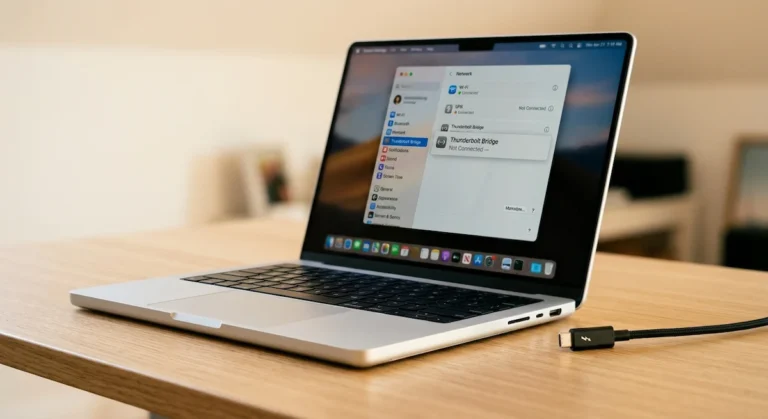
- On Mac: Click the Apple logo > About This Mac > System Report. Under Hardware, select Thunderbolt/USB4. It should list the Anker 777 when connected. If the bus itself is missing, your Mac doesn’t support Thunderbolt on that port (rare, but possible on some older Intel models).
The Fix: Confirm you are using a true Thunderbolt-enabled port. Consult your laptop’s manual. On some Windows laptops, you may need to enter the BIOS/UEFI (by pressing F2, Del, etc., during boot) and explicitly enable Thunderbolt support.
10. Firmware Exists but Isn’t Discoverable
The Symptom: You hear about firmware updates but can’t find them on Anker’s main product page, leading to confusion.
The Anker Philosophy: Unlike some brands that push frequent, proactive updates, Anker adopts a reactive, stability-first approach to firmware. Updates are typically released only to address specific, confirmed issues. They are not meant for general “performance improvements” and are often hosted on separate support pages or direct download links from customer service.
The Fix: Do not seek out firmware updates unless you are experiencing a reproducible, specific hardware issue (e.g., one port consistently fails). If you need it, contact Anker Support directly or search their support portal for “Anker 777 Firmware Update Tool.” When you run it, ensure the dock is connected directly with its original cable and no other peripherals.
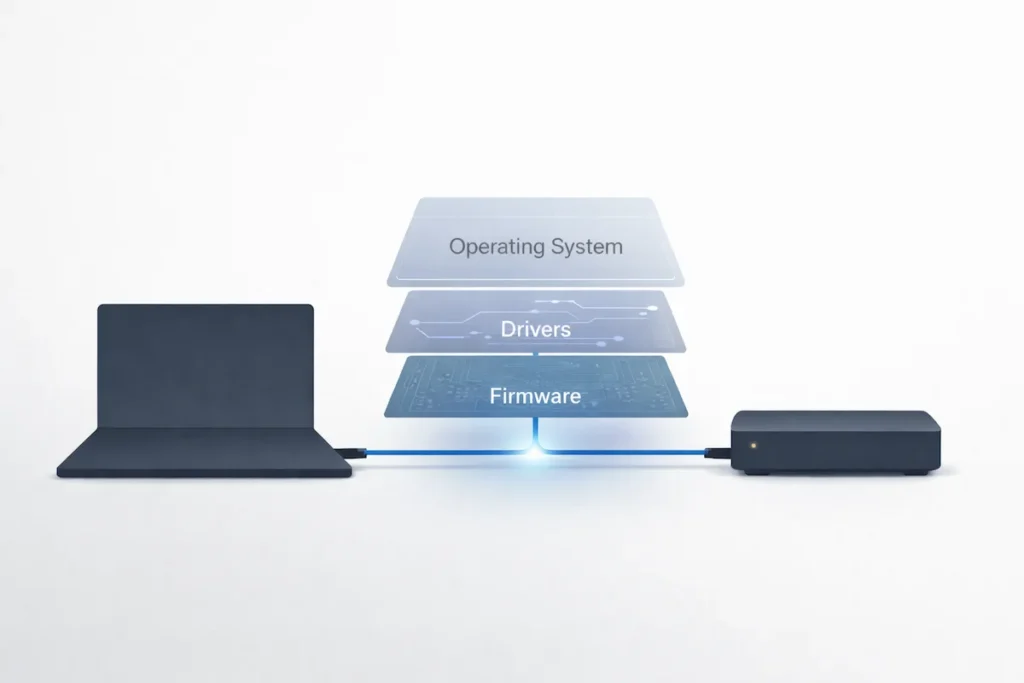
The Software Layer – Firmware & Driver Management
The Anker 777 requires minimal software intervention, but two tools are critical.
Anker’s Firmware Update Tool: As noted, use this reactively. If you are experiencing a consistent, reproducible issue (like a specific port failure), contact support for the tool. Run it as an administrator in Windows or on macOS to ensure the dock has the latest stable microcode.
Driver Purge (Windows Specific): If devices are missing, go to Device Manager, expand “Universal Serial Bus controllers,” and look for “Unknown USB Device” or generic hub entries. Right-click, select “Uninstall device,” and check “Delete the driver software for this device.” Restart. This forces Windows to rebuild its USB device tree with the docking station.
When It Might Actually Be a Hardware Fault
Anker has a strong reputation for build quality, but failures can happen. Is it the dock?
Run the Isolation Test: Perform the Cold Boot Reset with the included cable and power adapter. Then, test the docking station on a *different, known-working Thunderbolt 4 laptop*. If the exact same problem occurs on two different systems, you likely have a hardware fault.
Signs of Hardware Failure:
- A specific port provides no power or data with any cable or device.
- The dock is physically damaged (cracked, bent, loose ports).
- There is a burning smell or visible damage to components.
- It remains completely dead with a verified working power adapter and outlet.
If you suspect a fault, contact Anker support. Their warranty process is generally straightforward, especially if you can describe the troubleshooting steps you’ve already completed.
Who Should Buy the Anker 777 (And Who Shouldn’t)
This docking station is a tool for a specific job. Use this final checklist to see if it’s the right tool for you.
✅ Buy the Anker 777 Thunderbolt 4 Dock if:
- Your top priority is set-and-forget reliability for a standard home or office setup.
- You primarily use a single 4K monitor or dual monitors at QHD/1080p resolutions.
- You value Anker’s brand reputation for quality and straightforward support.
- You want a clean, minimal docking station without excessive ports you’ll never use.
❌ Consider a Different Docking Station (and Why):
- If you need maximum ports and daisy-chaining: Get the CalDigit TS4. It’s built for complex, high-port-count setups but requires more technical management.
- If you want maximum performance for the lowest price and can manage thermals: Get a value-oriented dock like the UGREEN Revodok series. These are powerhouses that demand informed setup.
- If you constantly push dual 4K monitors with HDR and high refresh rates: Look for a dock with a more aggressive thermal and power design, potentially with active cooling.
If NOT Anker 777, Then WHAT? – 3 Better Docks Compared
If your profile is in the “Run Away” category, here’s your escape plan. I list the key flaw of each so you know the trade-off.
| Dock | Why It’s Better | The Trade-Off (Its Flaw) | For Whom? |
| [CalDigit TS4] | The Gold Standard. Flawless Mac/Windows stability, best power delivery. No throttling. | Extremely Expensive. Over 2x the UGREEN’s price. | Professionals who bill by the hour and can’t afford a single minute of downtime. |
| [UGREEN Revodok Max 213] | Built to Push Limits. Aggressively utilizes USB4/Thunderbolt bandwidth to deliver high display throughput and port density at its price point. | Thermal Sensitivity. No active cooling; under sustained high load, heat buildup can lead to throttling or momentary disconnects. | Best For: Power-conscious users who want maximum performance per dollar and are comfortable managing thermals, cables, and display configurations. |
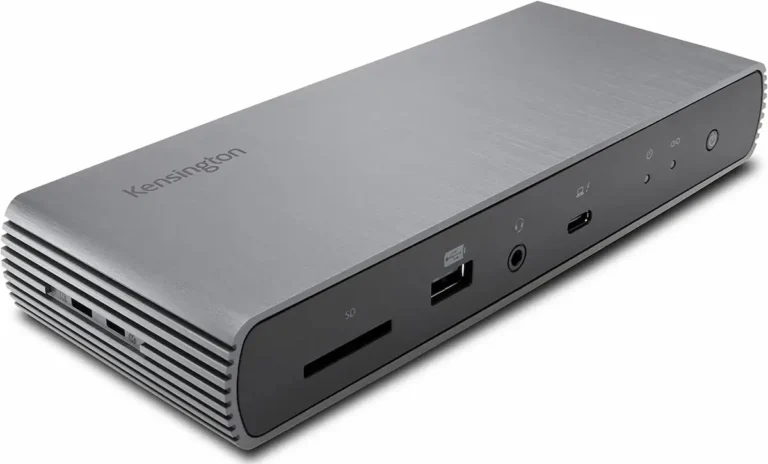
| [Kensington SD5780T] | Built to Cool. Has an active fan, so it does not throttle. More stable under sustained load. | Fan Noise. You can hear it. It’s also larger. | Power users running high-res displays and many peripherals all day who need sustained performance. |
Frequently Asked Questions (FAQ)
Q: My Anker 777 works but gets warm. Should I be worried?
A: It is normal for any high-performance docking station to become warm to the touch during operation. The Anker 777 uses its aluminum chassis as a heatsink. Ensure it has a few inches of space around it for airflow. Only be concerned if it becomes too hot to touch comfortably or if performance throttles (devices disconnect) under normal use.
Q: Why won’t my Anker 777 work with my Steam Deck / iPad Pro?
A: The Anker 777 is designed as a laptop docking station. Devices like the Steam Deck or iPads may not implement the full Thunderbolt or DisplayPort Alt Mode host functionality required. It may provide power and USB data, but display output is often not supported in these scenarios—this is a host device limitation, not a dock fault.
Q: Does the Anker 777 support MacBook Pro M3 Max laptops with multiple high-resolution displays?
A: It supports the displays the MacBook Pro can drive within the Thunderbolt 4 bandwidth limit. For an M3 Max, this typically means dual 4K@60Hz or a single 6K/5K display. For more complex setups involving Pro Display XDRs or triple monitors, a dock with more advanced display controllers (like the CalDigit TS4) may be necessary to manage the bandwidth allocation properly.
Q: One of my USB-A ports on the Anker 777 seems to have stopped working. Is this common?
A: Isolated port failure is uncommon but not unheard of. Before declaring it faulty, ensure the issue is with the port itself and not a specific device or cable. Test multiple known-good USB devices in the port. If all fail, and other ports work fine, it may be a physical port issue. Contact Anker support, as this is a clear case for a warranty claim.
Q: How do I properly update the firmware on my Anker 777?
A: Firmware updates are issued reactively. If needed, you will typically receive a direct link from Anker Support. If pursuing it yourself, ensure you download the tool directly from Anker’s official support portal. Crucially, connect the dock directly to your computer using its included Thunderbolt cable, with no other peripherals attached. Run the tool as an administrator (Windows) and do not disconnect the dock during the update process.
Why You Can Trust This Guide
My name is Alex. My approach to technology is rooted in a BSc in Computer Systems and over a decade of professional work as an IT infrastructure consultant and systems architect. I have never been interested in specs for specs’ sake—only in how technology performs reliably under real-world conditions.
I’ve integrated the Anker 777 into law offices where document reliability is paramount, and into remote work setups where users cannot afford troubleshooting time. I once diagnosed a fleet of these docks that would fail every Monday morning because a Windows group policy enforced an aggressive USB selective suspend setting the dock’s conservative firmware couldn’t negotiate. The fix was a one-line power policy change, not a hardware replacement.
This guide is the product of that experience: a straightforward, no-hype protocol for getting one of the most reliably built docking stations on the market to live up to its promise on your desk, today.