Dell Docking Station Drivers: Download, Install & Fix Guide (All Models, 2026)

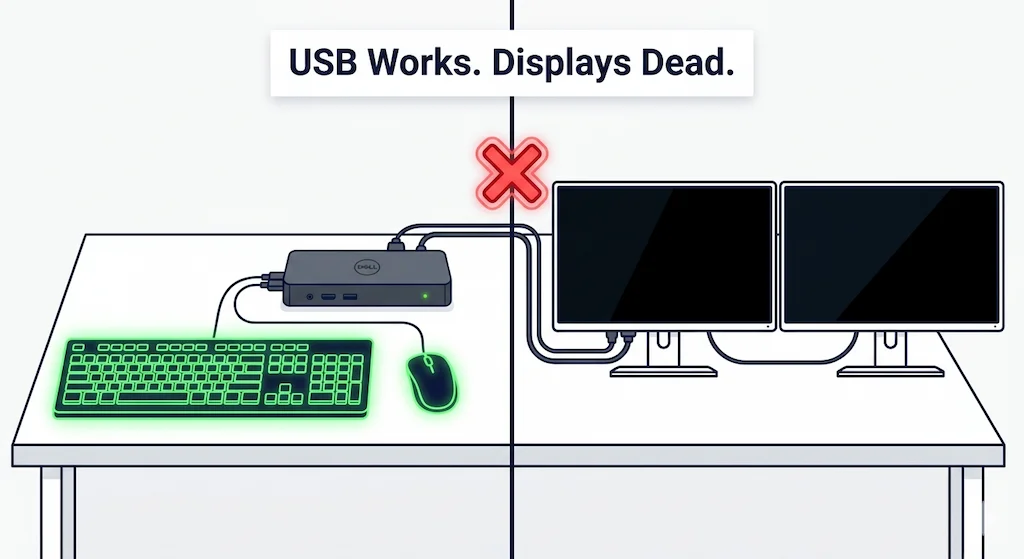
Dell docking station drivers are not one-size-fits-all. Thunderbolt docks need a Thunderbolt controller driver, Intel UHD Graphics driver (Dell version), Realtek Ethernet driver (2.1.5.5 minimum), and Dell Dock Manager. USB‑C docks (D6000) need only the DisplayLink driver. The install sequence matters more than the drivers themselves: laptop BIOS first, then laptop Thunderbolt firmware, then Intel graphics, then Ethernet, then Dell Dock Manager, reboot, connect dock, then dock firmware. Without this sequence, your Dell will partially function (USB works, displays dead) or fail detection entirely.
Most people install Dell dock drivers the same way they install any driver. They plug the dock in, Windows finds something, they click through whatever Device Manager offers, and wonder why the monitors are still black.
That’s the problem. Dell docks don’t work like that.
A Dell docking station runs its own firmware stack. It needs four specific drivers installed in a specific order — and if you skip a step or let Windows Update choose for you, you end up with a dock that half-works. USB fine. Displays dead. Or worse: dock not detected at all.
This guide covers every Dell dock from the WD19 to the SD25TB4. The right drivers, the right sequence, and what to do when it still fails after you’ve done everything right.
🟢 Early Bird — Haven’t Installed Dell Dock Drivers Yet?
You just unboxed a Dell dock. Or you’re setting up a fleet. Don’t plug it in yet.
Before you install, ask yourself:
- Is your laptop a Dell? (Non-Dell laptops will fight you on Thunderbolt handshake and power delivery — drivers won’t fix vendor lock‑in.)
- Do you have the right driver for your model? A WD22TB4 needs Thunderbolt drivers. A D6000 needs DisplayLink. They are not interchangeable.
- Are you ready to follow a specific sequence, not just click “Update Driver”? Skipping the laptop Thunderbolt firmware step will brick the dock firmware update.
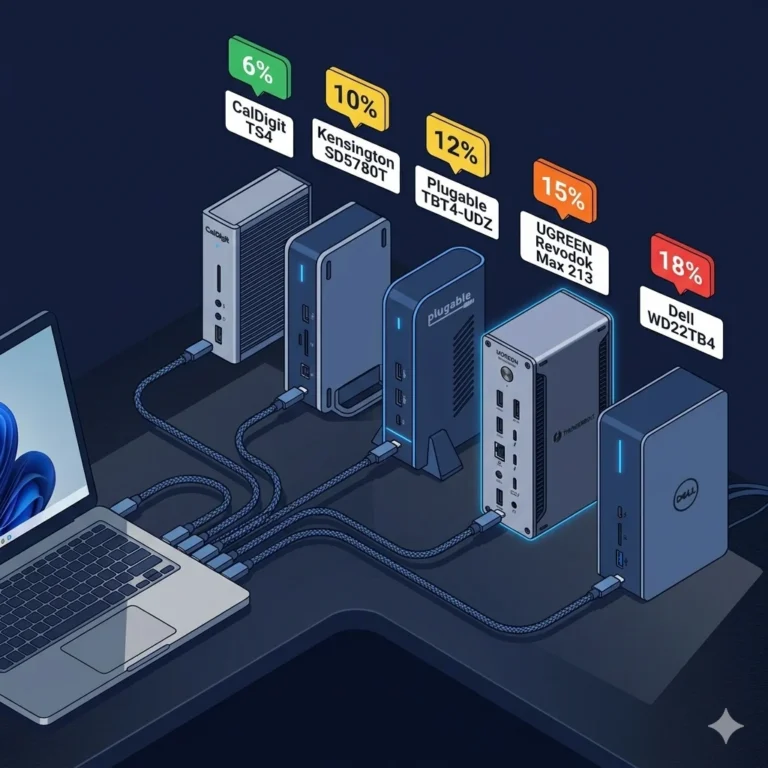
If you haven’t bought the dock yet, the comparison table below shows which models play nice with which environments. For mixed fleets, skip the driver hell entirely and buy a universal TB4 dock.
Section 1 — Why Dell Docking Station Drivers Aren’t Plug and Play
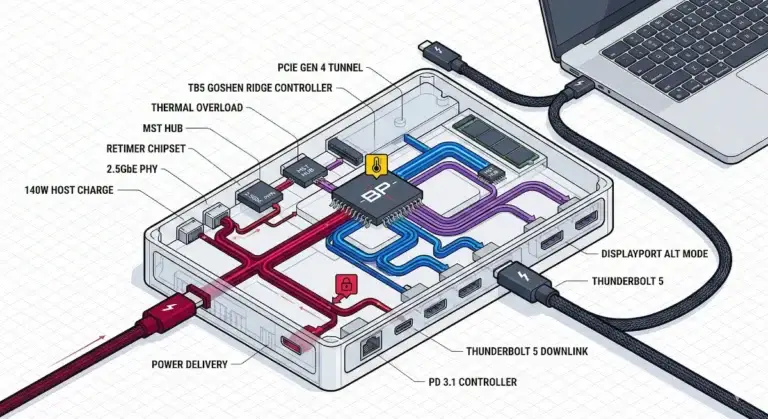
A Dell docking station is not a dumb hub. It’s a firmware‑controlled I/O controller with its own PCIe switch, power delivery chip, and MST hub. When you plug it into a fresh Windows install, the OS doesn’t know what to do with it. It installs generic USB and Thunderbolt drivers that partially work.
Here’s what that looks like: USB ports work. Ethernet works. But your monitors stay black. The charging light flickers. Or the dock shows up as “Unknown USB Device.”
That partial failure — data works, display fails — is a driver problem in most cases. Dell docking station drivers exist because Thunderbolt tunneling, MST, and 130W power delivery aren’t in the USB specification. They’re Dell‑specific extensions[4]. Windows Update will give you a generic driver that kind of works until you push it. Then it falls over. To understand why these driver layers behave this way, see how Thunderbolt docking stations actually work.
For a broader look at why Dell docks behave this way, see our Dell Docking Station Not Working guide.
Section 2 — The 4 Driver Types You Actually Need
Ignore the “other devices” in Device Manager. There are four driver categories that matter. Missing any one will break a specific subsystem.
2.1 Thunderbolt Controller Driver
- Required for: WD19TB, WD19TBS, WD22TB4, SD25TB4 (any Thunderbolt‑based Dell dock)
- What fails without it: Dock not detected, amber LED, intermittent detection
- Source: Dell Support (model‑specific driver page). Do not use Intel’s generic TB driver or Windows Update[1].
- Critical note: Thunderbolt driver must be installed before connecting the dock for the first time. If you plugged it in already, uninstall the device from Device Manager, install the driver, then reboot.
If your dock shows as an “Unknown USB Device” or the LED stays amber, you’re looking at a Thunderbolt handshake failure — covered in our Thunderbolt Dock Not Detected guide.
2.2 Intel UHD Graphics Driver
- Required for: All Thunderbolt Dell docks (WD19TB, WD22TB4, SD25TB4, etc.)
- What fails without it: The MST hub won’t initialize. USB works, charging works, monitors stay black.
- Source: Dell Support. You need Dell’s customized version, even if your laptop has an NVIDIA or AMD GPU. The Intel driver manages the Thunderbolt display pipeline.
This is the #1 reason people think their dock is broken. They update NVIDIA drivers, ignore the Intel driver, and wonder why their second monitor is dead. Install Dell’s Intel UHD Graphics driver. Reboot. Then your displays will work.
2.3 Realtek Ethernet Driver
- Required for: WD19 series, WD22TB4, SD25TB4 (any Dell dock with 2.5GbE or 1GbE Realtek chip)
- What fails without it: Link lights on, but no traffic.
ipconfig /renewreturns “media disconnected.” - Minimum version: 2.1.5.5. For DA14250, PA13250, MA14250, or XPS 13 9350, use version 2.1.5.6 specifically[3].
Windows Update will install a generic Realtek driver that works for DHCP but fails under sustained load. After you install the correct version, you must disable automatic driver updates for this adapter, or Windows will revert it.
2.4 Dell Dock Manager / DisplayLink Driver
These are mutually exclusive. Do not install both.
- Dell Dock Manager – Required for Thunderbolt docks (WD19TB, WD22TB4, SD25TB4). It enables dock firmware updates, MAC address pass‑through, and advanced power management. Download from Dell Support for your specific dock model.
- DisplayLink Driver – Required for USB‑C docks (D6000, D6000S, and some WD19S configurations). These docks do not use Thunderbolt — they compress video over standard USB. The driver is available from DisplayLink’s website or Dell Support.
If you install DisplayLink on a Thunderbolt dock, nothing will work. If you install Dell Dock Manager on a D6000, the firmware update tool won’t detect the dock.
Section 3 — The Correct Install Sequence for Dell Docking Station Drivers
This is the most important section in this guide. Follow these steps exactly. If you already plugged in the dock, disconnect it now.
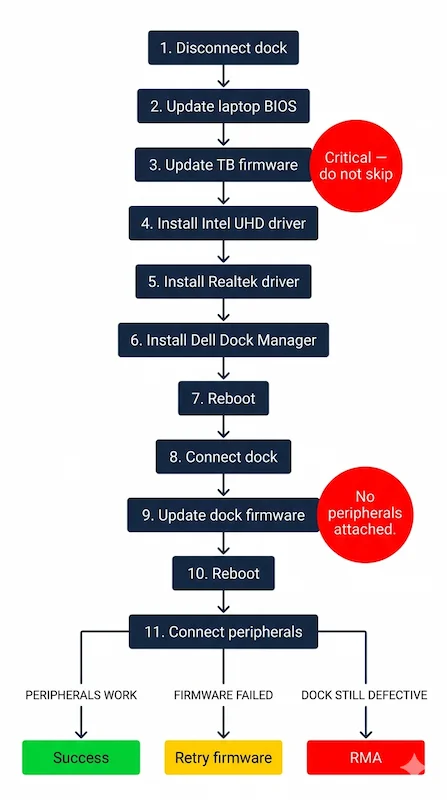
Step 1 – Disconnect the dock from your laptop.
Leave it powered off. No cable between laptop and dock.
Step 2 – Update your laptop BIOS.
Go to Dell Support, enter your laptop service tag, download the latest BIOS. Install it. Reboot. This is non‑negotiable.
Step 3 – Update laptop Thunderbolt controller firmware.
Still with the dock disconnected, download the Thunderbolt firmware update utility from Dell Support for your laptop model. Run it. Reboot. Do not skip this — if you update dock firmware first, it will fail or corrupt.
Step 4 – Install Intel UHD Graphics driver (Dell version).
Download Dell’s version from the support page for your laptop. Install. Reboot.
Step 5 – Install Realtek Ethernet driver (2.1.5.5+).
Download version 2.1.5.5 (or 2.1.5.6 if applicable). Install. Reboot.
Step 6 – Install Dell Dock Manager.
Download from Dell Support for your dock model. Install. Do not connect the dock yet.
Step 7 – Reboot the laptop again.
One final clean slate.
Step 8 – Connect the dock.
Plug in the dock’s power adapter first. Wait for the LED to stabilize (10 seconds). Then connect the Thunderbolt cable to your laptop. Do not attach any monitors, USB devices, or Ethernet yet.
Step 9 – Update dock firmware through Dell Dock Manager.
Open Dell Dock Manager. It will detect the dock and offer a firmware update. Run it. Do not touch anything during the update. The dock will restart multiple times. Wait for completion.
Step 10 – Reboot the laptop again.
This final reboot ensures the host re‑enumerates the dock with the new firmware.
Step 11 – Connect peripherals.
Add monitors, USB devices, Ethernet — one at a time. Test each.
Critical notes:
- Never update dock firmware with peripherals attached.
- Never skip the laptop Thunderbolt firmware step (Step 3).
- After step 5, disable Windows automatic driver updates for the Realtek Ethernet adapter, or Windows Update will revert it.
Section 4 — Model‑Specific Dell Docking Station Drivers
Each dock family requires a different driver combination. Use this as a quick reference.
4.1 WD19 / WD19S / WD19DC
Type: USB‑C (no Thunderbolt)
Drivers needed: Realtek Ethernet, Dell Dock Manager
No Thunderbolt driver.
Common confusion: The WD19 is often mistaken for Thunderbolt. It is not. Installing Thunderbolt drivers will not help. If your monitors won’t drive at 4K@60Hz, that’s a bandwidth limit, not a driver issue.
4.2 WD19TB / WD19TBS
Type: Thunderbolt 3
Drivers needed: TB3 controller driver, Intel UHD Graphics, Realtek Ethernet, Dell Dock Manager
Note: The TB3 stack is separate from TB4. Do not use WD22TB4 drivers on this dock. Use Dell’s TB3 driver package specifically for your laptop model.
4.3 WD22TB4
Type: Thunderbolt 4
Drivers needed: TB4 controller driver, Intel UHD Graphics, Realtek Ethernet, Dell Dock Manager
Note: Firmware update sequence is strict. Laptop TB controller firmware must be updated before dock firmware. If you reversed the order, perform a full power drain (unplug dock from AC and laptop for 60 seconds) and restart from Step 3.
4.4 SD25TB4
Type: Thunderbolt 4 Smart Dock
Drivers needed: TB4 controller driver, Intel UHD Graphics, Realtek Ethernet, Dell Dock Manager
Note: The OOB Wi‑Fi management feature requires Dell BIOS version 1.12 or later on the host laptop. Without that, remote management won’t work.
4.5 D6000 / D6000S
Type: DisplayLink‑based USB‑C (not Thunderbolt)
Drivers needed: DisplayLink driver only
Do NOT install Thunderbolt drivers, Intel UHD Graphics driver, or Dell Dock Manager.
Note: In BIOS, disable Thunderbolt options entirely. The D6000 will fight with Thunderbolt controllers.
The D6000 and D6000S use DisplayLink, not Thunderbolt — install DisplayLink Manager before connecting the dock or displays will not be detected.
🟡 Pattern Check — Driver Issue or Hardware Issue?
After following the sequence, still having problems? Run this check.
| You’re fixing a driver issue if… | You’re dealing with hardware failure if… |
|---|---|
| Problem started after OS or driver update | Problem present since day one on a clean install |
| Reinstalling driver fixes it temporarily | Driver reinstall changes nothing |
| Works on one laptop, fails on another | Fails on every host with correct drivers |
| Dell Command Update shows pending updates | All drivers current, dock still dead |
If you’re still fighting driver conflicts on Thunderbolt 4, Thunderbolt 5 removes most of this failure class — but requires a TB5 port for full bandwidth.
Section 5 — Common Driver Failures & Fixes
You followed the sequence. Drivers are installed. Something’s still wrong. These are the five failure patterns that show up most often after a clean install — what causes them and exactly how to fix each one.

5.1 Display Not Working After Driver Install
Symptom: USB and Ethernet work. Monitors stay black or flicker.
Cause: Intel UHD Graphics driver is missing, or you installed Intel’s generic version (not Dell’s).
Fix: Uninstall any Intel graphics driver from Programs and Features. Reboot. Install Dell’s Intel UHD Graphics driver from your laptop’s support page. Reboot.
5.2 Realtek Ethernet Bug
Symptom: Link lights on. Windows says “Connected.” No traffic. ping times out. ipconfig /renew returns “media disconnected.”
Cause: Wrong driver version, or Windows Update silently replaced the correct driver with a generic one.
Fix: Download version 2.1.5.5 (or 2.1.5.6 for affected models[3]). Install. Reboot. Then disable Windows automatic driver updates for this adapter (Device Manager → right‑click the adapter → Properties → Driver → Roll Back Driver if needed, then set Windows Update to not update drivers).
5.3 Thunderbolt Driver Missing After Windows Update
Symptom: Dock worked yesterday. Windows Update ran overnight. Now the dock shows amber LED or isn’t detected.
Cause: Windows Update replaced Dell’s Thunderbolt driver with Microsoft’s generic version.
Fix: Uninstall the generic driver from Device Manager (check “Delete driver software”). Reinstall from Dell Support. Reboot.
5.4 Dock Firmware Update Fails
Symptom: Dell Dock Manager shows an update available. Click Update – it fails or hangs at 0%.
Cause: Laptop Thunderbolt controller firmware was not updated first, or peripherals are still attached to the dock[5].
Fix: Disconnect all peripherals from the dock. Update laptop Thunderbolt controller firmware (from Dell Support). Reboot. Retry dock firmware update.
5.5 Windows 11 24H2 Driver Reset
Symptom: Everything worked before the 24H2 feature update. After the update, the dock is partially dead — monitors flicker, Ethernet drops, or the dock isn’t detected at all.
Cause: 24H2 resets Thunderbolt authorization and sometimes overwrites Realtek and Thunderbolt drivers[6].
Fix:
- Open Thunderbolt Control Center, re‑authorize your dock.
- Reinstall Realtek Ethernet driver (2.1.5.5 or higher).
- Reinstall Dell’s Thunderbolt controller driver.
- Reboot.
This is part of a broader 24H2 pattern documented in our Docking Station Not Working guide.
Section 6 — Dell Command Update vs Manual Download
Dell Command Update is a utility that scans your system and shows available driver and firmware updates for your specific laptop model[2], including some dock drivers. It’s useful for routine maintenance and fleet management.
When to use Dell Command Update:
- Monthly driver refreshes
- Updating BIOS and chipset drivers
- Keeping Thunderbolt drivers current across a fleet
When NOT to use Dell Command Update:
- Initial dock setup (it won’t enforce the correct sequence)
- When the dock is already failing (it may miss the specific driver you need)
- For Realtek Ethernet bug fixes (it often pulls the wrong version)
For troubleshooting, always download Dell docking station drivers manually from Dell Support by entering your laptop’s service tag. That guarantees version compatibility.
Section 7 — macOS Driver Reality
Most Dell docks have no official macOS driver support. You will not find a “Dell Dock Manager for Mac.”
- WD19TB and WD22TB4 work partially on macOS through the native Thunderbolt driver. No Dell software needed. Dual displays work on M1 Pro/Max and newer. Single display on base M1/M2/M3.
- SD25TB4 has no macOS support. The Dell‑only EC handshake prevents reliable operation. Don’t use it with a Mac.
- D6000 has a DisplayLink app available for macOS. It works, but with CPU overhead and occasional flicker.
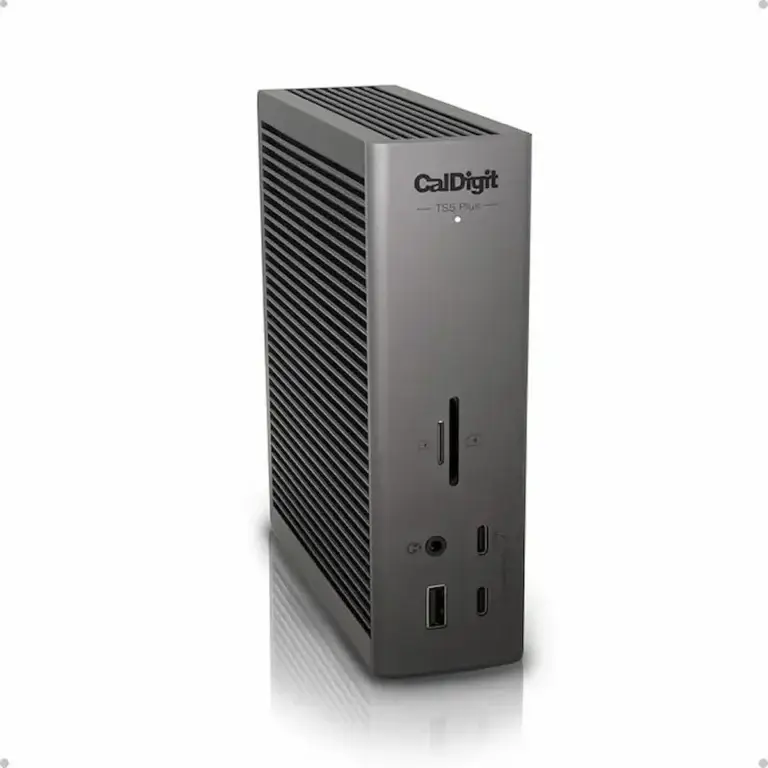
If macOS is your primary OS, skip the driver hassle entirely. Use a universal Thunderbolt 4 dock like the CalDigit TS4. It just works.
🔴 Last Resort — When Dell Docking Station Drivers Aren’t the Problem
If you’ve reinstalled every driver in the right sequence and it still fails — stop. The dock is the problem.
Checklist before you RMA:
- ✅ Correct driver versions installed (checked against Dell Support page)
- ✅ Correct install sequence followed (BIOS → laptop TB firmware → Intel graphics → Ethernet → Dock Manager → dock firmware)
- ✅ Dock firmware updated successfully
- ✅ Tested on a second Dell laptop — same failure
- ✅ Windows 11 24H2 reauthorization done (Thunderbolt Control Center)
Rule of thumb: If the dock fails on two different Dell laptops with the correct drivers and firmware, it’s not fixable. Contact Dell Enterprise Support (for SD25TB4) or your warranty provider. For universal alternatives, see the comparison table below.
Comparison Table — TB4 Docks
Dell WD22TB4
TB4 · Passive · 1GbE
- 130W PD on Dell laptops
- ⚠️ Triple-monitor handshake sensitivity
- Firmware deadlocks on non-Dell hosts
- Best for Dell fleets with IT management
Solid on Dell hardware. Unreliable on anything else.
Check Price →Dell SD25TB4
TB4 · Passive · 2.5GbE
- 🔒 Dell-only reliable
- 4x 4K display output
- Wi-Fi OOB management
- Full enterprise management suite
Built for IT-managed Dell fleets. Overkill for home use.
Check Price →Dell WD19
USB-C · No Thunderbolt · 1GbE
- 90W PD on Dell laptops
- Mature, stable, widely deployed
- No Thunderbolt driver needed
- DisplayPort Alt Mode only — 4K@30Hz max
If it’s working, don’t replace it. Dual 4K@60Hz isn’t possible — that’s a bandwidth limit, not a driver issue.
Check Price →Dell D6000
DisplayLink · USB-C · 1GbE
- DisplayLink driver only — no Thunderbolt
- Works on non-Dell laptops
- Triple display support via software compression
- Disable TB options in BIOS when using
Most flexible Dell dock for mixed fleets. CPU overhead is the tradeoff.
Check Price →CalDigit TS4
TB4 · Passive · 2.5GbE
- 🟢 No failure pattern under normal load
- Works on Dell, Lenovo, HP, Mac — no handshake issues
- 18 ports, 98W PD, 2x TB4 downstream
- No vendor-specific driver stack required
Done with Dell driver hell? This is the exit.
Check Price →Section 9 — Author Block
Alex Atkinson – Docking Infrastructure Specialist
Computer Systems Engineering background. 10+ years deploying Dell docks in enterprise environments. Diagnosed firmware update sequence failures firsthand across WD19TB, WD22TB4, and SD25TB4 deployments. Author of Laptop Docking Stations Explained.
Sources & References
Sources & References
- Dell Inc. — Drivers & Downloads (Dell Support)
- Dell Inc. — Dell Command Update Administrator Guide
- Dell Inc. — Realtek USB Ethernet Driver Bug KB000219827
- BenQ — Thunderbolt 4 vs USB4 vs USB-C Explained
- Dell Inc. — WD19TB Firmware Update Failure KB000211189
- Microsoft — Windows 11 24H2 Thunderbolt Authorization Changes KB5043145