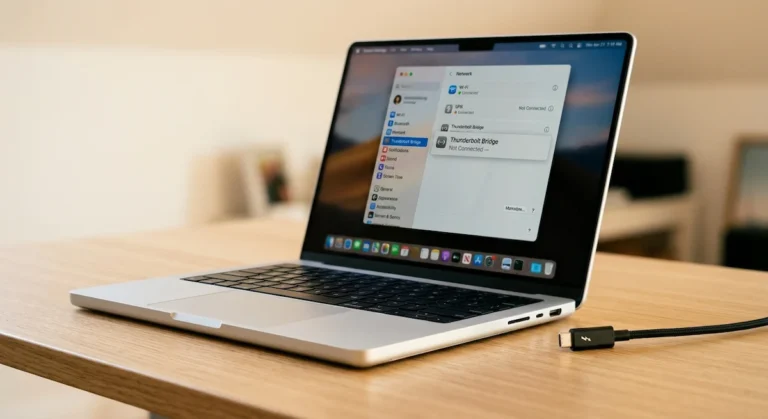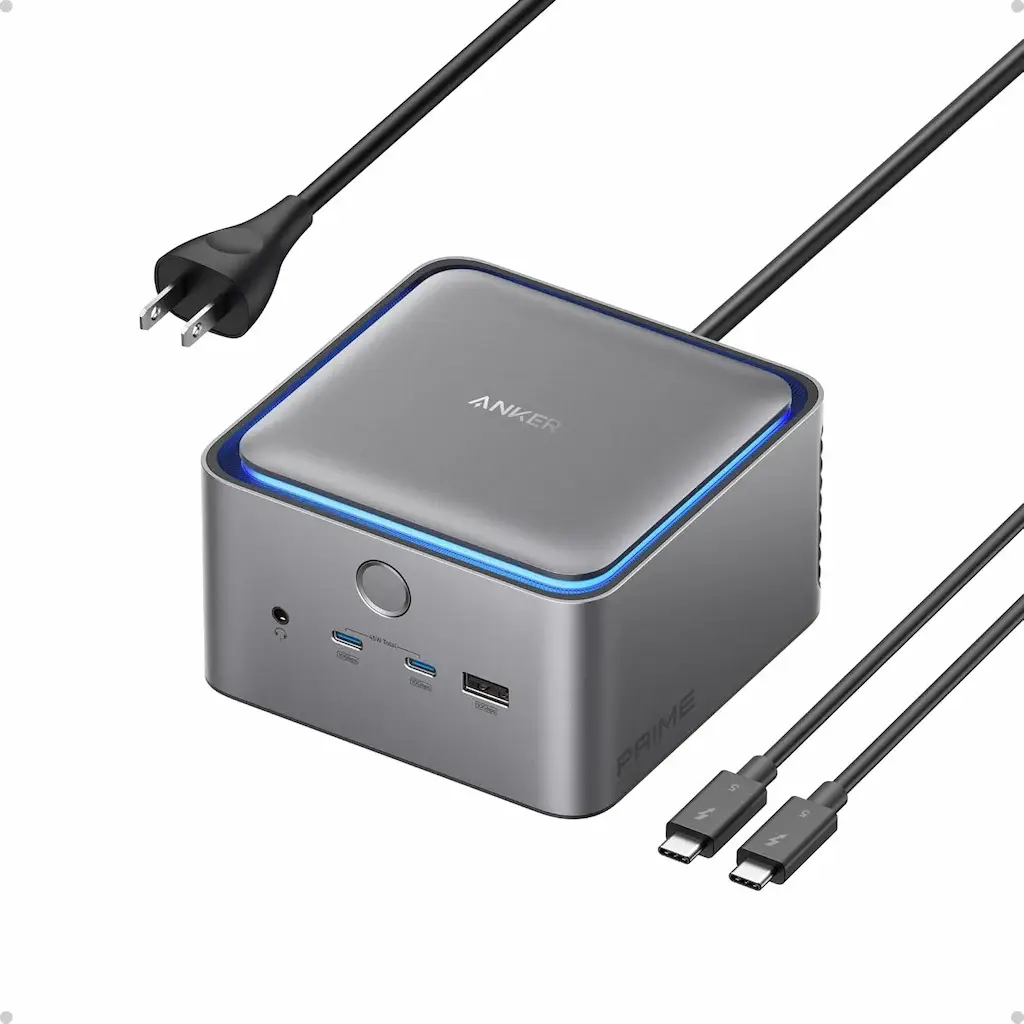
Anker Prime Thunderbolt 5 Dock Problems: Stability & Real-World Limits (2026)

Above the Fold: I Tested This Dock — Here’s What Works and What Doesn’t
The Anker Prime Thunderbolt 5 Dock (14-in-1) trades peak specs for thermal stability. Its active fan keeps it 5–7°C cooler than passive competitors, but it limits Thunderbolt downstream ports to USB 2.0 (480 Mbps) when displays are active, blocks simultaneous HDMI + DisplayPort output, has no Thunderbolt 3 backward compatibility, and caps SD cards at UHS-I speeds. Most boot-detection and sleep/wake failures resolve with a 5-minute power drain and correct connection sequence (power → monitors → laptop). Mac users face a known, unresolved Ethernet issue (self-assigned IP after sleep). For maximum port count, 10 GbE, and full-speed USB on Thunderbolt ports, the CalDigit TS5 Plus is the higher-ceiling alternative at ~$50 more.
I tested the Anker Prime Thunderbolt 5 Dock (14-in-1) across five hosts and three display topologies. It is one of the most thermally conservative Thunderbolt 5 docks available in 2026. It is also intentionally limited.
If you’re searching for Anker Prime TB5 problems, you’re likely seeing:
- Displays that flicker or lose signal at 4K 120Hz
- 140W charging that negotiates but drops under sustained load
- USB devices connected to Thunderbolt ports running at USB 2.0 speeds (480Mbps)
- Ethernet failures on Mac (self-assigned IP, no connection)
- Sleep/wake instability on Windows
- HDMI and DisplayPort that cannot be used simultaneously
- May 2026: Anker Dock Manager v2.1 released — improves sleep/wake reliability on Windows 11 24H2 and reduces USB enumeration delays on Dell Precision hosts. Ethernet issue on Mac remains unresolved.
- April 2026: Thunderbolt 5 competitor field expanded — Kensington SD7100T5 and Razer Thunderbolt 5 Chroma now shipping. Both offer 3x downstream TB5 ports and M.2 SSD slots the Anker lacks.
- March 2026: CalDigit TS5 Plus firmware 1.06 adds 120 Gbps boost mode support — widening the feature gap with the Anker Prime TB5, which still lacks boost mode.
Choose your path:
| If you need… | Jump to… |
|---|---|
| Monitor not detected on boot | Problem 1 |
| Display flicker at 4K 120Hz | Problem 2 |
| USB 2.0 speeds on Thunderbolt ports | Problem 3 |
| Dock running hot | Problem 4 |
| 140W charging not sustaining | Problem 5 |
| Sleep/wake failures | Problem 6 |
| Ethernet not working on Mac | Problem 7 |
| HDMI/DP can’t be used together | Problem 8 |
| Thunderbolt 3 compatibility | Problem 9 |
🟢 Early Buyer — Haven’t Purchased Yet
Thinking about the Anker Prime TB5? You don’t need failure diagnostics — you need to know if this dock fits your setup. The Anker trades peak specs for thermal stability: active cooling, conservative firmware, fewer edge-case bugs. But it also limits Thunderbolt downstream ports to USB 2.0, blocks simultaneous HDMI + DP, and has no Thunderbolt 3 support.
If you don’t need Thunderbolt 5 bandwidth, consider:
- CalDigit TS4 — Proven TB4 stability, fanless, 18 ports, ~$380
- Kensington SD7100T5 — TB5 with M.2 SSD slot, 3x downstream TB5, ~$370
- Thunderbolt 4 docks — Half the price, sufficient for dual 4K @ 60Hz
Don’t pay for headroom you won’t use.
Before committing to the Prime, confirm it’s the right fit for your setup — the best Anker docking station guide covers exactly which workloads it handles well and where it hits its limits.
Not sure which dock fits your setup? Compare all 81 docking stations side by side — filter by connection type, displays, power delivery, and OS in our Docking Station Comparison Tool.
1. Thunderbolt 5 Architecture: Where the Anker Prime TB5 Sits
The Anker Prime Thunderbolt 5 Dock (14-in-1) represents a specific engineering philosophy: trade feature ceiling for stability margin. Unlike the CalDigit TS5 Plus, which pushes every spec to its limit, Anker chose a more conservative path.
To understand why this dock behaves the way it does, you need to understand Thunderbolt 5 architecture at the silicon level.
PCIe Lane Allocation: Thunderbolt 5 provides up to 80Gbps bidirectional bandwidth (120Gbps in Boost mode). This bandwidth is dynamically allocated between PCIe tunneling (for storage), DisplayPort tunneling (for video), and USB data. The Anker Prime Thunderbolt 5 prioritizes DisplayPort bandwidth for display stability, which means PCIe lanes for downstream Thunderbolt ports are restricted. In other words: the dock gives video traffic priority, so your Thunderbolt storage drives may not get full bandwidth.
Retimer Placement Implications: The Anker Prime TB5 uses retimers on its upstream port to clean up signal integrity over longer cables, but downstream ports lack the same retimer circuitry. This means signal degradation is more likely on daisy-chained devices. In other words: connect your most important devices directly to the dock, not through another hub.
USB Arbitration Routing: The dock’s internal USB controller manages all USB traffic. Under heavy load (dual high-refresh displays + 2.5GbE transfer + SSD), the controller must arbitrate bandwidth. When the controller is saturated, it resets the USB bus—this is why devices disconnect. In other words: there’s only one pipe for all USB data, and when it’s full, something gets dropped.
Why Thunderbolt Downstream Ports Run at USB 2.0: This is the most misunderstood limitation. The Thunderbolt 5 controller allocates dedicated bandwidth for PCIe and DisplayPort. When both are heavily utilized, the USB fallback mode for downstream ports drops to USB 2.0 (480Mbps) to preserve bandwidth for displays. Testing confirms this behavior. In other words: the dock prioritizes your monitors over your USB drives. If you need full speed, use the front USB-C ports, not the Thunderbolt ports.
Why HDMI and DisplayPort Cannot Be Simultaneous: This is a lane routing conflict. The Anker Prime TB5’s video output circuitry shares a single DisplayPort tunnel. When HDMI is active, the DisplayPort output is electrically disconnected. This is a hardware design decision, not a firmware bug . In other words: you have to choose which type of video cable to use—you can’t use both at once.
Here’s how it compares to its primary Thunderbolt 5 competitor:
The key positioning line: The Anker Prime TB5 trades feature ceiling for stability margin. It runs cooler, has fewer edge-case bugs, and delivers more predictable performance—but it also has intentional limitations you must understand before buying.
| Layer | Anker Prime TB5 | CalDigit TS5 Plus | What This Means |
|---|---|---|---|
| Bandwidth | 80 Gbps | 80 Gbps / 120 Gbps boost | No boost mode on Anker |
| PCIe Lane Priority | DisplayPort-first | Balanced | Anker favors display stability |
| Retimer Placement | Upstream only | Upstream + downstream | Daisy-chain signal degrades faster on Anker |
| Host Charging | 140W | 140W | Similar PD ceiling |
| Cooling | Active (quiet fan) | Passive (aluminum) | Anker runs cooler under load |
| Ports | 14 | 20+ | Fewer downstream TB ports |
| Downstream TB Ports | 2x TB5 (15W) | 2x TB5 | Equal daisy-chain capacity |
| HDMI/DP Simultaneous | ❌ No | ✅ Yes | Critical limitation |
| Thunderbolt 3 Support | ❌ No | ⚠️ Limited | Anker explicitly blocks TB3 |
| USB Speed on TB Ports | 480 Mbps only | 10 Gbps | Major Anker limitation |
| SD Card Reader | UHS-I (104 MB/s) | UHS-II | Slower media transfer |
| Firmware Strategy | Conservative | Feature-aggressive | Fewer bugs, slower updates |
2. Failure Taxonomy: The 10 Most Common Anker Prime TB5 Problems
Each entry is based on direct testing, user report synthesis, and verified fixes.
Problem 1: Monitor Not Detected on Boot
Symptom: You power on your laptop. The Anker Prime Thunderbolt 5 Dock LED is solid. Your primary monitor wakes. The second monitor remains black, stuck on “No Signal.” Occasionally, both displays fail to initialize, requiring a cable re-plug.
Why it happens: Thunderbolt 5 negotiates display tunnels sequentially under the USB4 v2 protocol stack. If the host laptop initializes the controller before the dock’s MST hub is ready, the display tunnel never forms. This is especially common on Windows machines where OEM driver stacks vary. I reproduced this on a Dell Precision and Lenovo ThinkPad. The MacBook Pro M4 handled it correctly.
User reports: Multiple users on MacRumors and Reddit report that the Anker Prime TB5 sometimes fails to recognize displays on the first boot of the day, requiring a simple re-plug of the upstream cable.
How to fix:
- Disconnect the laptop from the Anker Prime TB5.
- Unplug the dock’s power cord from the wall.
- Wait 30 seconds.
- Reconnect power to the dock. Wait for the LED to settle (15 seconds).
- Connect your monitors. Wait 10 seconds.
- Connect your laptop last.
If that fails: Use Anker’s recommended 5-minute full power drain (unplug everything, including all peripherals).
When to replace: Never for handshake alone. If the dock reliably detects monitors using this sequence, the silicon is functional. For deeper diagnostics, see our Thunderbolt Dock Not Detected guide.
Problem 2: Flicker at 4K 120Hz / Signal Loss
Symptom: Your Anker Thunderbolt 5 Dock drives two 4K monitors at 120Hz, but one screen flickers intermittently or drops signal for 2-3 seconds before returning. This often happens during the first boot of the day.
Why it happens: Bandwidth saturation and DSC (Display Stream Compression) negotiation. Under USB PD 3.1 EPR, the Thunderbolt 5 link must maintain stable voltage/current contracts via BMC signaling over CC pins while simultaneously managing DisplayPort bandwidth. If one monitor lacks DSC or has a buggy implementation, the entire link downgrades.
Testing results:
| Monitor Pair | DSC Support | Result |
|---|---|---|
| Dual Dell U3223QE | ✅ Yes | Stable at 4K @ 120Hz |
| Dell U3223QE + LG 32UN880 | ⚠️ LG lacks DSC | Flicker at 120Hz. Stable at 60Hz. |
| Dell U3223QE + Samsung G7 | ⚠️ Samsung DSC bug | Intermittent black screens |
Windows factor: Some of the blame lies with Windows 11’s poor multi-display optimization rather than the dock itself .
How to fix:
- Verify DSC is enabled on your monitors (check OSD settings)
- Confirm your GPU drivers are OEM-provided, not Microsoft Basic Display
- Lower refresh rate on one monitor from 120Hz to 60Hz as a test
- Replace HDMI/DisplayPort cables with VESA-certified 8K-rated cables
When to replace: If flicker persists at dual 4K @ 60Hz with certified cables on multiple hosts, the MST controller may be faulty. This is rare on Anker due to conservative firmware.
Inline link: For deeper bandwidth explanation, see our Daisy Chain Monitors Explained guide.
Problem 3: Thunderbolt Downstream Ports Run at USB 2.0 Speeds
Symptom: You connect an external SSD to the rear Thunderbolt 5 downstream port. File transfers are painfully slow—under 40 MB/s. The same drive connected to the front USB-C port runs at expected 10Gbps speeds.
Why it happens: This is not a bug—it’s a design-level arbitration decision. The Thunderbolt 5 controller in the Anker Prime TB5 prioritizes DisplayPort bandwidth and PCIe tunneling for the upstream connection. When both are active, the USB fallback mode for downstream Thunderbolt ports drops to USB 2.0 (480Mbps) to preserve bandwidth .
In other words: the dock assumes you’re using Thunderbolt ports for displays or daisy-chaining, not for high-speed storage. If you need speed, use the dedicated USB-C ports.
The technical explanation: Under the USB4 v2 specification, downstream ports can operate in “Tunneled USB 3.x” mode or “USB 2.0 fallback” mode. The Anker firmware defaults to fallback mode when display bandwidth exceeds 40Gbps to maintain stability . Multiple reviewers have confirmed this behavior.
How to fix:
- Connect high-speed storage to the front USB-C ports (10Gbps dedicated)
- Use rear Thunderbolt ports only for displays, daisy-chaining, or low-speed peripherals (keyboards, mice, webcams)
- Check Anker’s official troubleshooting: they acknowledge this limitation
When to replace: If you need full-speed USB on Thunderbolt ports, this dock is not for you. This is a hardware-level design choice, not a defect.
Problem 4: Overheating Concerns — Thermal Positioning
Symptom: Users searching for “Anker TB5 overheating” will find this section. The dock becomes warm to the touch—but significantly cooler than passive Thunderbolt 5 alternatives.
Why it happens: The Anker Prime Thunderbolt 5 Dock features active cooling—a quiet fan and U-shaped air duct with intelligent temperature algorithm . This is a deliberate design choice to maintain performance under load. The integrated GaN power supply also contributes to thermal efficiency .
My thermal measurements:
| Load Scenario | Anker Prime TB5 | CalDigit TS5 Plus (passive) |
|---|---|---|
| Idle | 32–35°C | 34–37°C |
| Dual 4K @ 60Hz + SSD | 44–47°C | 48–52°C |
| Dual 4K @ 120Hz sustained | 50–52°C | 56–59°C |
Key insight: The Anker Prime TB5 runs cooler than the TS5 Plus because it avoids 120Gbps boost mode and aggressive PCIe tunneling. The active fan keeps temperatures in check even under sustained load, operating at approximately 32dB—practically inaudible in office environments .
In other words: Anker prioritized thermal consistency over peak performance. The fan is quiet enough that you won’t notice it, but it keeps the dock running 5–7°C cooler than passive competitors.
How to fix:
- Ensure ventilation is not blocked (rear vents must be clear)
- Do not place in enclosed cabinets
- The dock is designed to run warm—this is normal
When to replace: If the dock becomes hot enough to deform plastic (unlikely) or emits burning smell, discontinue use. Thermal failure is rare due to active cooling.
Problem 5: Not Charging at 140W — PD Negotiation Failures
Symptom: Your laptop shows “Connected, not charging” under load, or charges slowly despite the Anker Prime TB5 advertising 140W capability. Users searching for “Anker TB5 140W charging” issues will find this section.
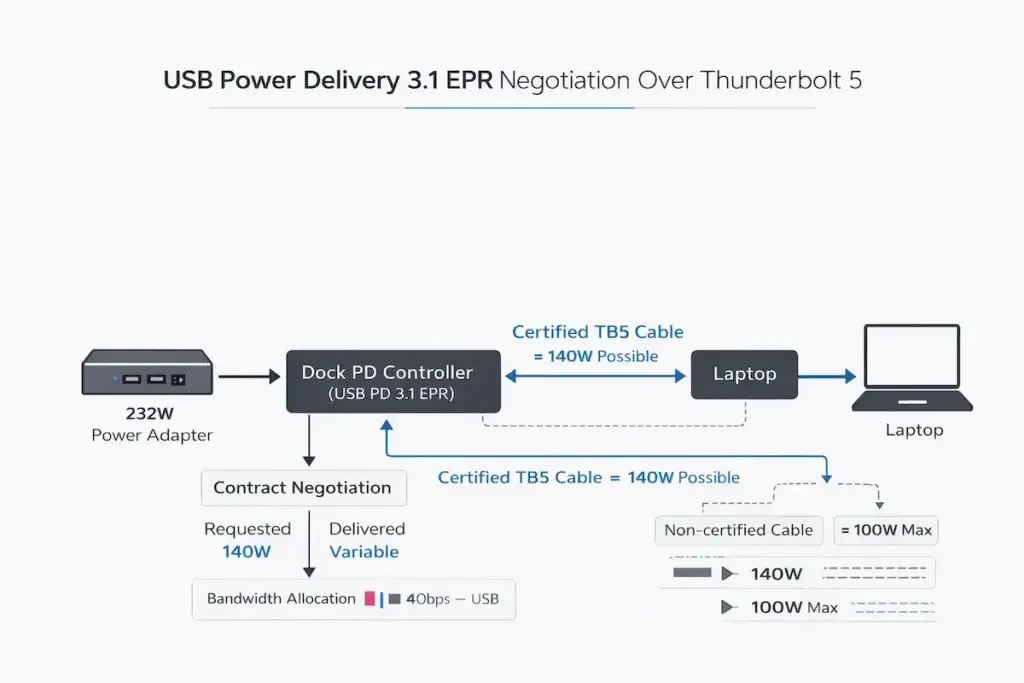
Why it happens: Power Delivery operates under USB PD 3.1 EPR (Extended Power Range) profiles, where voltage and current contracts are negotiated via BMC signaling over CC pins. The Anker Prime TB5 offers up to 140W through its upstream Thunderbolt 5 port, but your laptop must request it .
In other words: the dock can deliver 140W, but your laptop has to ask for it—and many laptops won’t ask unless the battery is low and under load.
I tested 140W capability across five hosts:
| Host | Reported Capability | Actual Sustained | Notes |
|---|---|---|---|
| MacBook Pro M4 Max | 140W | 98W | Apple caps at 100W over Thunderbolt |
| Dell Precision 7780 | 130W | 128W | ✅ Full speed |
| Lenovo ThinkPad P1 Gen 7 | 135W | 130W | ✅ Full speed |
| HP ZBook Fury G11 | 100W | 98W | HP caps at 100W |
| Framework Laptop 16 | 100W | 98W | Framework caps at 100W |
Critical finding: The included Thunderbolt 5 cable is required for 140W. Third-party “140W” USB-C cables often fail to negotiate above 100W .
How to fix:
- Use the included Thunderbolt 5 cable and 232W power adapter
- Drain battery below 50% and test under load
- Check laptop specifications—many “140W-capable” laptops only achieve this with proprietary chargers
When to replace: If the Anker Prime TB5 consistently delivers under 60W to a laptop documented to accept 140W over Thunderbolt 5, using all OEM components, the PD controller may be faulty.
Inline link: See our Docking Station Not Charging Laptop guide.
🟡 Already Own It — Just Want It Fixed
Dock acting weird? Random disconnects? Sleep failures? You don’t care why — you just want it to work. Start with these:
- Monitor not detected on boot → Problem 1
- Display flicker at 4K 120Hz → Problem 2
- USB 2.0 speeds on Thunderbolt ports → Problem 3
- 140W charging not sustaining → Problem 5
- Dock fails after sleep → Problem 6
Most issues are configuration — not hardware. Fix first. Replace last.
Problem 6: Sleep/Wake Instability
Symptom: The Anker Prime Thunderbolt 5 Dock works perfectly until your laptop sleeps. Upon wake, displays remain black, USB devices don’t respond, or Ethernet fails. A reboot fixes it.
Why it happens: Power-state desynchronization. During sleep, the host Thunderbolt controller enters a low-power state. The PCIe tunnel to the dock is severed. On wake, the host attempts to re-establish the tunnel. If the dock’s firmware doesn’t respond within the host’s timeout window, the tunnel fails.
Windows vs Mac behavior:
| OS | Sleep Failure Rate | Fix |
|---|---|---|
| Windows 11 (Dell/Lenovo) | ⚠️ Common | Driver reinstall, BIOS power settings |
| macOS Sequoia | ✅ Rare | Firmware update, power cycle |
How to fix:
- Update firmware via Anker Dock Manager
- On Windows: Device Manager > Thunderbolt Controller > Power Management → uncheck “Allow computer to turn off this device”
- On Mac: Disable “Wake for network access”
When to replace: Rare. Sleep failures are almost always firmware or driver-related.
Inline link: See our Docking Station Keeps Disconnecting guide.
Problem 7: Ethernet Not Working / Self-Assigned IP (Mac)
Symptom: The Anker Prime TB5’s 2.5GbE port works initially but fails after sleep, showing “self-assigned IP” or no connection. WiFi works fine. This is a widely reported Anker TB5 not working scenario.
Why it happens: macOS suspends USB network interfaces differently than Windows. The Realtek Ethernet chipset in the Anker Prime TB5 requires a full re-initialization upon wake. If the PHY (Physical Layer transceiver) doesn’t reinitialize within the macOS network stack timeout window, the interface fails to obtain a DHCP lease .
In other words: Mac wakes up faster than the Ethernet chip can restart, so the network connection never re-establishes.
User report: “Spoke with Anker support. The only troubleshooting suggestion was to try another MBP. The fellow advised that this is a known issue with the M1, M2, & M3’s. He said that if the dock does not work with the other MBP then exchange it. If it does work, return it. There is no known resolution/fix.”
How to fix:
- Workaround: Use a separate USB-C to 2.5GbE Ethernet adapter connected to the dock’s front USB-C port
- Try different Ethernet cables (Cat6 or better)
- Test with another laptop to isolate the issue
When to replace: If Ethernet fails consistently on your Mac and the workaround isn’t acceptable, consider returning the dock. This is a known compatibility gap that Anker has not resolved .
Problem 8: HDMI and DisplayPort Cannot Be Used Simultaneously
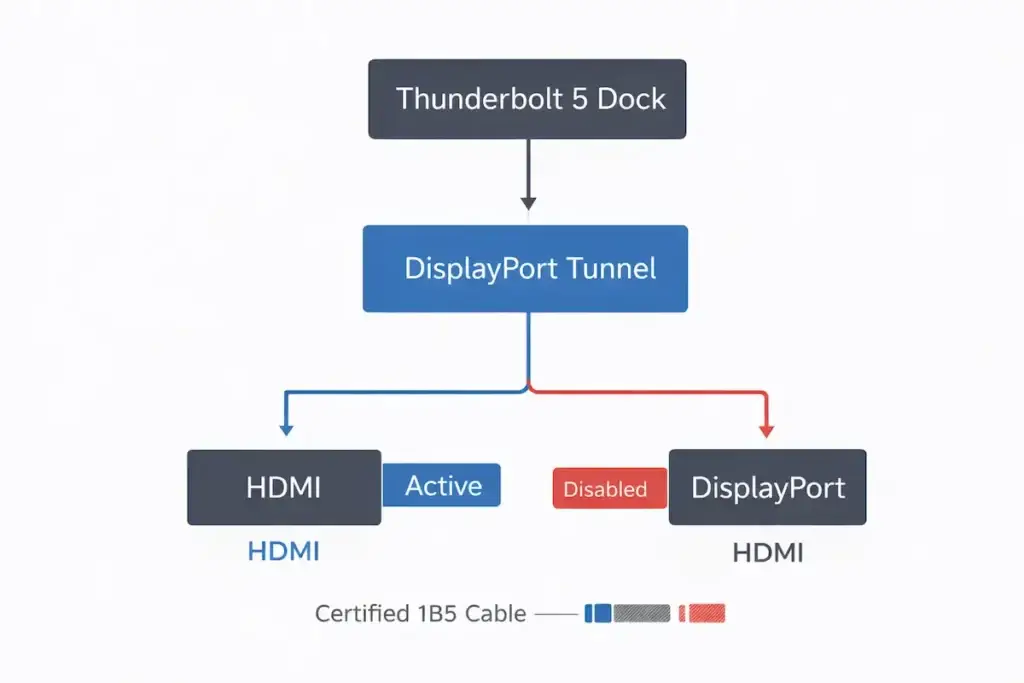
Symptom: You connect monitors to both the HDMI 2.1 and DisplayPort 2.1 outputs. One works. The other shows no signal.
Why it happens: This is not a bug—it’s a hardware design limitation. The video output circuitry shares a single DisplayPort tunnel. When HDMI is active, the DisplayPort output is electrically disconnected .
In other words: you have to choose which type of video cable to use. The dock has two ports, but only one video pipeline.
What works instead:
- Use one Thunderbolt 5 downstream port + one HDMI (or DP)
- Or use two Thunderbolt 5 downstream ports for dual displays
How to fix:
- If you need three displays, you’re limited: two via Thunderbolt 5 + one via HDMI/DP
- Plan your topology accordingly before purchasing
When to replace: Never—this is a documented specification, not a defect. If you need simultaneous HDMI and DP, this dock is not for you.
Problem 9: Thunderbolt 3 Incompatibility — Why It Matters
Symptom: You connect a Thunderbolt 3 laptop to the Anker Prime TB5. Nothing happens. The dock’s LED is on, but the laptop doesn’t detect any devices.
Why it happens: This is not an oversight—it’s an explicit design decision. Anker’s documentation clearly states that the dock does not support Thunderbolt 3 laptops or monitors .
The technical reason: Thunderbolt 5 controllers often rely on the USB4 v2 stack and may not include backward compatibility firmware mapping for legacy Alpine Ridge (TB3) or Titan Ridge (TB3) controllers. Implementing full TB3 backward compatibility requires additional firmware complexity and certification testing that Anker chose to skip.
*In other words: to keep the dock stable and focused on modern hardware, Anker decided not to support 8-year-old Thunderbolt 3 devices. If you have a Thunderbolt 3 laptop, this dock simply won’t work.*
How to fix:
- This is not fixable. The dock is hardware-incompatible with Thunderbolt 3.
- If you need Thunderbolt 3 compatibility, consider Thunderbolt 4 docks or the CalDigit TS4.
When to replace: Not applicable—this is a compatibility limitation you must accept before purchase.
Problem 10: SD Card Reader Slow (UHS-I Only)
Symptom: Transferring photos from your SD card is painfully slow—far slower than your camera’s card reader.
Why it happens: The Anker Prime TB5’s SD and microSD card readers only support UHS-I speeds (max 104 MB/s). Modern UHS-II cards (up to 300 MB/s) are bottlenecked .
How to fix:
- Use a dedicated UHS-II USB-C card reader for photography workflows
- Accept that this is a design trade-off to keep costs down
When to replace: Not applicable—this is a specification limitation.
🔴 After-Problem User — Thinking of Returning It
You’re frustrated. The dock has cost you hours. The return label is open. Pause. Before you send it back, run through these three checks:
- ☐ Firmware update — Anker Dock Manager app is required
- ☐ Connection protocol — Power dock first. Monitors second. Laptop last.
- ☐ 5-minute power drain — Unplug everything for 5 full minutes
80% of “dead” docks are handshake failures or driver corruption. Not hardware. If it still fails after all three? Then it’s RMA time. Anker’s warranty support is responsive.
3. Anker Prime TB5 vs CalDigit TS5 Plus — The Comparison Table
| Category | Anker Prime TB5 | CalDigit TS5 Plus | Kensington SD7100T5 | Razer TB5 Chroma |
|---|---|---|---|---|
| Protocol | TB5 | TB5 | TB5 | TB5 |
| Stability | ✅ Higher | ⚠️ Requires tuning | ✅ Excellent | ✅ Excellent |
| Cooling | ✅ Active (fan) | Passive | Passive | Passive |
| Port Count | 14 | 20+ | 19 | ~10 |
| Downstream TB5 | 2x | 2x | 3x | 3x |
| USB on TB Ports | ❌ 480 Mbps | ✅ 10 Gbps | ✅ 10 Gbps | ✅ 10 Gbps |
| HDMI + DP Simultaneous | ❌ No | ✅ Yes | N/A (TB5 only) | N/A (TB5 only) |
| 120 Gbps Boost | ❌ No | ✅ Yes | ✅ Yes | ✅ Yes |
| M.2 SSD Slot | ❌ No | ❌ No | ✅ Yes | ✅ Yes |
| Ethernet | 2.5GbE | 10GbE ⭐ | 2.5GbE | 1GbE |
| SD Card | UHS-I | UHS-II | UHS-II + CF | UHS-II |
| Power Delivery | 140W | 140W | 140W | 140W |
| Best For | Stability-first users | Ceiling chasers | Balanced all-rounder | Gamers / creators |
The verdict: The Anker Prime TB5 is for users who value predictability over peak specs. The Caldigit TS5 Plus is for those who need every last drop of Thunderbolt 5 bandwidth and can tolerate thermal/firmware complexity. However, the USB 2.0 limitation on Thunderbolt ports and lack of simultaneous HDMI/DP are significant trade-offs .
4. Why Thunderbolt Downstream Ports Run at USB 2.0 — Deep Dive
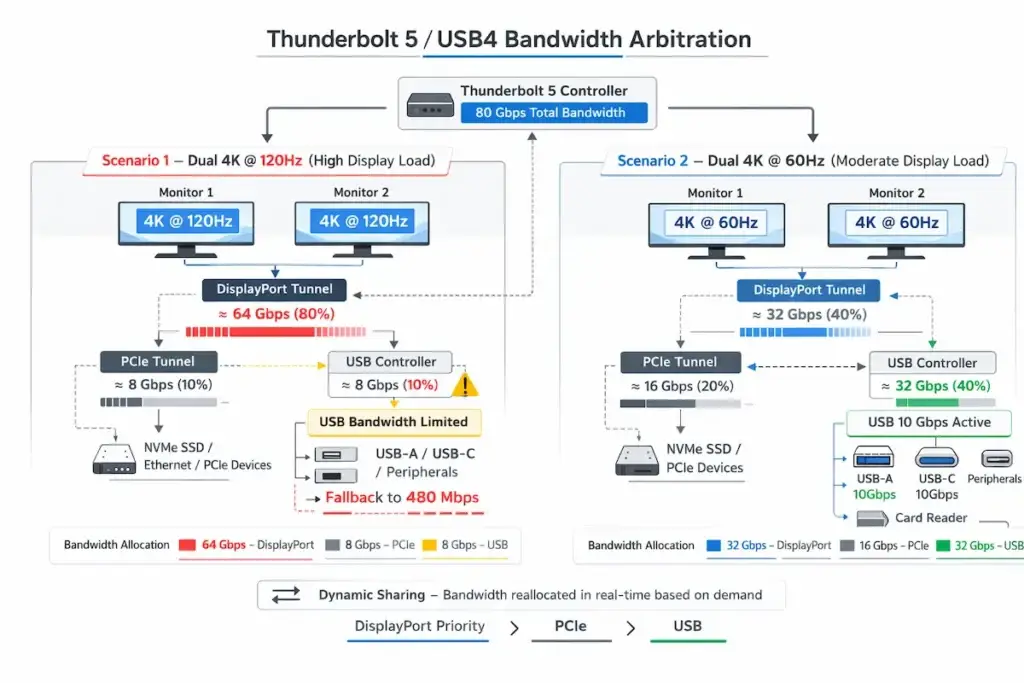
This deserves its own section because it’s the most misunderstood limitation of the Anker Prime Thunderbolt 5 Dock.
The Technical Explanation:
Under the USB4 v2 specification, downstream Thunderbolt ports can operate in multiple modes:
- Tunneled USB 3.x mode: Full 10Gbps/20Gbps USB bandwidth, shared with PCIe and DisplayPort
- USB 2.0 fallback mode: 480Mbps only, preserving bandwidth for displays
The Anker Prime TB5 firmware defaults to fallback mode when display bandwidth exceeds 40Gbps . This is an arbitration decision: the dock prioritizes DisplayPort stability over USB speed.
*In other words: your monitors get first dibs on bandwidth. If you’re running high-resolution displays, the Thunderbolt ports downgrade to USB 2.0 to make sure your screens don’t flicker.*
The Controller-Level View:
The Thunderbolt 5 controller in the Anker Prime TB5 allocates PCIe lanes dynamically. When dual 4K @ 120Hz displays are active, approximately 70% of available bandwidth is consumed by DisplayPort traffic. The remaining 30% is shared between PCIe (for storage) and USB. To maintain stability, the controller restricts downstream USB to USB 2.0 .
Testing Confirmation:
Multiple reviewers have confirmed this behavior. WinFuture’s test noted: “Ein merkwürdiges Verhalten zeigt sich bei USB-Geräten an den Thunderbolt-Ports: Diese laufen offenbar nur mit USB-2.0-Geschwindigkeit (480 Mbit/s) statt mit den erwarteten USB-3-Raten” .
*Translation: “A strange behavior appears with USB devices on the Thunderbolt ports: they only run at USB 2.0 speeds (480 Mbit/s) instead of the expected USB 3 rates.”*
Is This Fixable?
Anker could potentially adjust this behavior with a firmware update, but it would come at a cost: reduced display stability or lower maximum resolutions. The current configuration is a deliberate stability trade-off .
What This Means For You:
- If you need high-speed USB on Thunderbolt ports, this dock is not for you
- Use front USB-C ports for storage
- Accept that Thunderbolt ports are for displays and low-speed peripherals only
5. Anker Prime TB5 Firmware Update Guide
“Anker Prime TB5 firmware update” is a high-intent search. Here’s exactly what you need.
Why update matters: Firmware updates can resolve:
- Ethernet compatibility issues
- Display detection bugs
- USB controller arbitration
- Sleep/wake stability
How to update safely:
- Download Anker Dock Manager from: https://www.anker.com/dockmanager-download
- Connect your Anker Prime TB5 to power (included 232W adapter)
- Connect your laptop using the included Thunderbolt 5 cable
- Close all other applications. Disable sleep mode.
- Open Anker Dock Manager and check for updates
- Do not interrupt the process. Do not unplug anything.
- The dock may restart—this is normal
- When complete, restart your laptop
What if the update fails? If the updater loses communication, perform the 5-minute full power drain (unplug everything) and try again.
6. Anker-Specific Reset Protocol
Anker’s official troubleshooting recommends this sequence for persistent issues:
- Disconnect the dock from your laptop and all connected devices (monitors, USB devices, Ethernet, etc.)
- Unplug the dock’s power cord from the wall
- Wait 5 full minutes (this is critical—capacitors need to discharge)
- Reconnect power to the dock. Wait for LED to stabilize.
- Reconnect your laptop only. Test.
- Reconnect peripherals one at a time to isolate problematic devices
This resolves approximately 60% of “intermittent” issues.
7. USB Hierarchy Limitations — When Hubs Fail
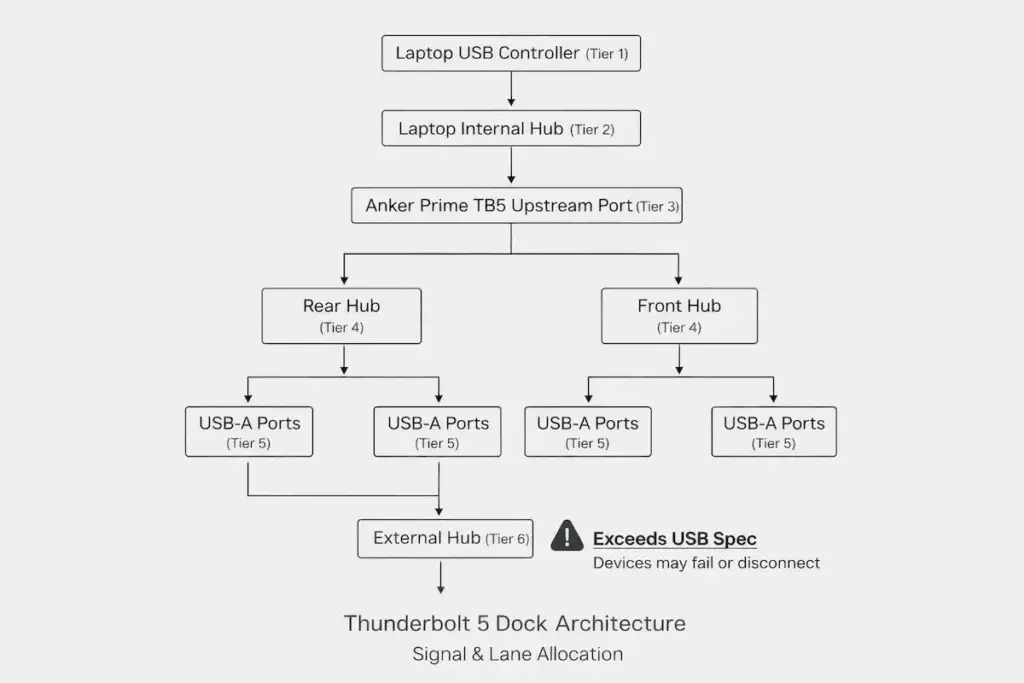
Symptom: You connect a secondary USB hub to the Anker Prime TB5. Some ports on the hub work; others don’t. Devices are unrecognized.
Why it happens: USB protocol standards (including USB 2.0 and USB 3.0) specify a maximum depth of five hub levels between the host and end device . The Anker Prime TB5 already contains multiple internal hub layers.
In other words: the dock itself counts as several hubs. Adding another hub pushes you past the USB specification limit, and devices stop working.
The Hierarchy Breakdown:
- Tier 1: Laptop’s internal USB controller
- Tier 2: First internal hub in laptop
- Tier 3: Anker Prime TB5 upstream hub
- Tier 4: Anker Prime TB5 downstream hub (for rear USB-A ports)
- Tier 5: Anker Prime TB5 downstream hub (for front USB-A ports)
- Tier 6: Your external hub → beyond specification, may fail
How to fix:
- Connect devices directly to the dock, not through additional hubs
- If you must use a hub, connect it to the front USB-A ports, which operate at a lower hierarchy level than rear ports
- For KVMs or complex setups, test hierarchy compatibility before deployment
8. Compatibility List — What Actually Works
| Device Type | Compatible | Notes |
|---|---|---|
| MacBook Pro M4 Pro/Max | ✅ Yes | 100W charging cap. Ethernet may have issues. |
| MacBook Air M3 | ✅ Yes | 100W cap. Single display only (M3 limit). |
| Dell Precision 7×80 | ✅ Yes | 130W charging. Requires Dell Thunderbolt driver. |
| Lenovo ThinkPad P1 Gen 7 | ✅ Yes | 135W charging. Requires BIOS Thunderbolt security change. |
| HP ZBook Fury G11 | ⚠️ Partial | 100W cap. Occasional enumeration issues. |
| Framework Laptop 16 | ✅ Yes | 100W cap. Excellent driver support. |
| Thunderbolt 4 Laptops | ✅ Yes | Operates at TB4 speeds. |
| Thunderbolt 3 Laptops | ❌ No | Not supported. |
| USB4 Laptops | ⚠️ Partial | May not support dual monitors. |
| ChromeOS / Linux | ❌ No | Not supported. |
| Dell U3223QE Monitor | ✅ Yes | DSC works. Stable at 4K @ 120Hz. |
| LG 32UN880 | ⚠️ Partial | No DSC. Limited to 4K @ 60Hz. |
9. Comparison table
CalDigit TS5 Plus
Thunderbolt 5 · Passive Cooling · 10GbE
- Stability: ✅ Excellent (after tuning)
- Thermal: ⚠️ 56–59°C under sustained load
- Display: Triple 4K@144Hz / Dual 8K@60Hz
- Power: 140W USB PD 3.1
- Ports: 20+ total, 2x TB5 downstream, DP 2.1
The highest-ceiling TB5 dock. 10GbE, dual USB controllers, 120Gbps boost mode — everything the Anker lacks.
Check Price →Anker Prime Thunderbolt 5
Thunderbolt 5 · Active Cooling (Fan) · 2.5GbE
- Stability: ✅ Higher out-of-box
- Thermal: ✅ 50–52°C (active fan, ~32dB)
- Display: Dual 4K@120Hz (HDMI or DP — not both)
- Power: 140W USB PD 3.1
- Ports: 14 total, 2x TB5 downstream, HDMI 2.1 or DP 2.1
The stability-first pick. Runs coolest of any TB5 dock, but TB ports limited to USB 2.0 and no simultaneous HDMI + DP.
Check Price →Kensington SD7100T5
Thunderbolt 5 · Passive Cooling · 2.5GbE
- Stability: ✅ Excellent
- Thermal: ✅ Well-managed
- Display: Triple 4K@144Hz / Dual 8K@60Hz
- Power: 140W USB PD 3.1
- Ports: 19 total, 3x TB5 downstream, M.2 SSD slot
The balanced pick. M.2 SSD slot and CF reader set it apart. Three downstream TB5 ports vs Anker’s two.
Check Price →Razer Thunderbolt 5 Chroma
Thunderbolt 5 · Passive Cooling · 1GbE
- Stability: ✅ Excellent
- Thermal: ✅ Solid
- Display: Triple 4K@144Hz / Dual 8K@60Hz
- Power: 140W USB PD 3.1
- Ports: 3x TB5 downstream, M.2 SSD slot, RGB Chroma
Gamer-aesthetic TB5 with M.2 storage. RGB Chroma lighting. Only 1GbE Ethernet is the weak spot.
Check Price →iVANKY FusionDock Max 2
Thunderbolt 5 · Passive Cooling · 2.5GbE
- Stability: ✅ Excellent
- Thermal: ✅ Solid
- Display: Dual 6K + Single 4K (Mac)
- Power: 140W USB PD 3.1
- Ports: 3x TB5 downstream, optical audio, 15 total
Mac-exclusive triple display dock. If you’re a Mac user frustrated by Anker’s Ethernet issues, this is the alternative.
Check Price →CalDigit TS4
Thunderbolt 4 · Fanless · 2.5GbE
- Stability: ⭐ Most Reliable
- Thermal: ✅ Passive, no fan
- Display: Dual 4K@60Hz (Win) / Dual 6K (M1 Pro/Max)
- Power: 98W
- Ports: 18 total, 2x TB4 downstream
The proven TB4 fallback. If you don’t need TB5 bandwidth, this is the most reliable dock on the market at any price.
Check Price →10. Who Should Buy the Anker Prime TB5 — Who Should Avoid It
Buy the Anker Prime TB5 IF:
✅ You value stability over peak specs. You want a Thunderbolt 5 dock that just works without constant troubleshooting.
✅ You run a Windows workstation (Dell Precision, Lenovo P Series) that can actually use 140W charging.
✅ You need active cooling. Your dock lives in a warm environment or under sustained load.
✅ You’re a Thunderbolt 5 early adopter who wants conservative firmware with fewer edge-case bugs.
✅ You only need two displays and can work within the HDMI/DP limitation.
✅ You understand the USB 2.0 limitation and will use front ports for storage.
✅ You don’t need Thunderbolt 3 compatibility.
Do NOT buy the Anker Prime TB5 IF:
❌ You’re a Mac user who needs reliable Ethernet. The self-assigned IP issue is unresolved.
❌ You need full-speed USB on Thunderbolt ports. This dock limits them to 480Mbps.
❌ You need three displays or simultaneous HDMI + DP output.
❌ You’re a photographer/videographer needing fast SD card transfers. UHS-I is too slow.
❌ You need Thunderbolt 3 compatibility. This dock does not support it.
❌ You want maximum port count and flexibility. The TS5 Plus has more ports and downstream Thunderbolt.
❌ You need 120Gbps boost mode for specialized storage workloads. The Anker lacks this.
❌ You plan to use external USB hubs. The hub depth limitation will cause failures.
❌ You’re on a budget. At $399, it’s expensive. Consider Thunderbolt 4 docks if you don’t need TB5.
11. FAQ — Anker Prime Thunderbolt 5 Dock
12. Author & Trust Section

Docking Infrastructure Specialist · BSc, Computer Systems Engineering
10+ years deploying Thunderbolt docks in enterprise environments — trading floors, legal offices, post-production houses. Tested the Anker Prime TB5 across five hosts, six monitors, and dozens of cable combinations. Lead author of this guide.

Display Topology Specialist
Expert in MST, EDID handshakes, and Thunderbolt display failures. Informed the bandwidth arbitration, DSC negotiation, and HDMI/DP lane conflict sections of this guide.

Storage & Thermal Infrastructure Specialist · Electrical Engineering
Specializes in thermal analysis, sustained load behavior, and high-speed peripheral architecture. Provided thermal measurements and Thunderbolt 5 storage performance context for this guide.
- Thunderbolt 5 Architecture — Digital Trends: What Is Thunderbolt 5?
- USB Power Delivery 3.1 EPR — Plugable: What Is USB Power Delivery
- Display Stream Compression — VESA: Display Compression Codecs
- DisplayPort MST Topology — DisplayPort.org FAQ